Steps in this chapter (3)
See who else is in the file, talk in the team chat, and make an engagement available offline with changes synchronised on reconnection.
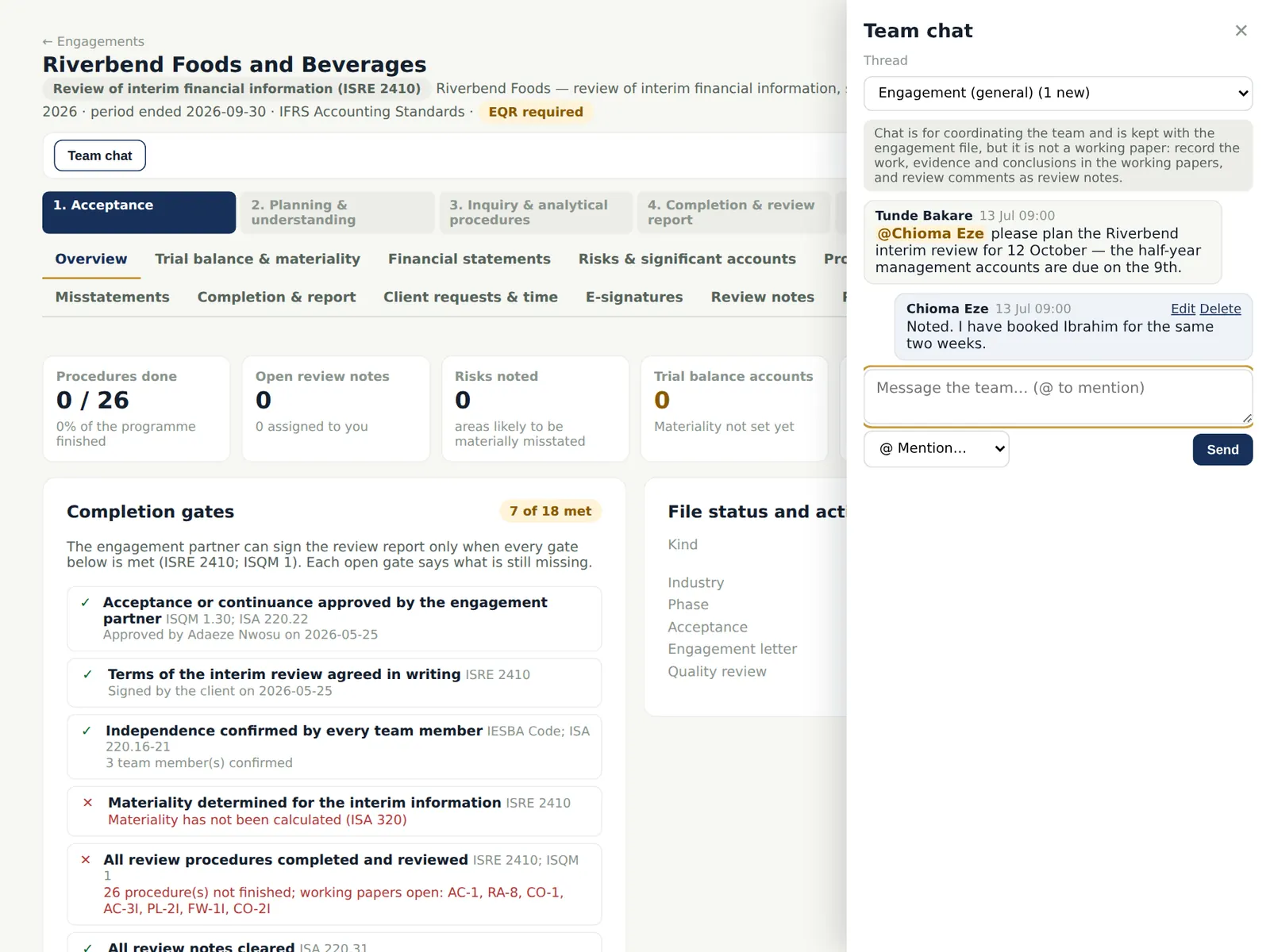
Everyone working on a file sees who else is in it, which paper they have open and which question they are editing. Each engagement has a team chat with @mentions, and each working paper its own chat. Simultaneous edits are merged field by field; a real conflict asks you to choose.
An engagement can be made available offline on a laptop: working papers, programme and evidence lists are kept on the device, changes made offline are queued, and they synchronise when the connection returns. The firm sets the offline policy.
Use cases
- Use case — Fieldwork at a site with poor connectivity. Make the engagement available offline before you go (step 21.2).
- Use case — Asking a colleague about a paper. Use the chat on the paper, with an @mention (step 21.1).
21.1 The team chat
Why
Messages stay with the engagement; a mention notifies the person. Chat is not a review note: matters that must be cleared before the report go in review notes.
Who
Everyone on the team.
What to do
- Choose Team chat, type the message and mention someone with @.
21.2 Make an engagement available offline
Why
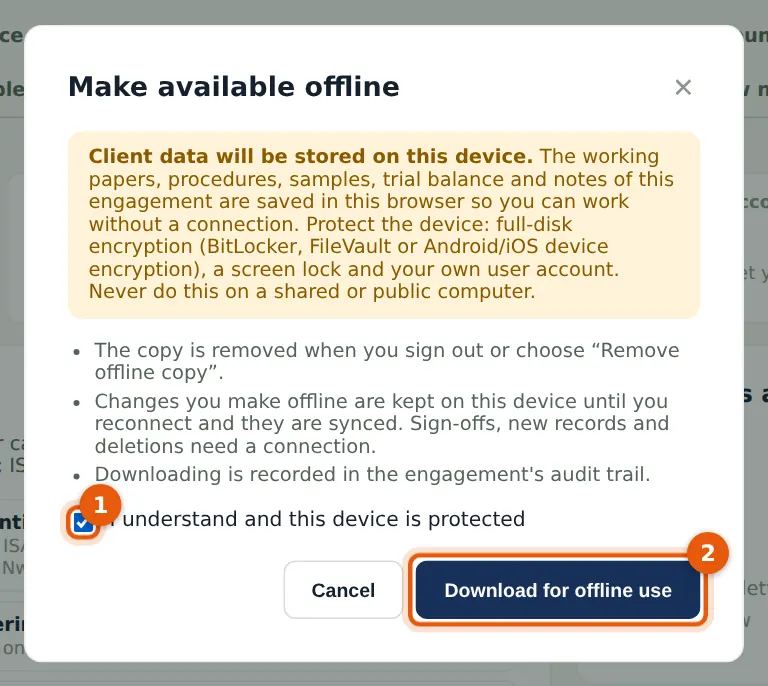
The engagement's papers and data are copied to the browser on this device. Work offline as usual; the banner shows you are offline and how many changes are waiting.
Who
Team members, where the firm's policy allows.
What to do
- While you are online, choose Make available offline in the engagement's header.
- Read the warning, tick I understand and this device is protected (1) and choose Download for offline use (2).
21.3 Offline copies and changes
Why
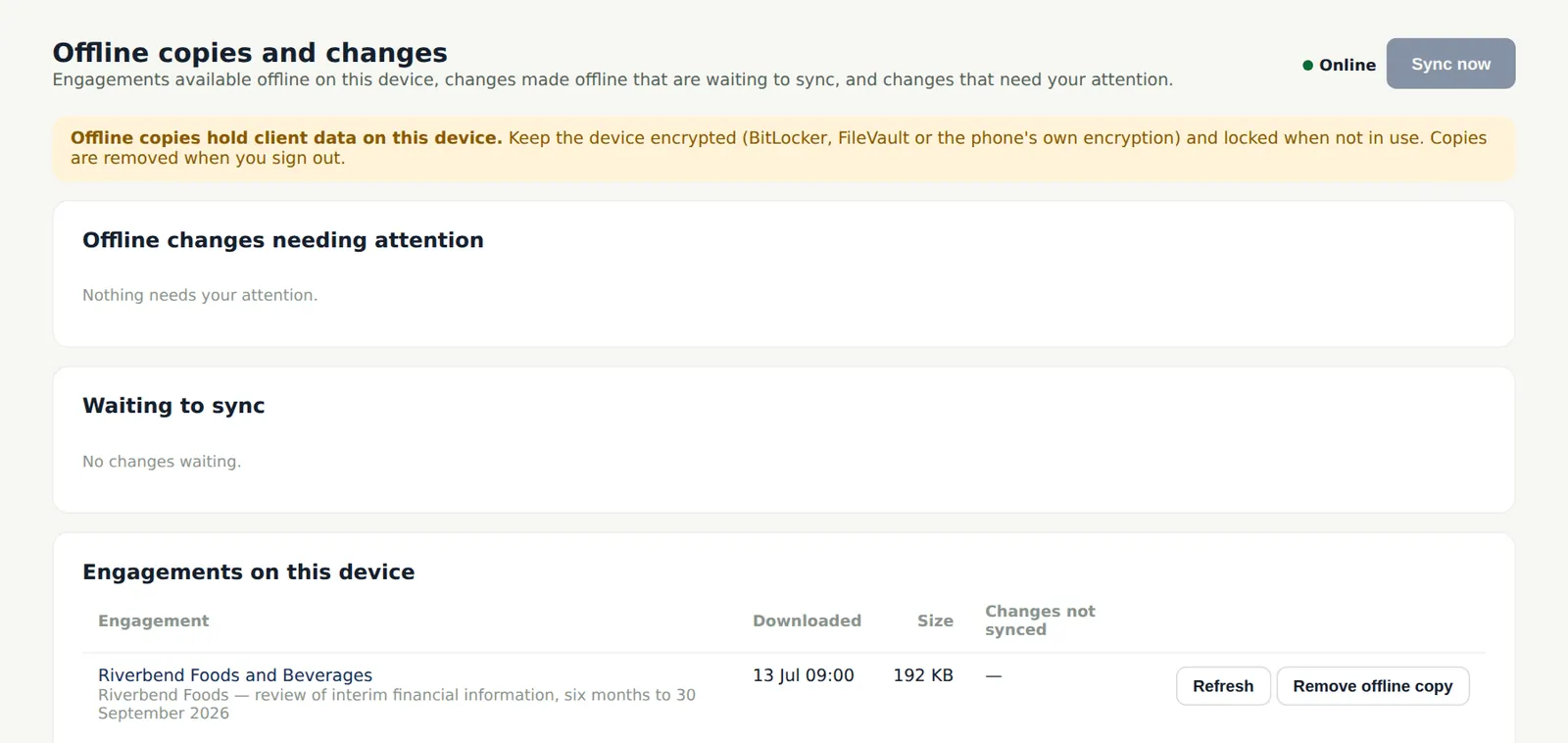
The page lists the engagements kept on this device, the changes waiting to synchronise, and any that need attention (for example a conflict with a colleague's change, or a paper signed off while you were offline). The firm's policy (who may take files offline, and for how long) is set here by an administrator.
Who
Team members; administrator for the policy.
What to do
- Choose Sync now when you are back online; resolve anything listed under needing attention.
- Remove an offline copy when the work is done.