Steps in this chapter (4)
Part C: For TroveUniverse staff. Hide or show a partner's directory listing, and manage the marketing kit files.
Listings appear in Find an accountant as soon as an active partner saves them. Staff check them and hide any that break the Partner Terms. The marketing kit is seeded with the TroveUniverse logos; staff add presentations and one-pagers.
23.1 Hide a listing
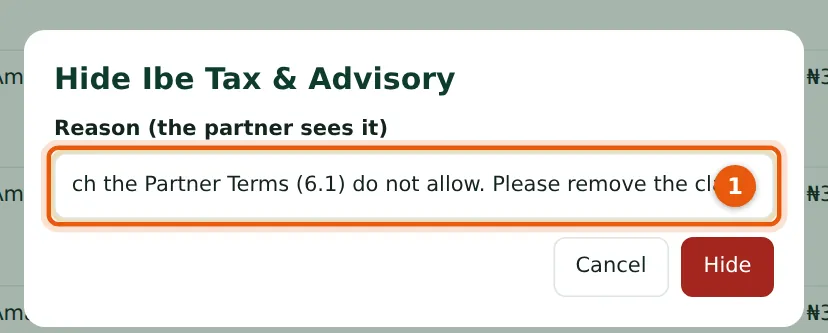
Why
A hidden listing disappears from the public directory at once. The reason (1) is shown on the partner's dashboard and kept in the audit log.
Who
TroveUniverse staff with the Manage partners permission (in the illustration, Kelechi Uzor, Partner Programme role).
What to do
- Choose Hide on the listing, give the reason and choose Hide.
- When the partner has corrected it, choose Show.
23.2 The directory list

Why
Each listing shows where the partner works, the apps, whether it is listed or hidden (1) with the reason, and the number of enquiries received (2).
Who
TroveUniverse staff with the Manage partners permission (in the illustration, Kelechi Uzor, Partner Programme role).
What to do
- Review new listings weekly.
23.3 Upload a kit file
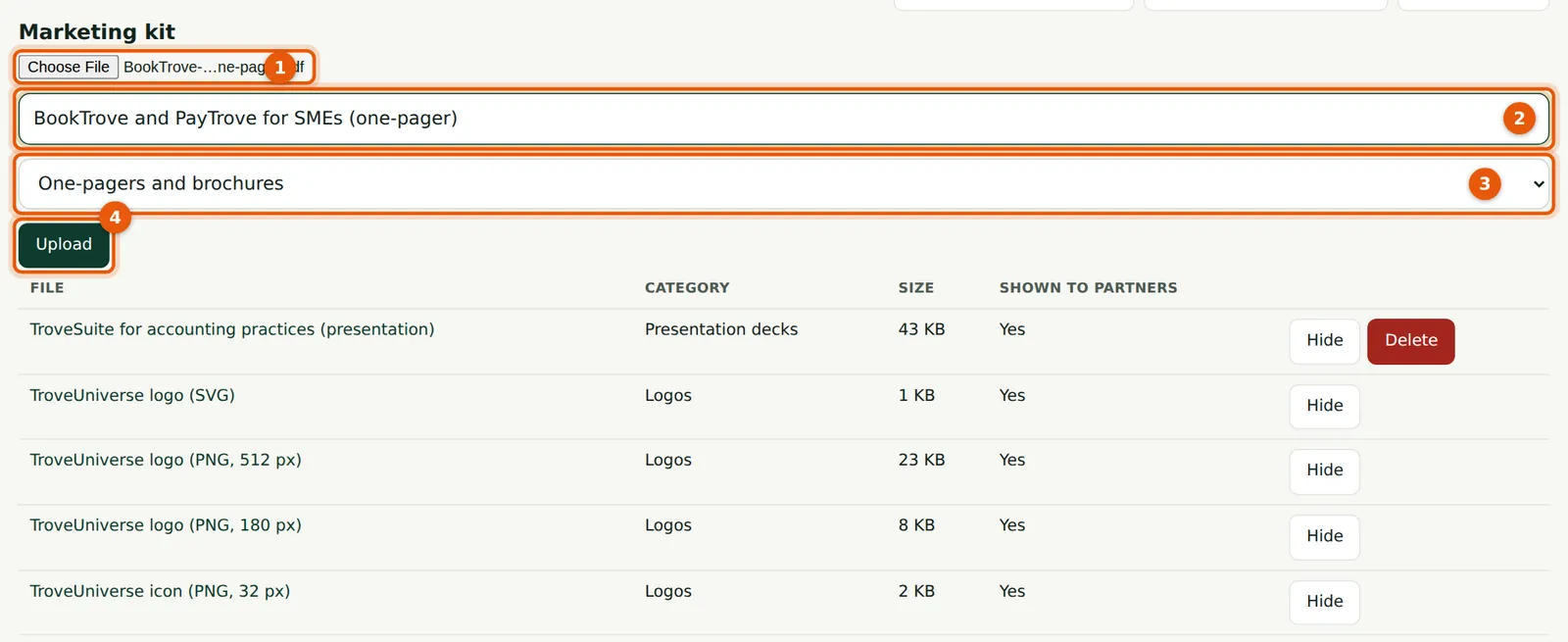
Why
Files up to 25 MB (PDF, PowerPoint, Word, ZIP or images) are stored privately and served only to signed-in partners.
Who
TroveUniverse staff with the Manage partners permission (in the illustration, Kelechi Uzor, Partner Programme role).
What to do
- Choose the file (1), enter a title (2), choose the category (3) and choose Upload (4).
23.4 Manage the kit
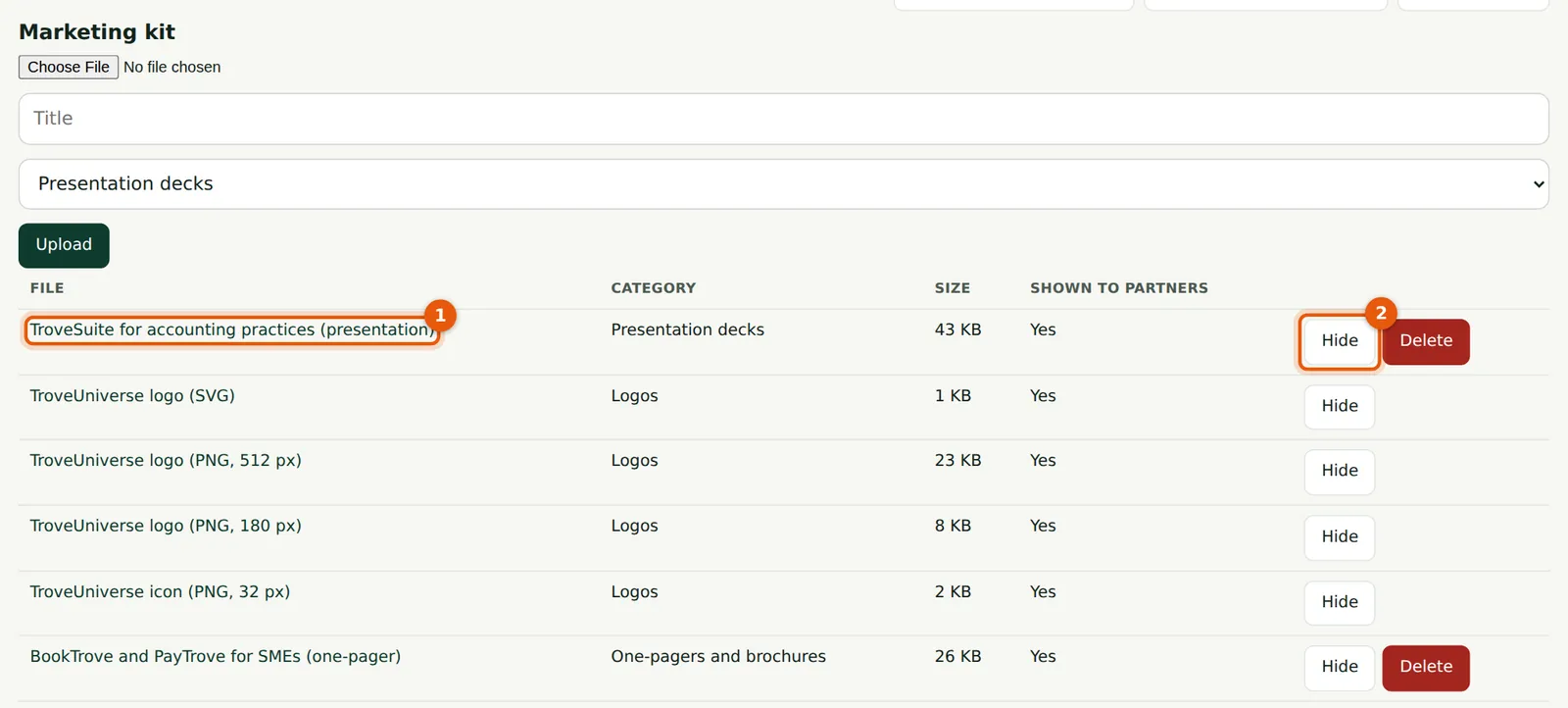
Why
Hide a file (2) to withdraw it without deleting it. Uploaded files can be deleted; the brand files shipped with the site can only be hidden.
Who
TroveUniverse staff with the Manage partners permission (in the illustration, Kelechi Uzor, Partner Programme role).
What to do
- Keep the kit current: hide old decks when you upload new ones.