Steps in this chapter (7)
Sign-in with Microsoft or Google, the controls that apply to the firm, malware checks and quarantine, the audit trail export, access reviews and the public trust page.
AuditTrove is built to the controls of SOC 2 and ISO/IEC 27001:2022. It is not certified: readiness is in progress, and the trust page says so. This chapter shows the security settings a firm controls itself.
Release 22 (September 2026) added sign-in with Microsoft or Google, malware checks on every uploaded file, the audit trail export and recorded access reviews. Session fingerprints and a strict content security policy protect every page; nothing needs to be set for those.
Use cases
- Use case — The firm uses Microsoft 365. Once the platform operator has registered AuditTrove with Microsoft, the owner switches Microsoft sign-in on for the firm's domain (step 3.1). People must still exist as AuditTrove users.
- Use case — A client uploads a Word file with macros. It is held in quarantine; an administrator checks it and releases or removes it (step 3.3 and steps 11.9–11.10).
- Use case — The quarterly access review for SOC 2 / ISO 27001. An administrator reviews every login and records the review (steps 3.4 and 3.5).
- Use case — An auditor of the firm asks for the audit trail. Export it as CSV or JSON lines for a period, with its fingerprint (step 3.6).
3.1 Sign in with Microsoft or Google
Why
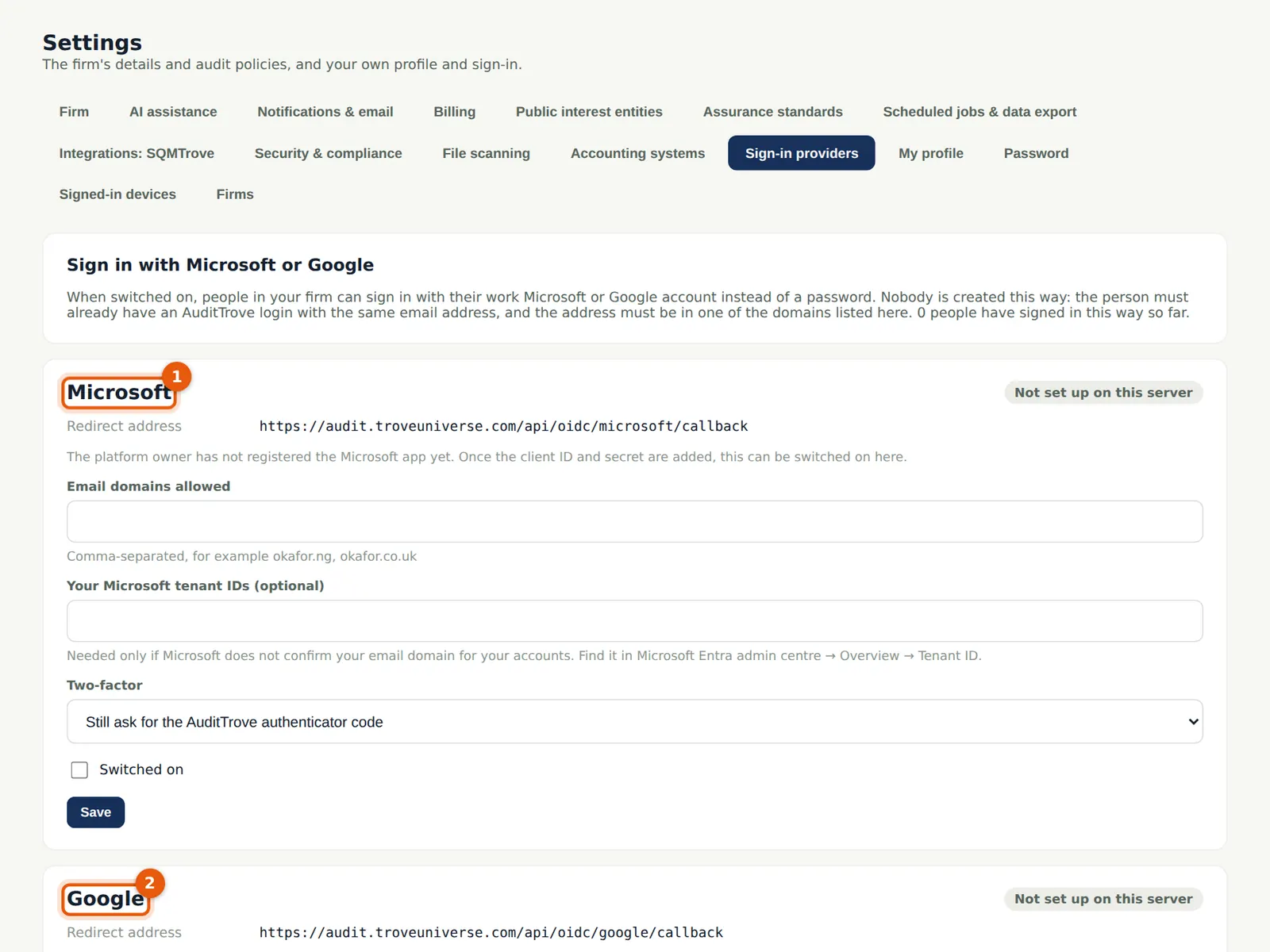
People can sign in with their Microsoft or Google work account instead of a password. Nobody is created this way: the email must already be an AuditTrove login and must be verified by the provider (or belong to a Microsoft tenant the firm lists). The firm chooses whether Microsoft's own multi-factor sign-in replaces the AuditTrove code. In the illustration the platform operator has not registered the apps yet, so both show Not set up on this server.
Who
Owner or firm administrator; the platform operator registers the apps once.
What to do
- When the provider shows as available: enter the email domains allowed (for example okaforbello.ng), for Microsoft optionally your tenant IDs, choose the two-factor policy, tick Switched on and Save.
- Set-up by the platform operator (once): Microsoft — in the Microsoft Entra admin centre register an app (accounts in any organisational directory), add the redirect address shown here, create a client secret, grant openid, email and profile, and add the optional claim xms_edov; set the MS_CLIENT_ID and MS_CLIENT_SECRET secrets. Google — in Google Cloud console create an OAuth consent screen (openid, email, profile) and a Web OAuth client with the redirect shown here; set GOOGLE_CLIENT_ID and GOOGLE_CLIENT_SECRET.
3.2 Security & compliance
Why
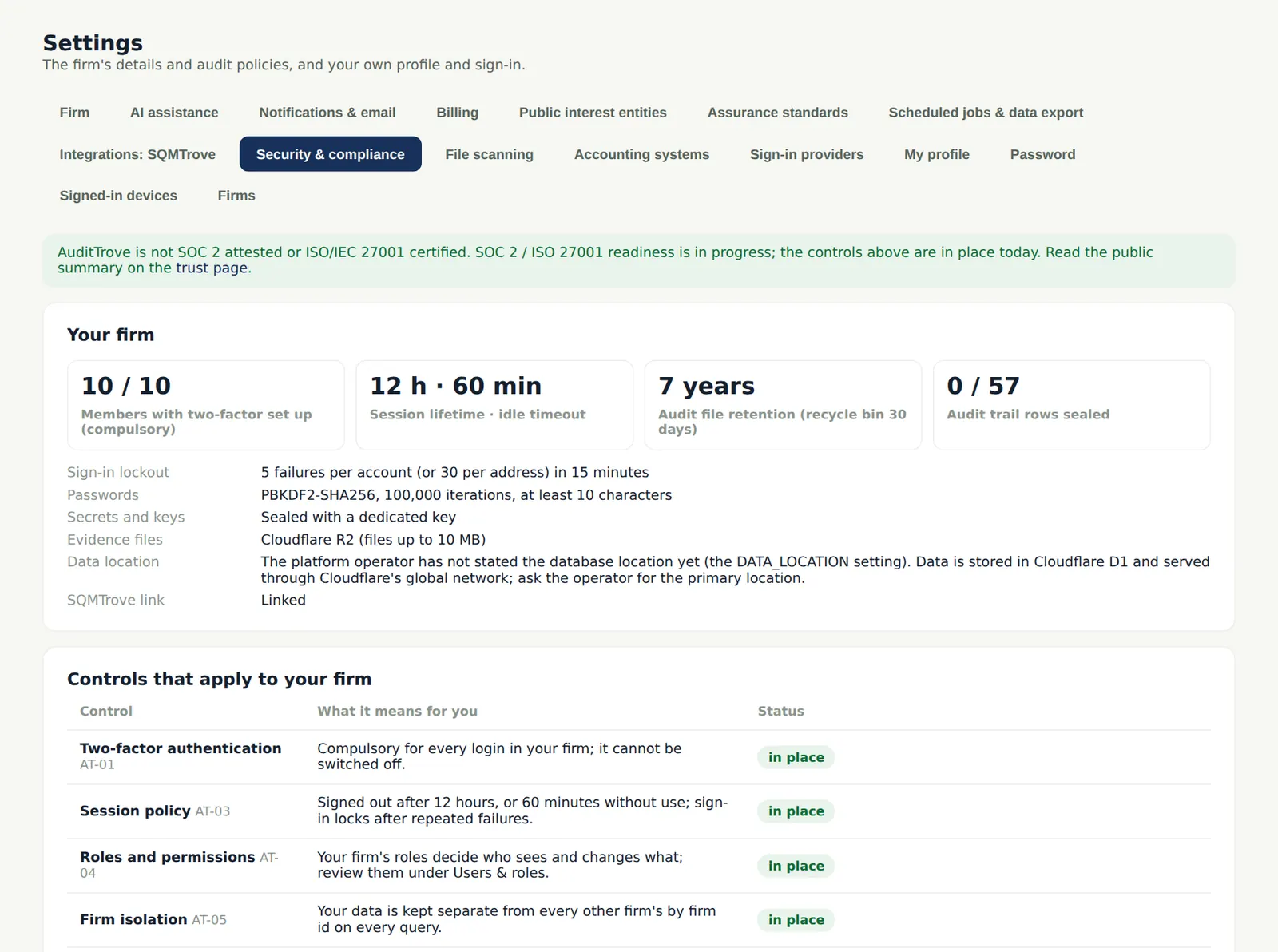
This tab shows the firm how the controls apply to it: how many people have two-factor set up, the session limits, the retention period, the sealing of the audit trail and each control's status. It also lists the sub-processors and offers the data processing agreement template.
Who
Owner or firm administrator.
What to do
- Check the figures at the top — in the illustration everyone has now set up two-factor.
- Download the DPA template if a client asks for one.
3.3 Malware checks on uploads
Why
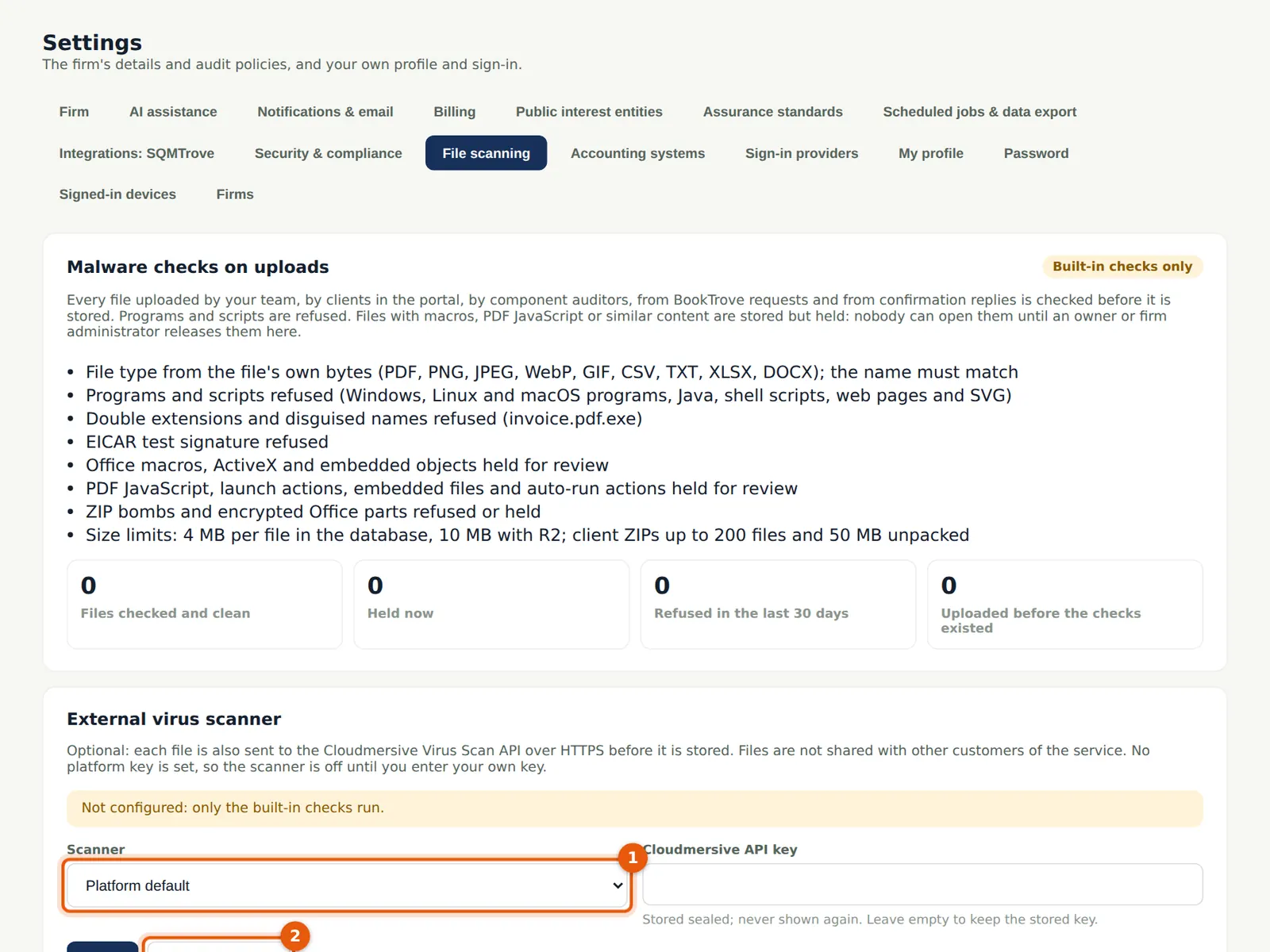
Every file uploaded — by the team, by clients in the portal, by component auditors, from BookTrove requests and from confirmation replies — is checked before it is stored. The file type must match its content; programs, scripts, double extensions (invoice.pdf.exe) and the EICAR test file are refused; Office macros, embedded objects, encrypted or suspicious ZIP files and PDF JavaScript are held in quarantine until an administrator releases them. An external virus scanner (Cloudmersive) can be added with the firm's own key; without one, the built-in checks run.
Who
Owner or firm administrator.
What to do
- Leave the scanner on Platform default, or choose Cloudmersive and enter the firm's API key (1) — it is stored sealed and never shown again.
- Choose Test the checks (2) to confirm they work.
3.4 The access review
Why
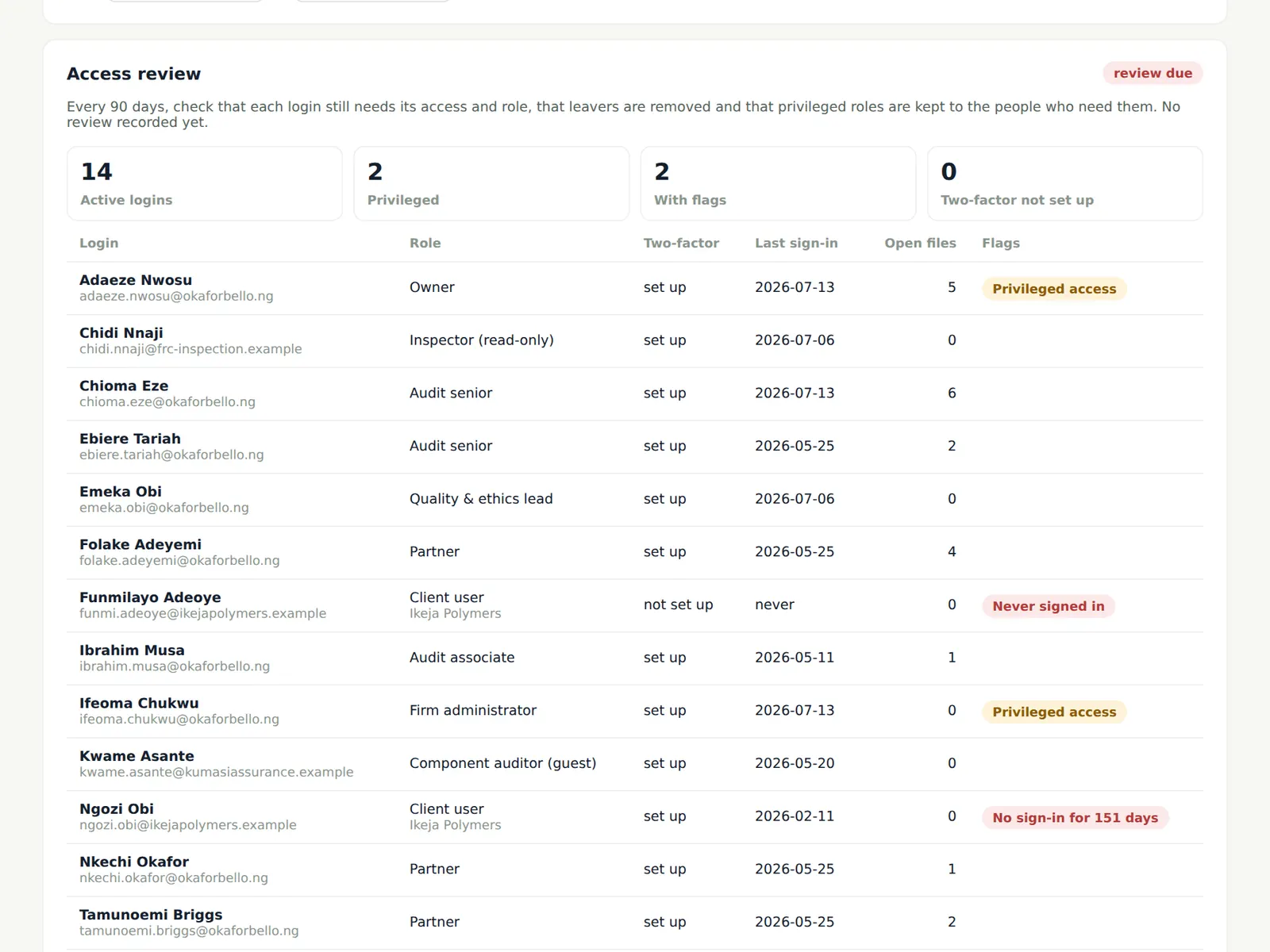
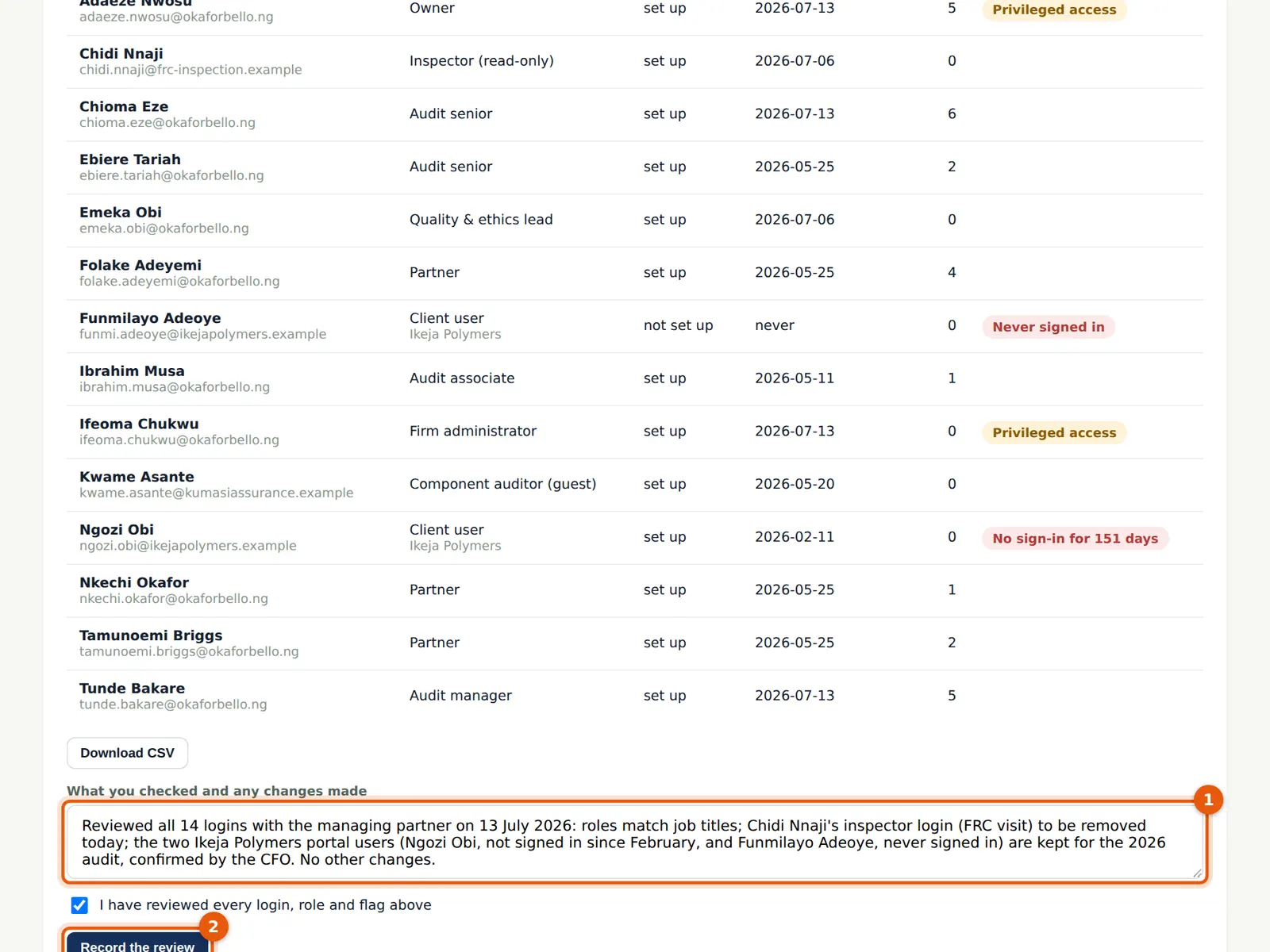
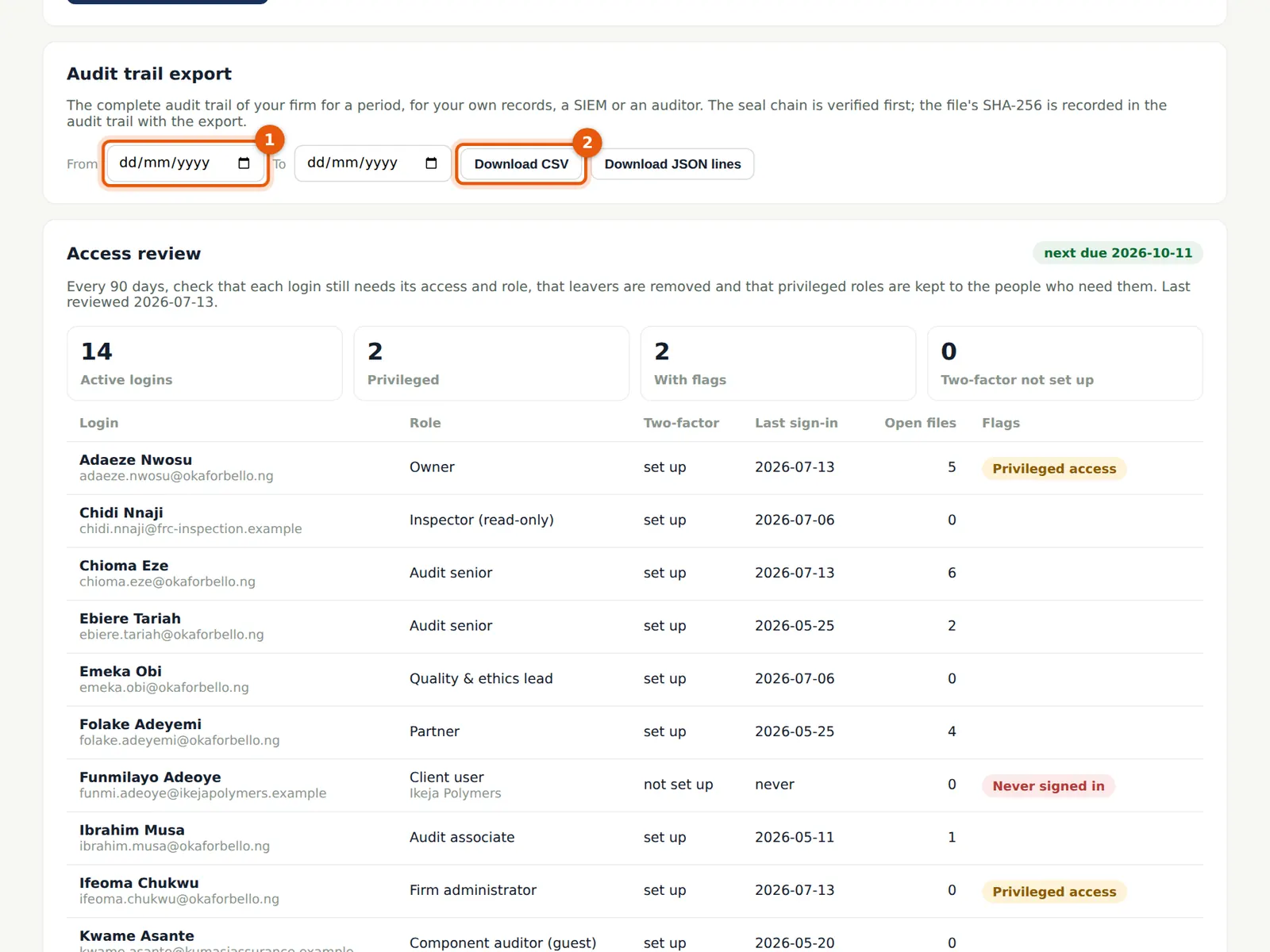
SOC 2 and ISO/IEC 27001 (Annex A 5.18) expect access rights to be reviewed regularly. AuditTrove lists every login with its firm role, whether it is privileged, two-factor, last sign-in, the engagements it can open and flags (for example never signed in, or an inspector login still active). A review is due every 90 days.
Who
Owner or firm administrator.
What to do
- Open Settings → Security & compliance and scroll to Access review. Download the CSV if you review it with someone else.
3.5 Record the review
Why
Recording the review keeps who did it, when and what they changed, and starts the next 90-day period. In the illustration Ifeoma Chukwu reviews the logins with the managing partner on 13 July 2026 and removes the FRC inspector's login after the visit.
Who
Owner or firm administrator.
What to do
- Make the changes first (Users & roles), then describe what you checked and changed, tick I have reviewed every login, role and flag above and choose Record the review.
3.6 Export the audit trail
Why
The audit trail records every change in the firm's AuditTrove; it cannot be edited and is sealed in hash-chained blocks. The export checks the seals first, then downloads the entries for the period as CSV or JSON lines; its SHA-256 fingerprint is shown with the file and recorded in the trail, so a copy can be checked later.
Who
Owner or firm administrator.
What to do
- Choose the From and To dates (1) and choose Download CSV (2) or Download JSON lines. Keep the fingerprint with the file.
3.7 The trust page
Why
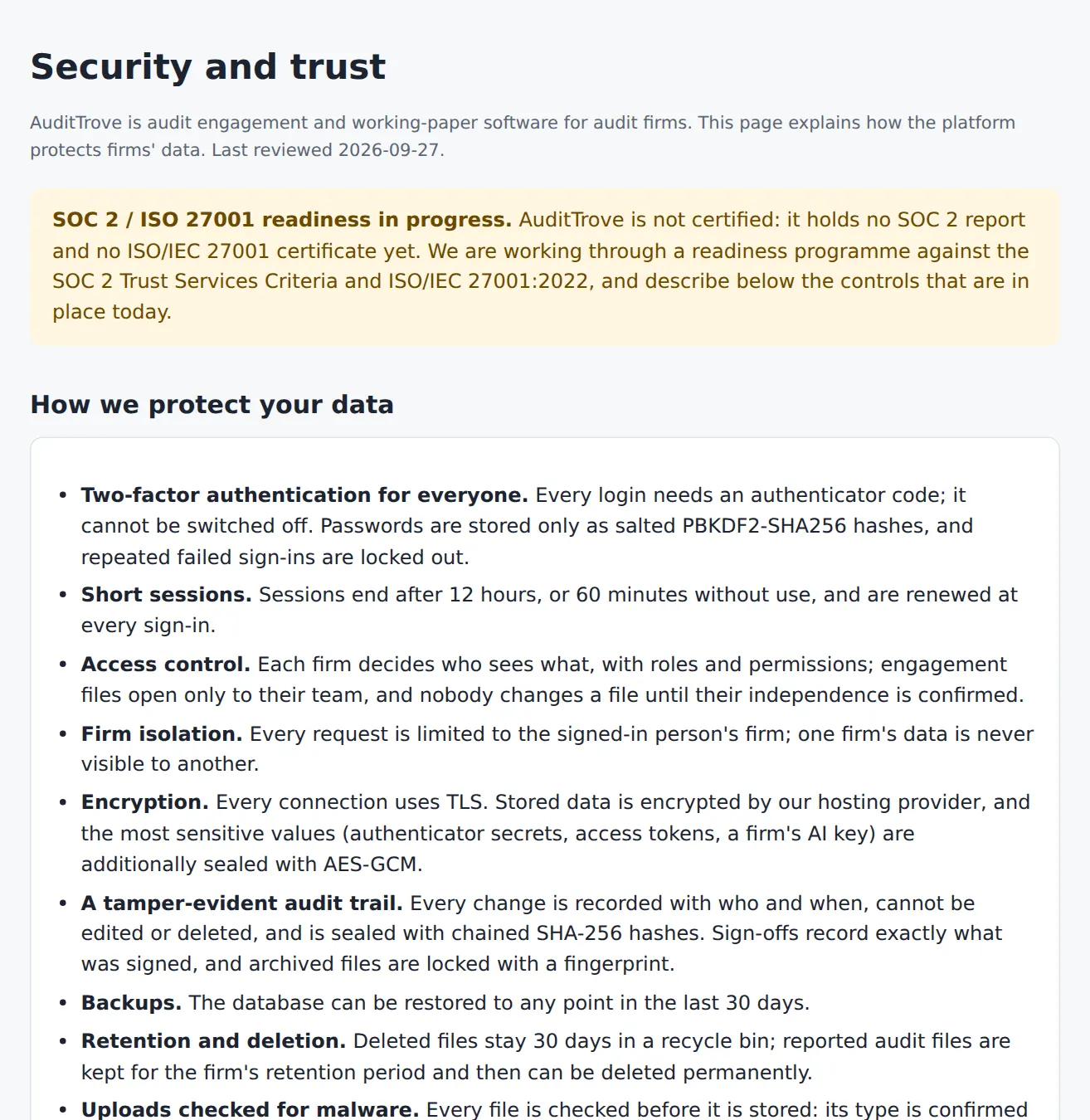
The public trust page summarises the controls, the sub-processors (including the optional Cloudmersive scanner and Microsoft and Google sign-in), data protection and how to report a vulnerability. It states that readiness is in progress and that no certification is claimed.
Who
Anyone — share the link with clients who ask about security.
What to do
- Open /trust.html (no sign-in needed) and send the link, with the DPA template if asked.