Steps in this chapter (5)
Switch on the SQMTrove link, register the firm's apps for Xero, QuickBooks Online, Sage and Zoho Books, and see where each link is used.
AuditTrove shares information with the firm's other TroveSuite apps and, with consent, reads the client's own ledger. SQMTrove is the firm's ISQM 1 system: with the link on, AuditTrove sends it engagement facts and uses its policies, restricted entity list and — since release 22 — its record of each engagement quality review. BookTrove is the client's bookkeeping app: with the client's access token the team pulls the trial balance and journals, sends proposed adjustments and client requests (chapter 15). Xero, QuickBooks Online, Sage Business Cloud Accounting and Zoho Books are reached through apps the firm registers itself.
Use cases
- Use case — The firm uses SQMTrove too. An owner switches the link on in both apps (steps 4.3 and 4.4). From then on the report cannot be dated before SQMTrove shows the quality review complete (chapter 13).
- Use case — A client keeps its books in Xero or QuickBooks. Register the firm's app once (step 4.1); the client connects from the portal, or the partner connects with the client's consent (step 4.2).
- Use case — A client keeps its books in BookTrove. No firm set-up is needed: the client creates an auditor access token in BookTrove (chapter 15).
4.1 Register the firm's accounting-system apps
Why
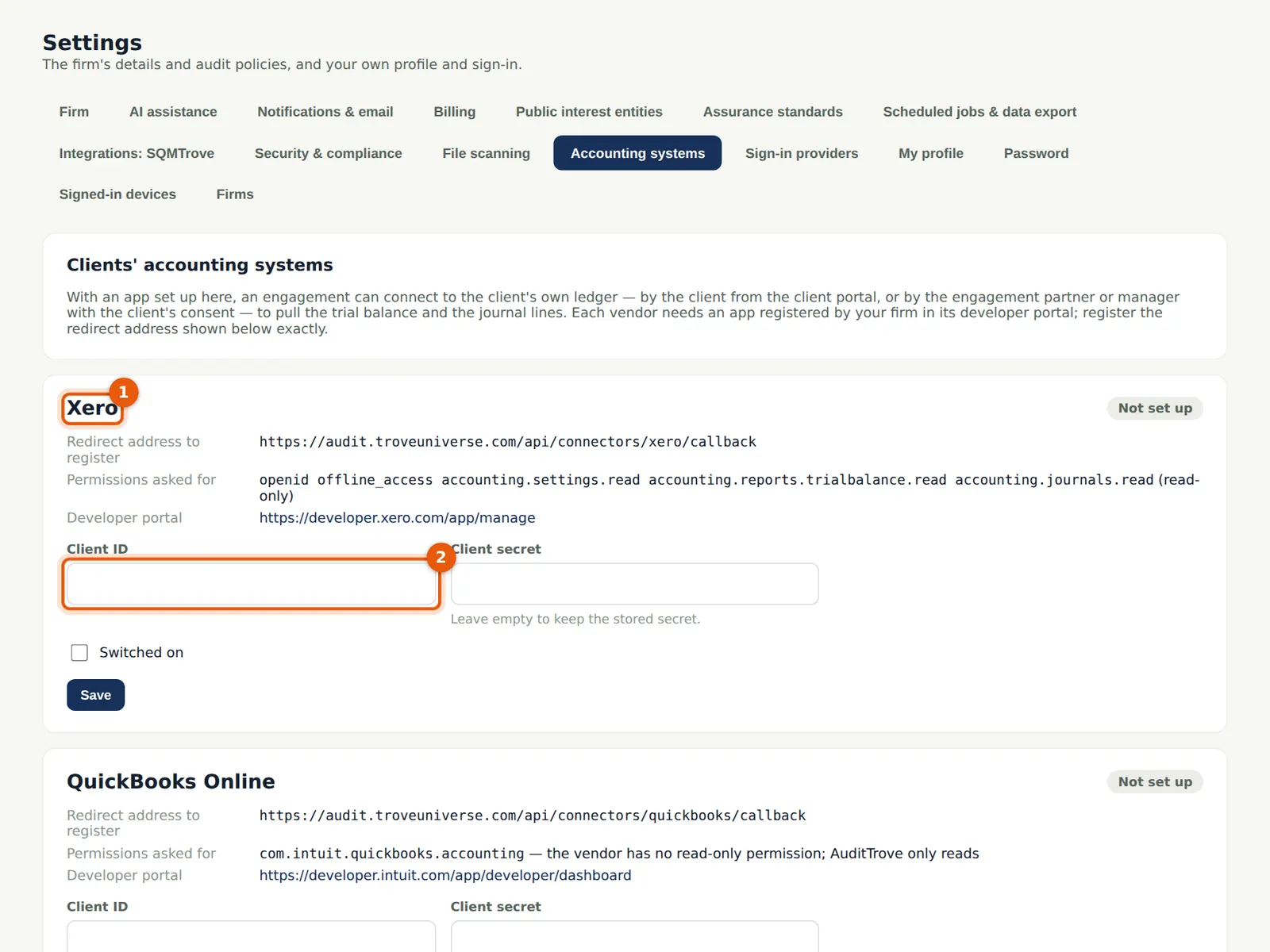
Each firm registers its own app with each vendor, so the client's consent is given to the firm and nobody else. The page shows the exact redirect address and the read-only permissions to register. Client IDs and secrets are stored sealed; a secret is never shown again.
Who
Owner or firm administrator.
What to do
- For each vendor you need, register an app in its developer portal (the link is shown): Xero — developer.xero.com, Web app; QuickBooks Online — developer.intuit.com, Keys & OAuth (production keys need Intuit's app assessment); Sage Business Cloud Accounting — developerselfservice.sageone.com; Zoho Books — api-console.zoho.com, Server-based application (and choose the data centre here).
- Enter the redirect address shown here exactly, and the permissions listed.
- Paste the client ID (2) and secret, tick Switched on and Save.
4.2 Connect a client's ledger
Why
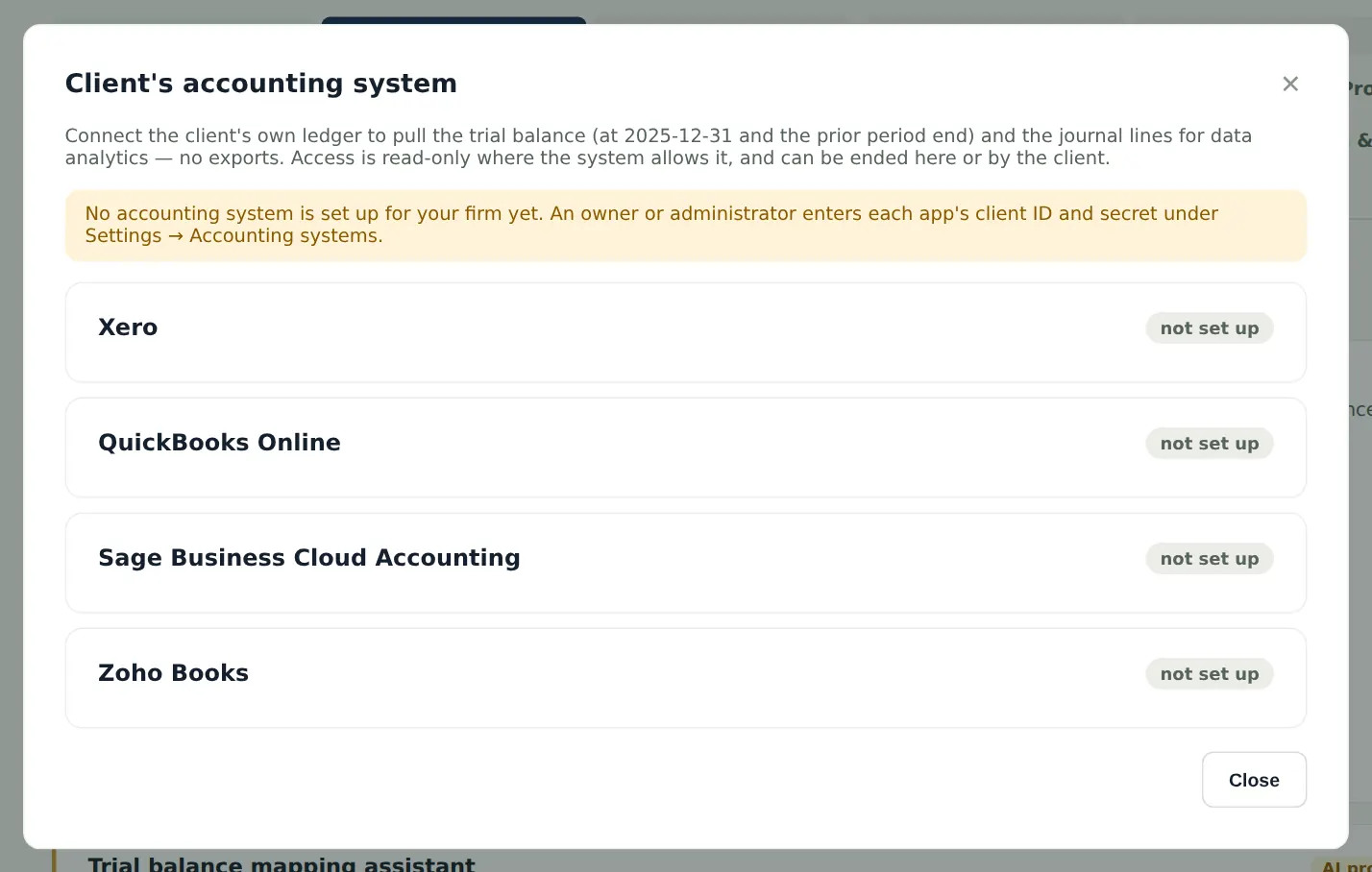
On an engagement, Accounting system lists the vendors. The client can connect from the Connections tab of the client portal, or the engagement partner or manager connects with the client's consent (recorded). The connection pulls the trial balance at the period end and the prior period end, and journal lines for data analytics. In the illustration no app is set up yet, so the dialog says so.
Who
Engagement partner or manager (connect); senior (pull).
What to do
- Open Trial balance & materiality → Accounting system.
- Choose Ask the client to connect (the portal users are told) or Connect with the client's consent; then Pull the trial balance. Choose Disconnect when the audit is finished — the stored access is deleted and revoked.
4.3 The SQMTrove link: switch it on
Why
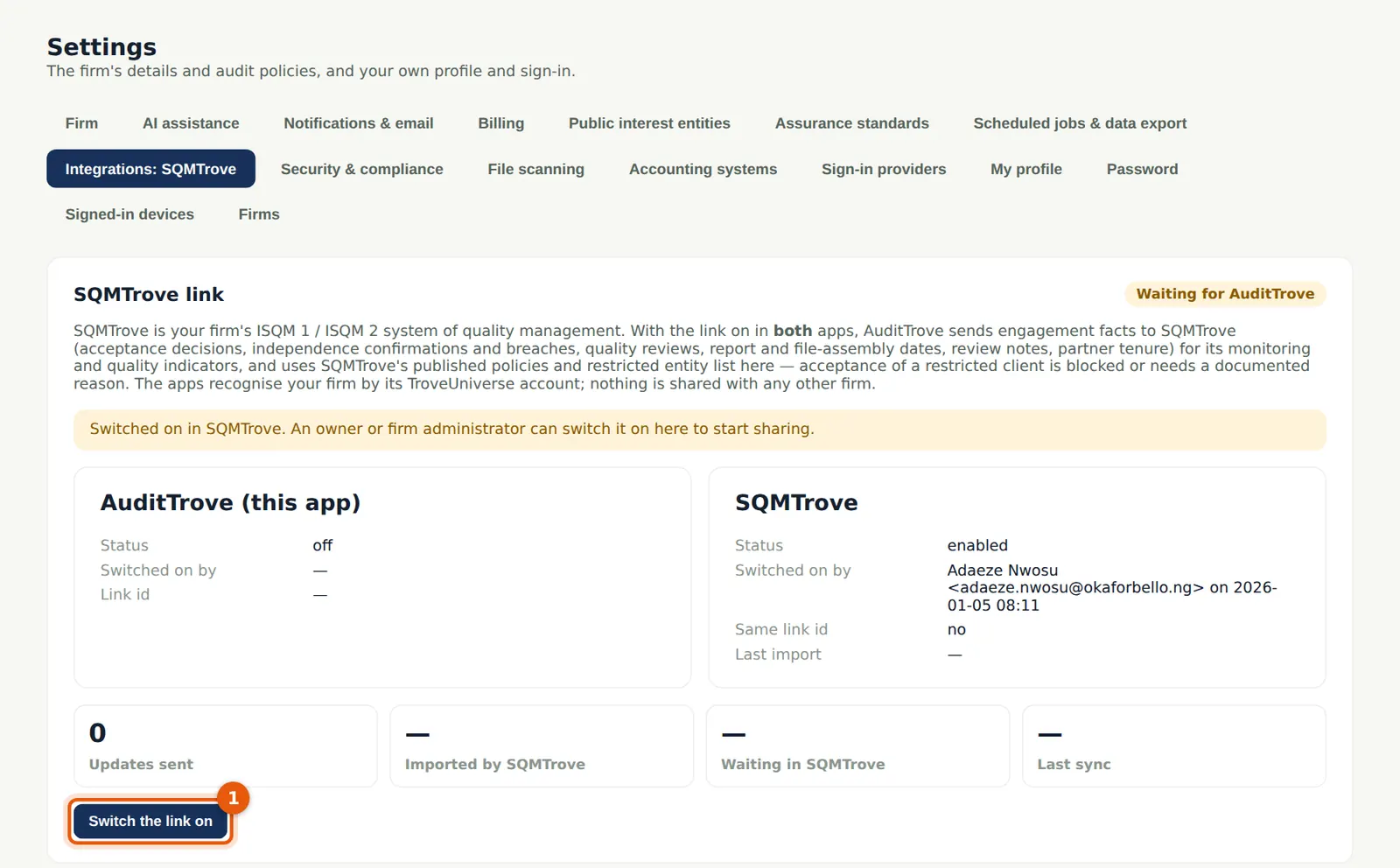
The two apps recognise the firm by its TroveUniverse company, so only firms that sign in through troveuniverse.com can be linked, and an owner or administrator must switch the link on in both apps. In the illustration SQMTrove's owner switched it on first.
Who
Owner or firm administrator.
What to do
- Open Settings → Integrations: SQMTrove and choose Switch the link on (1), then confirm.
4.4 Linked with SQMTrove
Why
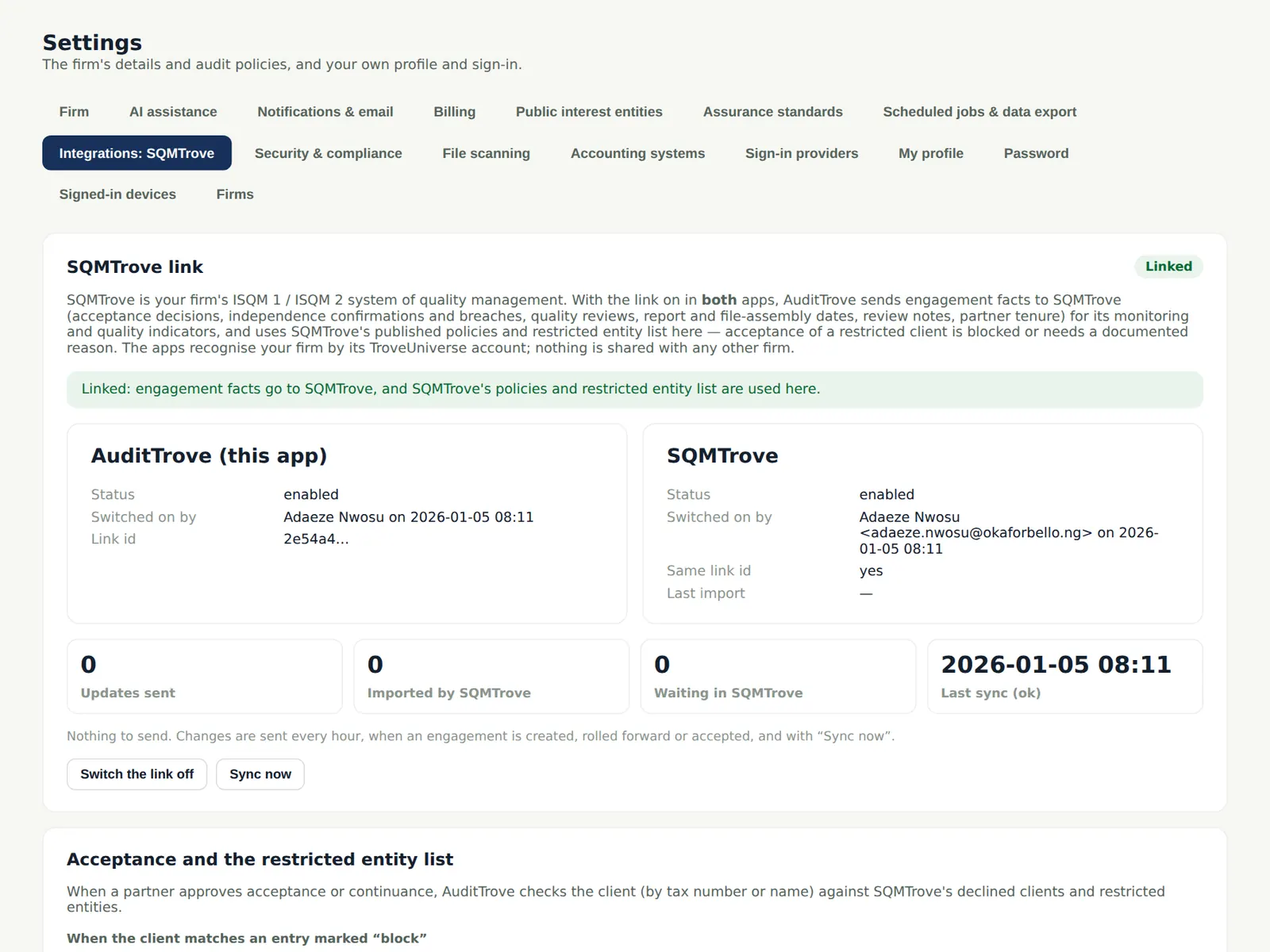
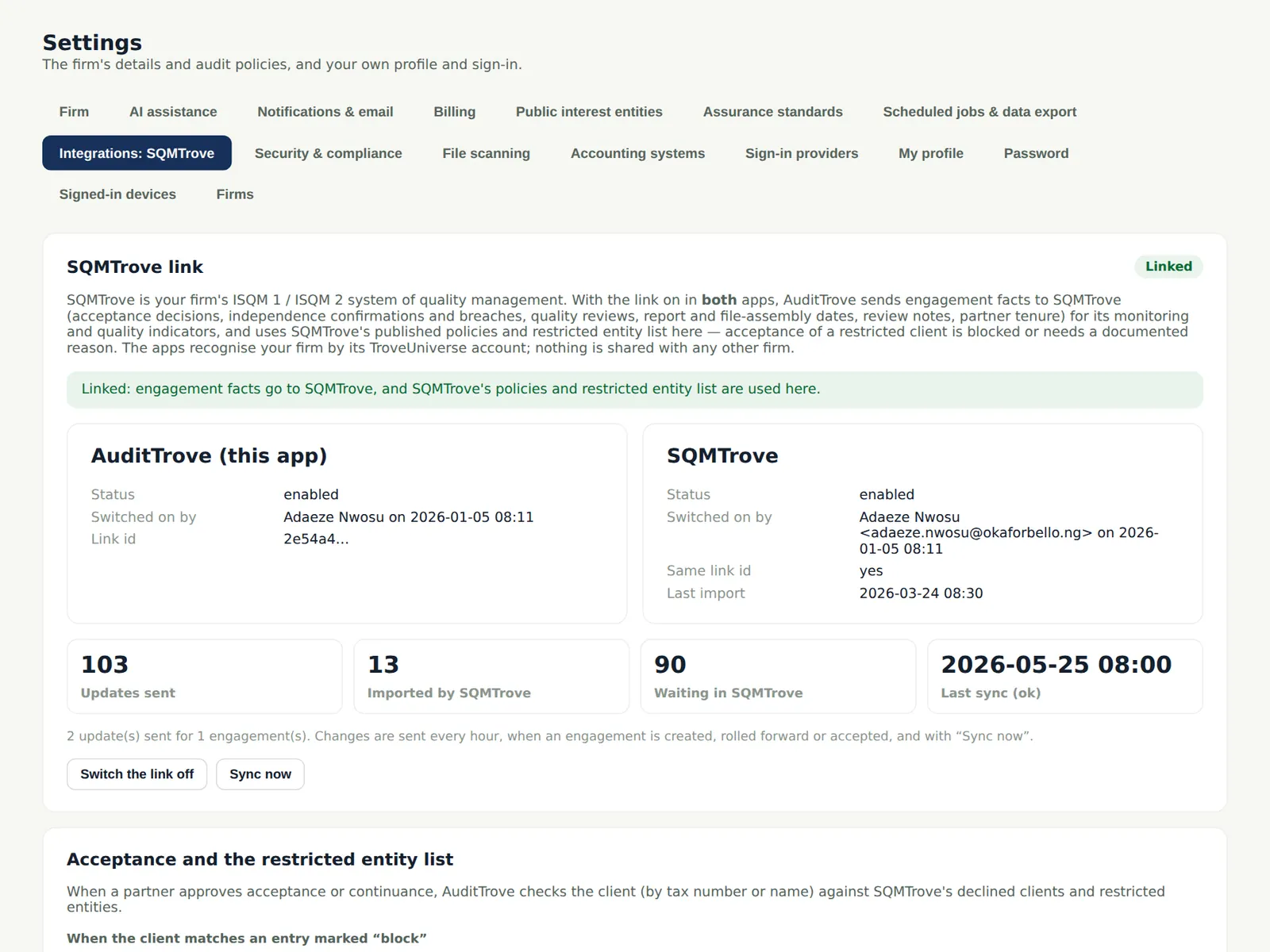
AuditTrove now sends engagement facts to SQMTrove hourly and on Sync now — acceptance decisions, independence confirmations and breaches, quality review dates, report and assembly dates, review notes and partner tenure — for the firm's monitoring. It reads SQMTrove's published policies and restricted entity list: approving acceptance of a restricted client is refused (or needs a recorded reason, as the firm chooses).
Who
Owner or firm administrator.
What to do
- Choose how a restricted client is handled at acceptance (refuse, or warn and require a reason).
- Use Sync now after a change you want SQMTrove to see at once.
4.5 What has been shared
Why
The counters show how many updates were sent, how many SQMTrove has imported and when the last sync ran, so the quality lead can see that the monitoring information is complete.
Who
Owner, firm administrator or quality lead.
What to do
- If Waiting in SQMTrove stays high, ask SQMTrove's administrator to open its AuditTrove link page (it imports on opening and hourly).