Steps in this chapter (16)
Record the firm's details and audit policies, the public interest entity settings, email, billing and scheduled jobs; add people and give them roles; build a custom role; record registrations and the rotation rules.
Before the first engagement, the owner or a firm administrator records the firm's details and policies and adds the people who will use AuditTrove. Everything in this chapter is done once and changed only when the firm changes.
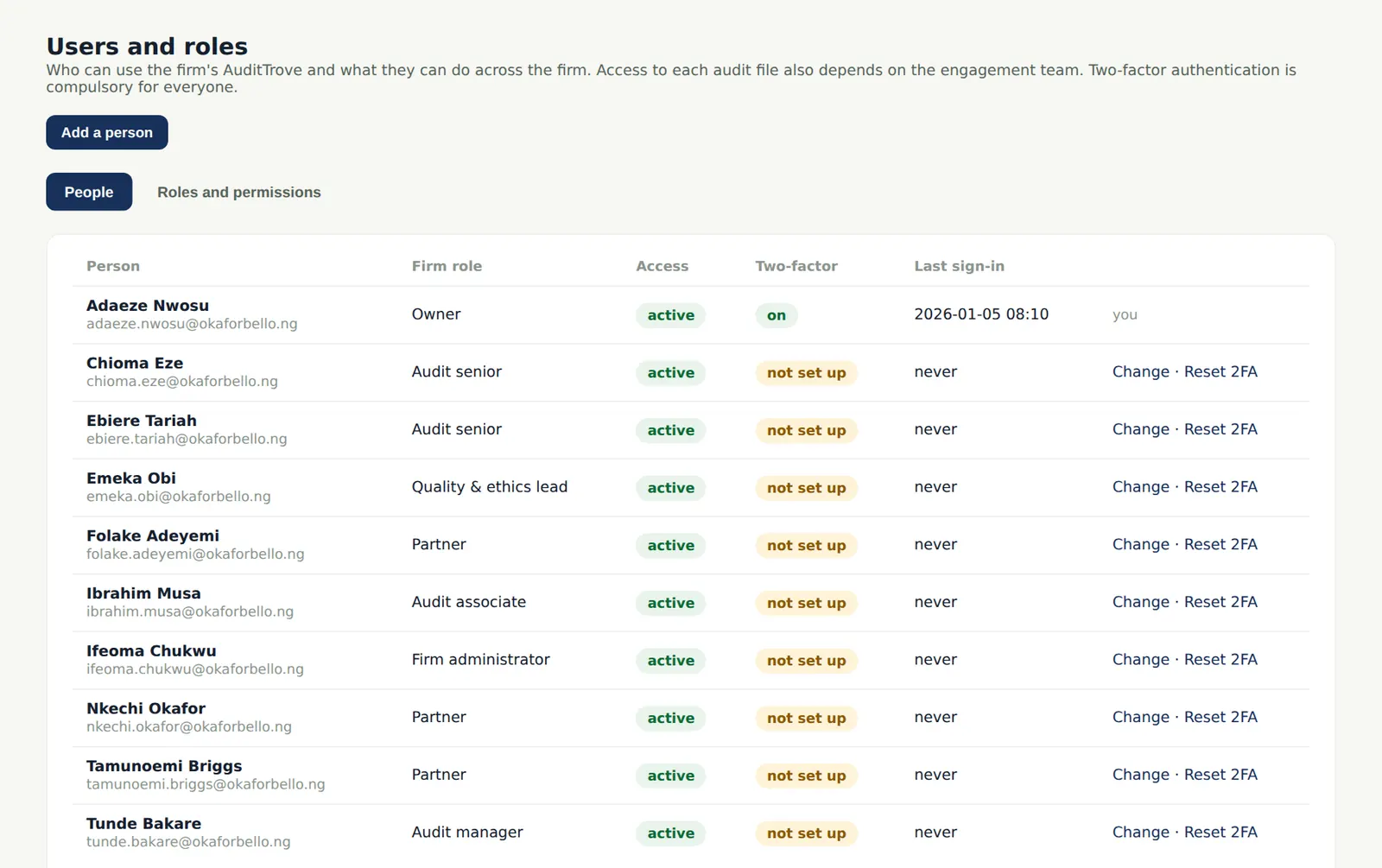
In the illustration, Adaeze Nwosu sets up Okafor Bello & Co on 5 January 2026 and adds nine colleagues: a firm administrator, four partners (one of them the quality lead), a manager, two seniors and an associate.
Use cases
- Use case — A firm regulated in Nigeria and Barbados. Enter the FRC and ICAN numbers and the ICAB number (step 2.1); the retention minimum follows the firm's country (step 2.2); the rotation rules default to the FRC Audit Regulations 2020 or the IESBA Code (step 2.13).
- Use case — A regulator's inspection. Give the inspection team lead a login with the Inspector (read-only) role for the visit (step 2.8) and remove it afterwards; everything they open is in the audit trail.
- Use case — An IT audit specialist who helps on engagements. Create a custom role with only the rights needed (step 2.11) and add the person to the engagement team as a specialist.
- Use case — All the seats are in use. Adding a person is refused until a seat is bought on troveuniverse.com (step 2.16). Client users and component auditors do not use seats.
2.1 Record the firm's details
Why
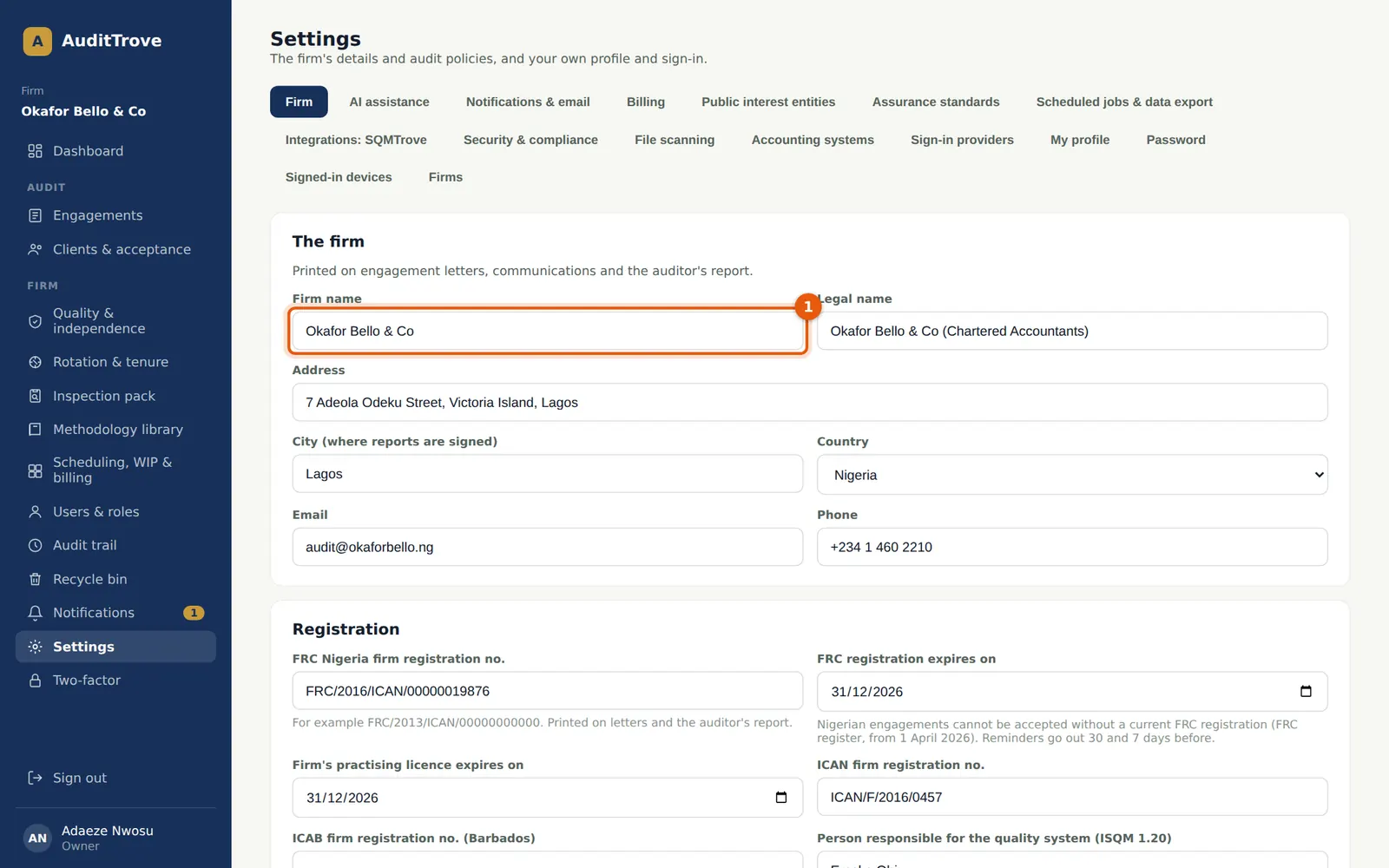
The firm's name, address and registration numbers are printed on the engagement letter, the communications with those charged with governance and the auditor's report. The firm's FRC registration and practising licence must be current for a Nigerian engagement to be accepted. ISQM 1.20 also asks the firm to name the person responsible for its system of quality management.
Who
Owner or firm administrator.
What to do
- Open Settings and stay on the Firm tab. Enter the firm name as it should appear on reports (1), the legal name, address, city where reports are signed, email and phone.
- Under Registration enter the FRC firm number and its expiry date, the practising licence expiry, the ICAN firm number (or the ICAB number for a Barbados practice) and the person responsible for the quality system.
2.2 Set the audit policies
Why
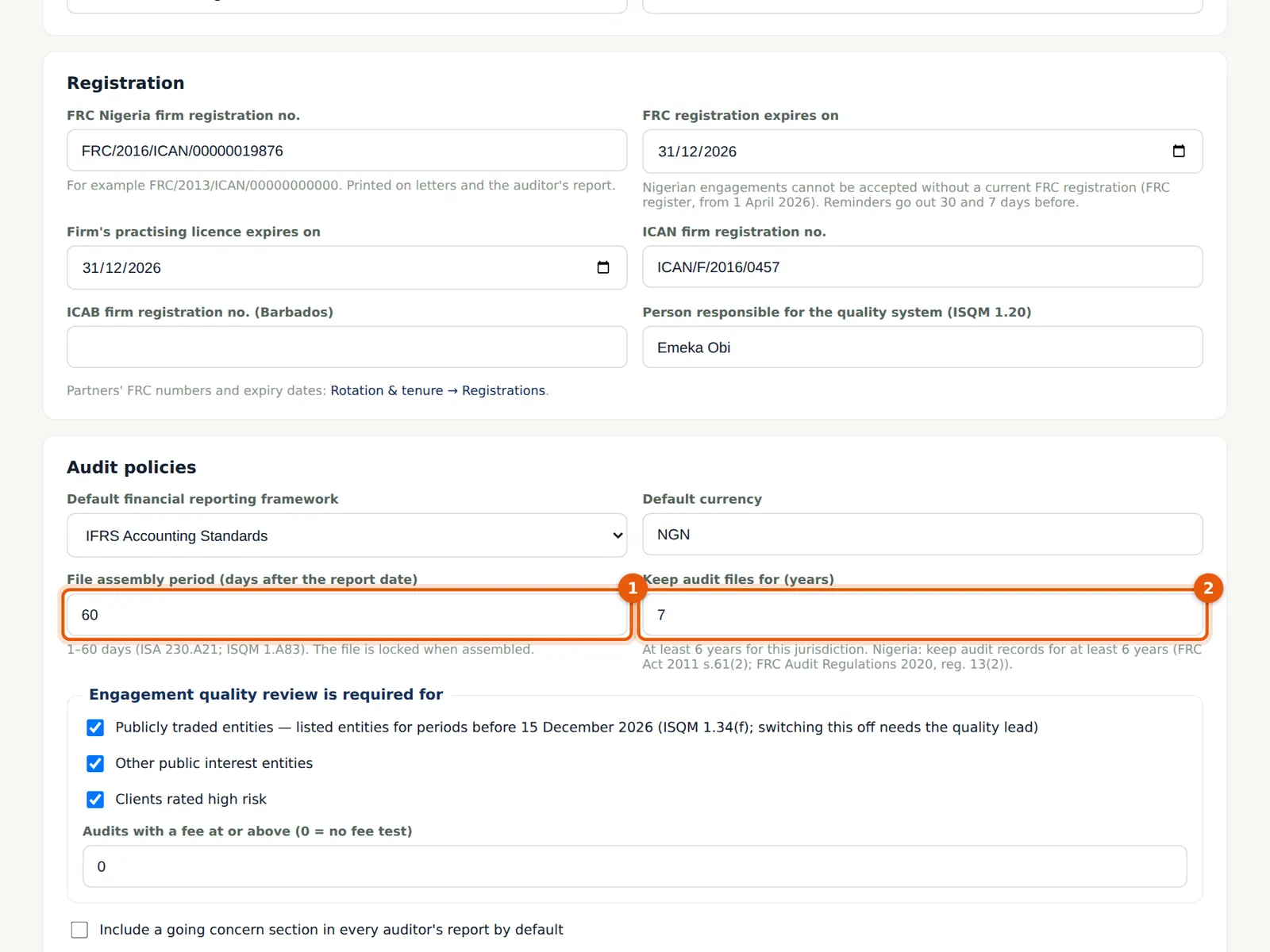
The file assembly period (1) drives the automatic archiving of the file after the report is signed; ISA 230.A21 and ISQM 1.A83 allow no more than 60 days. The retention period (2) is how long audit files are kept: at least 6 years for Nigerian firms (FRC Act 2011 s.61(2)) and 5 for others (ISQM 1.A85). AuditTrove will not let anyone delete a reported file before the period ends.
Who
Owner or firm administrator.
What to do
- Choose the default framework and currency — they are proposed for every new engagement.
- Enter the file assembly period in days (1). Okafor Bello & Co uses 60.
- Enter the retention period in years (2). The firm uses 7.
- Set the EQR policy (publicly traded entities, other public interest entities, high-risk clients, a fee threshold) and save.
2.3 Public interest entities
Why
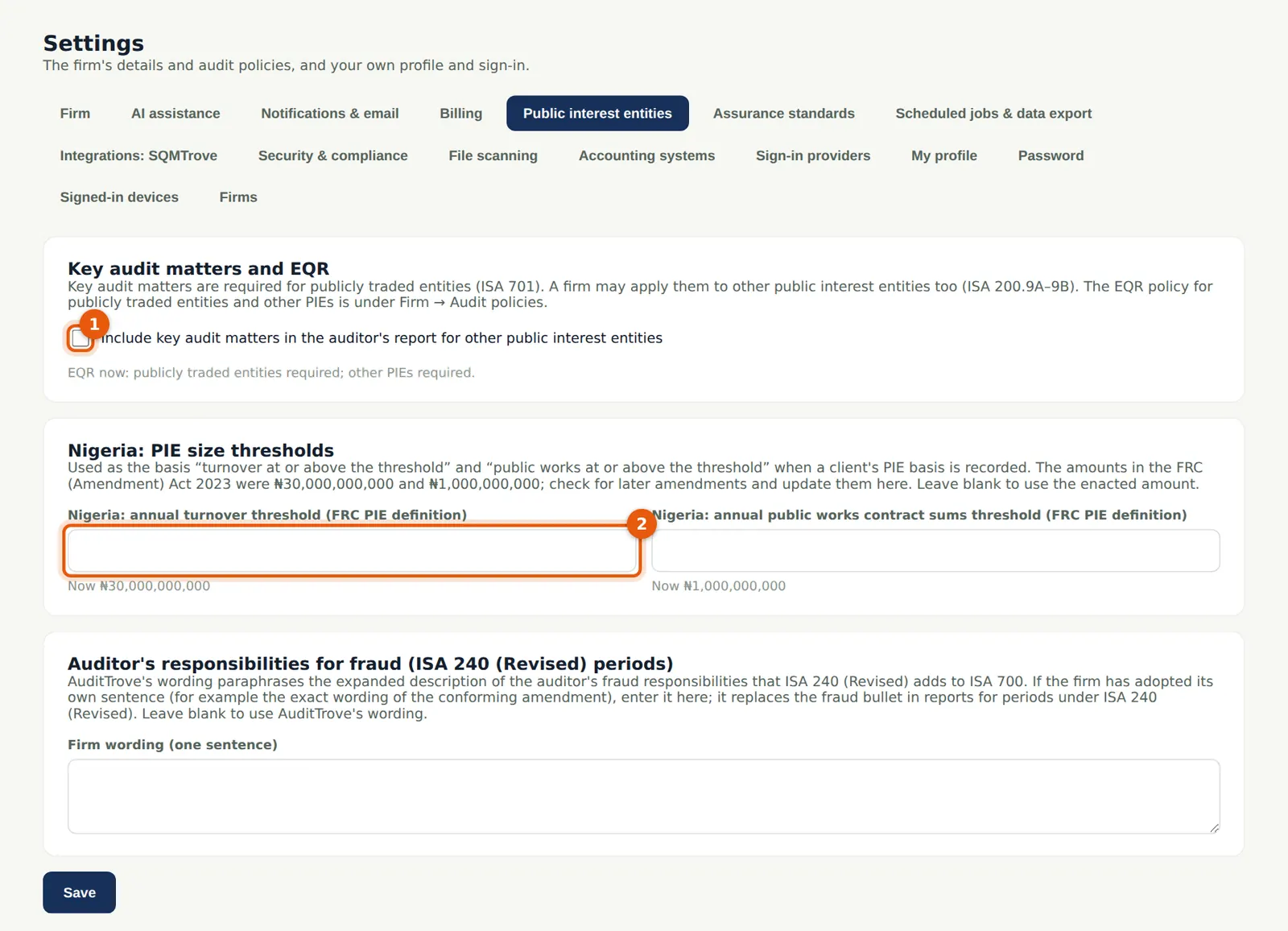
Each client has an entity category: publicly traded entity, other public interest entity, or not a PIE. It drives key audit matters (ISA 701), the EQR policy (ISQM 1.34(f)), the independence statements and whether the partner is named in the report. Key audit matters are required for publicly traded entities; the firm can choose them for other PIEs too (1). The Nigerian turnover and public-works thresholds of the FRC definition (2) are kept here so they can be updated.
Who
Owner, firm administrator or quality lead.
What to do
- Tick Include key audit matters for other public interest entities if that is the firm's policy (1).
- Leave the thresholds blank to use the enacted amounts, or enter the amended ones (2).
- If the firm has its own sentence for the auditor's fraud responsibilities under ISA 240 (Revised), enter it. Save.
2.4 Assurance standards
Why
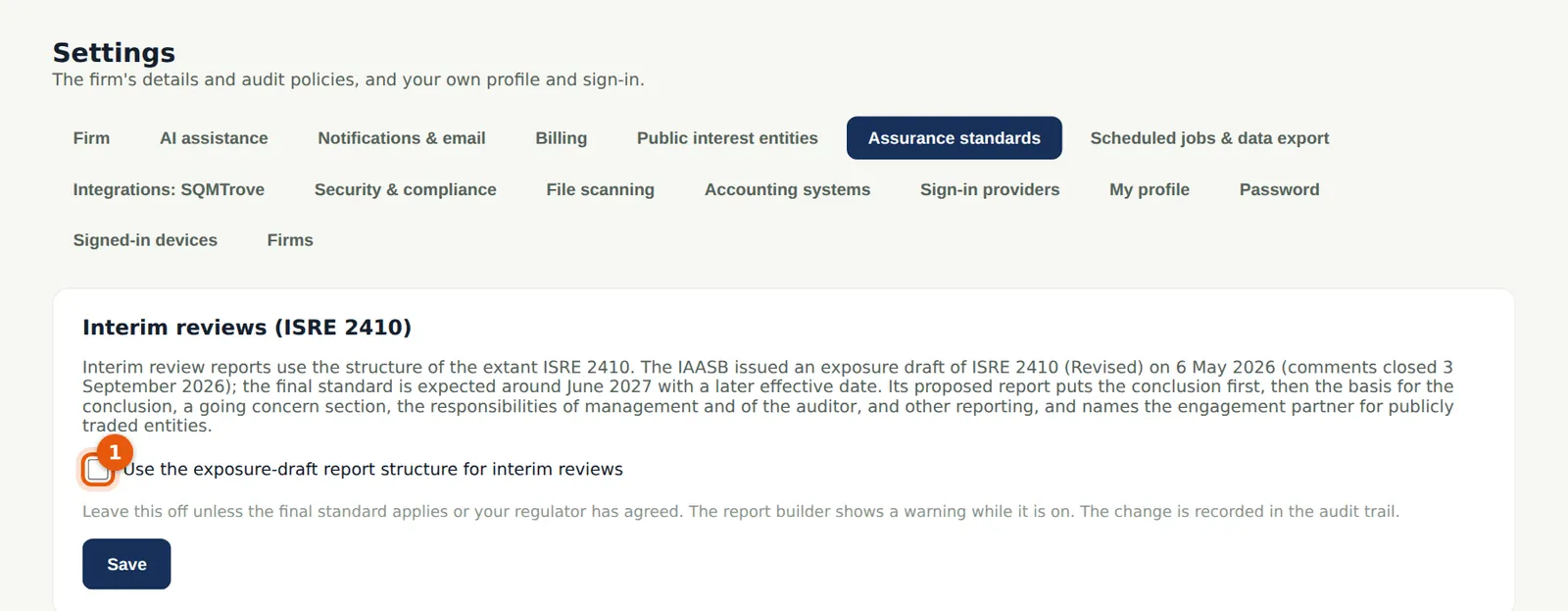
For reviews of interim financial information (ISRE 2410) the firm can choose the report structure proposed in the IAASB's May 2026 exposure draft instead of the extant one. It stays off until the firm decides.
Who
Owner or firm administrator.
What to do
- Tick Use the exposure-draft report structure (1) only if the firm has decided to, and choose Save.
2.5 Notifications and email
Why
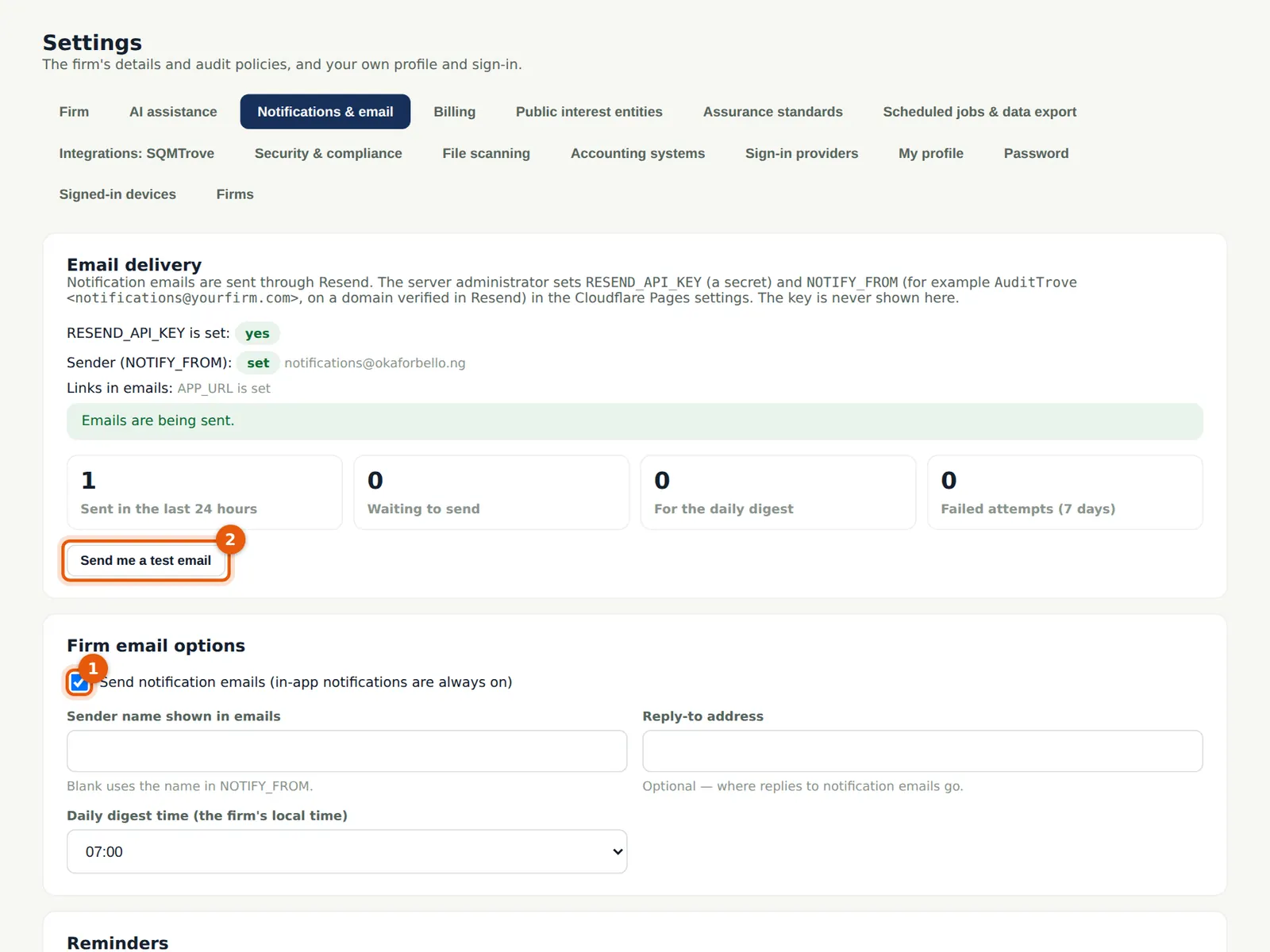
Notices, invitations, reset links, signature requests and confirmation requests go out by email through the platform's email service. The card shows whether email is set up on the server. If it is not, AuditTrove says so wherever it matters (for example, confirmations then go by post or courier).
Who
Owner or firm administrator.
What to do
- Check that Emails are being sent, then choose Send me a test email (2).
- Tick Send notification emails (1), enter the sender name and reply-to address, the daily digest time and the reminder periods (client requests, review notes, papers waiting for review, annual independence), and save.
2.6 Billing settings
Why
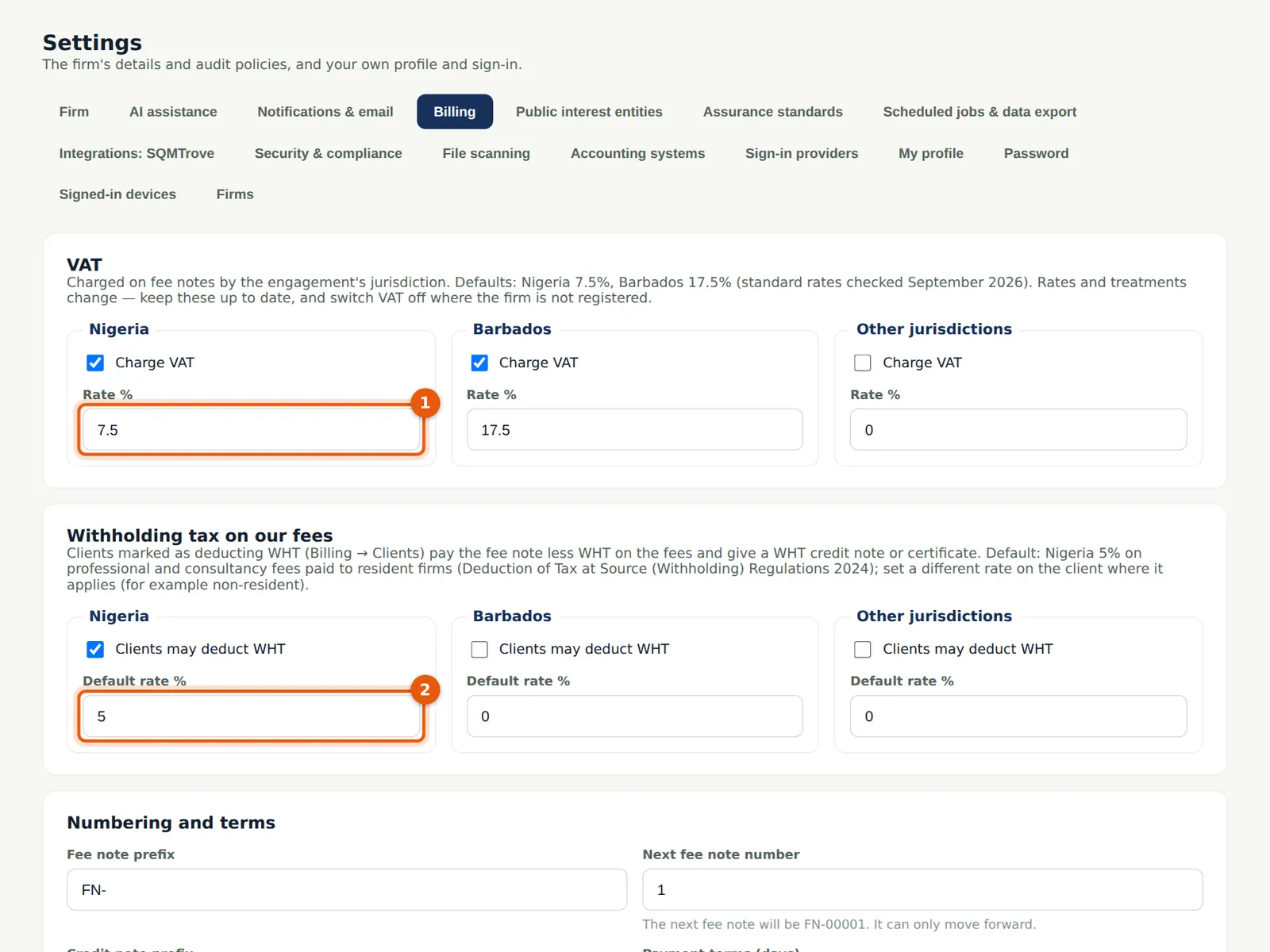
Fee notes (chapter 18) charge VAT by the engagement's jurisdiction — 7.5% in Nigeria and 17.5% in Barbados by default — and allow clients to deduct withholding tax on the firm's fees (5% by default in Nigeria). The numbering, payment terms and bank details printed on fee notes are set here.
Who
Owner or firm administrator.
What to do
- Check the VAT rates (1) and WHT rates (2) against the current law.
- Set the fee note prefix and next number, the credit note prefix, payment terms, the footer and the bank details by currency. Choose Save billing settings.
2.7 Scheduled jobs and data export
Why
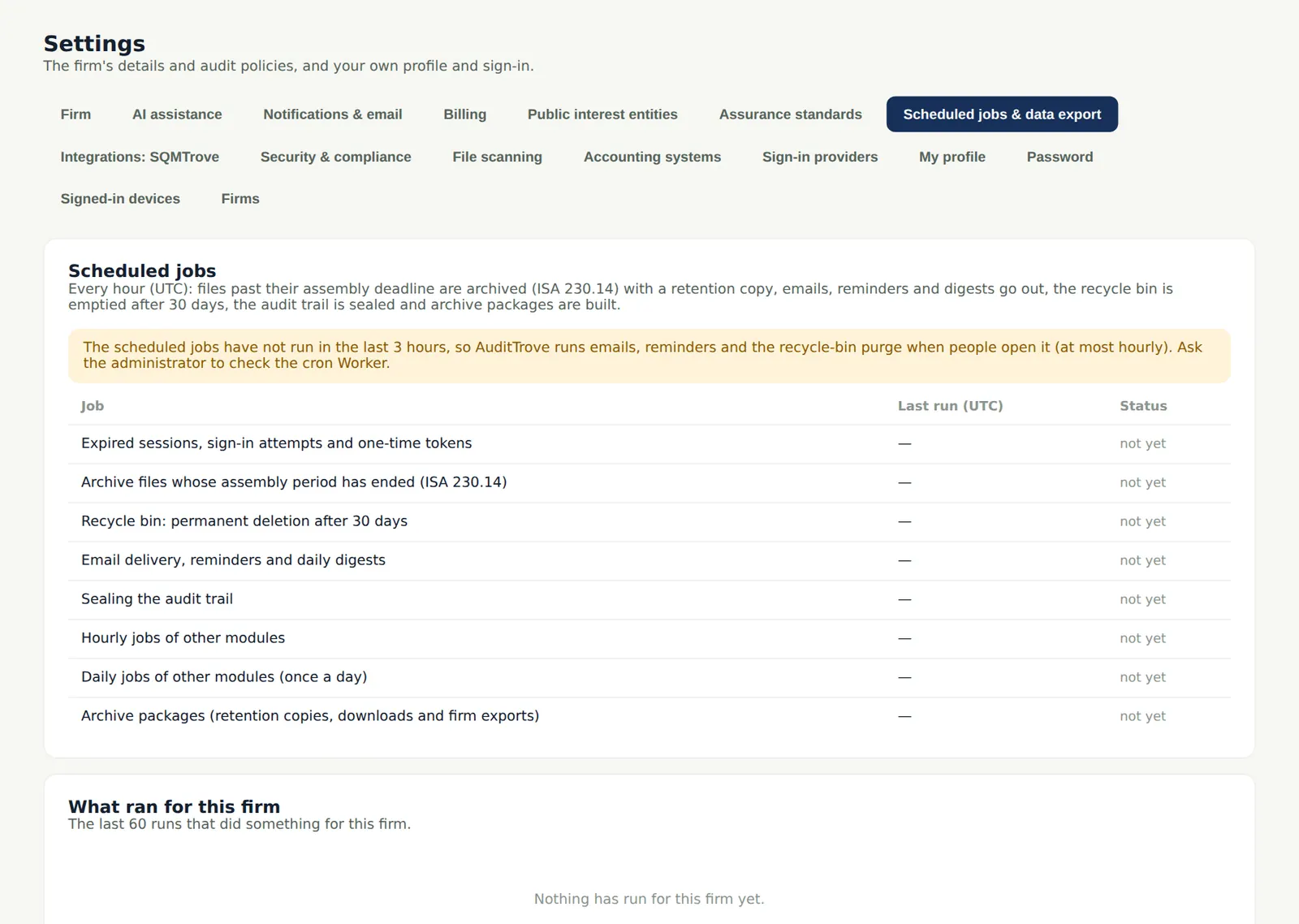
Every hour the platform's scheduled worker archives files whose assembly period has ended, sends emails, reminders and digests, empties the recycle bin after 30 days, seals the audit trail, builds archive packages and runs confirmation reminders and malware re-scans. This tab shows when each job last ran. Owners and administrators can also export all the firm's data here.
Who
Owner or firm administrator.
What to do
- Check that the jobs have run recently. If the banner says they have not, ask the platform operator to check the scheduled worker.
- Use Export all the firm's data when the firm needs a complete copy (for example when leaving the service).
2.8 Add a person
Why
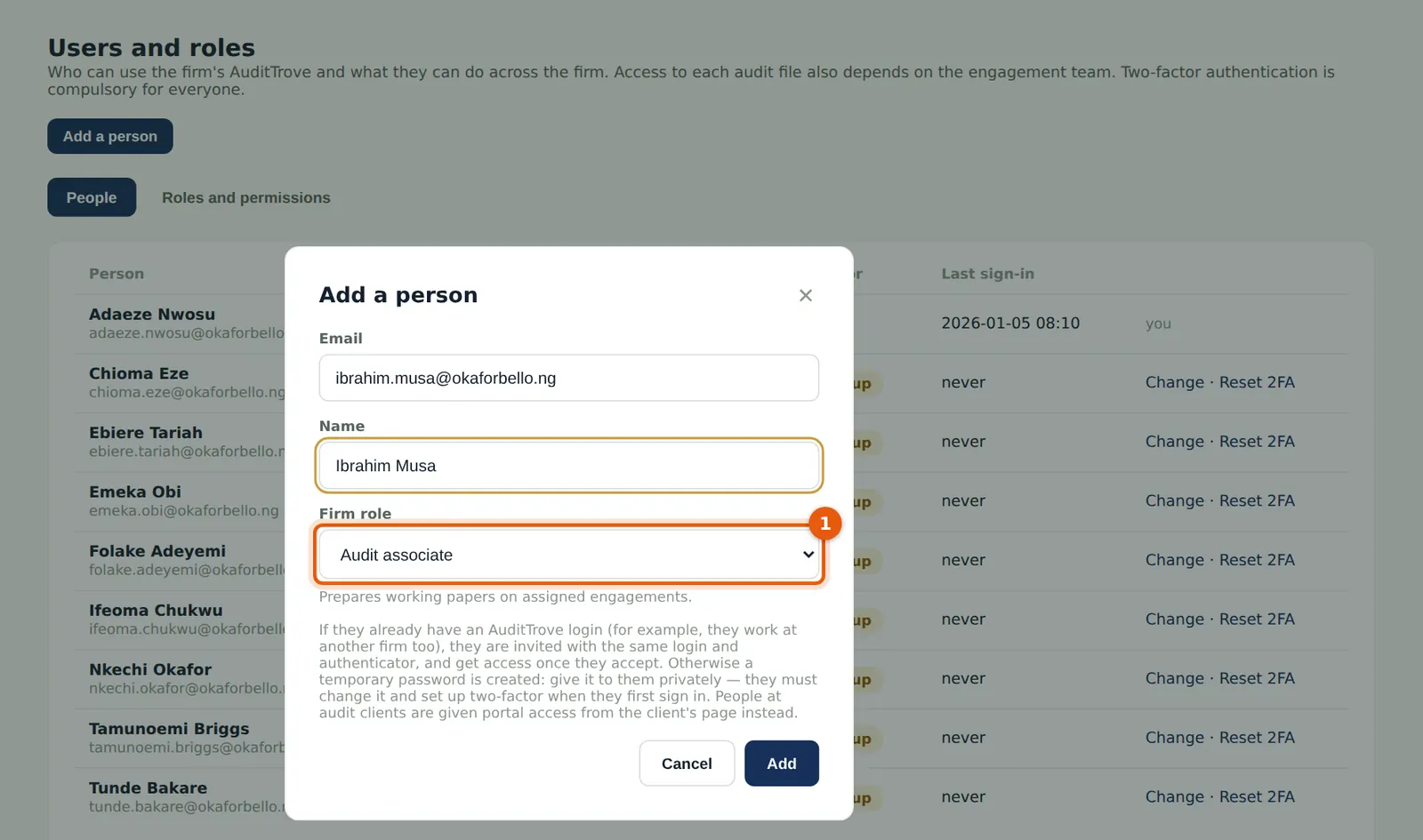
Each person's firm role decides what they can see and do across the firm; access to each audit file then depends on the engagement team. People from other firms who already have an AuditTrove login are invited instead, and get access once they accept.
Who
Owner or firm administrator.
What to do
- Open Users & roles and choose Add a person.
- Enter the email and name and choose the firm role (1). Ibrahim Musa joins as an Audit associate.
- Choose Add.
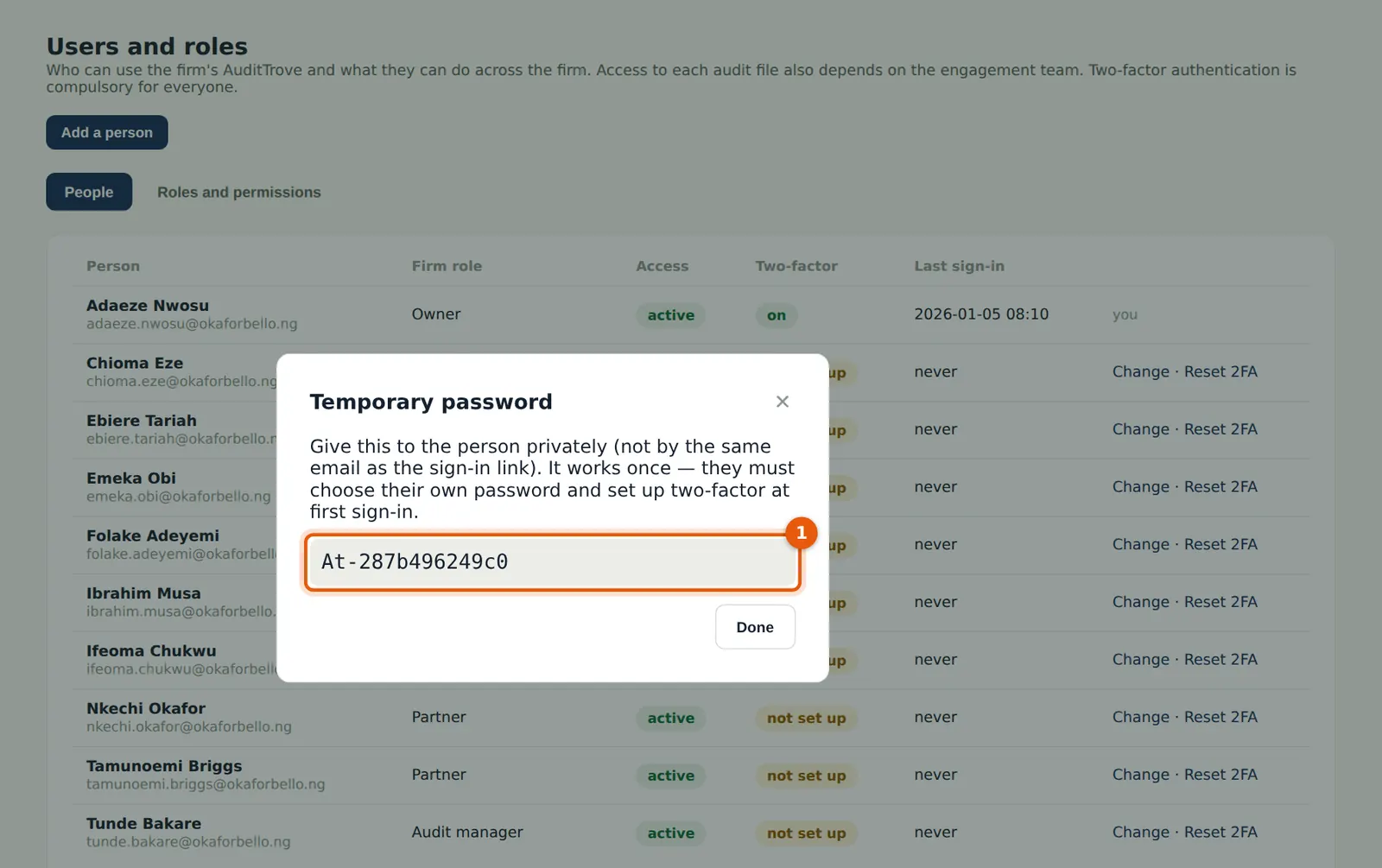
2.9 Give the temporary password privately
Why
The temporary password is shown only once. Give it to the person privately — in person or by phone — not in the same email as the sign-in address.
Who
Owner or firm administrator.
What to do
- Copy the password (1), hand it over privately and close the window.
2.10 The people in the firm
Why
Okafor Bello & Co now has ten logins. Change alters a person's role or removes them from the firm; Reset 2FA is for someone who has lost both their phone and their recovery codes, after you have confirmed who they are.
Who
Owner or firm administrator.
What to do
- Choose Change to alter a role or remove a person (their sessions end at once).
- Choose Reset 2FA only after checking the person's identity; they set up a new authenticator at the next sign-in and are told who reset it.
2.11 Roles and permissions
Why
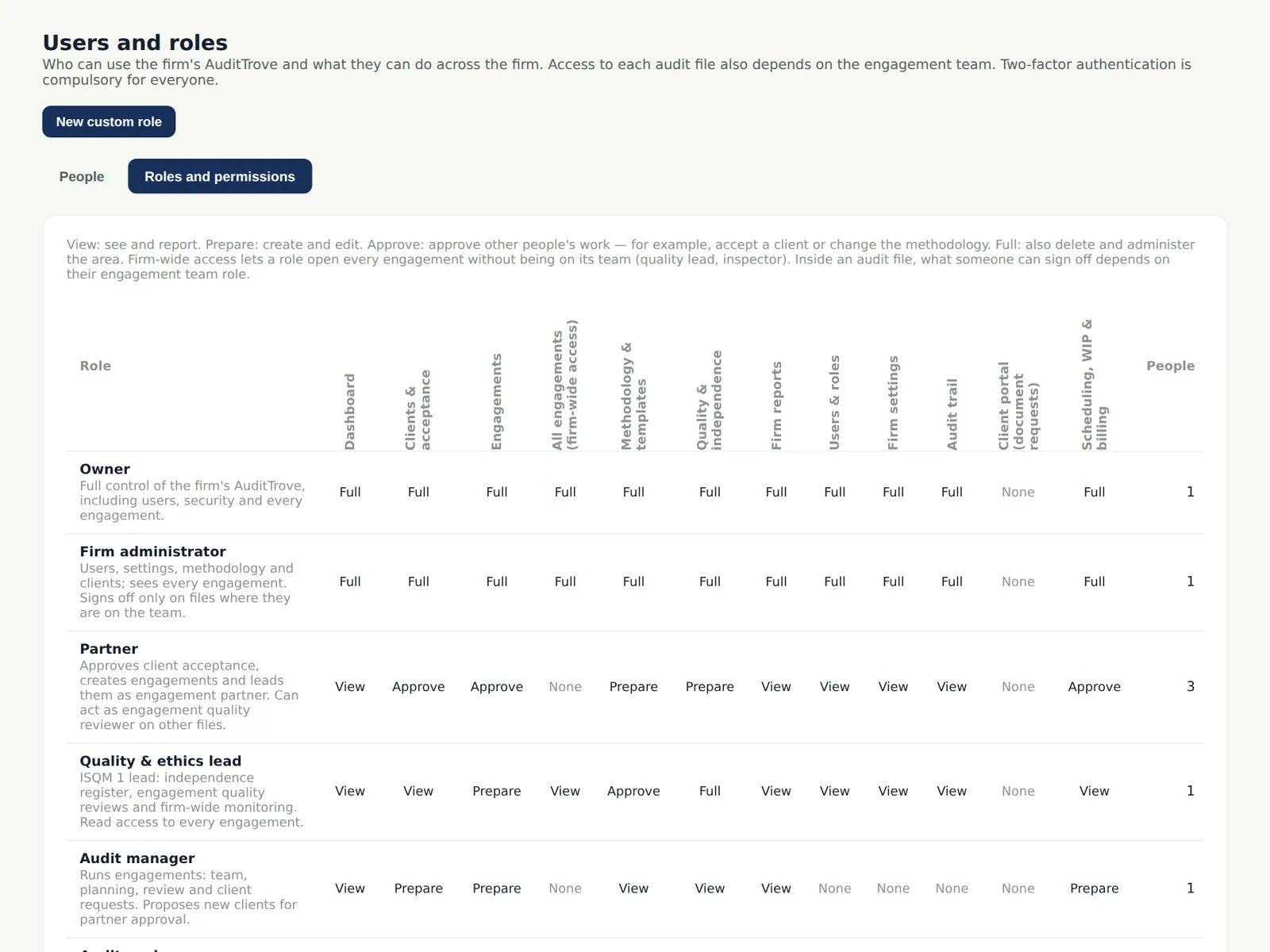
The matrix shows what each firm role allows in each module (clients, engagements, firm-wide access, methodology, quality, reports, users, settings, audit trail, client portal, scheduling and billing). The appendix on roles explains them.
Who
Owner or firm administrator.
What to do
- Read across a row to see what a role allows. System roles cannot be changed; custom roles can.
2.12 Create a custom role
Why
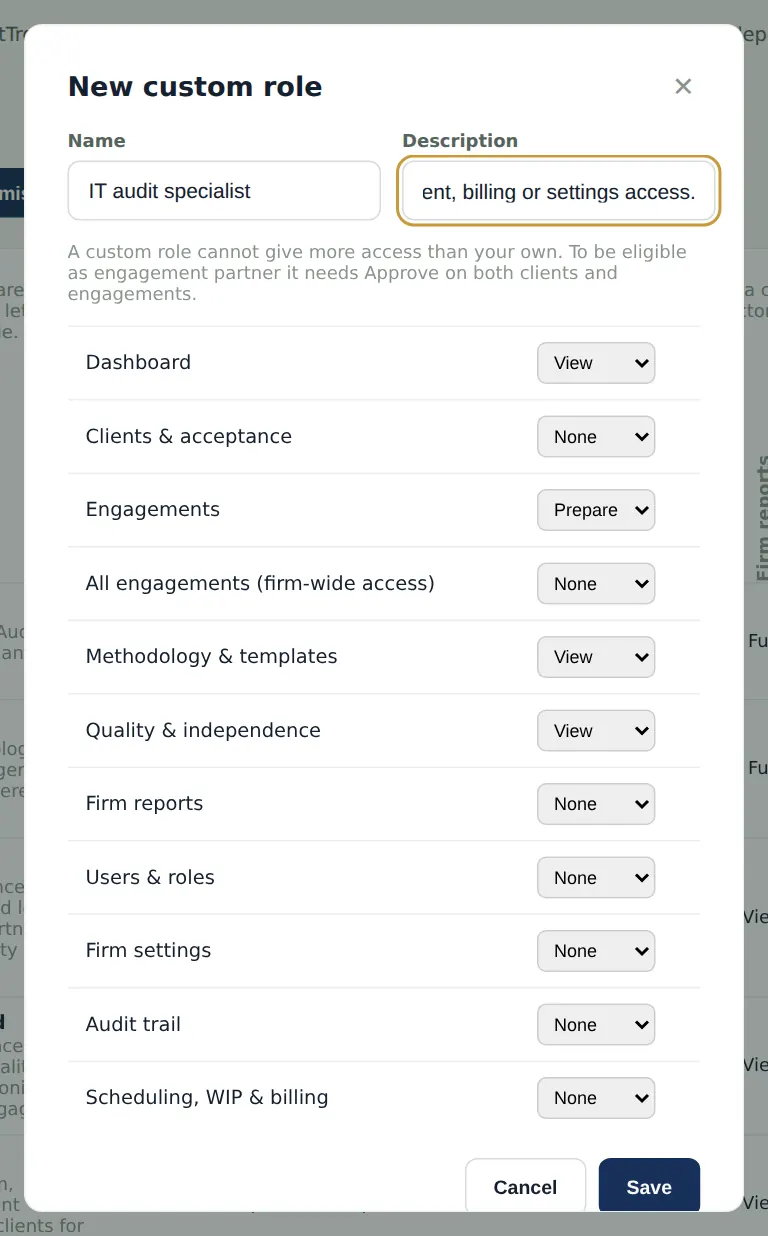
A custom role gives exactly the access a job needs. A custom role cannot give more access than your own, and to be an engagement partner it needs Approve on both clients and engagements.
Who
Owner or firm administrator.
What to do
- On the Roles and permissions tab choose New custom role.
- Name it (for example IT audit specialist), describe it and choose a level for each module; choose Save. Give it to a person with Change on the People tab.
2.13 Registrations
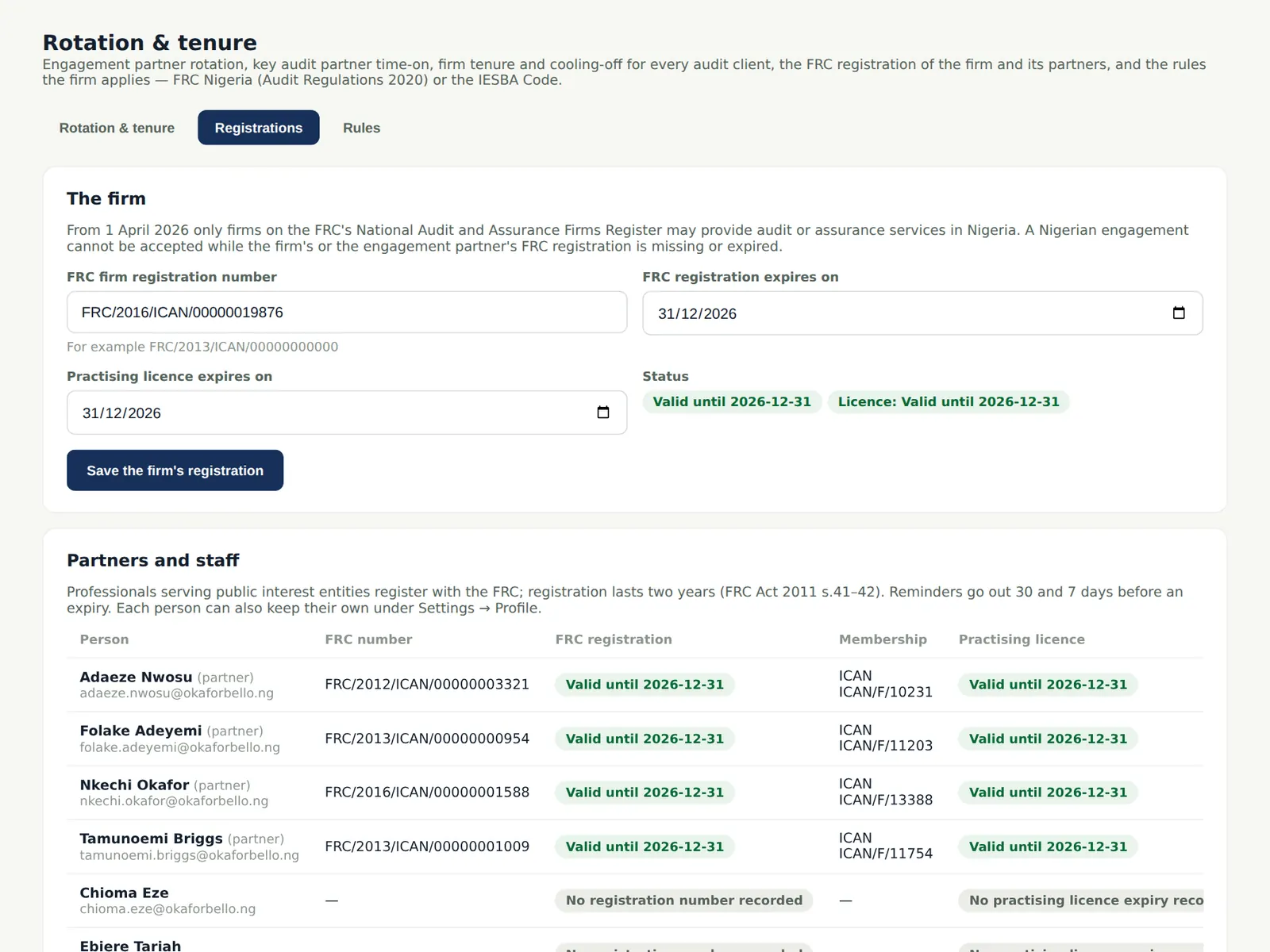
Why
The FRC register of the firm and its partners, ICAN, ANAN or ICAB membership and practising licences are kept here with their expiry dates. A number that does not look like the expected format gives a warning only. Nigerian engagements cannot be accepted, or their reports signed, without current registrations.
Who
Owner, firm administrator or quality lead.
What to do
- Open Rotation & tenure → Registrations.
- Enter the firm's registration and each partner's FRC number, expiry, body, membership number and licence expiry; each person can also update their own under Settings → My profile.
2.14 The rotation rules
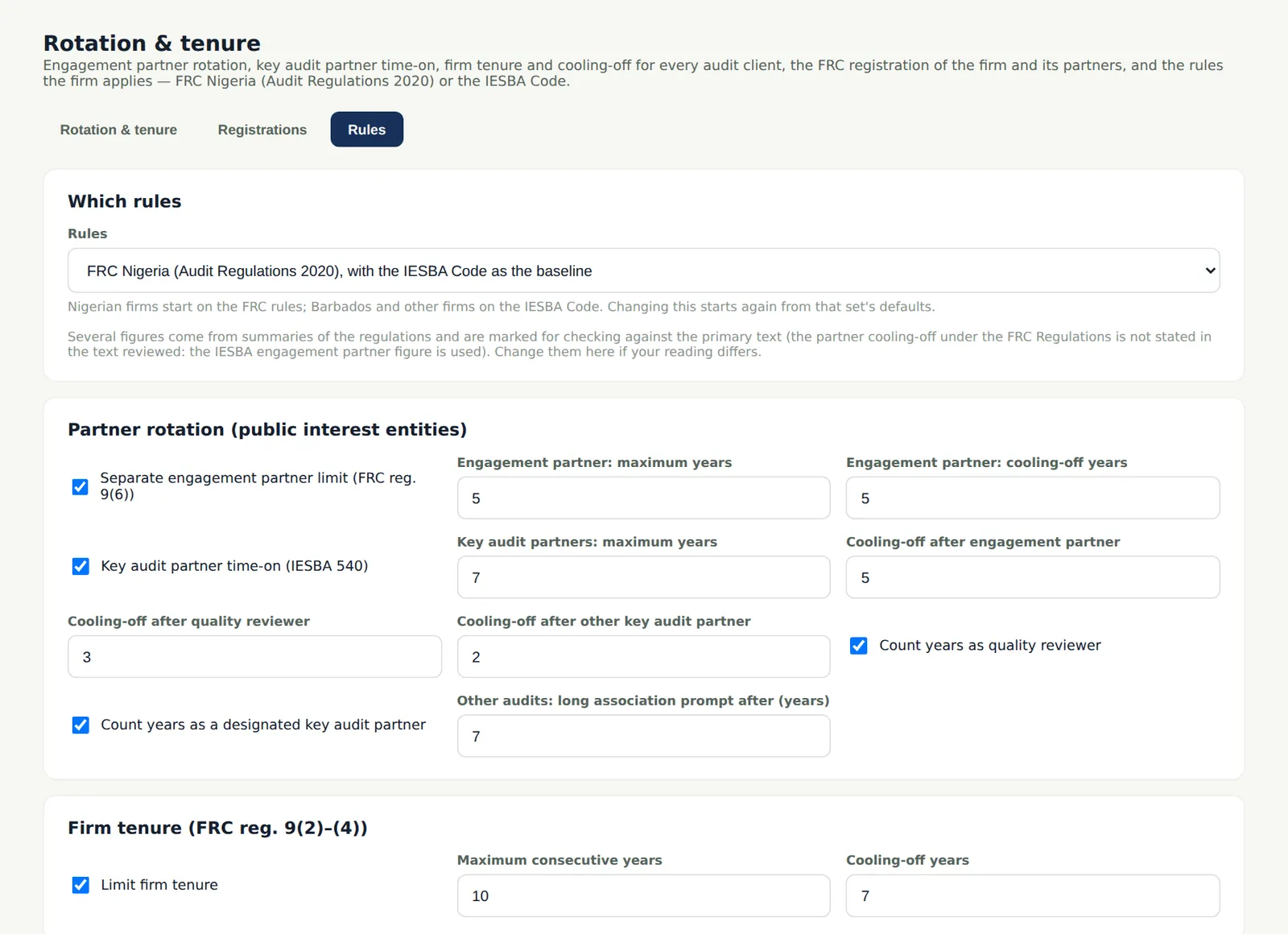
Why
Nigerian firms start with the FRC Audit Regulations 2020 (engagement partner 5 years; firm tenure 10 years then 7 years off) with the IESBA Code as the baseline; Barbados and other firms start with the IESBA Code (7 years; cooling-off 5, 3 or 2). A breach blocks acceptance of the engagement and its report unless the quality lead overrides it with reasons (chapter 19).
Who
Quality lead, owner or firm administrator.
What to do
- Open Rotation & tenure → Rules and choose which rules apply.
- Check each figure and switch; changing the rules starts again from that set's defaults. Save.
2.15 Firms
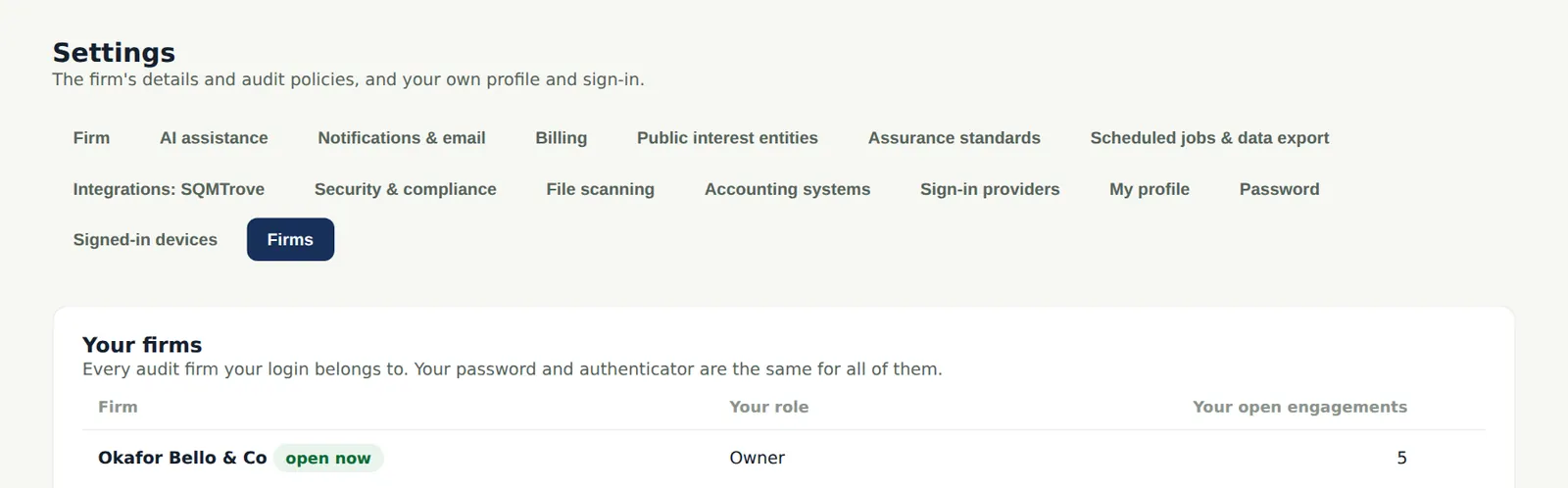
Why
One login can belong to more than one firm (for example a partner who is also a guest at another firm, or an adviser). Invitations from other firms appear here to accept or decline, and you switch between firms here.
Who
Every user.
What to do
- Accept or decline an invitation; choose a firm to switch to it.
2.16 When every seat is in use
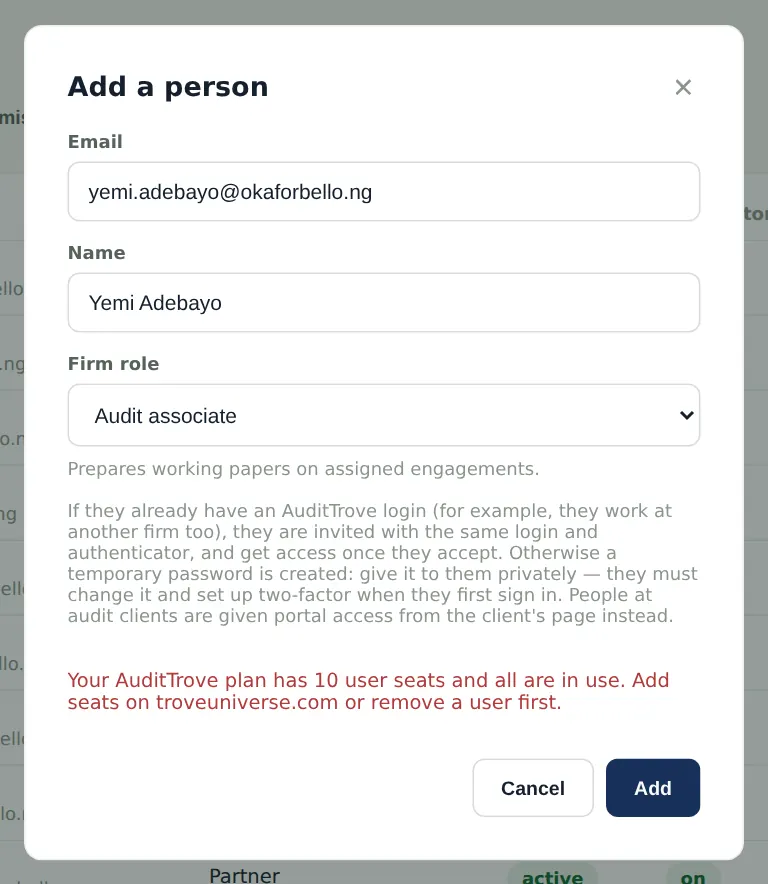
Why
The subscription on troveuniverse.com sets how many people (seats) the firm can have. Every staff login uses a seat; client users and component auditors are free. When all seats are in use, adding or re-activating a person is refused with this message until more seats are bought. If the subscription is suspended AuditTrove becomes read-only; if it ends, sign-in is refused.
Who
Owner or firm administrator.
What to do
- Remove people who have left (step 2.10), or buy more seats on troveuniverse.com/account.html, then add the person again.