Steps in this chapter (17)
Open AuditTrove from troveuniverse.com, set up two-factor authentication, sign in with a password, reset a forgotten password, and manage your own devices, notifications and profile.
AuditTrove is part of TroveSuite and is sold through troveuniverse.com. The person who subscribes opens AuditTrove from their TroveUniverse account and becomes the firm's first owner; everyone else signs in with the email address and password the firm gives them, or with their Microsoft or Google work account when the firm switches that on (chapter 3).
Every login — partners, staff, inspectors, client users and component auditors — also needs a six-digit code from an authenticator app. In the illustration Adaeze Nwosu, managing partner of Okafor Bello & Co, opens AuditTrove on Monday 5 January 2026, and Ibrahim Musa, an audit associate, signs in for the first time the same day.
Since September 2026 AuditTrove keeps only a fingerprint (SHA-256) of each session, never the session itself. When the release was installed everyone was signed out once and signed in again; nothing else changed for users.
Use cases
- Use case — A new subscriber. The person who bought AuditTrove on troveuniverse.com follows steps 1.1 to 1.4 once. People added later start at step 1.5.
- Use case — A forgotten password. Steps 1.10 to 1.12: the person asks for a link on the sign-in page; it works once, for an hour. Two-factor is not changed.
- Use case — A lost or new phone. Step 1.13 moves two-factor to a new phone; if the phone and the recovery codes are both lost, an administrator resets two-factor (chapter 2).
- Use case — A laptop left signed in at a client's office. Step 1.14: sign out every other device from Settings → Signed-in devices, then change your password.
1.1 Open AuditTrove from troveuniverse.com
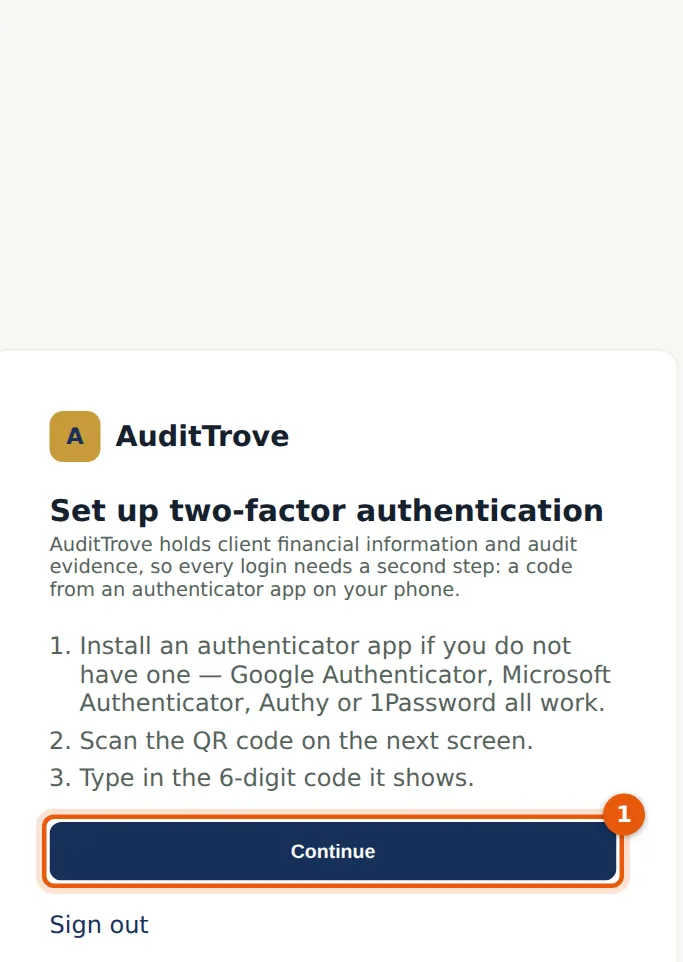
Why
Single sign-on means the person who bought the subscription needs no separate AuditTrove password. The first Launch creates the firm in AuditTrove and makes that person its owner; later launches sign the same person straight in. AuditTrove holds client financial information and audit evidence, so a second step is compulsory for everyone.
Who
The subscriber (first owner), once.
What to do
- Sign in at troveuniverse.com and choose Launch next to AuditTrove.
- Install an authenticator app on your phone if you do not have one (Google Authenticator, Microsoft Authenticator, Authy or 1Password), then choose Continue (1).
1.2 Link your authenticator app
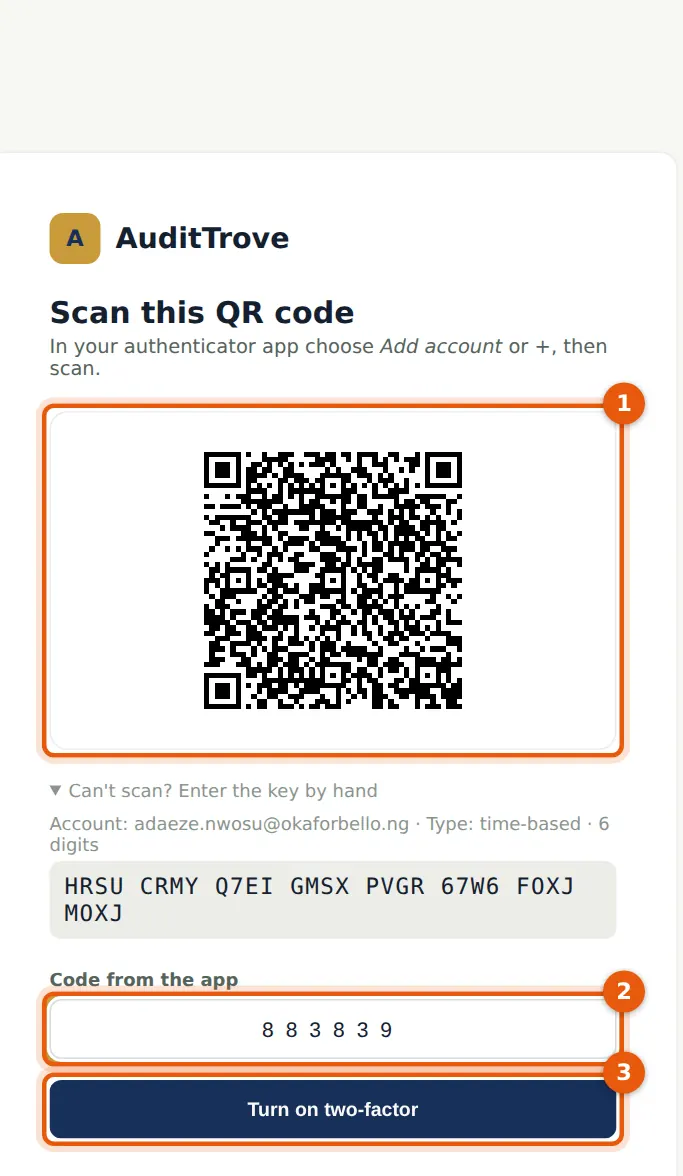
Why
The QR code links the app on your phone to your AuditTrove login. The app then shows a new code every 30 seconds. The QR code is drawn in the page itself, so the secret key is not sent to any other service.
Who
Every user, once.
What to do
- In the app choose Add account and scan the QR code (1). If you cannot scan, open 'Can't scan?' and type the key.
- Type the six-digit code (2) and choose Turn on two-factor (3).
1.3 Save your recovery codes
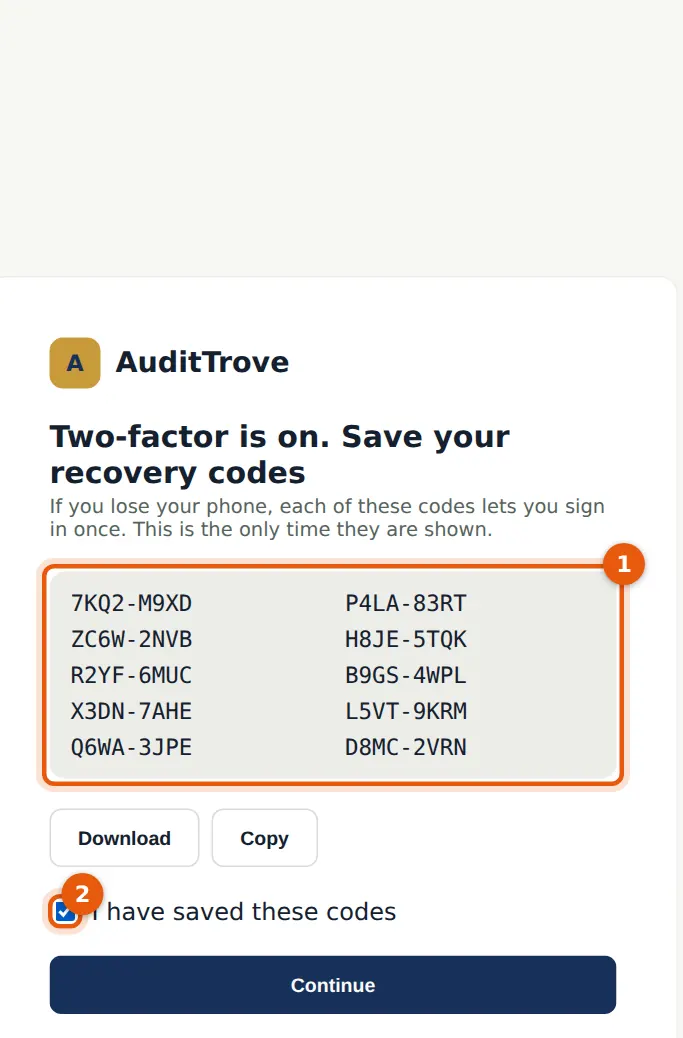
Why
If you lose your phone, each recovery code lets you sign in once. They are shown only now.
Who
Every user, once.
What to do
- Download or copy the codes (1) and keep them somewhere safe and private — not in the same place as your phone.
- Tick 'I have saved these codes' (2) and choose Continue.
1.4 The dashboard of a new firm
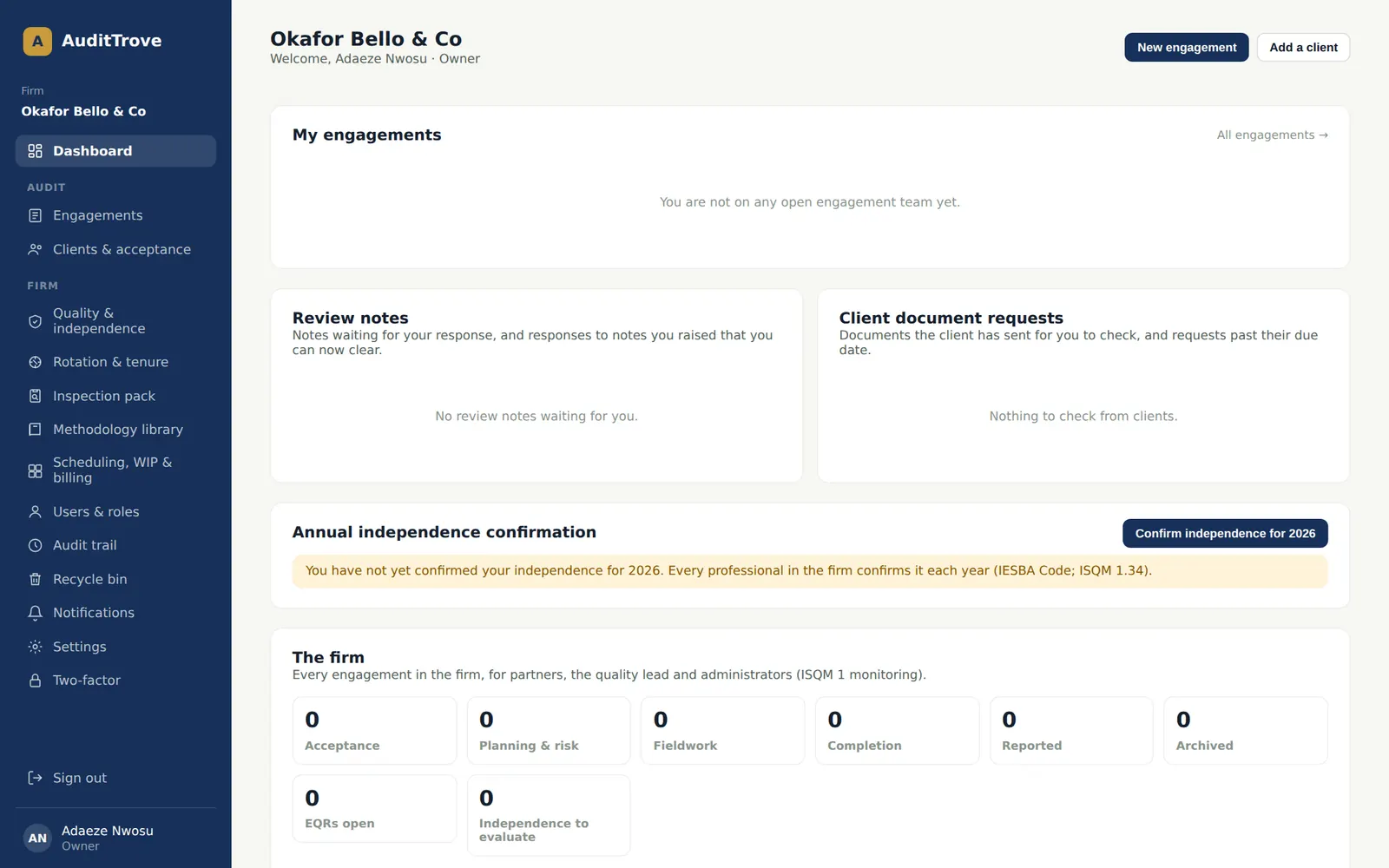
Why
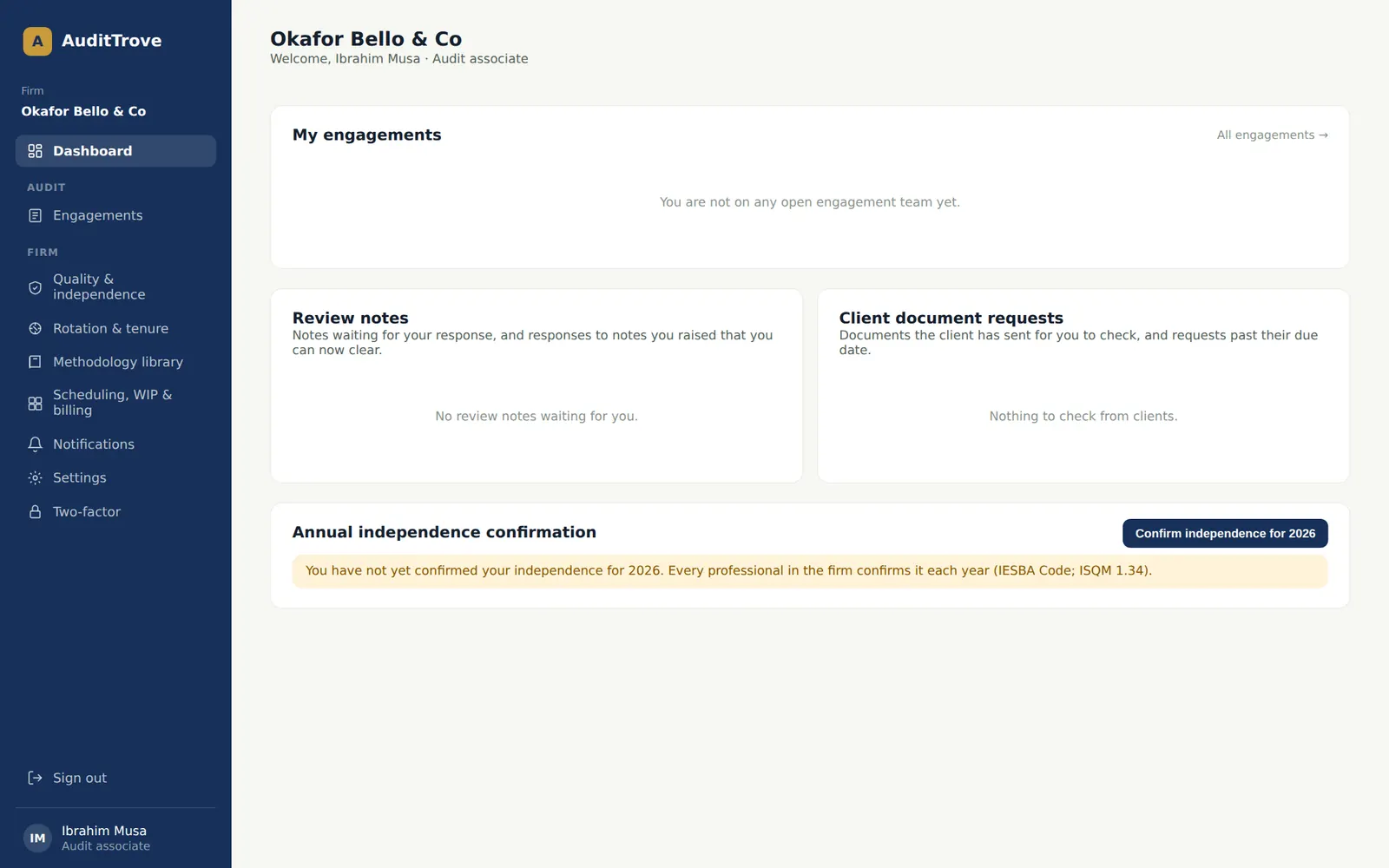
The dashboard is the start page for everyone. It shows your engagements, review notes waiting for you, documents clients have sent, your annual independence confirmation (IESBA Code; ISQM 1.34) and, for partners and administrators, the firm's figures by phase.
Who
Every user.
What to do
- Use the menu on the left: the Audit section (engagements and clients) and the Firm section (quality, rotation, inspection pack, methodology, scheduling and billing, users, audit trail, recycle bin, notifications, settings).
- Choose Confirm independence for 2026 when you are ready (chapter 19).
1.5 The sign-in page
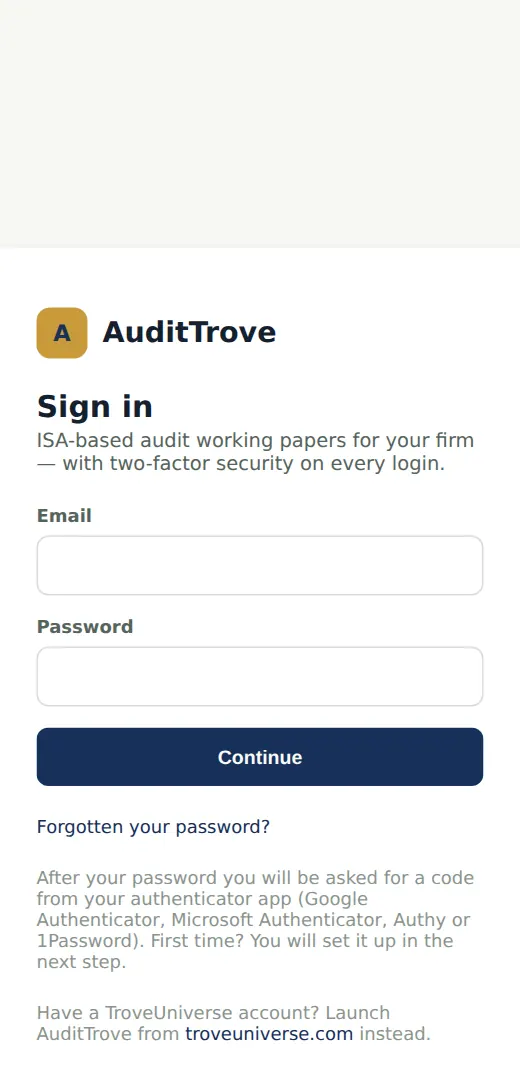
Why
People the firm adds sign in here with their email address and password. When the firm switches on sign-in with Microsoft or Google, the buttons for them also appear on this page for the firm's email domains (chapter 3). The page itself never shows whether an email address has a login.
Who
Every user.
What to do
- Go to the AuditTrove address your firm gave you (for example audit.troveuniverse.com).
- Use 'Forgotten your password?' if you need a new one (step 1.10).
1.6 Sign in for the first time
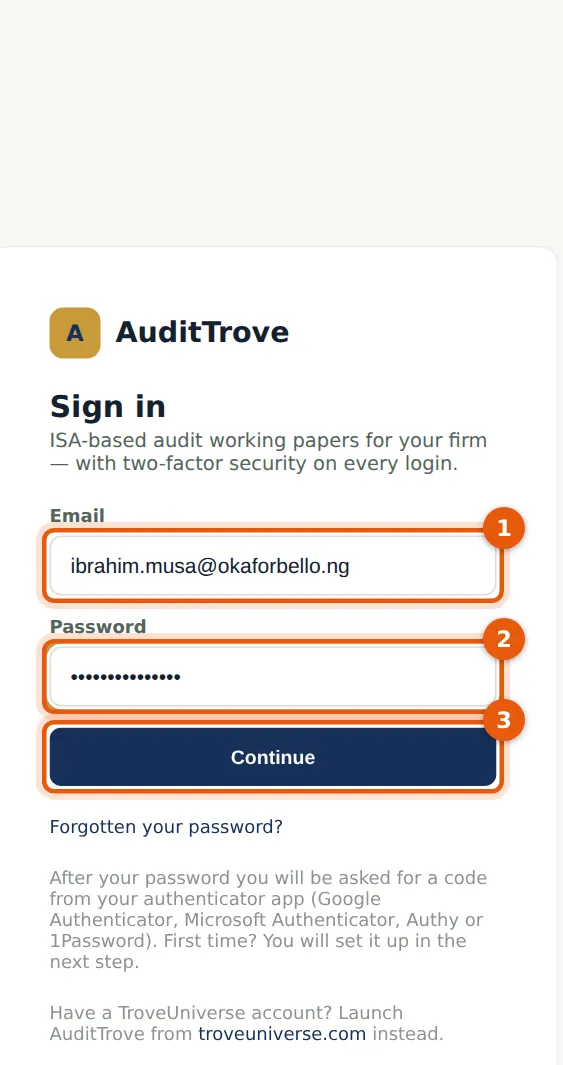
Why
A person added by the firm gets a temporary password from the administrator. It works once: the first sign-in asks for two-factor set-up and a new password.
Who
New users.
What to do
- Enter your email address (1) and the temporary password (2) and choose Continue (3).
1.7 Set up two-factor authentication
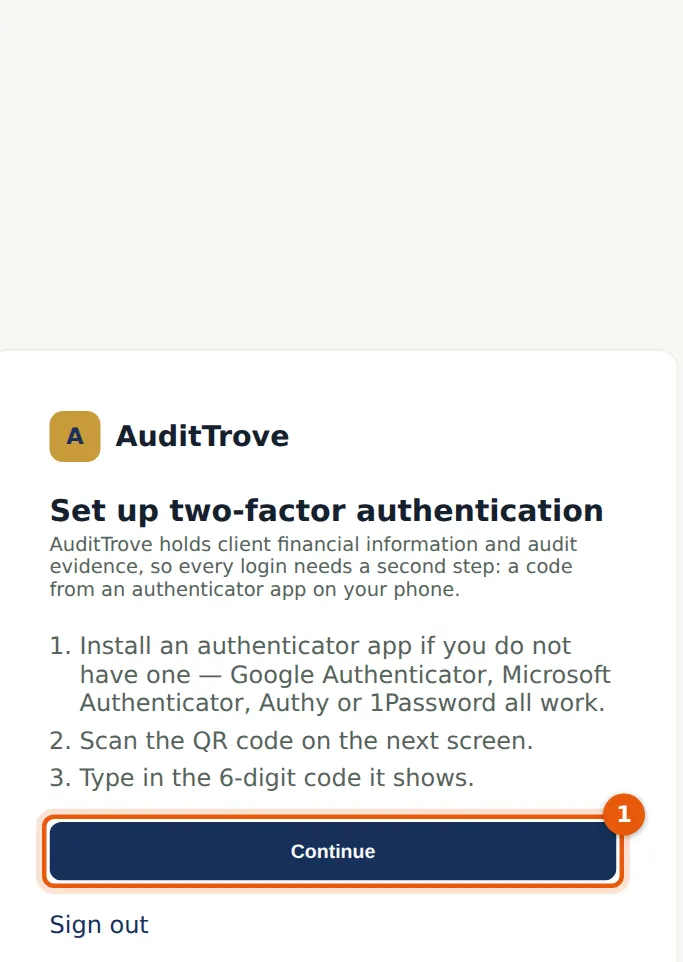
Why
Two-factor authentication is compulsory for everyone, including client users and component auditors, and cannot be switched off.
Who
Every user, once.
What to do
- Choose Continue (1) and follow steps 1.2 and 1.3 on your own phone.
1.8 Choose your own password
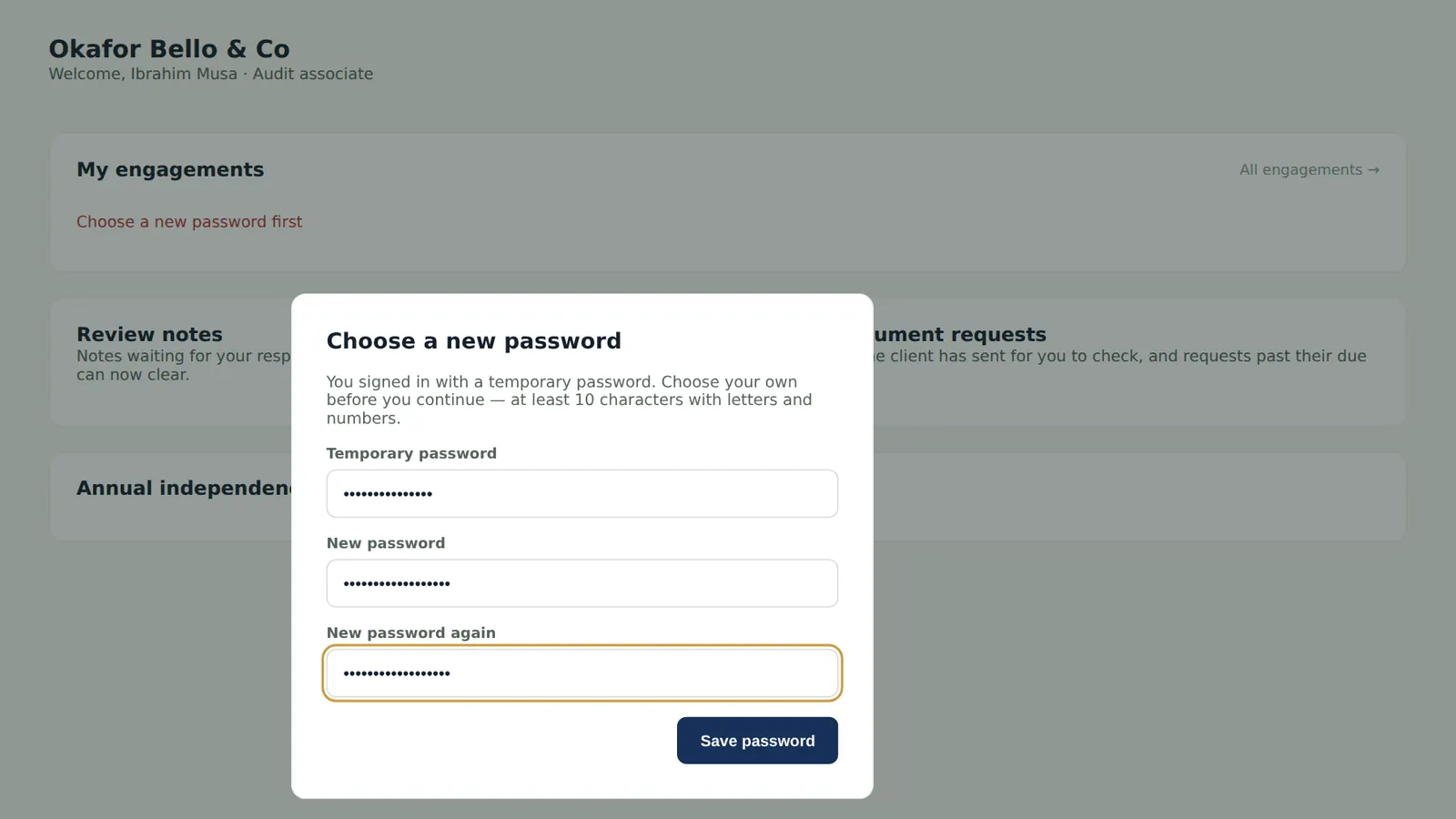
Why
A temporary password must be replaced at the first sign-in. Passwords are stored only as a salted, slow hash; nobody at the firm or at TroveUniverse can read them.
Who
New users.
What to do
- Enter the temporary password, then your new password twice (at least 10 characters with letters and numbers), and choose Save password.
1.9 Your dashboard
Why
Engagements appear here once you are on an engagement team. The menu shows only what your role allows: an audit associate does not see Users & roles, Settings or Scheduling reports.
Who
Every user.
What to do
- Confirm your annual independence when asked.
- Open an engagement from My engagements once you are added to a team.
1.10 Forgotten your password? Ask for a link
Why
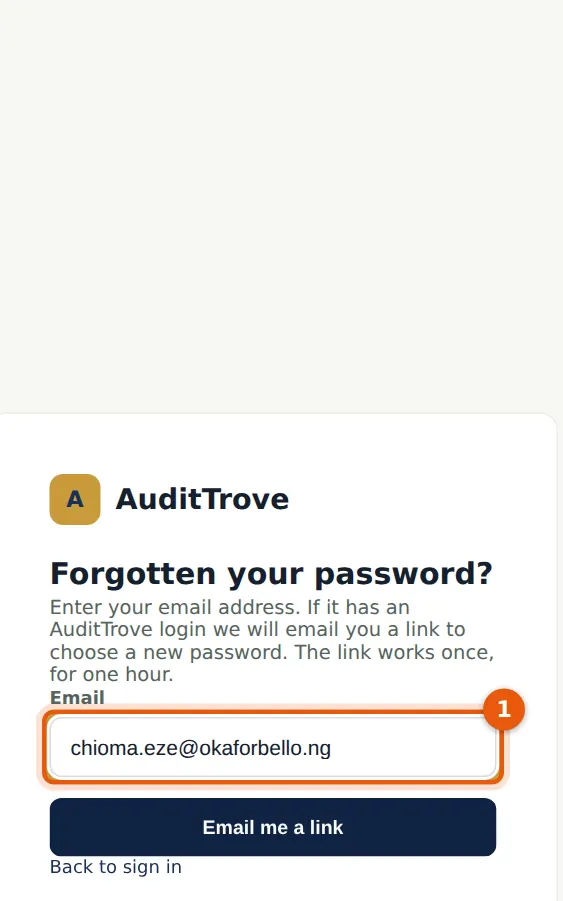
A person who forgets their password asks for a link on the sign-in page. The page says the same thing whether or not the address has a login, so nobody can use it to find out who works at the firm.
Who
Any user (here Chioma Eze, on 2 March 2026).
What to do
- On the sign-in page choose 'Forgotten your password?'.
- Enter your email address (1) and choose Email me a link.
1.11 The reset email
Why
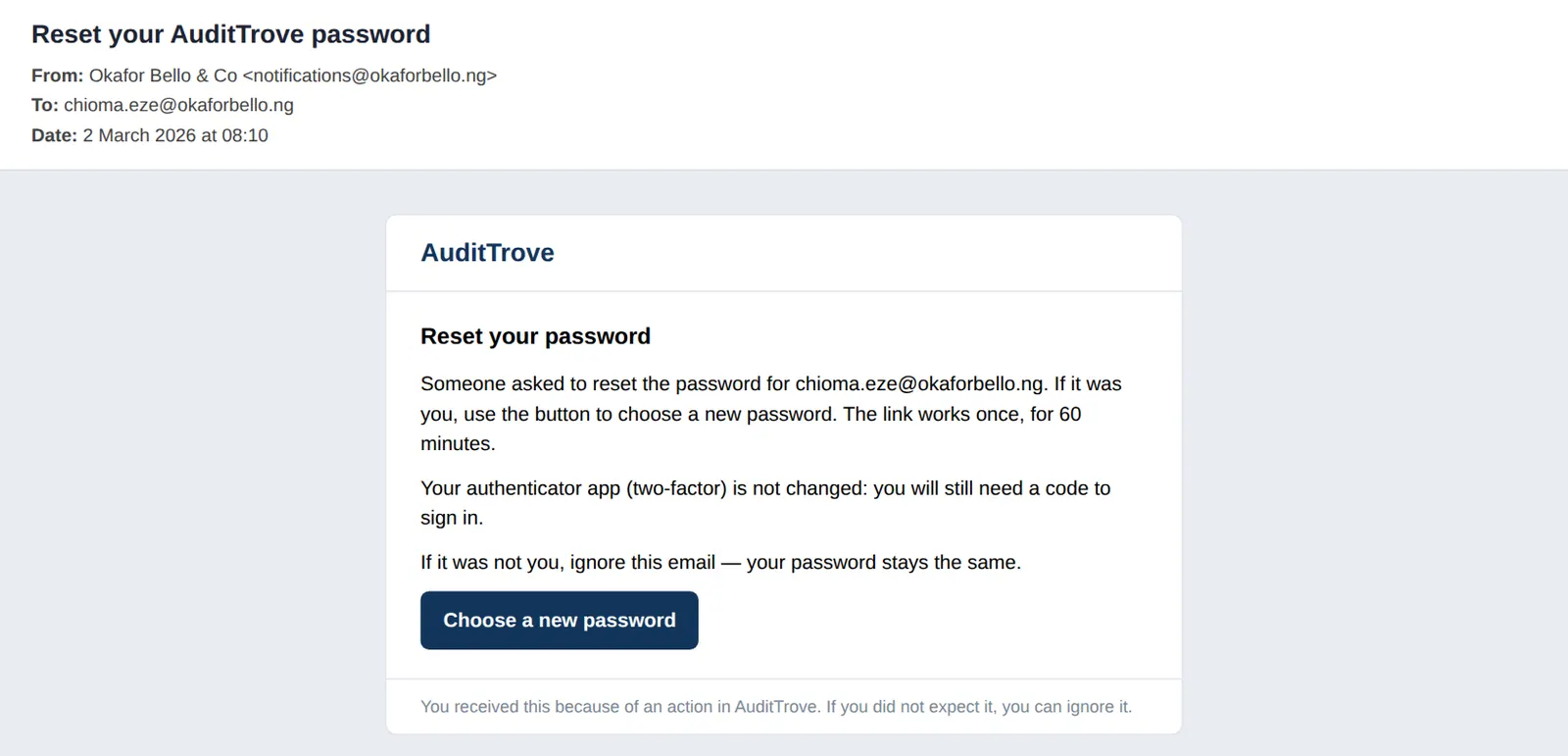
The email comes from the firm's notification address. The link is single-use and expires after an hour; only a fingerprint of it is stored. Two-factor authentication is not changed: you still need a code to sign in.
Who
The person who asked.
What to do
- Open the email and choose Choose your password. If you did not ask for it, ignore it — your password stays the same.
1.12 Choose a new password
Why
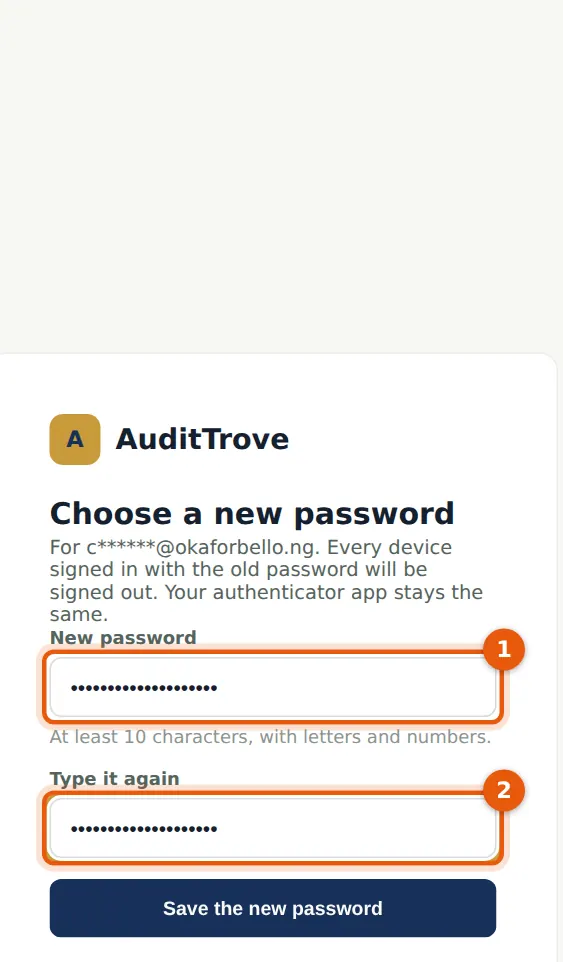
Changing the password ends your other sessions, so anyone else signed in as you is signed out.
Who
The person who asked.
What to do
- Type the new password (1) and again (2), and choose Save. Then sign in with it and your authenticator code.
1.13 Your two-factor page
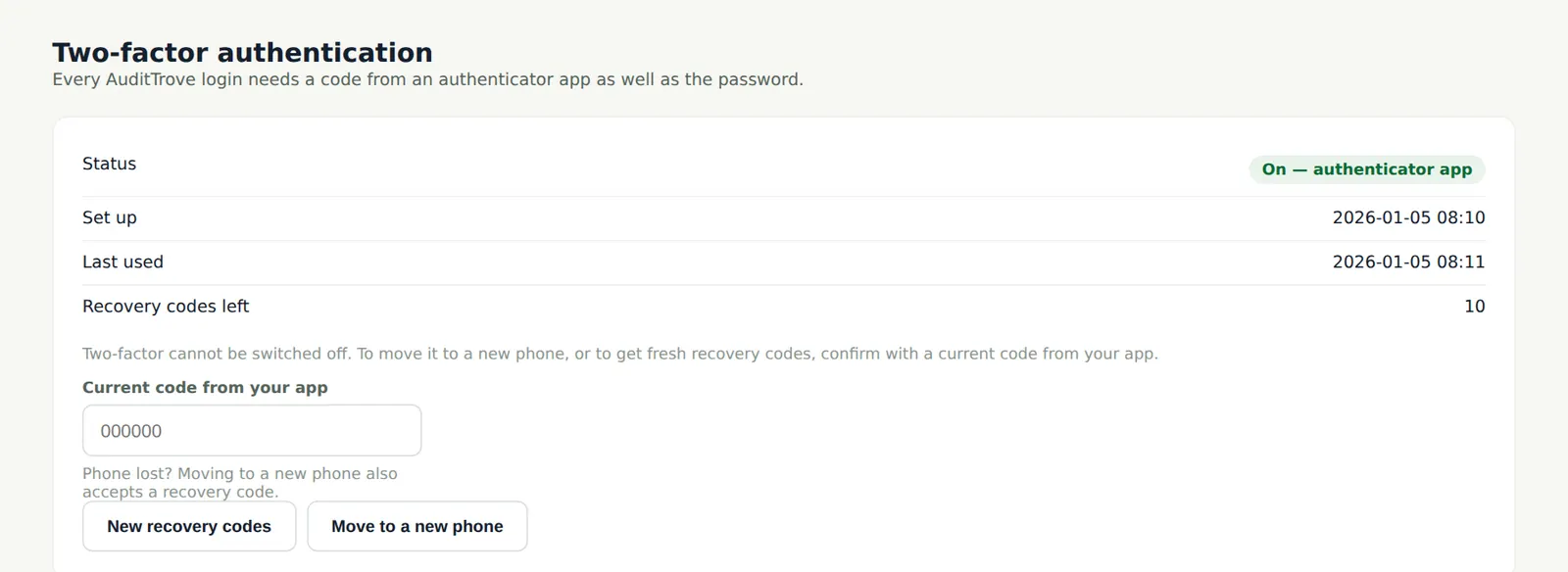
Why
The Two-factor page shows when you set it up, when it was last used and how many recovery codes you have left. Moving to a new phone needs a current code from the old app (or a recovery code).
Who
Every user.
What to do
- Choose New recovery codes if you have used some (the old ones stop working).
- Choose Move to a new phone to link a new app; enter a current code first.
1.14 Signed-in devices
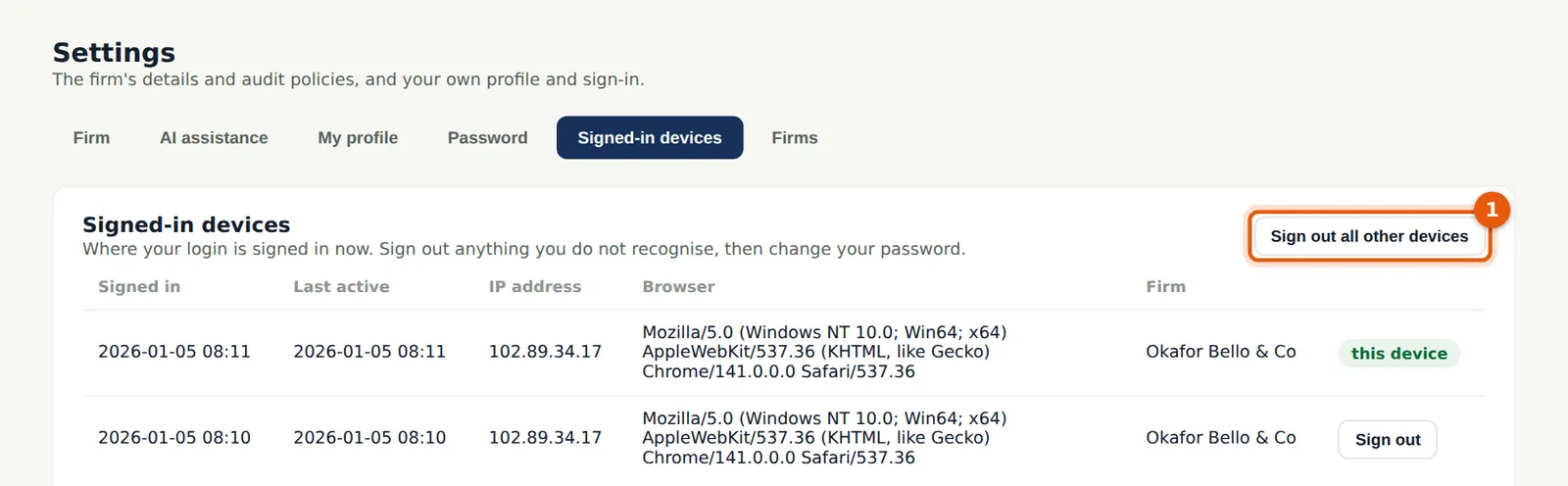
Why
Sessions last at most 12 hours and end after 60 minutes without activity. The list shows where you are signed in, from which IP address and browser. If a device is lost or you left a session open, end it here.
Who
Every user.
What to do
- Open Settings → Signed-in devices.
- Choose Sign out beside one device, or Sign out all other devices (1). Then change your password if you think someone else used your login.
1.15 Notifications
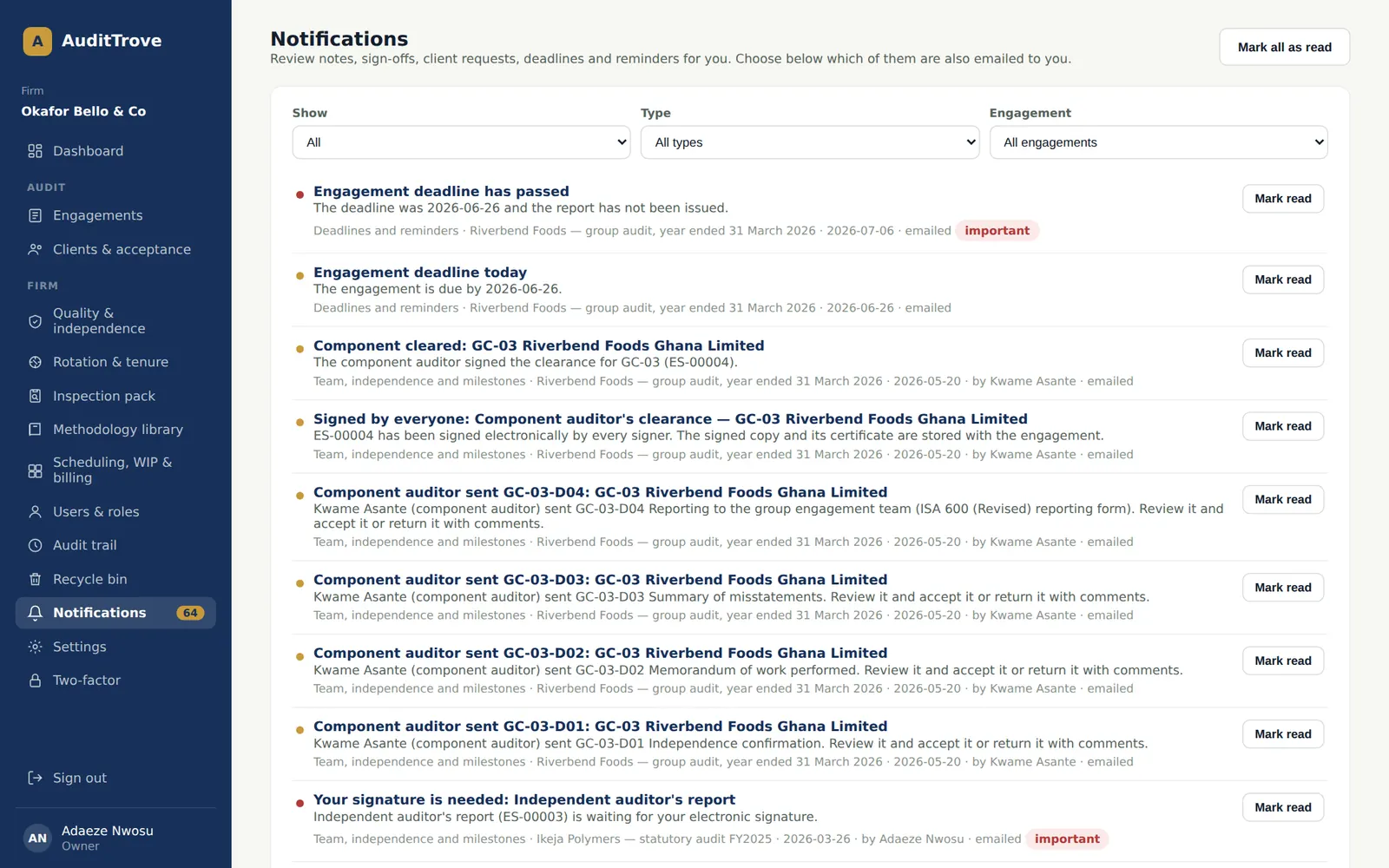
Why
AuditTrove tells you when something needs you: a review note raised or answered, a paper ready for review, a client document received, a confirmation reply, a signature request, an independence declaration to evaluate. The same notice can come by email.
Who
Every user.
What to do
- Open Notifications from the menu; the number shows unread notices.
- Choose a notice to open the record; choose Mark all as read when you have dealt with them.
1.16 Your email preferences
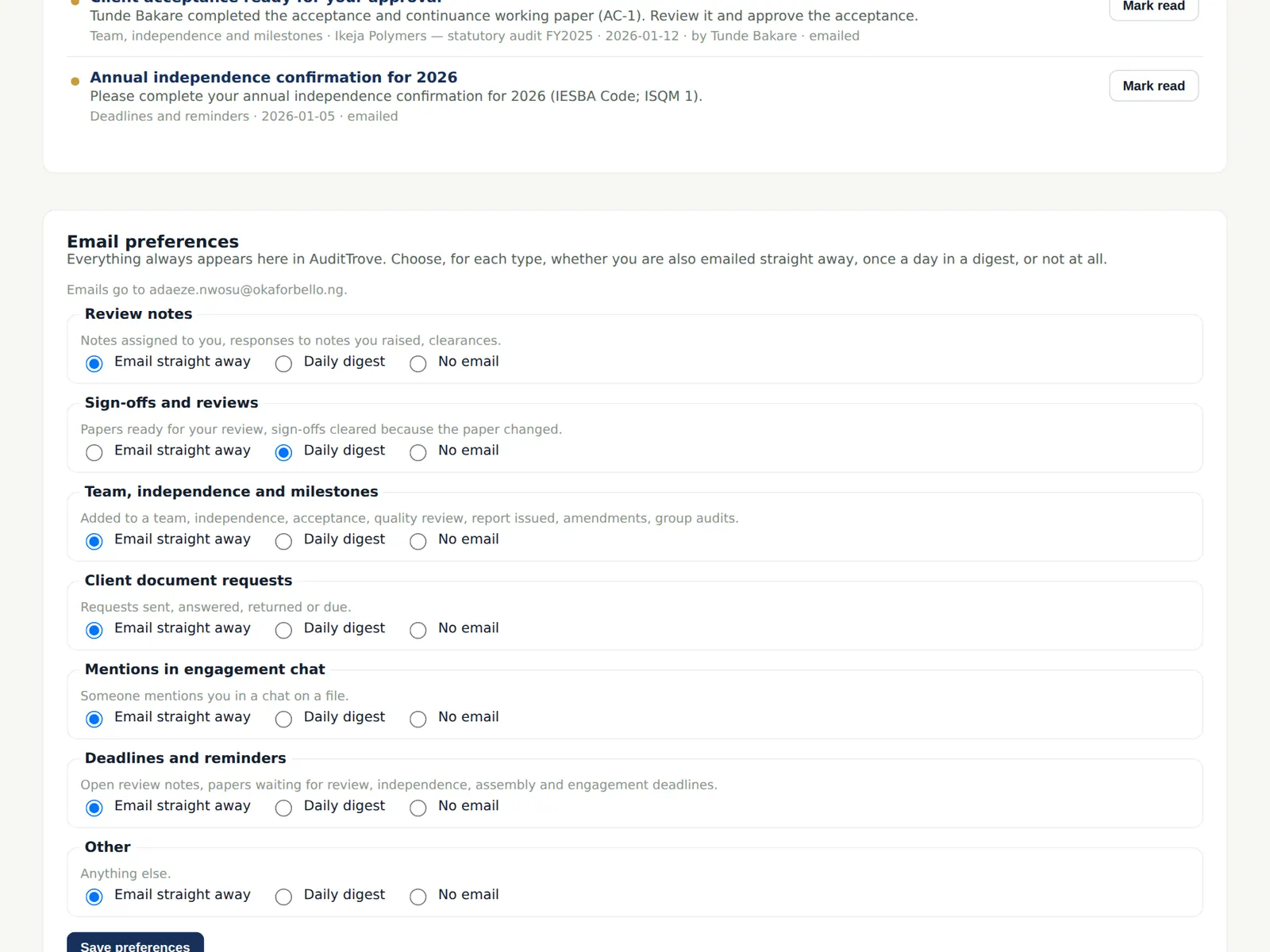
Why
Each person decides which notices also come by email, and whether to get one daily digest instead of separate emails. In-app notifications are always on.
Who
Every user.
What to do
- Tick the kinds of notice you want by email and choose Save preferences.
1.17 Your profile and registration
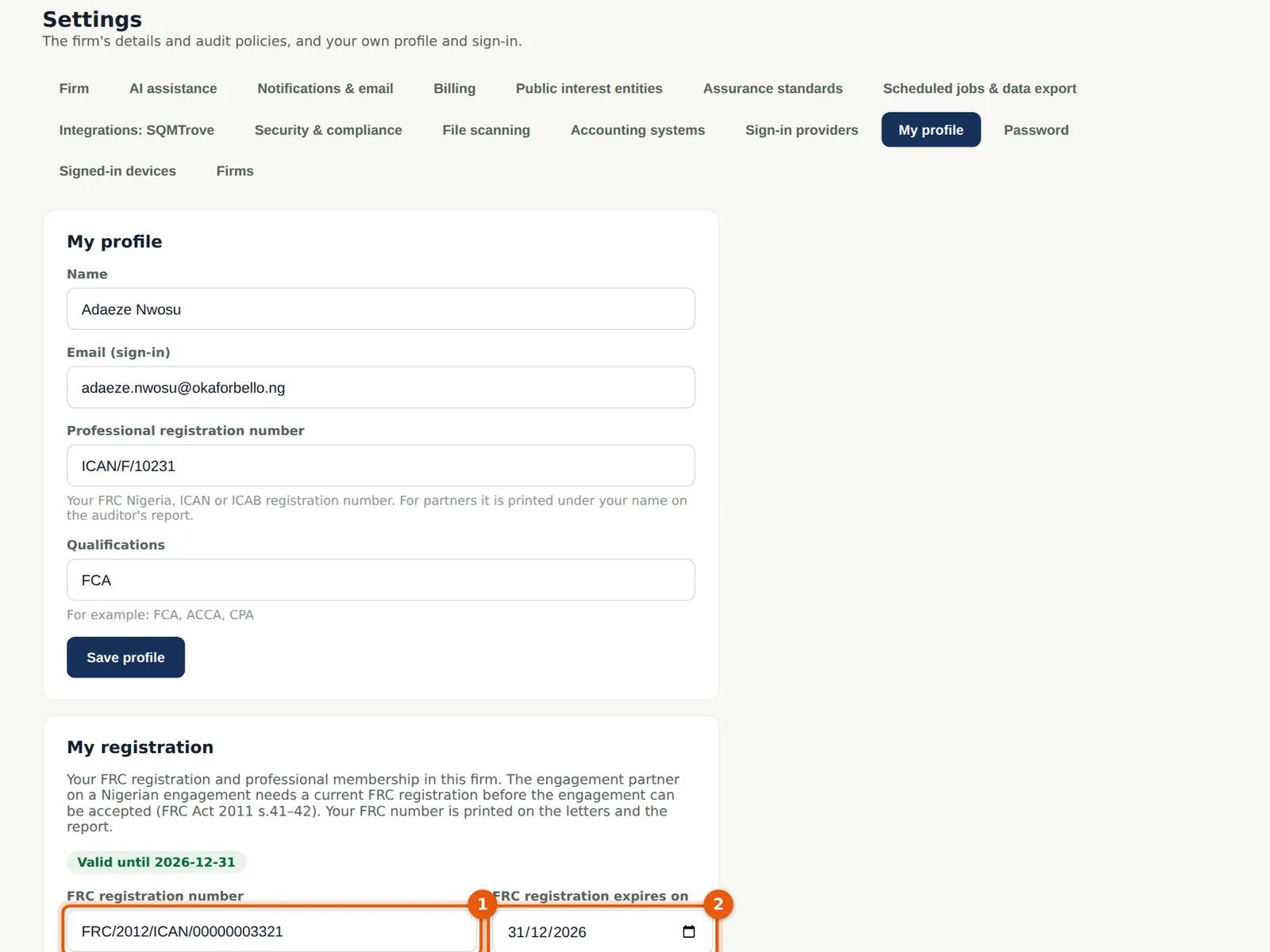
Why
Partners' FRC and professional numbers are printed on letters and reports, and a Nigerian engagement cannot be accepted or its report signed while the engagement partner's registration is missing or expired (FRC Act 2011; FRC Audit Regulations 2020). Reminders go out 30 and 7 days before expiry.
Who
Every user (partners in particular).
What to do
- Open Settings → My profile.
- Enter your professional registration number and qualifications; under My registration enter the FRC number (1), its expiry date (2), your professional body and membership number and the practising licence expiry. Save each section.