Steps in this chapter (7)
Front pages, notes library, linked tables, checks, and PDF or Word — and group and company side by side.
The Annual report tab of the financial statements puts the audited statements inside the pages of a Nigerian annual report: table of contents, corporate information, financial highlights, directors' report, statement of directors' responsibilities, the CAMA 2020 section 405 certification, the report of the audit committee, management's annual assessment of and report on internal control over financial reporting (with the certification and the practitioner's report), the auditor's report drawn from the report builder, the notes, the statement of value added and the five-year financial summary. Each page and note can be switched on or off, edited, reordered or reset, and its tables can link their numbers to the statements, the trial balance or other notes.
In the illustration Ebiere Tariah, the audit senior on Rumuola Marine Supplies Limited, prepares the annual report on 14 July 2026 from the client's statutory books and the adjusted trial balance.
Use cases
- Use case — The client asks the auditors to prepare the annual report. Fill in the details (step 22.6), switch on the pages that apply, complete the bracketed guidance (steps 22.2–22.3), clear the checks (step 22.7) and download the PDF or Word file.
- Use case — A group audit. With a parent component in the group (chapter 16), the statements show Group and Company columns side by side (step 22.5).
22.1 Open the Annual report tab
Why
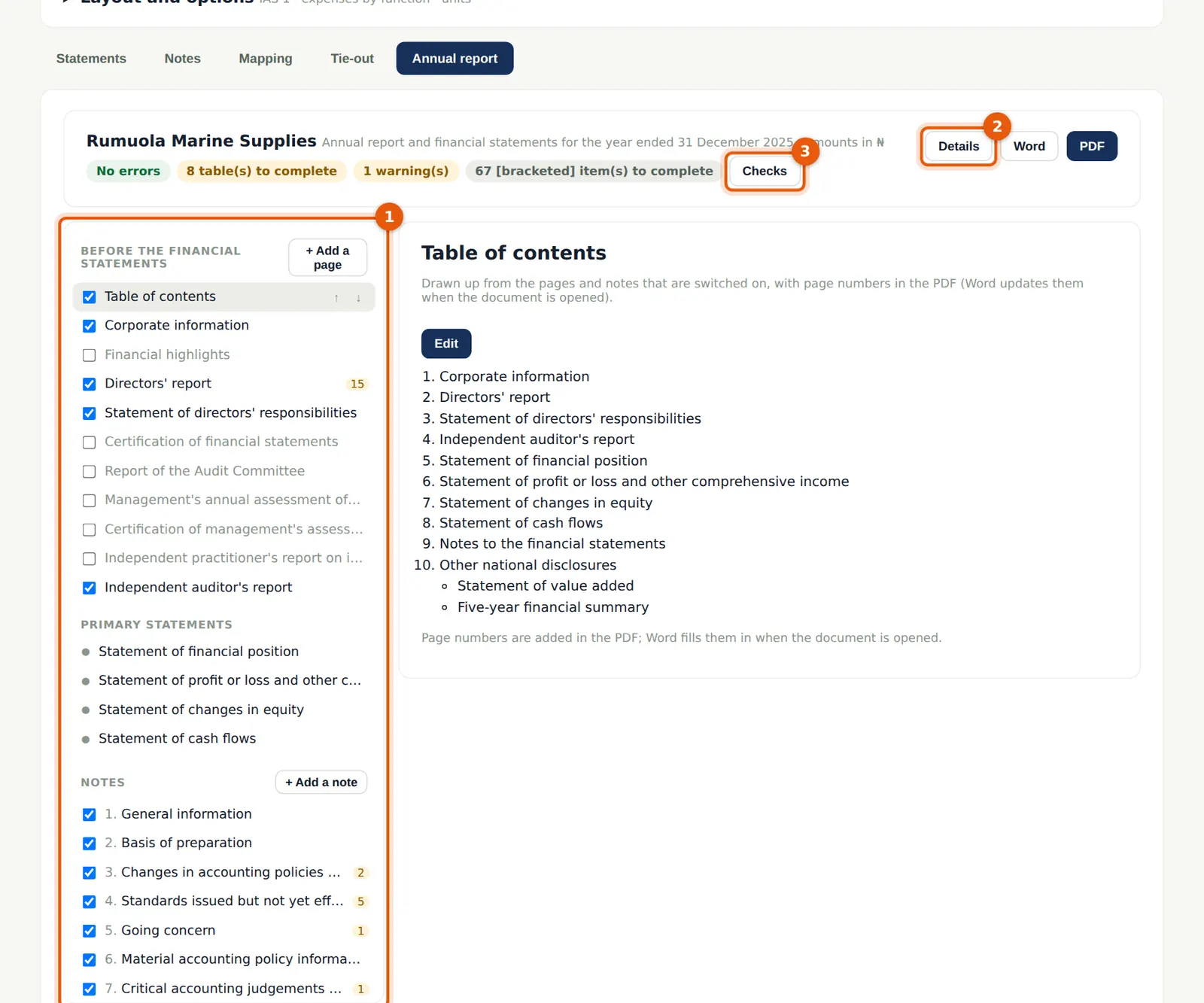
The navigator (1) lists the pages in three groups — before the financial statements, the notes and the other national disclosures at the back — each with a switch and a count of guidance still to complete. Pages are switched on automatically when they apply: a listed company or public interest entity gets the audit committee and ICFR pages, for example. Details (2) holds what is not in the trial balance; Checks (3) lists what is left to do. Word and PDF download the whole report.
Who
The engagement team; the EQR reviewer can read it. It cannot be changed once the engagement is archived.
What to do
- Open the engagement's Financial statements and choose the Annual report tab.
- Tick or untick a page in the navigator; use the arrows to move it; choose + Add a page or + Add a note for pages of your own.
22.2 Pages before the statements
Why
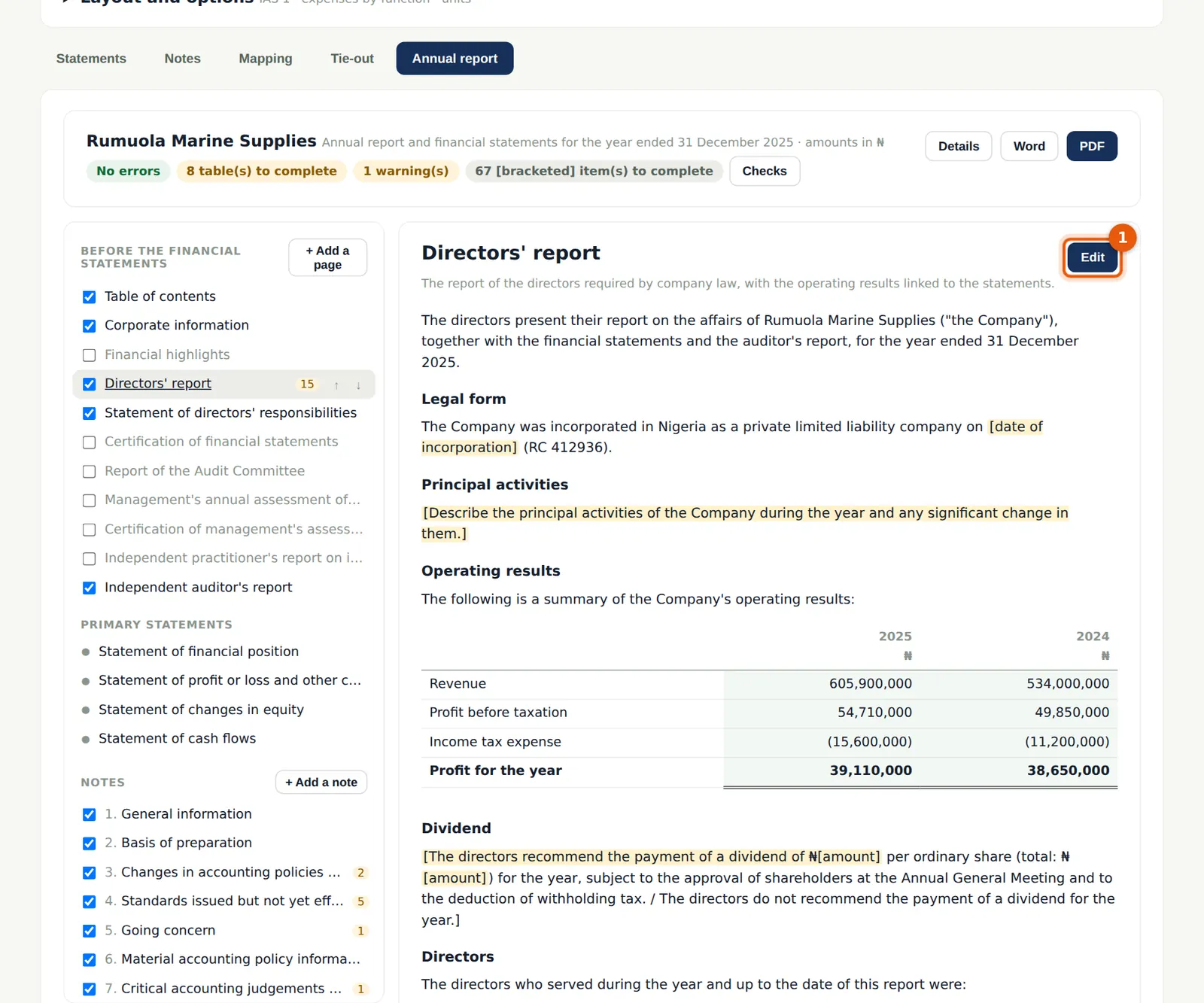
The standard wording is filled in from the details and the figures — the results table, the dividend, the directors and their interests. Text in [square brackets] is guidance still to complete, such as the date of incorporation or the principal activities; it is highlighted and counted in the checks until it is replaced. Edit (1) opens the page.
Who
Senior; manager reviews.
What to do
- Choose a page in the navigator to see it as it will print.
- Choose Edit (1) to change the wording.
22.3 Edit a page: placeholders and linked amounts
Why
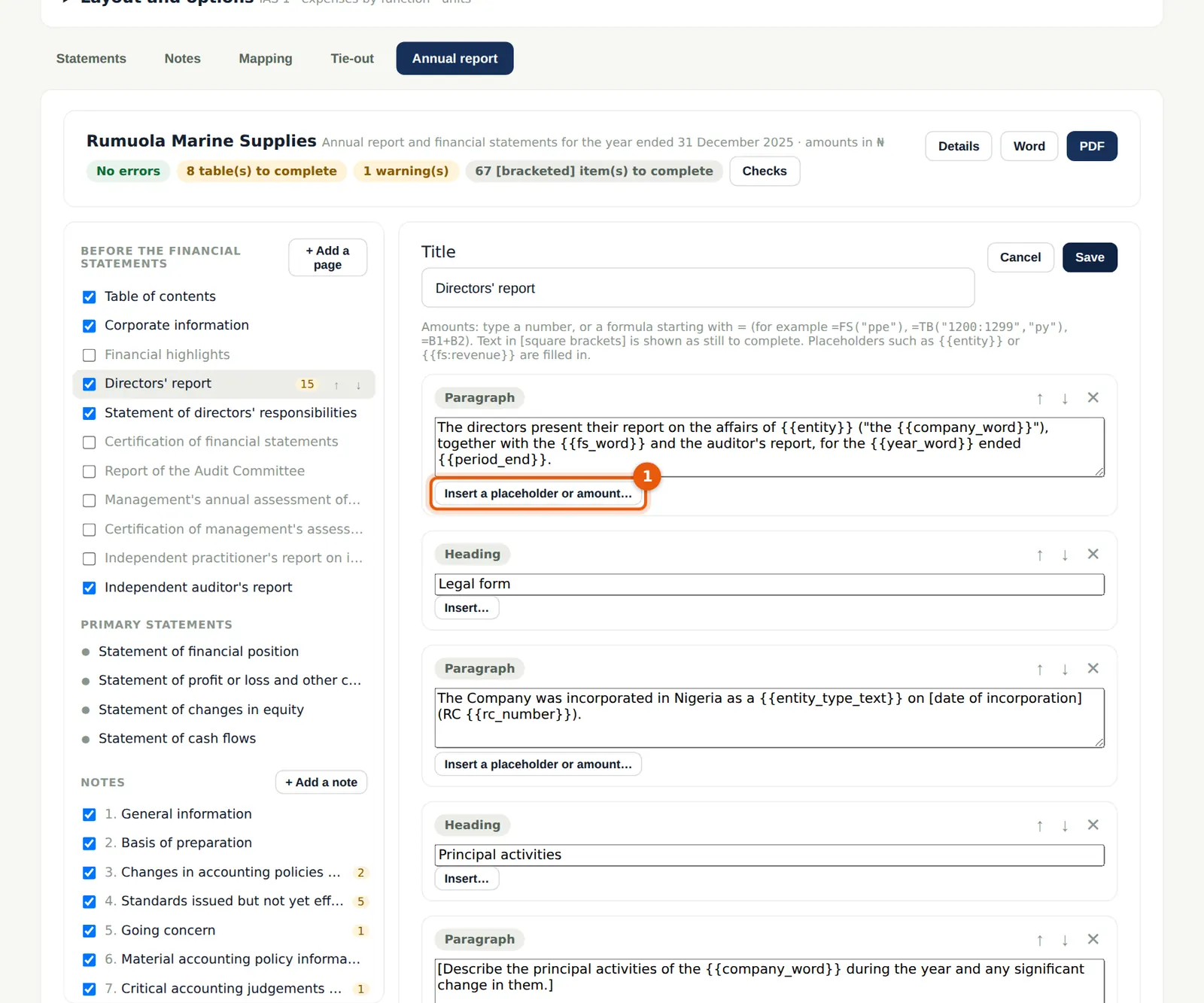
A page is a list of blocks — headings, paragraphs, lists, tables, signature blocks and page breaks. Text can hold placeholders that are filled in when the report is shown: {{entity}}, {{year}}, {{period_end}}, {{fs:revenue}} (a line of the statements), {{fs:revenue:py}} (last year), {{fs:revenue:co}} (the company's figure on a group engagement), {{tb:4000}} (an account), {{noteno:ppe}} (a note's number) and {{=formula}}. Insert a placeholder or amount… (1) lists them.
Who
Senior or manager.
What to do
- Click in a paragraph and choose Insert a placeholder or amount… (1).
- Replace the bracketed guidance with the client's own words and choose Save. Reset to the standard content undoes all changes to the page.
22.4 Notes and linked tables
Why
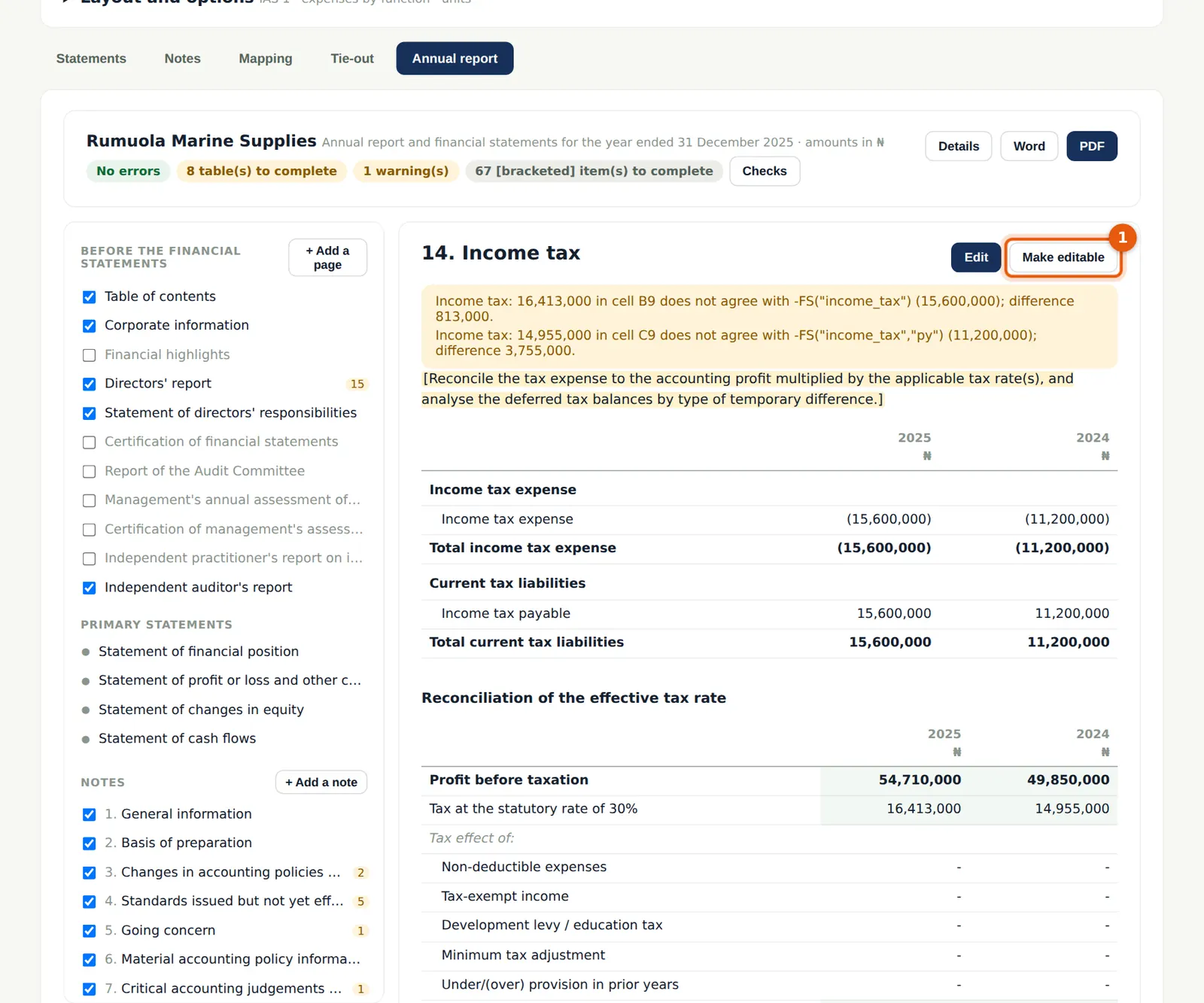
Notes drawn from the trial balance list the accounts on each line; library notes add the other disclosures IFRS and Nigerian law require — segments, EPS, dividends, related parties, financial risk, fair value, directors' emoluments, minimum tax, exchange rates and more — each with a table to complete. Make editable (1) turns a trial-balance table into cells that stay linked: each amount becomes a formula such as TB("2400") with a check against the statement line. Cells take numbers, text or formulas — FS("revenue"), FS("revenue","py"), TB("1200:1299"), TBCR("4000"), CF(…), NOTE(…), REF("name"), DATA("shares_weighted"), arithmetic, SUM, IF and ROUND. Blank subtotals and totals add up by themselves.
Who
Senior or manager.
What to do
- Choose Make editable (1) on a note from the trial balance, or Edit on a library note.
- Complete the tables the library note asks for; give a cell a check when it must agree with a linked figure.
22.5 The statements, and group and company side by side
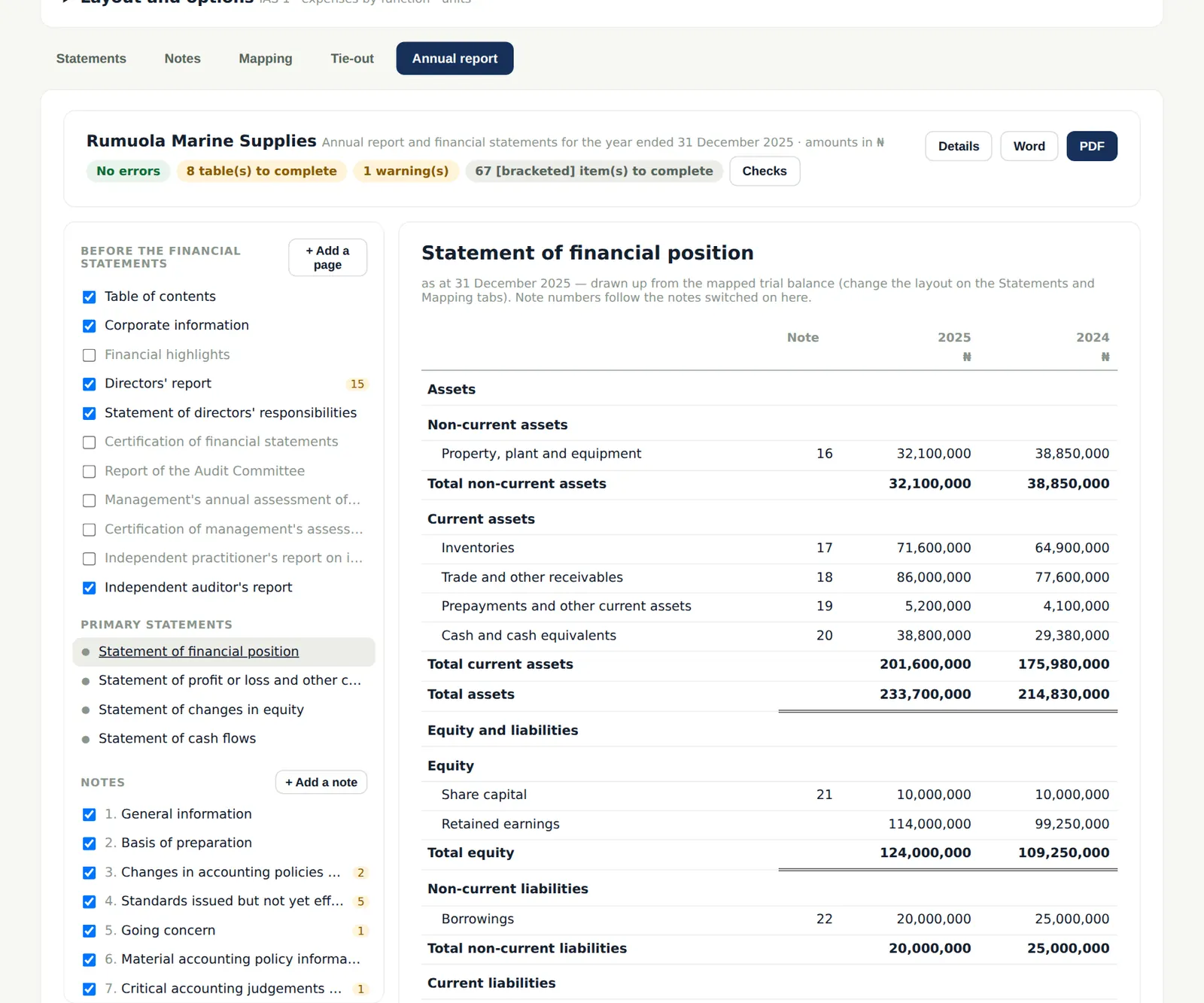
Why
The primary statements are the audited statements from the Statements tab, numbered to the notes switched on here. On a group engagement whose components include a parent (chapter 16), every statement, the notes from the trial balance and each table with a column per year show four amount columns under the headings Group and Company — this year and last year for each — with titles such as "Consolidated and separate statement of financial position". The company's figures are the parent component's trial balance (the prior engagement's parent component gives the comparatives). In an edited table, Add Company columns repeats the amount columns with the formulas pointed at the company, for example FS("revenue","co"). Details → Report settings turns the company columns off.
Who
Anyone on the team.
What to do
- Choose a statement in the navigator to show it.
22.6 Report details
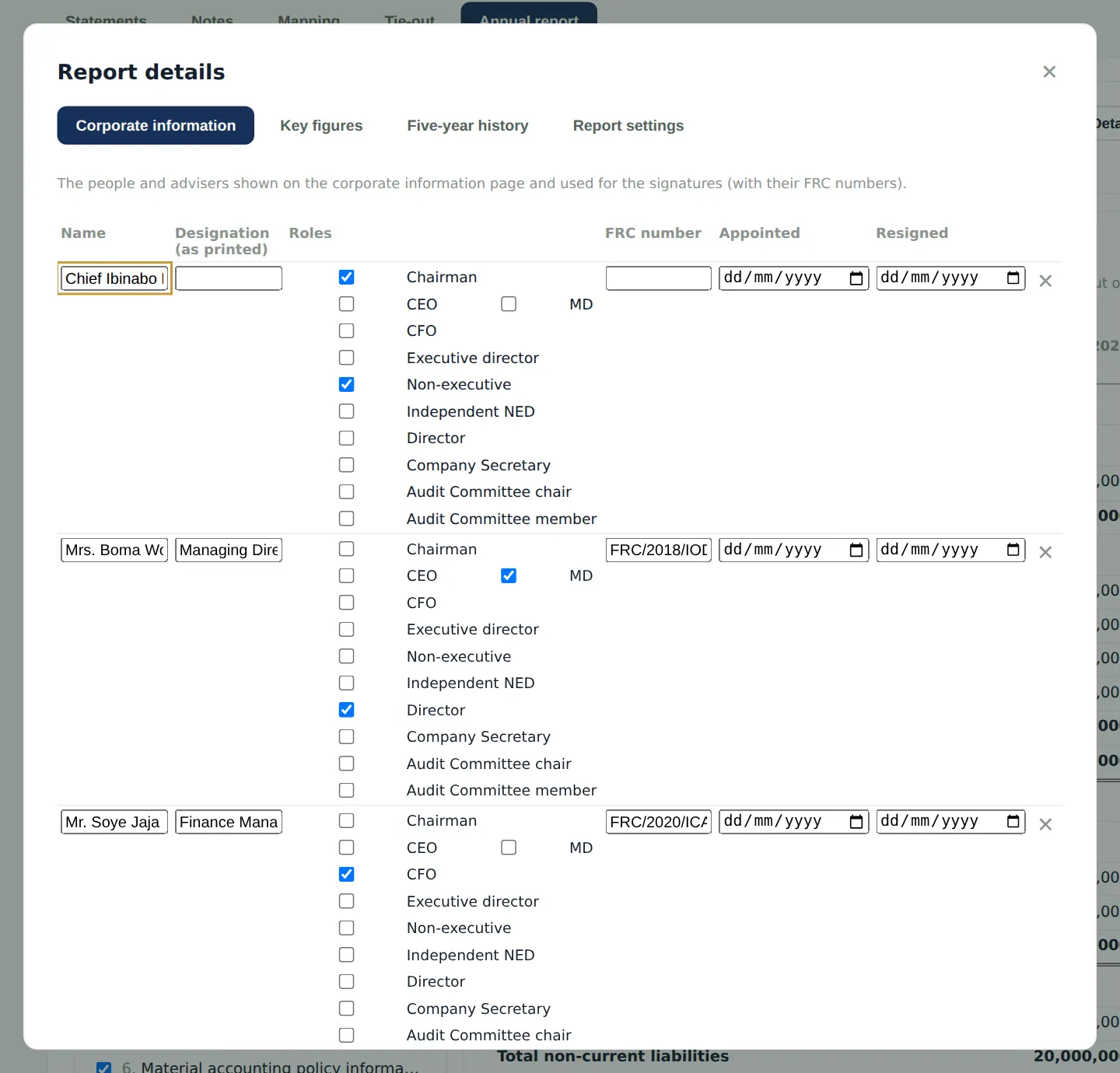
Why
The directors, secretary and officers with their roles and FRC numbers (used on the corporate information page and for the signatures), the registered office, RC number, TIN, auditors, bankers and solicitors; Key figures such as shares in issue, the tax rate and the number of employees; the Five-year history (Fill from earlier years reads prior engagements of the same client); and Report settings, such as the signature on the statement of financial position and the company columns.
Who
Senior, from the client's statutory books.
What to do
- Fill in each tab and choose Save.
22.7 Checks, then PDF or Word
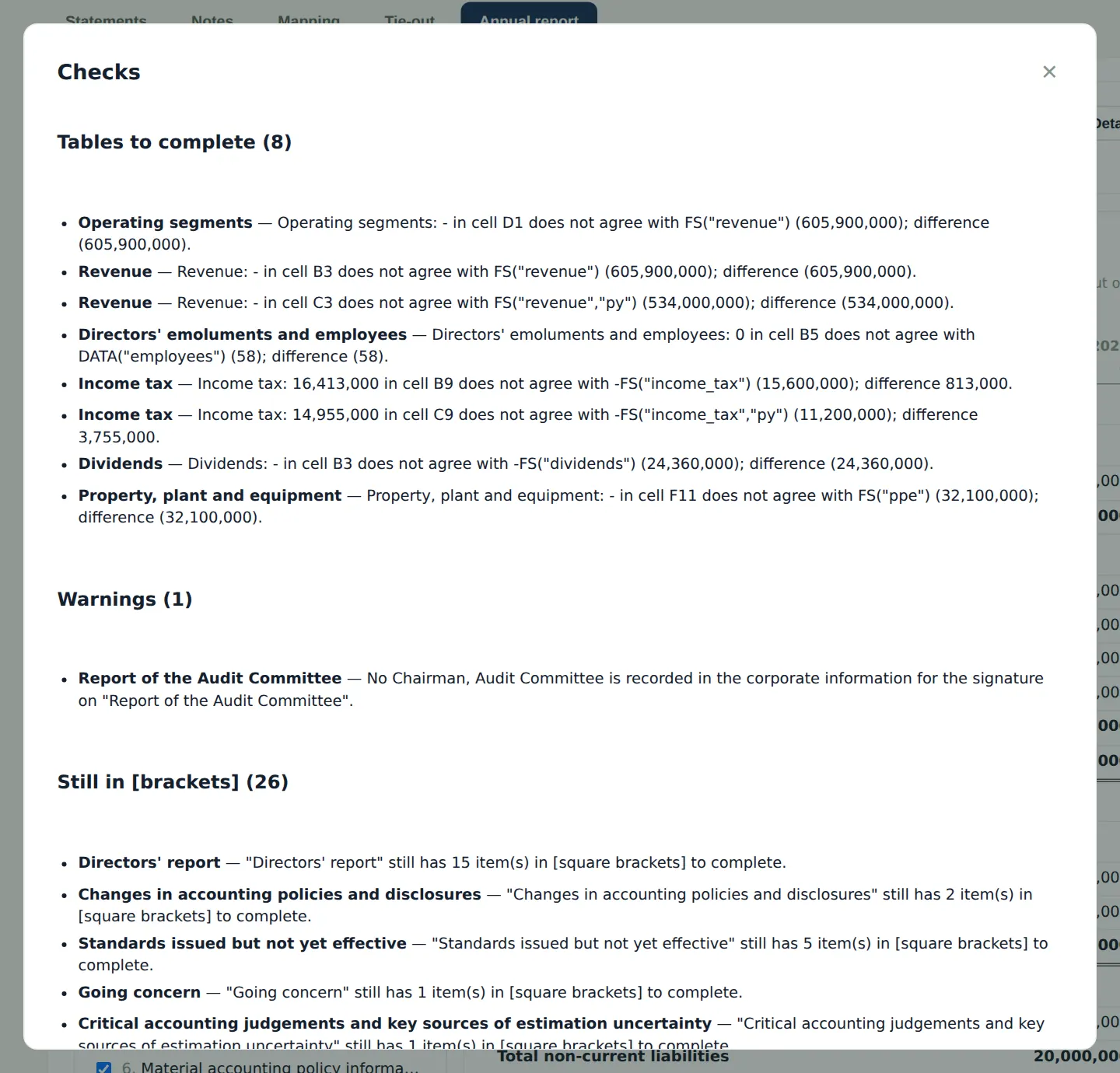
Why
Errors (a formula that fails, a tie-out that does not agree), tables still to complete, key figures missing, warnings and bracketed guidance left in. The PDF has a cover, running headers, a table of contents with page numbers and bookmarks, and is marked DRAFT until the report is signed; Word has an updatable table of contents. The annual report is part of the financial statements section's sign-off: a change after sign-off shows the section as changed. It carries over to next year's engagement on roll-forward.
Who
Manager, before sending the draft to the client.
What to do
- Work through the list until it is clear.
- Choose PDF or Word to download the report.