Steps in this chapter (17)
Sales run from the quote to the cash: quote, sales order, invoice, receipt, and a credit note if something goes wrong. Export sales are invoiced in the customer's currency and are zero-rated for VAT; the naira value is worked out at the rate on the invoice date, and the difference when the money arrives is a realised exchange gain or loss.
Tobi Akinola, export sales executive, sells W320 cashew kernels to Rotterdam Nut Traders in euros. Local sales of by-products, such as cashew shells to a briquette maker, carry 7.5% VAT.
7.1 A local sale with VAT
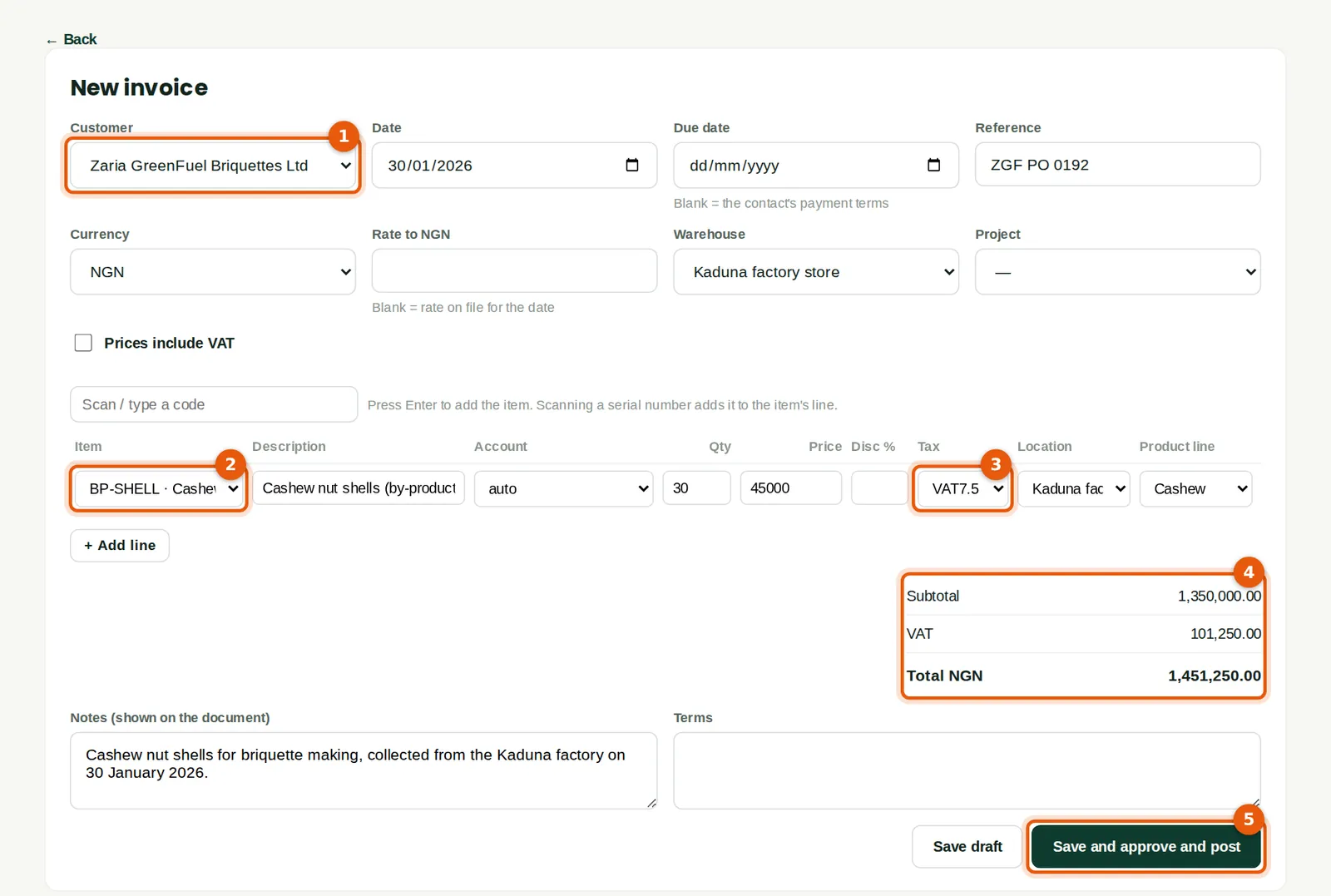
Why
Choosing the item (2) fills in its description, price, income account and VAT code: by-product sales in Nigeria are standard-rated (3). 30 tonnes at ₦45,000 is ₦1,350,000 plus ₦101,250 VAT (4). The stock leaves the warehouse chosen on the invoice.
Who
Sales (Approve level) or accountant.
What to do
- Click New invoice. Choose the customer (1); the currency and terms come from the contact.
- Add the item (2), the quantity and the tracking. Check the VAT code (3) and the totals (4).
- Click Save and approve and post (5). Save draft keeps it for later.
7.2 The posted invoice
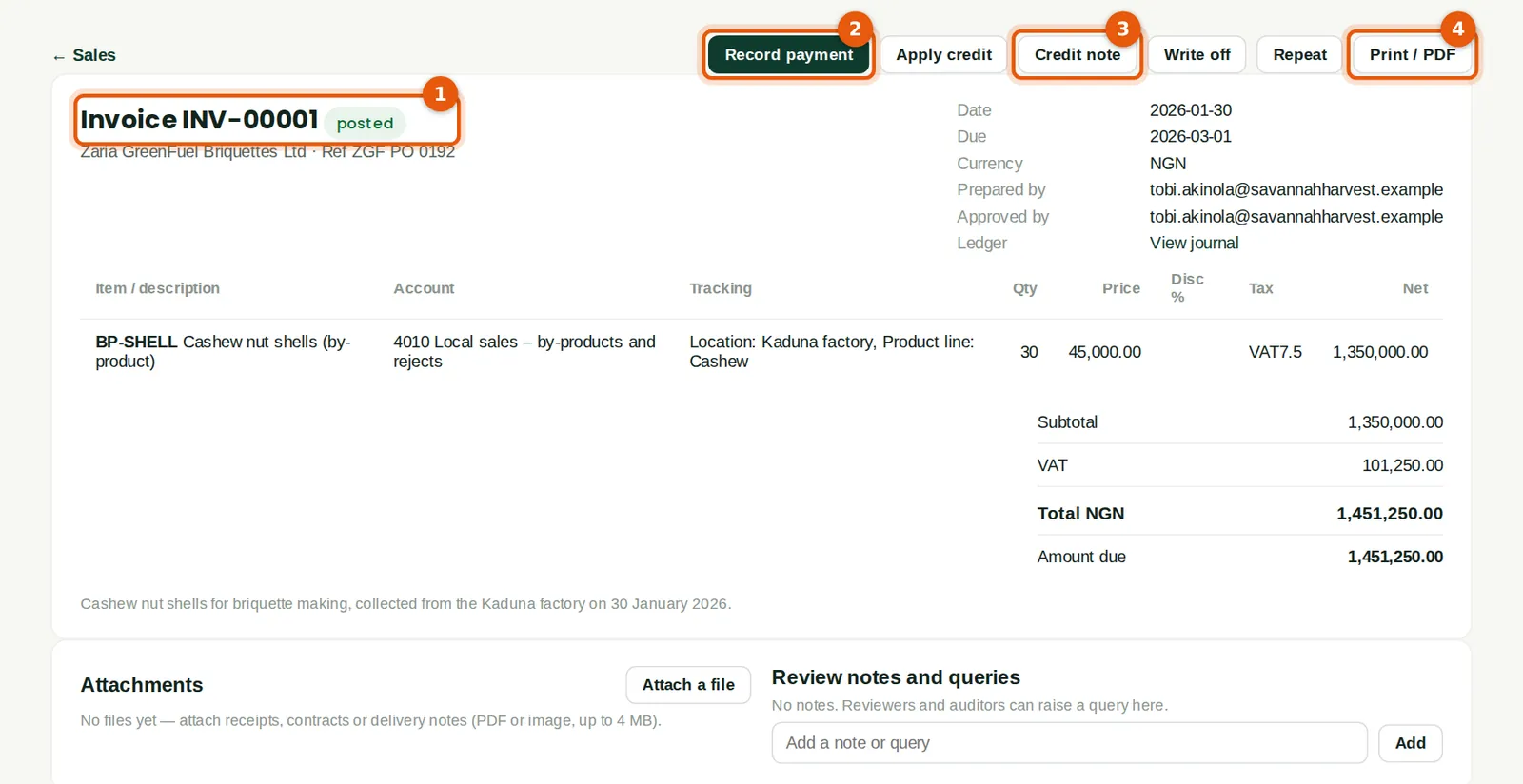
Why
Posting gives the invoice its number (1) — numbers are allocated in sequence with no gaps — and posts the sale, the VAT and the cost of the stock sold. From here you can record the payment (2), raise a credit note (3) or print it (4).
Who
Sales.
What to do
- Click Print / PDF (4) and send the invoice to the customer.
7.3 A quote in euros
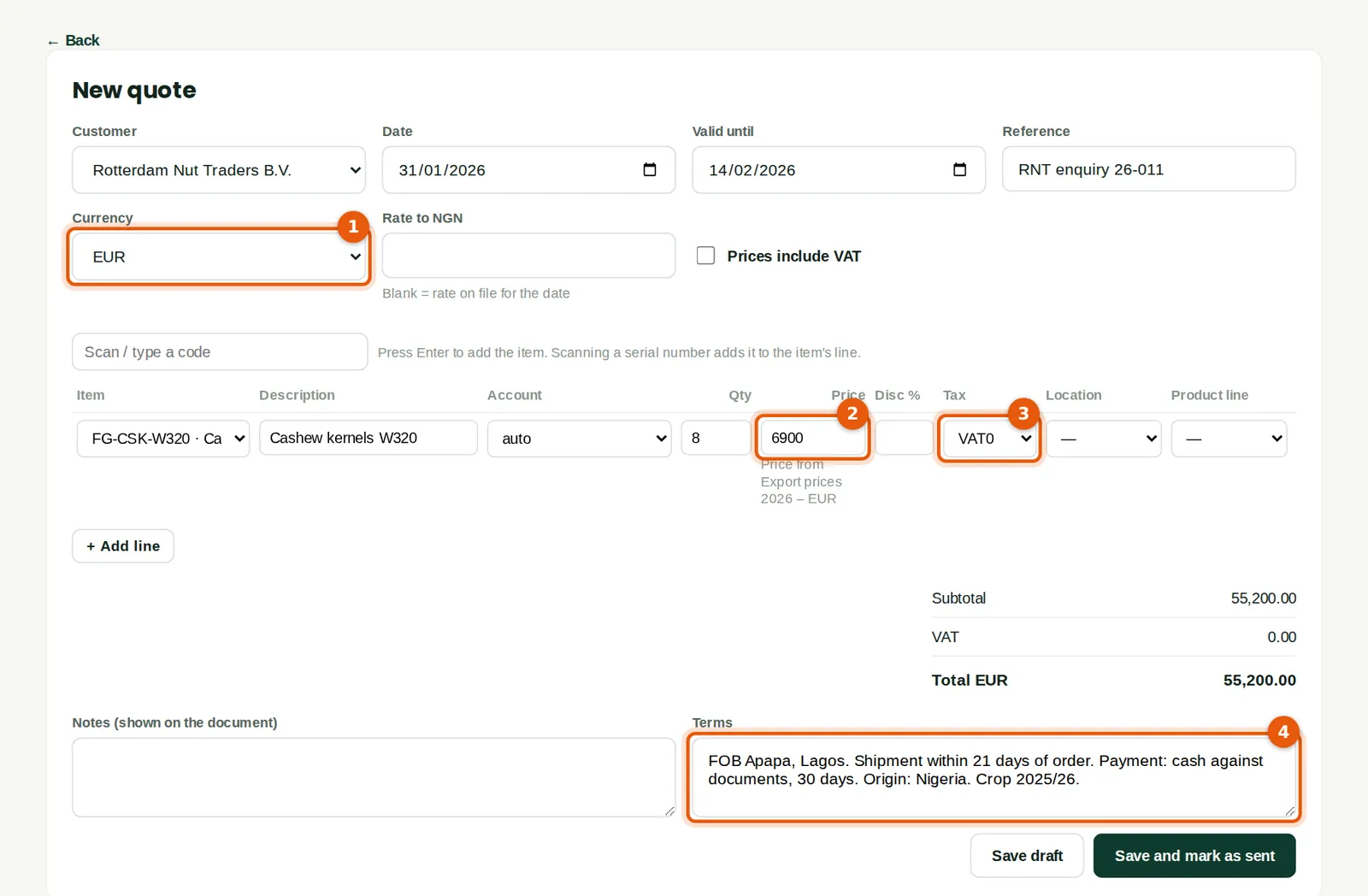
Why
The customer's currency (1) and the EUR price list fill the price: 8 tonnes of W320 at EUR 6,900 (2). Exports are zero-rated (3). The terms (4) are printed on the quote.
Who
Sales.
What to do
- Click New quote, choose the customer and the date it is valid until, add the item and quantity.
- Check the price (2) — a note below it shows which price list it came from — and the VAT code (3). Type the terms (4).
- Click Save and mark as sent.
7.4 Send the quote
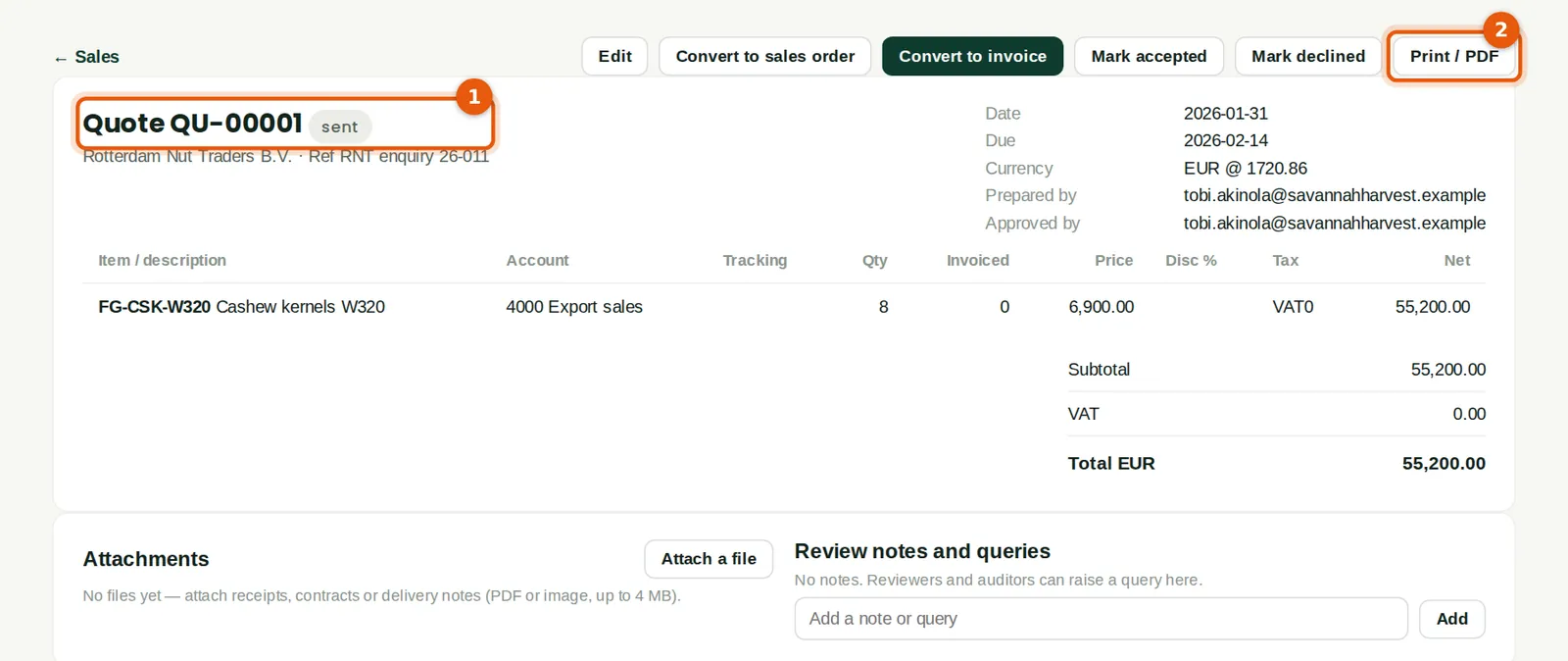
Why
Save and mark as sent gives the quote its number (1) and the status Sent. Print it or save it as PDF (2) and send it to the customer. Until the customer answers, the quote can still be edited, and it appears in the Open quotes report.
Who
Sales.
What to do
- Click Print / PDF (2).
7.5 The customer accepts: convert the quote
Why
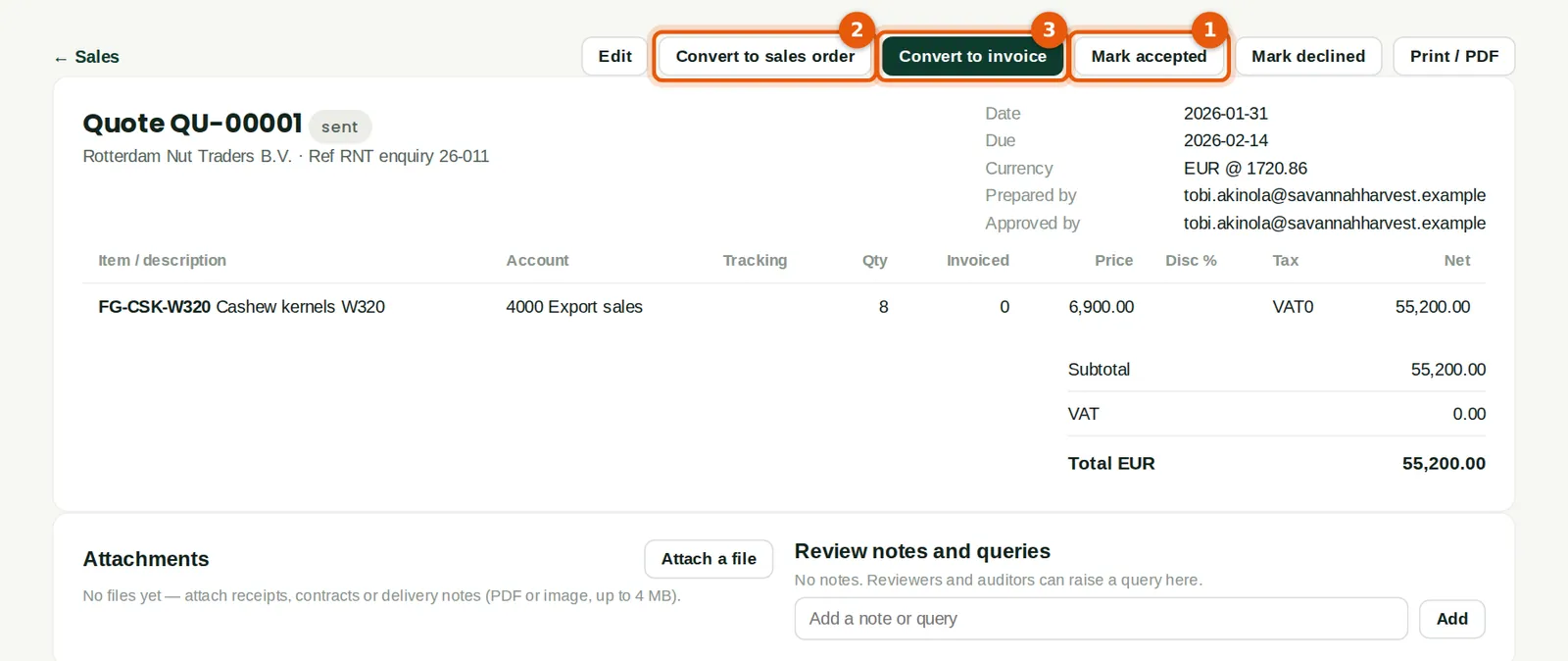
On 9 February Rotterdam Nut Traders accepted the quote with its purchase order 4500-2261. Recording the acceptance keeps the quote's history; converting it copies the customer, currency, items, prices and terms into a new sales order linked to the quote, so nothing is typed twice. A quote can also be converted straight to an invoice, or marked declined.
Who
Sales.
What to do
- Open the quote and click Mark accepted (1).
- Click Convert to sales order (2). (Convert to invoice (3) skips the order, for goods sent at once.)
- The new sales order opens for editing: add the customer's order number as the reference, the delivery date and the warehouse, then click Save and confirm order.
7.6 The sales order
Why
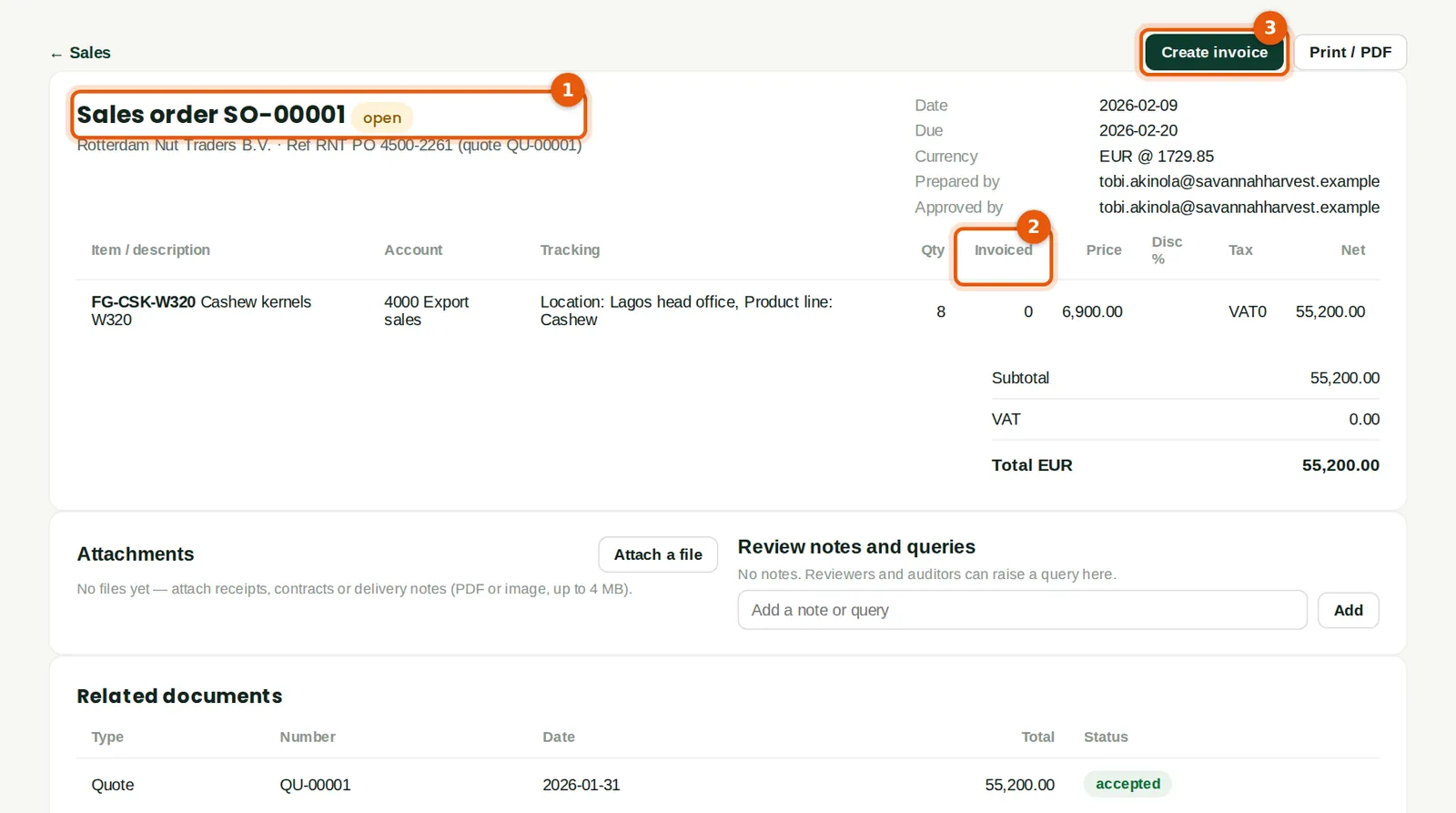
A confirmed sales order (1) reserves the stock for the customer so that it is not sold twice, and tracks what has been invoiced (2). It is linked to the quote it came from. The credit limit is checked when the order is confirmed. Orders that did not start from a quote are entered with New sales order.
Who
Sales.
What to do
- When the goods are shipped, click Create invoice (3).
7.7 Stock reserved for the order
Why
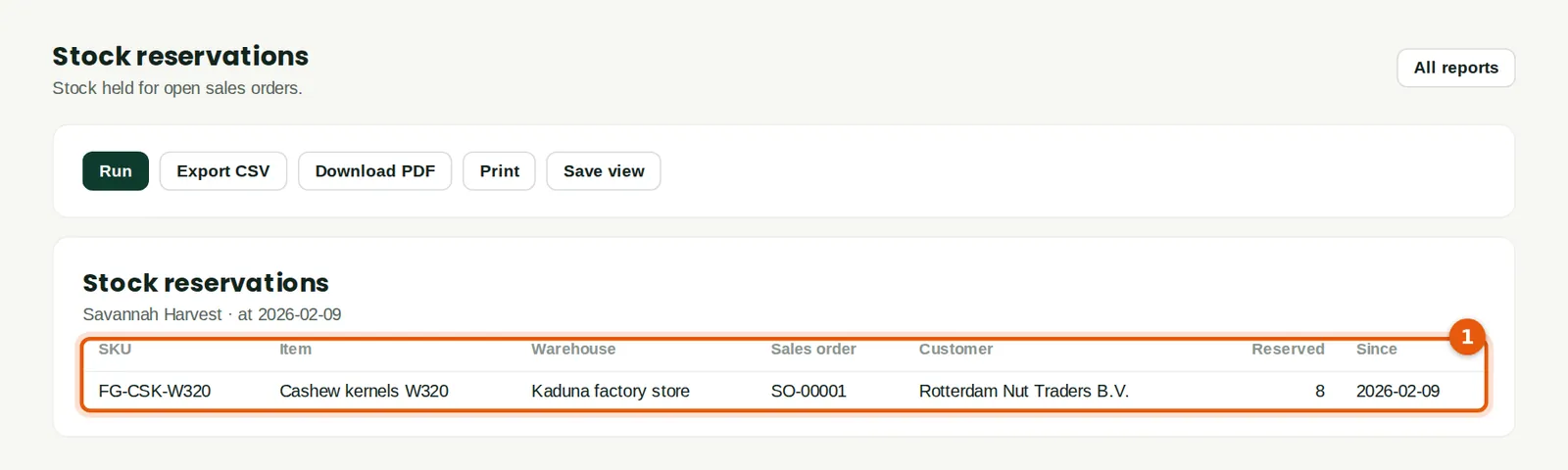
The report (1) shows the stock held for each open sales order. With reservations set to Warn, BookTrove warns if reserved stock is about to be used for another sale.
Who
Sales and inventory.
7.8 The export invoice in euros
Why
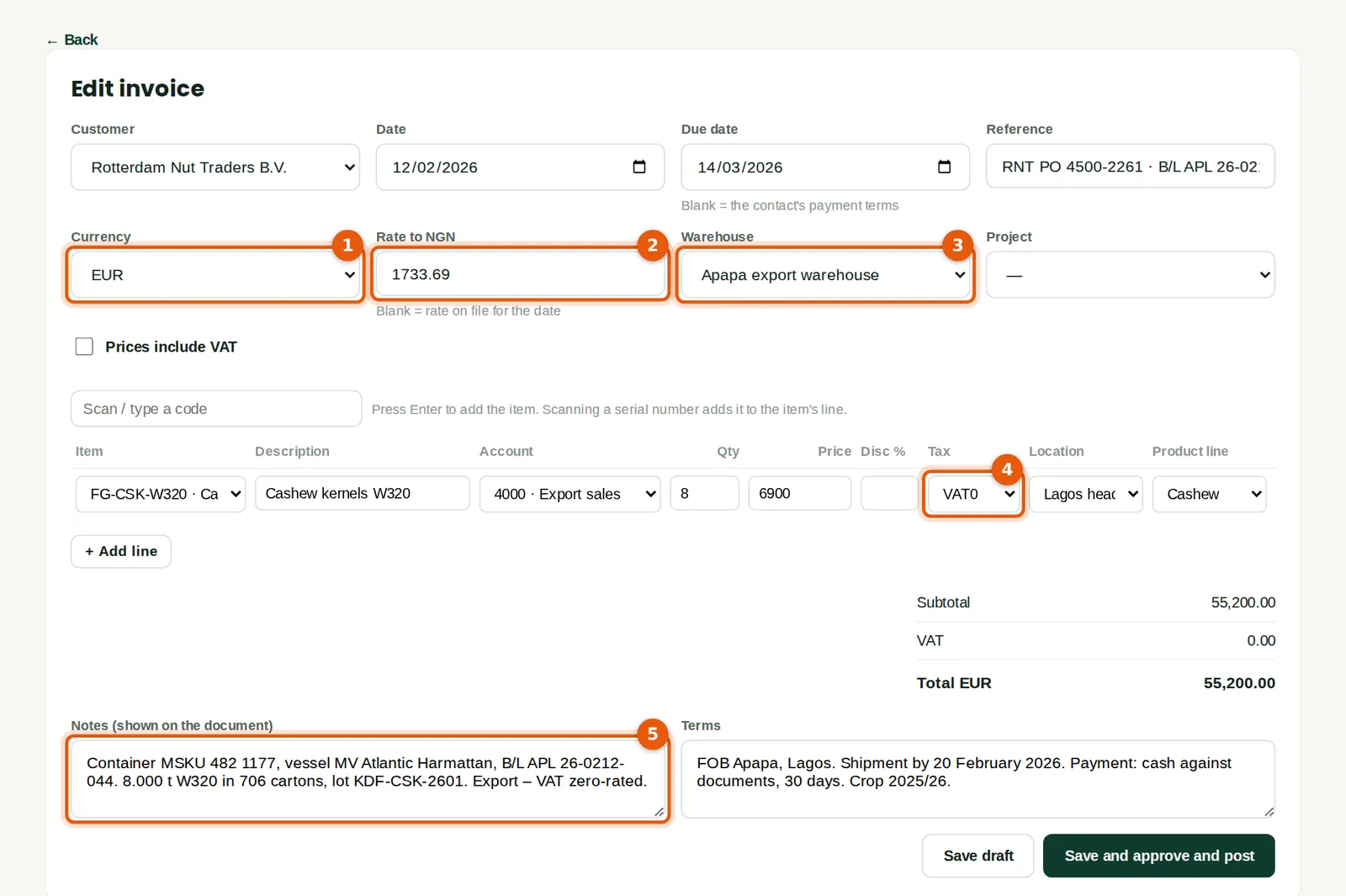
The invoice is in euros (1). The rate to naira (2) comes from the rates on file for the invoice date (here the CBN rate, ₦1,733.69); type a rate only to use a different one. The kernels were moved to the Apapa export warehouse for shipping (3). The VAT code is VAT0 (4). The shipping details go in the notes (5).
Who
Sales.
What to do
- On the sales order click Create invoice. Check the date, due date, warehouse and quantity shipped.
- Type the bill of lading, container and lot details in the notes (5), and click Save and approve and post.
7.9 The posted export invoice
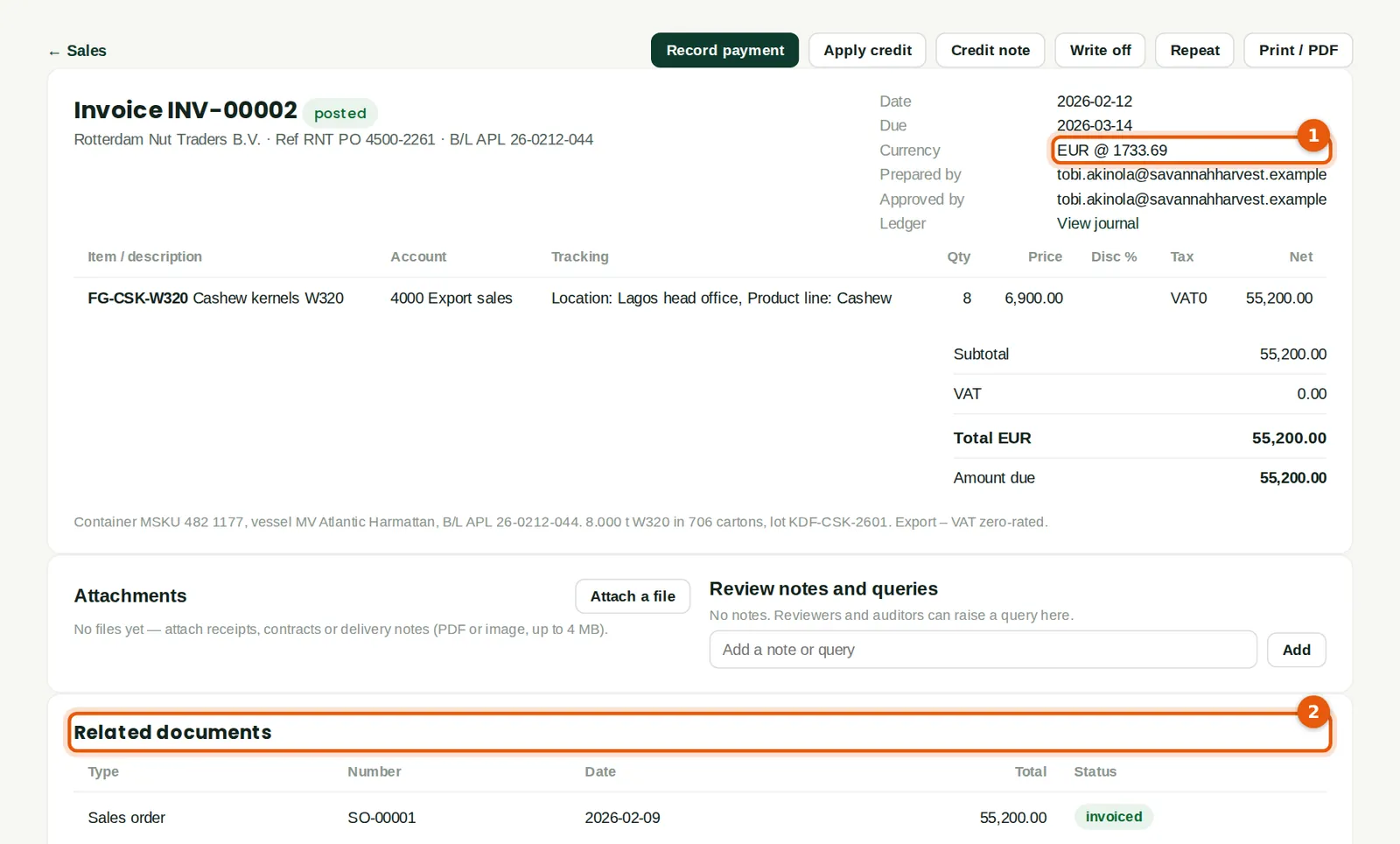
Why
The invoice shows the currency and rate (1) and is linked to the sales order under Related documents (2). In the ledger it is ₦95,699,688.00 of export sales, and the customer owes EUR 55,200.
Who
Sales and accountant.
7.10 The printed invoice
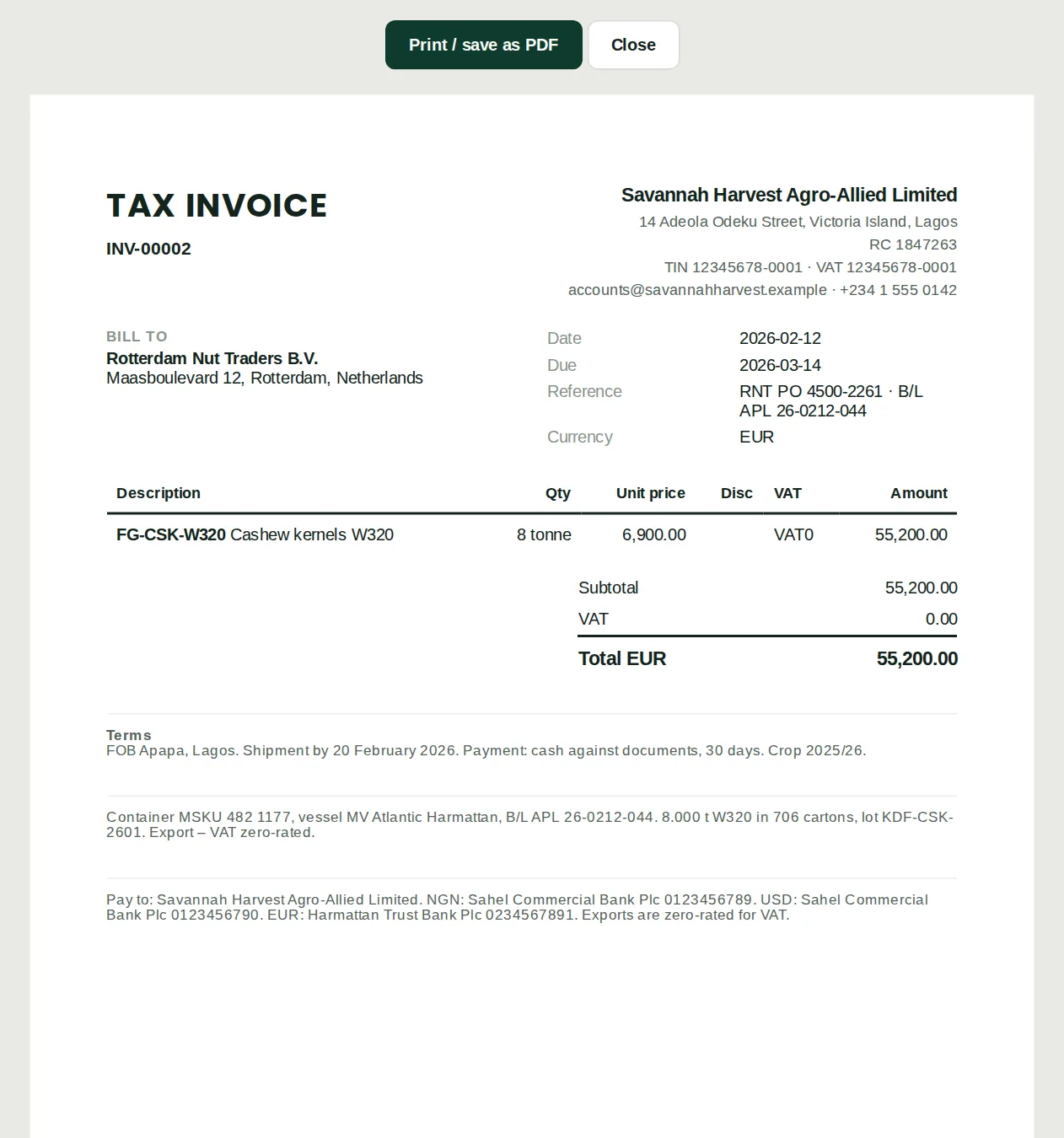
Why
The printed invoice carries the company's details, TIN, the customer, the lines, VAT, totals in the invoice currency, the terms and the bank details from the invoice footer. Once e-invoicing is on, the NRS reference (IRN) and QR code are printed too.
Who
Sales.
What to do
- Click Print / save as PDF.
7.11 A credit note for a quality claim
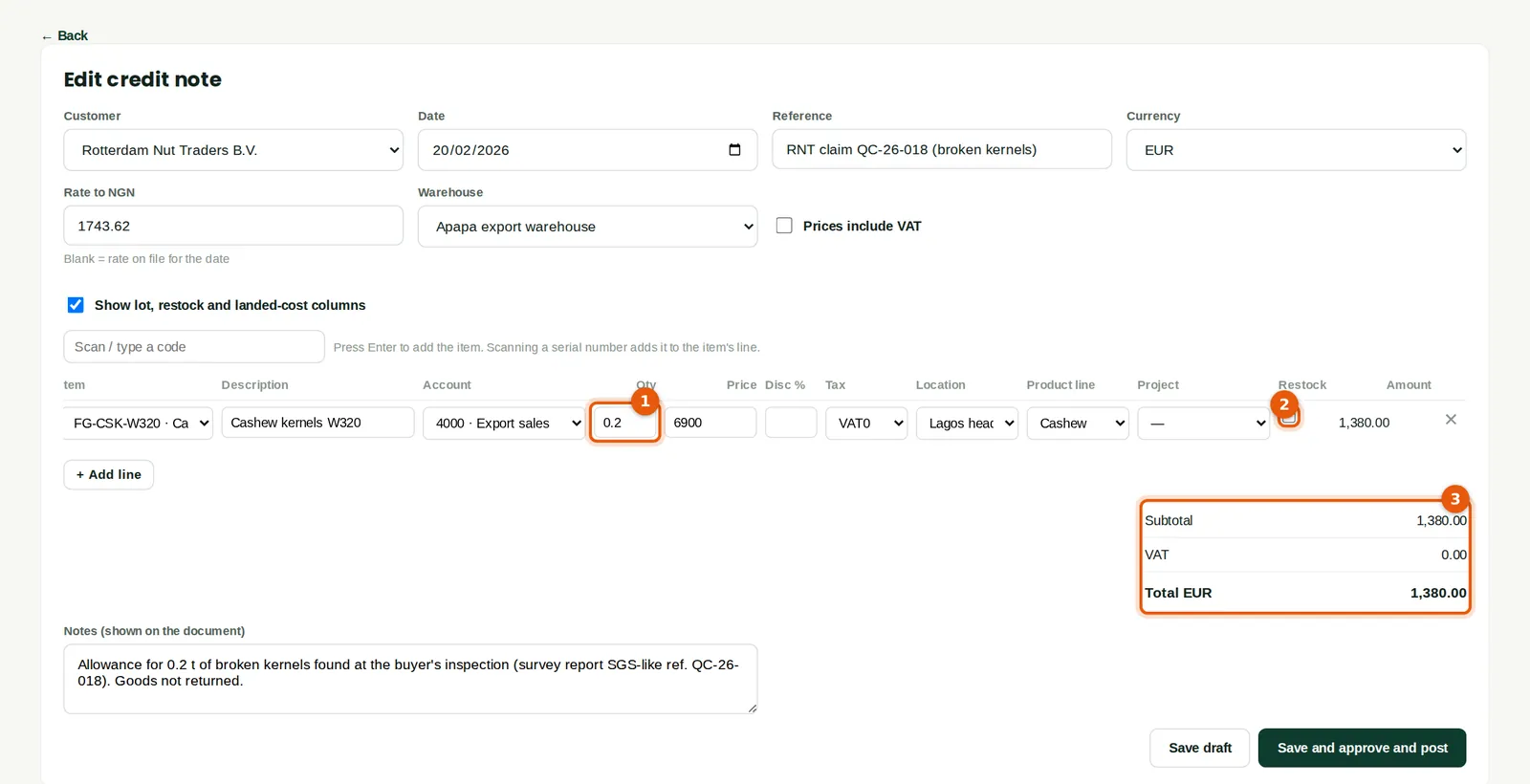
Why
Rotterdam found 0.2 tonne of broken kernels (1). A credit note reduces what the customer owes by EUR 1,380 (3). The goods were not returned, so Restock is unticked (2) and stock is not changed.
Who
Sales (Approve level).
What to do
- On the invoice click Credit note. Change the quantity or price to the amount credited (1).
- Tick Show lot, restock and landed-cost columns and untick Restock (2) if the goods are not coming back.
- Explain the reason in the notes and click Save and approve and post.
7.12 Apply the credit to the invoice
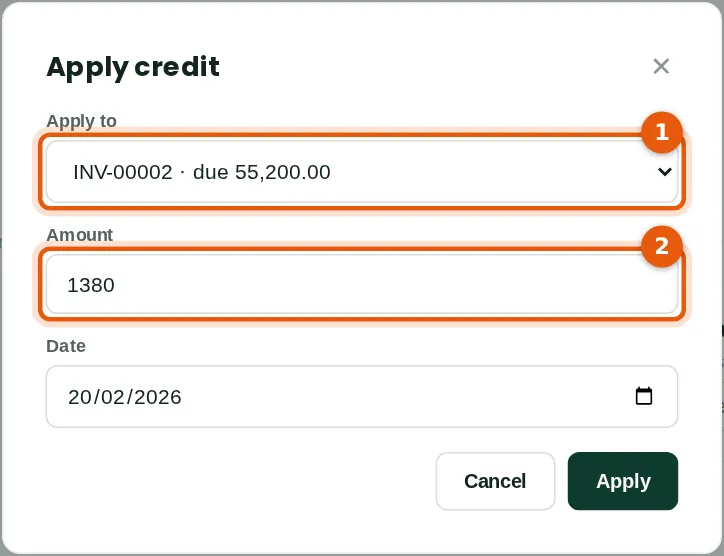
Why
Applying the credit note to the invoice (1) (2) leaves EUR 53,820 to collect, and keeps the customer's statement and aging right.
Who
Sales (Approve level) or accountant.
What to do
- On the credit note click Apply to an invoice, choose the invoice and amount, and click Apply.
7.13 Receive dollars into the domiciliary account
Why
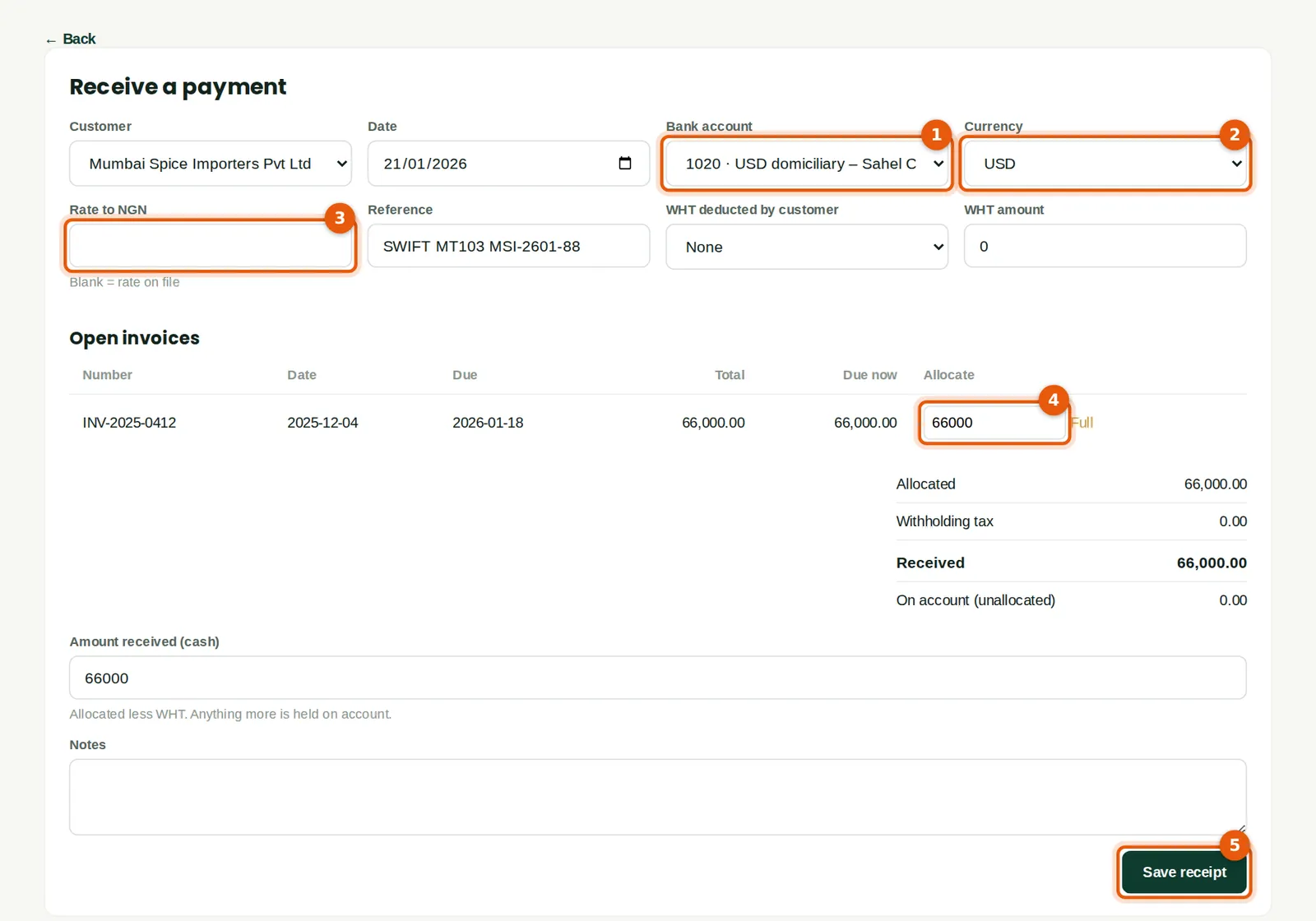
Choosing the USD domiciliary account (1) sets the currency (2). Leave the rate blank (3) to use the rate for the receipt date. The invoice was carried at ₦1,455 to the dollar; the dollars arrived on 21 January at ₦1,467.51, so BookTrove posts a realised exchange gain of ₦825,660.00.
Who
Accountant or bookkeeper.
What to do
- Click Receive payment, choose the customer, the date the money arrived and the bank account (1).
- Allocate the amount to the invoice (4) — click Full for the whole balance.
- Add the bank's reference and click Save receipt (5).
7.14 The receipt
Why
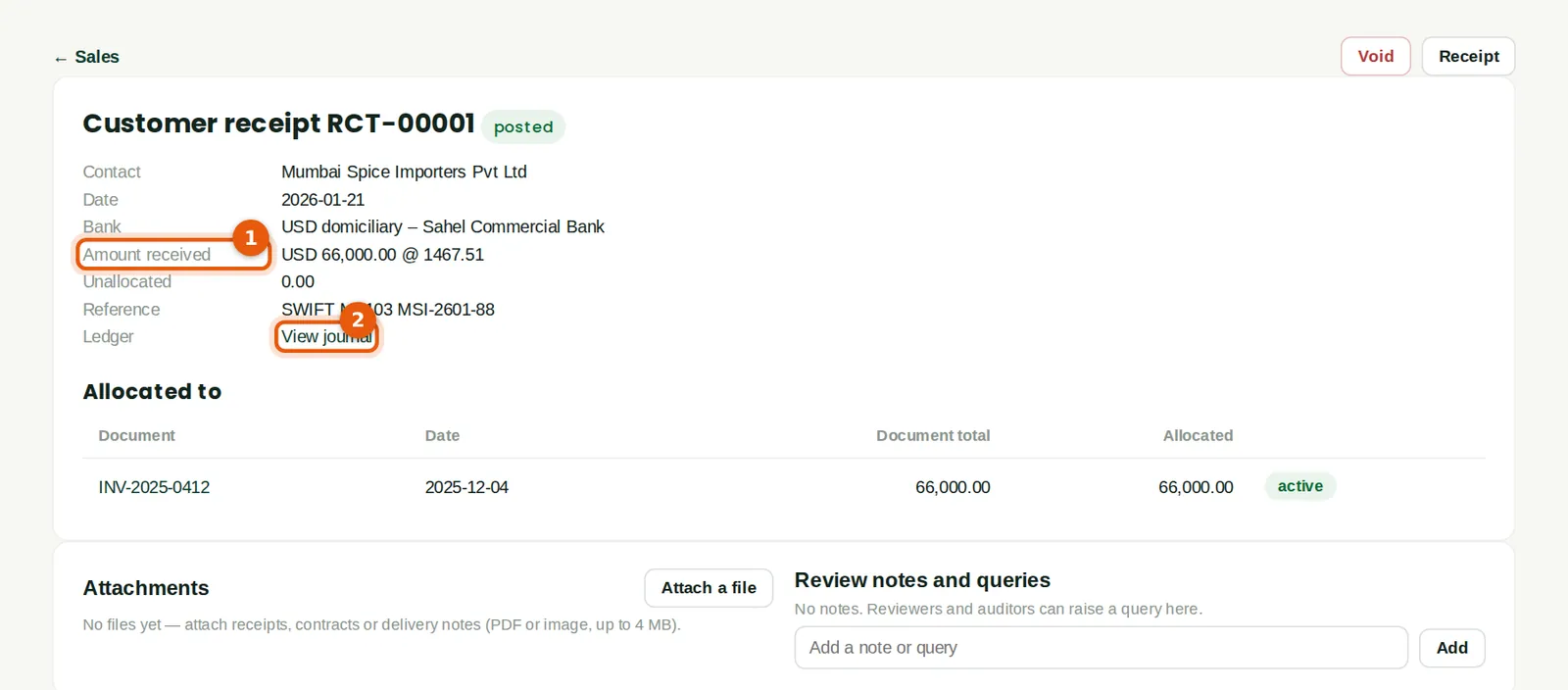
The receipt shows the amount received in dollars and the rate (1). View journal (2) shows the bank, the receivable at its booked rate and the exchange difference.
Who
Accountant.
7.15 E-invoicing with the NRS
Why
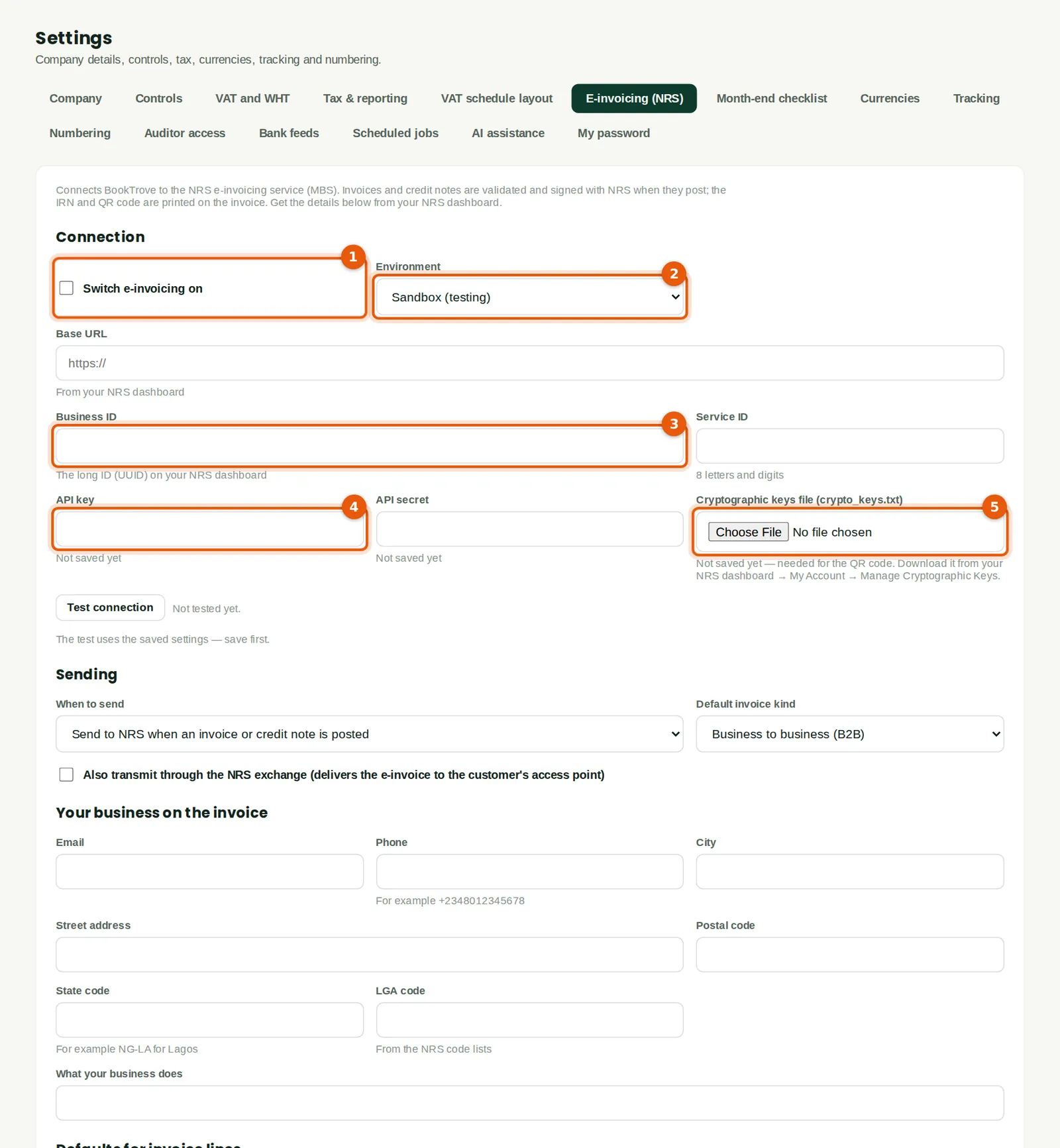
BookTrove connects to the Nigeria Revenue Service e-invoicing service (the Merchant Buyer Solution). Once switched on (1), every invoice and credit note is validated and signed by NRS when it posts, and gets an invoice reference number (IRN) and a QR code. Each company enters its own details from its NRS dashboard: the business ID (3), service ID, API key and secret (4), and the cryptographic keys file (5). Start in the sandbox (2) and test the connection before production. Signed invoices cannot be voided — correct them with a credit note. Savannah Harvest is waiting for its NRS keys, so e-invoicing is still switched off in the illustration.
Who
Owner or administrator (full settings access).
What to do
- Register the company on the NRS e-invoicing portal and download the keys.
- Enter the details, choose Sandbox, save and click Test connection.
- Fill in the supplier details and the default HS or ISIC codes and unit of measure, then switch e-invoicing on.
7.16 The e-invoicing queue
Why
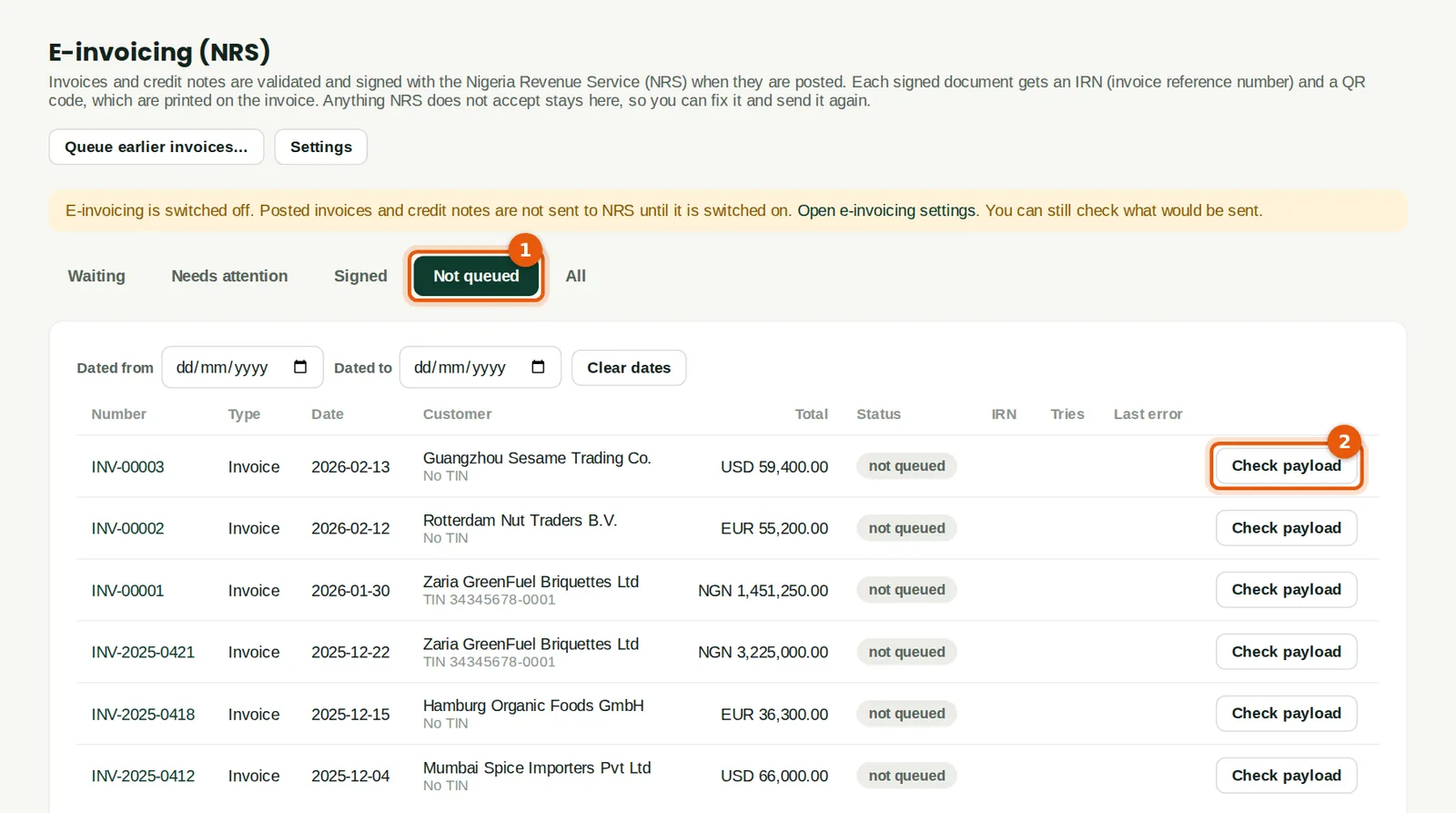
The page lists invoices and credit notes waiting to be sent, those needing attention, those signed and those not yet queued (1). Anything NRS rejects stays here to be fixed and sent again; failures are retried automatically.
Who
Sales or tax.
What to do
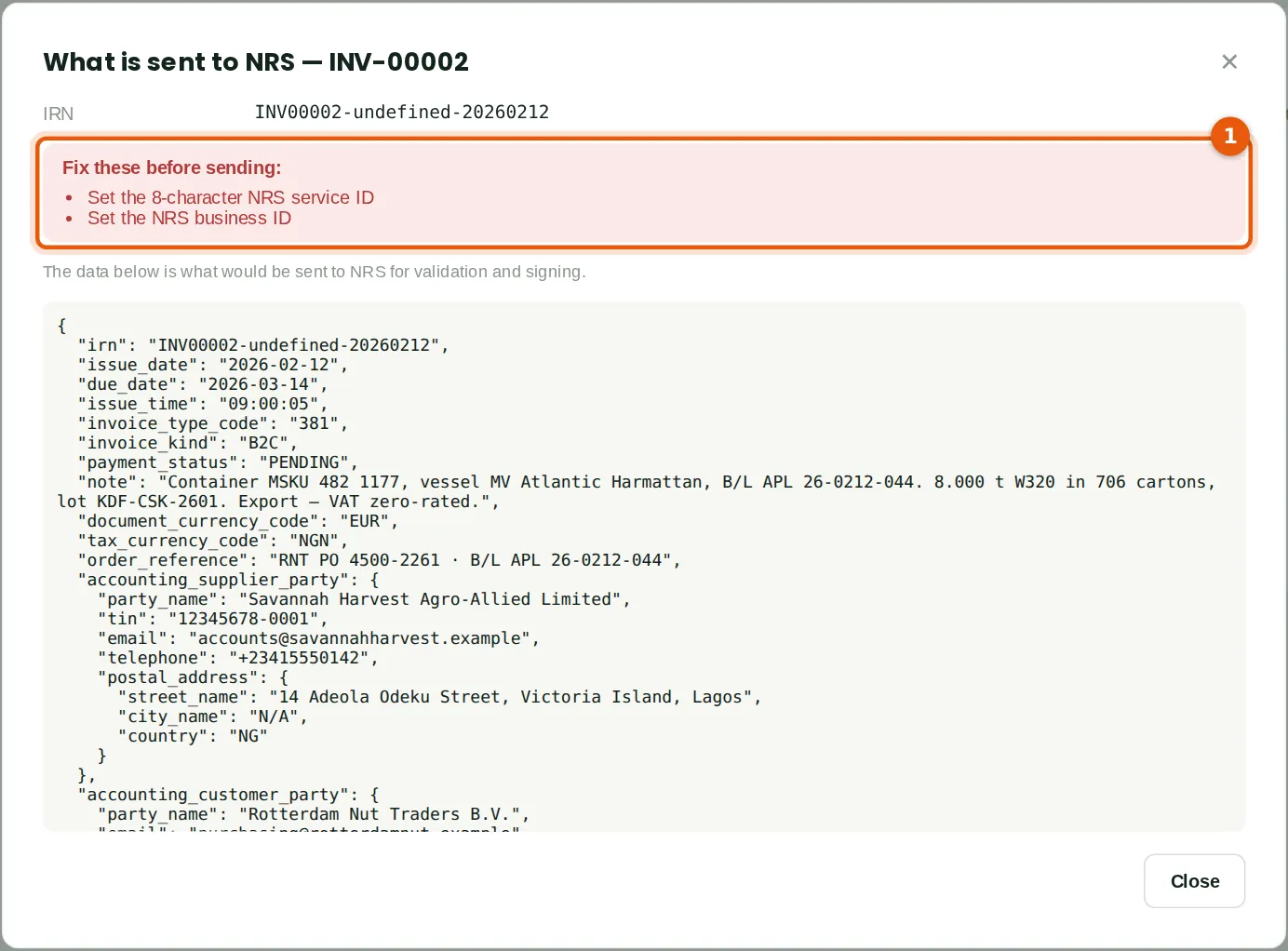
- Click Check payload (2) to see what would be sent before switching on.
7.17 Check what would be sent
Why
The check lists anything to fix before sending (1) — here, the NRS business and service IDs that have not been entered yet — and shows the data that would be sent.
Who
Sales or tax.
What to do
- Fix the problems listed, then send.