Steps in this chapter (5)
Part C: For TroveUniverse staff. Review applications, approve (a partner login is created or an existing login linked) or decline with a note.
New applications appear under Settings → Partners → Applications, and the sales email address is notified. Approving an application makes the applicant an active partner on the starting tier. A staff email address cannot become a partner.
16.1 Applications waiting for a decision
Why
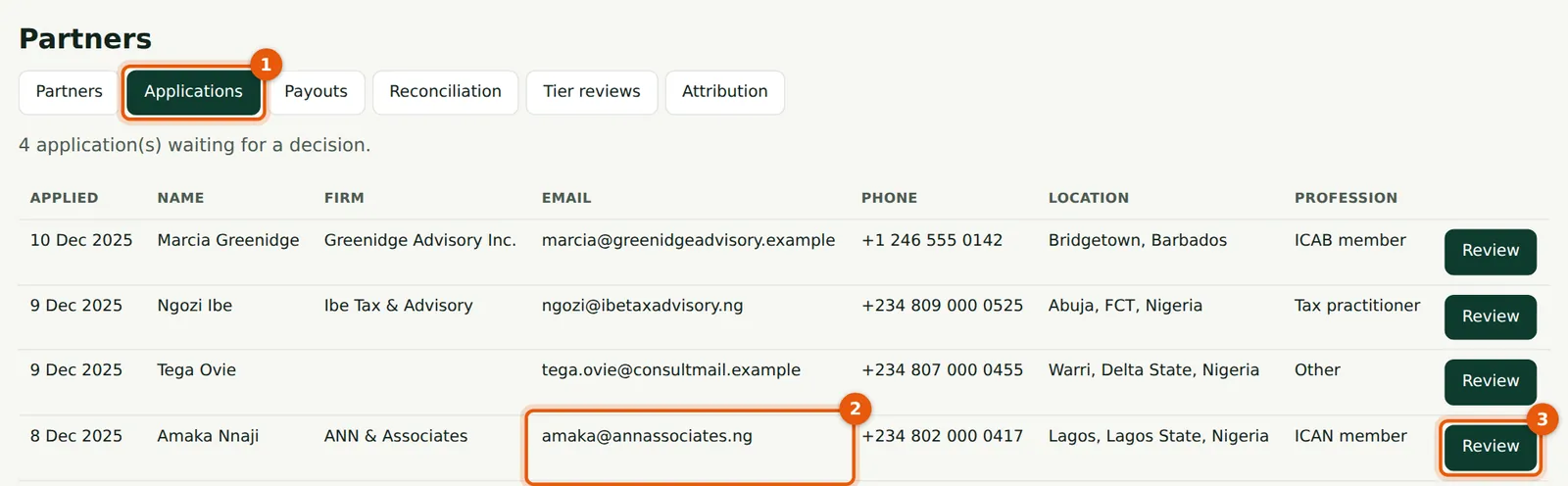
Each row shows the date, name, firm, email (the future referral code) (2), phone, location and profession.
Who
TroveUniverse staff with the Manage partners permission (in the illustration, Kelechi Uzor, Partner Programme role).
What to do
- Choose Applications (1).
- Choose Review (3) on a row.
16.2 Review an application
Why
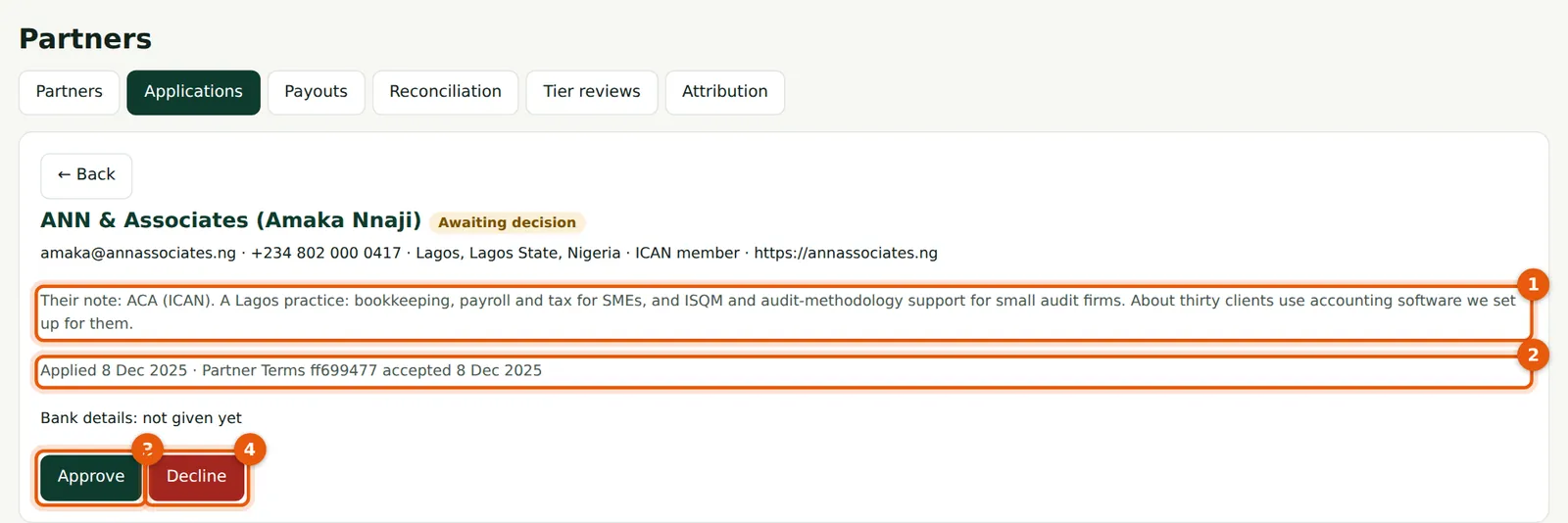
The review shows the applicant's note (1) and the version of the Partner Terms they accepted, with the date (2).
Who
TroveUniverse staff with the Manage partners permission (in the illustration, Kelechi Uzor, Partner Programme role).
What to do
- Check the applicant's professional membership and practice if needed.
- Choose Approve (3) or Decline (4).
16.3 Approve
Why
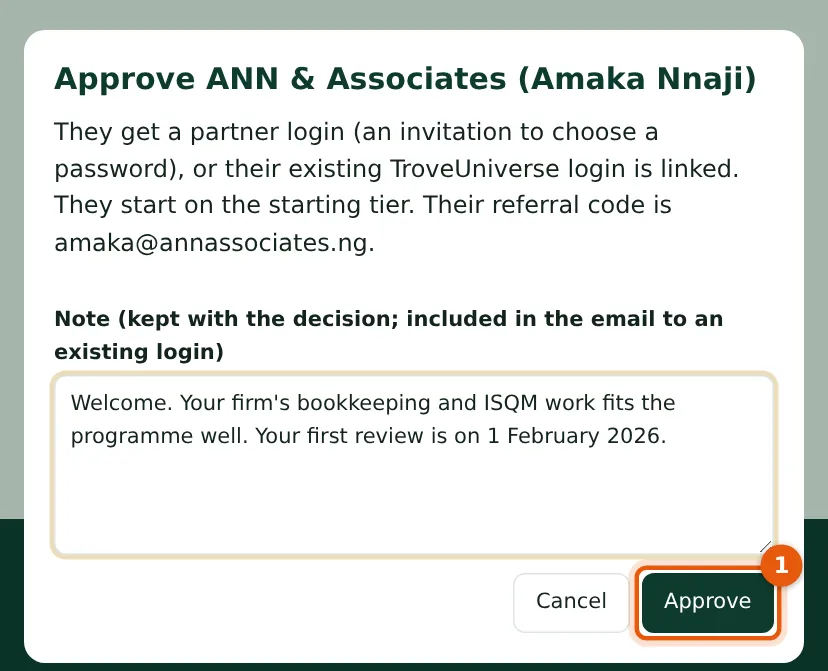
The applicant gets a partner login with an invitation to choose a password, or their existing TroveUniverse login is linked. They start on the starting tier.
Who
TroveUniverse staff with the Manage partners permission (in the illustration, Kelechi Uzor, Partner Programme role).
What to do
- Write a note if useful (included in the email to an existing login) and choose Approve (1).
16.4 Decline
Why
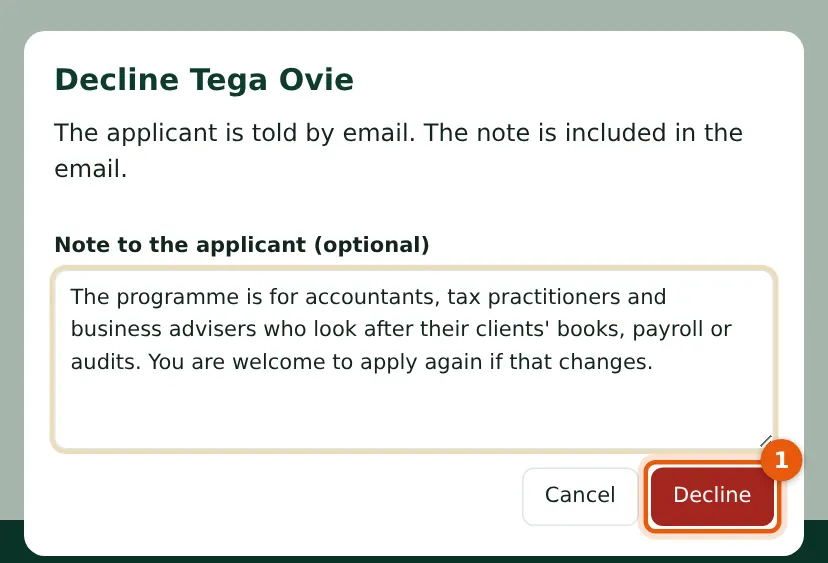
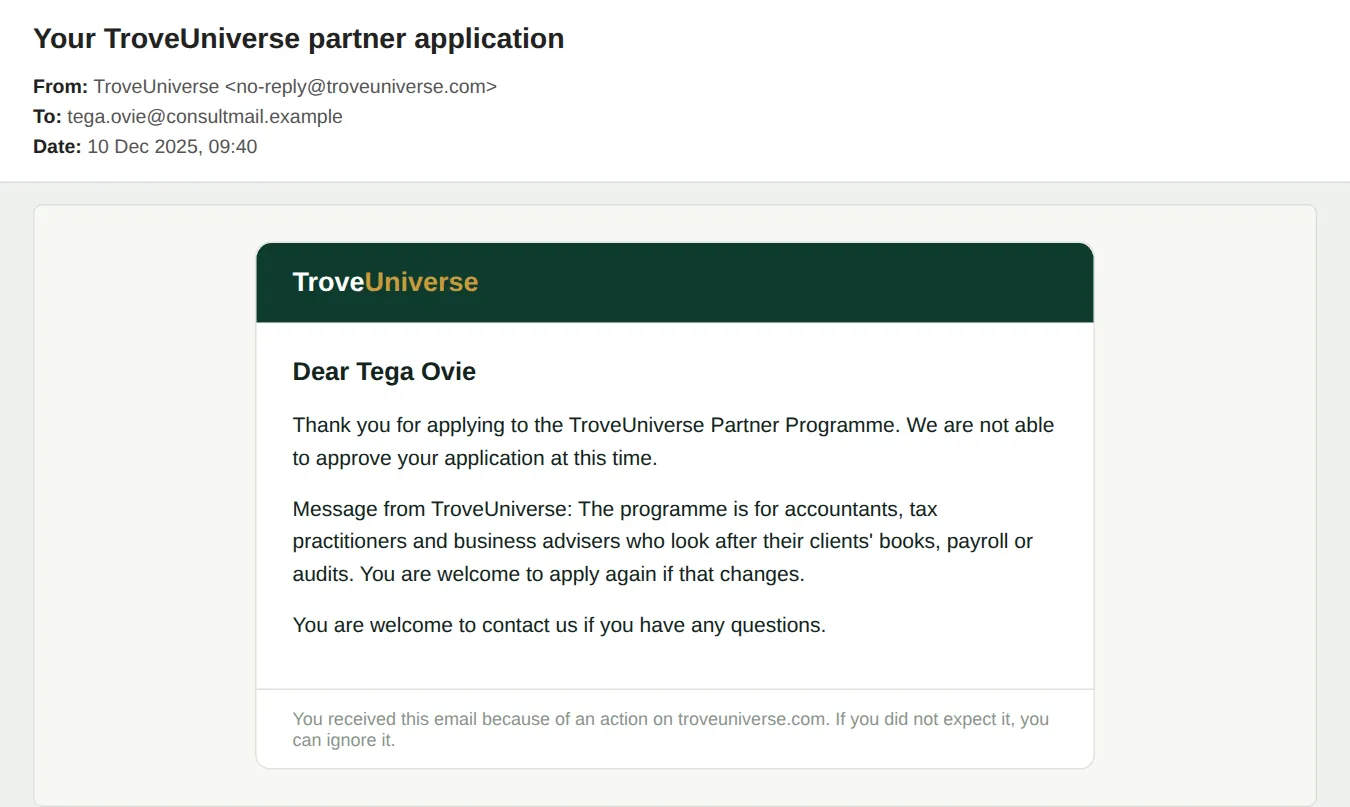
The applicant is told by email and the note is included. A declined applicant may apply again.
Who
TroveUniverse staff with the Manage partners permission (in the illustration, Kelechi Uzor, Partner Programme role).
What to do
- Write the note to the applicant and choose Decline (1).
16.5 The decline email
Why
Both decisions are recorded in the audit log.
Who
TroveUniverse staff with the Manage partners permission (in the illustration, Kelechi Uzor, Partner Programme role).
What to do
- Nothing more to do.