Steps in this chapter (6)
Part A: For partners. Add your bank account and tax details, understand payouts with WHT deducted, and download the WHT credit note for each payout.
TroveUniverse pays commission due by bank transfer to the account on your dashboard. A payout covers a period (normally a calendar month) and must equal the commission due for it, with reversals netted off. If reversals leave nothing due, nothing is paid until later commission covers them. Payment timing is set out in the Partner Terms.
Since release 22, withholding tax (WHT) is deducted from each payout at the rate for your tax type (in the illustration: 5% for resident individuals and companies, 10% for non-residents). TroveUniverse pays it to the tax authority for you and gives you a WHT credit note.
9.1 Add your bank account
Why
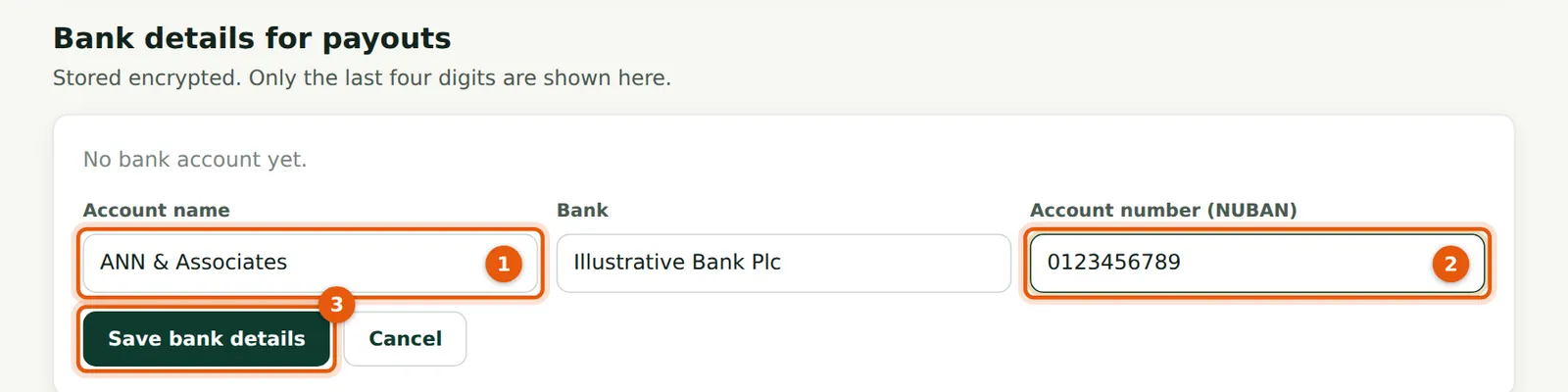
The details are stored encrypted. After saving, only the bank, the account name and the last four digits are shown, here and to TroveUniverse staff. Staff open the full number only to make a transfer, and each view is recorded.
Who
Partner.
What to do
- Choose Add bank details.
- Enter the Account name exactly as the bank shows it (1), the bank and the 10-digit NUBAN (2).
- Choose Save bank details (3).
9.2 Bank details saved

Why
If you change your bank details later, you get an email saying so. If you did not make the change, contact TroveUniverse straight away.
Who
Partner.
What to do
- Check the account name and last four digits (1).
9.3 Record your tax type and TIN
Why
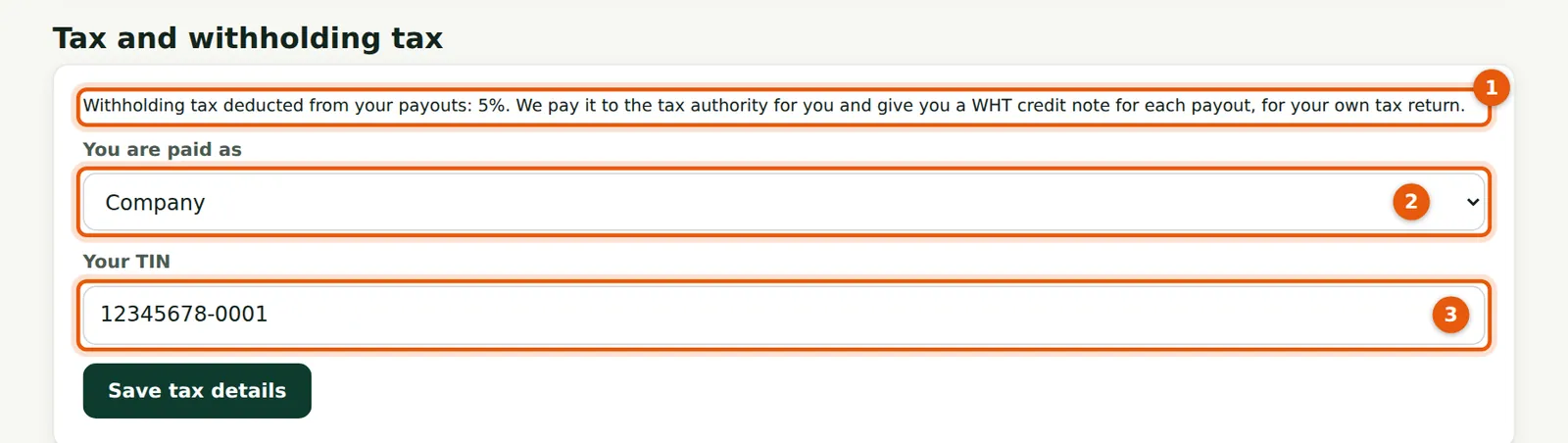
Your tax type decides the WHT rate (1). ANN & Associates is paid as a company, so 5% applies. Your TIN goes on the WHT credit notes.
Who
Partner.
What to do
- Choose You are paid as (2): Individual, Company or Non-resident.
- Enter Your TIN (3) and choose Save tax details.
- If you hold a WHT exemption, send the certificate to TroveUniverse: staff record the exemption, with the certificate number as the reason.
9.4 The payout email
Why
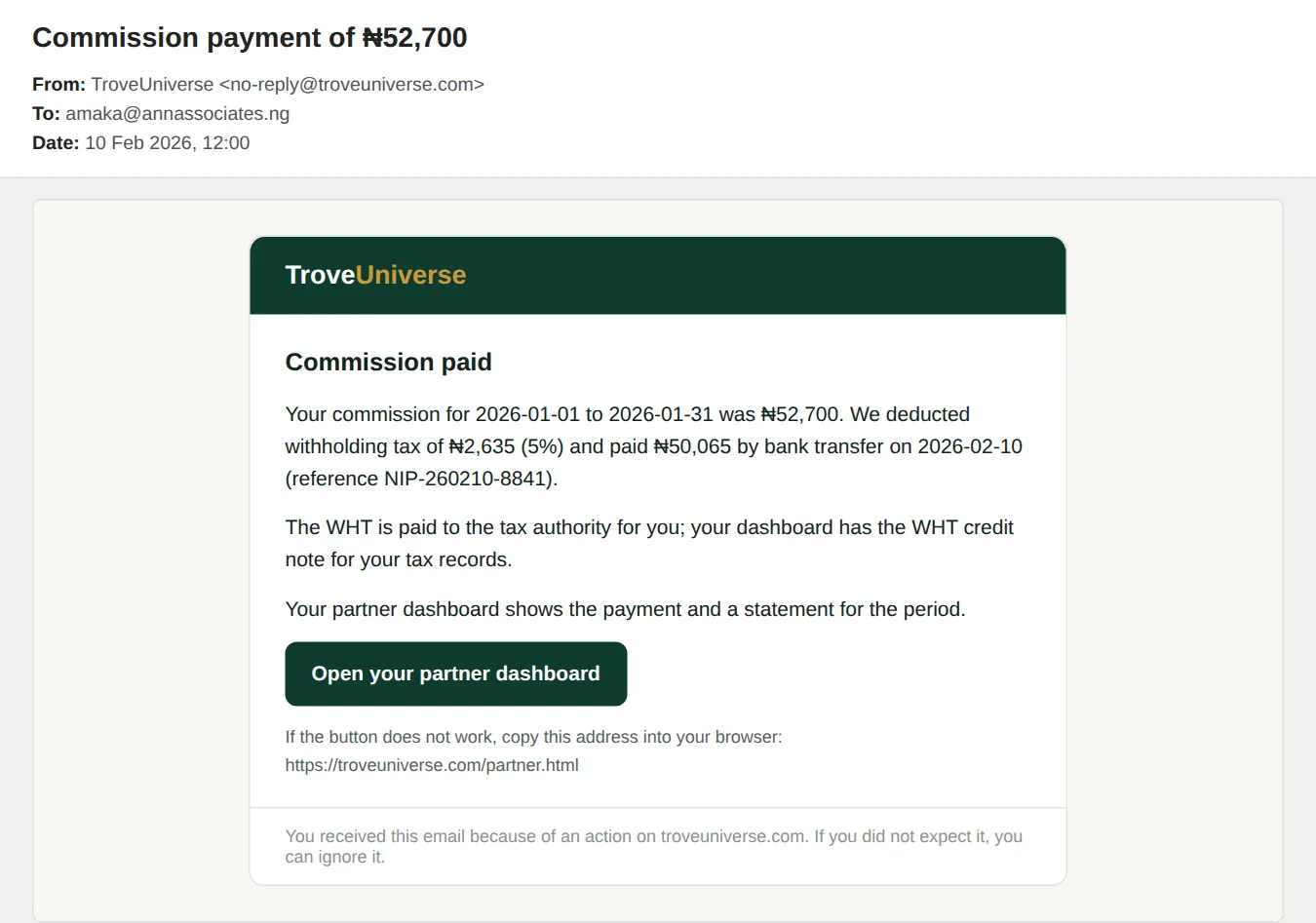
The email gives the period, the commission, the WHT deducted and the amount transferred, with the date and bank reference.
Who
Partner.
What to do
- Match the transfer on your bank statement using the reference.
Worked example: payouts with withholding tax
| Payout | Commission (₦) | WHT (₦) | Transferred (₦) |
|---|---|---|---|
| 10 February 2026 — January commission (company, 5%) | 52,700.00 | 2,635.00 | 50,065.00 |
| 11 May 2026 — April commission, after the refund | 38,550.00 | 1,927.50 | 36,622.50 |
| 10 August 2026 — July commission, including the yearly AuditTrove payment | 306,375.00 | 15,318.75 | 291,056.25 |
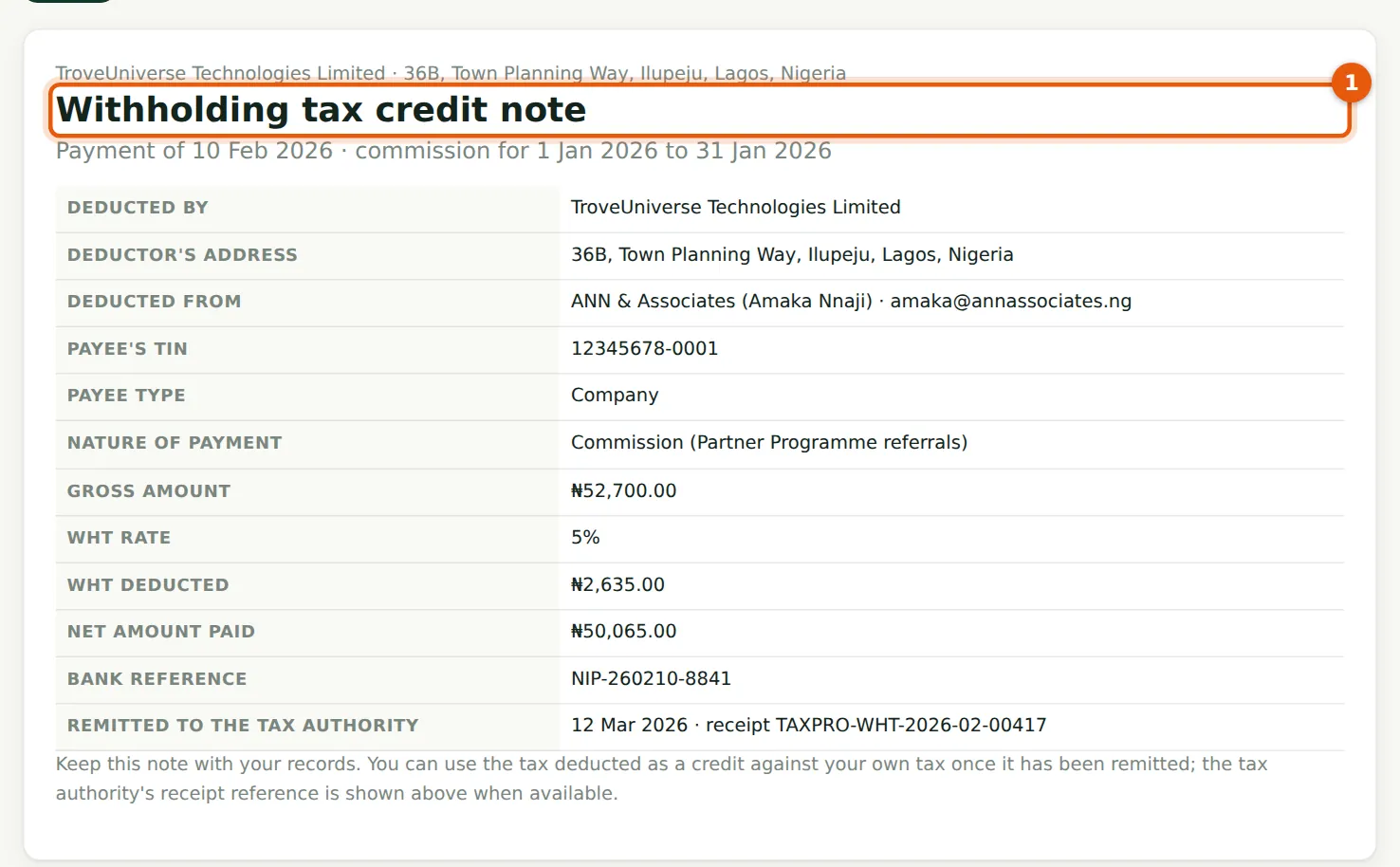
WHT is worked out on the whole commission paid: ₦52,700 × 5% = ₦2,635, so ₦50,065 reaches ANN & Associates' account. TroveUniverse pays the WHT to the tax authority and records the remittance; the WHT credit note then shows the date and receipt reference, and Amaka uses it to claim the credit in her firm's tax return. A non-resident partner (Marcia Greenidge) has 10% deducted; a partner with an exemption certificate can be marked exempt by staff.
9.5 Your payouts and WHT
Why
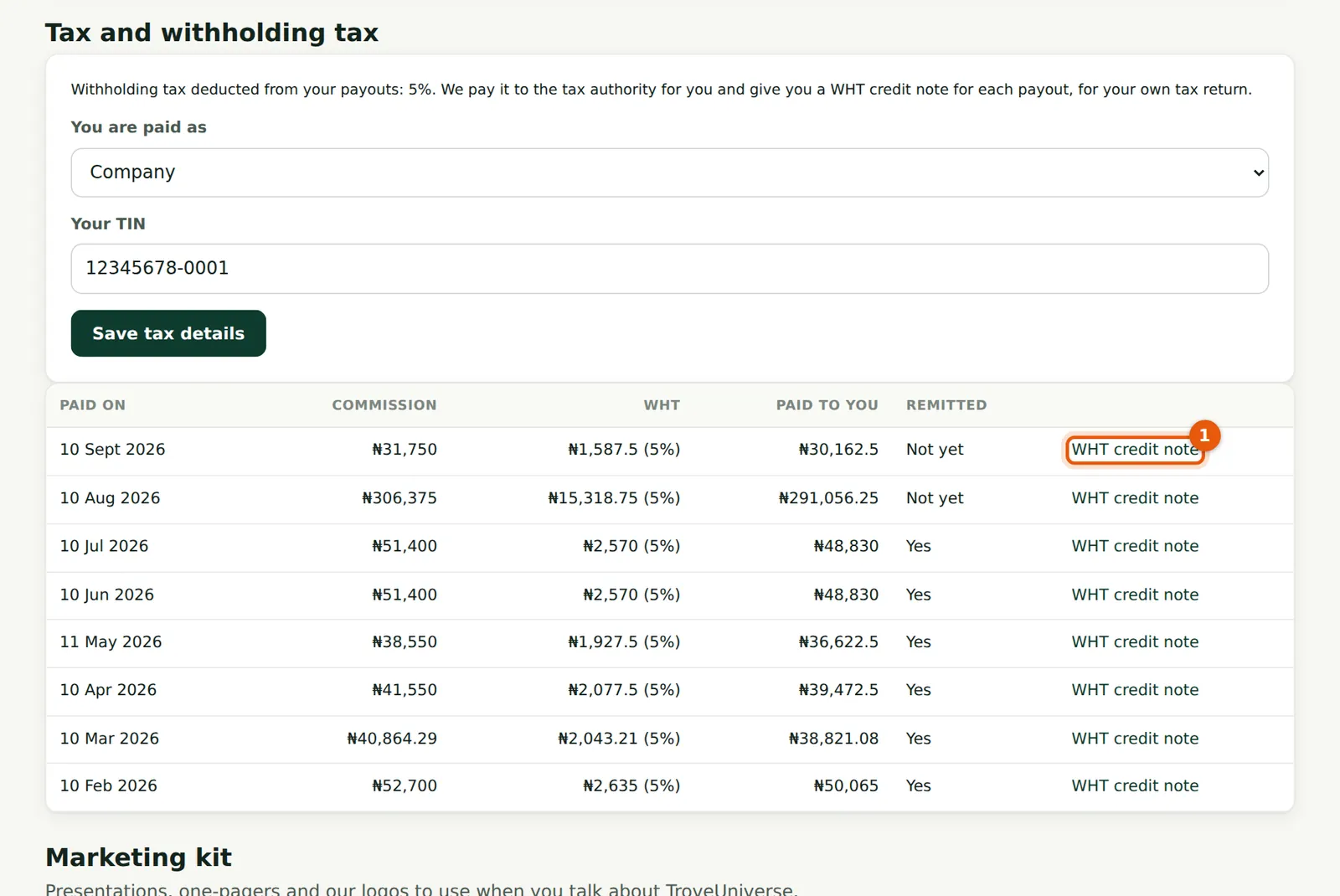
Each payout shows the commission, the WHT and its rate, the amount paid to you, and whether TroveUniverse has remitted the WHT to the tax authority yet.
Who
Partner.
What to do
- Choose WHT credit note (1) next to a payout to open it.
9.6 The WHT credit note
Why
The credit note names TroveUniverse as the deductor and your firm as the payee, with your TIN, the gross amount, the rate, the WHT, the net amount and the bank reference. Once TroveUniverse has remitted the WHT, the note shows the date and the tax authority's receipt reference, which you need to claim the credit.
Who
Partner.
What to do
- Choose Print and save it as PDF for your tax records.