Steps in this chapter (3)
Part A: For partners. Download presentations, one-pagers and logos; read the terms you accepted; create your own company account.
The last sections of the dashboard hold the marketing kit TroveUniverse provides, the Partner Terms you accepted, and, for a partner login without a company, a way to create your own company account.
12.1 Download the marketing kit
Why
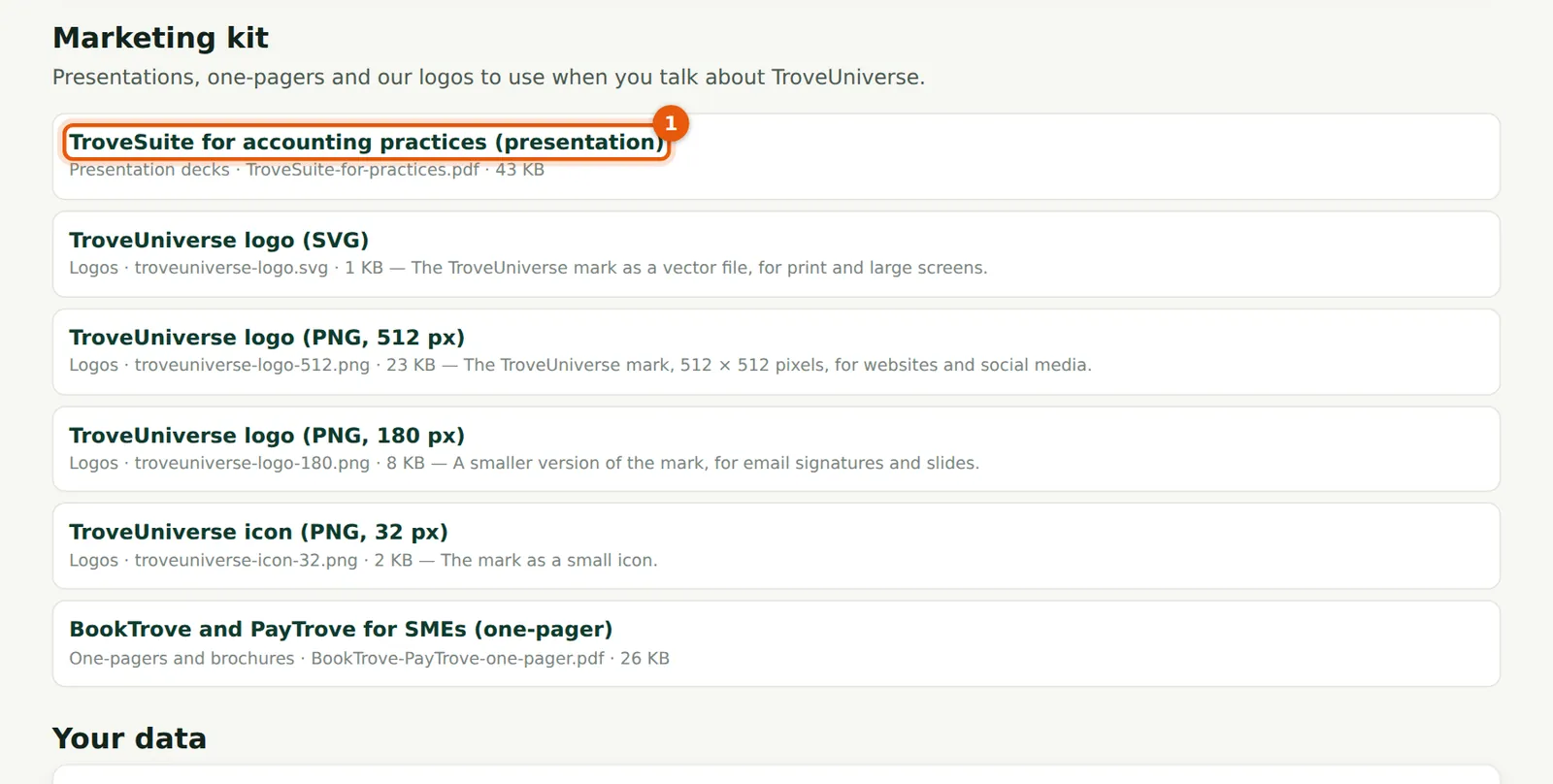
The kit (6 files in the illustration) holds material you may use when you talk about TroveUniverse: a presentation for accounting practices (1), a one-pager for SMEs and the TroveUniverse logos. Use the logos only as supplied, and never in a way that suggests you are TroveUniverse.
Who
Partner.
What to do
- Choose a file's title to download it.
12.2 The Partner Terms you accepted

Why
You can read the exact version you accepted (1) and the current terms (2) at any time. When TroveUniverse changes the terms, a notice at the top of the dashboard asks you to read and accept the new version.
Who
Partner.
What to do
- Choose Read the terms you accepted (1).
- When the notice appears, choose Read and accept, tick the box and choose Accept the new terms.
12.3 Create your own company account

Why
A partner login has no company of its own. To subscribe to the apps for your own practice, create a company account: your login becomes its owner and keeps the partner profile. You earn no commission on your own company, and you cannot use your own code for it.
Who
Partner.
What to do
- Enter the Company name (1) and, optionally, a phone number.
- Choose Create a company account (2); you are taken to Billing to choose apps.