Steps in this chapter (6)
Part B: For customers. How a customer gives the partner who referred it: at sign-up (typed, from a share link or a short link) or at the first checkout.
If an accountant or consultant introduced you to TroveUniverse, give their partner code: their email address. It costs you nothing and does not change your prices. It tells TroveUniverse which partner to credit, for the life of your account.
You can give the code when you create your TroveUniverse account, or at your first subscription checkout on the Billing page, as long as no invoice has been paid yet. After that, only TroveUniverse can change the partner, on request.
13.1 Sign up with a partner's share link
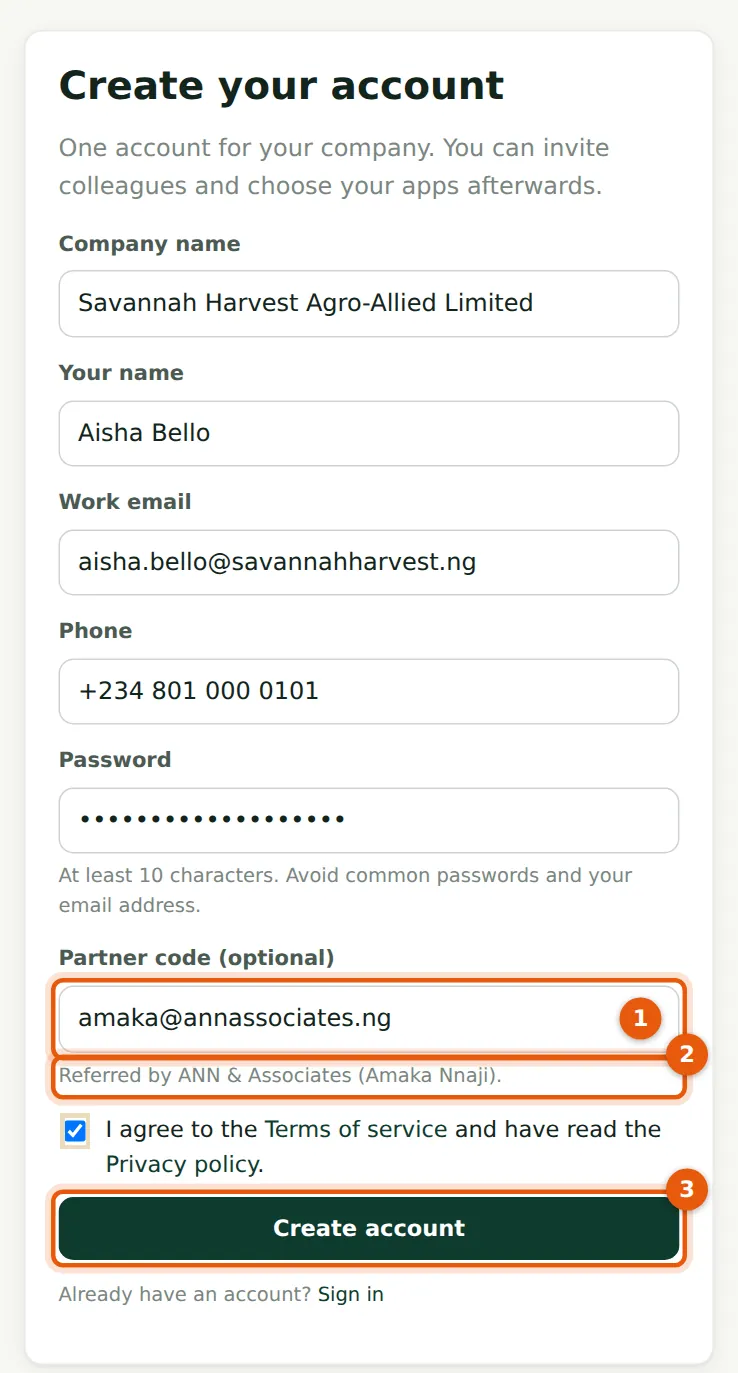
Why
The share link fills in Partner code (1) and then removes the code from the address bar. The page checks the code and shows who referred you (2). An unknown code is refused, and a partner cannot use their own code.
Who
Customer (the person creating the company's account).
What to do
- Open the link your accountant sent you.
- Fill in your company, name, work email, phone and password.
- Check the line under Partner code names your accountant (2), tick the Terms box and choose Create account (3).
13.2 Sign up after following a short link
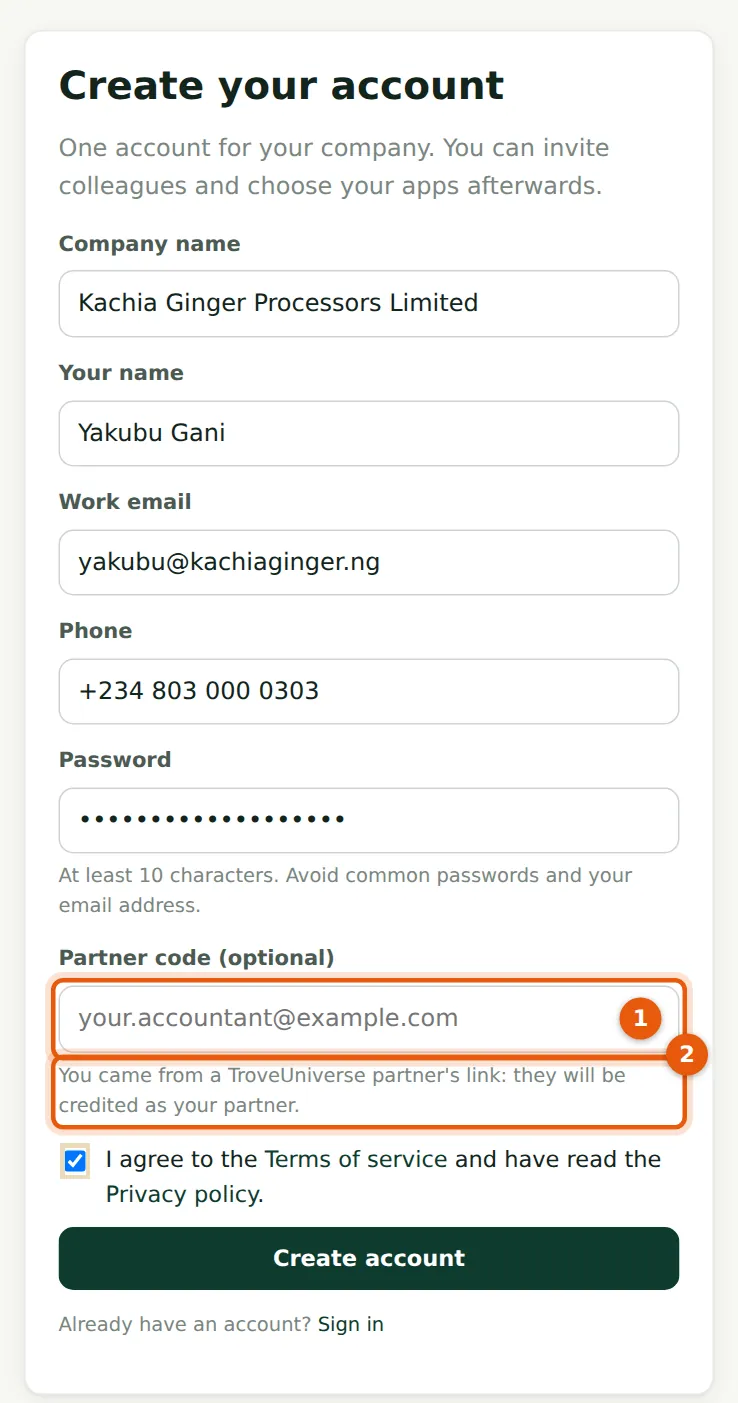
Why
After a short link (troveuniverse.com/r/…) the code field stays empty (1) and a note says the partner will be credited (2): the browser has remembered the referral. Typing a code overrides it.
Who
Customer.
What to do
- Fill in the form and choose Create account.
13.3 Confirm your email address
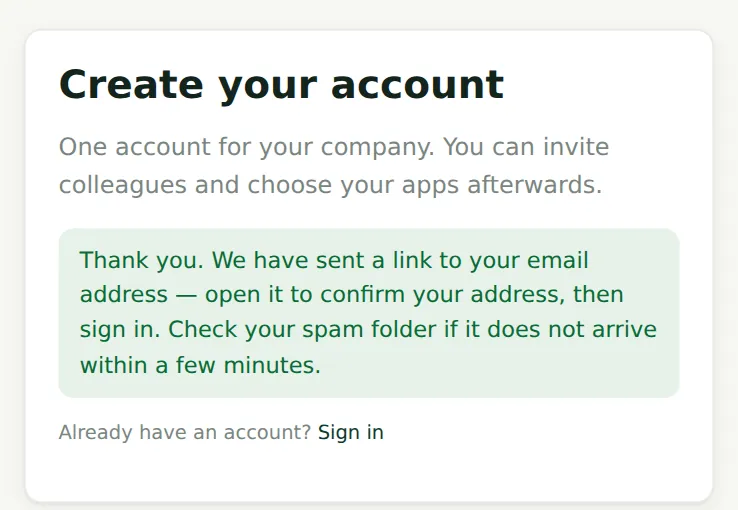
Why
The account is created, and attributed to the partner, when you confirm your email address from the link sent to you.
Who
Customer.
What to do
- Open the email and choose the confirmation link, then sign in and choose your apps on the Billing page.
13.4 Give the code at the first checkout
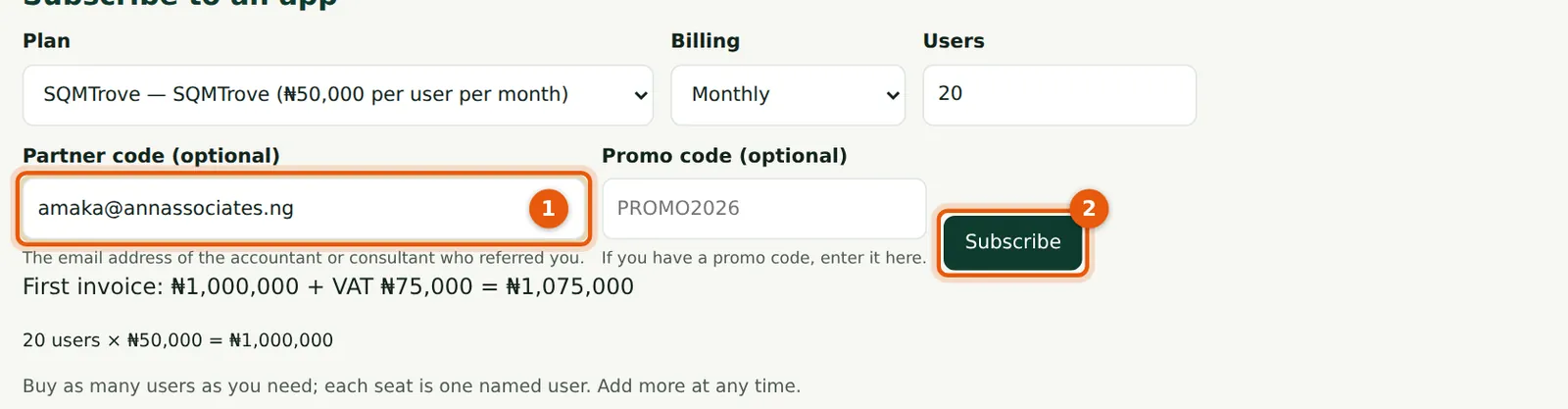
Why
Emeka Obi created Okafor Bello & Co's account without a code. The Partner code (optional) field (1) appears on Billing until the company has a partner or a paid invoice. An unknown code stops the checkout, and no subscription is created, so a typing error cannot go unnoticed.
Who
Customer (company owner).
What to do
- Choose the plan, billing and number of users.
- Enter your accountant's email address in Partner code (1).
- Choose Subscribe (2) and pay the invoice.
13.5 Your partner on the Billing page

Why
Billing names your partner (1). The code field disappears: the partner is set once.
Who
Customer.
What to do
- If the partner shown is wrong, contact TroveUniverse support.
13.6 The same line for Savannah Harvest

Why
A company attributed at sign-up shows the same line.
Who
Customer.
What to do
- Invite your accountant into your apps (for example BookTrove's Users page) with their email address if you want them to work in your books; they then open your company from their dashboard (chapter 8).