Steps in this chapter (6)
Pay a bonus or a 13th month in its own run, with PAYE worked out correctly on the whole year, and correct a run approved with a mistake.
Bonuses, a 13th month or other one-off payments can be paid in the regular monthly run (as Tobi Akinola's export bonus was in March) or in a run of their own. An off-cycle or 13th-month run pays no salary: only the one-off items assigned to people with exactly the run's period name.
How PAYE is worked out on a bonus run. PayTrove works out the tax on the employee's whole year twice — with the bonus and without it — and the difference is the extra tax the bonus causes. Like a bonus paid in a regular run, that extra tax is spread over the tax year: the bonus run takes the share for the months already worked (for a bonus paid in March after March's salary, 3/12), and the regular runs still to come collect the rest as part of each month's cumulative PAYE. By December the employee has paid exactly the tax due on the year's salary plus the bonus, and the result is the same whether the bonus is paid inside a regular run or on its own. PAYE already deducted on salary is never refunded by a bonus run. A 13th month works the same way: paid on 30 November it takes 11/12 of its extra tax; paid after December's salary it takes all of it.
Savannah Harvest pays a first-quarter production bonus to six factory staff on 31 March, after March's salaries.
11.1 Create a bonus run
Why
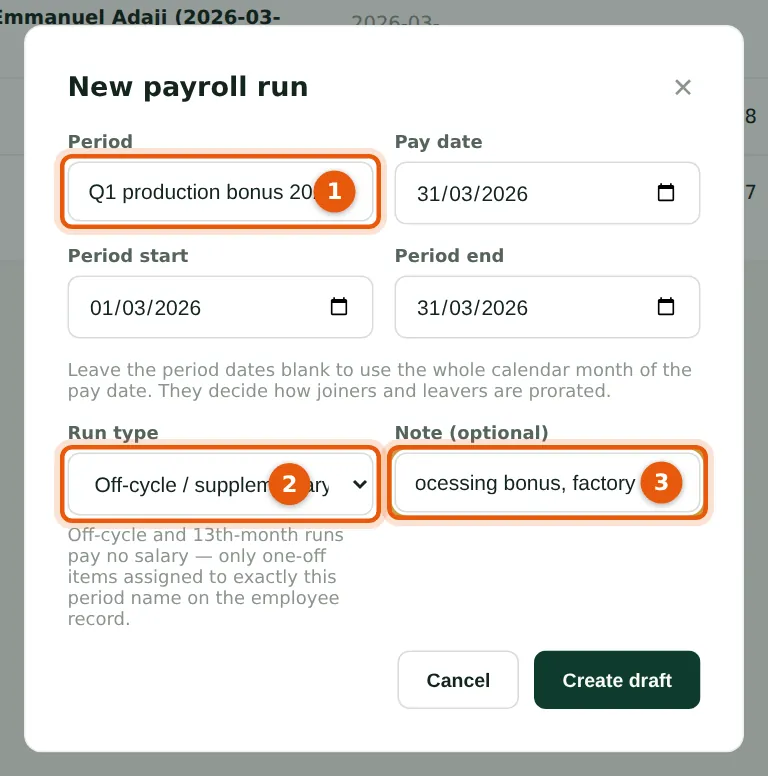
First assign each bonus on the employee record as a one-off (Performance bonus) with the period name the run will use — here 'Q1 production bonus 2026'. Then create the run with that exact name (1) and the run type Off-cycle / supplementary (2), or 13th month for a 13th-month payment. Add a note (3).
Who
Preparer.
What to do
- Assign the one-offs with the period name.
- Choose New payroll run, enter the same period name (1), the pay date, the run type (2) and a note (3), and choose Create draft.
11.2 Check the PAYE on the bonus run
Why
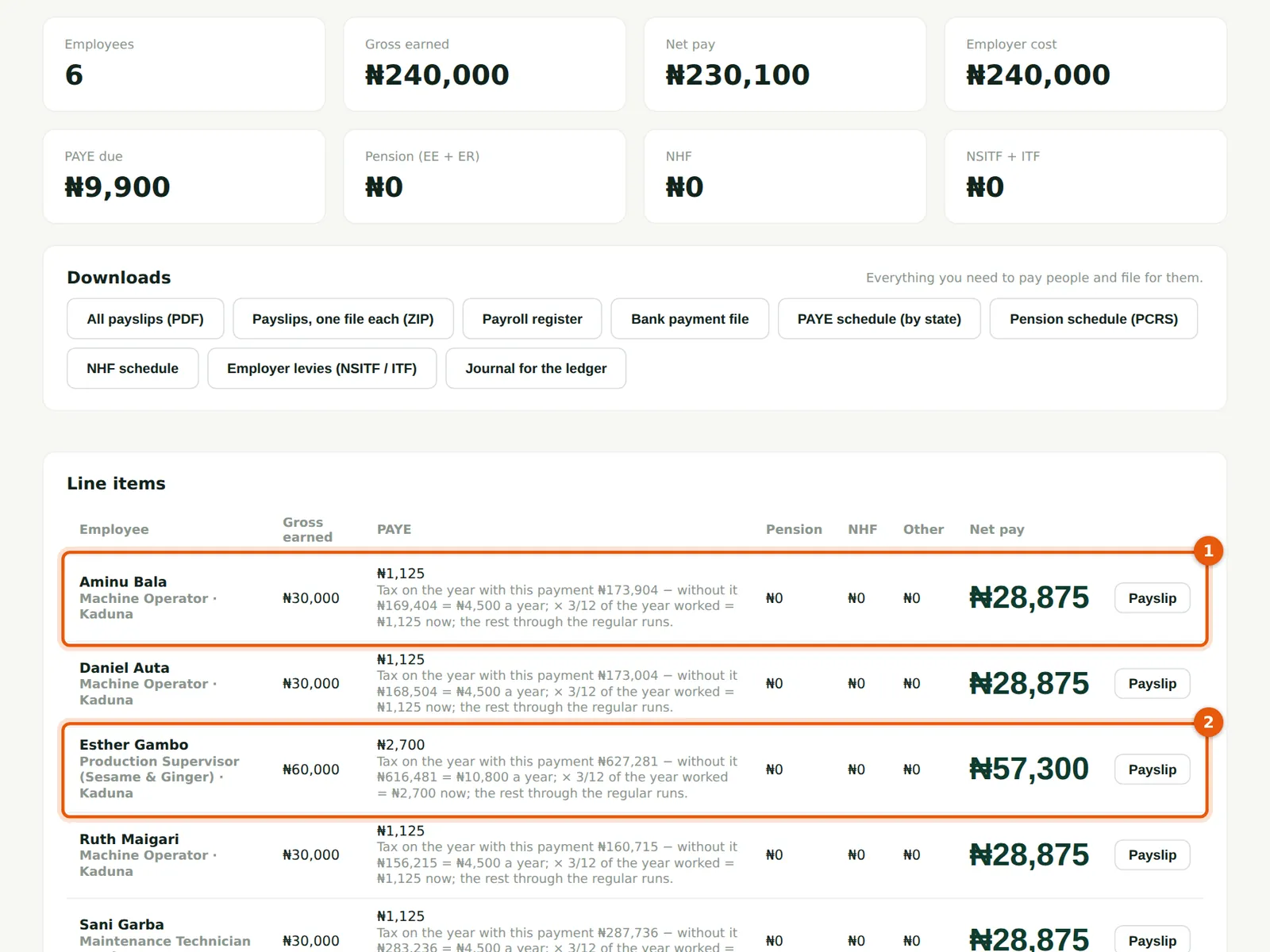
Each line shows the bonus, the PAYE on it and, under the PAYE, the working in one line: tax on the year with the bonus, less tax without it, times the share of the year worked. Aminu Bala (1) and Esther Gambo (2) are examples; the worked example in the next step follows Aminu's figures. There are no refunds, and the checks do not compare an off-cycle run with the monthly runs.
Who
Preparer, then the approver.
What to do
- Read each person's PAYE working before approving.
- Approve the run as usual; pay it with the run's bank payment file.
11.3 The bonus payslip
Why
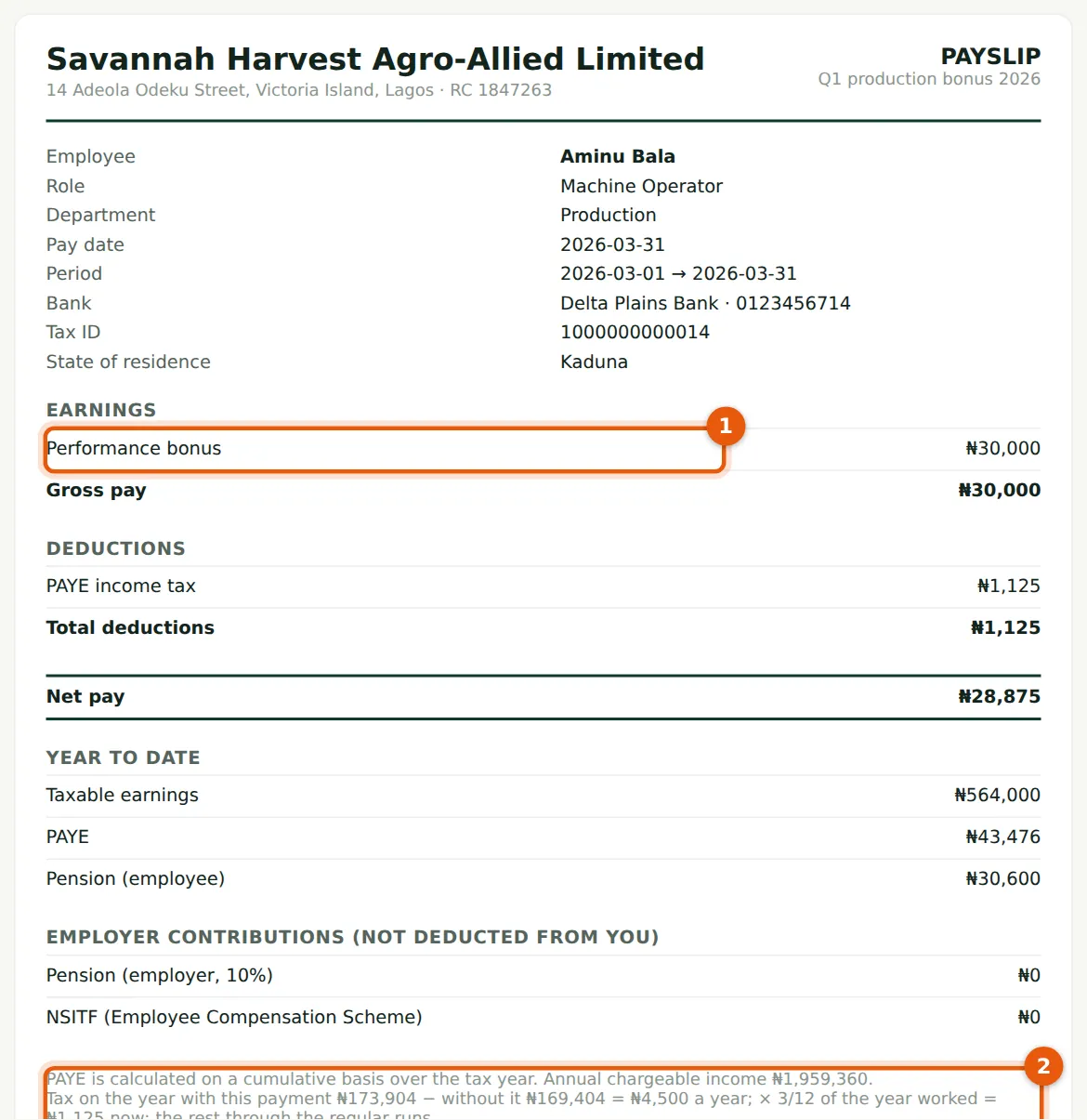
The payslip shows only the bonus (1) and what was deducted from it, with the PAYE working (2). The rest of the bonus's extra tax is collected through the April–December regular runs.
Who
Anyone checking a payslip.
What to do
- Employees with self-service see bonus payslips in My payslips alongside their monthly ones.
Worked example: Aminu Bala's ₦30,000 production bonus (₦)
| PAYE on the bonus run | ₦ |
|---|---|
| Tax on Aminu's 2026 with the bonus (salary and allowances paid, the rest of the year projected, plus ₦30,000) | 173,904.00 |
| Tax on the same year without the bonus | (169,404.00) |
| Extra tax caused by the bonus, for the year | 4,500.00 |
| Share for the months already worked: × 3/12 | |
| PAYE on this bonus run | 1,125.00 |
| Net bonus: ₦30,000 − ₦1,125 | 28,875.00 |
The rest of the bonus's extra tax (₦3,375) is collected through the April to December monthly runs, which include the bonus in Aminu's year. For the whole run, PAYE is ₦9,900.00 on bonuses of ₦240,000.
11.4 Reverse a run approved with a mistake
Why
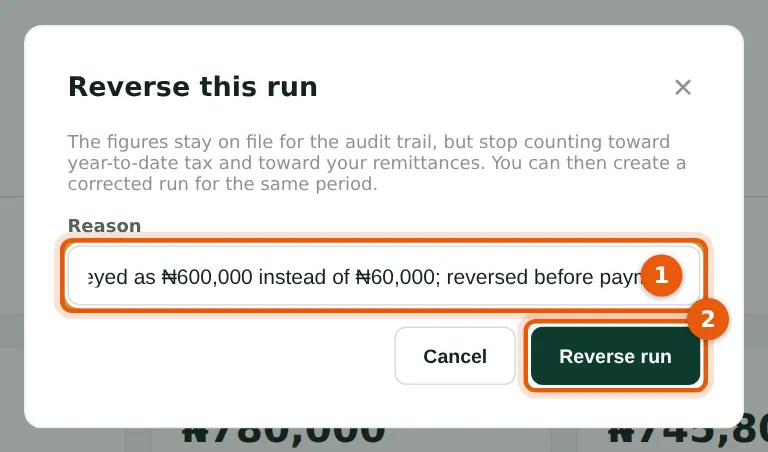
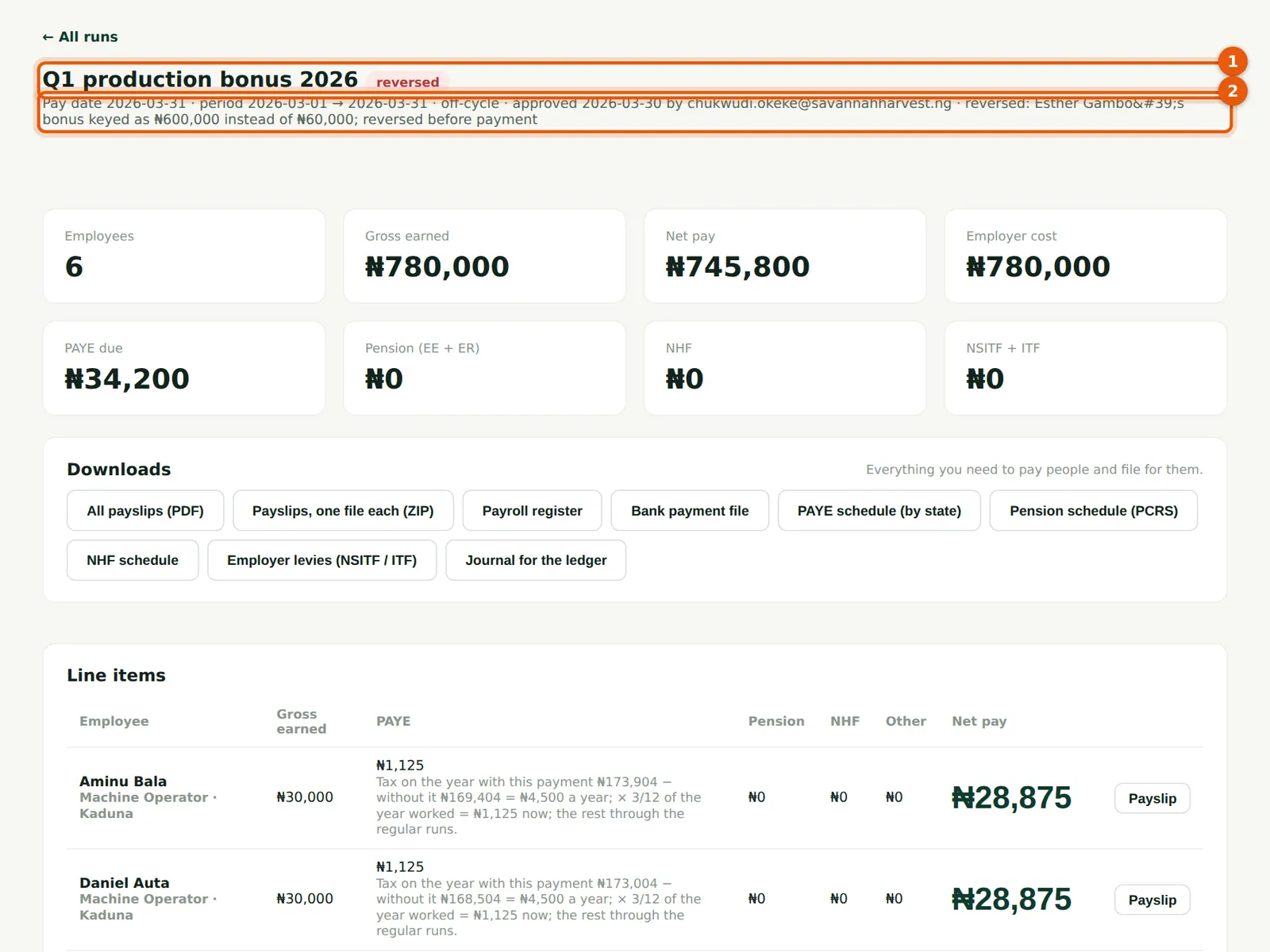
After Chukwudi approves the bonus run on 30 March, Funmilayo notices that Esther Gambo's bonus was keyed as ₦600,000 instead of ₦60,000. The bonus has not been paid, so Chukwudi reverses the run. The figures stay on file for the audit trail but stop counting toward year-to-date tax, remittances, loans and reports. Any approved run — regular, off-cycle or settlement — is reversed the same way.
Who
Admin.
What to do
- Open the approved run and choose Reverse run.
- Give the reason (1) and choose Reverse run (2).
11.5 The reversed run, then the corrected one
Why
The run shows as reversed (1) with the reason (2). Blessing corrects Esther's bonus on her record and creates the run again with the same name, noting that it corrects the reversed run; Chukwudi approves the corrected run the same afternoon.
Who
Preparer, then Admin.
What to do
- Correct the records, create a new run for the same period, and approve it. A reversed run cannot be approved again.
11.6 All runs so far
Why
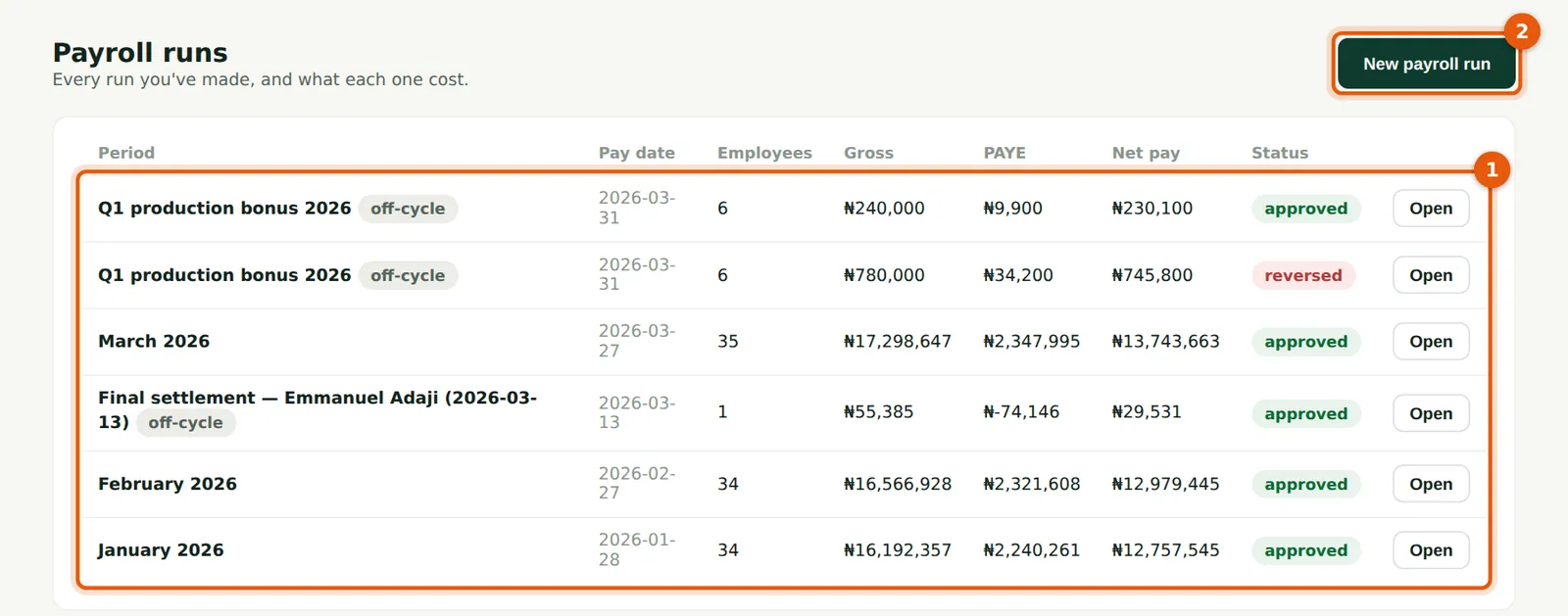
The list (1) shows every run with its pay date, headcount, gross, PAYE, net pay and status: January, February, the settlement (off-cycle; its PAYE shows the refund as a negative figure), March, and the reversed and corrected bonus runs.
Who
Everyone with access to runs.
What to do
- Choose Open on a run to see it; choose New payroll run (2) for the next month.