Steps in this chapter (3)
What employees see on self-service: payslips, leave requests and their own contact details.
Employees with a self-service login see My payslips, My leave, My details, Ask PayTrove, Offline and Two-factor — nothing else. Self-service logins are free on your subscription.
Grace Ojo, buying officer at Akure, signs in on 10 February 2026.
12.1 My payslips
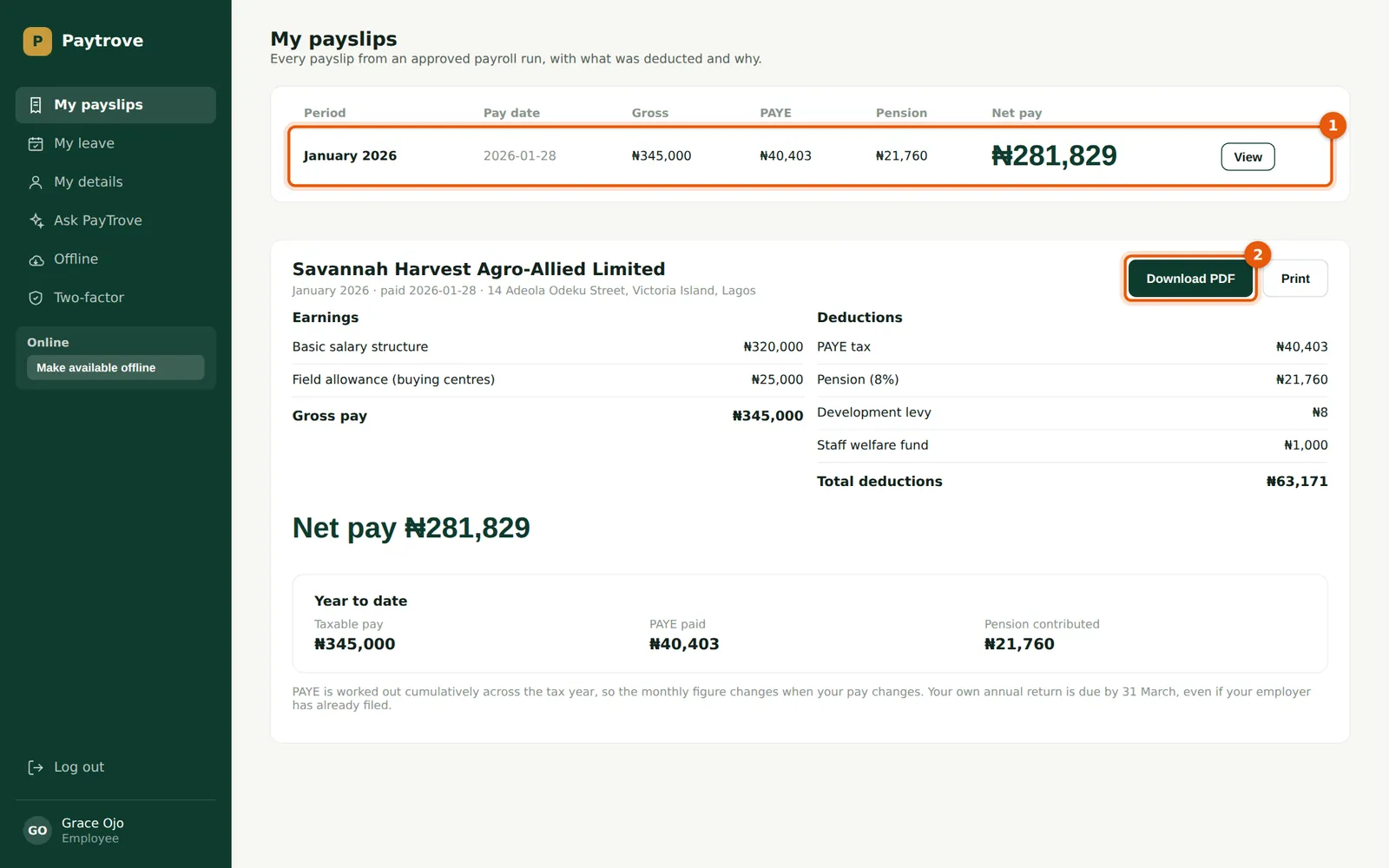
Why
Only approved runs appear, so employees never see a draft. Each payslip shows earnings, deductions, net pay and year-to-date totals.
Who
Employee.
What to do
- Choose View on a period (1) to open the payslip.
- Choose Download PDF (2) to save it, for example for a loan or visa application, or Print.
12.2 Request leave
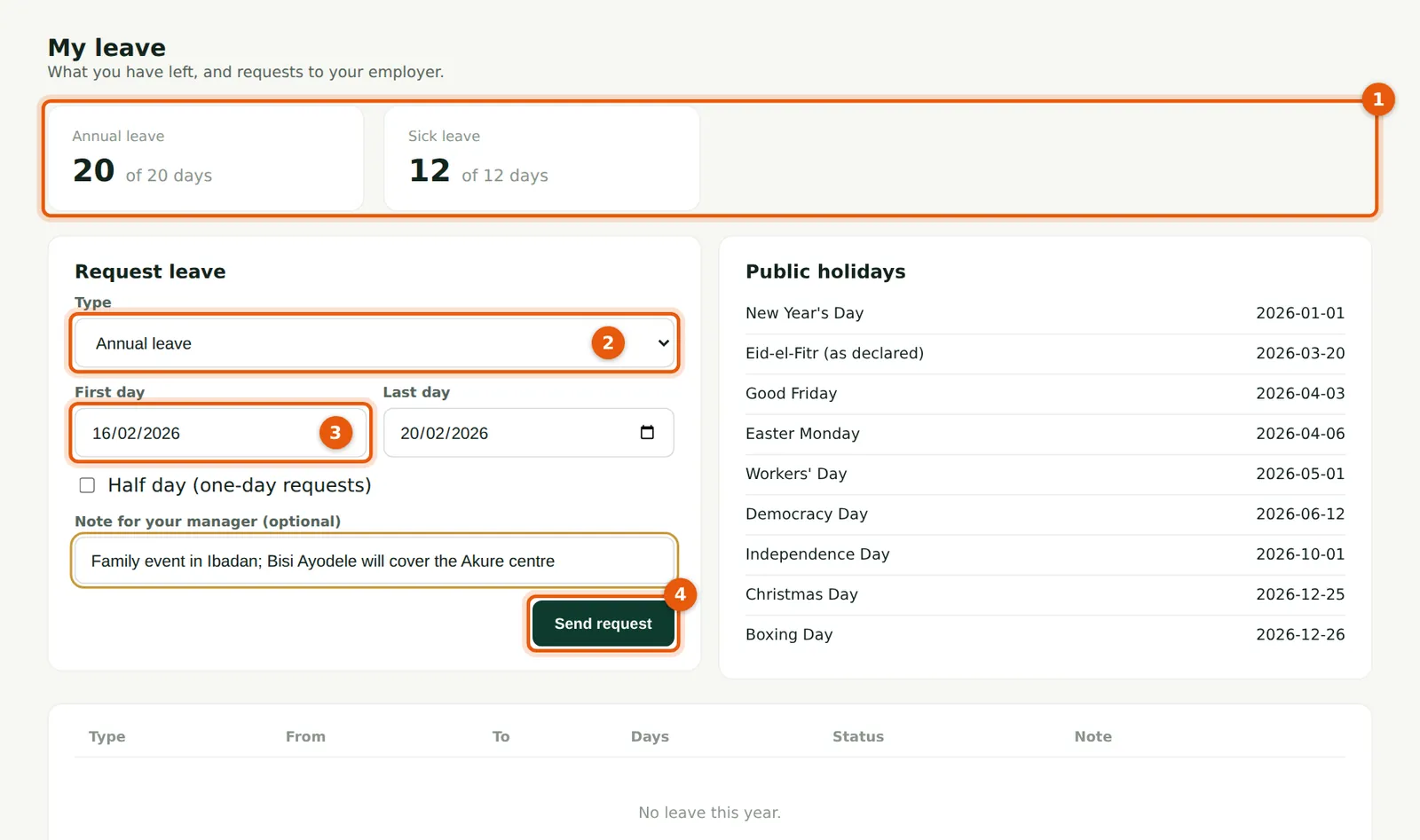
Why
The request goes to payroll staff to approve (chapter 8). Days are counted in working days, skipping weekends and public holidays.
Who
Employee.
What to do
- Check the balances (1).
- Choose the type (2), the first (3) and last day, and add a note for your manager.
- Choose Send request (4). The request appears in the list below as pending; you can withdraw it until it is decided.
12.3 Update my contact details
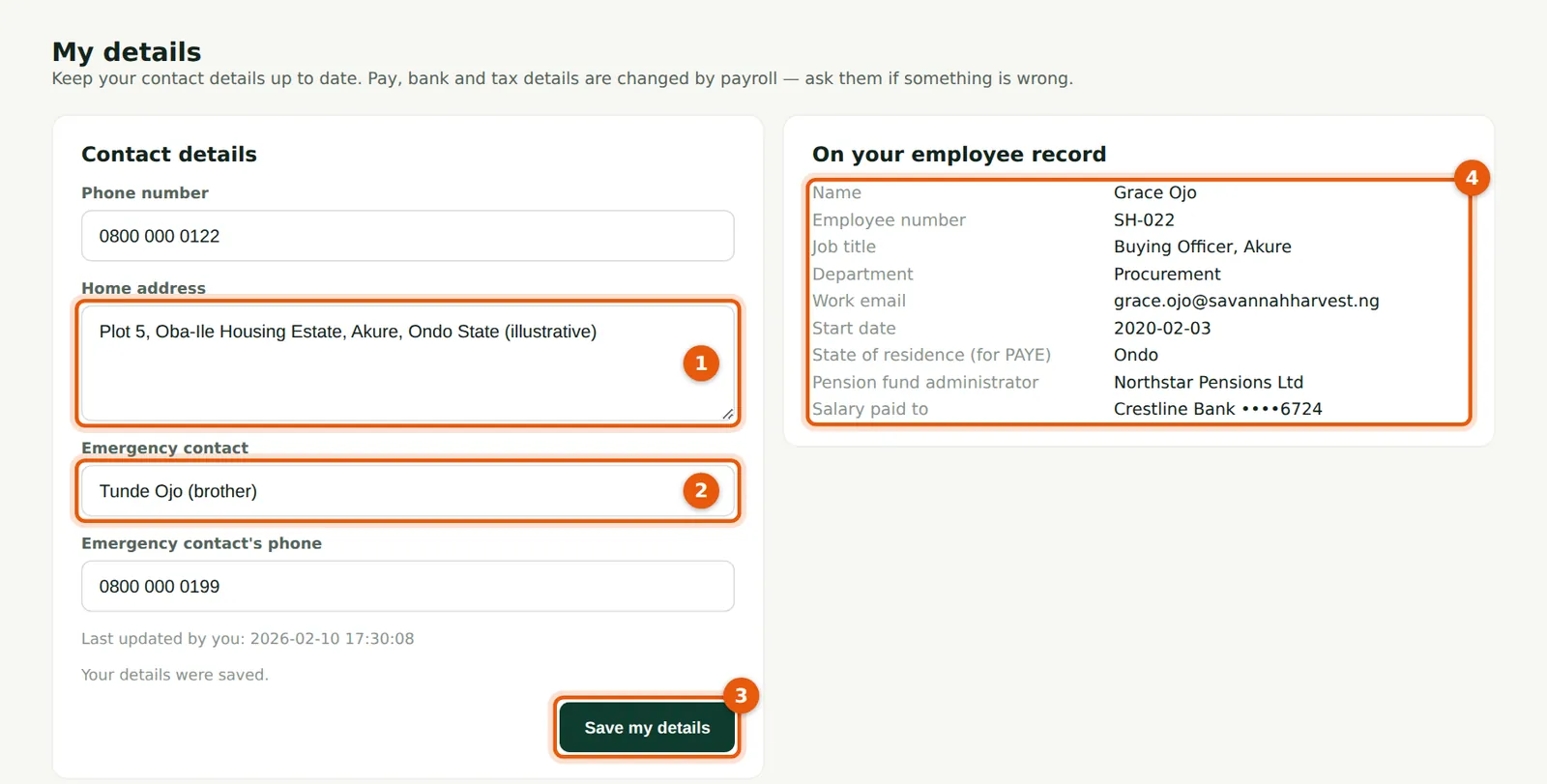
Why
Employees keep their phone number, home address and emergency contact up to date themselves. Pay, bank and tax details can only be changed by payroll staff, so ask them if something is wrong.
Who
Employee.
What to do
- Change the address (1) or emergency contact (2) and choose Save my details (3).
- Check what is on your employee record (4): number, job, start date, state of residence for PAYE, PFA and the last four digits of the salary account.