Steps in this chapter (9)
Set the leave policy, approve and book leave, and handle staff loans, salary advances and court or co-operative deductions.
Leave, staff loans and salary advances, and court or co-operative deductions all flow into the payroll automatically. Unpaid or part-paid leave reduces pay in the run at the working-day rate, before tax and pension. Loan and garnishment balances move only when a run is approved, and move back if it is reversed.
The Labour Act limits deductions in a month (other than PAYE, pension and NHF) to one-third of that month's wages. PayTrove applies the limit; what it holds back is flagged on the run and carried forward as arrears.
8.1 Set the leave policy
Why
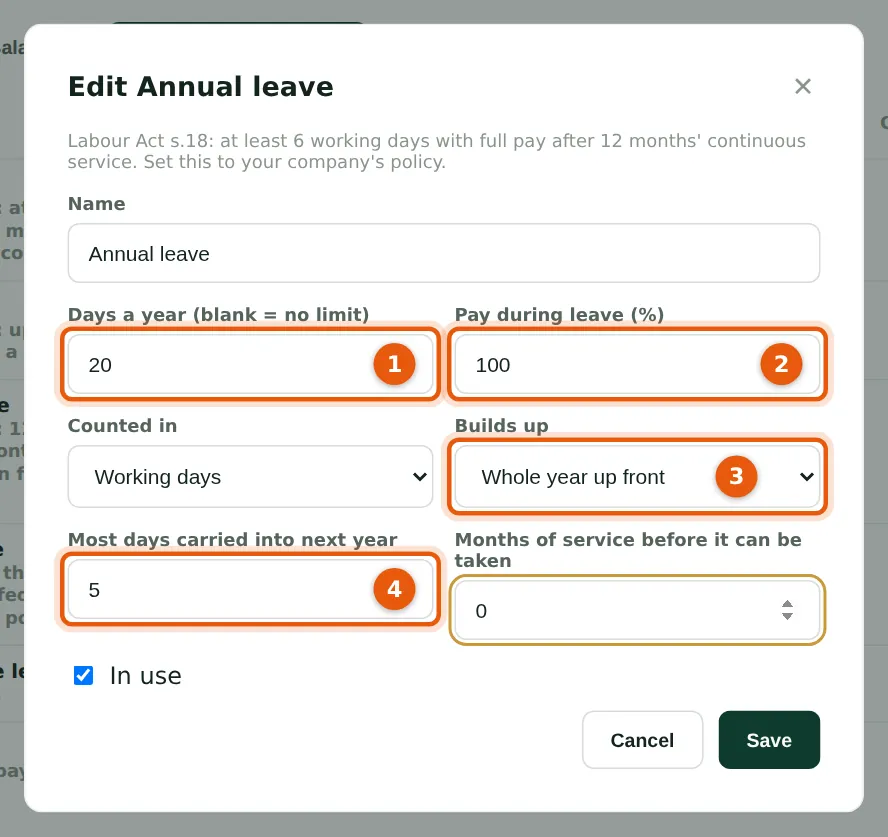
PayTrove starts with the Labour Act minimums: annual leave 6 working days after 12 months' service, sick leave 12 days, maternity 12 weeks at 50% pay, paternity, compassionate and unpaid leave. Change them to your company policy; PayTrove warns you if a type falls below the statutory minimum. Savannah Harvest gives 20 working days' annual leave, and up to 5 days can be carried into the next year.
Who
Admin.
What to do
- Open Leave and the Leave types & holidays tab, and choose Edit on a type.
- Enter the days a year (1) and the pay during leave (2) (0 for unpaid).
- Choose how it builds up (3): whole year up front, monthly, or per occasion.
- Enter the carry-over limit (4) and any months of service needed, then Save.
8.2 Leave types and public holidays
Why
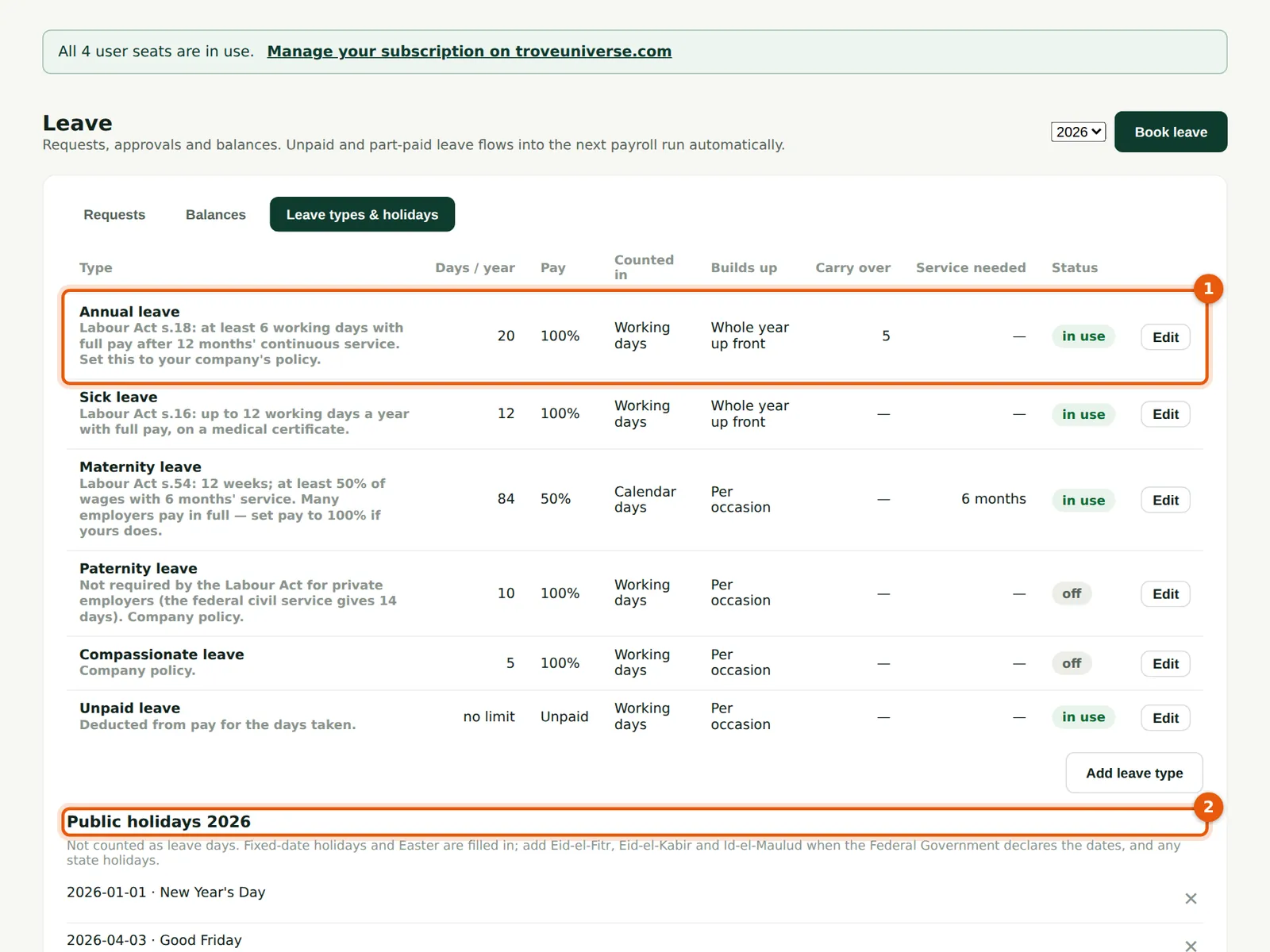
Leave days are counted in working days, skipping weekends and public holidays. Fixed-date holidays and Easter are filled in; add Eid-el-Fitr, Eid-el-Kabir and Id-el-Maulud when the Federal Government declares the dates, and any state holidays.
Who
Admin.
What to do
- Check the types (1).
- Under Public holidays (2), add a holiday with its date and name and choose Add holiday.
8.3 Approve a leave request
Why
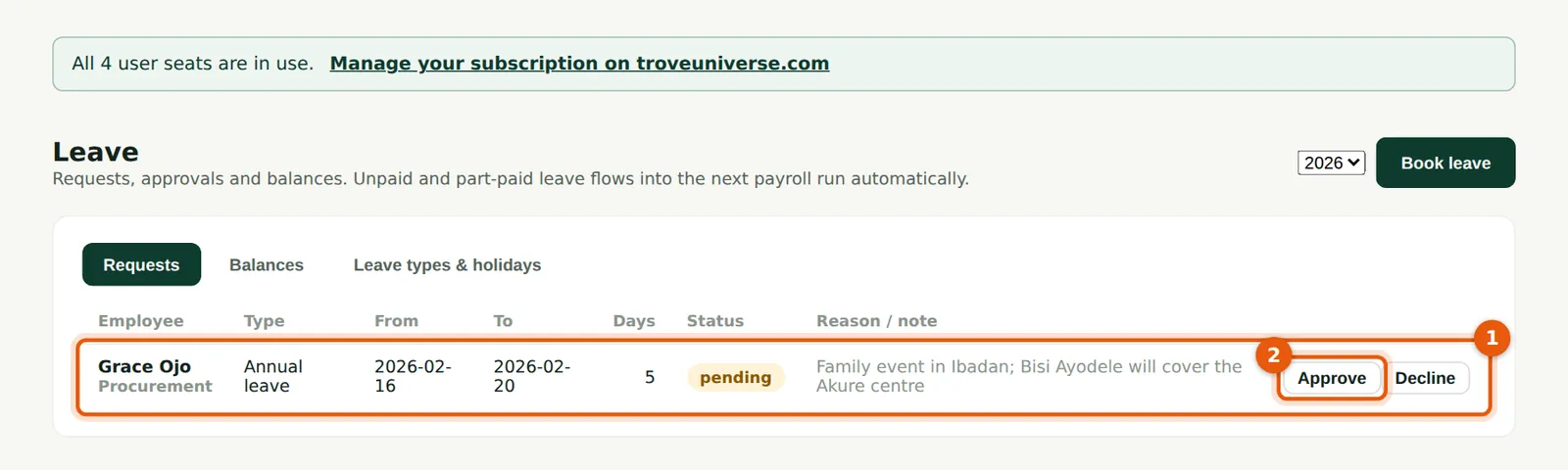
Employees request leave from self-service (chapter 12). Nobody can decide their own request. Declining needs a reason, which the employee sees.
Who
Preparer or Admin (Blessing Etim at Savannah Harvest).
What to do
- Open Leave. Pending requests are listed (1) with the days counted.
- Choose Approve (2), or Decline and give a reason. An approved request can later be cancelled with a reason.
8.4 Book leave for an employee
Why
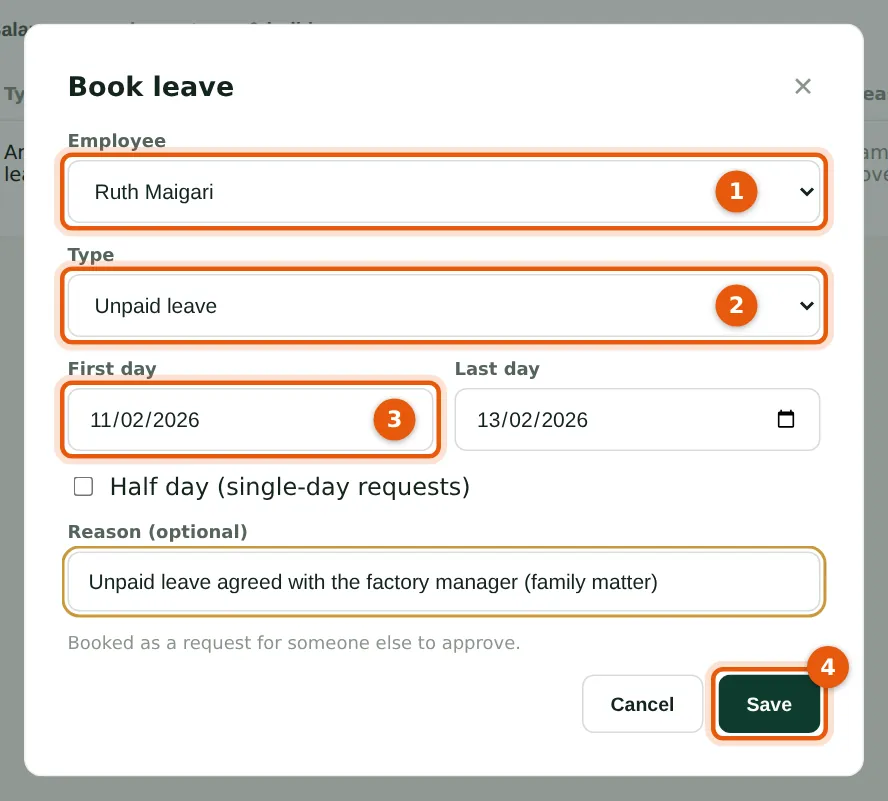
Payroll staff can book leave for someone without a self-service login. A Preparer's booking is a request that someone else must approve; an Admin can approve it on entry. Ruth Maigari, a machine operator, takes unpaid leave on 11–13 February, which will reduce her February pay.
Who
Preparer or Admin.
What to do
- Choose Book leave, choose the employee (1) and the type (2).
- Enter the first (3) and last day, and a reason.
- Choose Save (4).
8.5 Leave balances
Why
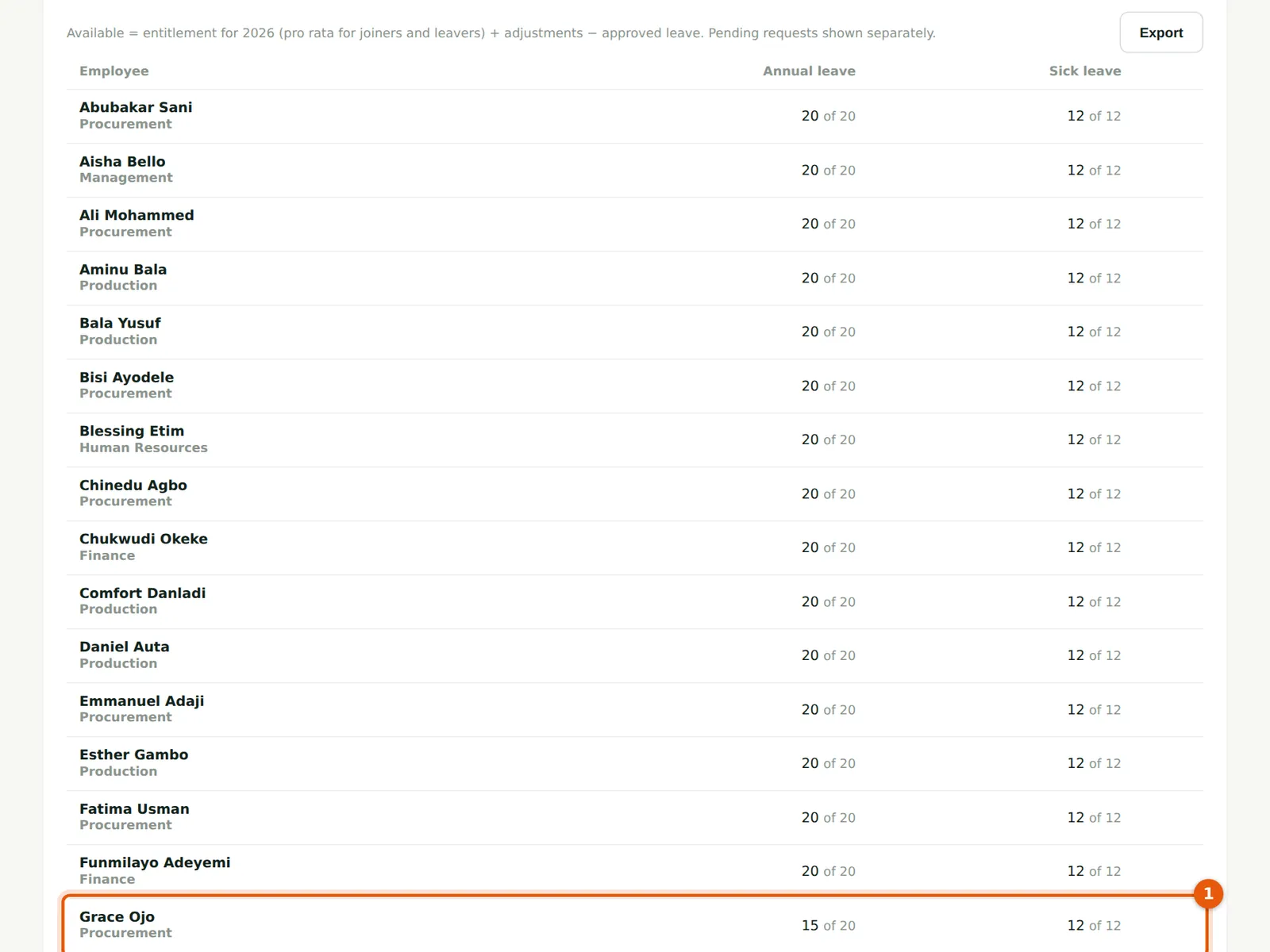
Available leave is the entitlement for the year (pro rata for joiners and leavers) plus adjustments, less approved leave. Grace Ojo has 15 of 20 days left after her five days in February (1).
Who
Preparer or Admin.
What to do
- Use Adjust to add or remove days with a reason, for example opening balances brought forward from a previous system.
- Admins can choose Carry over to bring unused days from last year, up to each type's limit. Export downloads the balances.
8.6 Adjust a leave balance
Why
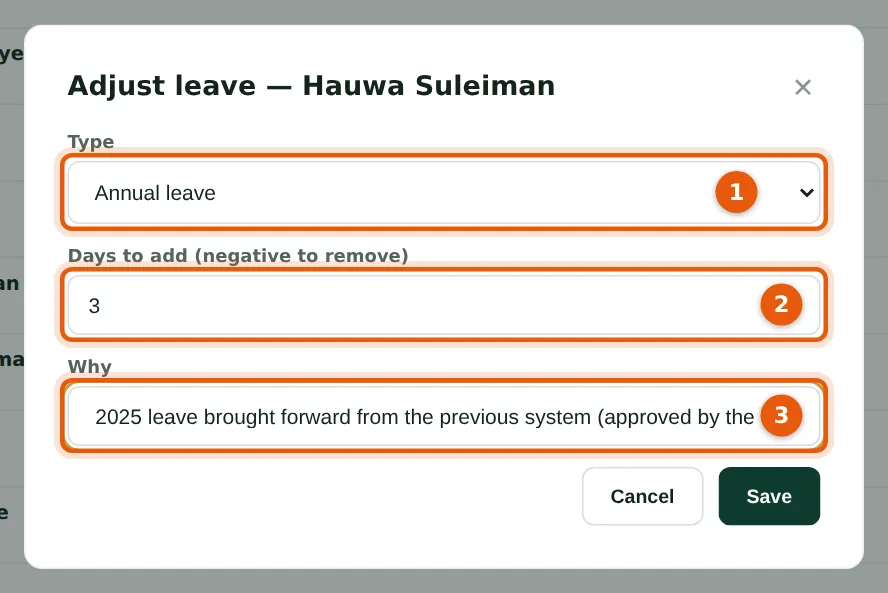
Adjustments add or remove days for one year with a reason, for example opening balances from a previous system. Hauwa Suleiman brings forward 3 unused days from 2025.
Who
Admin.
What to do
- On the Balances tab choose Adjust on the person's row.
- Choose the leave type (1), enter the days (2) (negative to remove) and why (3), and choose Save. The adjustment is recorded in the audit log.
8.7 Give a staff loan or salary advance
Why
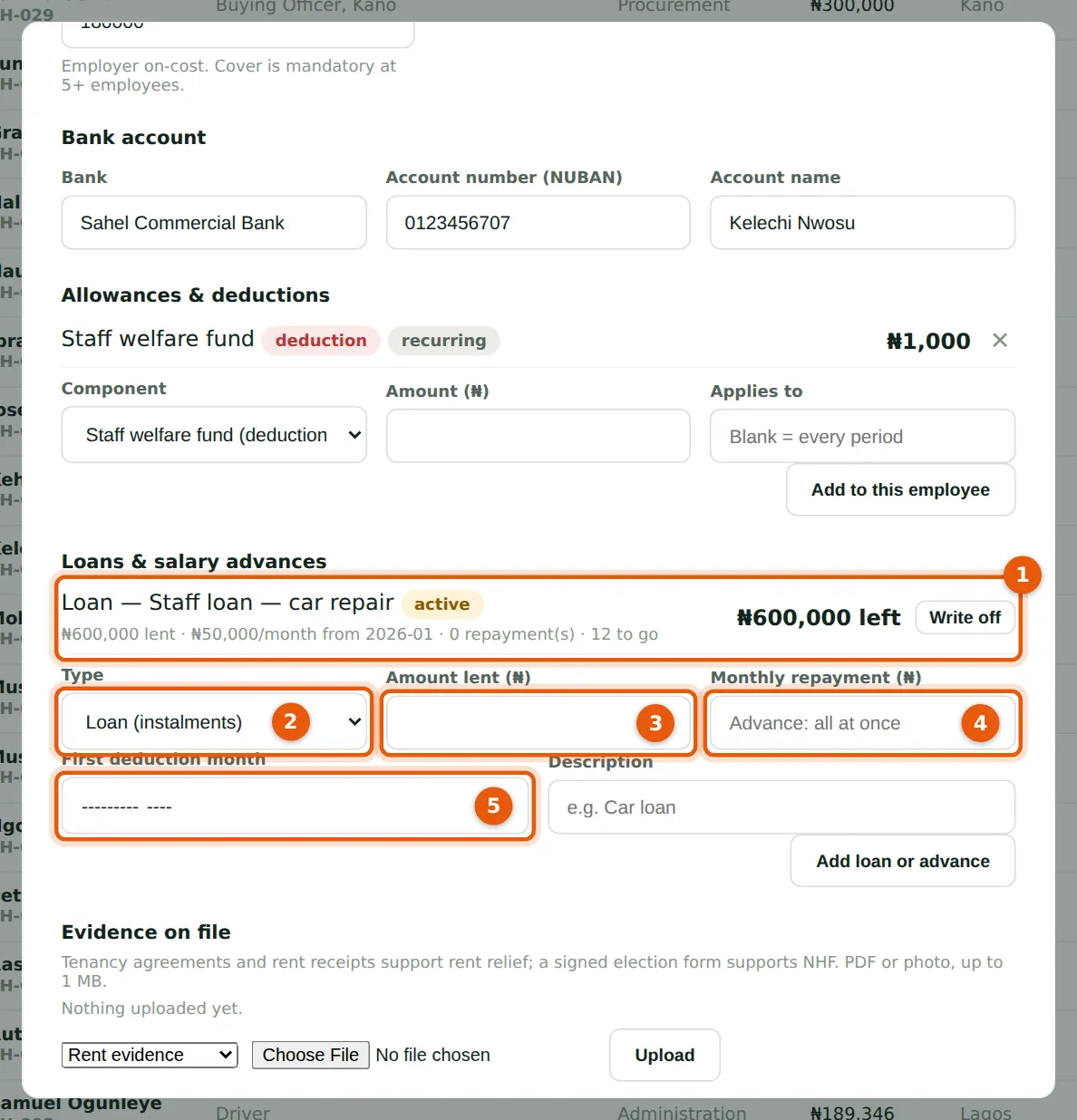
A loan is repaid in monthly instalments from a chosen month; a salary advance is taken back in one deduction. Kelechi Nwosu borrows ₦600,000 for a car repair, repaid at ₦50,000 a month from January 2026. The balance moves only when a run is approved.
Who
Preparer or Admin.
What to do
- Open the employee with Edit and scroll to Loans & salary advances. Existing loans are listed (1) with the balance left.
- Choose the type (2), enter the amount lent (3) and the monthly repayment (4) (blank for an advance).
- Enter the first deduction month (5) and a description, then choose Add loan or advance.
- To stop a loan, choose Write off and give a reason; this is recorded in the audit log.
8.8 Add a court, tax or co-operative deduction
Why
Garnishee and maintenance orders, tax authority demands, union check-off and co-operative deductions are taken after PAYE, pension and NHF, in priority order: maintenance orders, then court orders, then the rest, then the company's own loans.
Who
Preparer or Admin.
What to do
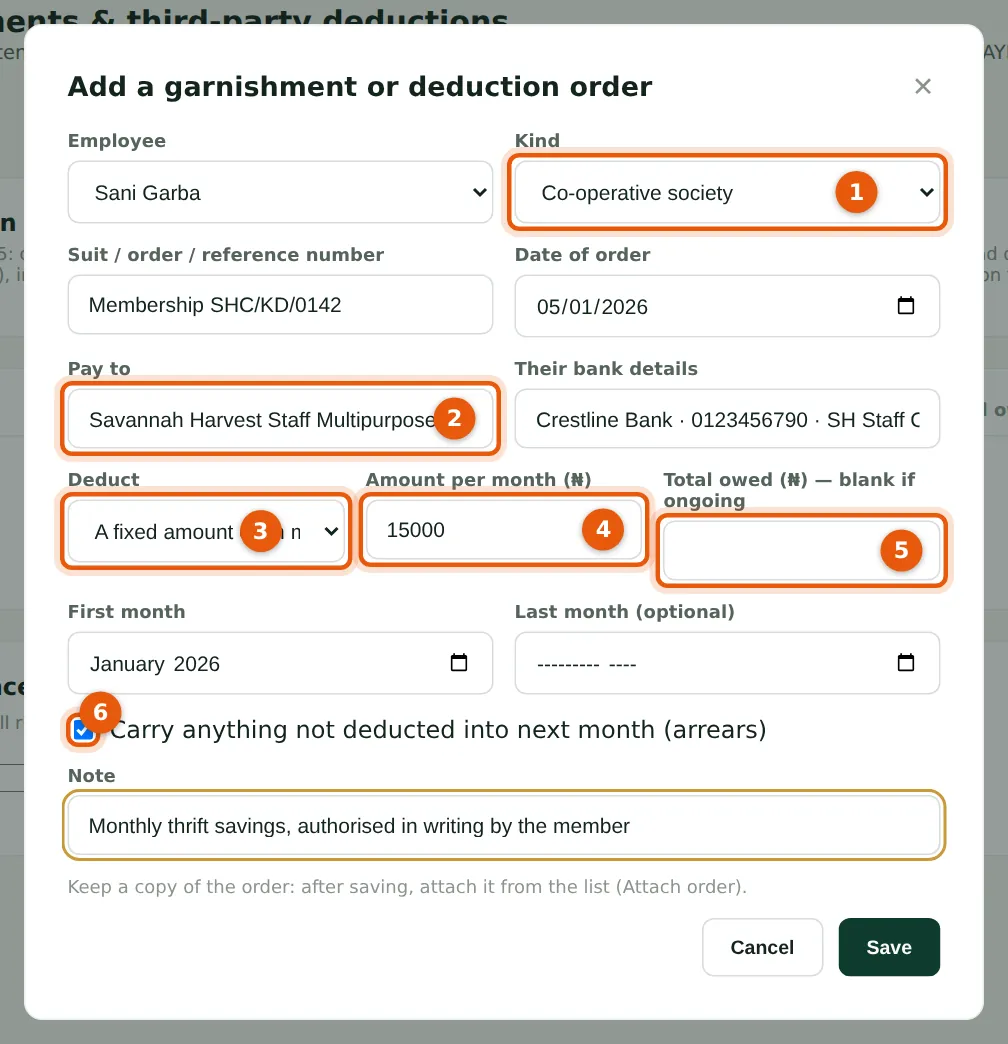
- Open Garnishments and choose Add order. Choose the employee and the kind (1), and enter the order or reference number and date.
- Enter who is paid (2) and their bank details.
- Choose a fixed amount or a percentage of pay after tax (3) and enter it (4).
- Enter the total owed (5), or leave it blank for an ongoing deduction, and the first month.
- Leave Carry anything not deducted into next month (6) ticked. Only an Admin can mark a court order as directing its amount regardless of the one-third limit. Save, then use Attach order to keep a copy.
8.9 Orders and the remittance schedule
Why
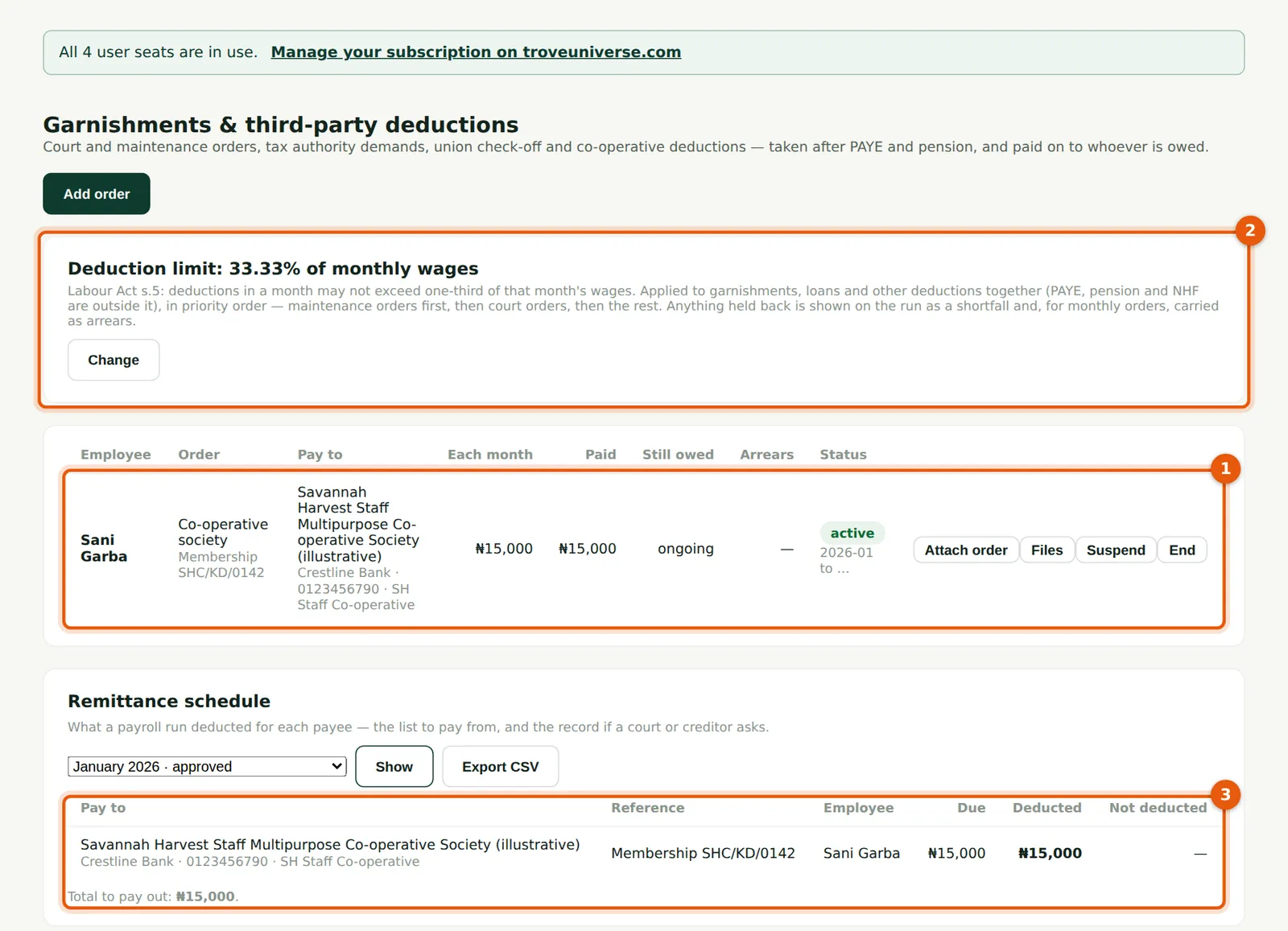
The list (1) shows each order, what is taken each month, what has been paid and what is still owed. The limit card (2) shows the deduction limit in force (33.33% of monthly wages). The remittance schedule (3) lists what a run deducted for each payee: the list to pay from, and your record if a court or creditor asks.
Who
Admin or finance officer.
What to do
- Choose a run and Show to see its schedule; Export CSV to save it.
- Use Suspend or End on an order when a court or the employee's authority changes.