Steps in this chapter (13)
The variance, department and cost-to-employ reports, the annual returns for each state, the audit log and the PAYE calculator.
The reports, the annual returns and the audit log are built from approved runs and cannot be edited. Viewers can read and export them.
The Reports page has three reports: Variance (what changed against the last approved run — shown in step 9.4), Cost by department and Cost to employ. Each can be exported as CSV.
13.1 Cost by department
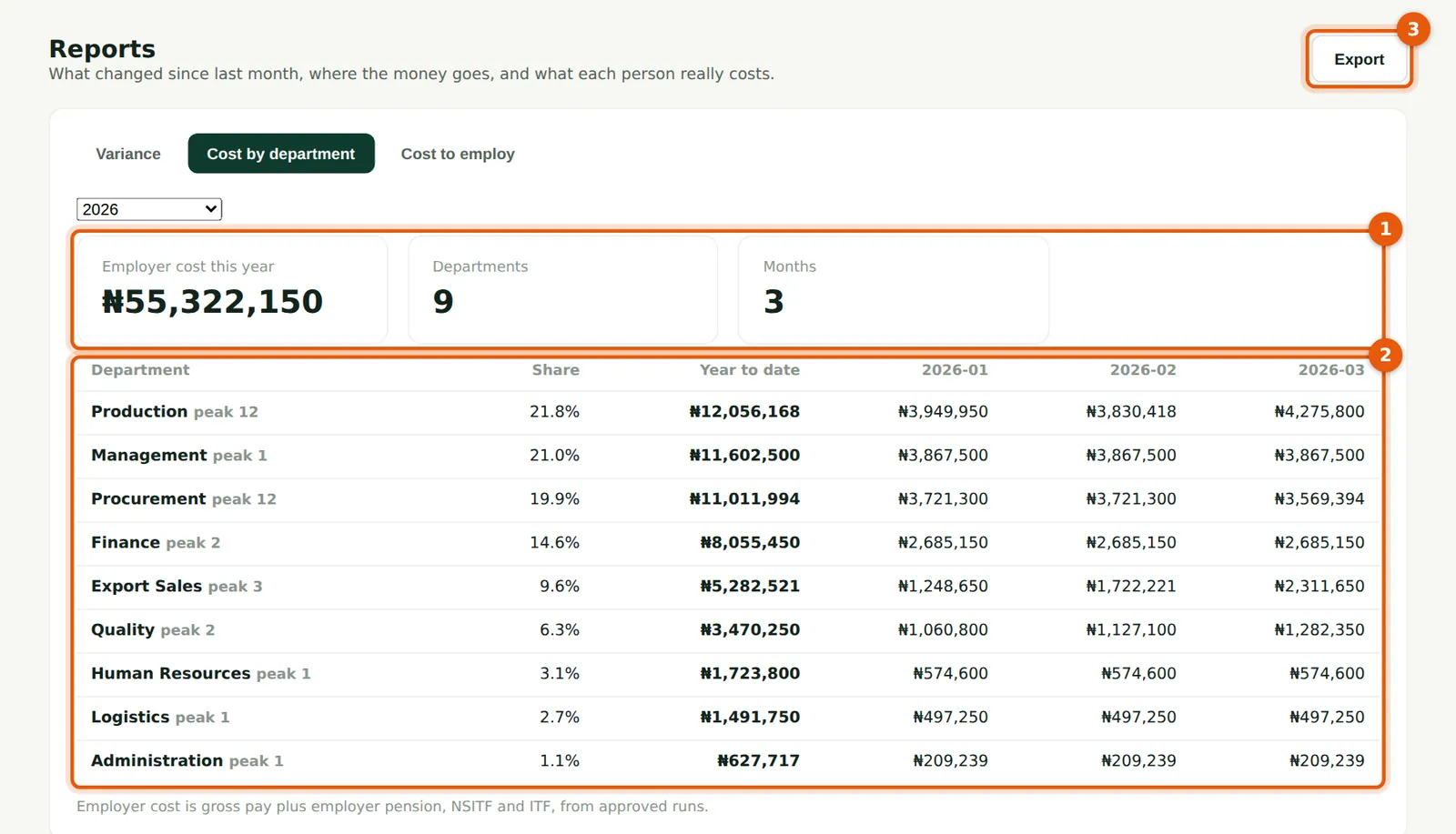
Why
Employer cost (gross pay plus employer pension, NSITF and ITF) by department and month. Savannah Harvest's first quarter cost ₦55,322,150.
Who
Admin, Preparer, Viewer.
What to do
- Choose the year. Read the summary (1) and the table (2).
- Choose Export (3) for a CSV.
13.2 Cost to employ
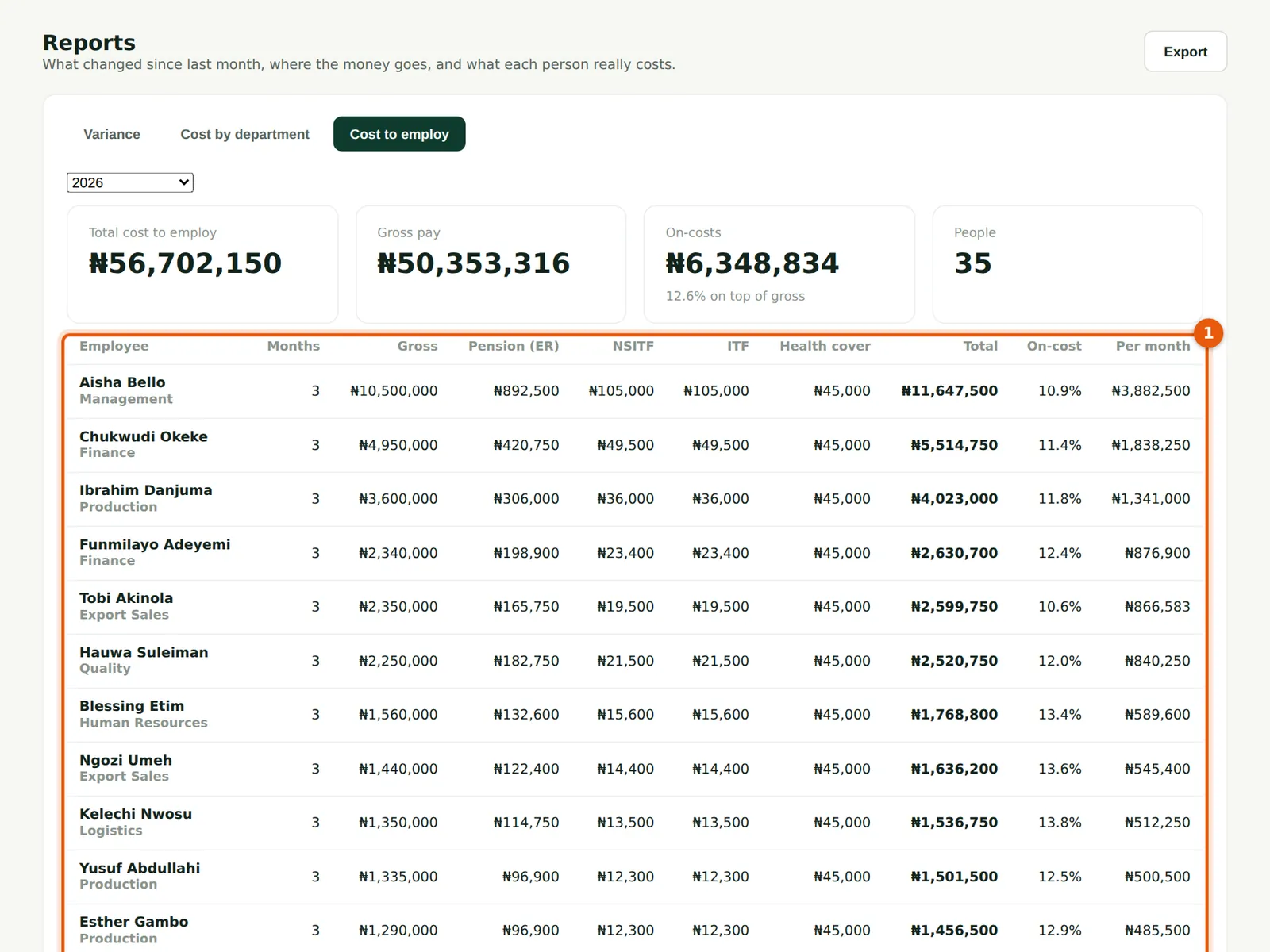
Why
For each person: months paid, gross, employer pension, NSITF, ITF and health cover, the total, the on-cost percentage and the average cost per month. Use it for budgets and pricing.
Who
Admin, Preparer, Viewer.
What to do
- Read the table (1) and export it if needed.
13.3 The Overview at the end of the quarter
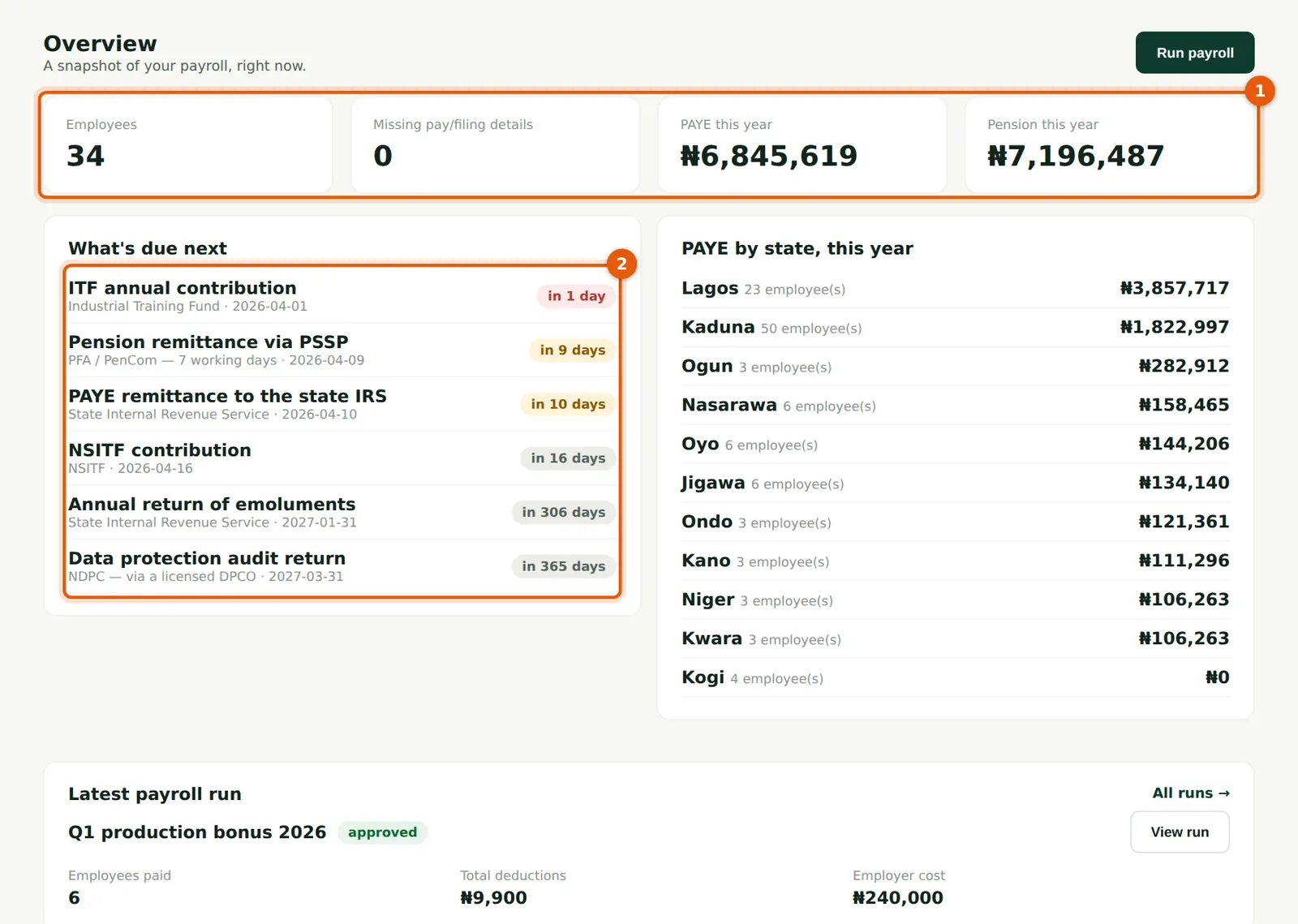
Why
At quarter end the Overview shows the year's PAYE and pension so far (1) and the next deadlines (2): March's pension, PAYE, NHF and NSITF, and the year's ITF and annual returns.
Who
Admins, preparers and viewers.
What to do
- Use it as the month-end checklist: every line under What's due next should be paid and recorded by its date.
13.4 Annual returns
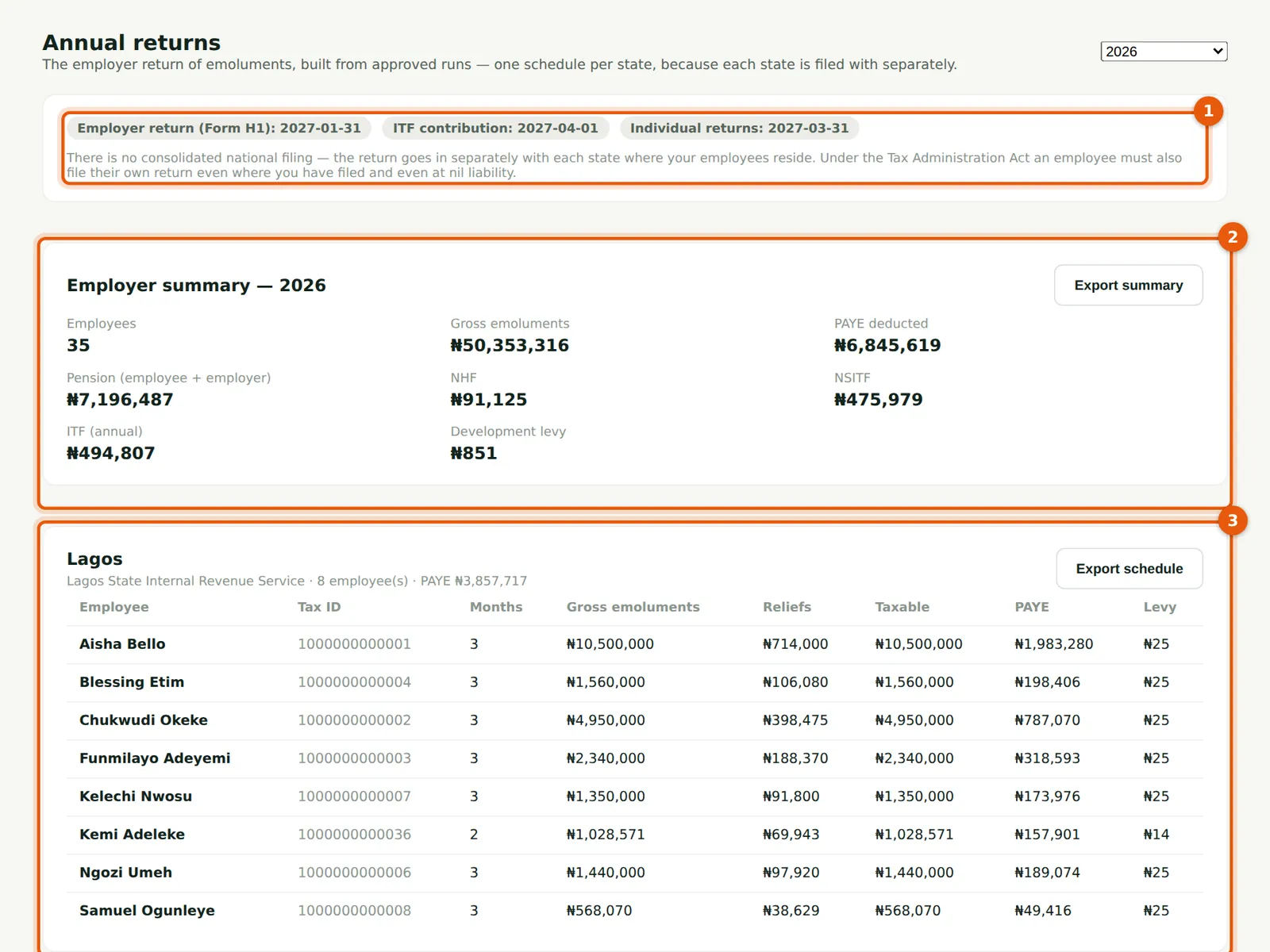
Why
The employer's annual return of emoluments (Form H1) is filed with each state's IRS by 31 January of the following year, one schedule per state. PayTrove builds it from approved runs, with the development levy included. It also reminds you of the ITF contribution (1 April) and that employees file their own individual returns by 31 March.
Who
Admin or finance officer.
What to do
- Choose the year. Check the deadlines (1).
- Check the employer summary (2) and choose Export summary.
- Each state has its own schedule (3); choose Export schedule on each and file it with that state's IRS.
13.5 A state's schedule
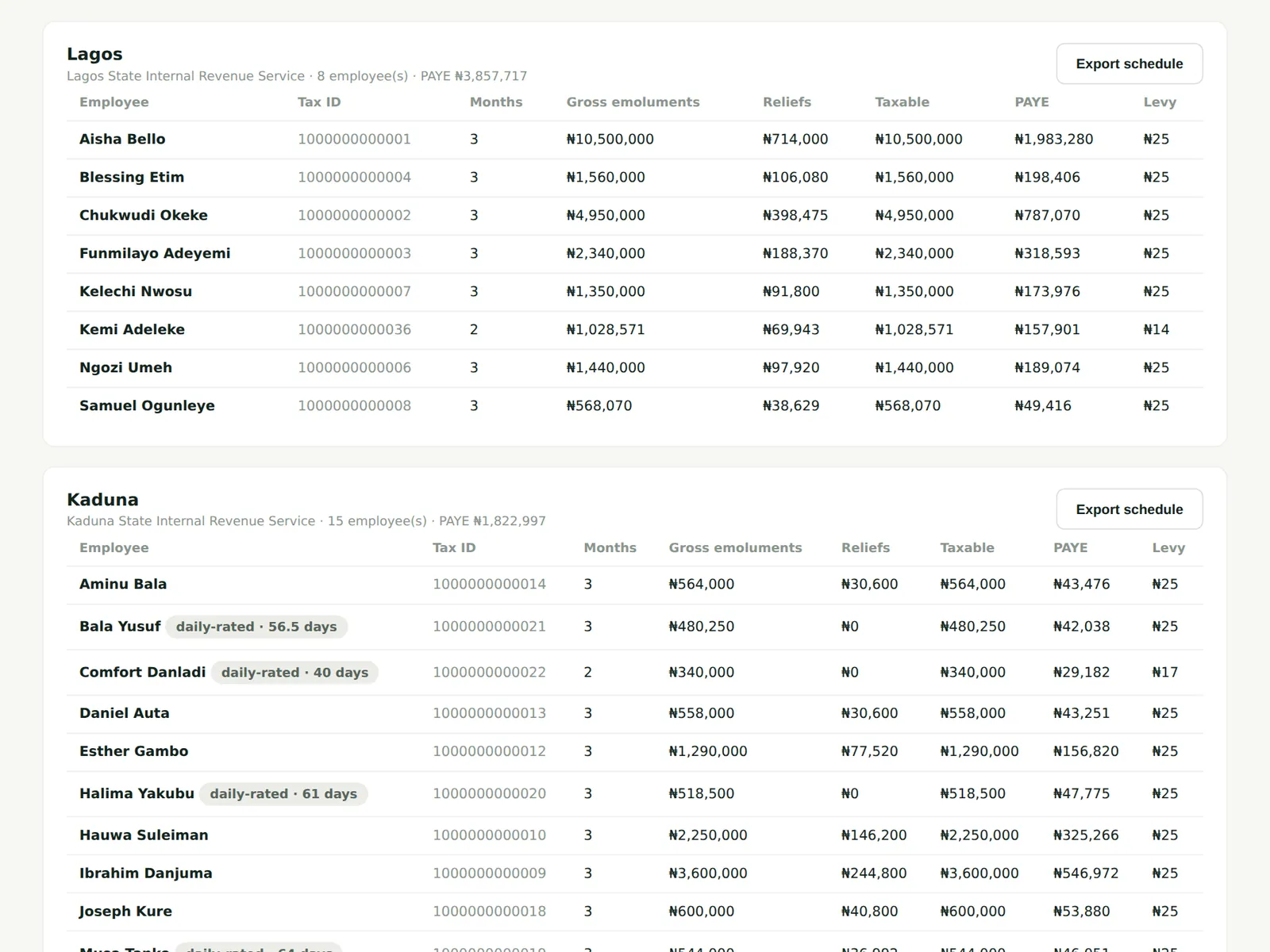
Why
Each schedule lists every employee resident in that state during the year: Tax ID, months, gross emoluments, reliefs, taxable pay, PAYE and levy. An employee without a Tax ID would make the return fail, which is why PayTrove blocks approval of runs where one is missing.
Who
Admin or finance officer.
What to do
- Check the schedule against your PAYE remittance receipts for the year before filing.
13.6 Casual workers on the annual return
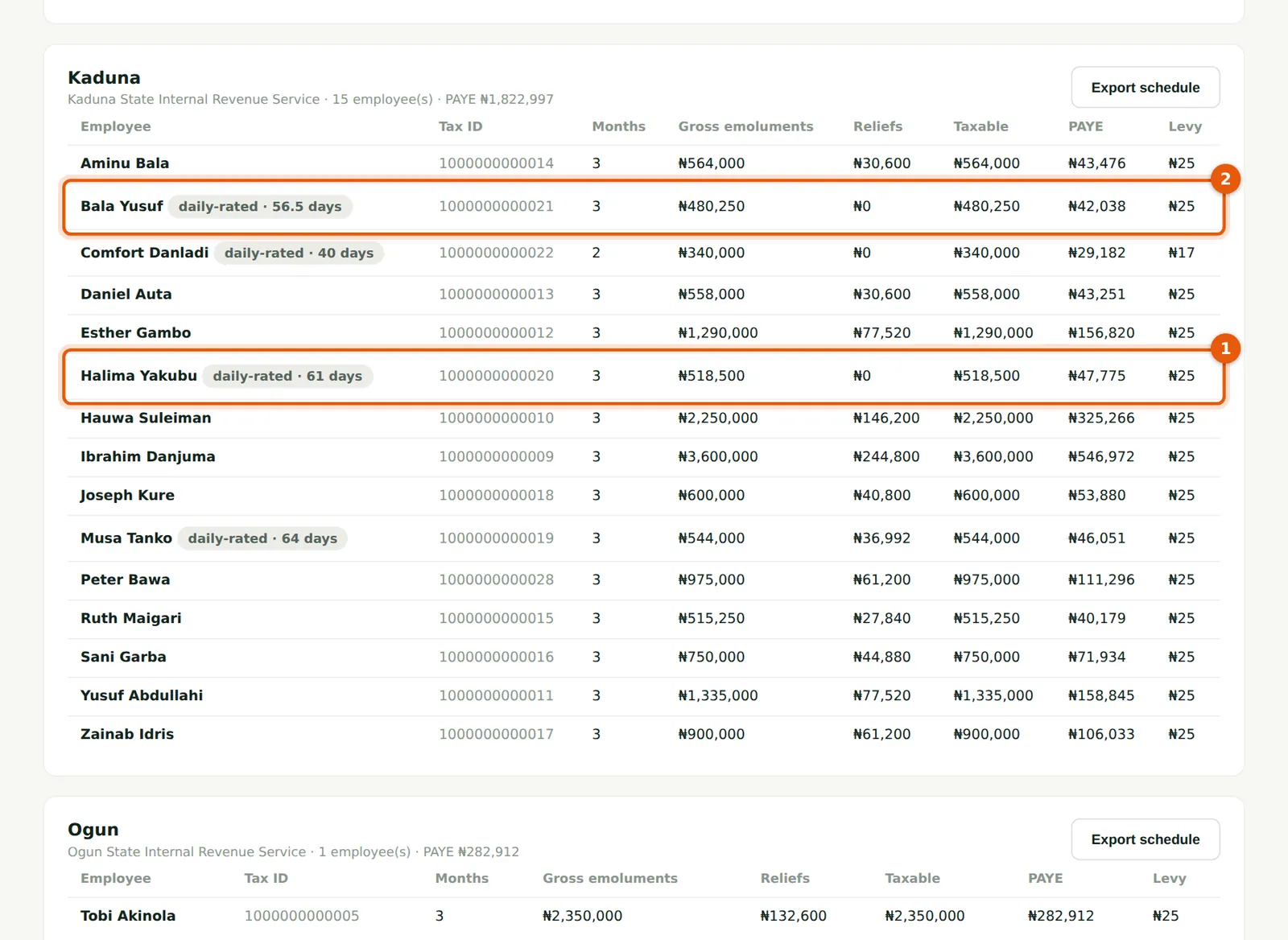
Why
Casual workers appear on their state's schedule like everyone else (1, 2), with the months in which they were paid, their pay, PAYE and levy. The exported schedule has two extra columns: pay basis and days worked.
Who
Admin or finance officer.
What to do
- Check each casual worker's Tax ID before the return is filed: the return is rejected without it.
13.7 The exported employer summary
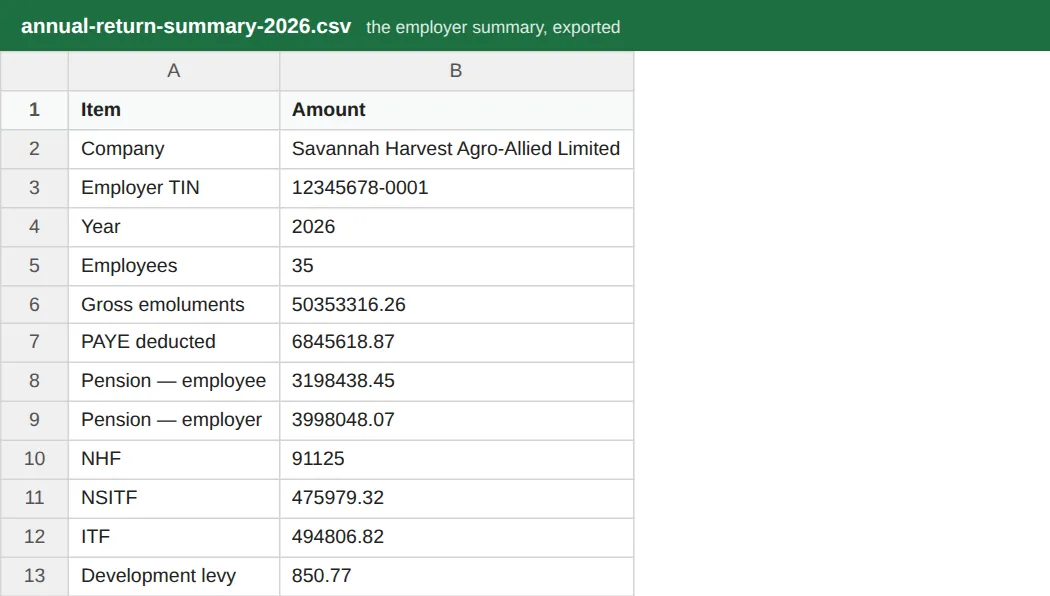
Why
The summary gives the year's totals for the return: employees, gross emoluments, PAYE, employee and employer pension, NHF, NSITF, ITF and development levy.
Who
Admin or finance officer.
What to do
- Choose Export summary on the Annual returns page and keep it with the year-end papers.
13.8 An exported state schedule
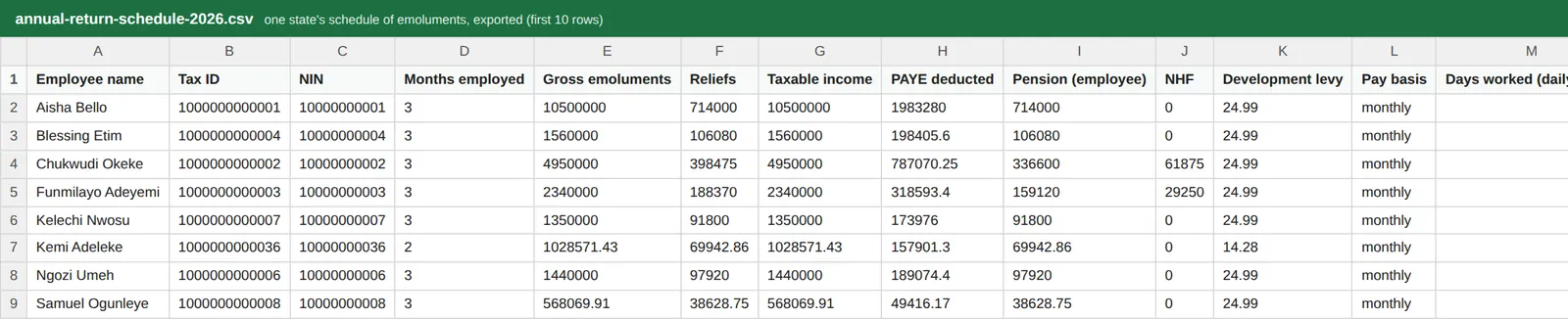
Why
Each state's schedule is exported separately, ready to key or upload into that state IRS's annual return (Form H1). These are the only annual returns PayTrove prepares; the ITF contribution and each employee's own individual return are shown as reminders. Pension, NHF and NSITF are remitted monthly from the schedules in chapter 7.
Who
Admin or finance officer.
What to do
- Choose Export schedule on each state and file it with that state's IRS by 31 January of the following year.
13.9 The audit log
Why
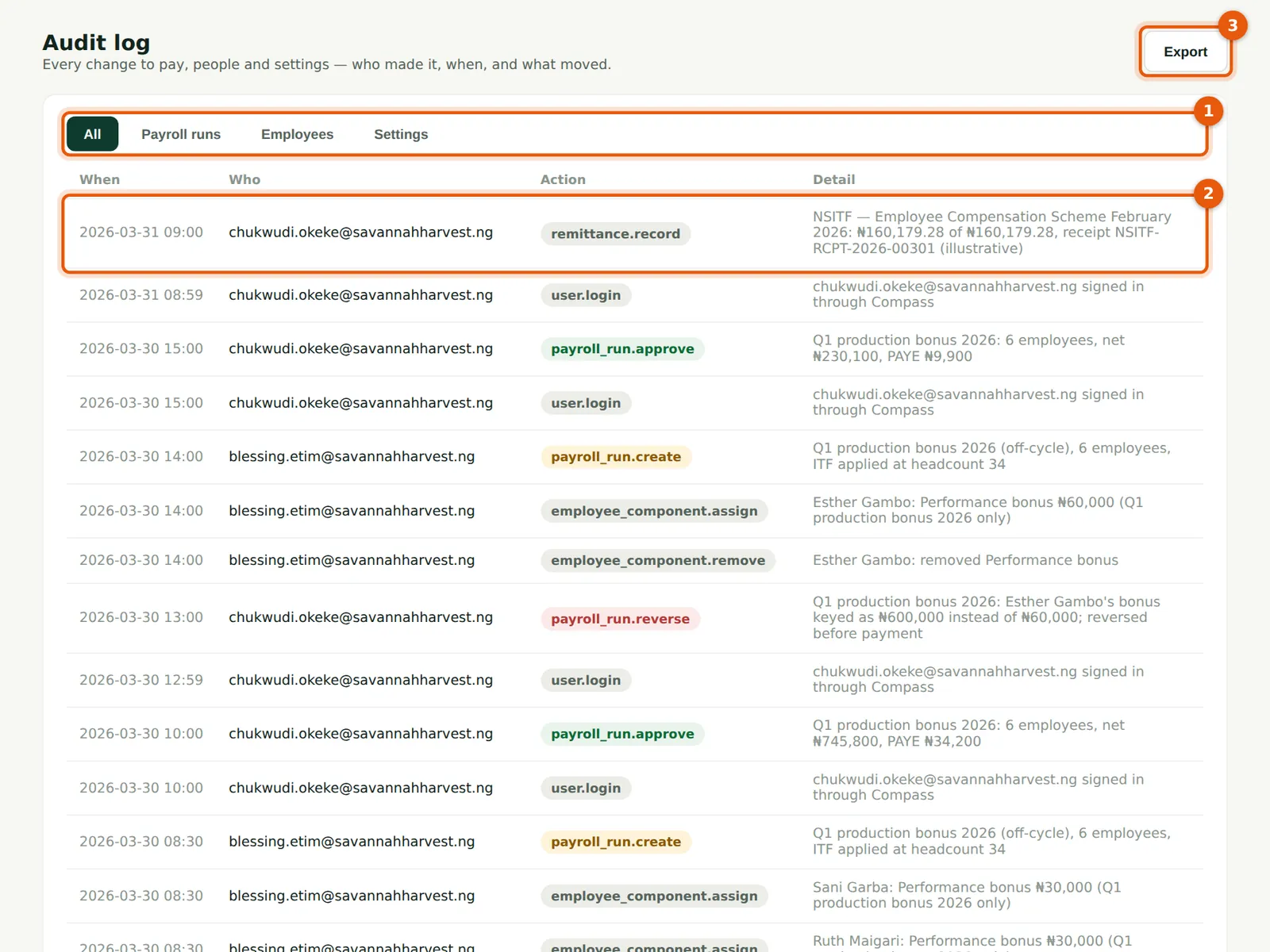
Every change to pay, people, settings, users, runs and remittances is recorded with who made it and what changed. The log cannot be edited or deleted by anyone. Times are shown in UTC (one hour behind Lagos).
Who
Admin, Preparer, Viewer; useful for auditors.
What to do
- Use the tabs (1) to show payroll runs, employees or settings only.
- Read the entries (2): here the March approval, sign-ins, the memo, the run, the export bonus and the settlement.
- Choose Export (3) for a CSV, for example for your external auditors.
13.10 Filter the audit log
Why
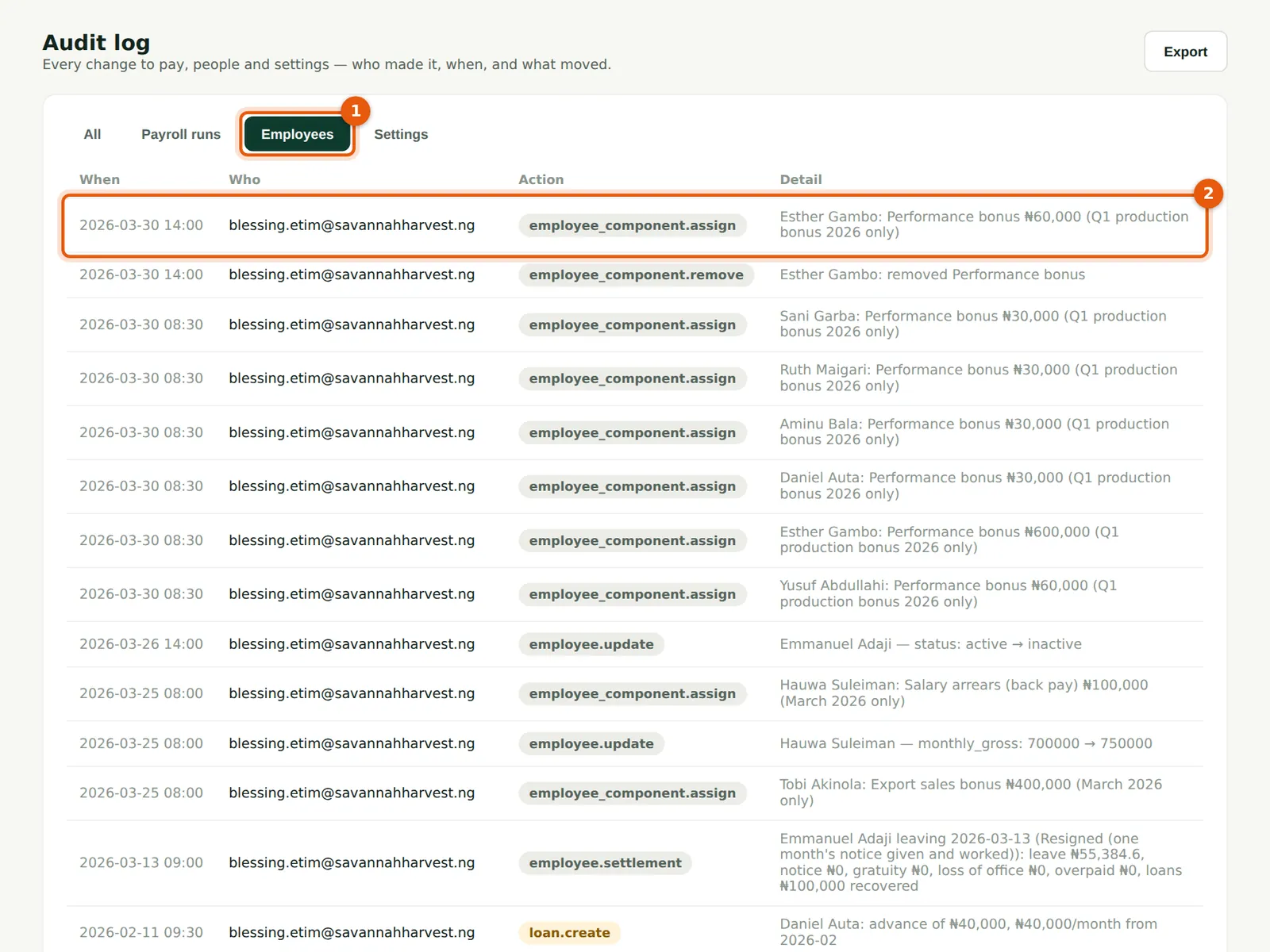
The tabs filter the log to payroll runs, employees or settings. The Employees tab (1) shows every change to employee records, newest first (2), with who made it and what changed.
Who
Admin, Preparer, Viewer.
What to do
- Choose a tab to filter; choose All to see everything again.
13.11 The PAYE calculator
Why
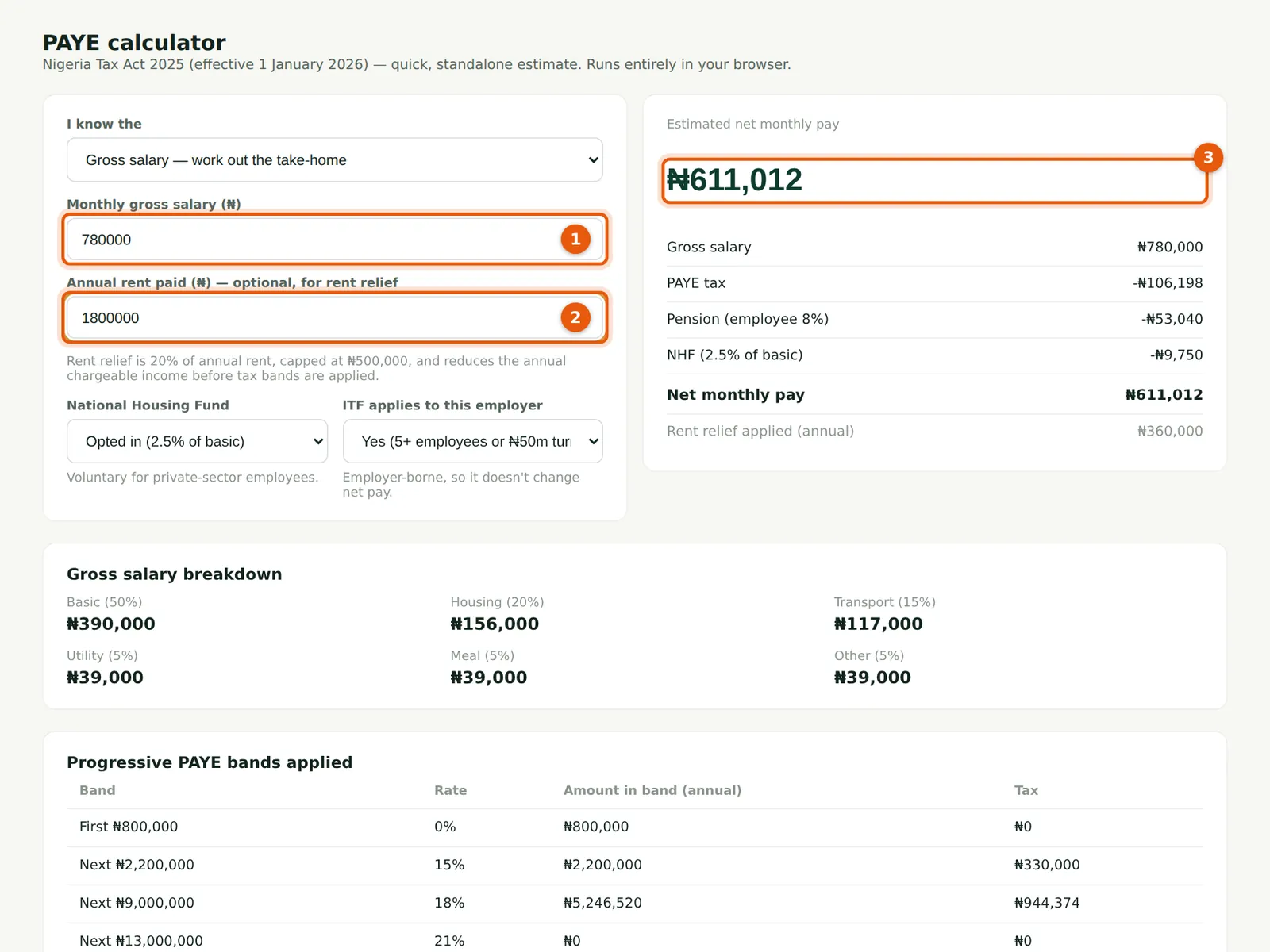
A quick estimate for one month, for offer letters or questions from staff. It runs in the browser and saves nothing. It uses the default 50 / 20 / 15 / 5 / 5 / 5 split and one month on its own, so it can differ from a real run, which uses your split, works cumulatively and includes other deductions. For Funmilayo it gives ₦611,012: her payslip's ₦610,004 also takes off the ₦8 development levy and ₦1,000 welfare fund.
Who
Admin, Preparer, Viewer.
What to do
- Enter the monthly gross (1) and any annual rent (2); choose the NHF and ITF options.
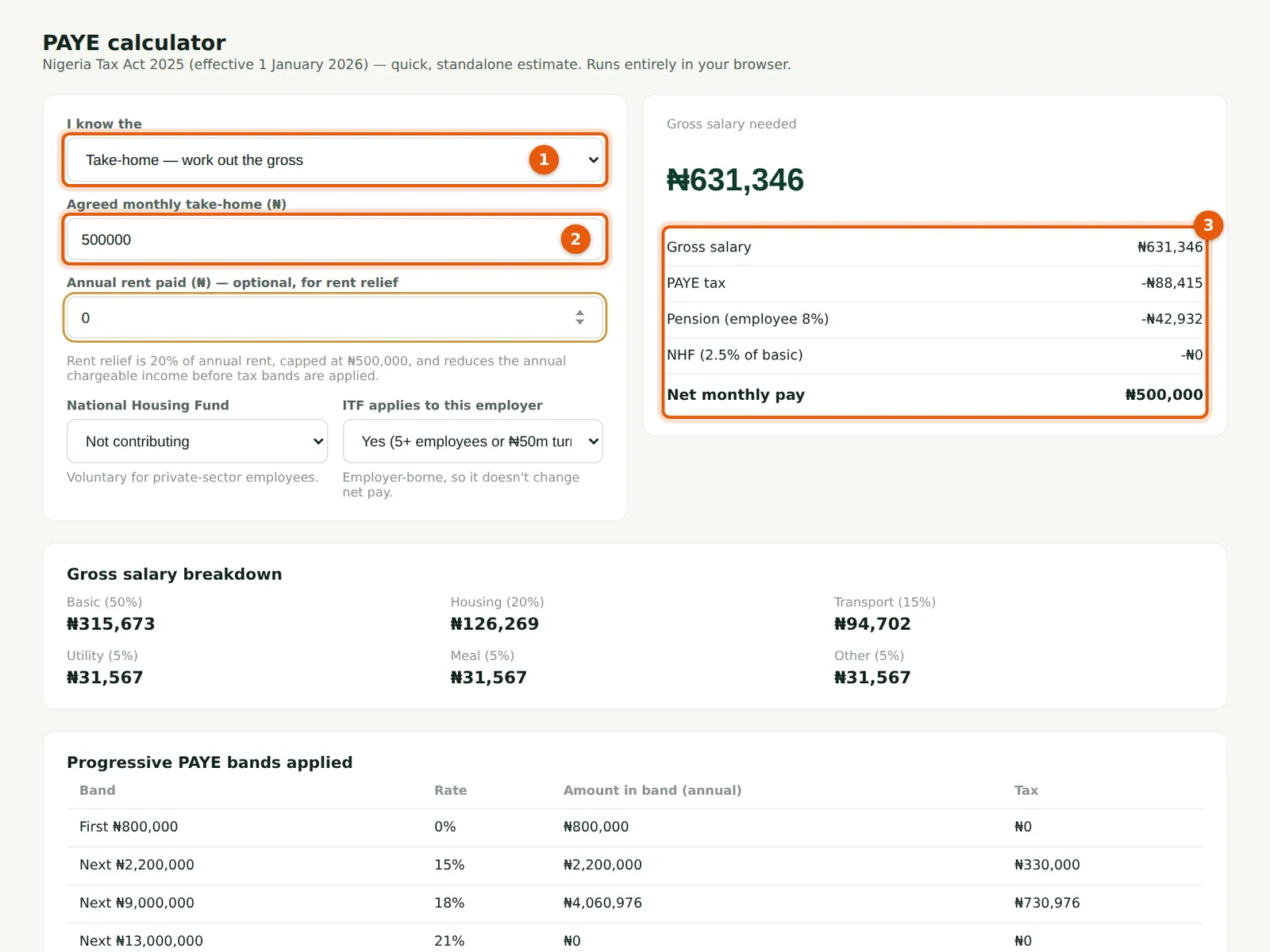
- Read the estimated net pay (3) and the band-by-band breakdown below. Switch 'I know the' to Take-home to work out the gross for an agreed net salary.
How the calculator reaches ₦611,012 (₦)
| Step | ₦ |
|---|---|
| Annual gross: ₦780,000 × 12 | 9,360,000 |
| Less pension 8% × (50% + 20% + 15%) × annual gross | (636,480) |
| Less NHF 2.5% × 50% × annual gross | (117,000) |
| Less rent relief: 20% × ₦1,800,000 | (360,000) |
| Chargeable income | 8,246,520 |
| Tax: 0% × 800,000 + 15% × 2,200,000 + 18% × 5,246,520 | 1,274,374 |
| Monthly PAYE: 1,274,374 ÷ 12 | 106,198 |
| Net monthly pay: 780,000 − 106,198 − 53,040 − 9,750 | 611,012 |
13.12 The calculator's workings
Why
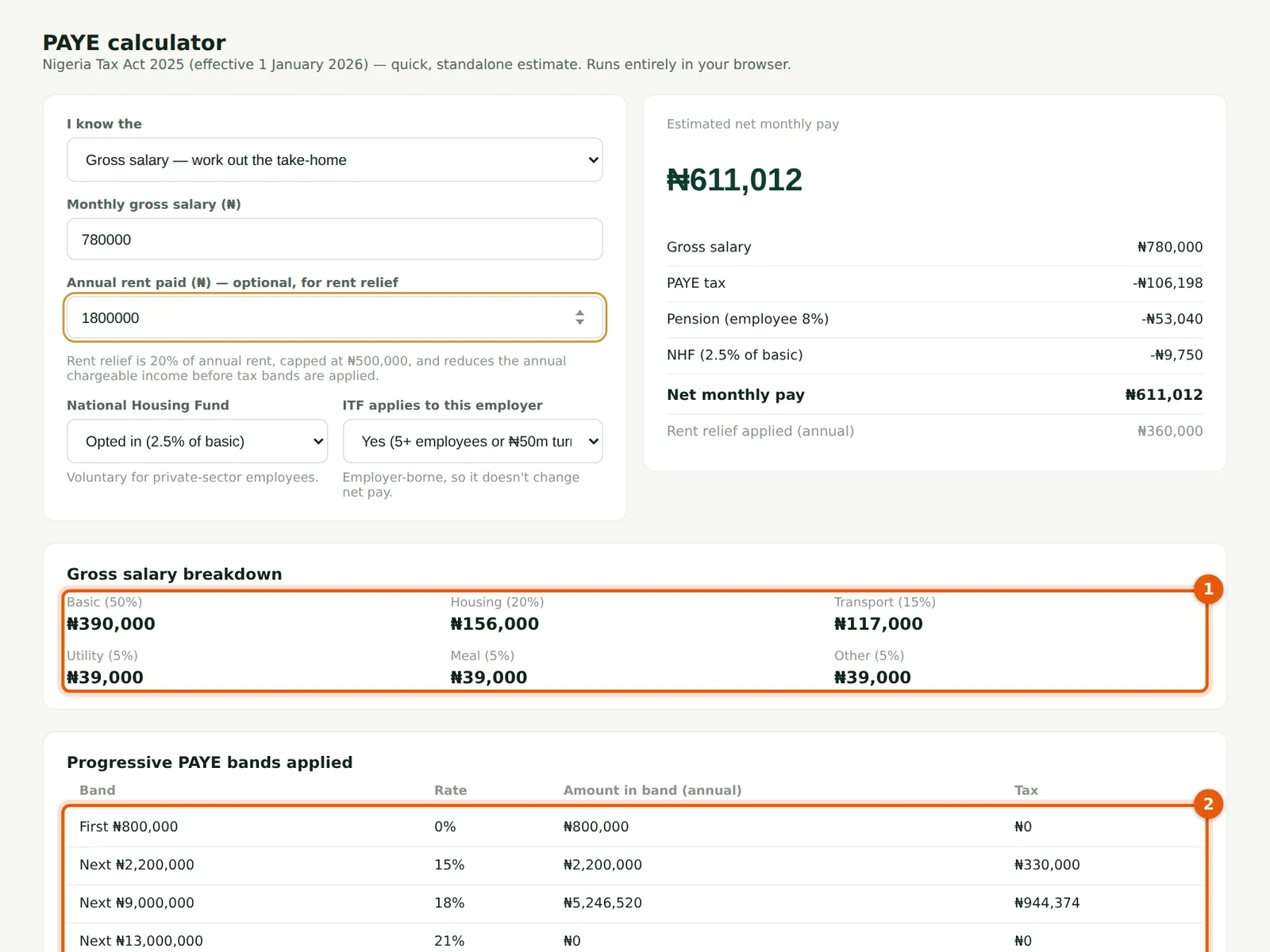
Below the result, the calculator shows how the gross is split (1) — Basic ₦390,000, Housing ₦156,000, Transport ₦117,000, Utility, Meal and Other ₦39,000 each — and the tax in each band for the year (2): ₦0 on the first ₦800,000, ₦330,000 on the next ₦2,200,000 and ₦944,374 on the next ₦5,246,520. These are the same figures as the worked example in step 6.5.
Who
Admin, Preparer, Viewer.
What to do
- Use the split and band figures to explain a salary to a new employee.
13.13 Work out the gross for an agreed take-home
Why
Choose 'Take-home — work out the gross' (1) and enter the agreed monthly take-home (2). The calculator finds the gross that gives exactly that net (3) — useful before agreeing a net salary in an offer letter.
Who
Admin, Preparer, Viewer.
What to do
- Choose the mode (1), enter the take-home (2) and read the gross and deductions (3).