Steps in this chapter (9)
Appraisal rounds with weighted targets, the employee's own rating and the line manager's review in My HR, HR's final result, and a pay rise or bonus applied to pay.
An appraisal round covers a period and the people in it. Each person has targets, each with a weight. The appraisal moves through five steps: targets are set; the employee gives their own rating in My HR; their line manager reviews it, also in My HR; HR finalises the result; and it is final. Ratings are on a scale (1 to 5 unless you choose otherwise) and each target counts in proportion to its weight.
The final result is shown as a percentage and a label: Outstanding (90% and above), Exceeds expectations (75%), Meets expectations (60%), Needs improvement (40%) and Unsatisfactory. The outcome — no change, a pay rise, a one-off bonus, promotion, a performance improvement plan or exit — is recorded with it, and a pay rise or bonus is applied to pay in one step.
On 10 April 2026 Blessing starts Savannah Harvest's Q1 2026 buying centre review for Musa Lawal's team. Grace Ojo rates herself on 14 April, Musa reviews her on 20 April, and Chukwudi finalises on 24 April with a pay rise of ₦40,000 a month, applied after the April payroll. Grace signs her promotion letter in My HR on 29 April.
25.1 Create an appraisal round
Why
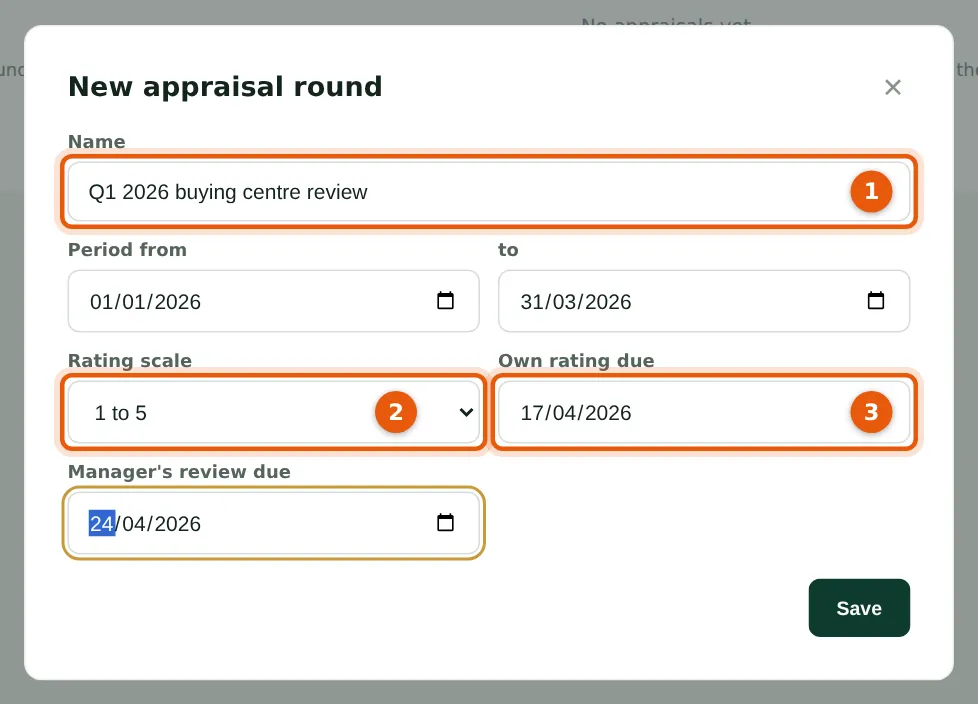
A round has a name (1), the period it covers, the rating scale (2) — 1 to 3, 4, 5 or 10, fixed once the round opens — and the dates the employee's own rating (3) and the manager's review are due.
Who
Preparer or Admin.
What to do
- Open Appraisals → New appraisal round.
- Enter the name (1), the period, the scale (2) and the due dates (3). Choose Save.
25.2 Add people and their targets
Why
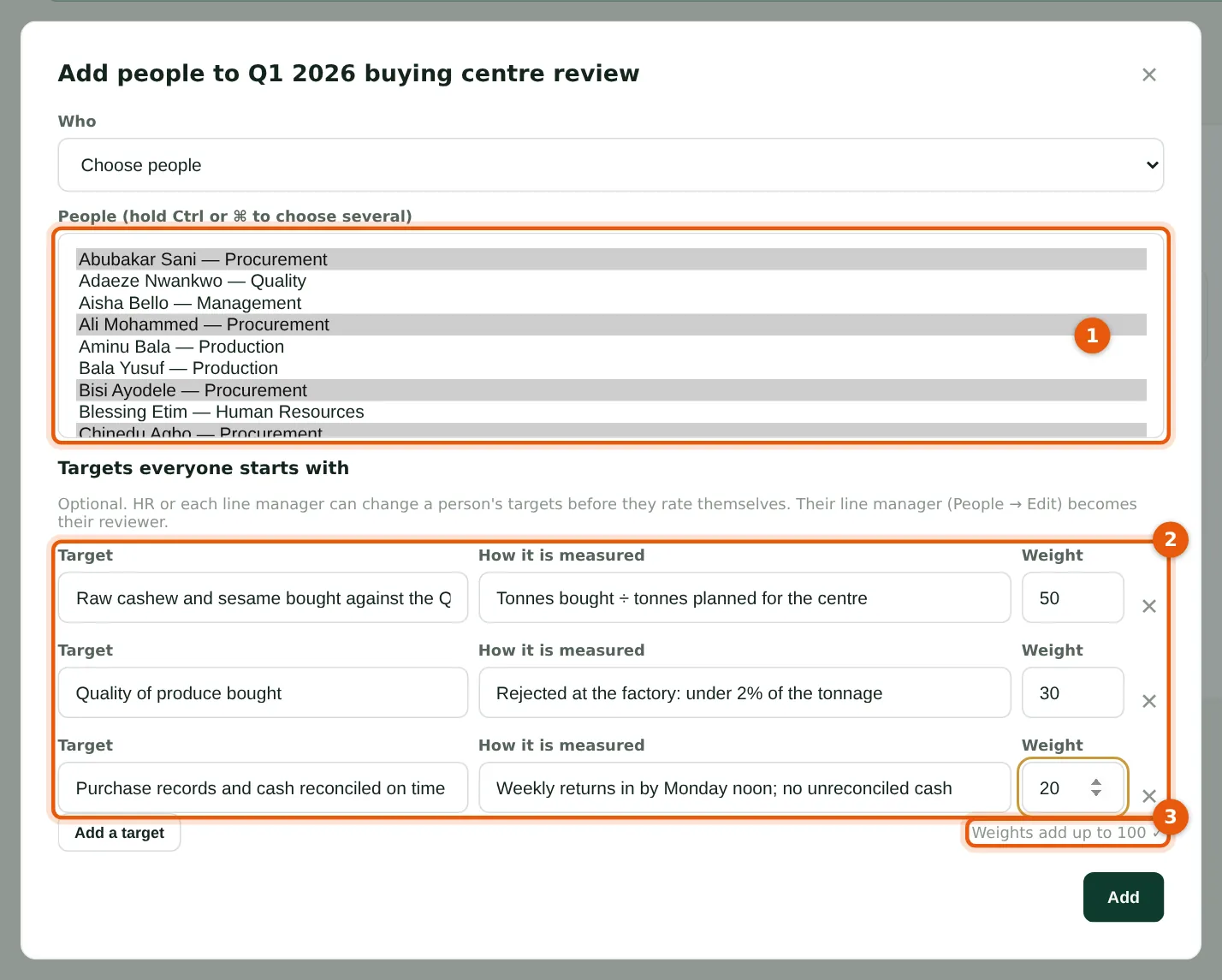
Choose everyone active, or some people (1), and the targets they start with (2): what is to be achieved, how it is measured and its weight. Weights need not add up to 100 (3); each counts in proportion. Each person's line manager becomes their reviewer (HR, if they have none). Targets can still be changed for one person — by HR, or by the line manager in My HR — until the person has rated themselves.
Who
Preparer or Admin.
What to do
- Choose Add people; choose who (1).
- Enter each target with its measure and weight (2); Add a target for more.
- Choose Add. A large company is added in steps automatically.
25.3 Open the round
Why
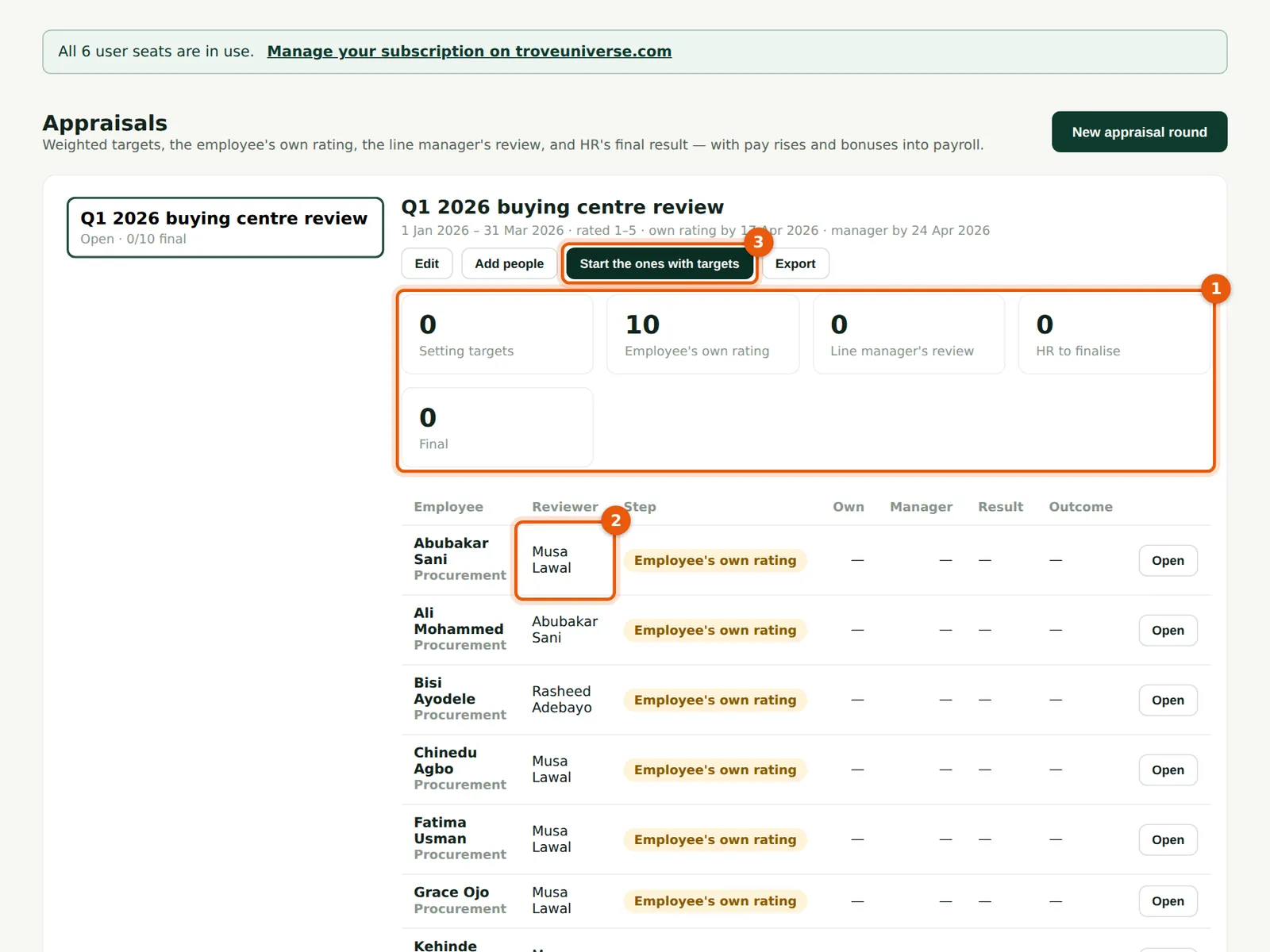
Opening the round sends everyone with targets to their own rating; the tiles (1) count how many are at each step. The list shows each person's reviewer (2) — Musa Lawal for most of his team, and the officer above for the two field agents. Start the ones with targets (3) opens anyone added later. From the list HR can change a reviewer, edit targets, or move on without an employee's own rating (for example someone on long leave) with a reason.
Who
Preparer or Admin.
What to do
- Choose Open for rating.
- Watch the tiles (1); choose Open on a person to see or act on their appraisal; choose Export for a spreadsheet.
25.4 The employee rates themselves
Why
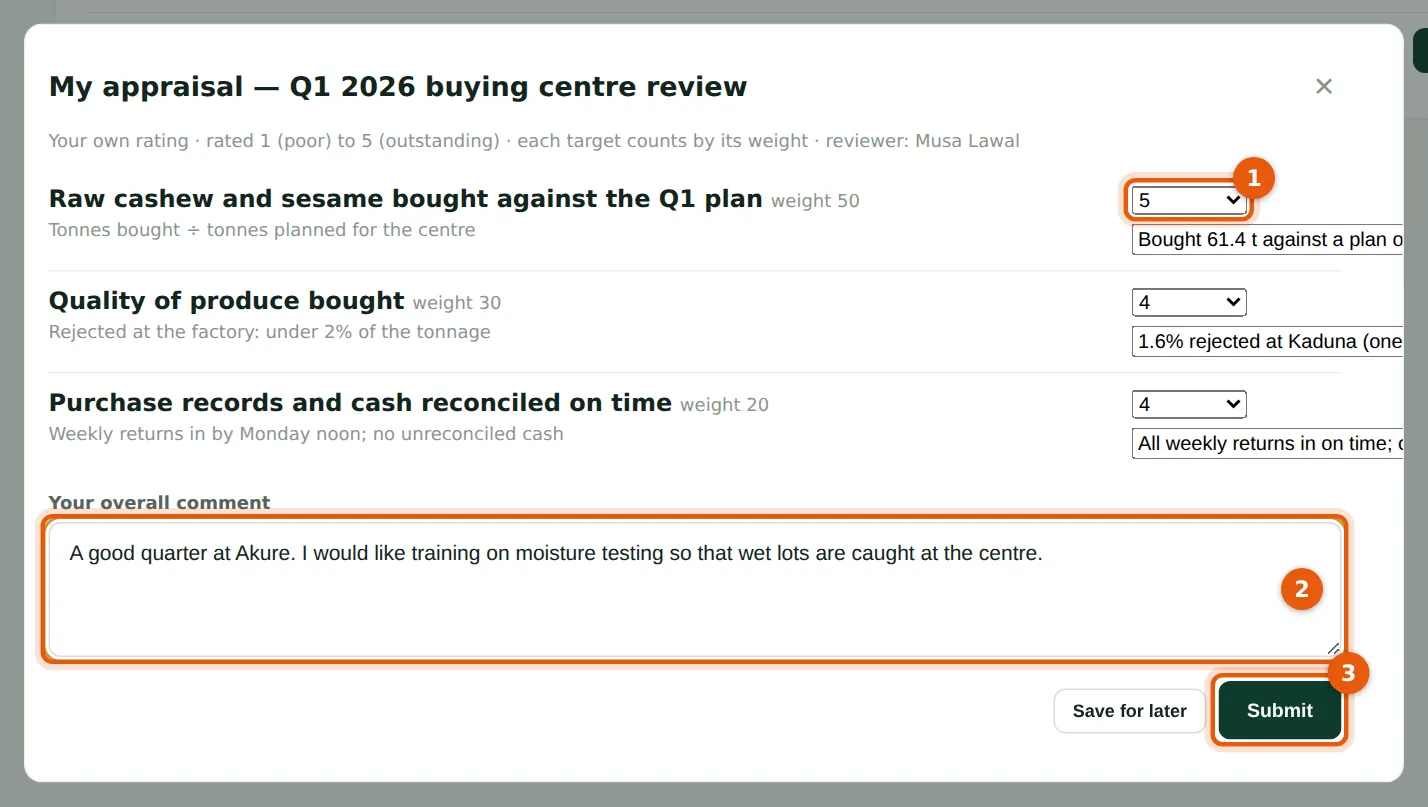
Grace opens My HR → Appraisals → Rate myself. For each target she gives a rating (1) and a comment, then an overall comment (2). She can save and come back; Submit (3) sends it to her line manager and cannot be undone. Her weighted score is 4.5 out of 5. She does not see her manager's ratings until the appraisal is final.
Who
Employee (self-service).
What to do
- Rate each target (1) and comment on it.
- Write the overall comment (2), then choose Submit (3).
25.5 The line manager reviews in My HR
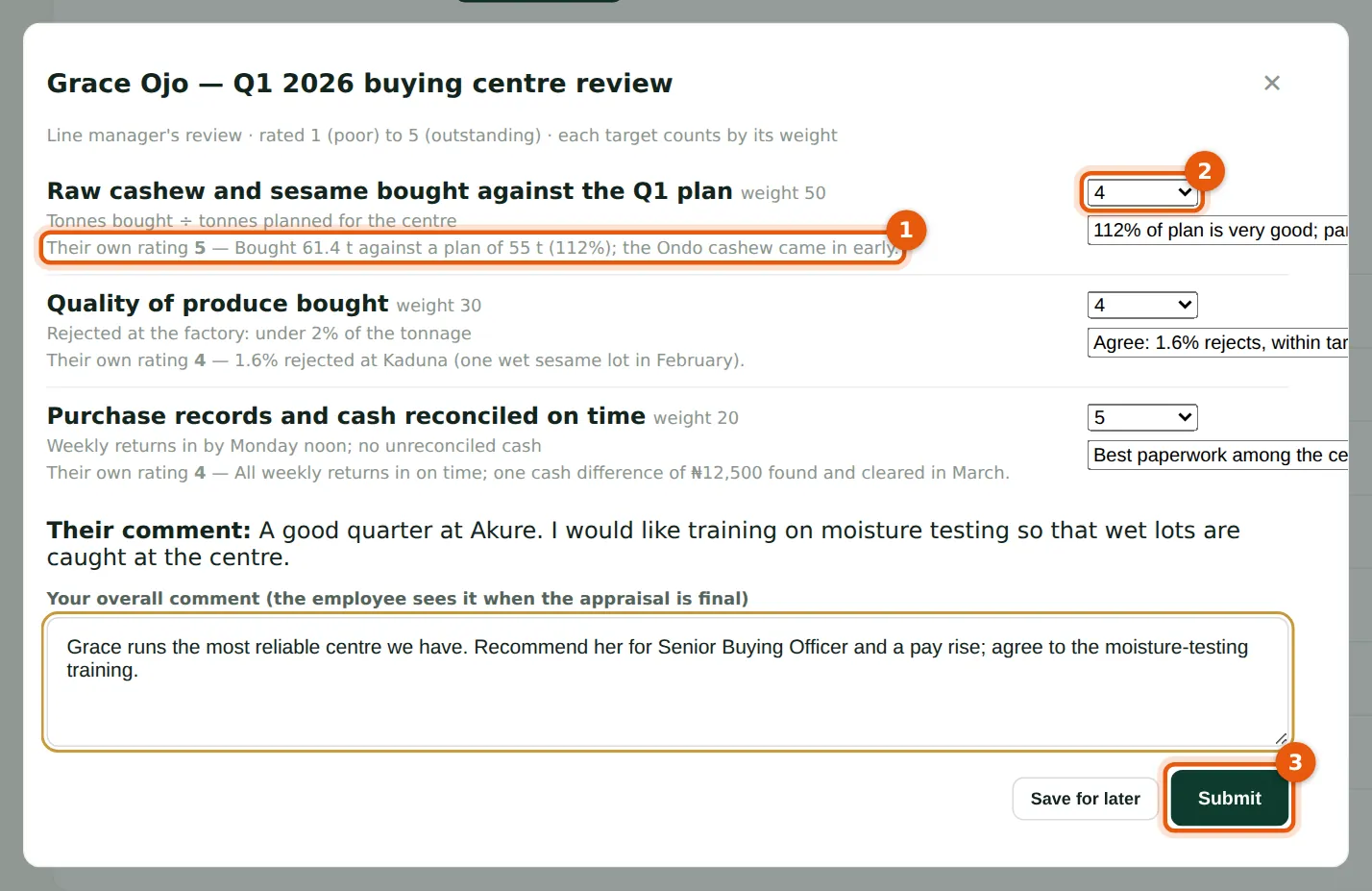
Why
Musa sees Grace's own rating and comments (1) beside each target and gives his own rating (2) and comments. His overall comment is shown to Grace only once the appraisal is final. His weighted score: (4 × 50 + 4 × 30 + 5 × 20) ÷ 100 = 4.2. Submit (3) sends it to HR. A manager without a self-service login can have HR enter the review on the Appraisals page instead.
Who
Employee (self-service) who is the reviewer.
What to do
- Open My HR → Appraisals → Review on the person.
- Rate each target (2) and comment, write the overall comment, then choose Submit (3).
25.6 HR finalises
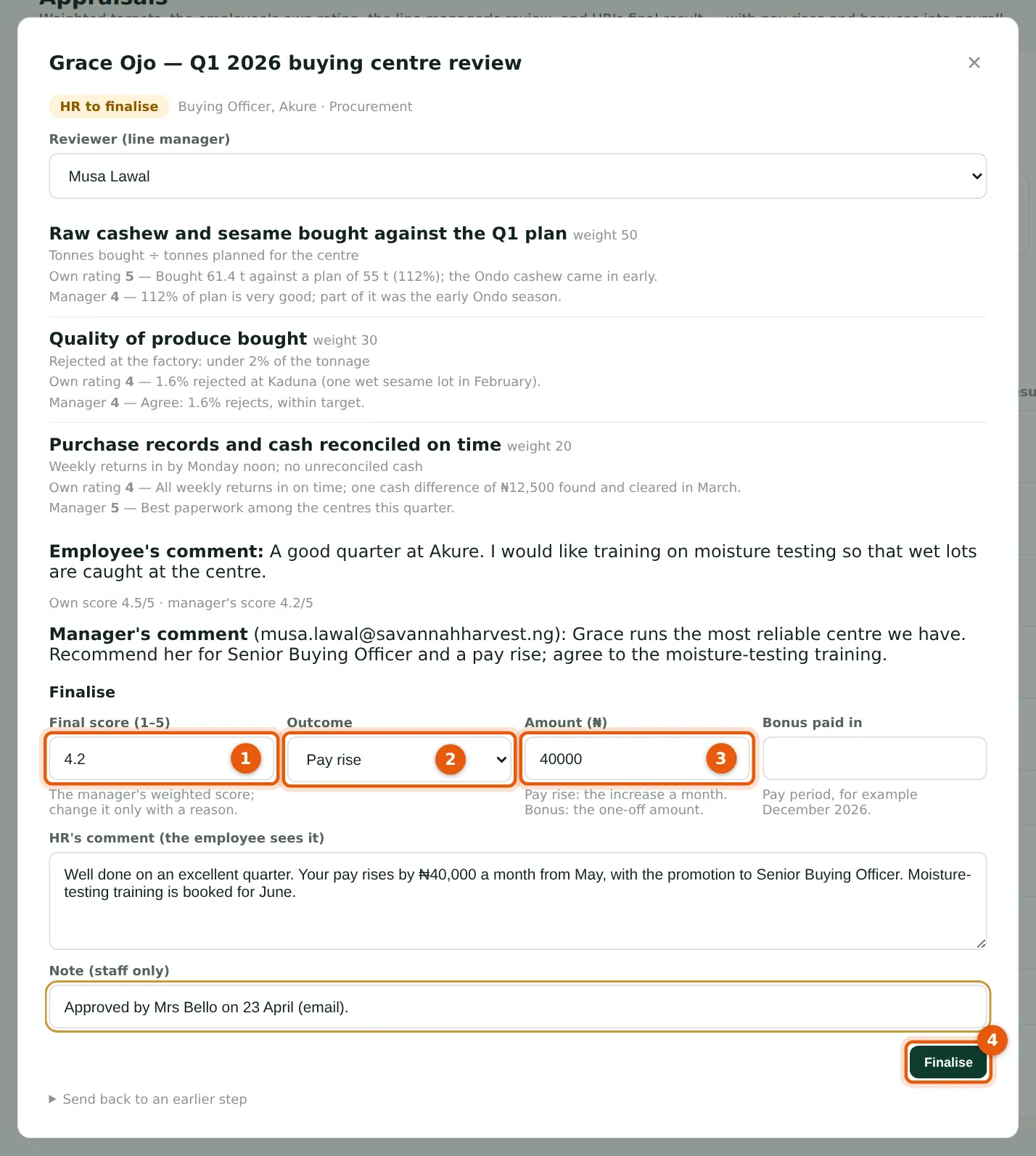
Why
With both ratings in, the appraisal is with HR. The final score (1) starts as the manager's weighted score; change it only with a reason in the note. Choose the outcome (2): a pay rise with the increase a month (3), or a one-off bonus with the pay period it is paid in. Aisha Bello approved a rise of ₦40,000 a month and the promotion to Senior Buying Officer. HR's comment is shown to the employee. Finalise (4) needs an Admin.
Who
Admin.
What to do
- Open the appraisal from Appraisals.
- Check the final score (1); choose the outcome (2) and enter the amount (3) (and for a bonus, the pay period).
- Write HR's comment and a staff-only note, then choose Finalise (4). To send it back to an earlier step instead, use Send back to an earlier step with a reason.
25.7 The result, and applying it to pay
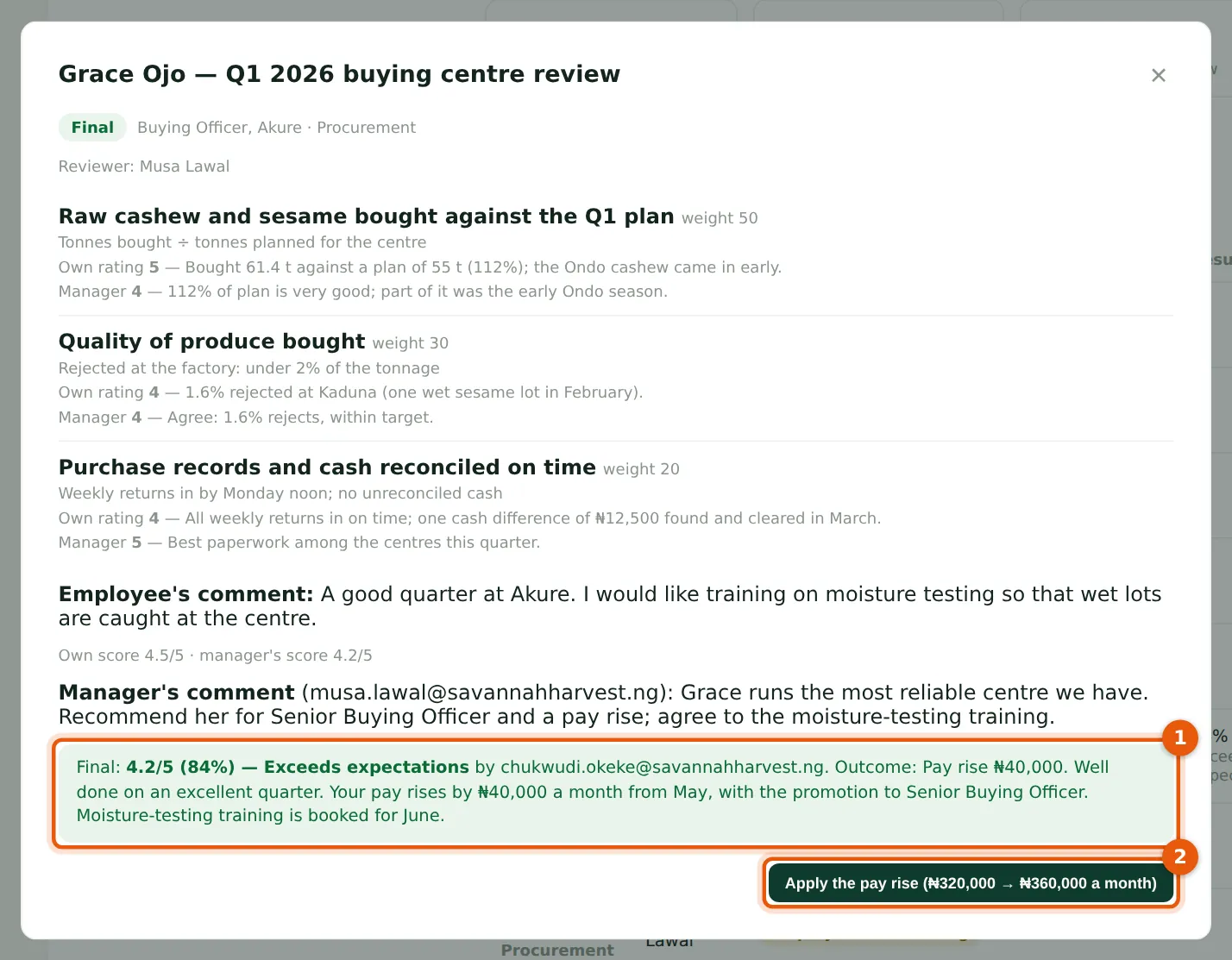
Why
The result (1) is 4.2 out of 5, 84%: Exceeds expectations. The pay rise is applied with one button (2), which raises the monthly gross on the employee record from ₦320,000 to ₦360,000; a bonus would instead be added as a one-off Performance bonus in its pay period. Apply a rise after the last payroll at the old pay is approved: Chukwudi applies it on 29 April, after April's payroll, so that the new pay starts in May. Applying is recorded in the audit log and cannot be done twice.
Who
Admin.
What to do
- Choose Apply the pay rise (2) when the payroll at the old pay is approved, and confirm.
- A promotion is recorded by HR: draft a Promotion letter (step 23.6) and change the job title on the HR record.
25.8 The employee signs the promotion letter in My HR
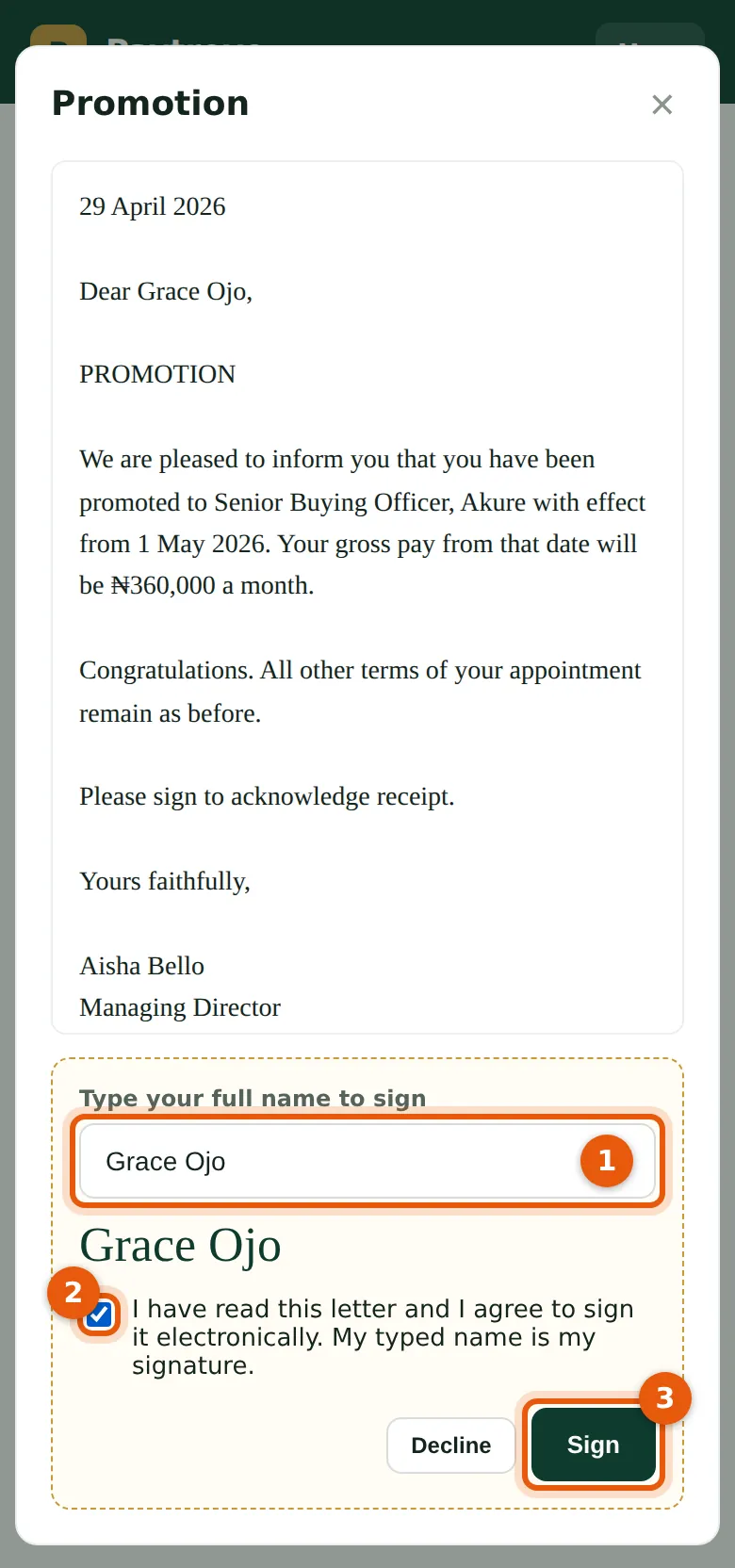
Why
Blessing drafts Grace's Promotion letter — Senior Buying Officer, Akure, ₦360,000 a month from 1 May 2026 — and sends it. Grace has a self-service login, so Blessing leaves the email empty and the letter waits in My HR → Letters. She types her name (1), ticks the box (2) and signs (3). HR sees the signed letter at once.
Who
Employee (self-service).
What to do
- Open My HR → Letters → Read and sign.
- Type your name (1), tick the box (2) and choose Sign (3), or Decline with a reason.
25.9 The employee sees the result
Why
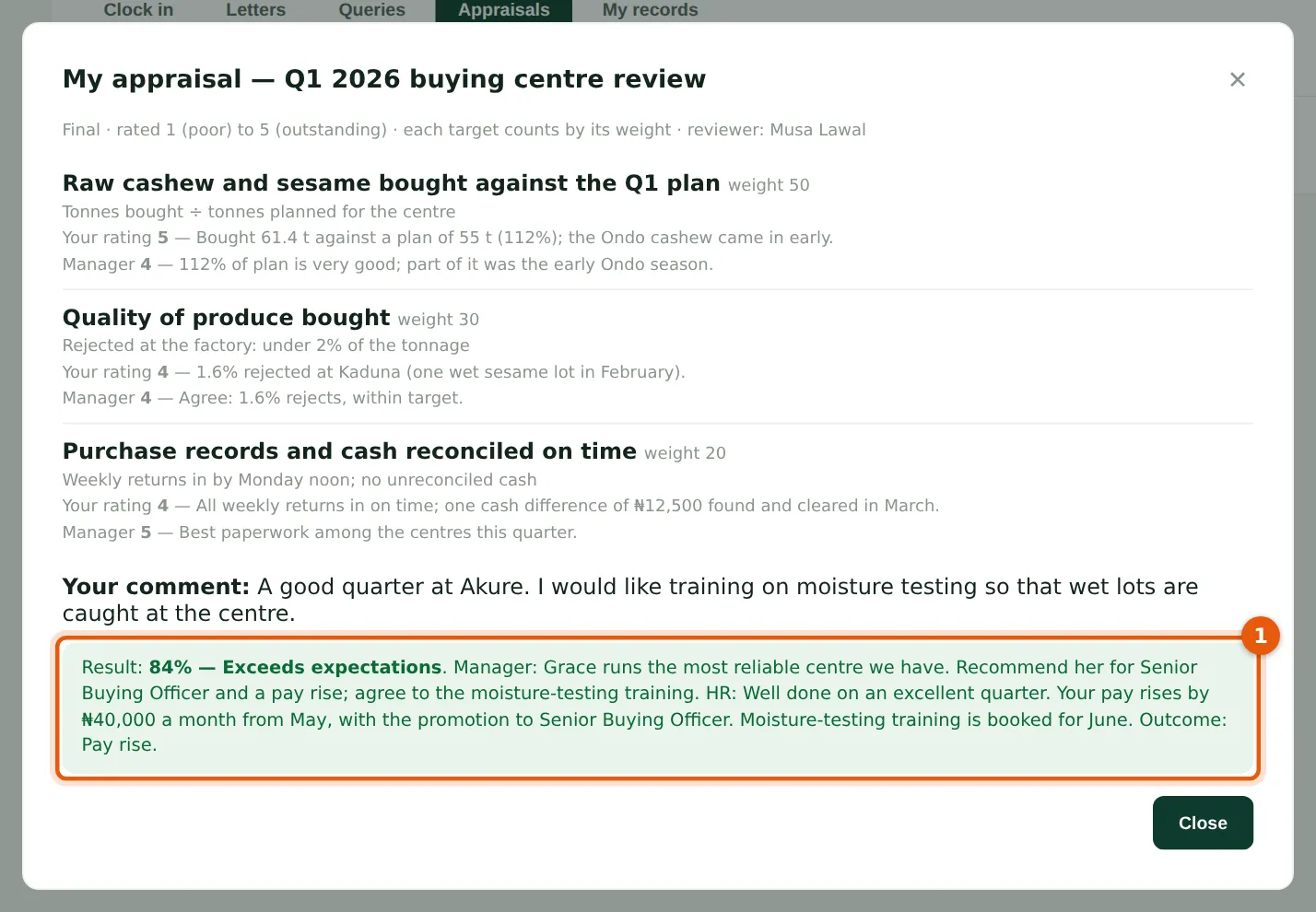
Once final, the employee sees the result (1) with the manager's ratings and comments, HR's comment and the outcome. The appraisal stays in My HR for future reference.
Who
Employee (self-service).
What to do
- Open My HR → Appraisals → Open.