Steps in this chapter (14)
Offices and shifts, clocking in from a phone within the office's distance, the daily register, times entered by hand, and overtime suggested from clock-ins and paid through payroll.
With the HR add-on, employees on self-service clock in and out from their phone in My HR. PayTrove checks the phone's position against the office they work at: within the allowed distance, the time is recorded; outside it, clocking in is refused and the employee is told how far away they are. Only the distance from the office and the accuracy of the location are kept, never where the person was. Staff without a phone or a self-service login can have their times entered by hand from a timesheet, with a reason.
Shifts give the start time, break and days of work: they decide lateness and the hours expected in a day. Time beyond the shift, and any time worked on a rest day or public holiday, is overtime. PayTrove suggests it from the clock-ins; once someone other than the person who entered it approves it, it is paid as a one-off Overtime line in the month's payroll (taxable, not pensionable).
In April 2026 Savannah Harvest sets up its Lagos head office, the Kaduna factory and two buying centres. Grace Ojo clocks in at Akure and Musa Lawal at Lafia; Tobi Akinola at Lagos. The factory floor keeps paper timesheets, which Blessing enters. On 24 April she adds the month's overtime from the clock-ins, Chukwudi approves it, and it is paid in the April payroll.
24.1 Add an office
Why
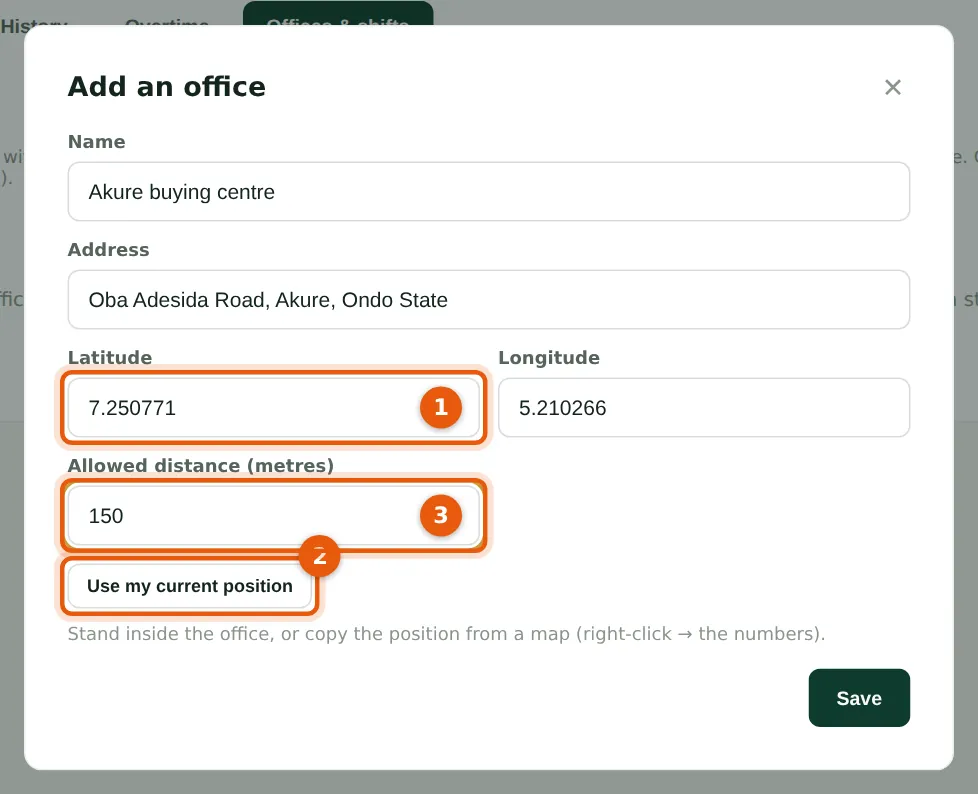
An office is a place people clock in at: its name, address, position (latitude and longitude) (1) and the allowed distance (3). The easiest way to set the position is to stand in the office with a phone or laptop and choose Use my current position (2); otherwise copy it from a map. 150 m suits most offices; a large site such as the Kaduna factory (300 m) needs more. Savannah Harvest adds Lagos head office, the Kaduna factory and the Akure and Lafia buying centres.
Who
Admin.
What to do
- Open Attendance & overtime → Offices & shifts → Add office.
- Enter the name and address; set the position (1) with Use my current position (2) or from a map.
- Set the allowed distance (3) and choose Save. An office not in use can be switched off on Edit.
24.2 Offices and shifts
Why
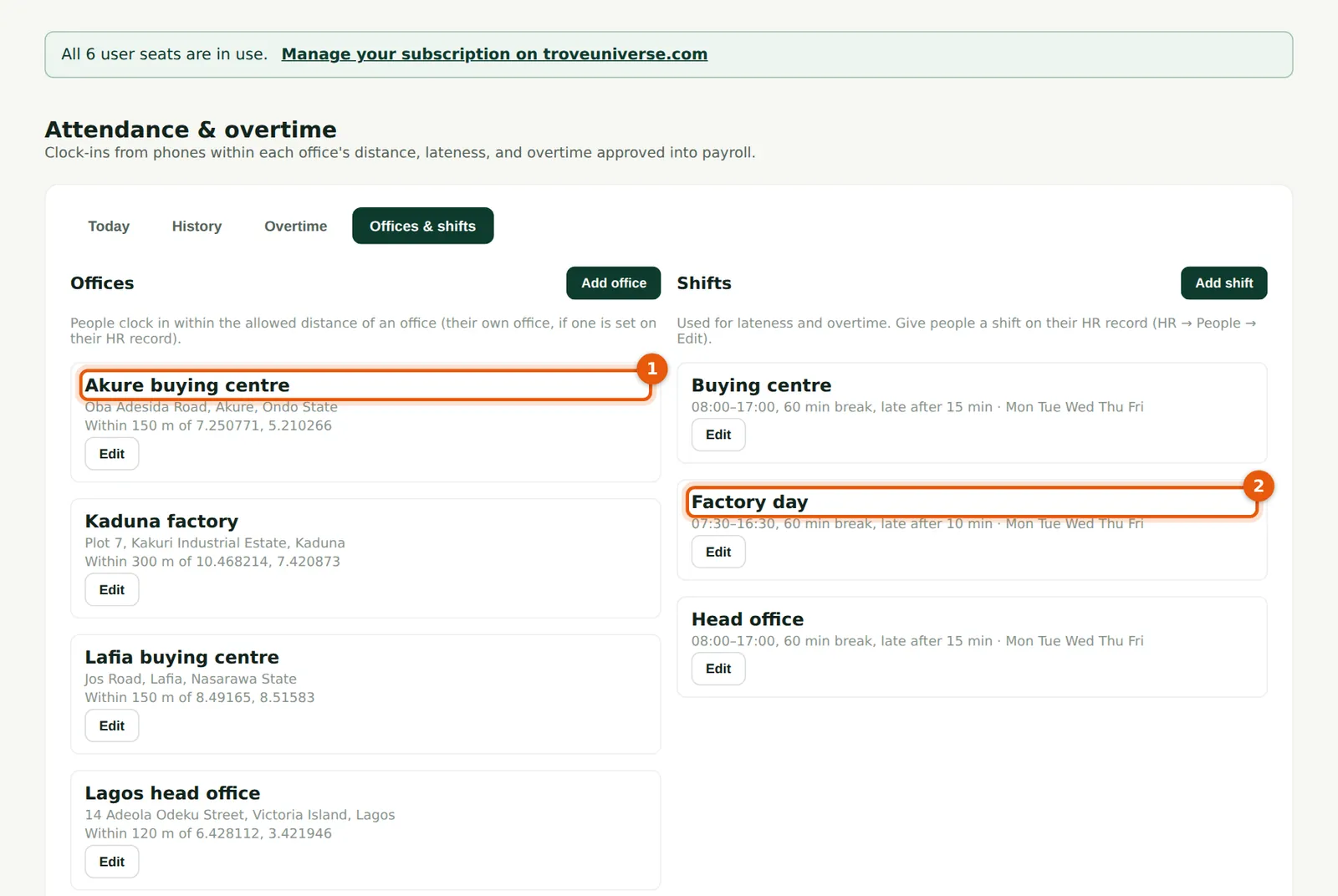
The offices (1) are listed with their distance and position; the shifts (2) with their times, unpaid break, how many minutes count as late, and days. Savannah Harvest has three shifts: Head office and Buying centre (08:00–17:00) and Factory day (07:30–16:30, late after 10 minutes), all Monday to Friday. Without a shift, a standard 8-hour Monday-to-Friday day is assumed. Each person's office and shift are set on their HR record (step 23.3).
Who
Admin; everyone can read it.
What to do
- Choose Add shift: name, start and end (a night shift may end the next day), unpaid break, late after, and the days worked.
- Give people their shift and office on HR → People → Edit.
24.3 Clocking in on a phone
Why
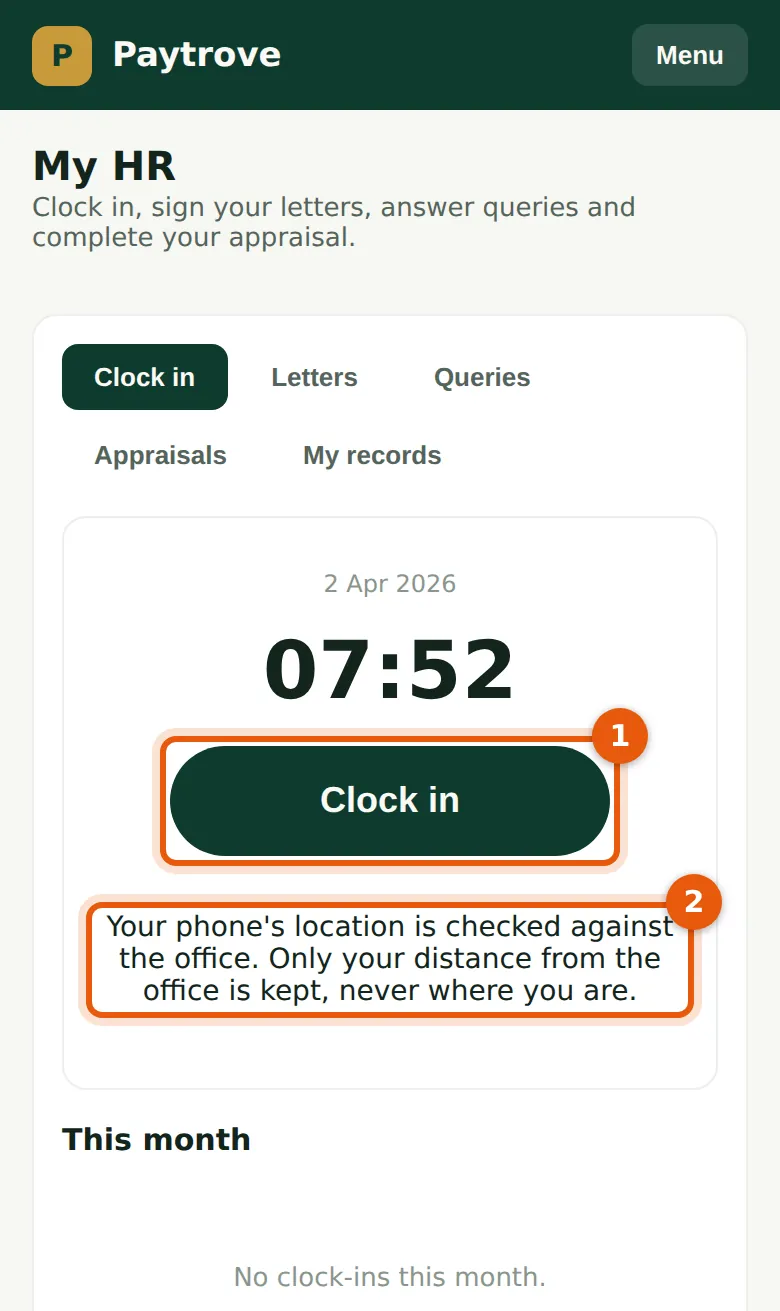
Grace opens PayTrove on her phone and goes to My HR → Clock in. The page shows the time and one button (1). The note (2) tells her what is checked and what is kept. Her phone asks once whether PayTrove may use its location; she allows it.
Who
Employee (self-service).
What to do
- Open My HR and choose Clock in (1).
- Allow location when the phone asks. Precise location (GPS) must be on.
24.4 Clocked in
Why
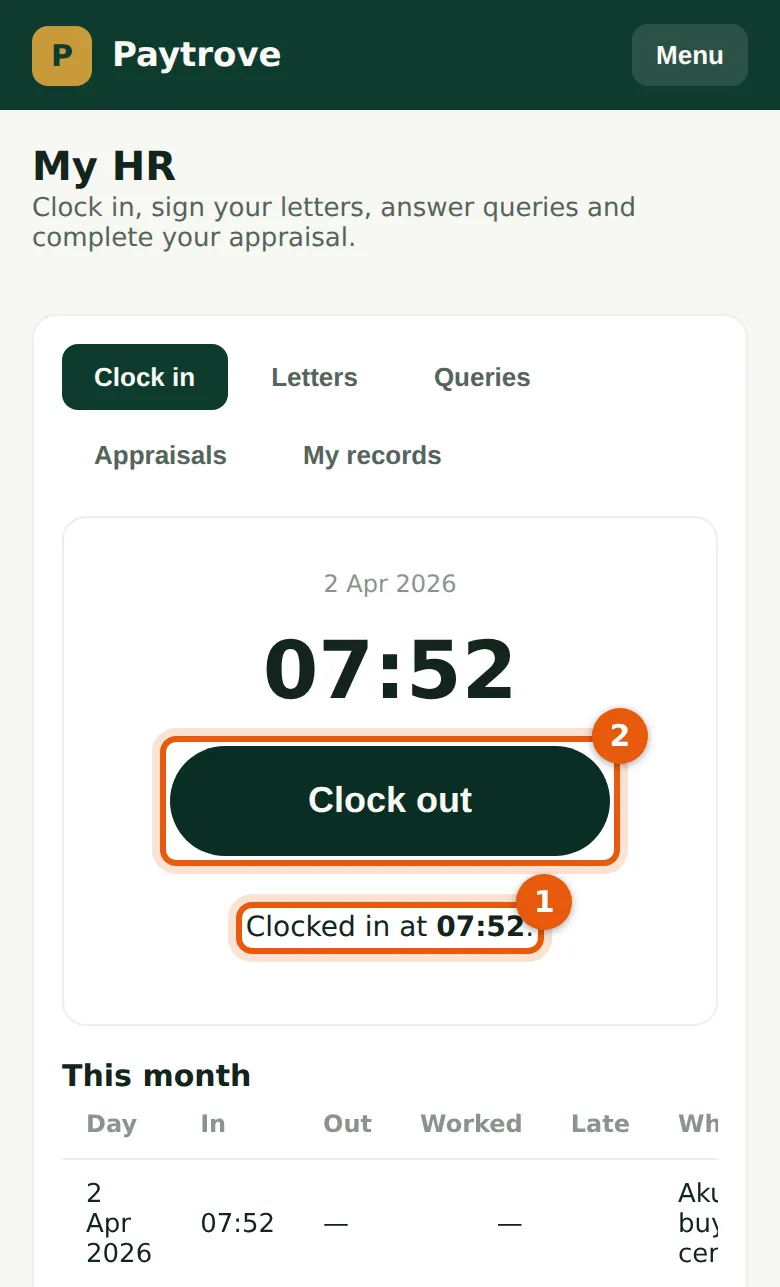
Grace is about 40 m from the Akure buying centre, within its 150 m, so the time is recorded (1). The button becomes Clock out (2), and the day appears in her list for the month. At the end of the day she clocks out the same way; the hours worked are worked out less her shift's unpaid break.
Who
Employee (self-service).
What to do
- At the end of the day choose Clock out (2).
24.5 Too far from the office
Why
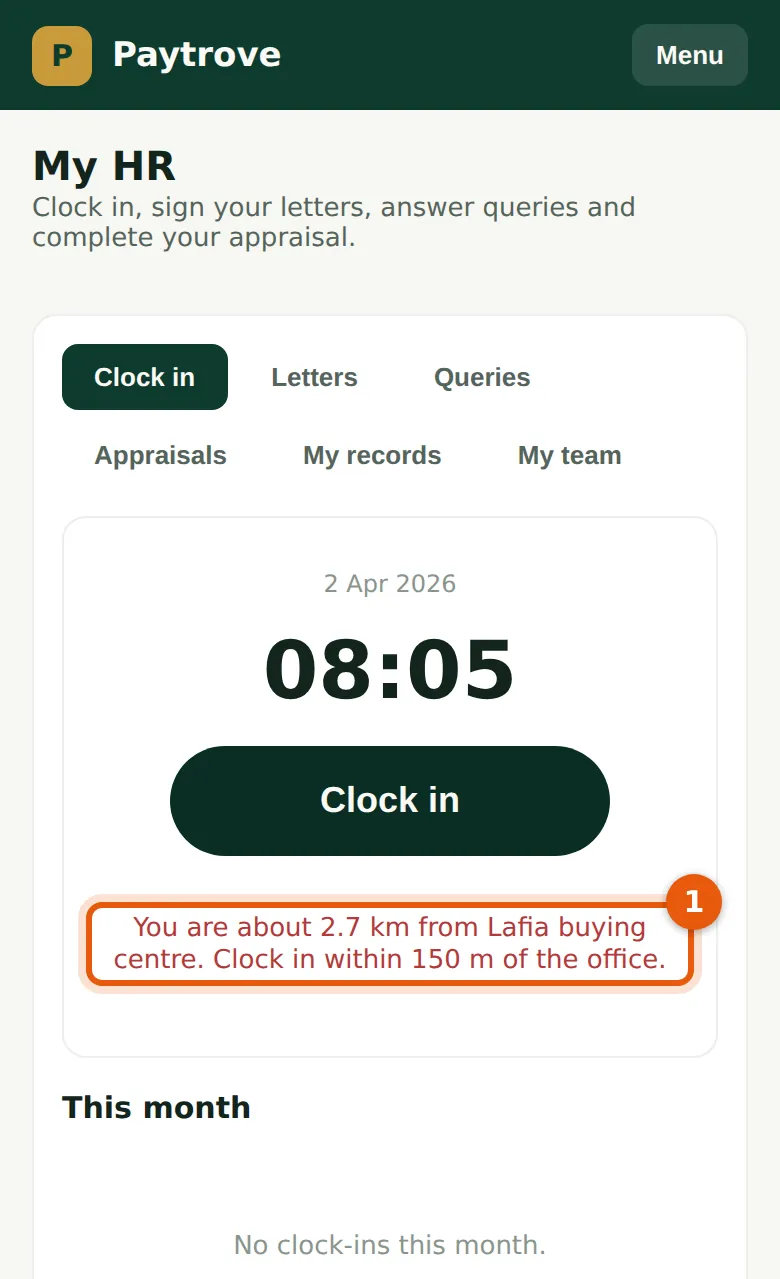
Musa tries to clock in before leaving home, 2.7 km from the Lafia buying centre. PayTrove refuses and says how far he is (1); the refusal is in the audit log with the distance only. It also refuses a location that is too imprecise (more than 150 m), and asks the person to turn on precise location or step near a window. Musa clocks in at the centre at 08:31 — 16 minutes late, as his shift starts at 08:00 and allows 15 minutes.
Who
Employee (self-service).
What to do
- Go to the office and try again. If you are refused inside the building, tell HR: the Admin can raise the accuracy allowed or the office's distance.
24.6 Enter a time by hand
Why
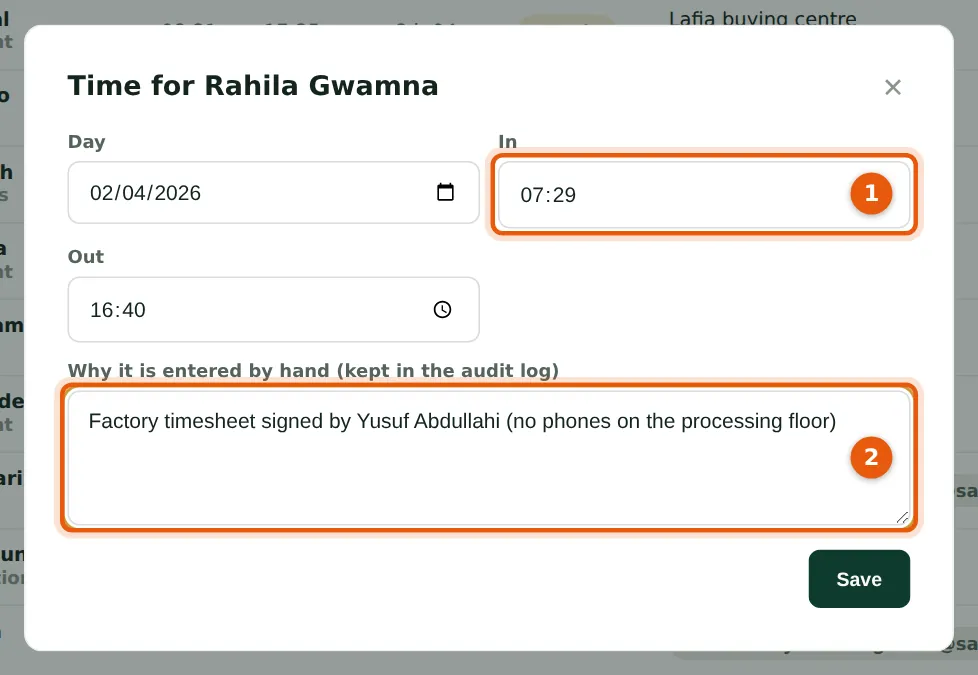
Factory staff do not carry phones on the processing floor, so their supervisor signs a paper timesheet and Blessing enters the times. A time entered by hand needs a reason (2), which is kept in the audit log; the record shows who entered it. Correcting a phone clock-in works the same way and keeps the earlier times in the audit log.
Who
Preparer or Admin.
What to do
- On Attendance & overtime → Today, choose the day, then Enter (or Correct) on the person, or Enter a time by hand.
- Enter the in and out times (1) and why they are entered by hand (2). Choose Save.
24.7 The register for a day
Why
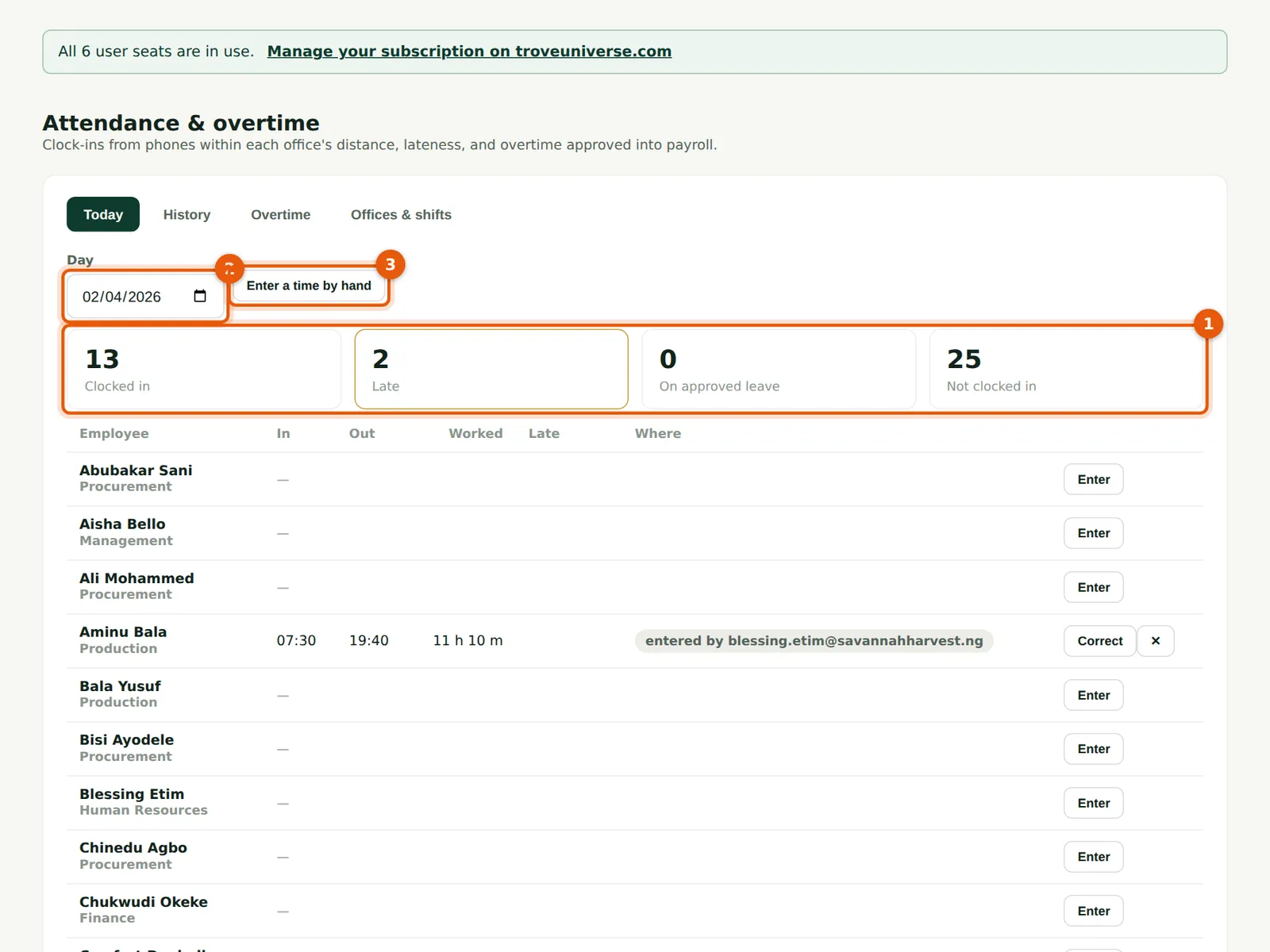
The register shows everyone active on the chosen day (2): how many clocked in, were late, were on approved leave and did not clock in (1). On 2 April 13 people clocked in and 2 were late. Times can be entered by hand from here (3).
Who
Everyone with a staff login.
What to do
- Choose the day (2).
- Read the totals (1); choose Enter a time by hand (3) for anyone missing.
24.8 Where and how each person clocked in
Why
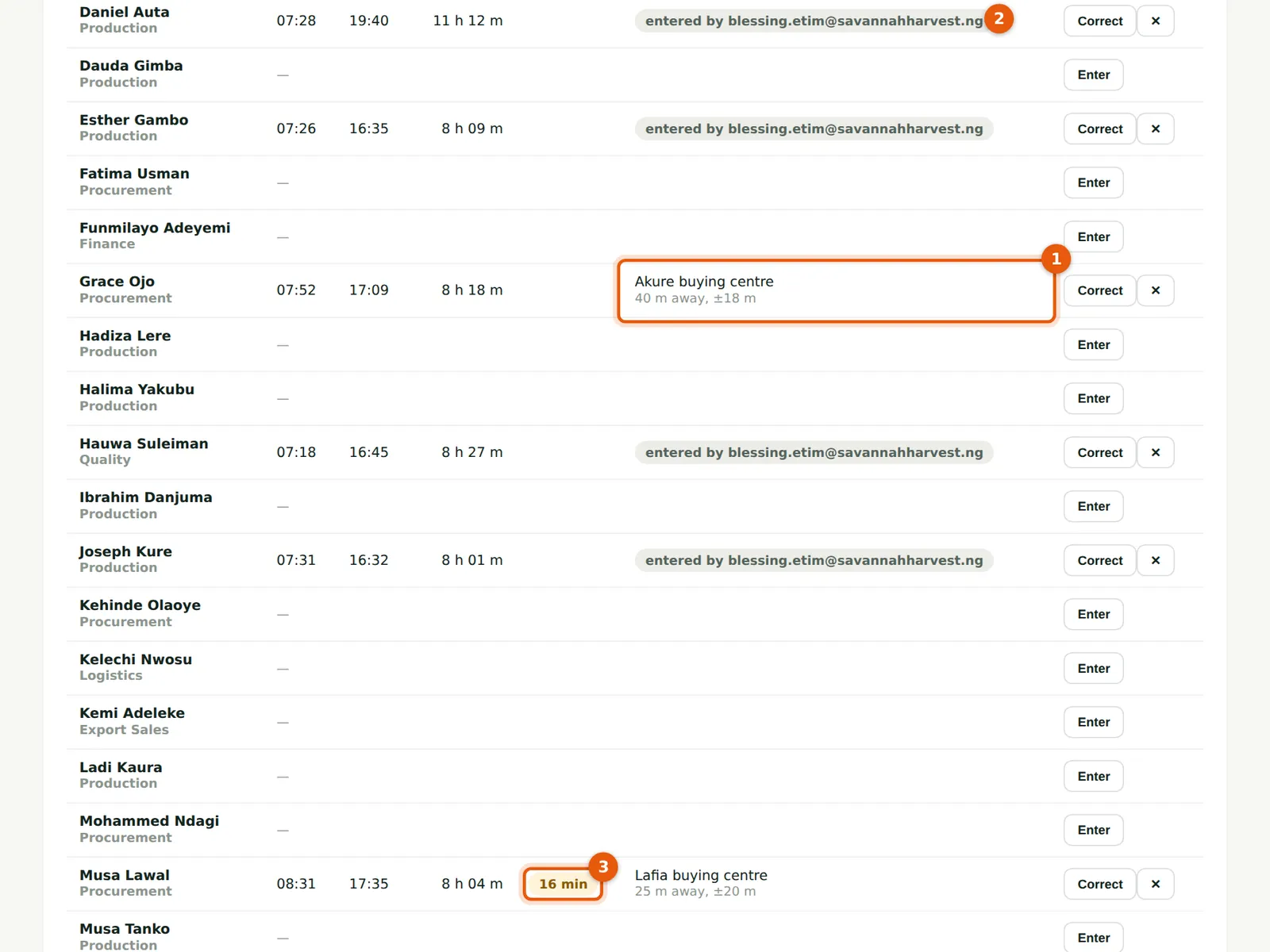
For a phone clock-in the register shows the office and the distance and accuracy (1) — never the position. Times entered by hand say who entered them (2). Lateness is shown in minutes (3): Musa Lawal, 16 minutes. Nobody is counted late on a public holiday or a rest day.
Who
Everyone with a staff login.
What to do
- Choose Correct to change a time, or ✕ to remove a record, giving the reason each time.
24.9 Attendance over a period
Why
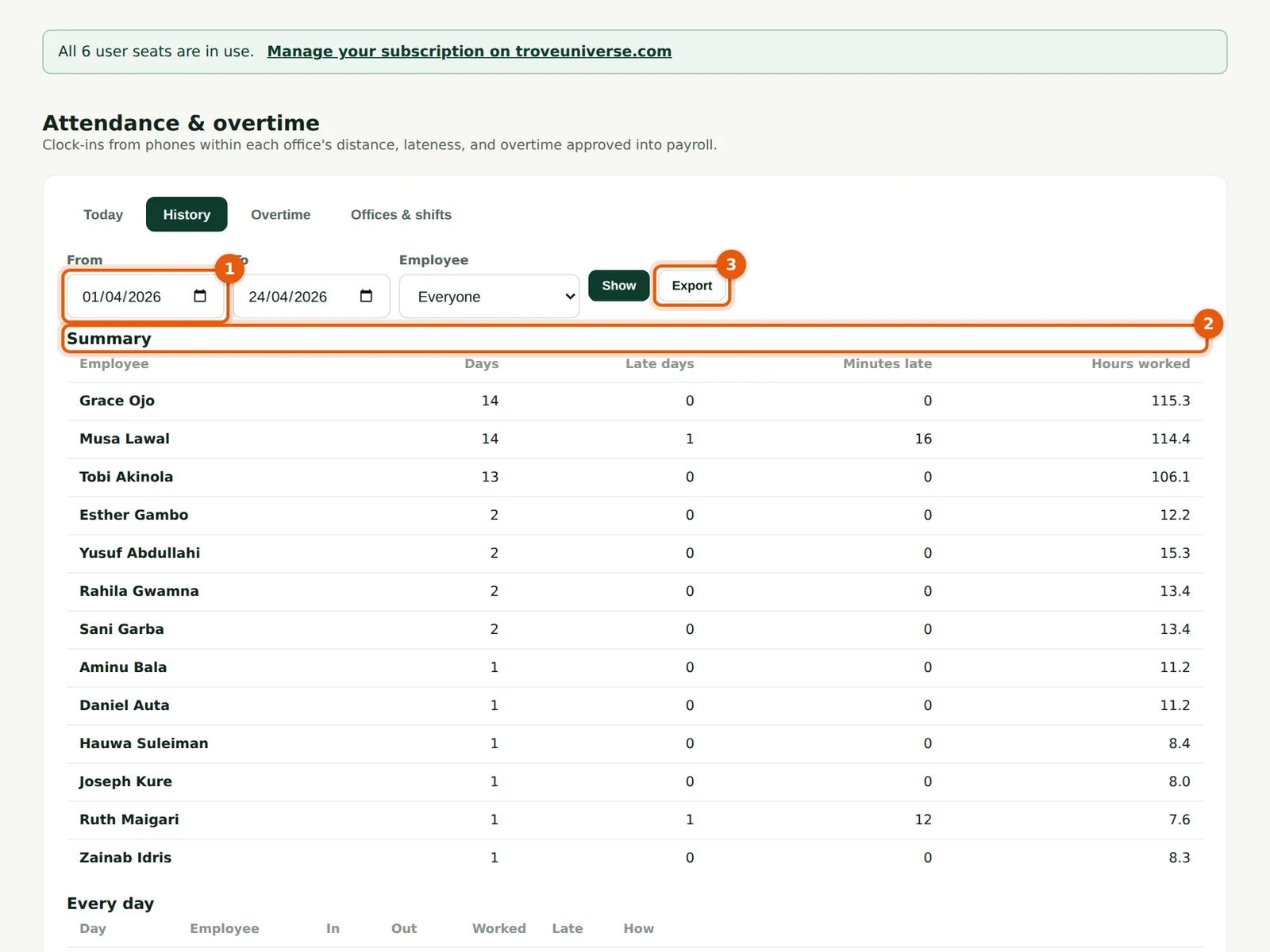
History summarises a period (1): days attended, late days, minutes late and hours worked for each person (2), then every day. Export (3) gives the detail as a spreadsheet, including the office and the distance. Grace attended 14 days in April to the 24th, never late; Musa 14 days, late once.
Who
Everyone with a staff login.
What to do
- Choose the dates (1) and, if you wish, one employee, then Show.
- Choose Export (3) for the spreadsheet.
24.10 A line manager's team in My HR
Why
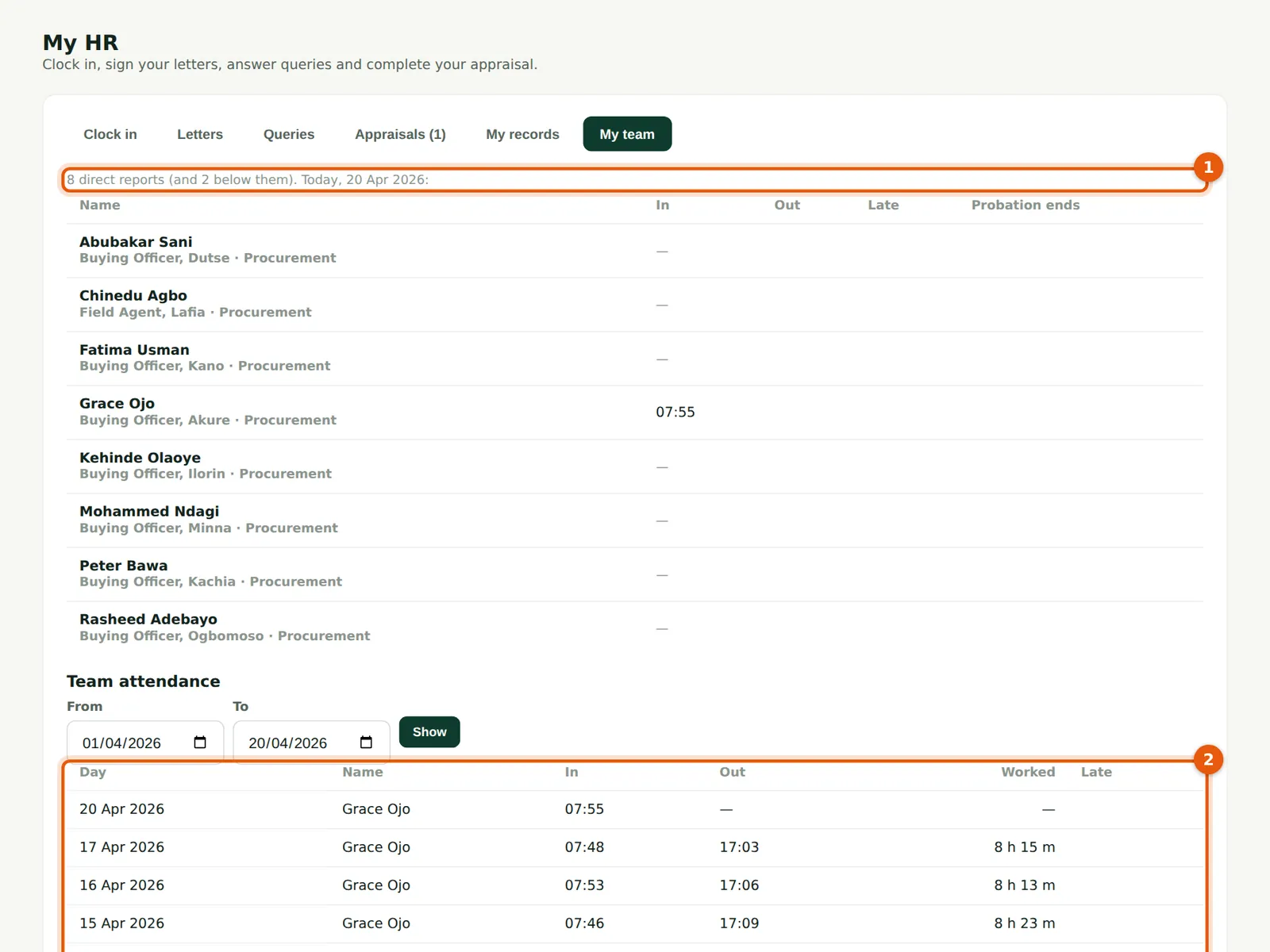
Anyone who is someone's line manager gets My team in My HR: today's clock-ins of their direct reports, with probation dates (1), and the team's attendance over a period (2). Musa sees his seven buying officers and field agent — and that there are two more people below them. He sees only his own team.
Who
Employee (self-service) who is a line manager.
What to do
- Open My HR → My team.
- Choose the dates and Show (2) for the team's attendance.
24.11 Overtime from the clock-ins
Why
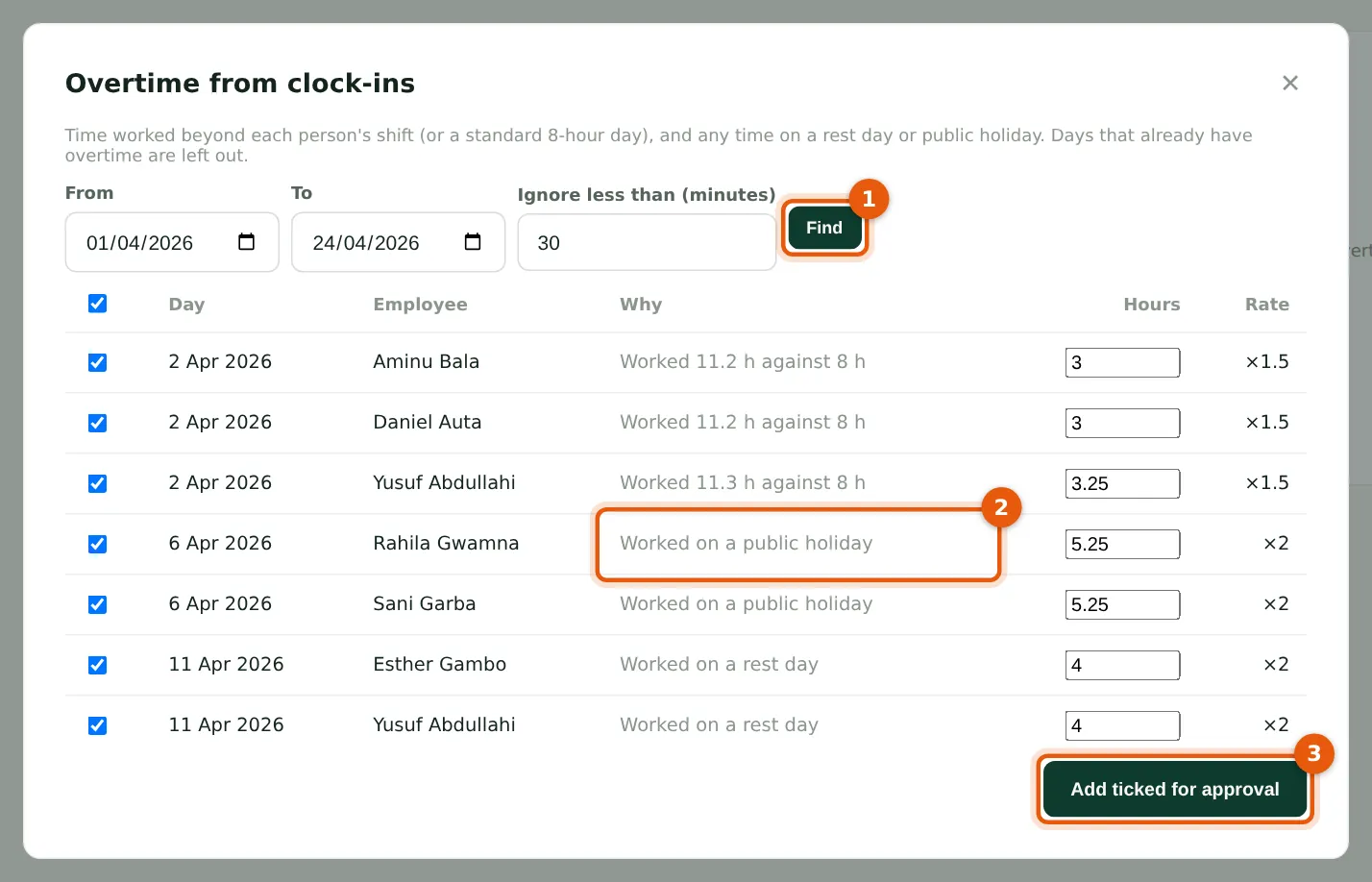
Suggest from clock-ins compares each day worked with the person's shift and lists the extra time (1): time beyond the shift on a working day at ×1.5, and all the time worked on a rest day or public holiday (2) at ×2. Days already holding overtime are left out, and small amounts (under 30 minutes, by default) are ignored. Blessing finds seven: three on Thursday 2 April for an export order, two on Easter Monday 6 April for a boiler repair, and two on Saturday 11 April. Hours can be changed before adding them.
Who
Preparer or Admin.
What to do
- Open Attendance & overtime → Overtime → Suggest from clock-ins.
- Choose the dates and Find (1).
- Untick anything not authorised and correct the hours, then choose Add ticked for approval (3). Overtime not shown in the clock-ins can be added with Add overtime.
24.12 Approve overtime
Why
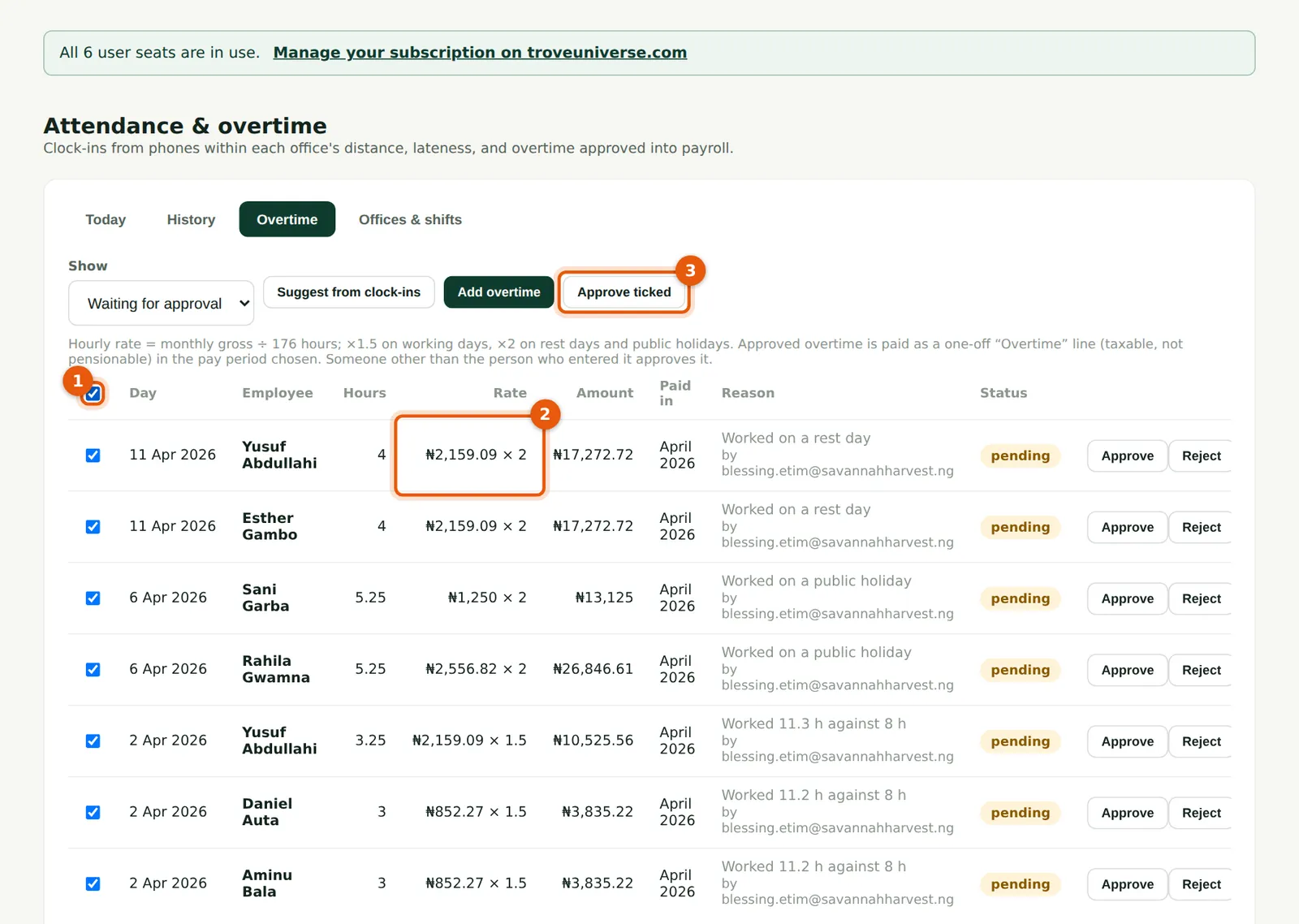
Each line shows the hours, the hourly rate and multiplier (2) and the amount. The hourly rate is the monthly gross divided by the standard hours (176), or for a daily-rated worker the daily rate divided by 8. Sani Garba's 5.25 hours on Easter Monday: ₦220,000 ÷ 176 = ₦1,250 an hour × 2 × 5.25 = ₦13,125. Someone other than the person who entered the overtime approves it (unless the company has only one Admin). Approving adds a one-off Overtime line to the person's pay in the period shown. Overtime cannot be put into a month whose payroll is already approved.
Who
Admin, other than the person who entered it.
What to do
- Open Attendance & overtime → Overtime (Waiting for approval).
- Check each line; choose Approve on one (you can change the pay period), or tick them (1) and choose Approve ticked (3).
- Choose Reject with a reason for anything not authorised.
24.13 Approved overtime
Why
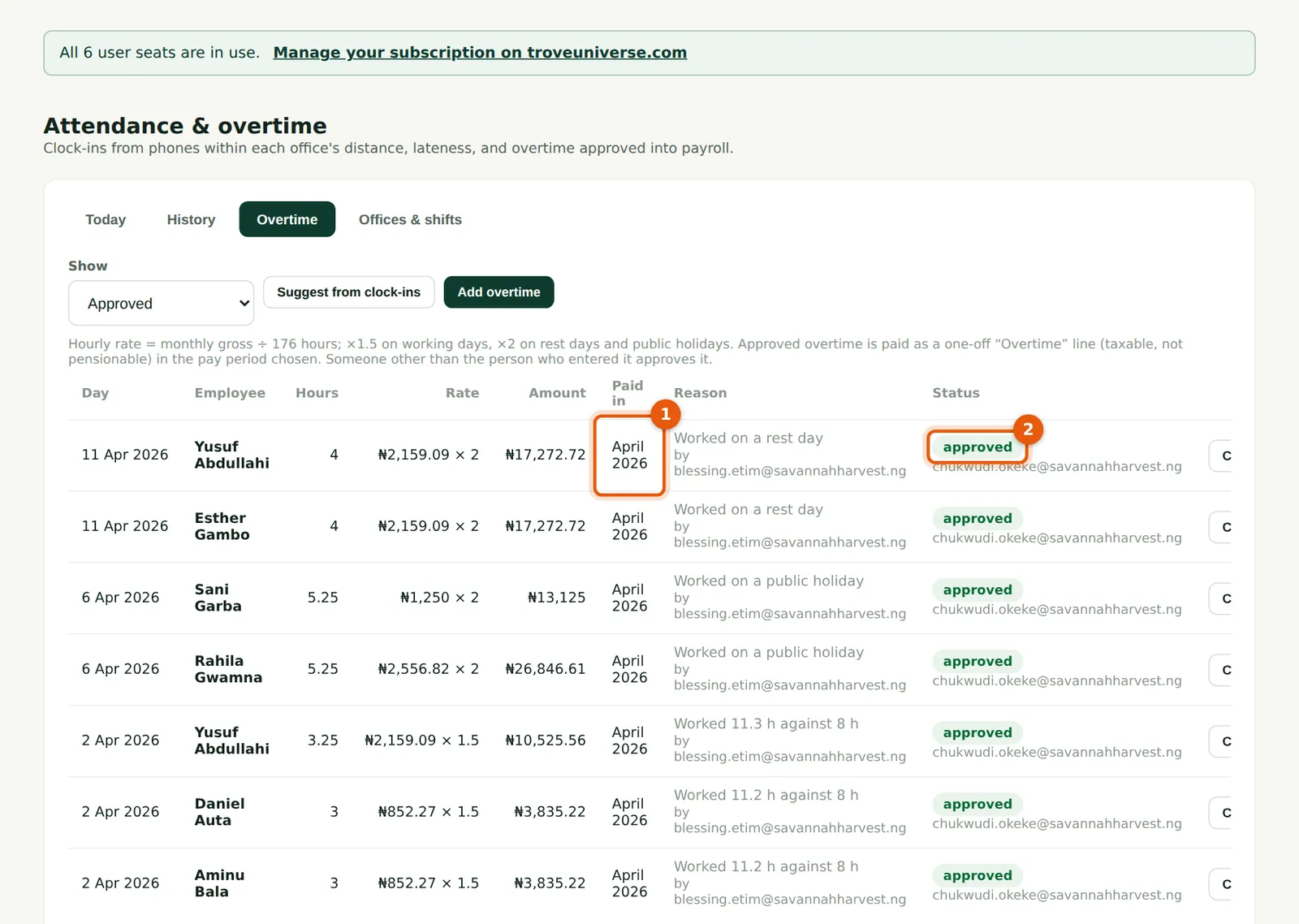
Approved overtime shows the period it is paid in (1) and who approved it (2). If the period's run is already a draft, recalculate the draft to include it. Seven entries come to ₦92,713.05. Approved overtime can be cancelled (with a reason) until the run that pays it is approved; after that, reverse it with a deduction.
Who
Everyone with a staff login.
What to do
- Choose Approved in Show. A line marked paid has been paid in an approved run.
24.14 Overtime on the payslip
Why
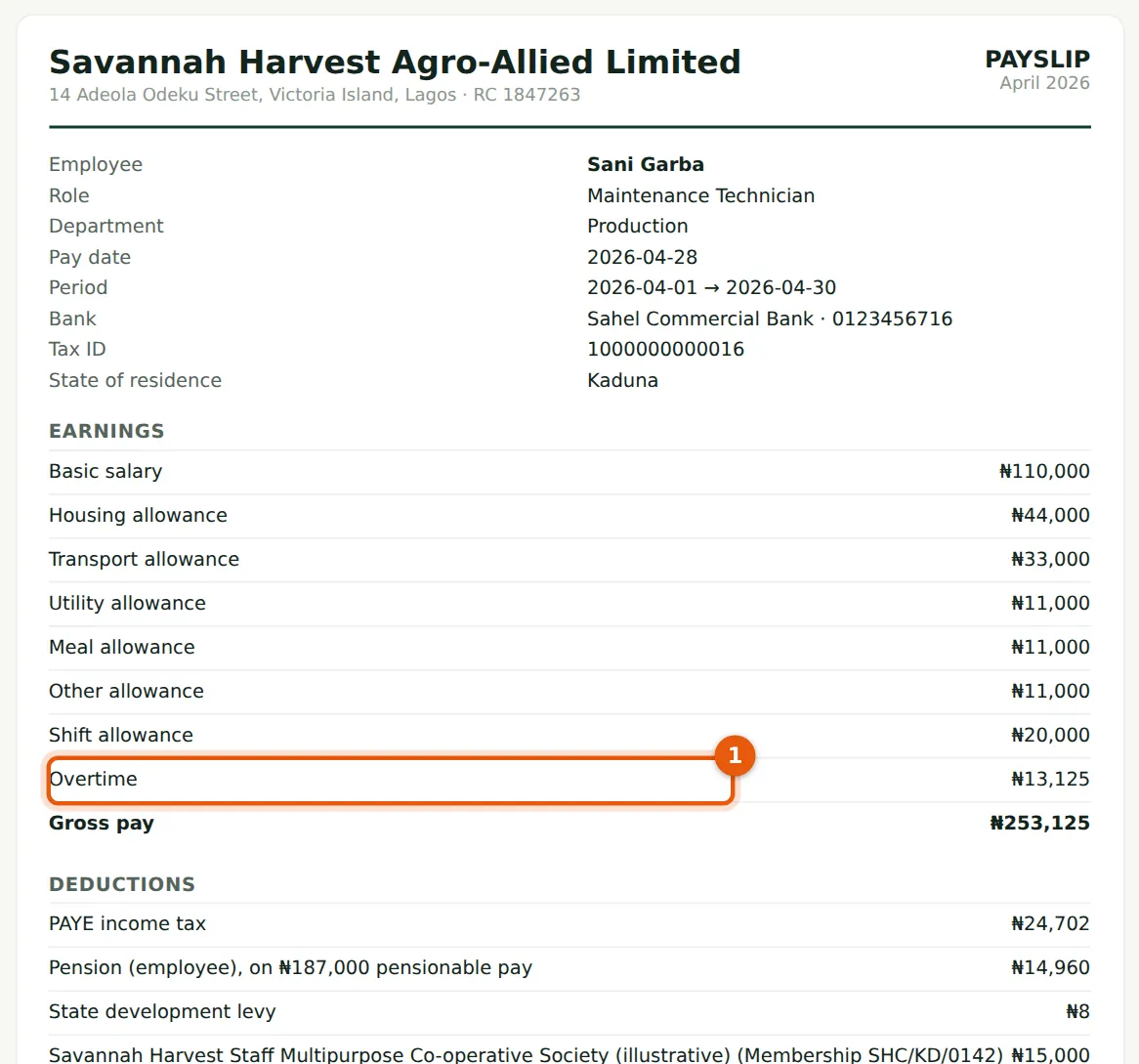
Blessing prepares the April run on 27 April and Chukwudi approves it on 28 April (chapter 6). The approved overtime appears as Overtime (1) among the earnings: taxable, so it is in PAYE, but not pensionable, so the pension is still worked on the usual pensionable pay. Sani's gross for April is ₦253,125.
Who
Everyone with a staff login; the employee in self-service.
What to do
- Nothing extra: approved overtime is paid by the run for its period.