Steps in this chapter (6)
Choose the payment file layout, check account names with the bank, and compare what the bank actually paid with the run.
Approving a run does not pay anyone: you upload the payment file to your bank. PayTrove builds the file from the approved run in the NIBSS bulk (NIP/NEFT) layout that banks accept for salary uploads, or in a bank's own layout. Each line needs a 10-digit account number and the bank's code; PayTrove finds the code from the bank's name for 29 banks and the main payment banks (OPay, Moniepoint, Kuda, PalmPay), or uses the code on the employee record.
After the bank has processed the upload, import its response (or a statement) into the run. PayTrove marks each employee paid, part-paid, failed, not in the file or over-paid, and the re-pay file covers only what is still owed.
PayTrove does not talk to NIBSS or your bank directly: name checks and bank responses come from your bank's portal, a statement or a bank letter.
14.1 Choose the payment file layout
Why
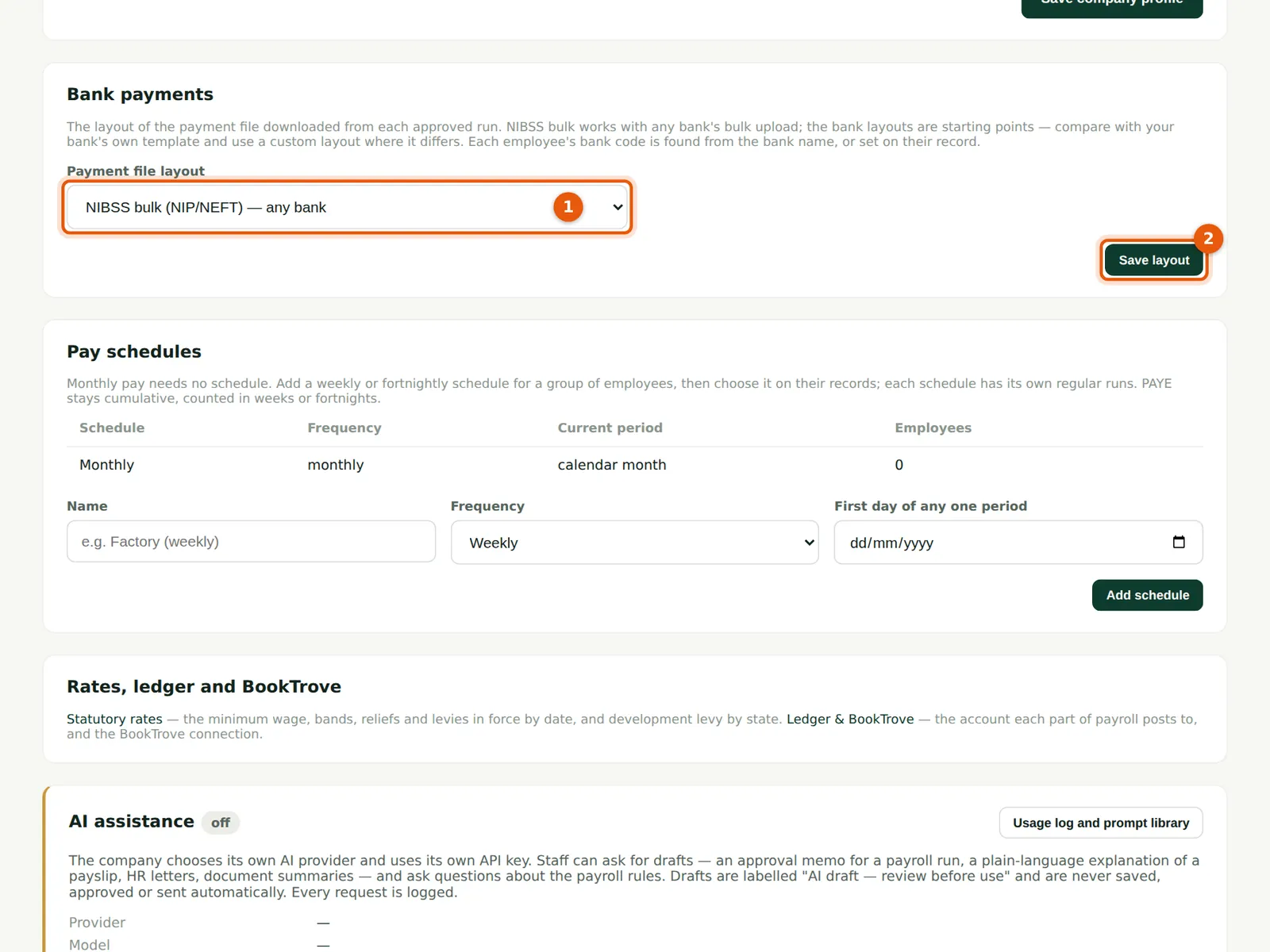
The layout (1) is NIBSS bulk by default, which works with any bank's bulk upload. Starting layouts are provided for GTBank, Access Bank, Zenith Bank, First Bank and UBA: the banks do not publish their templates, so compare each with the template your bank gives you. Custom layout lets you list the columns yourself (heading and field, one per line), from fields such as account number, account name, bank name, NIBSS or CBN code, amount (or amount in kobo), narration, reference, staff number, debit account and payment date.
Who
Admin.
What to do
- Choose the layout (1). For Custom, list the columns in the order your bank wants.
- Choose Save layout (2). The next download from any approved run uses it.
14.2 A changed account that has not been checked
Why
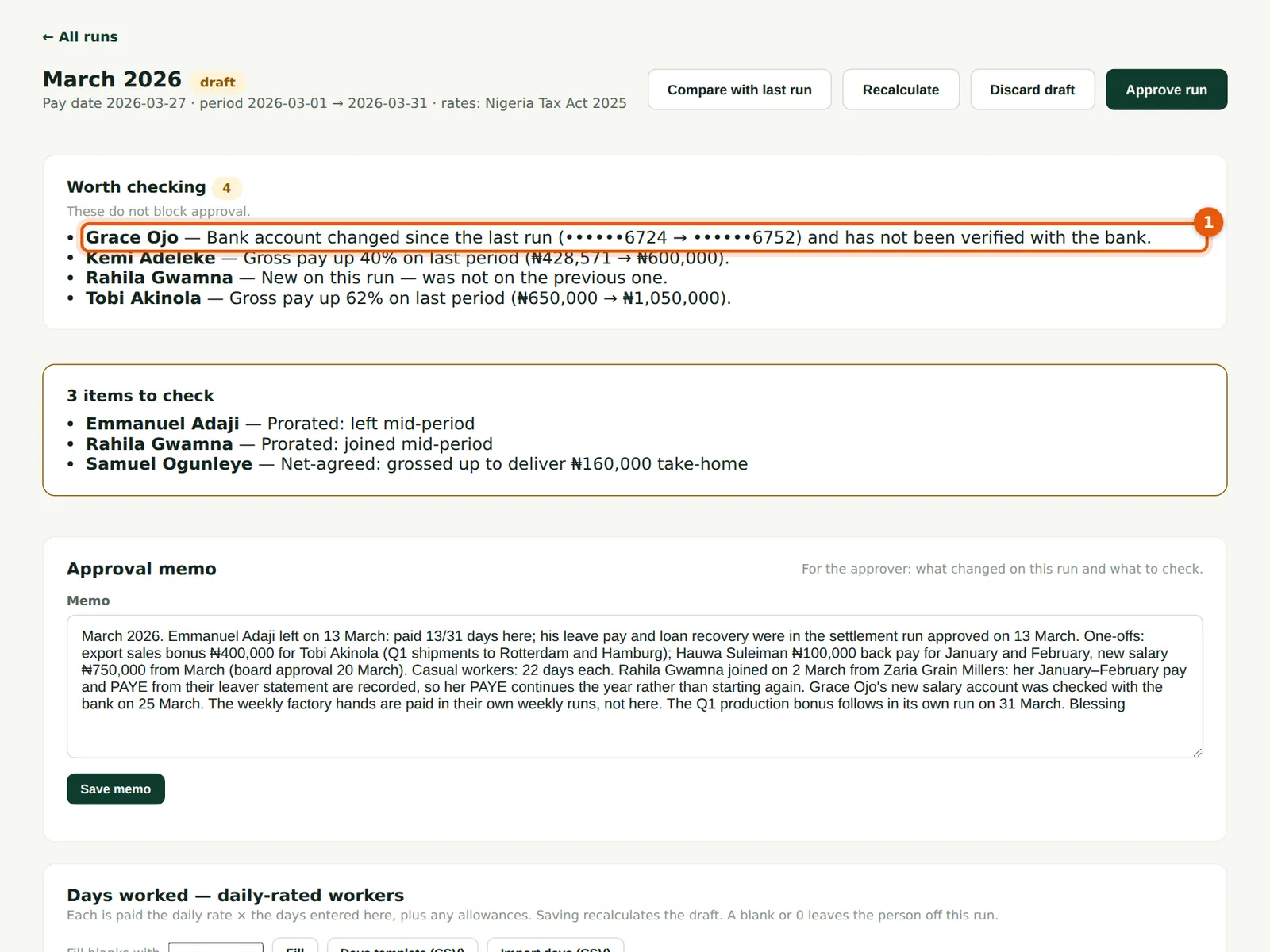
Paying into a wrong account is hard to undo, and a changed account number is a common route for fraud. When an account number differs from the one paid last time and nobody has recorded a check with the bank, the draft warns (1), showing only the last four digits.
Who
Preparer; the approver reads it.
What to do
- Confirm the new account with the employee and with the bank (step 14.3) before approving.
14.3 Record the name the bank returned
Why
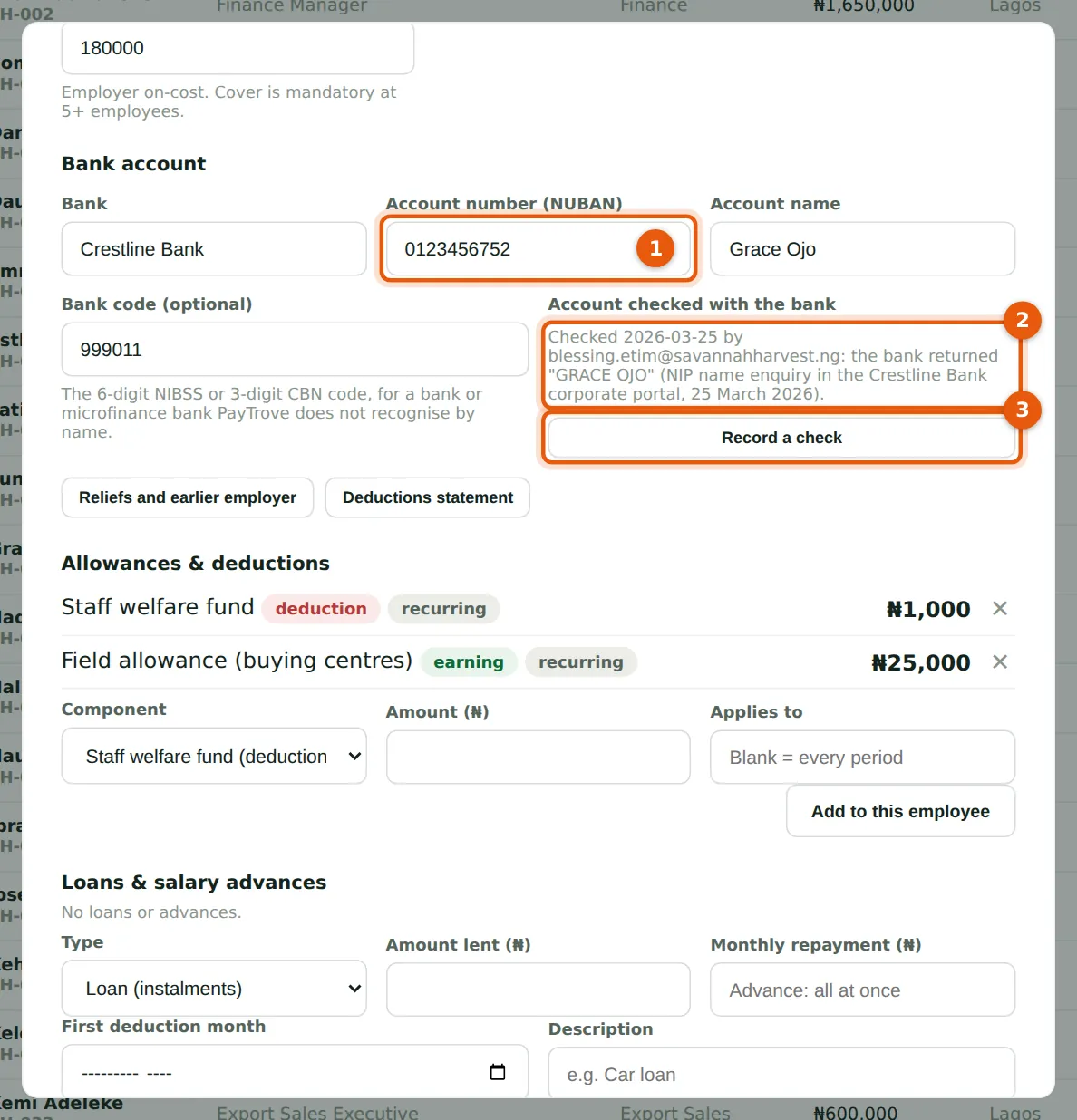
Blessing runs a name enquiry for the new account (1) in the company's bank portal: the bank returns GRACE OJO. She chooses Record a check (3) and enters the name the bank returned and how it was checked. The record shows who checked it and when (2). A name that does not match the employee is warned about. Changing the account number, bank or code later clears the check, so a new account is always checked again.
Who
Preparer or Admin.
What to do
- Run the name enquiry in your bank portal (or use a statement or bank letter).
- On the employee record choose Record a check (3), type the name exactly as the bank returned it, then how it was checked.
- Recalculate or reopen the draft: the warning has gone.
14.4 The bank's response
Why
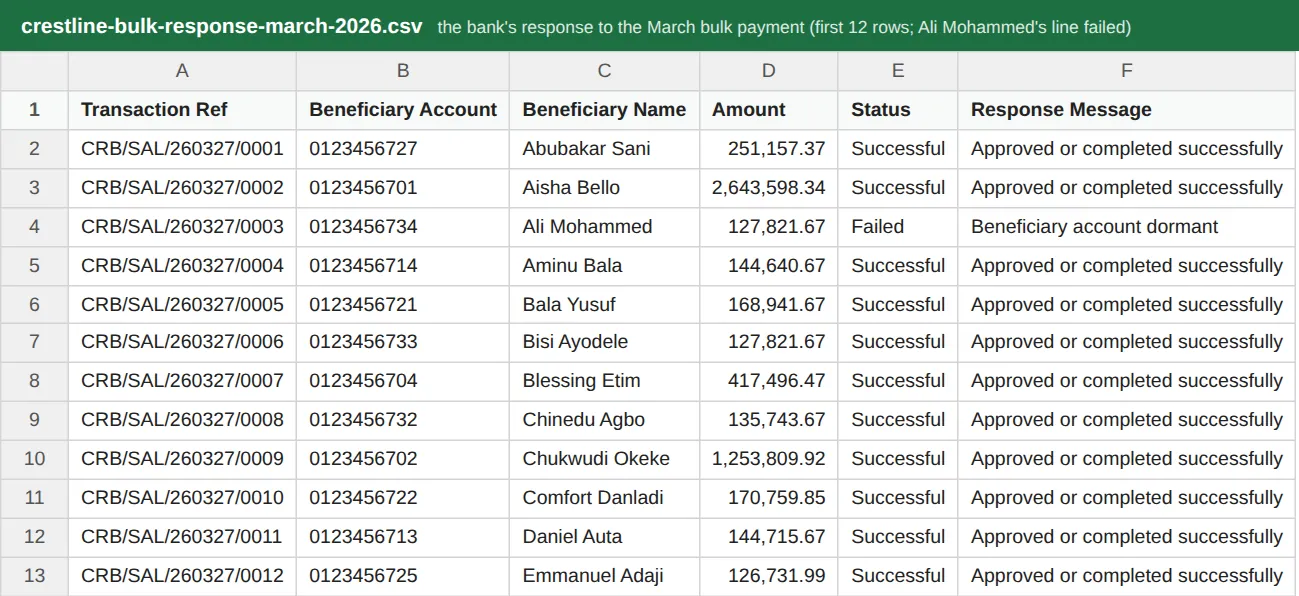
On 27 March Chukwudi uploads March's payment file to the bank. The bank's response lists each credit with its status: every credit succeeded except Ali Mohammed's (₦127,821.67), rejected because his account is dormant. Any CSV works — a bulk-payment response or a plain account statement — as long as it has account numbers and amounts; PayTrove finds the columns by their headings, and with no status column a credit counts as paid.
Who
Admin or finance officer.
What to do
- Download the response (or the statement for the payment day) from your bank portal as CSV.
14.5 Paid versus run
Why
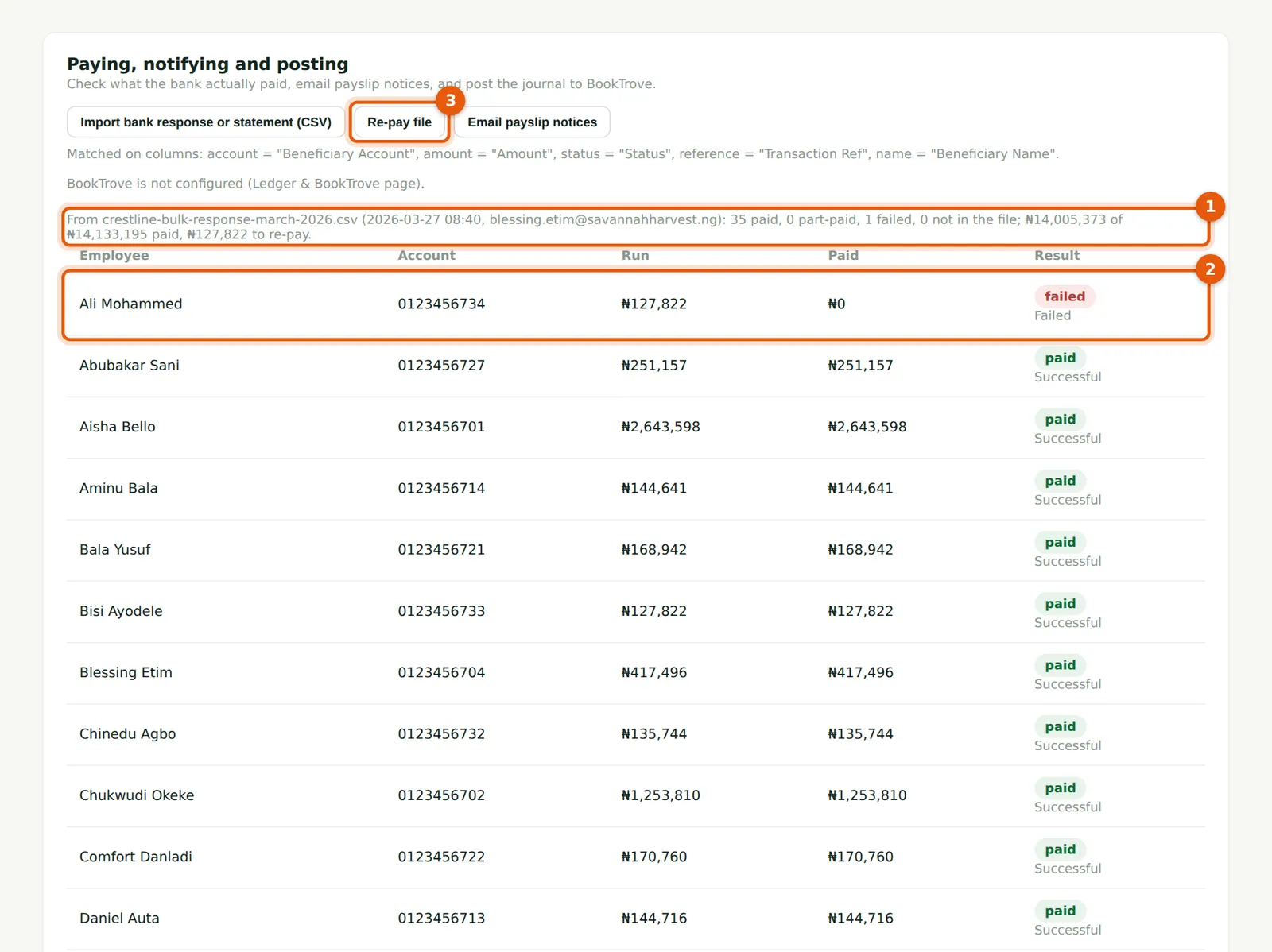
Blessing chooses Import bank response or statement on the run and picks the file. PayTrove matches each employee on account number and amount, adding split credits together, and summarises (1): 35 paid, 1 failed, ₦14,005,373.39 of ₦14,133,195.06 paid and ₦127,821.67 to re-pay. Problems are listed first (2). Rows that match nobody on the run are listed under the table. Importing again replaces the previous result.
Who
Preparer or Admin.
What to do
- Import the file and read the summary (1) and the failed lines (2).
- Choose Re-pay file (3) for a payment file covering only what is still owed.
14.6 The re-pay file

Why
The re-pay file is in the same layout as the payment file and carries only the amounts still owed, with 'repay' in the narration. Ali's account is reactivated on 30 March and he is paid from this file.
Who
Admin or finance officer.
What to do
- Upload the re-pay file once the problem is fixed, then import the bank's response again to close it.