Steps in this chapter (6)
See the minimum wage, PAYE bands and statutory rates in force on any date, add a dated rule set, and switch on the development levy by state.
PayTrove holds the statutory rates as dated rule sets. For each run — and for every recalculation, approval check, settlement, practice batch and the PAYE calculator — it builds the rates for the pay date in this order: the law as shipped with PayTrove; TroveUniverse-wide rule sets dated on or before the pay date; the company's own rule sets; and the company settings. A new minimum wage or a new band is therefore an entry on this page, from its date, not a new release of PayTrove. Approved runs keep the figures they were approved with; drafts take a change when recalculated.
A rule set can change the minimum wage and the PAYE bands, the rent relief rate and cap, the pension rates and headcount threshold, the NHF, NSITF and ITF rates and the ITF thresholds, the accommodation cap and the loss-of-office exemption, the consolidated relief allowance (0 means abolished) and the flat development levy. TroveUniverse staff (rates administrators) add the TroveUniverse-wide sets. A company Admin may only raise its pension rates above the statutory ones and set its own development levy: the minimum wage also sets the PAYE exemption, so a company cannot change it. Sets are never edited or deleted — a correction is a newer set, and a mistaken set is withdrawn with a reason. Every change is in the audit log.
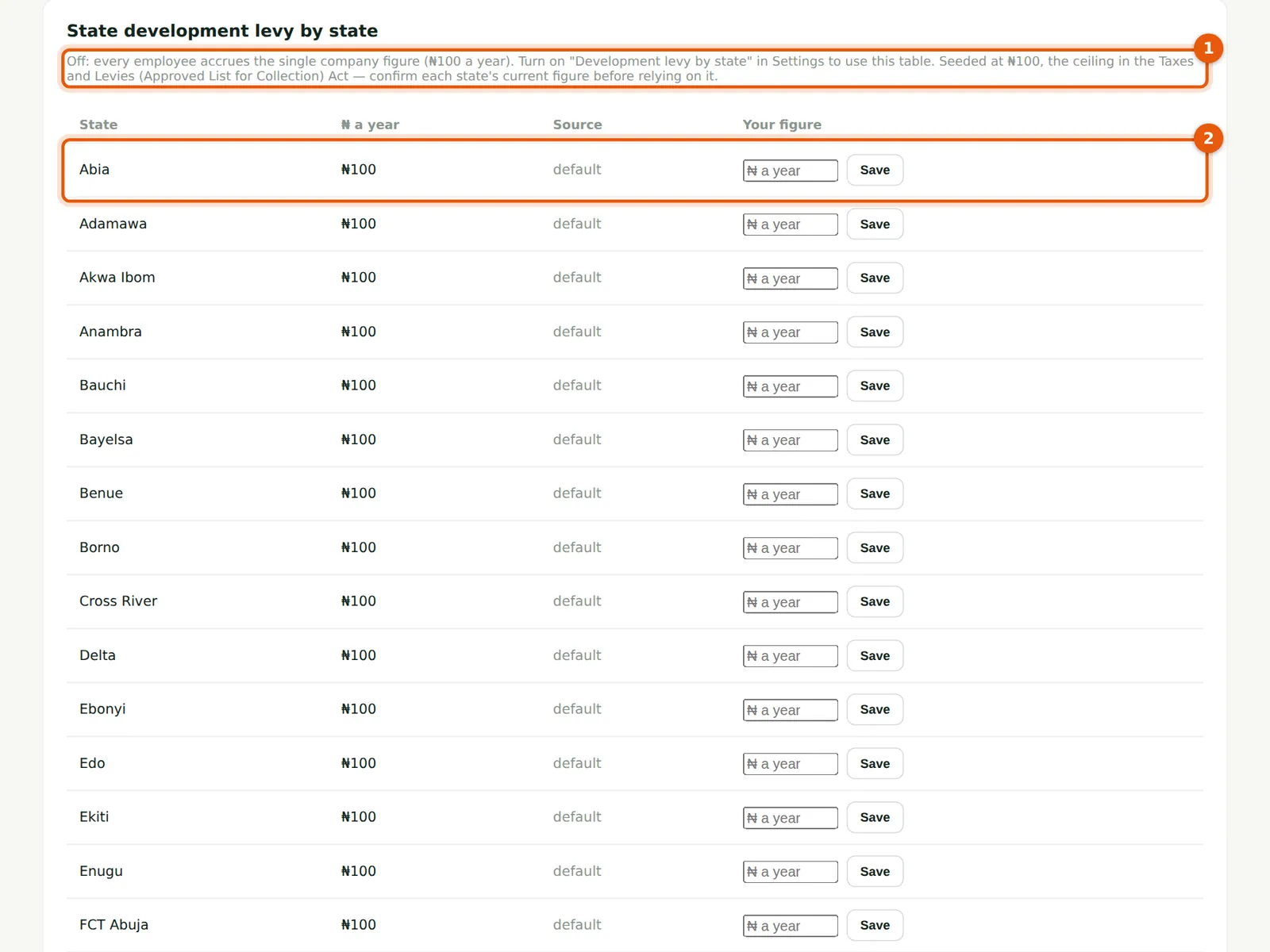
The development levy by state uses each employee's state of residence. PayTrove seeds every state and the FCT at ₦100 a year — the ceiling in the Taxes and Levies (Approved List for Collection) Act, Cap T2 LFN 2004 — because current state figures could not be confirmed; confirm each state's figure before relying on it.
21.1 The rates in force
Why
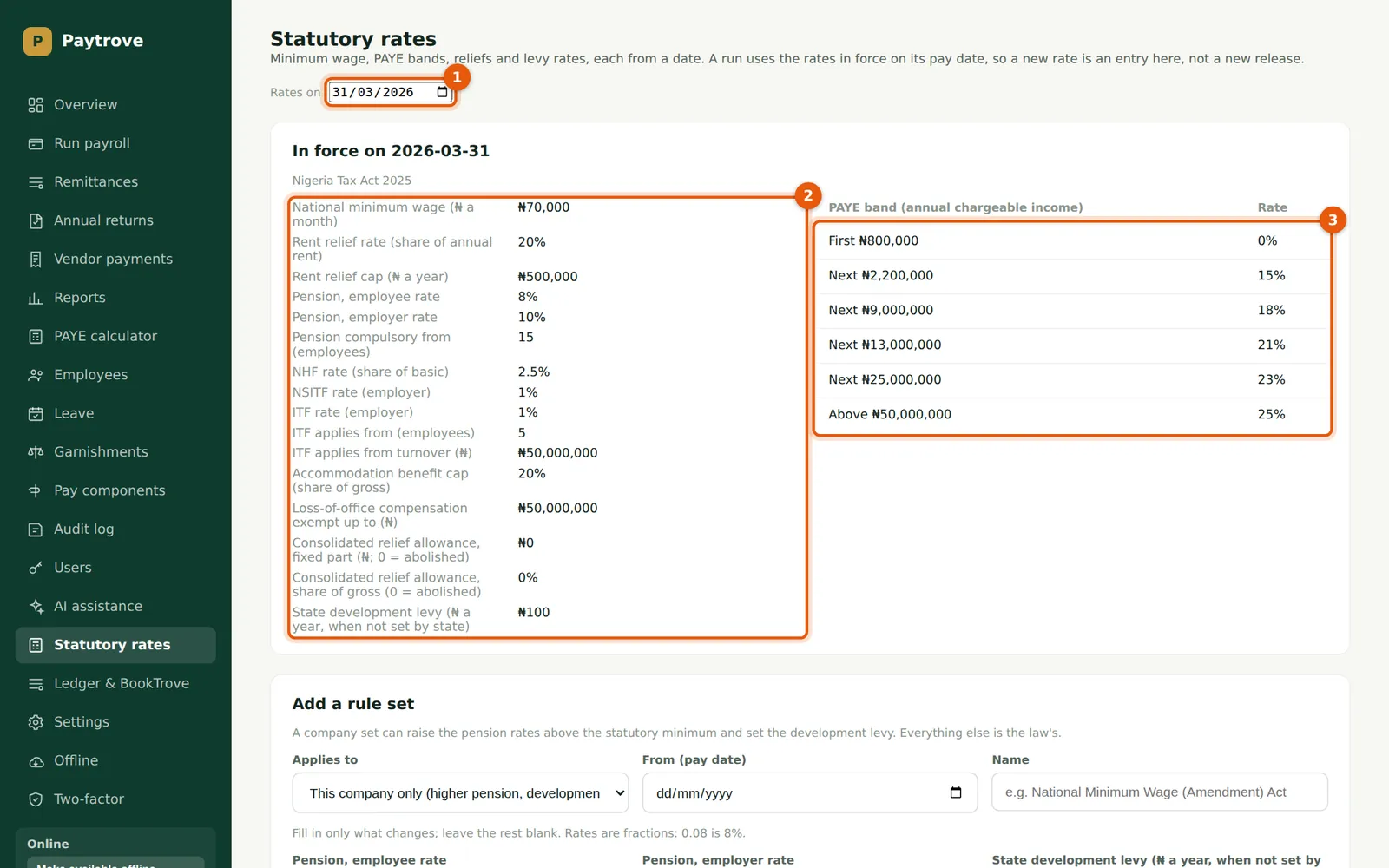
Choose a date (1) to see the rates in force on it: the minimum wage, rent relief, pension, NHF, NSITF and ITF rates and thresholds, the accommodation cap, the loss-of-office exemption, the consolidated relief allowance (abolished: ₦0) and the flat development levy (2), and the PAYE bands (3). On 31 March 2026 these are the Nigeria Tax Act 2025 rates: the one rule set, dated 1 January 2026, is the law as shipped.
Who
Admin, Preparer, Viewer.
What to do
- Open Statutory rates in the menu and choose the date (1).
21.2 A company rule set: a higher employer pension
Why
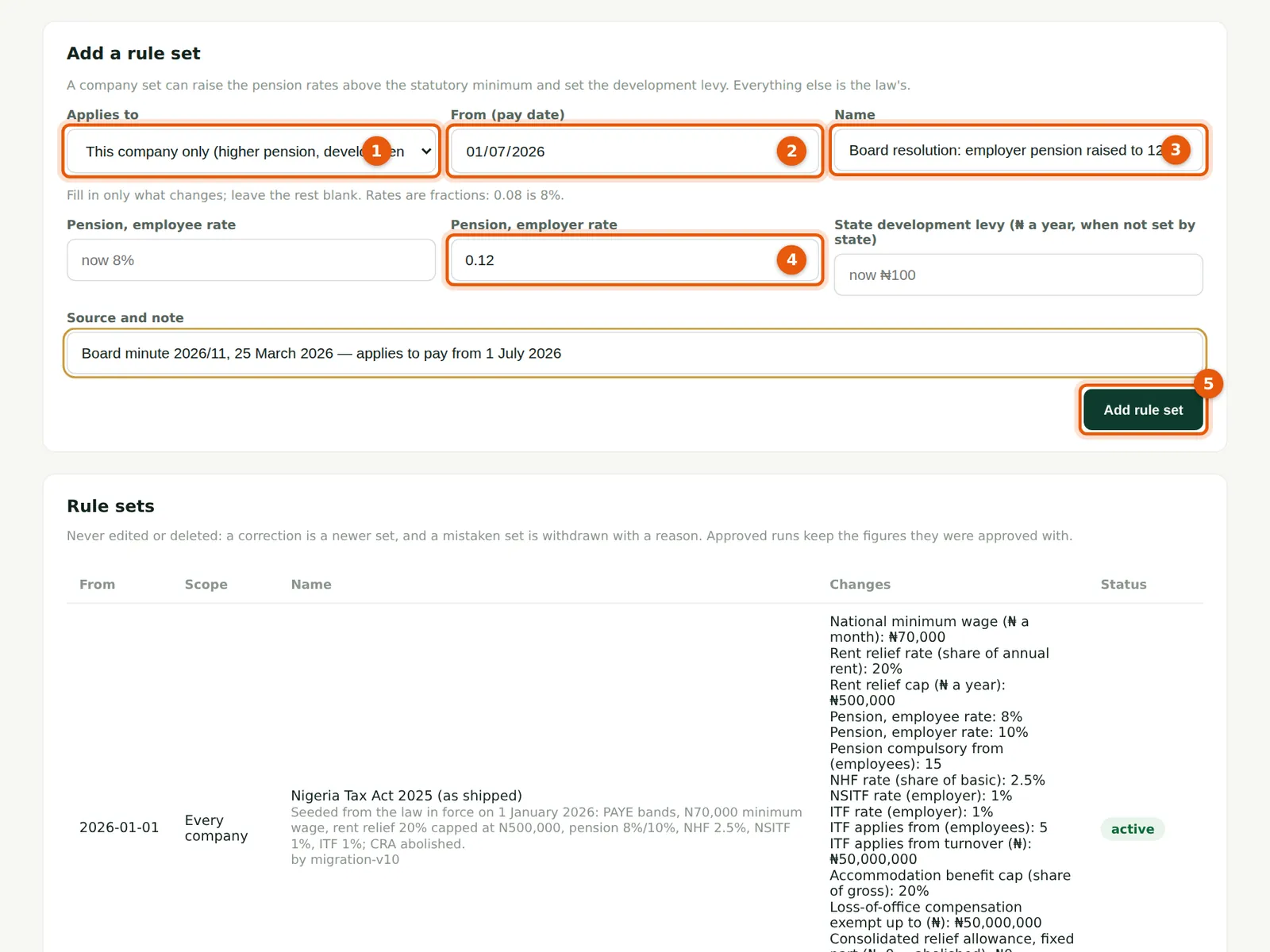
On 25 March Savannah Harvest's board resolves to raise the employer's pension contribution from 10% to 12% from July's pay. Chukwudi adds a company rule set: this company only (1), from 1 July 2026 (2), with a name (3), the employer rate 0.12 (4) — rates are fractions — and the board minute as its source. Runs dated from 1 July use 12%; March's figures do not change. A company set cannot lower a rate below the law, and cannot change anything the law fixes for everyone.
Who
Admin.
What to do
- Choose This company only (1) and the date (2), and give the set a name (3).
- Fill in only what changes (4) — leave the rest blank — and the source.
- Choose Add rule set (5).
21.3 A TroveUniverse-wide rule set: a future minimum wage
Why
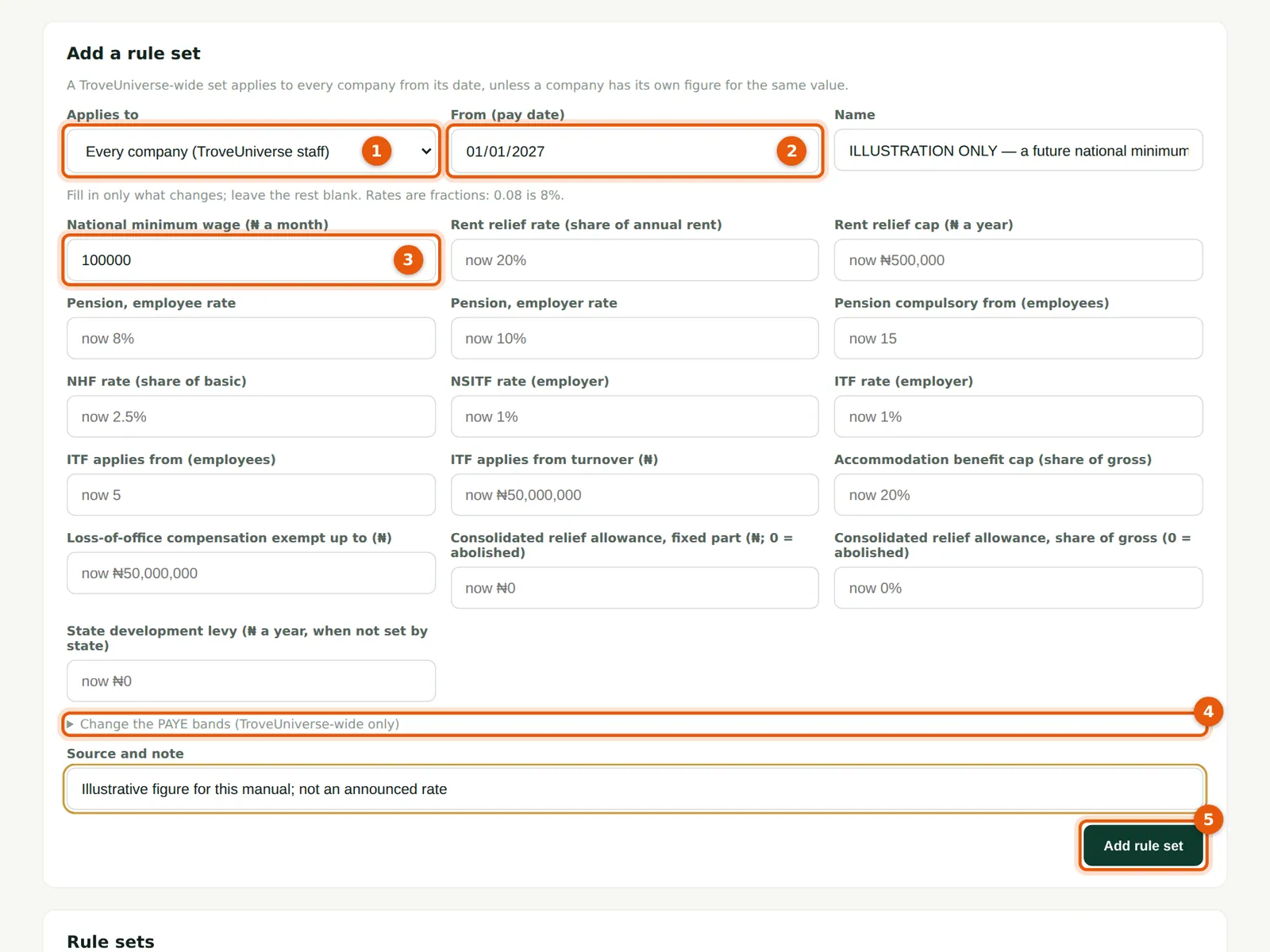
When a new national minimum wage is gazetted, a TroveUniverse rates administrator adds it for every company, from its effective date. To show how, a fictional administrator adds a minimum wage of ₦100,000 a month from 1 January 2027, labelled ILLUSTRATION ONLY: this is not an announced rate. Only TroveUniverse staff listed as rates administrators, signed in as an Admin with two-factor, see Every company (1). They choose the date (2), fill in the new figure (3) and the source, and can also change the PAYE bands (4). They choose Add rule set (5).
Who
TroveUniverse rates administrators.
What to do
- Companies do not do this step: the new rate appears on their Statutory rates page automatically, with its source.
21.4 Check the rates for a future date
Why
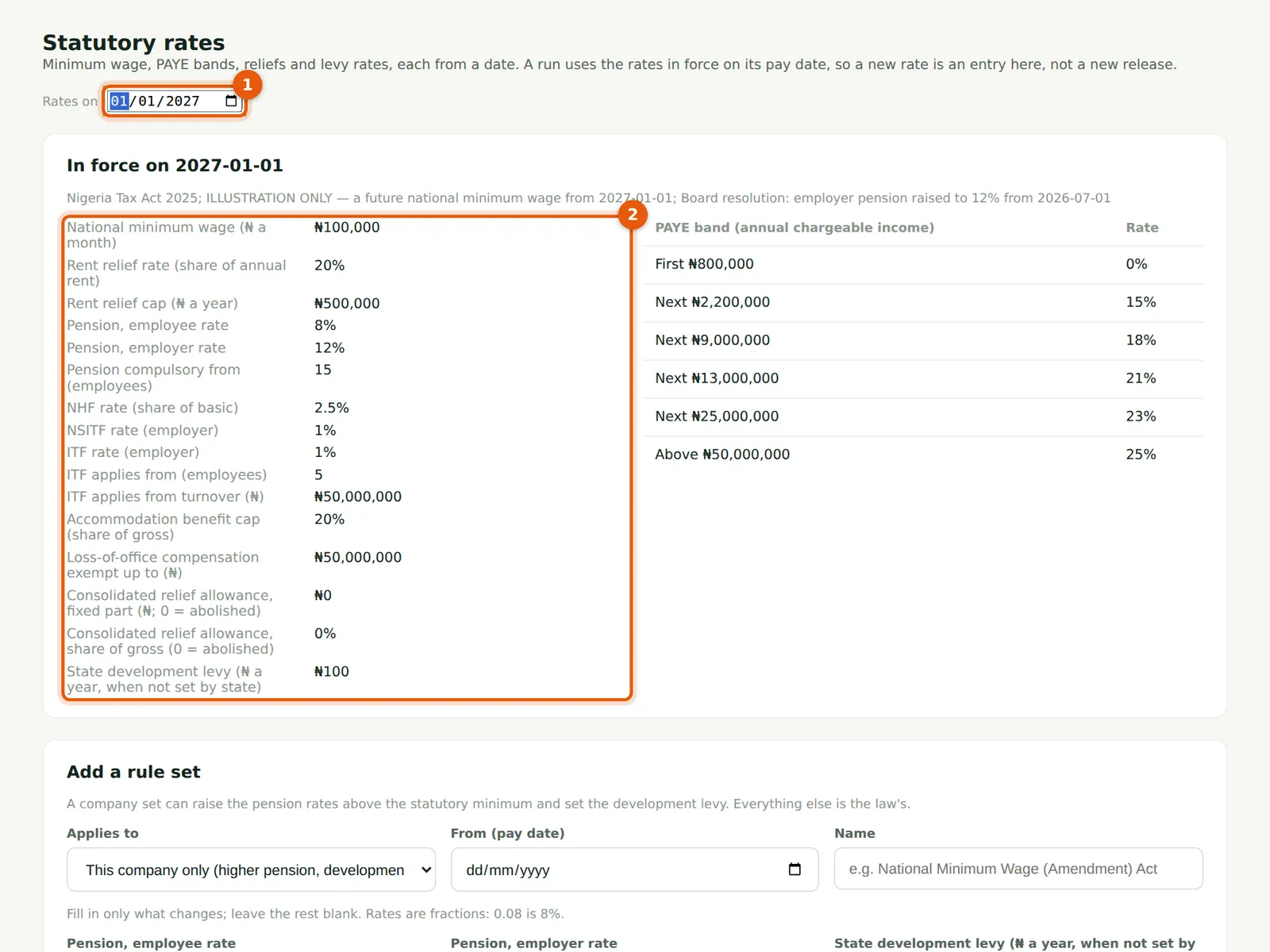
Choosing 1 January 2027 (1) shows the rates that date's runs will use (2): the illustrative ₦100,000 minimum wage from the platform-wide set and Savannah Harvest's 12% employer pension from its own set; the line above names the sets applied. Under Rule sets, each set is listed with its date, scope, name, source, changes and who added it. Because the minimum wage also sets the PAYE exemption, someone earning at or below it becomes exempt from that date; the cumulative calculation then refunds PAYE no longer due, and anyone paid below it is flagged.
Who
Admin, Preparer, Viewer.
What to do
- Check a new set's effect on a future date before its first run.
- To correct a mistaken company set, choose Withdraw and give the reason, then add the right one.
21.5 The development levy by state
Why
The table lists every state and the FCT with the figure in use and its source. While the switch in Settings is off (1), everyone accrues the single company figure. Each state starts at ₦100 (2); an Admin can enter the company's confirmed figure for a state, which is recorded with its date.
Who
Admin (others can read it).
What to do
- Confirm each state's figure with the state IRS, type it in Your figure and choose Save.
- Then switch on the levy by state in Settings (step 21.6).
21.6 Switch on the levy by state
Why
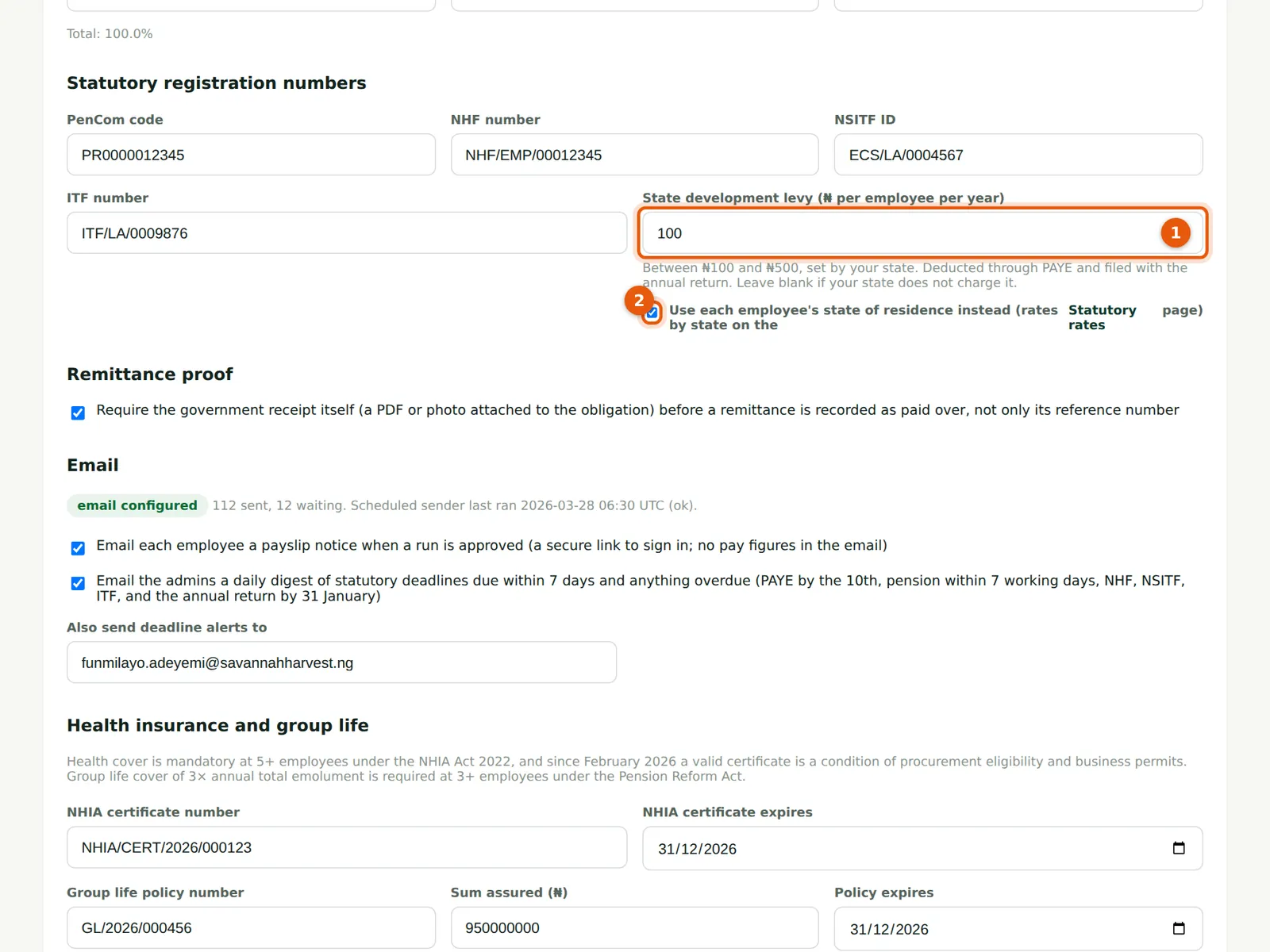
With Use each employee's state of residence instead ticked (2), each employee accrues the levy of their state of residence, and the run line stores it. The company figure (1) is then used only where a state has none. Savannah Harvest switches it on at the end of March; as every state is still at ₦100, nobody's figures change.
Who
Admin.
What to do
- Tick the box (2) and choose Save company profile. Existing runs keep their figures; new runs use the rates by state.