Steps in this chapter (13)
Prepare the 2026 Form H1 for each state — reliefs, Tax IDs, earlier employers, the LIRS eTax layout — and keep the schedule of payments to vendors and consultants.
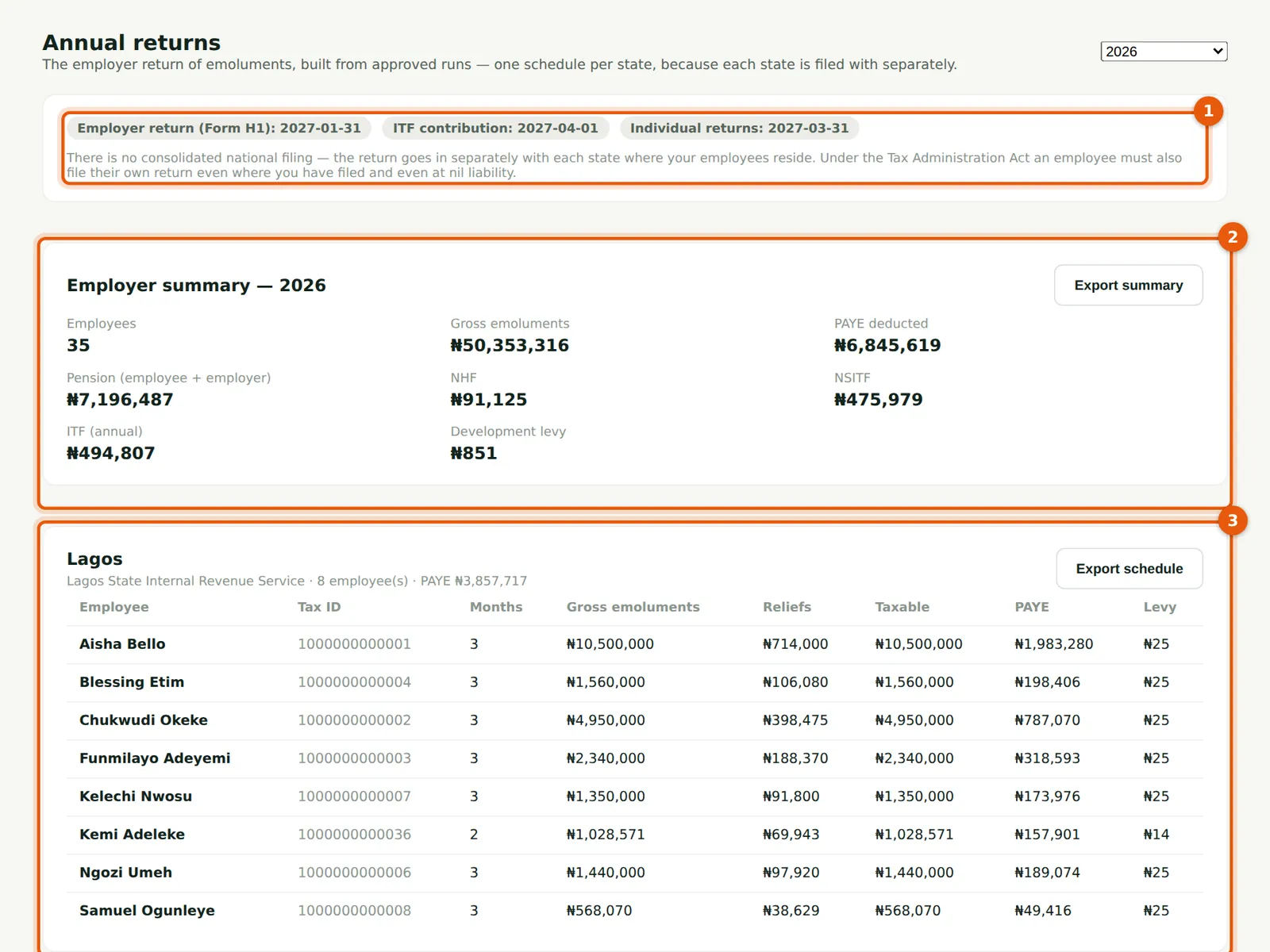
The annual return of emoluments for 2026 (Form H1) is due to each State Internal Revenue Service by 31 January 2027. PayTrove builds it from the approved runs as the year goes on, so it can be checked at any time; the illustration looks at it on 31 March 2026, after the first quarter.
The Lagos State Internal Revenue Service (LIRS) takes the return only through its eTax portal, with every employee's Tax ID, and asks for the payments made to service providers, vendors and consultants as well as the emoluments. PayTrove's LIRS eTax layout follows the Form H1 schedule of emoluments, with rent relief in place of the old consolidated relief allowance. LIRS publishes its upload template only inside eTax, after sign-in: download it there and compare the columns before the first filing; if they differ, an Admin sets a custom layout for Lagos (step 20.8).
20.1 Annual returns
Why
The employer's annual return of emoluments (Form H1) is filed with each state's IRS by 31 January of the following year, one schedule per state. PayTrove builds it from approved runs, with the development levy included, and identifies the employer by its 13-digit Tax ID (step 2.1). It also reminds you of the ITF contribution (1 April) and that employees file their own individual returns by 31 March. A warnings line lists anything that would weaken the return: here, one payment to a consultant with no Tax ID (step 20.11).
Who
Admin or finance officer.
What to do
- Choose the year. Check the deadlines (1) and read any warnings.
- Check the employer summary (2) — it now includes payments to vendors and the withholding tax on them — and choose Export summary.
- Each state has its own schedule (3), with a Download button in that state's layout and, for Admins, Change layout.
20.2 A state's schedule
Why
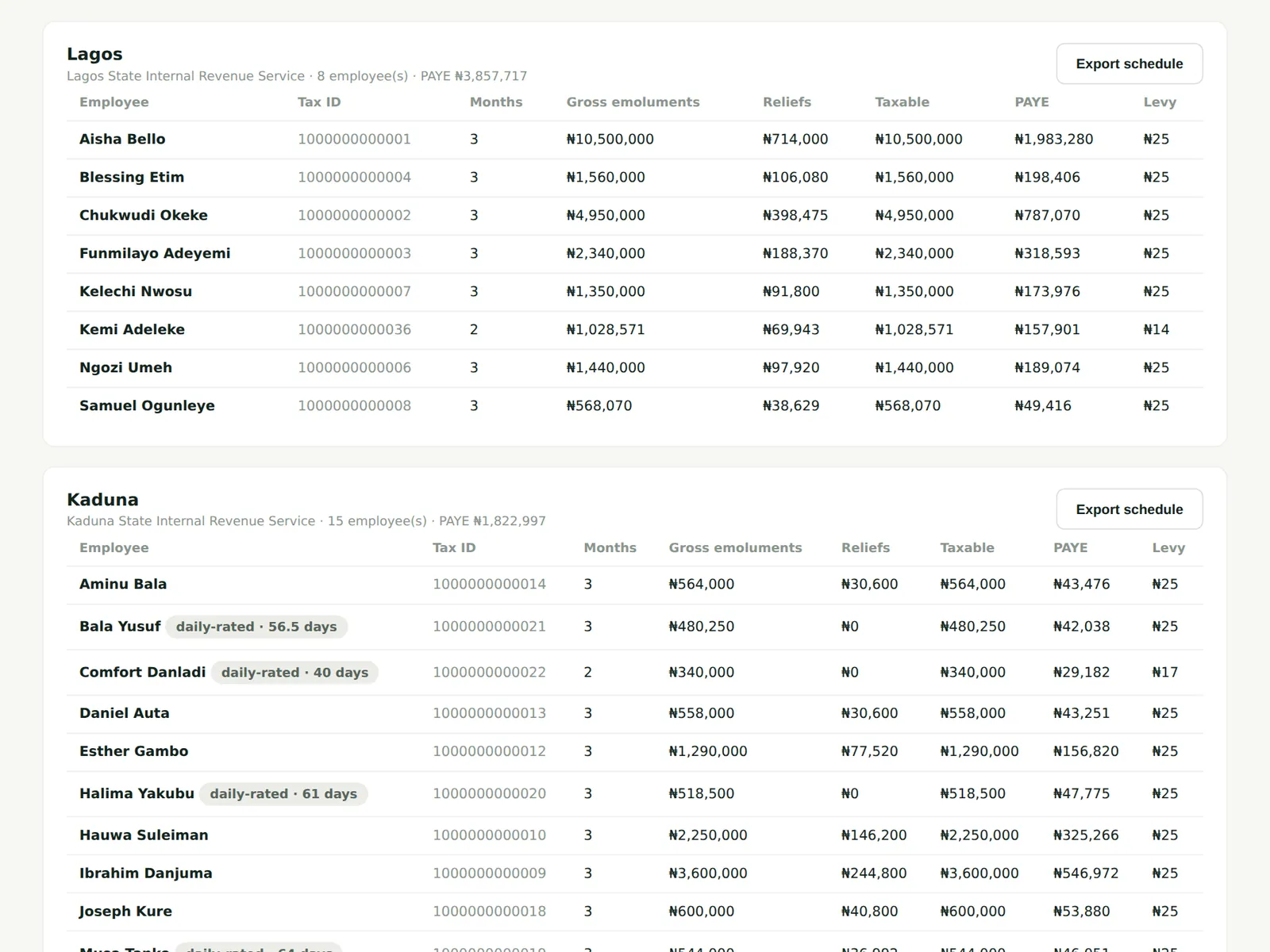
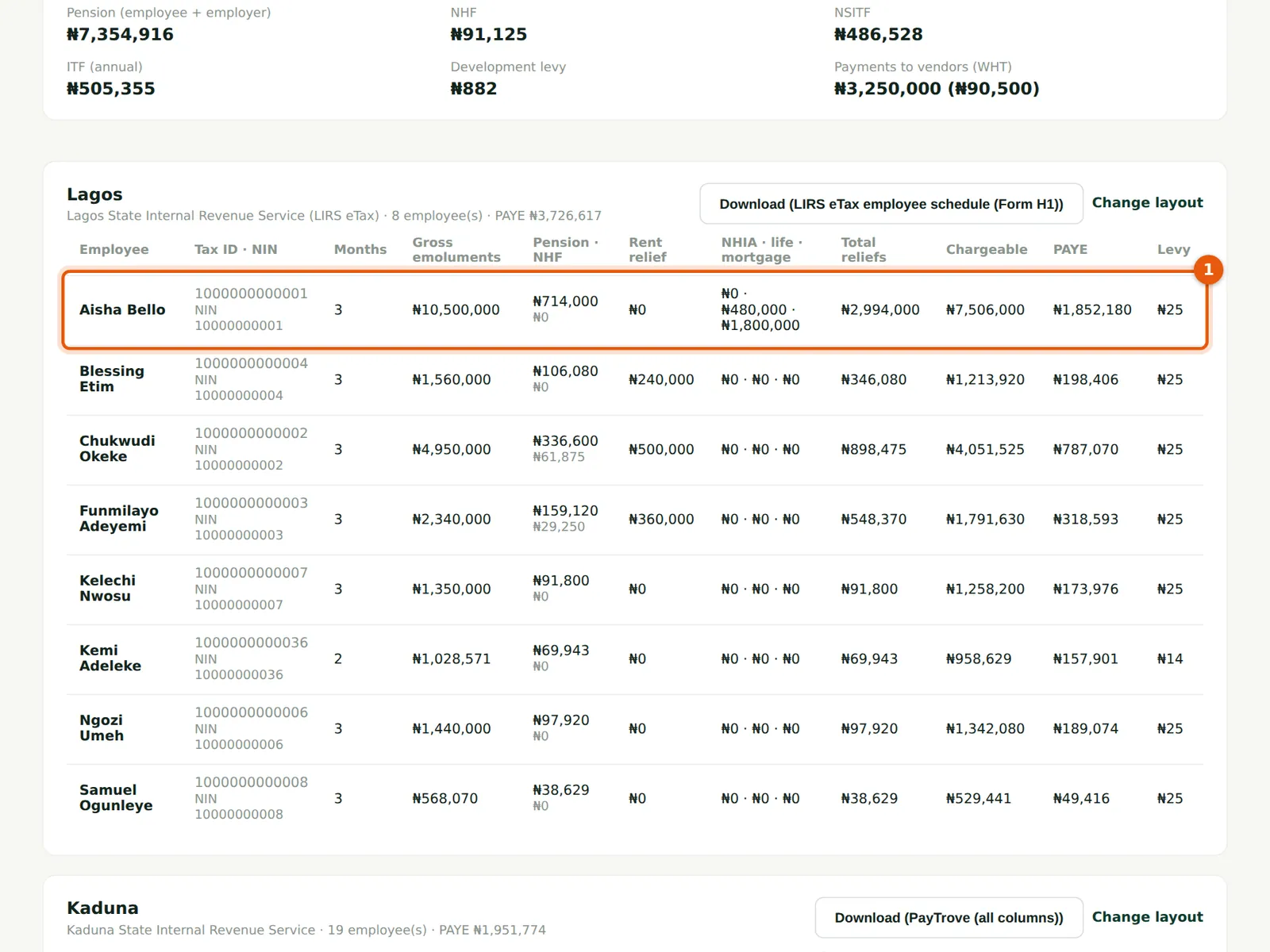
Each schedule lists every employee resident in that state during the year: Tax ID and NIN, months, gross emoluments, pension and NHF, rent relief, NHIA, life assurance and mortgage interest, total reliefs, chargeable income, PAYE and levy. A missing or malformed employee Tax ID is flagged: the return would fail without it, which is also why PayTrove blocks approval of runs where one is missing.
Who
Admin or finance officer.
What to do
- Check the schedule against your PAYE remittance receipts for the year before filing.
20.3 Casual workers on the annual return
Why
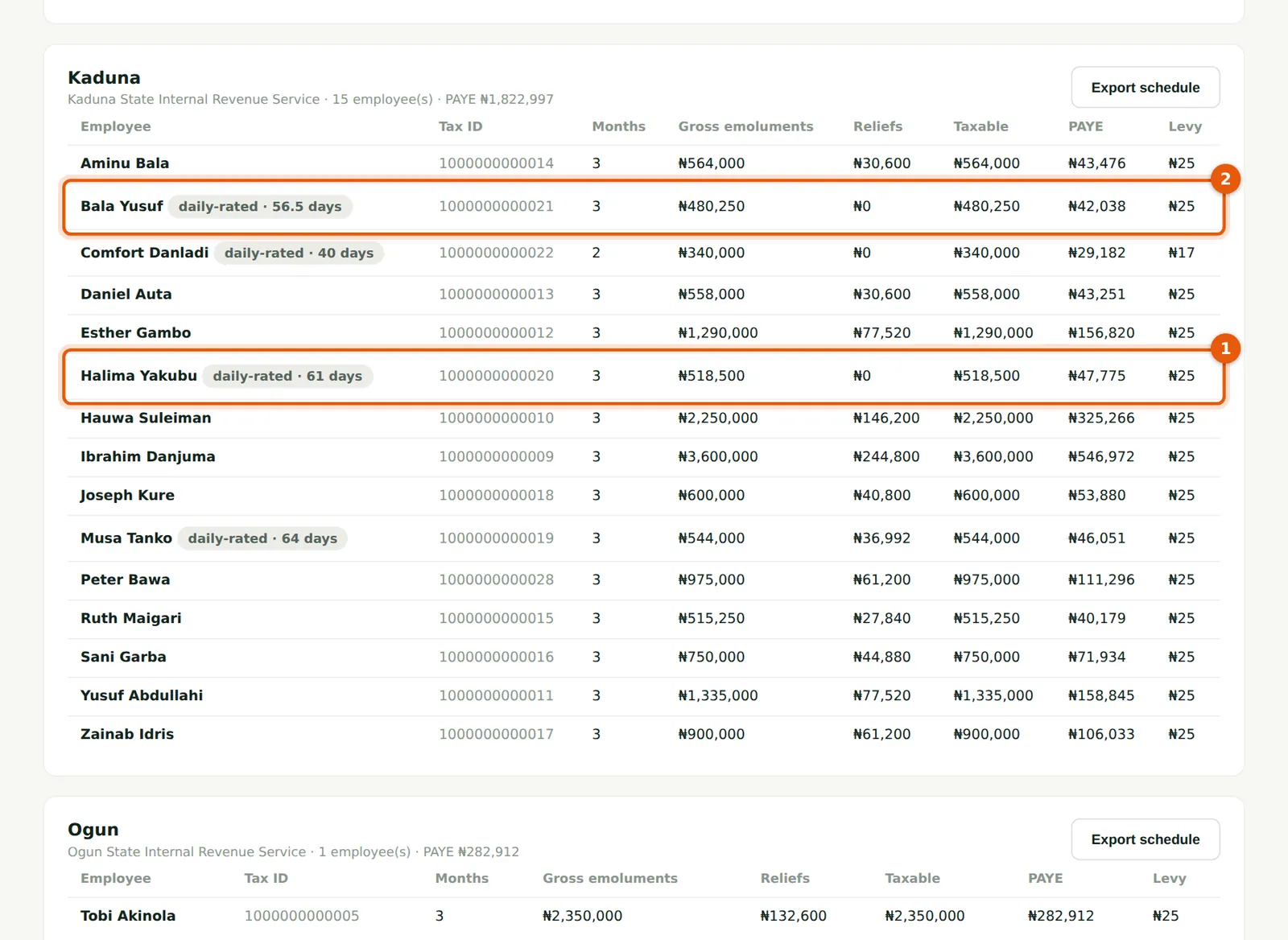
Casual workers appear on their state's schedule like everyone else (1, 2), with the months in which they were paid, their pay, PAYE and levy. The exported schedule has two extra columns: pay basis and days worked.
Who
Admin or finance officer.
What to do
- Check each casual worker's Tax ID before the return is filed: the return is rejected without it.
20.4 The exported employer summary
Why
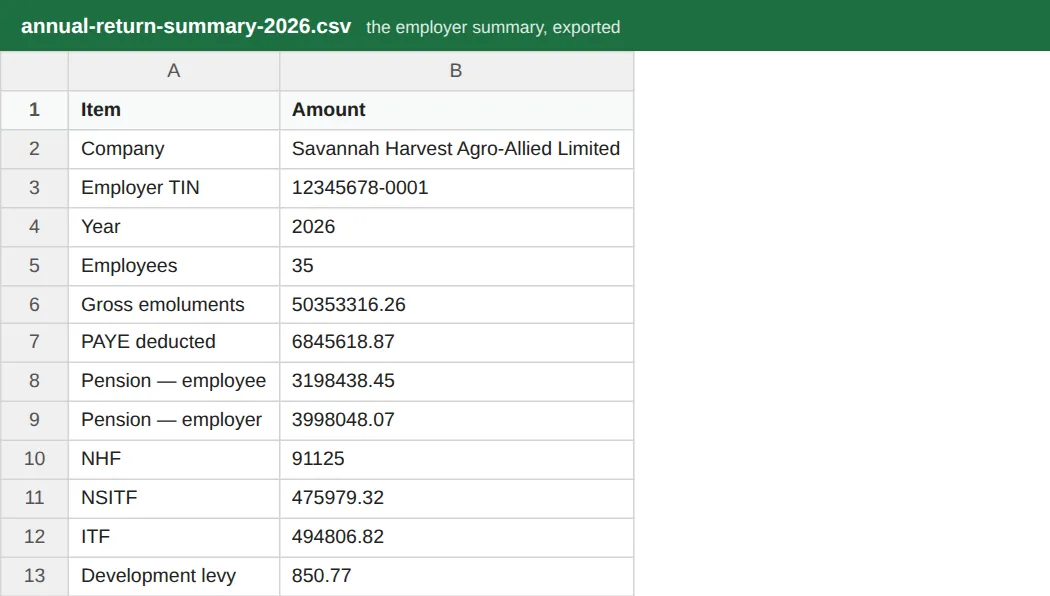
The summary gives the year's totals for the return: employees, gross emoluments, PAYE, employee and employer pension, NHF, NSITF, ITF and development levy.
Who
Admin or finance officer.
What to do
- Choose Export summary on the Annual returns page and keep it with the year-end papers.
20.5 A downloaded state schedule
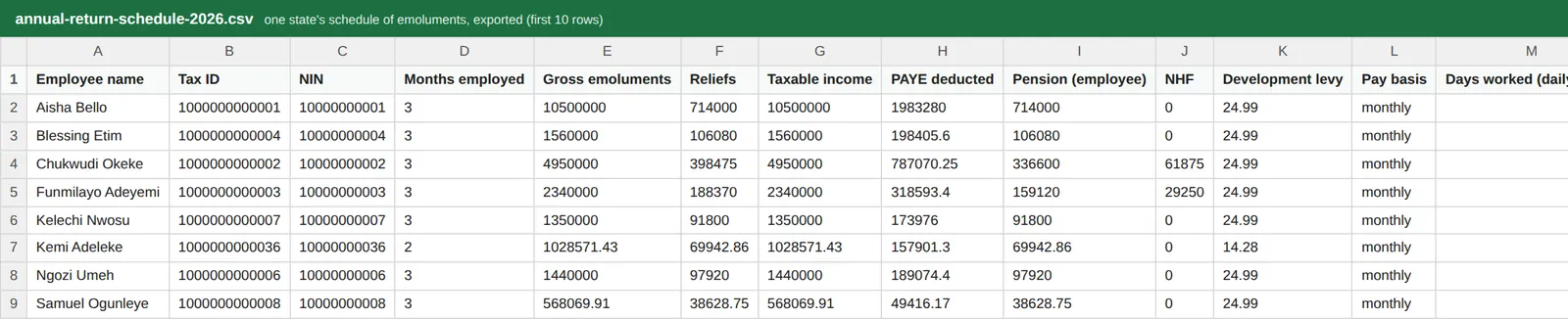
Why
Each state's schedule is downloaded separately, ready to upload or key into that state IRS's annual return (Form H1). Kaduna uses the generic layout, which has every column. These are the only annual returns PayTrove prepares; the ITF contribution and each employee's own individual return are shown as reminders. Pension, NHF and NSITF are remitted monthly from the schedules in chapter 7.
Who
Admin or finance officer.
What to do
- Choose Download on each state and file it with that state's IRS by 31 January of the following year.
20.6 Reliefs on the return
Why
Each relief has its own column, so the return shows how each person's chargeable income was reached. Aisha Bello's row (1) shows pension, no NHF or rent relief, her life assurance premium (₦480,000) and mortgage interest (₦1,800,000 for the year), total reliefs and chargeable income. Other employees show their rent relief and NHF. A relief appears only when it was claimed, which needs evidence (chapter 12).
Who
Admin or finance officer.
What to do
- Check large reliefs against the evidence on the employee's Reliefs page before filing.
20.7 An earlier employer on the return
Why
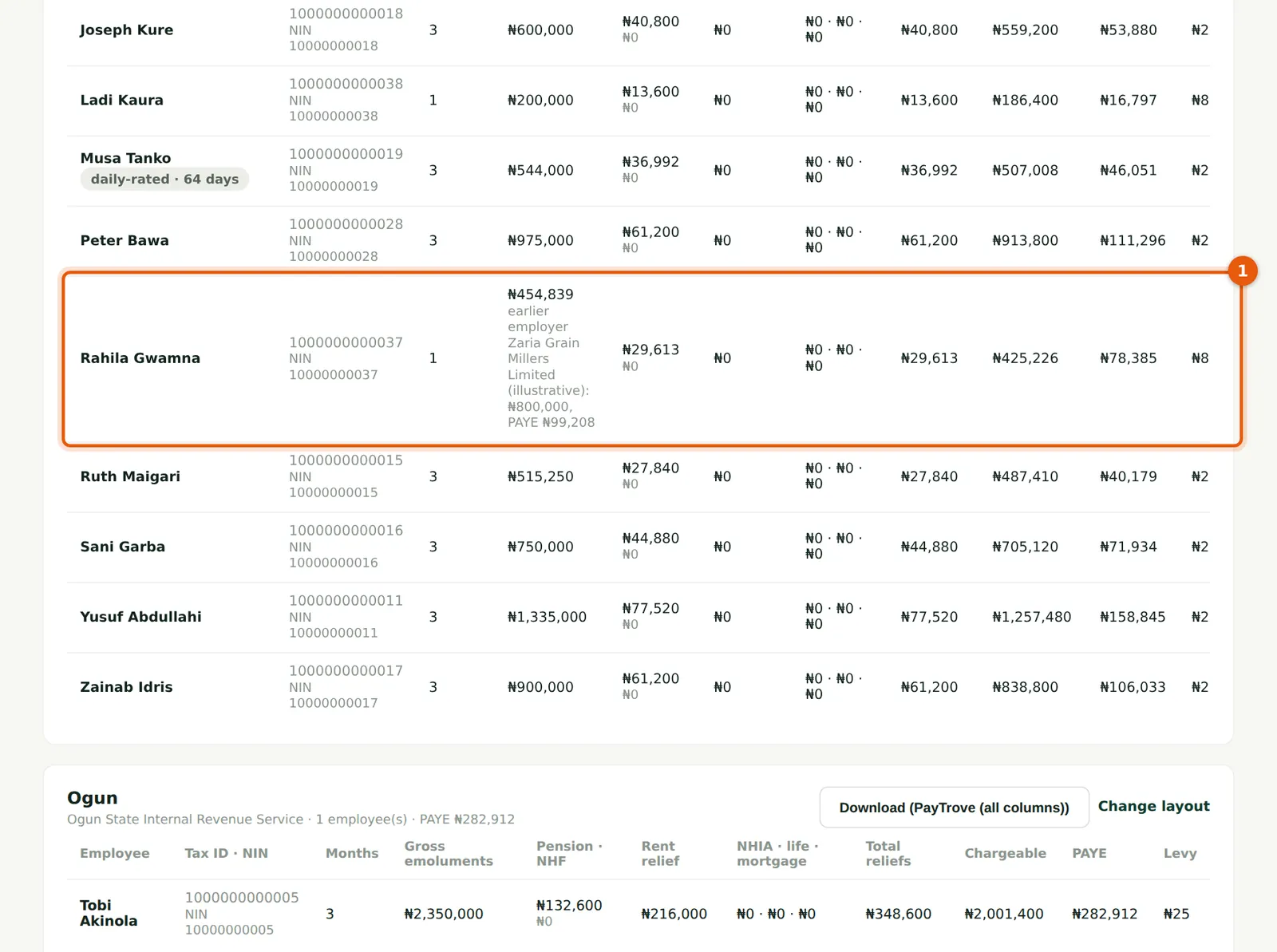
For someone who joined during the year, the schedule shows this employer's figures and, beside them, the earlier employer's pay and PAYE recorded from their leaver statement (1). The state can then see that the year's tax was taken once, by the two employers together.
Who
Admin or finance officer.
What to do
- Keep the earlier employer's leaver statement or tax deduction card with the year-end papers.
20.8 Choose a state's download layout
Why
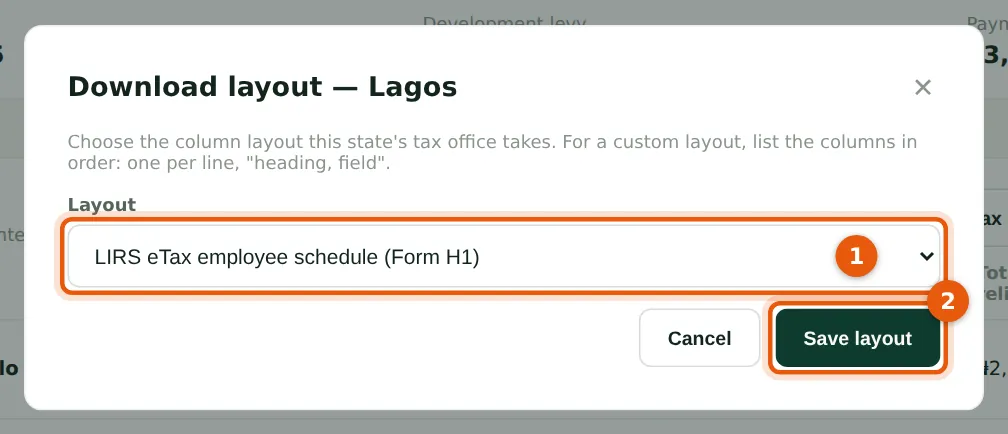
Each state's schedule downloads in a layout: LIRS eTax employee schedule (Form H1) (the default for Lagos), PayTrove (all columns) (the default for the other states), or a custom column map. Only an Admin can change it. The layout is remembered for the state.
Who
Admin.
What to do
- On Annual returns choose Change layout on the state's schedule.
- Choose the layout (1). For Custom, list the columns one per line as 'heading, field'; the fields you can use are listed under the box.
- Choose Save layout (2).
20.9 The Lagos schedule in the LIRS eTax layout

Why
The LIRS layout has, in order: S/N, employee Tax ID, surname, first and other names, designation, date employed and months worked; basic, housing, transport, other allowances and gross emolument; pension, NHF, NHIA, life assurance, mortgage interest, rent relief and total reliefs; chargeable income and tax deducted.
Who
Admin or finance officer.
What to do
- Choose Download on the Lagos schedule.
- Compare the columns with the template in your eTax account; upload the file there.
20.10 Record a payment to a vendor or consultant
Why
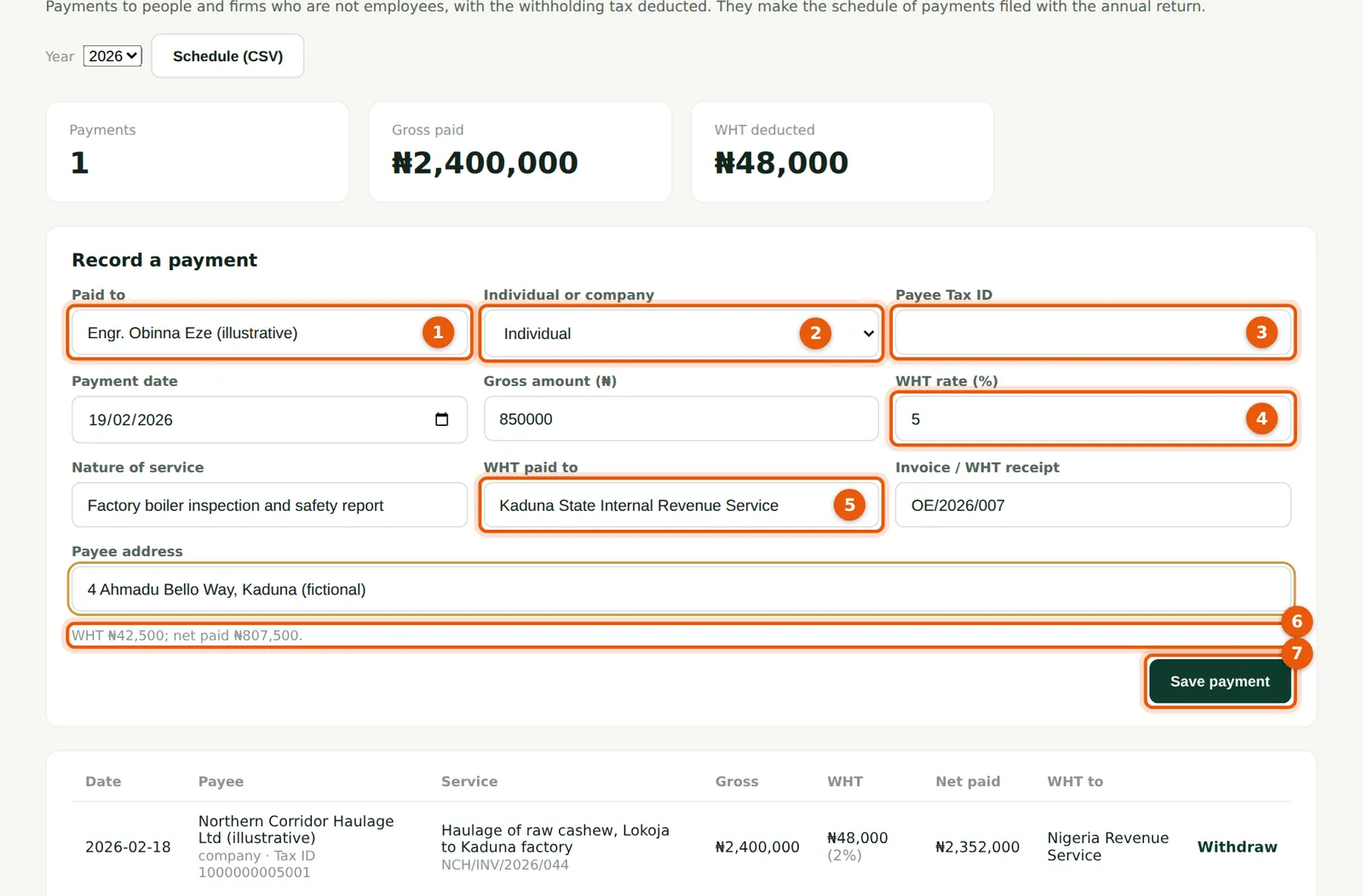
LIRS asks employers to return the payments made to service providers, vendors and consultants as well as salaries. Record each payment on the Vendor payments page when it is made: who was paid, individual or company, their Tax ID and address, the service, the date, the gross amount, the withholding tax rate the company applied and who the WHT was paid to. PayTrove works out the WHT and the net paid (6). On 20 February Chukwudi records a ₦2,400,000 haulage payment to Northern Corridor Haulage Ltd (WHT 2%) and a ₦850,000 inspection fee to Engr. Obinna Eze, an individual consultant who has not given his Tax ID (WHT 5%). The rates are the ones Savannah Harvest applied; confirm the current rate for each kind of payment under the withholding tax regulations.
Who
Preparer or Admin (Viewers can read).
What to do
- Open Vendor payments. Enter who was paid (1) and choose individual or company (2).
- Enter the payee's Tax ID (3) — leave it blank only if you do not have it yet — the payment date, gross amount and WHT rate (4).
- Enter the service, who the WHT was paid to (5) and the invoice or WHT receipt, and check the WHT worked out (6).
- Choose Save payment (7).
20.11 The vendor payments register
Why
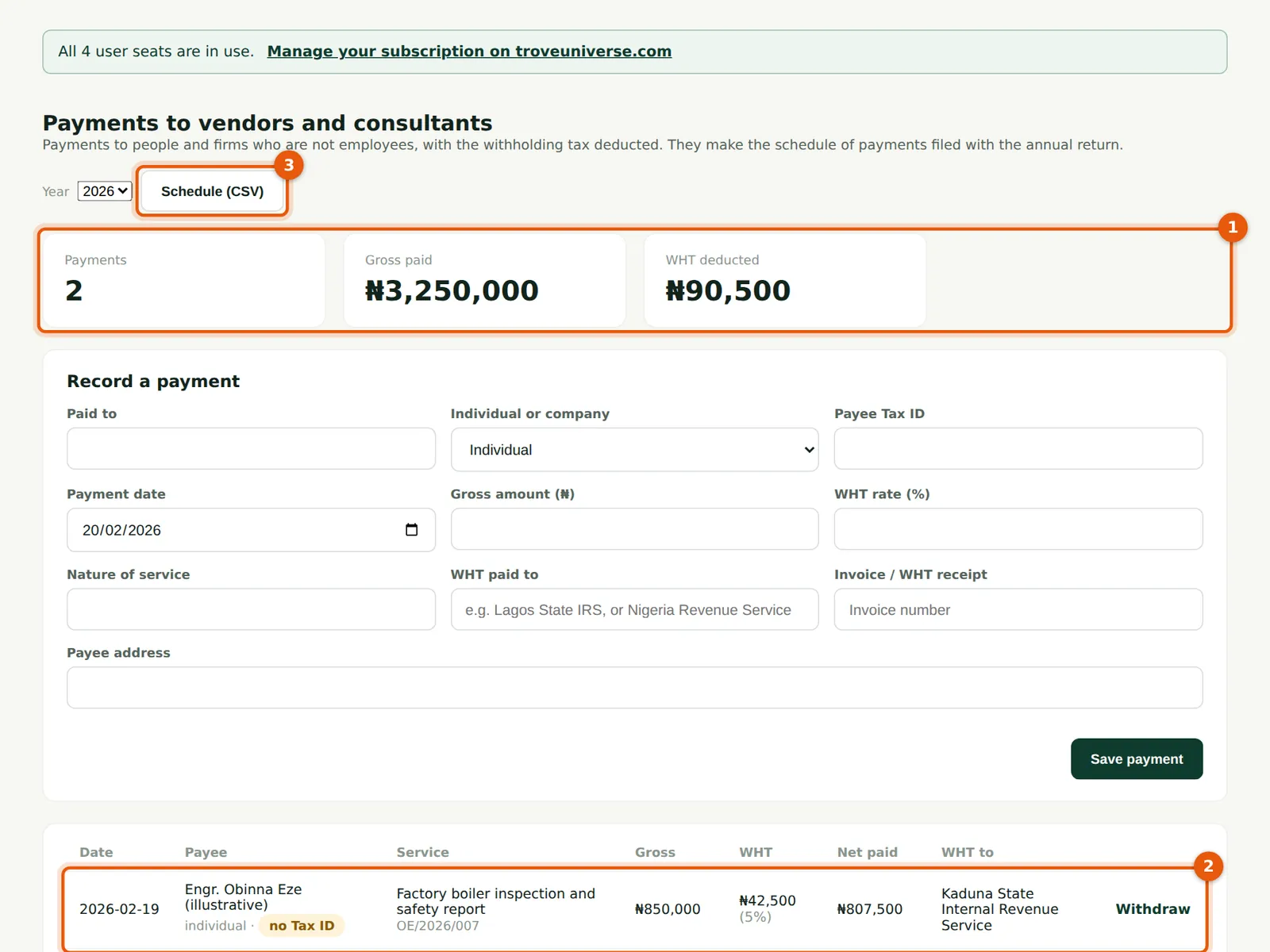
The totals (1) show the payments, gross and WHT deducted for the year. A payee without a Tax ID is marked missing (2), and the annual return warns about it until it is filled in. A payment recorded by mistake is withdrawn with a reason, never deleted.
Who
Preparer, Admin, Viewer.
What to do
- Ask each payee for their Tax ID. To correct a payment, withdraw it with a reason and record it again with the Tax ID.
- Choose Schedule (CSV) (3) to download the register for the year.
20.12 The vendor schedule on the return
Why
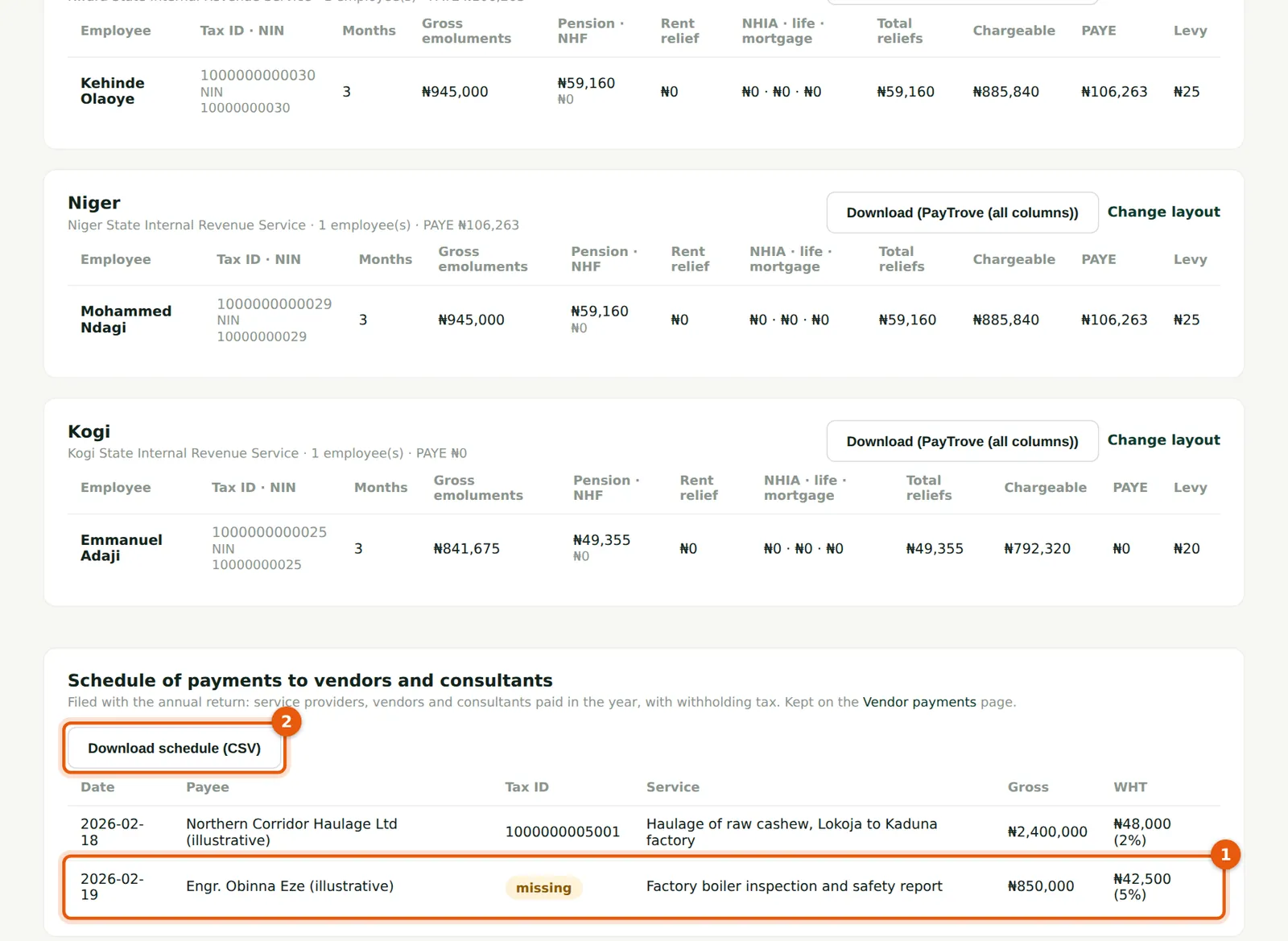
The same payments appear on the Annual returns page as the schedule to file with the return, with the payee's Tax ID (1) and the WHT. Download schedule (CSV) (2) gives the file.
Who
Admin or finance officer.
What to do
- Choose Download schedule (CSV) (2) and file it with the return.
20.13 The vendor schedule file

Why
One row per payment: date, payee, individual or company, Tax ID, address, service, gross amount, WHT rate and amount, net paid, who the WHT was remitted to, and the invoice and WHT receipt references.
Who
Admin or finance officer.
What to do
- Keep it with the Form H1 papers.