Steps in this chapter (7)
The client register: finding a client, adding one, the client's details and contacts, pausing a client, and recording that a client has ceased.
Each client has a code (CL-00001 and so on), a kind (company, business name, incorporated trustees, partnership, individual, public sector or other), a status (prospect, active, inactive or ceased), its registration numbers, its financial year end, a partner and a manager, and whether its work is done in TroveSuite. The partner reviews the client's work by default and the manager is responsible for it by default.
5.1 The client register
Why
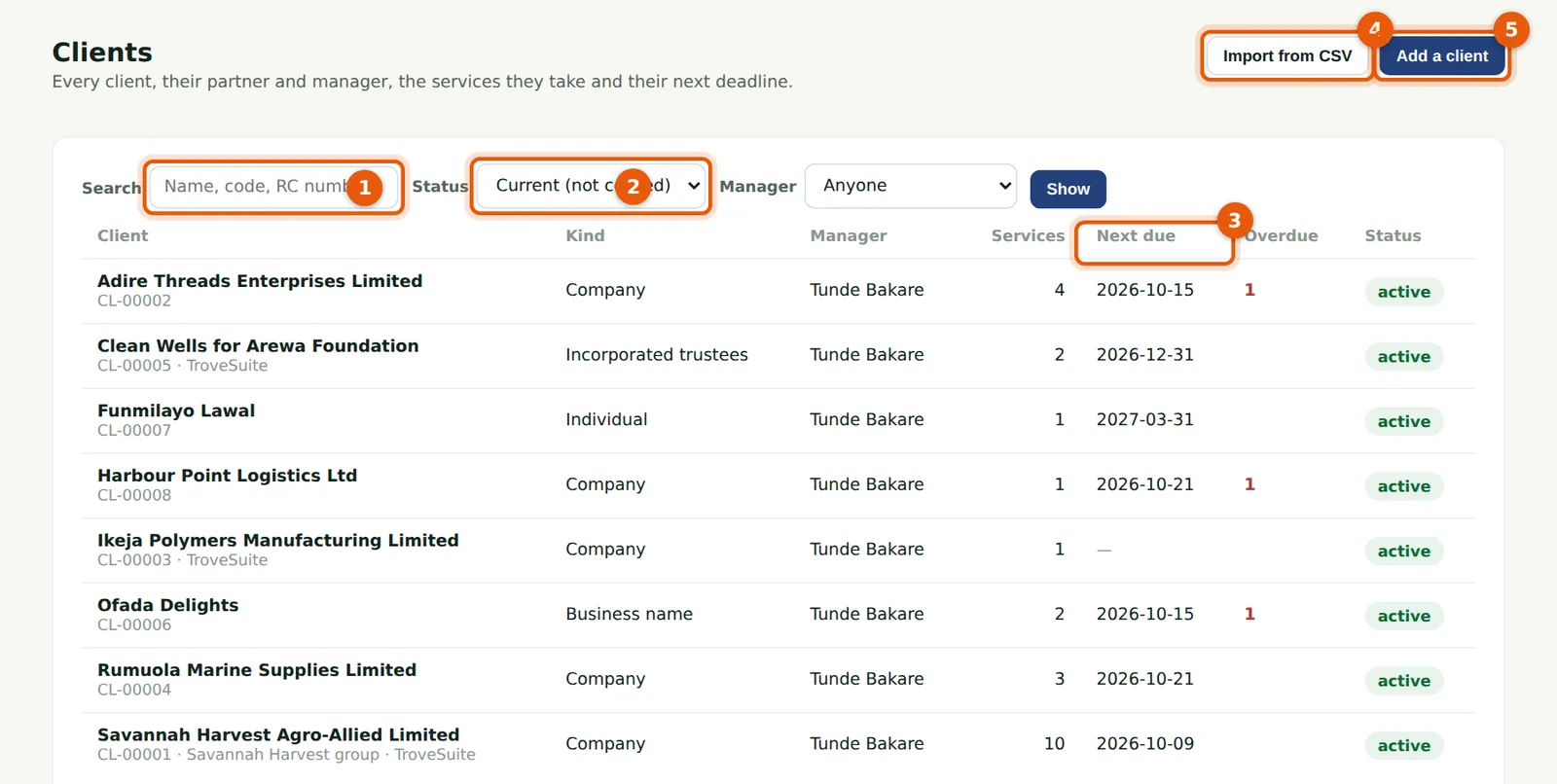
Search by name, code, RC number, TIN or group (1), or show prospects, active, inactive or ceased clients (2). Each row shows the number of services, the next due date (3) and how much is overdue. Import from CSV (4) brings in many clients at once (chapter 7).
Who
Everyone with access to clients.
What to do
- Choose Clients in the menu.
- Search or filter, then choose a client to open it.
- Choose Add a client (5) to add one.
5.2 Add a client
Why
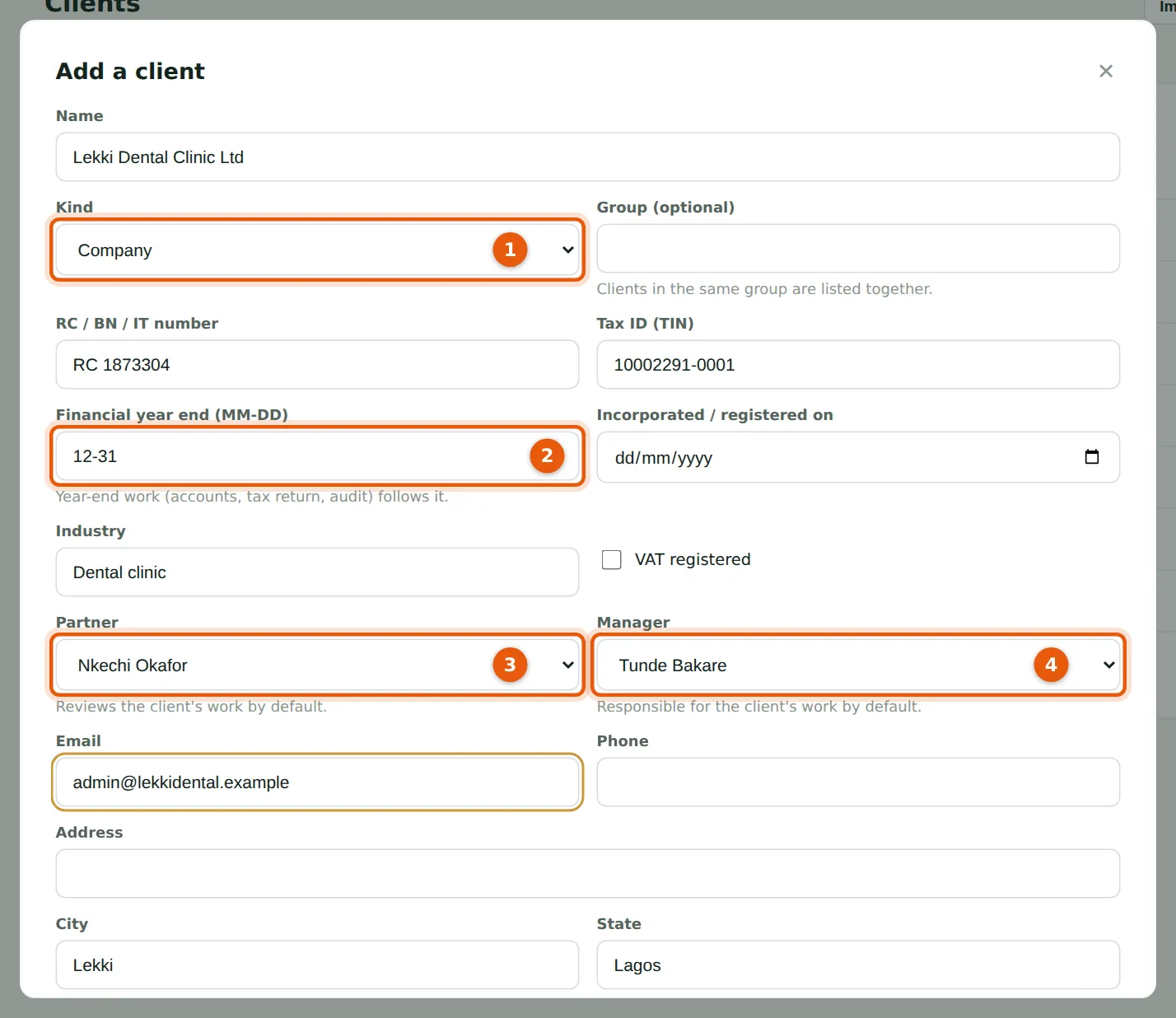
Lekki Dental Clinic Ltd has asked for a proposal. Tunde Bakare adds it as a client so that an engagement can be prepared. The kind (1) and the financial year end (2) matter: year-end work — the annual accounts, the tax return and the audit — follows the year end. The partner (3) and manager (4) become the default reviewer and person responsible for the client's services.
Who
Manager, partner, practice administrator or owner.
What to do
- Choose Add a client.
- Enter the name, kind (1), registration numbers, financial year end (2), industry and VAT registration.
- Choose the partner (3) and manager (4), and add the address and contact details.
5.3 Clients whose work is done in TroveSuite
Why
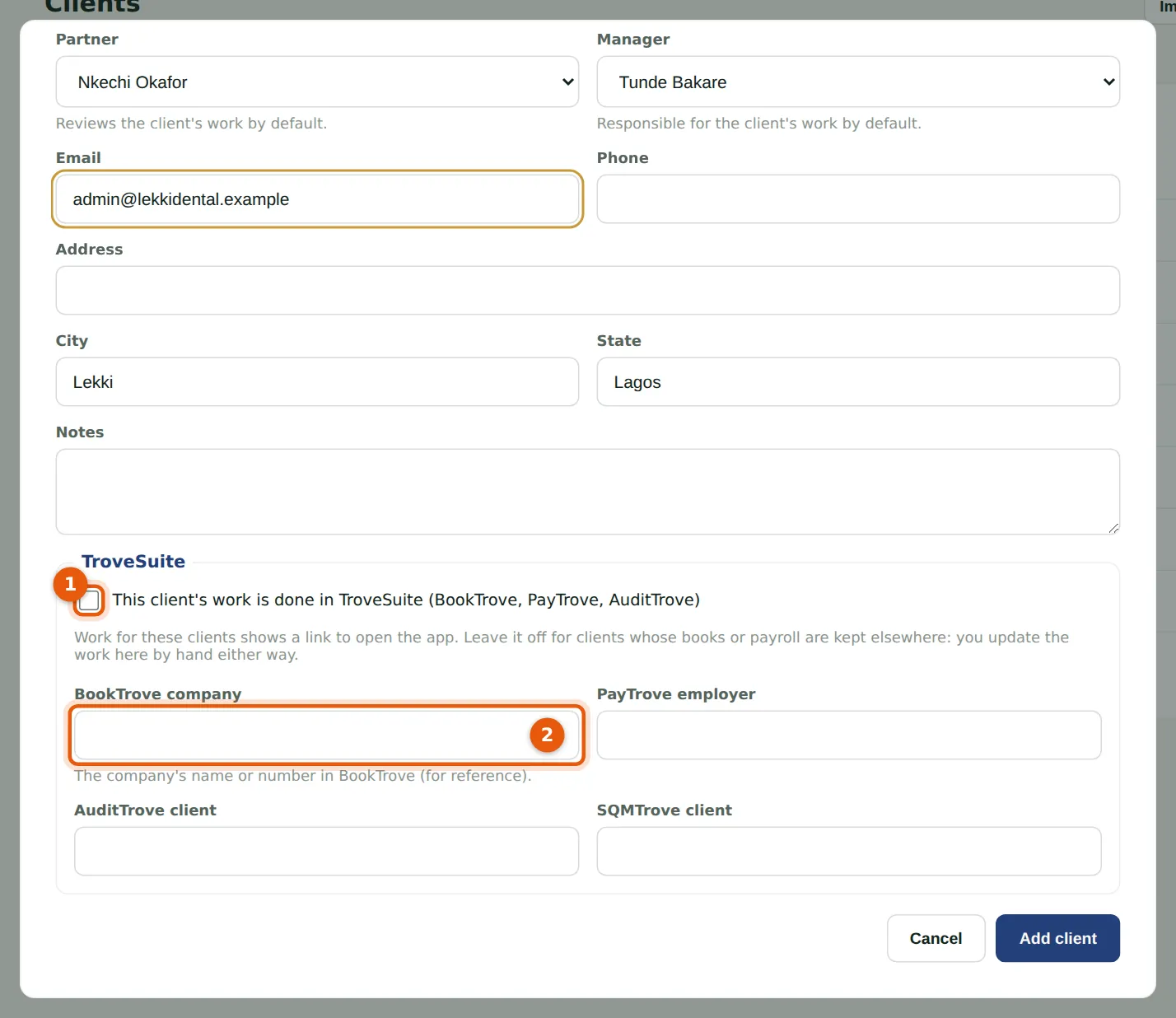
Tick the TroveSuite box (1) when the client's books, payroll or audit are kept in BookTrove, PayTrove or AuditTrove: its work then shows a button to open the app. Note the client's company or employer there (2) for reference. Leave the box off for a client whose records are kept elsewhere: you update its work by hand either way.
Who
Manager, partner, practice administrator or owner.
What to do
- Tick the box if the client's work is done in TroveSuite, and note its names there.
- Choose Add client. The client opens on its Services tab, ready for its services (chapter 6).
5.4 A client's details
Why
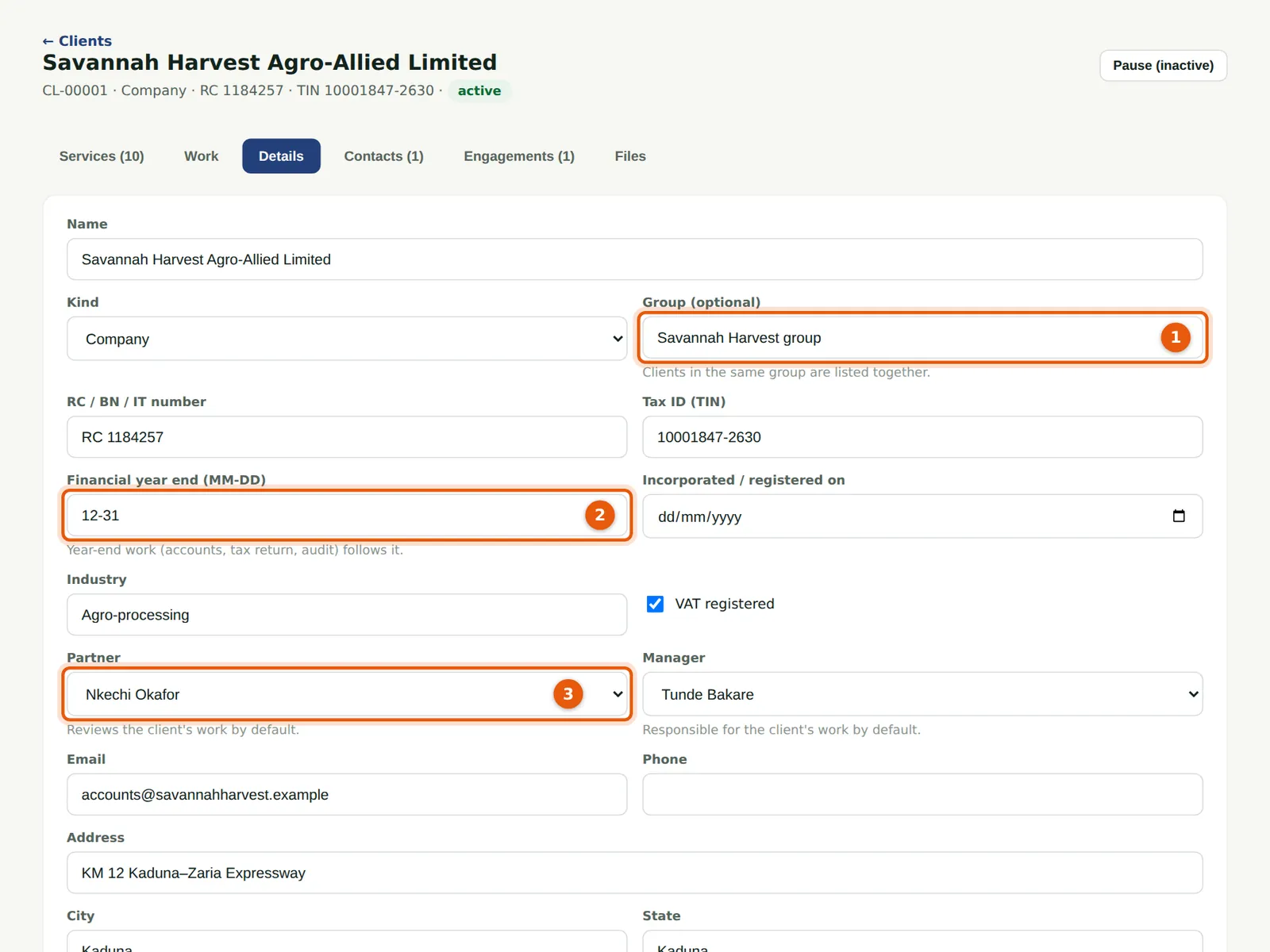
Savannah Harvest is in the Savannah Harvest group (1), so it is listed with the group's other companies. Its year end (2) is 31 December and Nkechi Okafor is its partner (3). If the year end changes, PracticeTrove cancels the year-end work not yet started for the old year and plans the new years, and tells you what it did.
Who
Everyone with access to clients; managers and above change them.
What to do
- Open the client and choose Details.
- Change what is needed and choose Save.
5.5 Contacts
Why
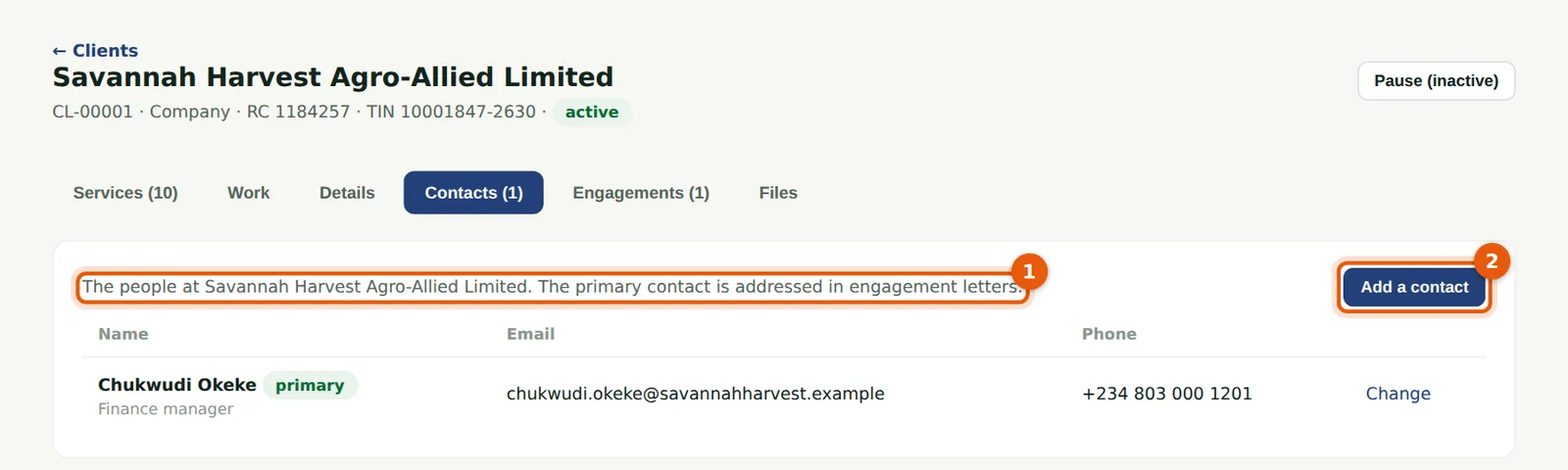
The primary contact (1) is the person engagement letters are addressed to. Add the client's finance manager, directors and anyone else the firm deals with (2).
Who
Everyone with access to clients; managers and above change them.
What to do
- Open the client and choose Contacts.
- Choose Add a contact, fill in the details and tick Primary contact for the person letters go to.
5.6 A client that has ceased
Why
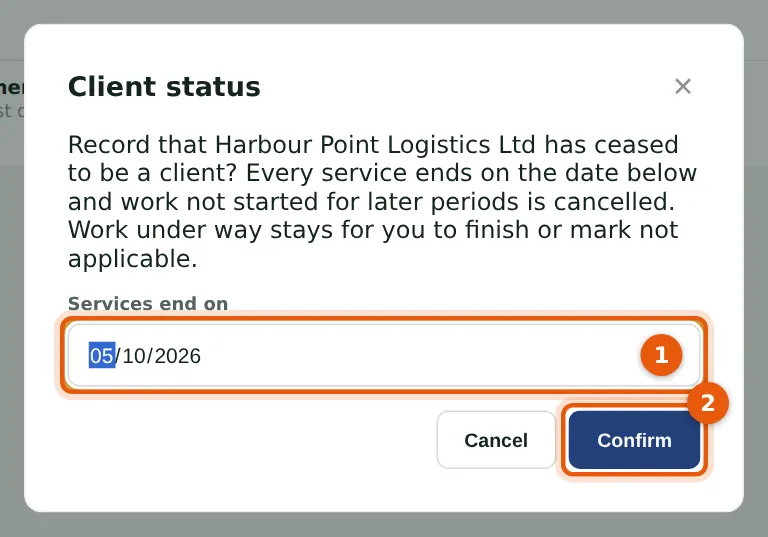
Harbour Point Logistics Ltd has moved its work to another firm. Recording that it has ceased ends every service on the date chosen (1): work not started for later periods is cancelled, and work already under way stays for you to finish or mark not applicable. Pause (inactive) is for a client that stops for a while: no new work is planned until it is active again.
Who
Partner, practice administrator or owner.
What to do
- Open the client and choose Client has ceased.
- Choose the date the services end (1) and choose Confirm (2).
- Enter a code from your authenticator app when asked (next step).
5.7 Confirm with your authenticator app
Why
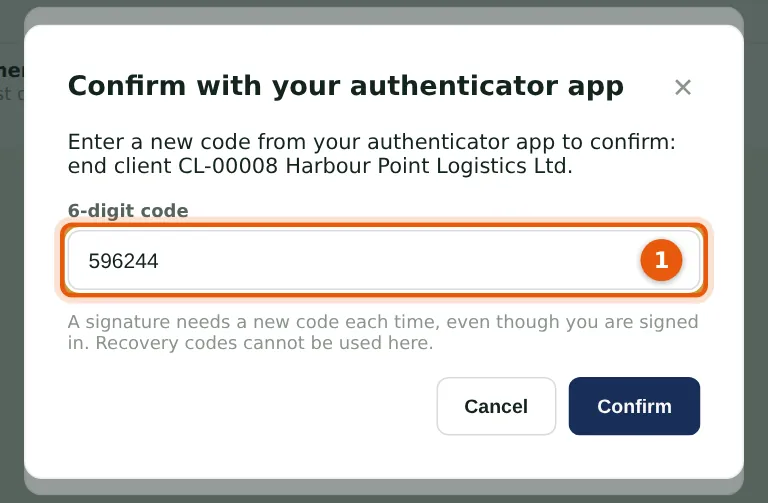
Decisions that bind the firm — ending a client, accepting an engagement, approving a letter — need a fresh code (1), even though you are signed in. A recovery code cannot be used here. The audit trail records the confirmation.
Who
Partner, practice administrator or owner.
What to do
- Open your authenticator app and enter the current 6-digit code.
- Choose Confirm.