Steps in this chapter (4)
Connecting your own Gmail or Outlook, text and WhatsApp messages to contacts who agreed, the client's timeline, and the firm's AI assistant.
Email, text messages and the AI assistant use the firm's own accounts and keys, set up in Integrations (chapter 28). Nothing is sent to an outside service the firm has not connected.
27.1 Connect your mailbox
Why
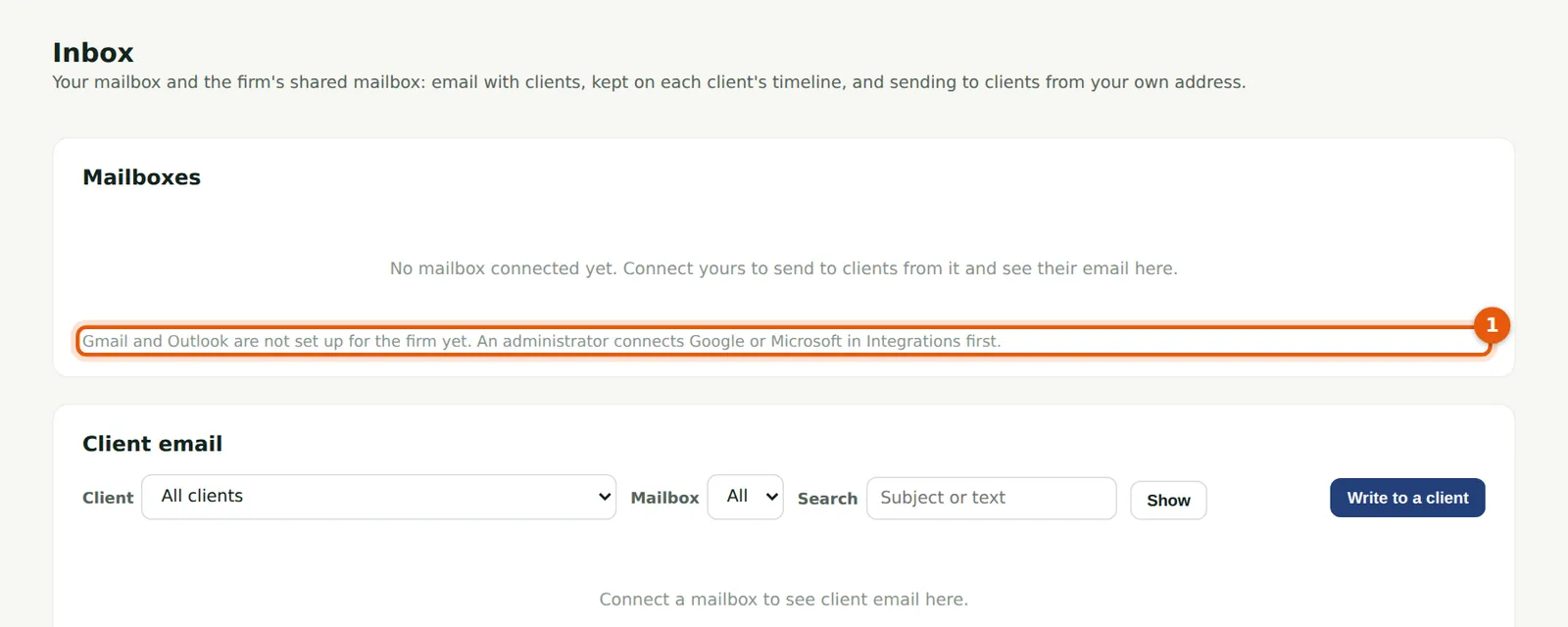
Each person connects their own Gmail or Outlook with their own sign-in. Only email to or from a client's known addresses is kept, on the client's timeline. You send to clients from your own address and can copy accepted documents to Google Drive or OneDrive. Until an owner connects Google or Microsoft for the firm, the Inbox says so (1).
Who
Anyone with access to clients.
What to do
- Choose Inbox, then Connect Gmail or Connect Outlook, and sign in with your work account.
- Choose Write to a client to send from your mailbox.
27.2 Text messages and WhatsApp
Why
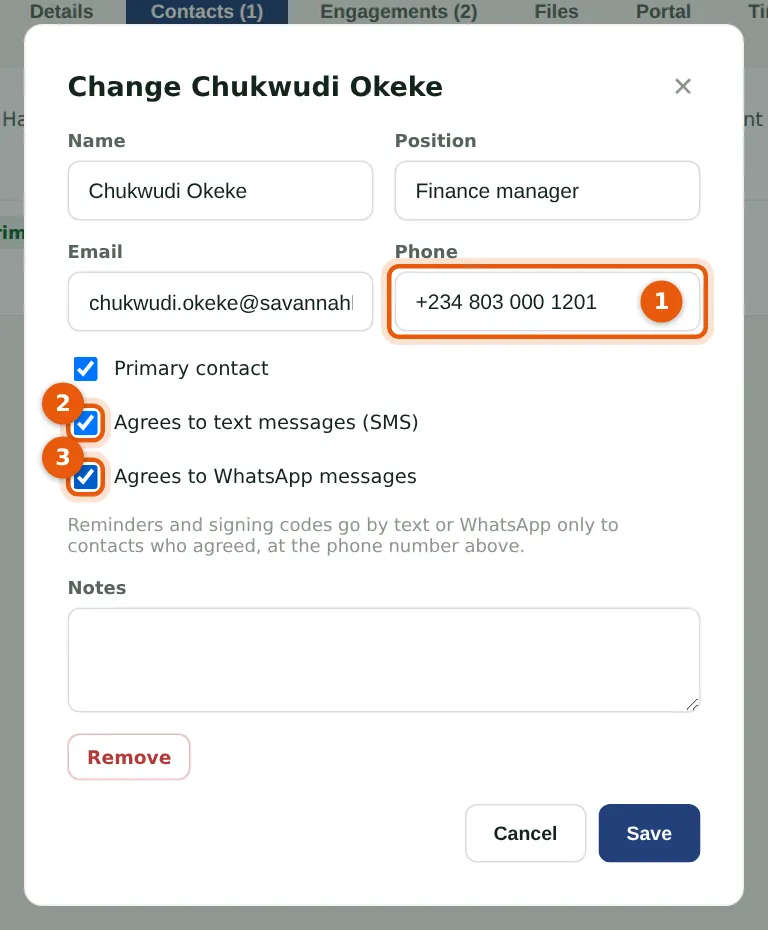
Reminders and signing codes go by text or WhatsApp only to contacts who agreed: the phone number (1), Agrees to text messages (2) and Agrees to WhatsApp (3). They are sent through the firm's Termii account, up to 300 a day, and logged with the number masked.
Who
Manager, partner, practice administrator or owner.
What to do
- Open the client, choose Contacts and the contact.
- Tick what they agreed to and choose Save.
27.3 The client's timeline
Why
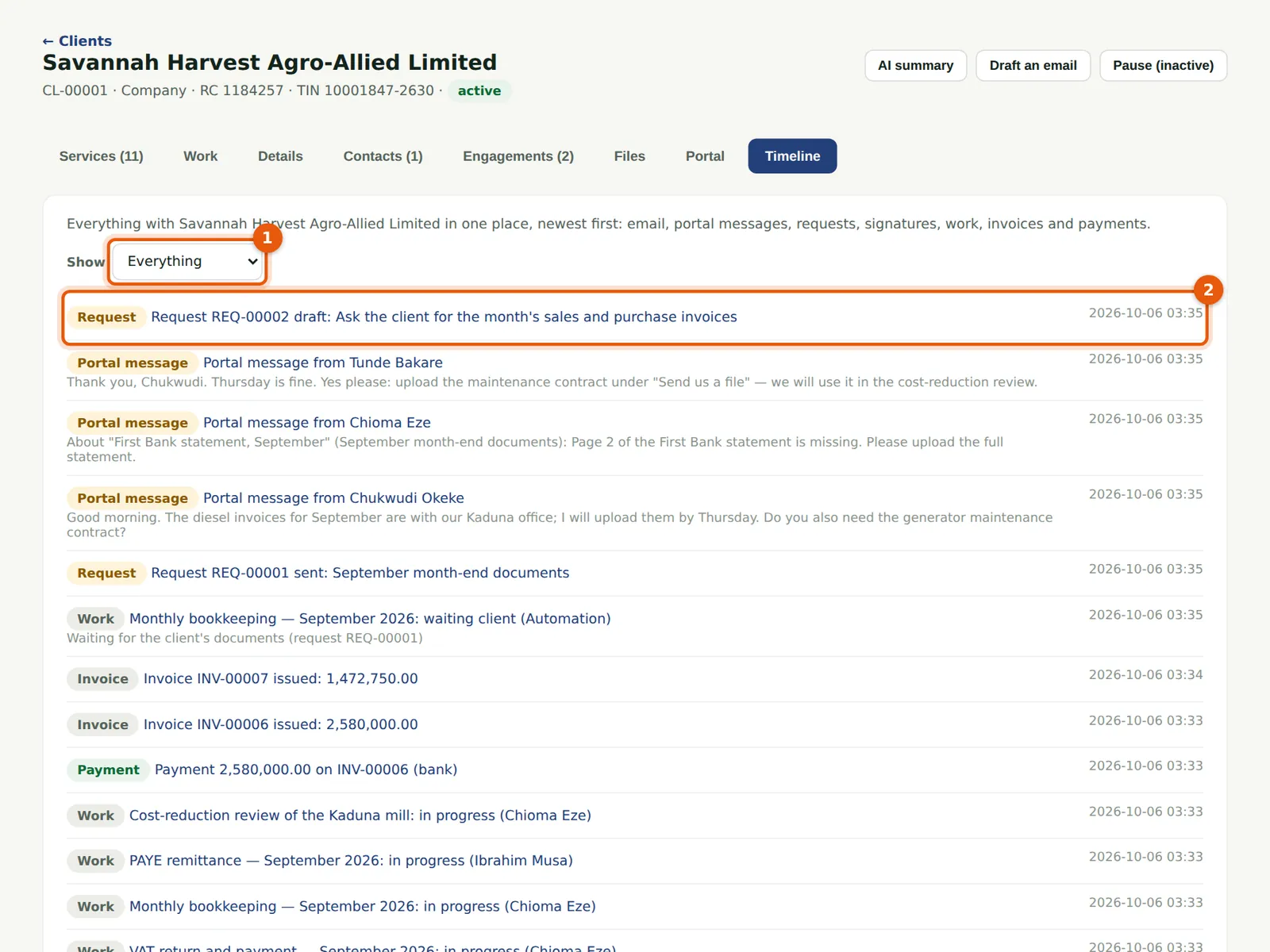
Everything with the client, newest first: email, portal messages, requests, signatures, work, invoices and payments. Show (1) filters by kind; each item (2) opens its record. AI summary and Draft an email, at the top of the client, use the AI assistant.
Who
Anyone with access to the client.
What to do
- Open the client and choose Timeline.
27.4 The AI assistant
Why
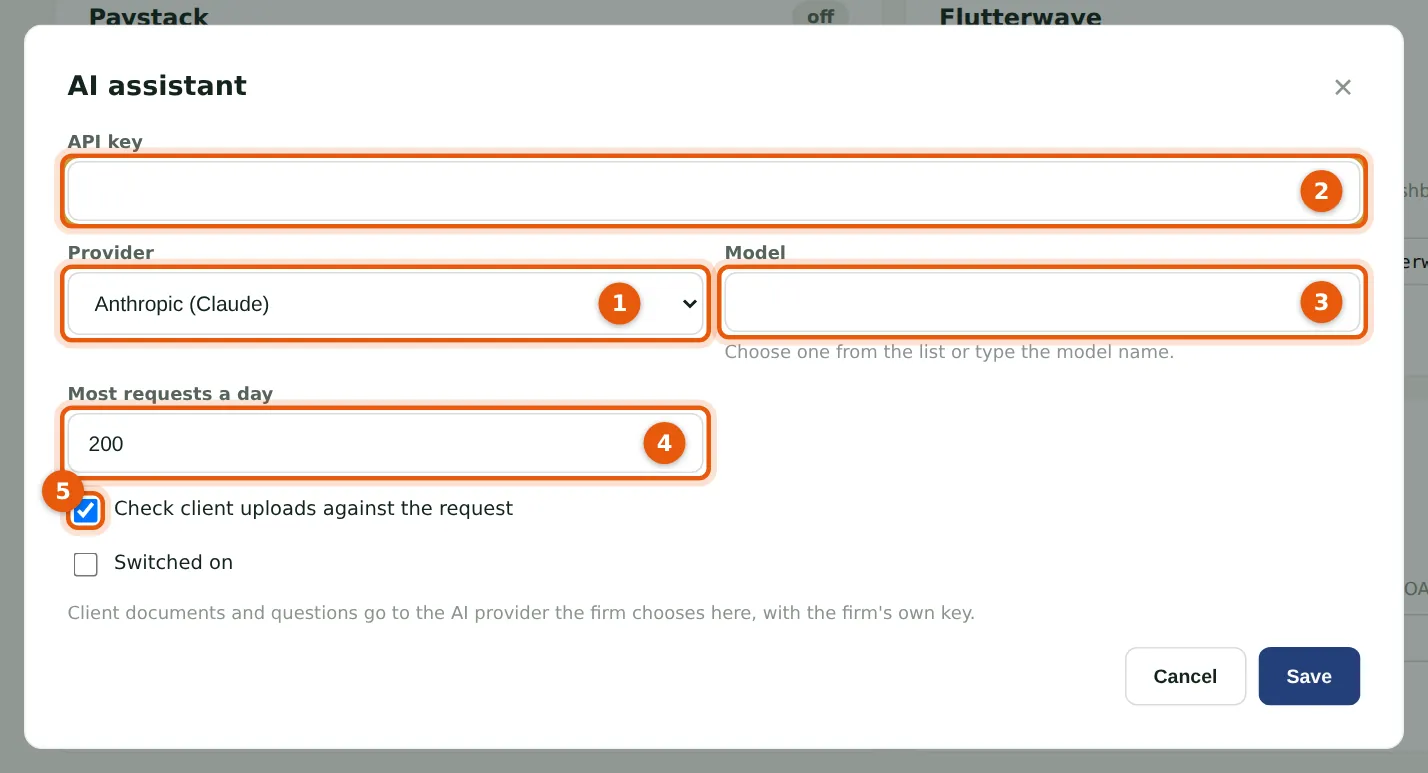
The assistant uses the firm's own Anthropic or OpenAI account: the provider (1), the key (2), the model (3), the most requests a day (4) and whether client uploads are checked against what was asked for (5). It summarises a client, drafts an email for you to edit, suggests file names and checks uploads. Check what it writes before relying on it.
Who
Owner or practice administrator.
What to do
- Choose Integrations, then Edit on AI assistant.
- Fill in the provider, key and model, tick Switched on and choose Save.