Steps in this chapter (5)
Engagements: what the firm has agreed to do for each client, the acceptance decision recorded from SQMTrove or the firm's own procedure, and accepting the engagement.
An engagement is what the firm has agreed to do for a client: its number (EN-00001 and so on), title, service lines, period, partner and manager, fee and scope. Its status moves from draft to proposed, accepted and active, and finally completed or ended (or declined).
The acceptance and continuance decision — integrity, competence, independence, fees — is made in SQMTrove or under the firm's own procedure; PracticeTrove records its outcome and reference. An engagement can be accepted only once the decision is cleared or not required, by a partner with a fresh authenticator code.
11.1 The engagements
Why
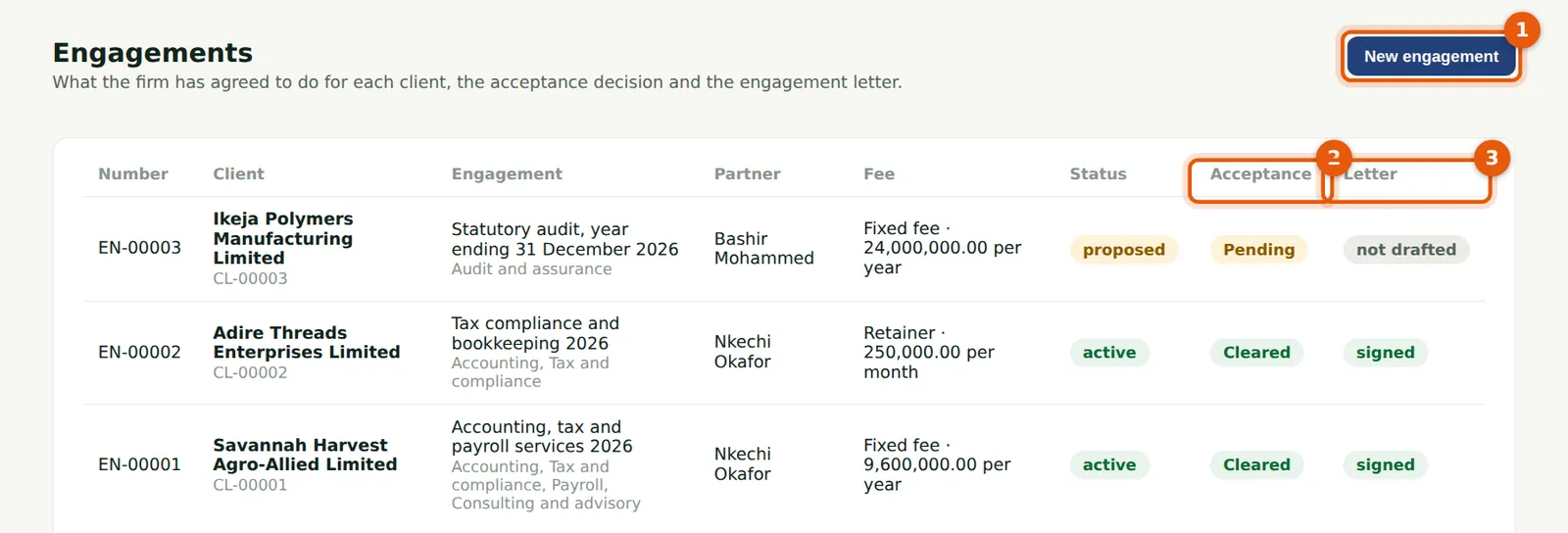
Each engagement shows its client, title and service lines, partner, fee, status, the acceptance decision (2) and the letter (3).
Who
Everyone with access to engagements.
What to do
- Choose Engagements in the menu.
- Choose New engagement (1), or an engagement to open it.
11.2 A new engagement
Why
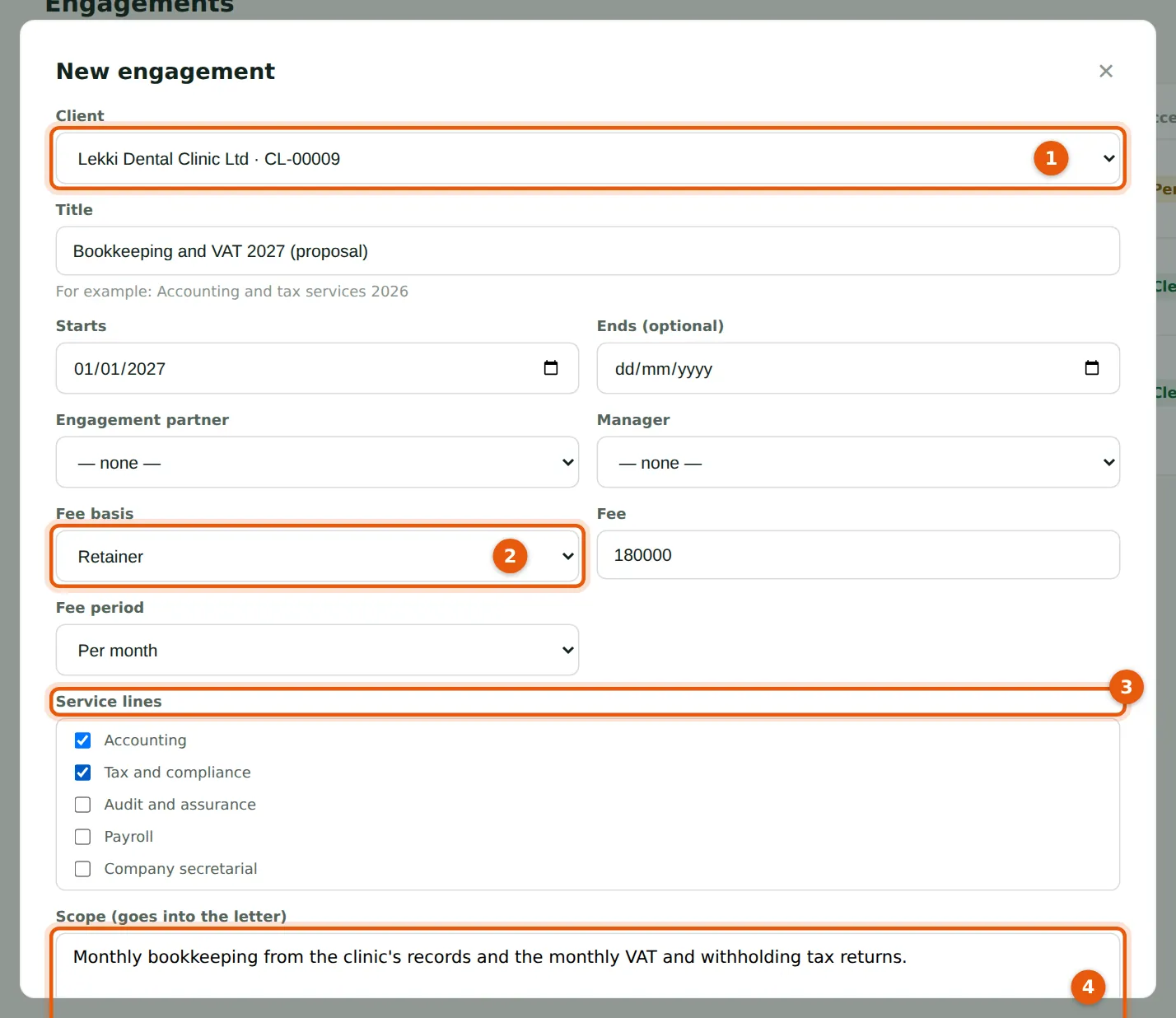
Nkechi Okafor prepares the proposal for Lekki Dental Clinic. Choose the client (1), the title and start date, the fee basis (2) — fixed, time spent, retainer, contingent or no fee — the amount and period, the service lines (3) and the scope (4), which goes into the letter. The partner and manager default to the client's.
Who
Manager, partner, practice administrator or owner.
What to do
- Choose New engagement.
- Fill in the client, title, dates, fee and service lines.
- Write the scope (4) and choose Create. The engagement starts as a draft.
11.3 An engagement
Why
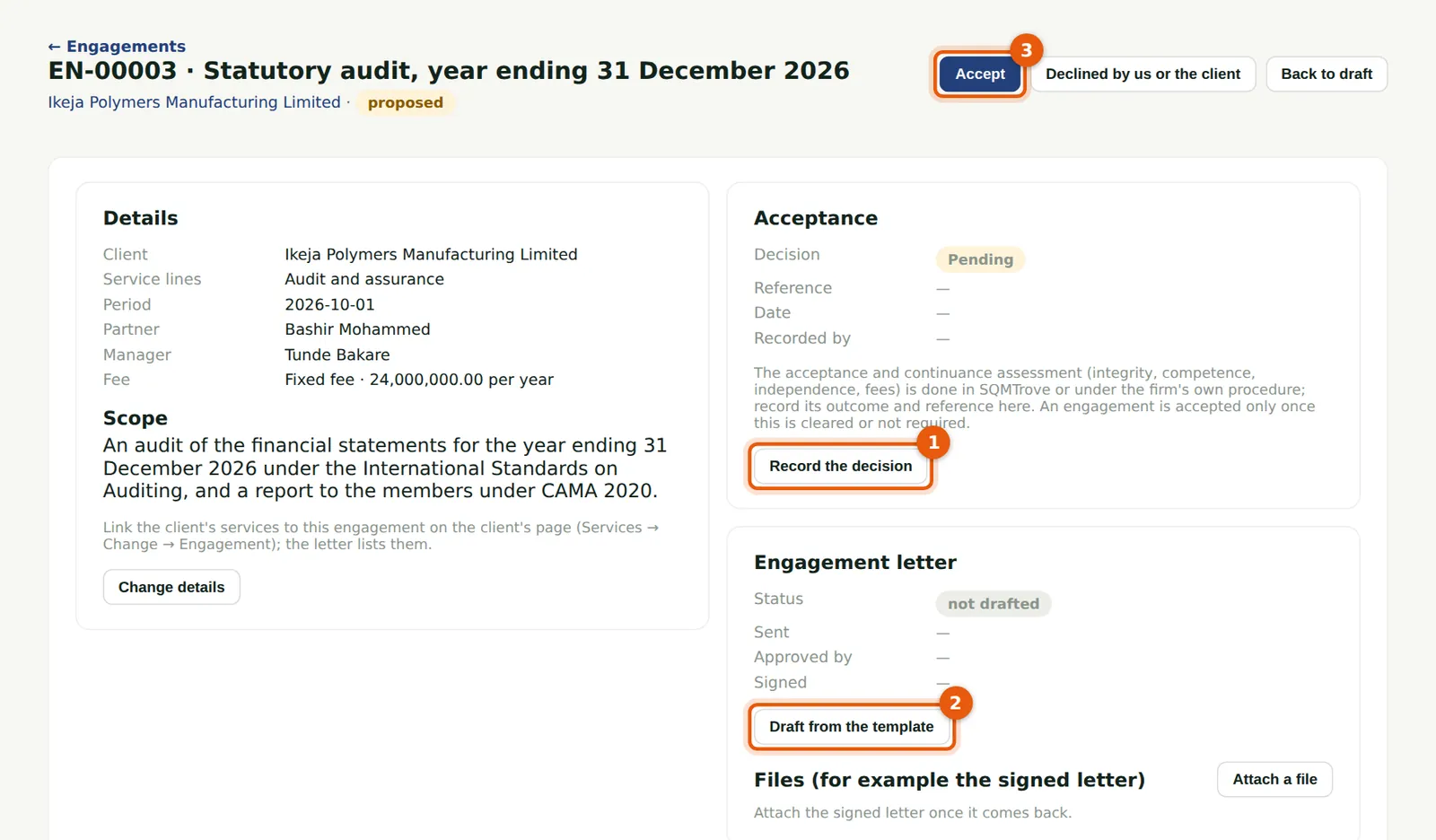
Okafor Bello & Co has proposed to audit Ikeja Polymers Manufacturing Limited for the year ending 31 December 2026. The acceptance review was done in SQMTrove. Bashir Mohammed, the engagement partner, records its outcome (1). The letter is drafted from the template (2). The engagement is accepted (3) once the decision is cleared.
Who
Everyone with access to engagements.
What to do
- Open the engagement.
- Choose Record the decision (1), and then Accept (3).
11.4 Record the acceptance decision
Why
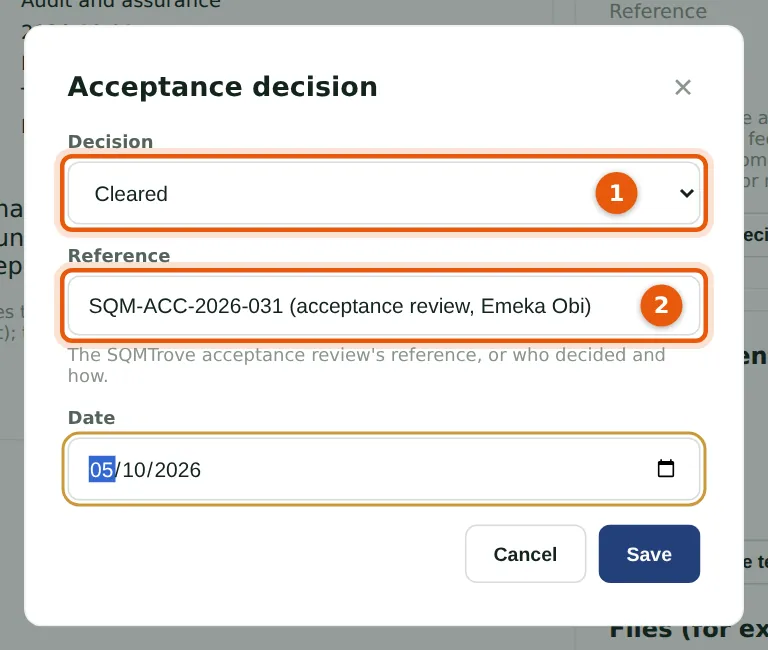
The decision (1) is cleared, not required, pending or declined. The reference (2) points to the SQMTrove acceptance review — here SQM-ACC-2026-031 — or says who decided and how.
Who
Partner, practice administrator or owner.
What to do
- Choose the decision (1), enter the reference (2) and the date, and choose Save.
11.5 Accept the engagement
Why
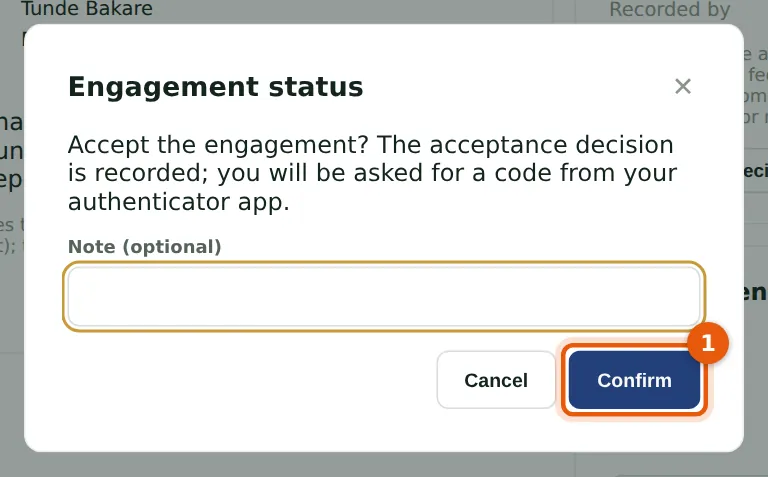
Accepting binds the firm, so PracticeTrove asks for a fresh code from the partner's authenticator app after Confirm (1). Then Start (active) when the work begins.
Who
Partner, practice administrator or owner.
What to do
- Choose Accept, add a note if you wish, and choose Confirm (1).
- Enter the code from your authenticator app.