Steps in this chapter (5)
Send work for review, review and complete it, record the filing date and acknowledgement, and read a piece of work's history.
Work that needs review — most statutory work does — is prepared by the person responsible and completed by someone else: the reviewer, or a manager who did not prepare it. The person who prepared it cannot complete it. The service decides whether its work needs review (step 4.2); the firm's review rule must be on (step 2.2).
10.1 Send for review
Why
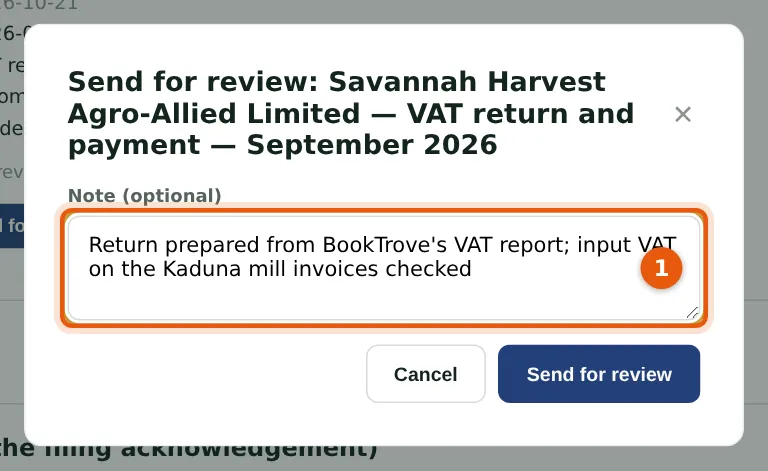
Chioma Eze has prepared Savannah Harvest's September VAT return from BookTrove's VAT report. She sends it for review with a note (1) of what she checked.
Who
Staff (the person responsible).
What to do
- Open the piece of work and choose Send for review.
- Add a note (1) and choose Send for review (2). The reviewer is told.
10.2 What is waiting for review
Why
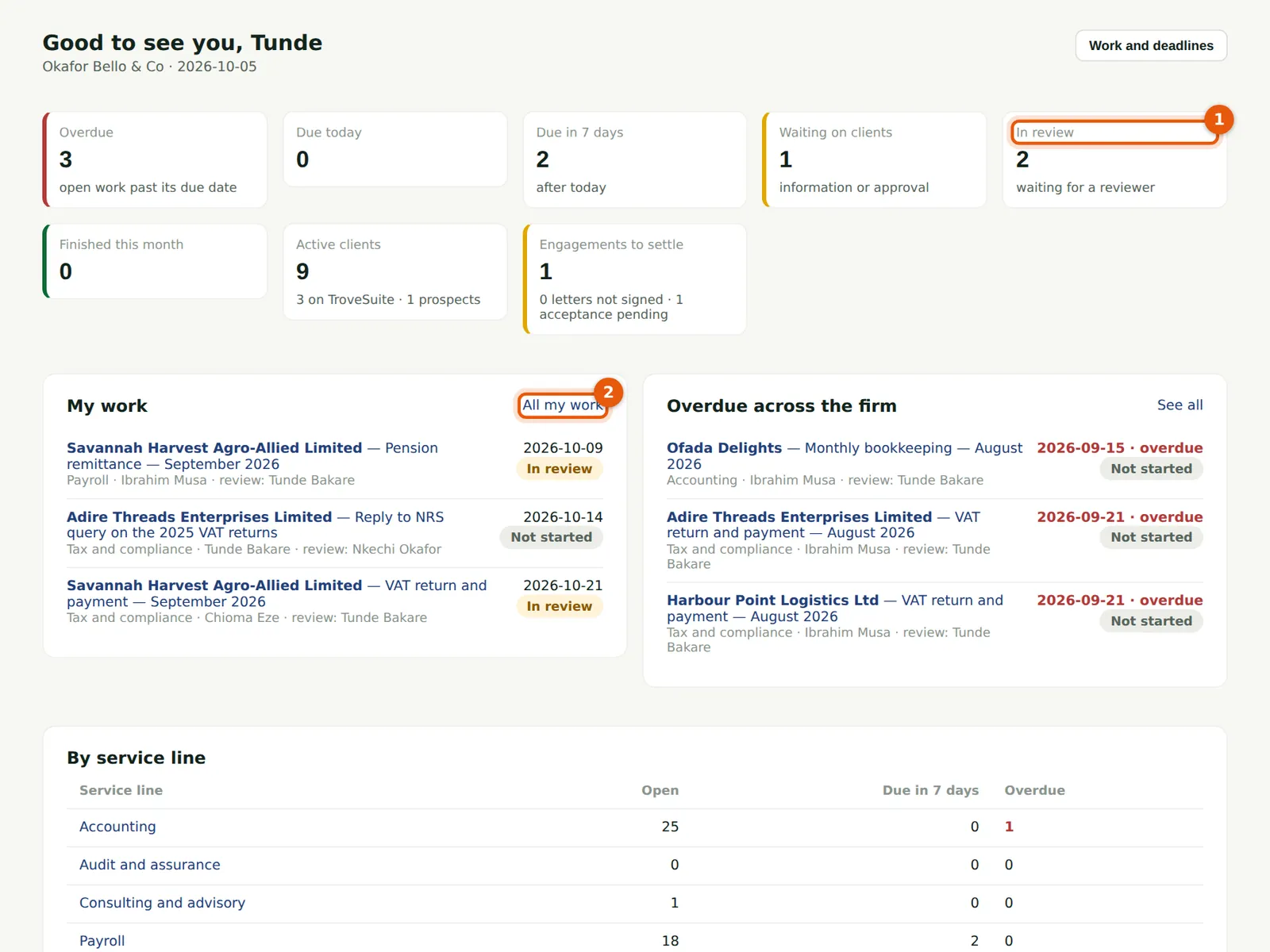
Tunde Bakare's dashboard counts the work in review (1). My work (2) lists the pieces waiting for him, and his next reminder includes them.
Who
Reviewer (usually a manager or partner).
What to do
- Choose In review, or open the piece of work from My work.
10.3 Review and complete
Why
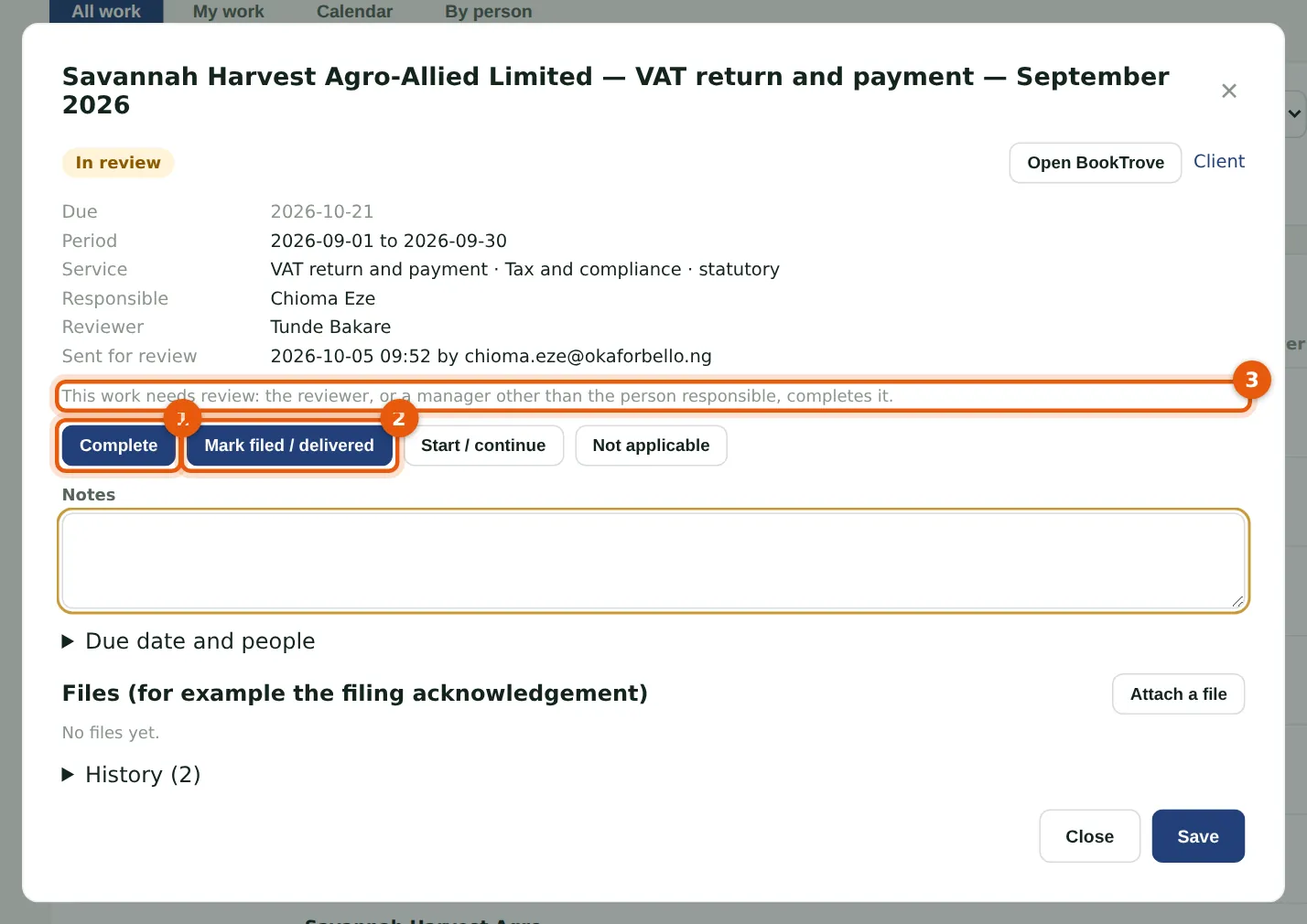
The reviewer completes the work (1), or marks it filed or delivered (2) when it has gone to the client or the authority. The note (3) is a reminder of the rule. Start / continue sends it back to the person responsible with a note of what to change.
Who
Reviewer, or a manager who did not prepare it.
What to do
- Open the piece of work and read the notes and files.
- Choose Complete (1) or Mark filed / delivered (2), or send it back.
10.4 Record the filing
Why
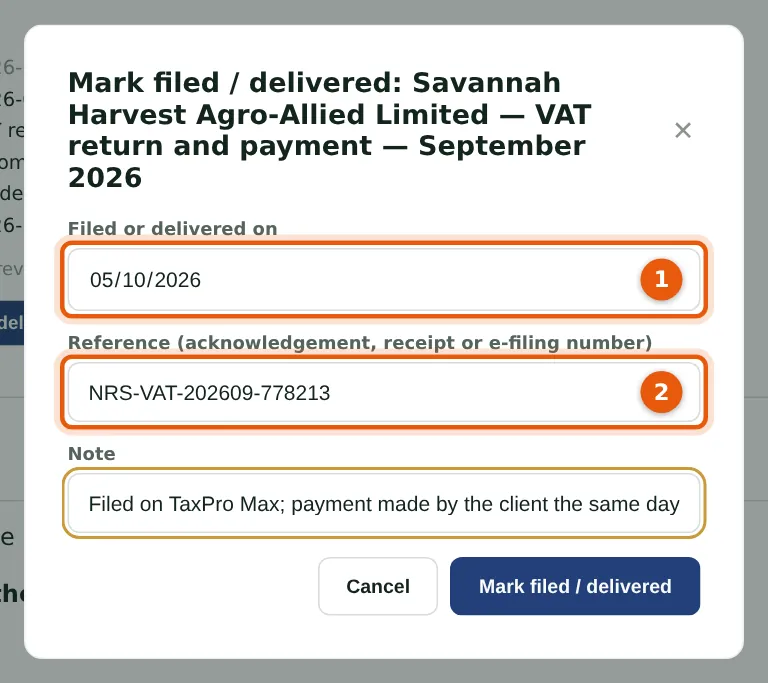
The return was filed on TaxPro Max today. Record the filing date (1) and the acknowledgement or e-filing number (2). Work is on time when it is filed — or, with no filing date, completed — on or before its due date. Once work is finished, its filing details can be changed only by a manager or above.
Who
Reviewer, or a manager.
What to do
- Enter the date filed or delivered (1) and the reference (2).
- Add a note, and choose Mark filed / delivered.
- Attach the acknowledgement under Files.
10.5 The history of a piece of work
Why
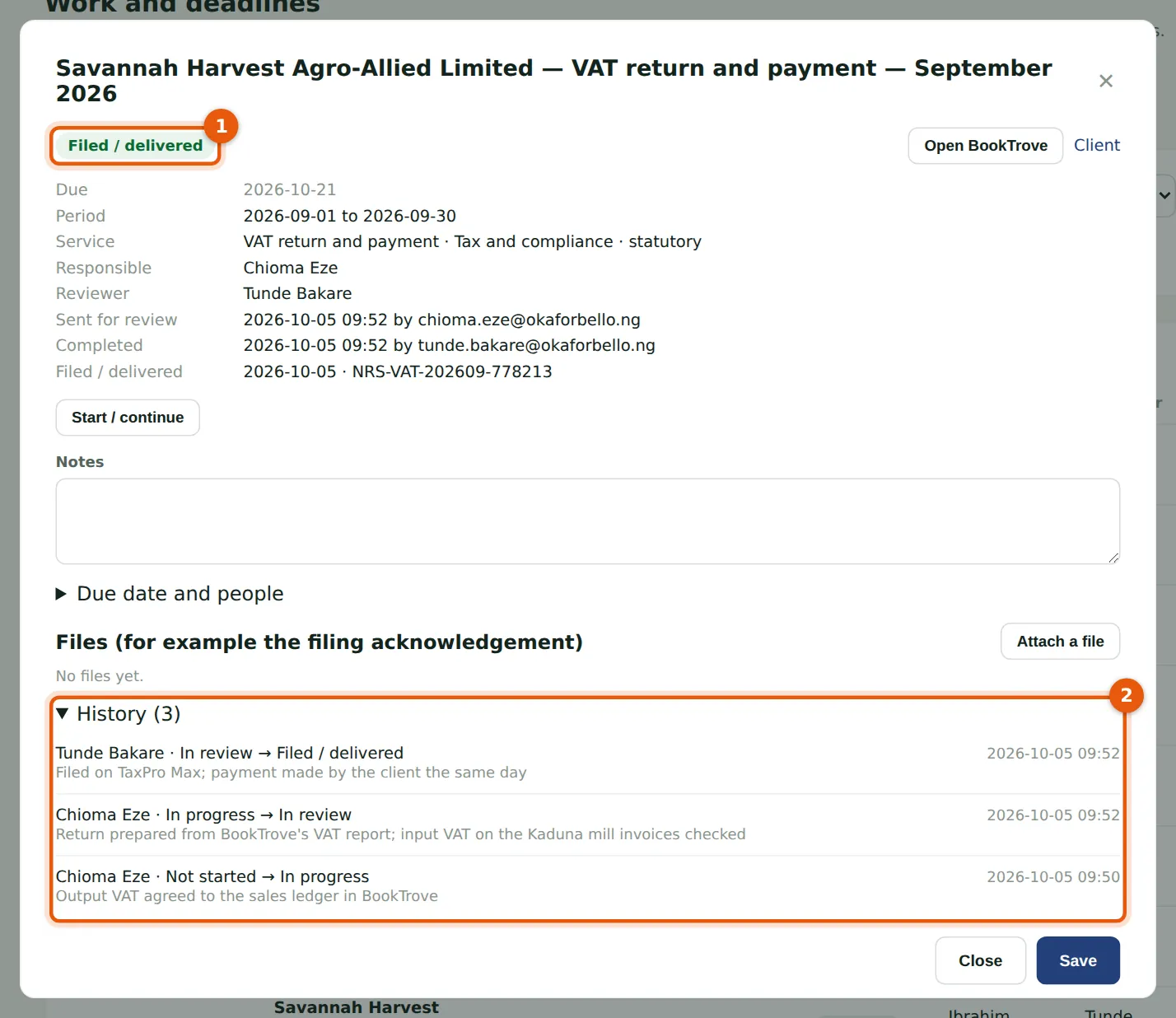
The piece of work is now Filed / delivered (1), with who sent it for review and who completed it. History (2) lists each change of status with the person, the time and the note.
Who
Everyone with access to work.
What to do
- Open the piece of work and choose History.