Steps in this chapter (3)
What PracticeTrove is for, how to open it from troveuniverse.com or sign in with a password and two-factor, and what the dashboard tells you each morning.
PracticeTrove runs an accounting practice: the firm's clients, the services each client takes, the engagements agreed with them and every piece of work with its due date, the person responsible and the reviewer. It does not do the work itself. Bookkeeping is done in BookTrove, payroll in PayTrove, audits in AuditTrove and the firm's quality management in SQMTrove; PracticeTrove keeps track of all of it, for every client, in one place.
For a client that does not use TroveSuite — whose books are kept in other software, or by the client — PracticeTrove works exactly the same way: you record the status of each piece of work by hand, with its due date and who is delivering it (chapter 9).
1.1 Open PracticeTrove
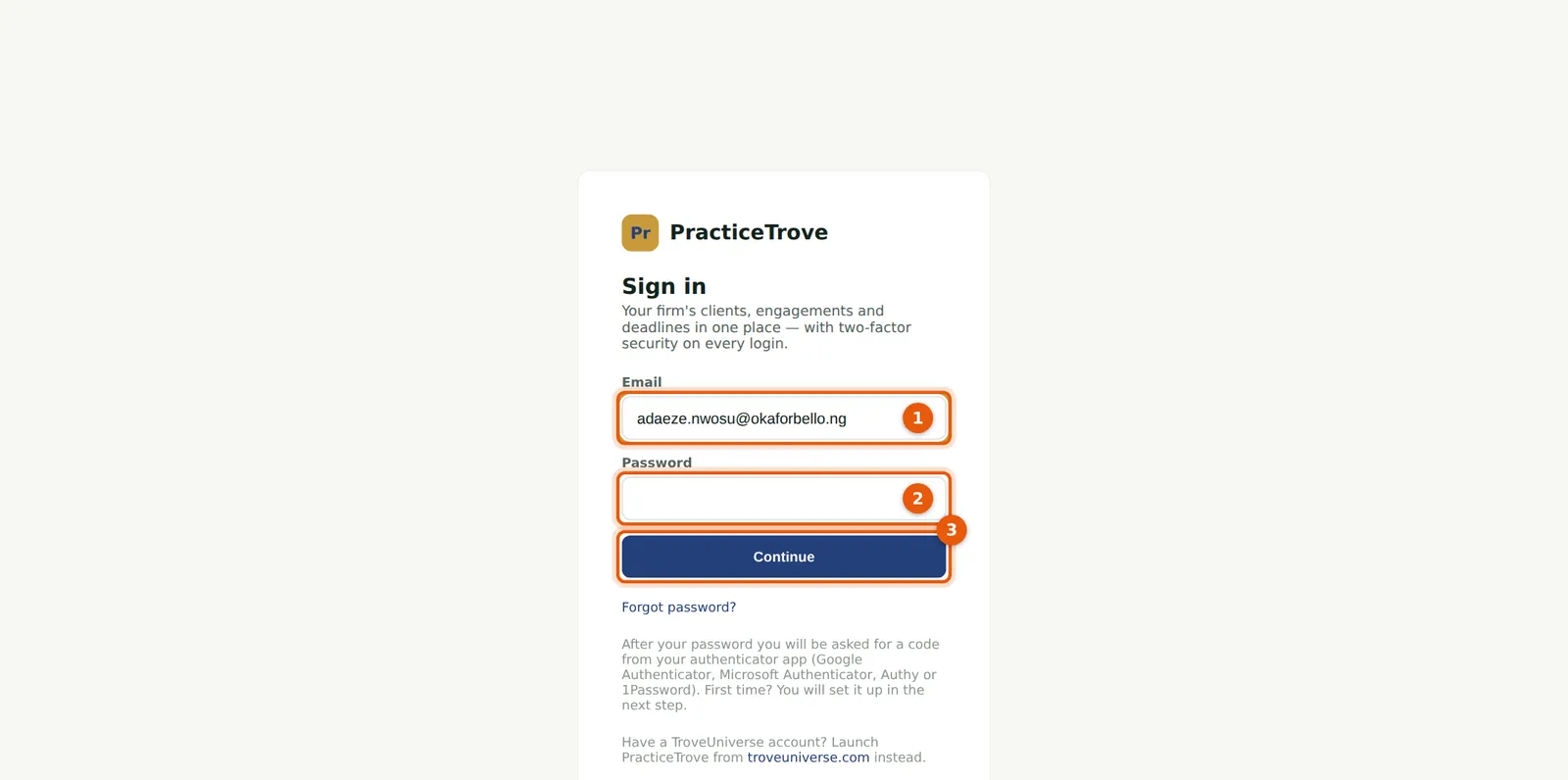
Why
Most people open PracticeTrove from troveuniverse.com: sign in there and choose Open PracticeTrove under My apps. Single sign-on takes you straight in, as the person you are on troveuniverse.com, and two-factor is still asked for in PracticeTrove. You can also go to practice.troveuniverse.com and sign in with the email address and password of your PracticeTrove login.
Who
Everyone.
What to do
- Enter your email address (1) and your password (2), then choose Continue (3).
- Enter the 6-digit code from your authenticator app. The first time, PracticeTrove shows a QR code to scan with Google Authenticator, Microsoft Authenticator, Authy or 1Password, and gives you ten recovery codes to keep somewhere safe.
- If you belong to more than one firm, choose the firm to open.
1.2 Two-factor authentication
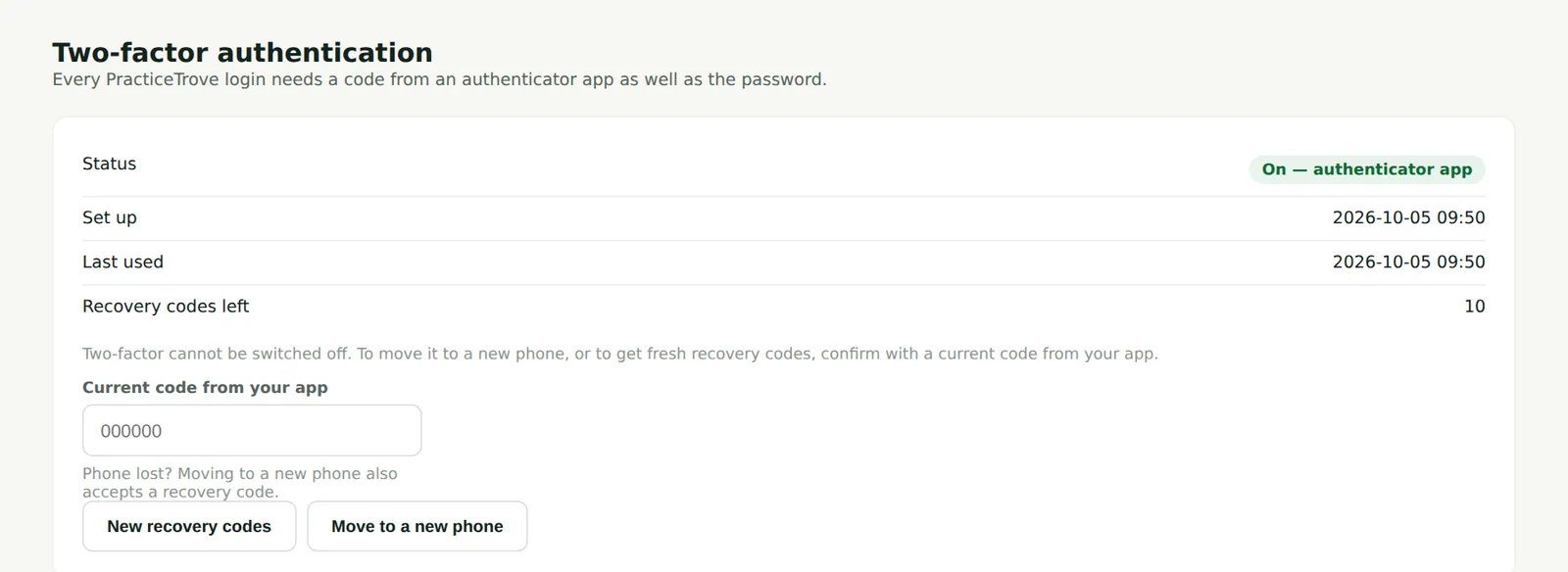
Why
Two-factor is compulsory for everyone. The Two-factor page in the menu shows when you set it up, when it was last used and how many recovery codes you have left. Partners are also asked for a fresh code when they sign something: accepting an engagement, approving a letter or recording that a client has ceased (step-up, step 5.7).
Who
Everyone.
What to do
- Choose Two-factor in the menu.
- To get new recovery codes, or to move your authenticator to a new phone, enter a current code from your app and choose New recovery codes or Move to a new phone.
- If you have lost your phone and your recovery codes, ask an owner or practice administrator to reset your two-factor (Users & roles → Reset 2FA). They must confirm it is really you first.
1.3 The dashboard
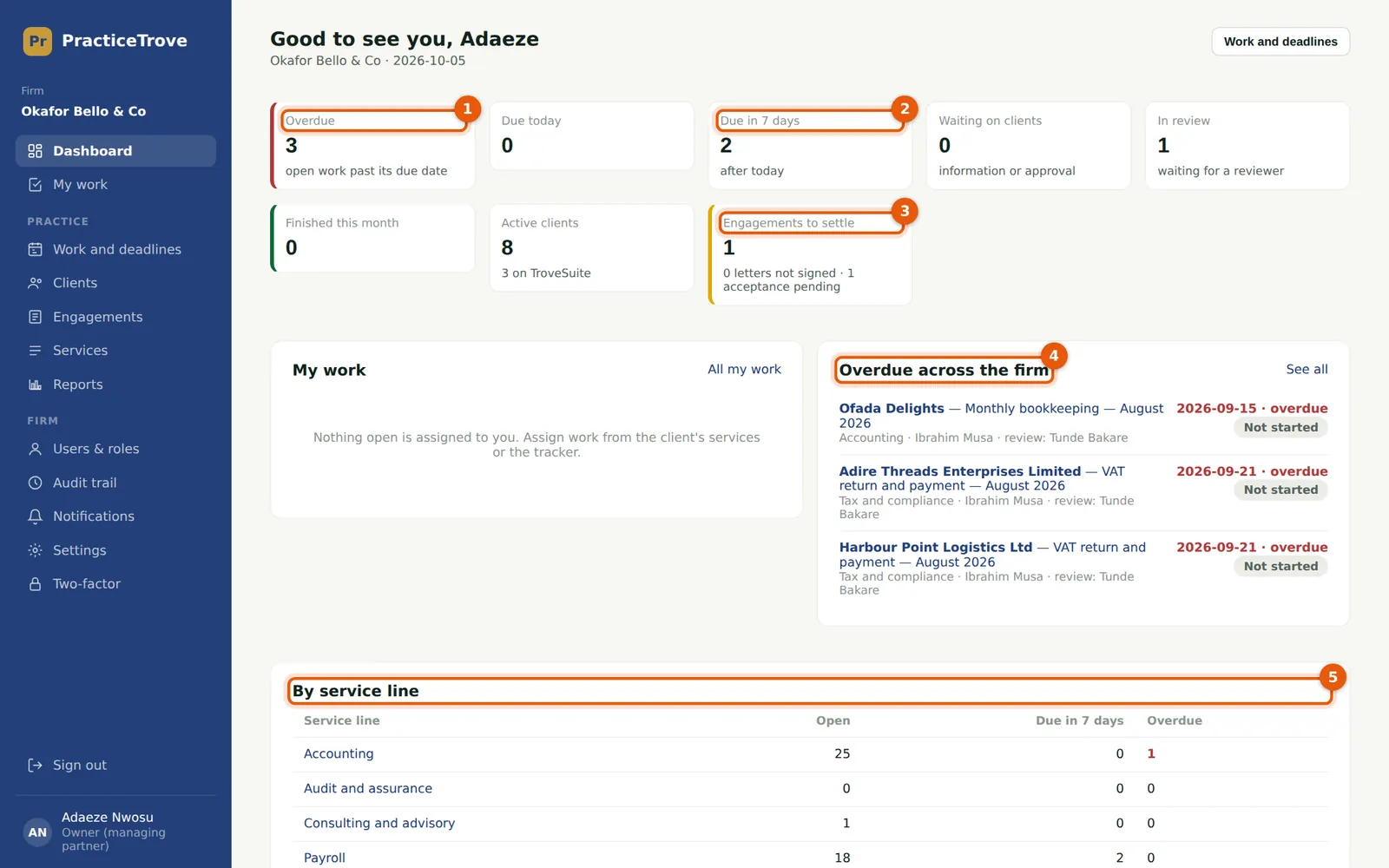
Why
The dashboard answers the morning questions: what is overdue (1), what falls due in the next seven days (2), what is waiting on clients or in review, how much was finished this month and how much of it on time, and which engagements still need an acceptance decision or a signed letter (3). Below, the overdue work across the firm (4) and the open work by service line (5). Each figure opens the matching list.
Who
Everyone (each person sees what their role allows).
What to do
- Choose Dashboard in the menu.
- Choose a figure, or an item in the list, to open it in Work and deadlines.
- My work lists what is assigned to you, and the work waiting for your review.