Steps in this chapter (4)
The firm's details for the letterhead, how far ahead work is planned and when reminders go out, the review and authenticator rules, the engagement letter template, and your own profile.
An owner or practice administrator changes the firm's settings; partners can read them. Everyone can change their own profile, password and signed-in devices. At Okafor Bello & Co the settings are kept by Ifeoma Chukwu, head of IT and practice resources, who is the practice administrator.
2.1 The firm's details
Why
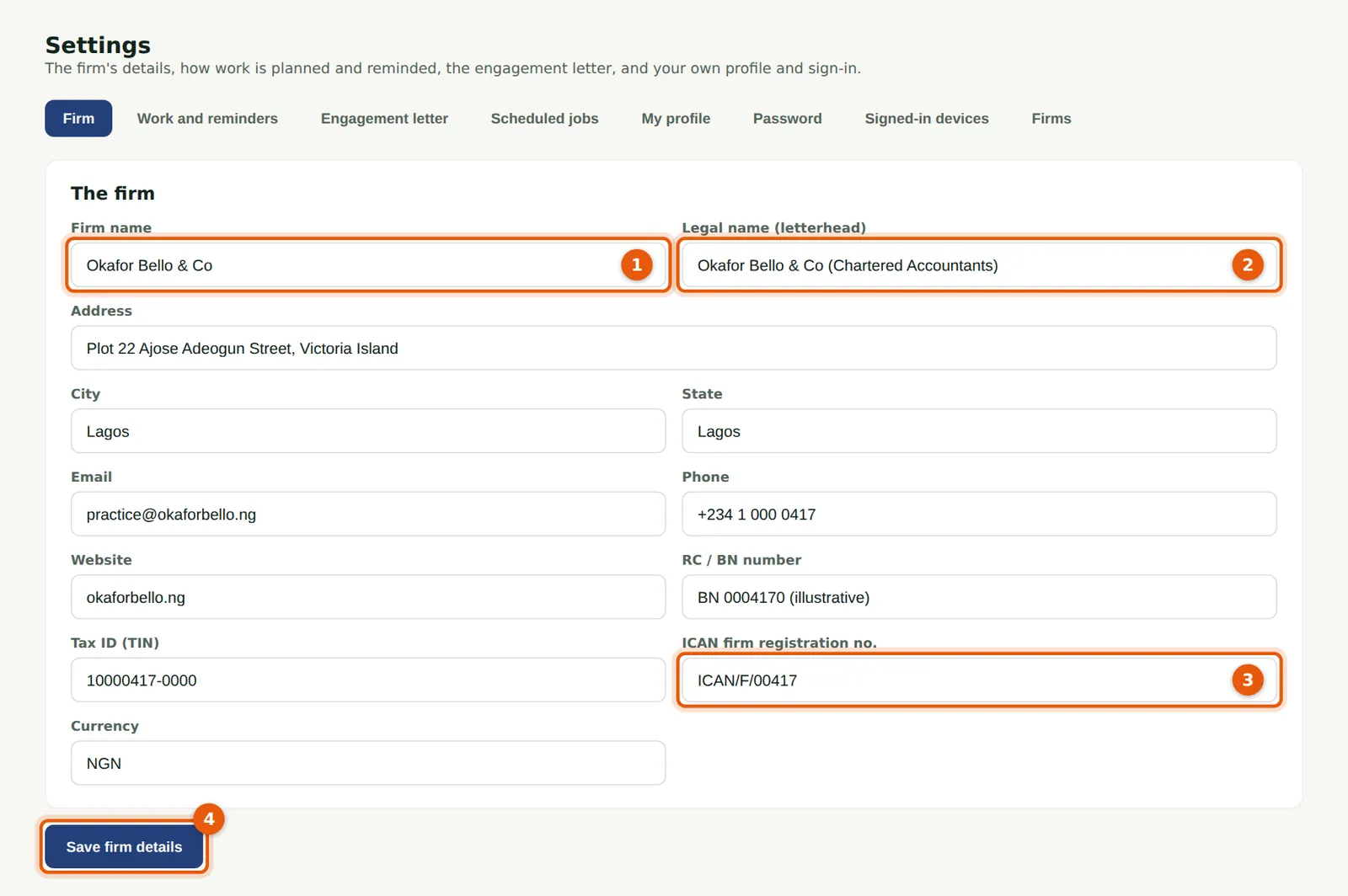
The firm name (1) is shown at the top of every page; the legal name (2), address, phone, email, RC or BN number, TIN and ICAN firm registration number (3) go on the letterhead of engagement letters.
Who
Owner or practice administrator.
What to do
- Choose Settings, then Firm.
- Fill in the details and choose Save firm details (4).
2.2 Work and reminders
Why
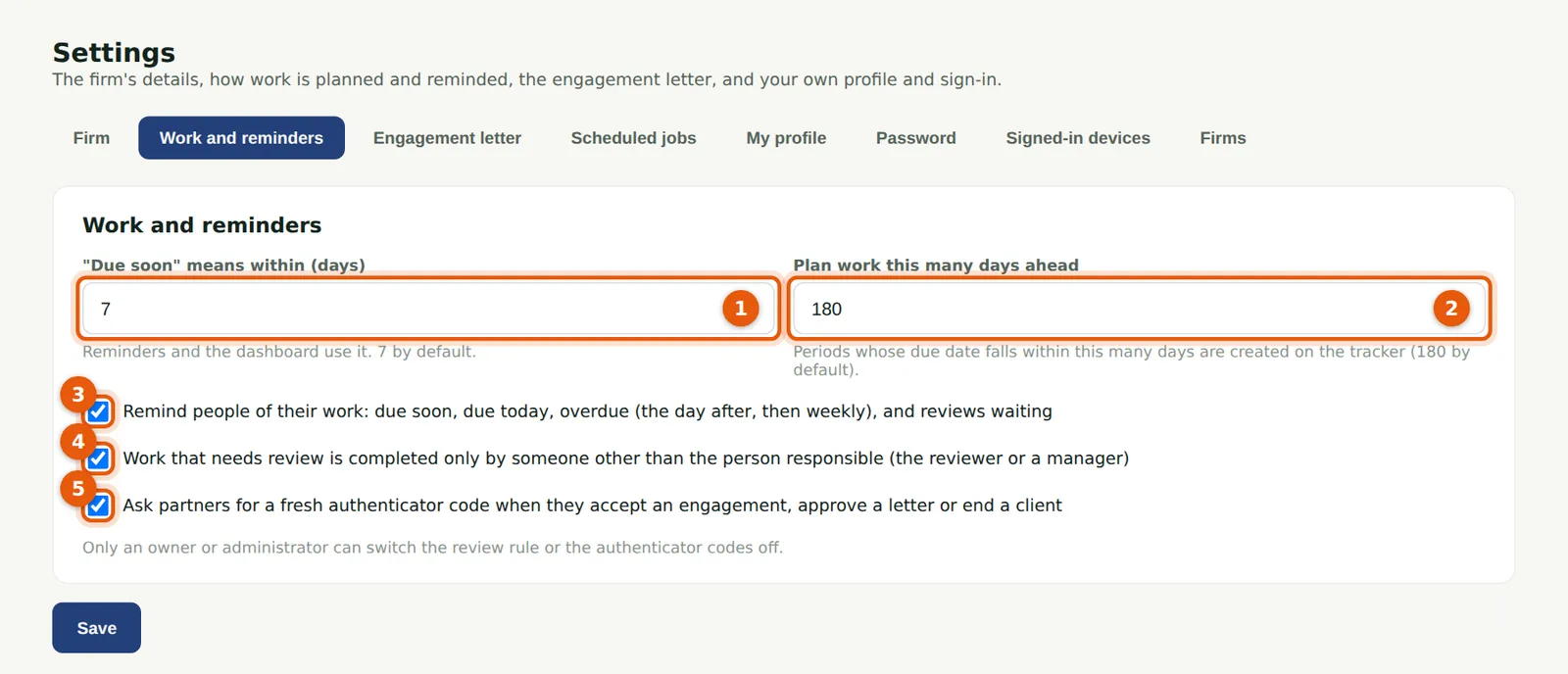
"Due soon" (1) sets how many days ahead the dashboard and the reminders look (7 by default). Work is planned for every period whose due date falls within the planning horizon (2, 180 days by default); later periods are planned as the time comes. Reminders (3) go to each person about their own work. The review rule (4) means work that needs review is completed only by someone other than the person who did it. With authenticator codes for signatures (5), partners confirm the decisions that bind the firm with a fresh code.
Who
Owner or practice administrator.
What to do
- Choose Settings, then Work and reminders.
- Change the numbers or the boxes and choose Save.
2.3 The engagement letter template
Why
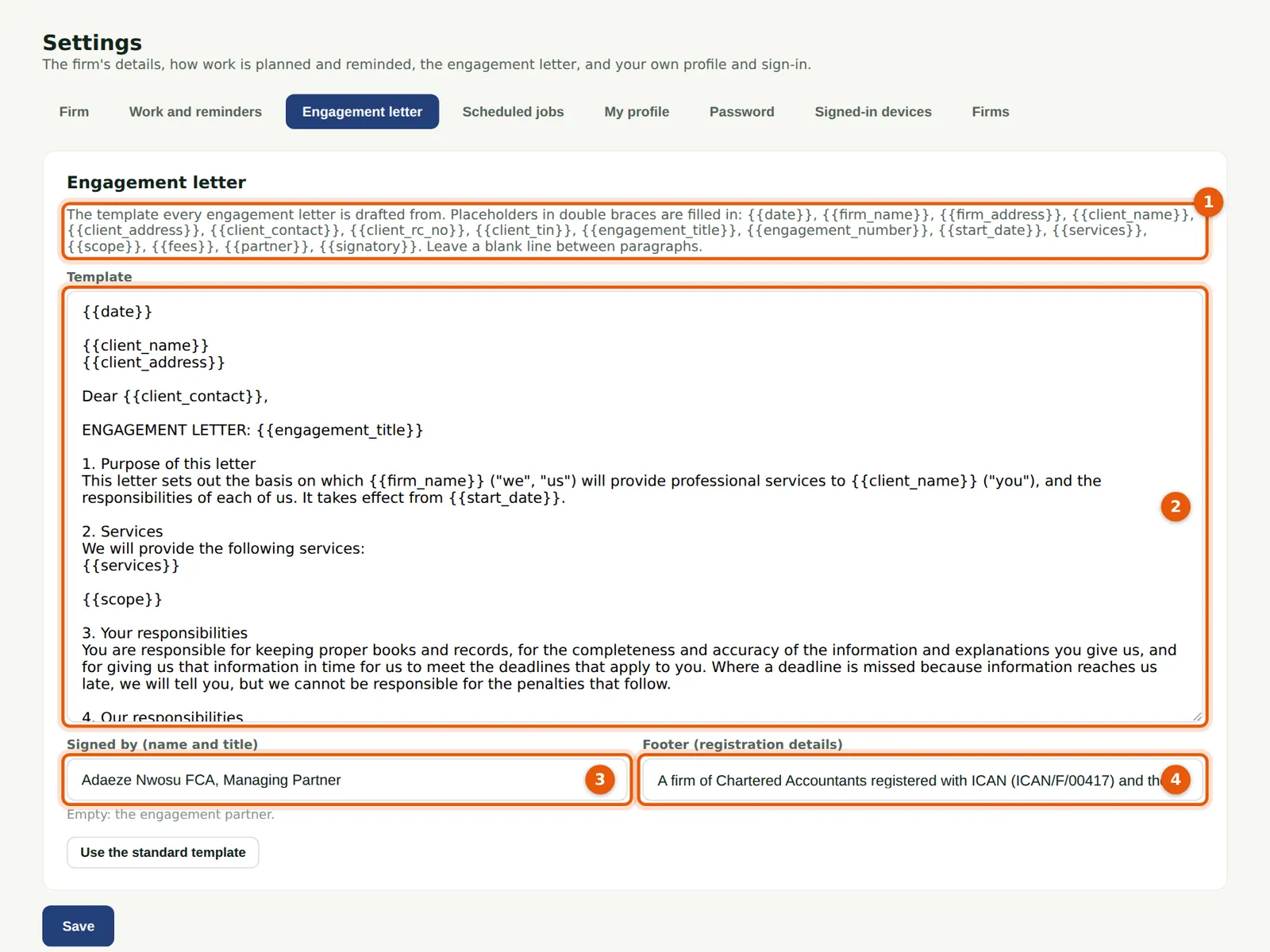
Every engagement letter is drafted from this template (2). Placeholders in double braces (1) are filled in from the engagement, the client and the firm: the date, the client's name, address and primary contact, the engagement title and number, the start date, the services under the engagement, the scope, the fee, the partner and the signatory. The signatory (3) signs every letter; leave it empty for the engagement partner to sign. The footer (4) carries the firm's registration details. Appendix E lists the placeholders.
Who
Owner or practice administrator.
What to do
- Choose Settings, then Engagement letter.
- Edit the template. Leave a blank line between paragraphs.
- Choose Save. Use the standard template brings back the original wording.
2.4 Your profile
Why
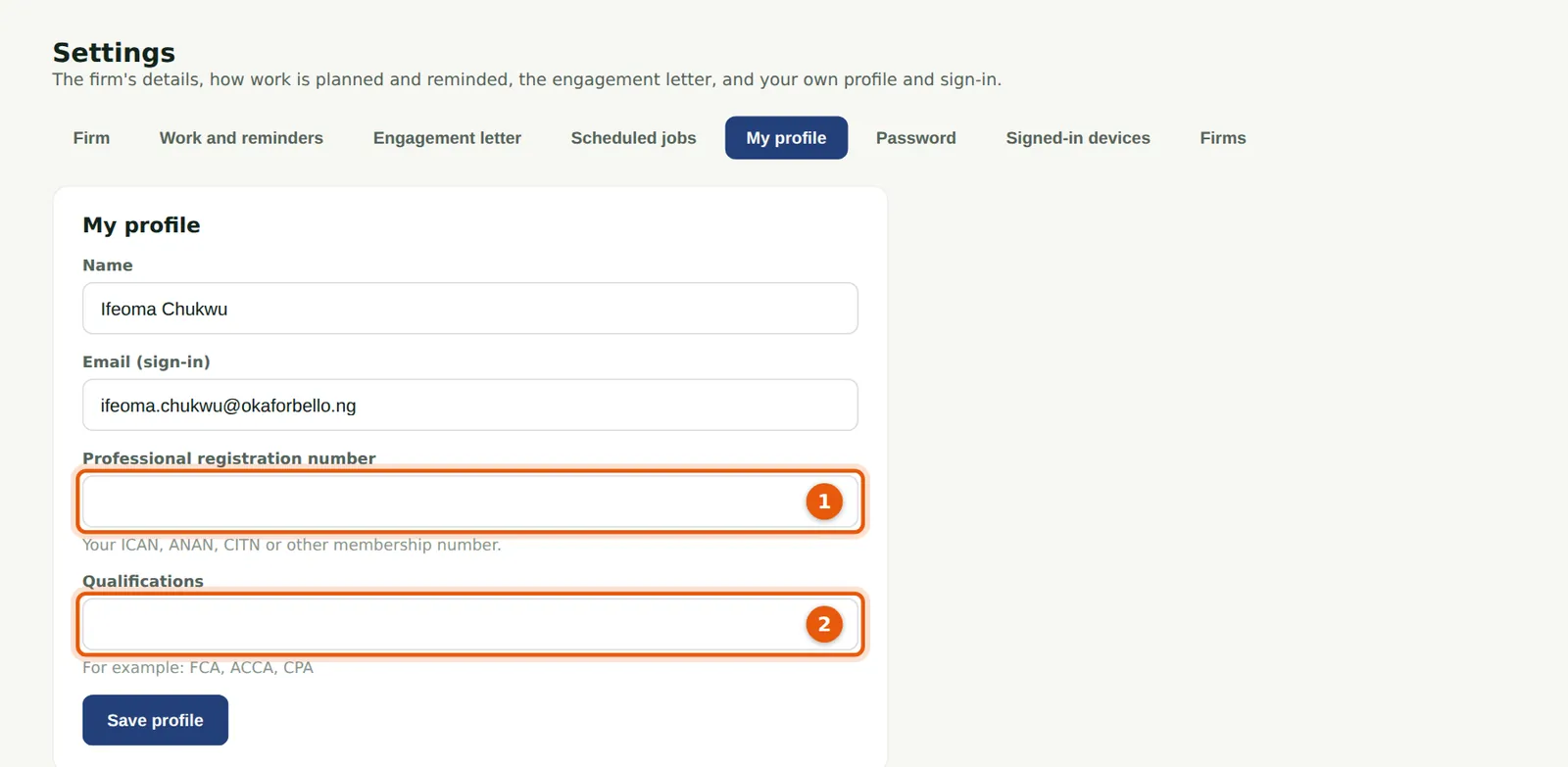
Your name appears on the work you do and in the audit trail. Add your professional registration number (1) and qualifications (2); they help when work is reviewed or inspected.
Who
Everyone.
What to do
- Choose Settings, then My profile.
- Fill in the fields and choose Save profile.
- Password changes your password and signs you out everywhere else; Signed-in devices lists where you are signed in (step 15.2).