Steps in this chapter (5)
Add the firm's people with the right role, give them their temporary password, read the permission matrix, and make a custom role.
Everyone at the firm who works on clients needs a login, because work is assigned to people: each piece of work has a person responsible and, usually, a reviewer. The ready-made roles are Owner (managing partner), Practice administrator, Partner, Manager, Staff and Viewer (read-only). Appendix A shows what each can do.
Each person uses one seat of the firm's PracticeTrove subscription on troveuniverse.com. If the firm has used all its seats, add more on troveuniverse.com before adding the person.
3.1 The people of the firm
Why
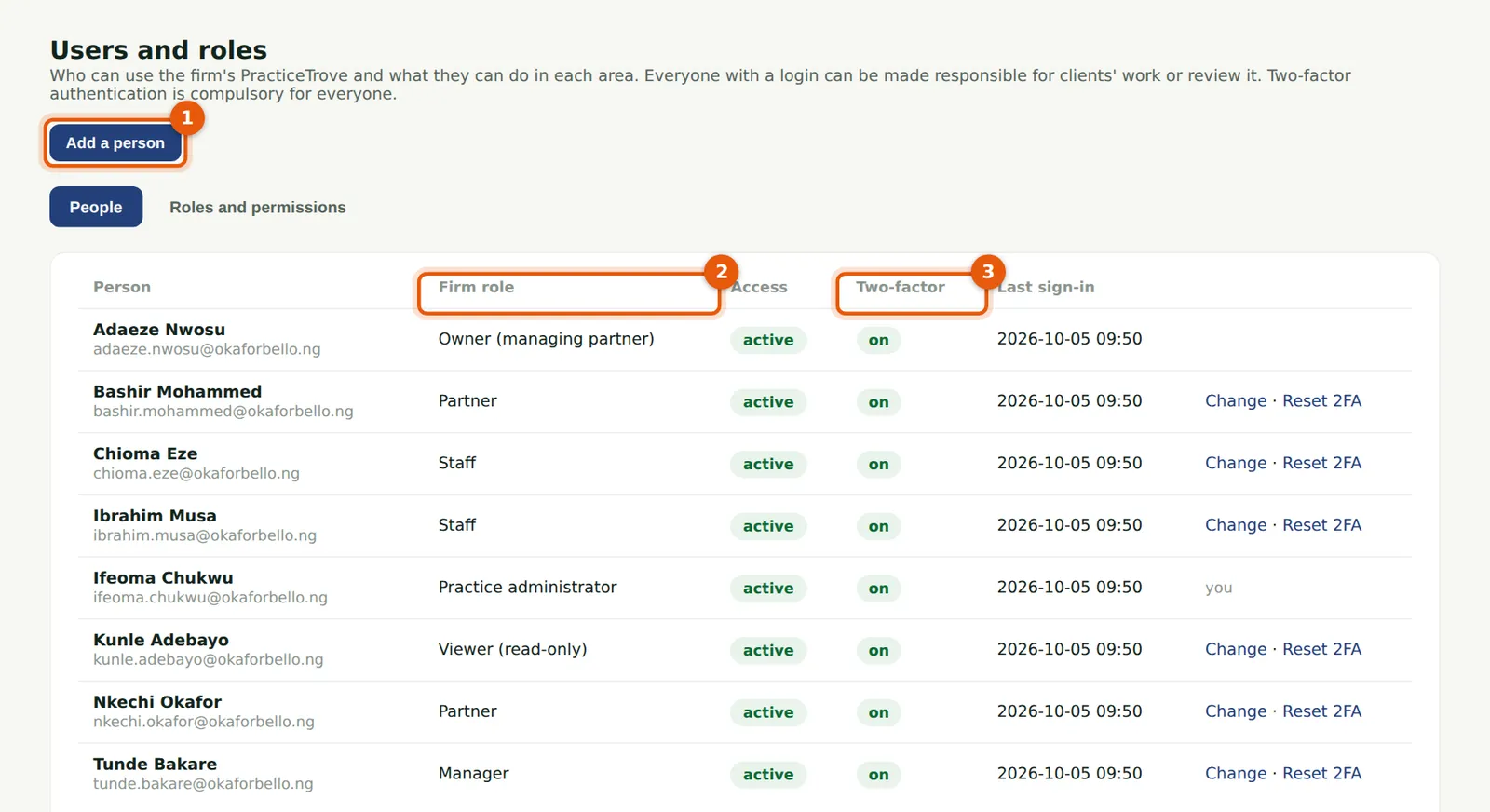
The list shows each person's firm role (2), whether they can sign in, whether two-factor is on (3) and when they last signed in. Change opens a person's role and access; Reset 2FA starts their two-factor again when they have lost their phone.
Who
Owner or practice administrator.
What to do
- Choose Users & roles in the menu.
- Choose Add a person (1) to add someone.
3.2 Add a person
Why
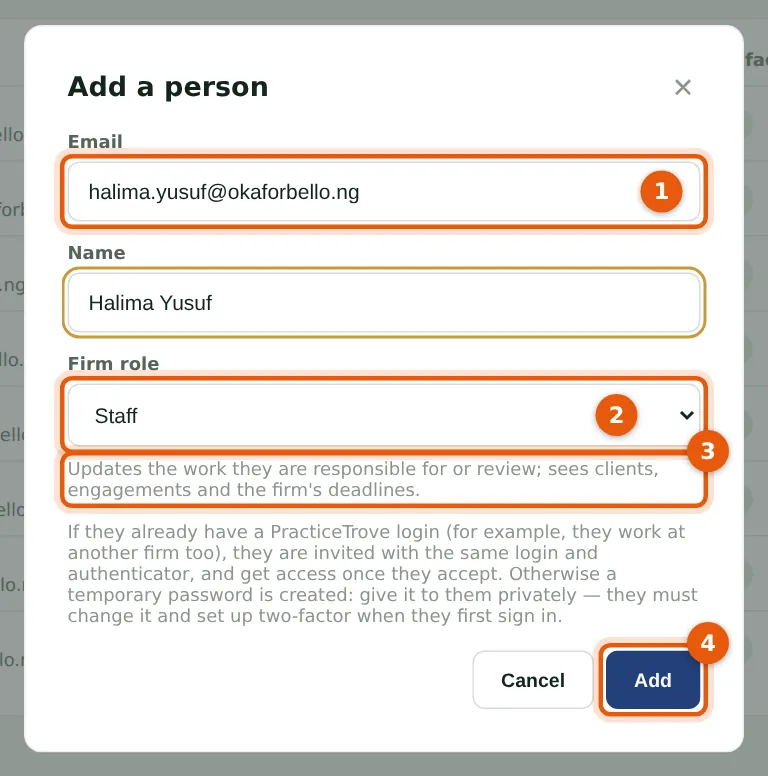
Okafor Bello & Co takes on Halima Yusuf as an accounts assistant. Choose the role that matches what she will do (2); the description under it (3) says what it allows. If the email address already has a PracticeTrove login — someone who also works at another firm — the person is invited instead, and gets access once they accept under Settings → Firms.
Who
Owner or practice administrator.
What to do
- Choose Add a person.
- Enter the email address (1) and name.
- Choose the firm role (2) and read its description (3). Only an owner can make another owner.
- Choose Add (4).
3.3 Give them the temporary password
Why
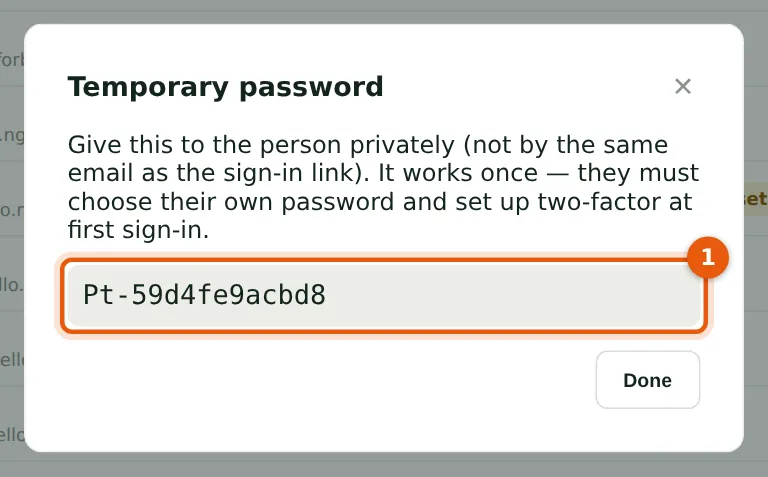
For a new login, PracticeTrove makes a temporary password (1). Give it to the person privately — not in the same email as the link to PracticeTrove. It works once: they choose their own password and set up two-factor when they first sign in.
Who
Owner or practice administrator.
What to do
- Copy the temporary password and give it to the person privately.
- Choose Done.
3.4 Roles and permissions
Why
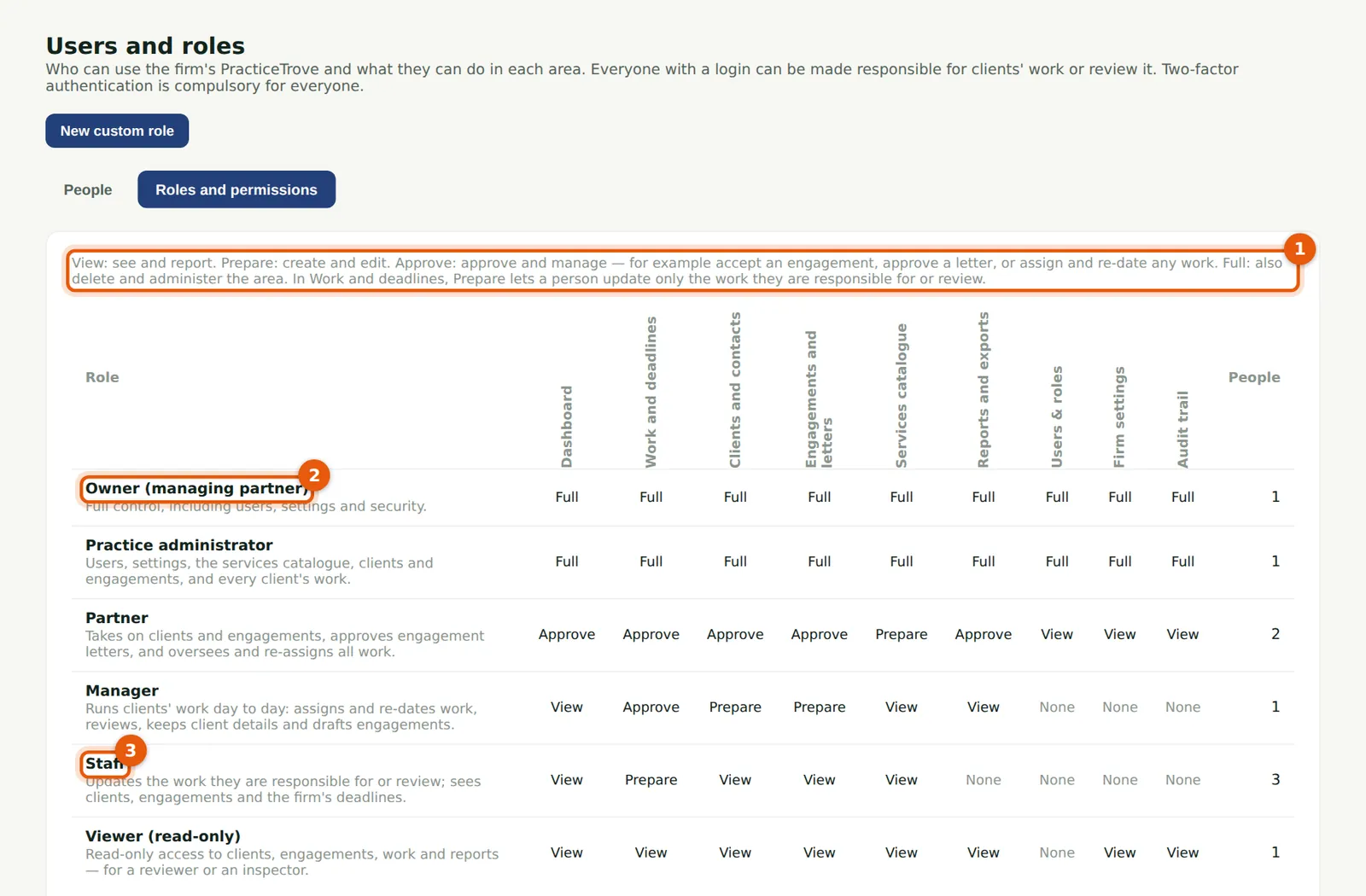
The matrix shows each role's level in each area (1): View (see and report), Prepare (create and edit), Approve (approve and manage — accept an engagement, approve a letter, assign and re-date any work) and Full (also delete and administer). In Work and deadlines, Prepare lets a person update only the work they are responsible for or review. The Owner (2) has every right; Staff (3) update their own work and see clients, engagements and deadlines.
Who
Owner or practice administrator; anyone with access to Users & roles can read it.
What to do
- Choose Users & roles, then Roles and permissions.
- Choose New custom role to make one of your own.
3.5 A custom role
Why
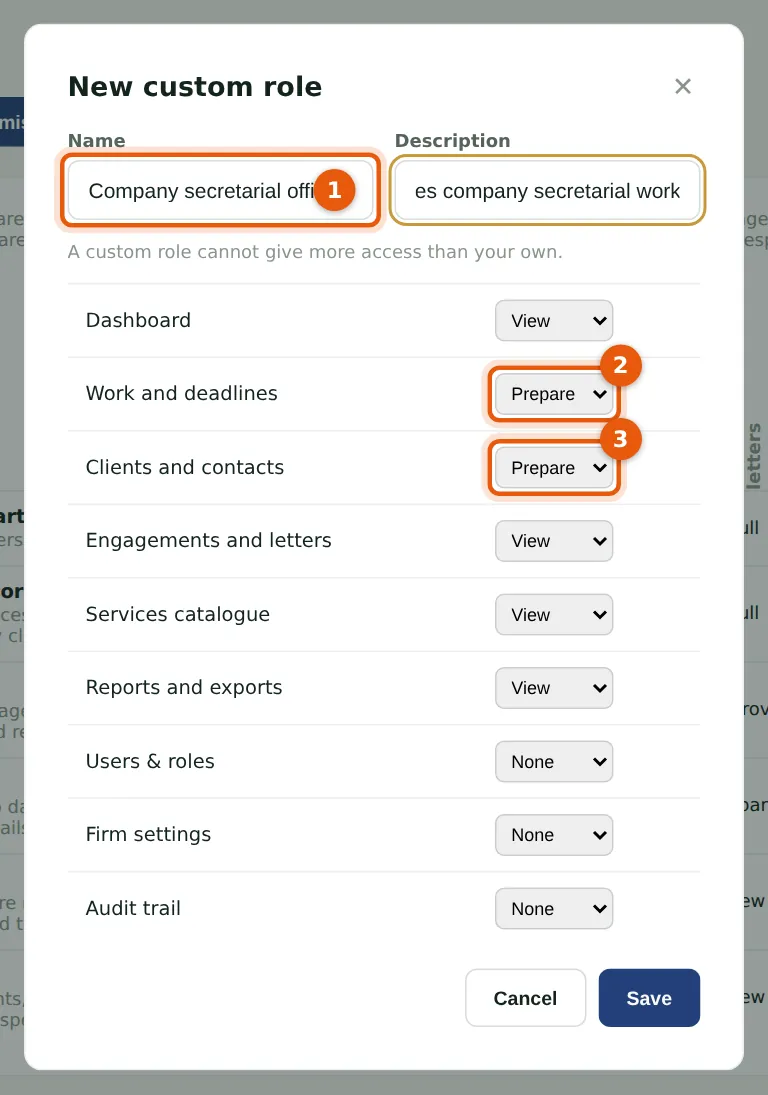
Okafor Bello & Co wants its company secretarial officer to keep clients' details up to date but not to accept engagements. A custom role has a name (1) and a level for each area: here Prepare for Work and deadlines (2) and for Clients and contacts (3), View for the rest. A custom role cannot give more access than your own.
Who
Owner or practice administrator.
What to do
- Choose New custom role.
- Enter the name and a description, and choose a level for each area.
- Choose Save. The role is now offered when you add or change a person.
- To change or delete a custom role, choose it in the matrix. A role still held by someone cannot be deleted.