Steps in this chapter (3)
Templates that give new work a checklist, budget and people by job role; working through a checklist; and rules that act when work changes status.
A job template belongs to a service: every new piece of work for that service gets the template's checklist and budget hours and, when nobody is responsible yet, the least busy person with the right job role. Automation rules act when work reaches a status. Both are under Templates and automation, with request and email templates.
25.1 A job template
Why
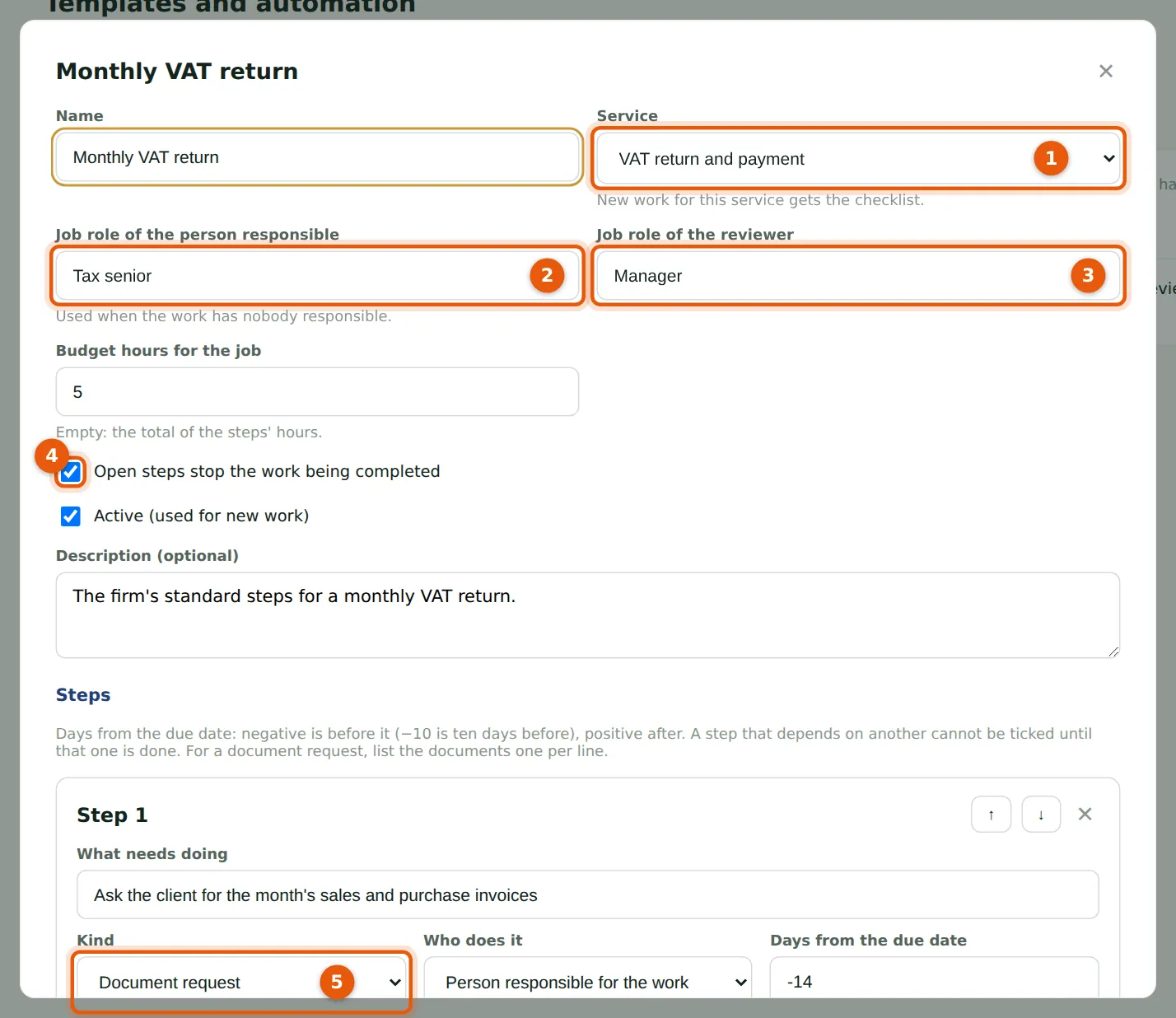
Nkechi's template is for the VAT service (1). Work with nobody responsible goes to the least busy Tax senior (2), with a Manager as reviewer (3). Each step has what to do, who does it, its date (days from the due date), an earlier step it waits for, hours and a kind (5): a firm task, a document request sent to the client, or a client task. With (4) on, open steps stop the work being completed.
Who
Partner, practice administrator or owner.
What to do
- Choose Templates and automation, then Add a template (or a template to change it).
- Fill in the template and its steps, and choose Save.
25.2 Work through the checklist
Why
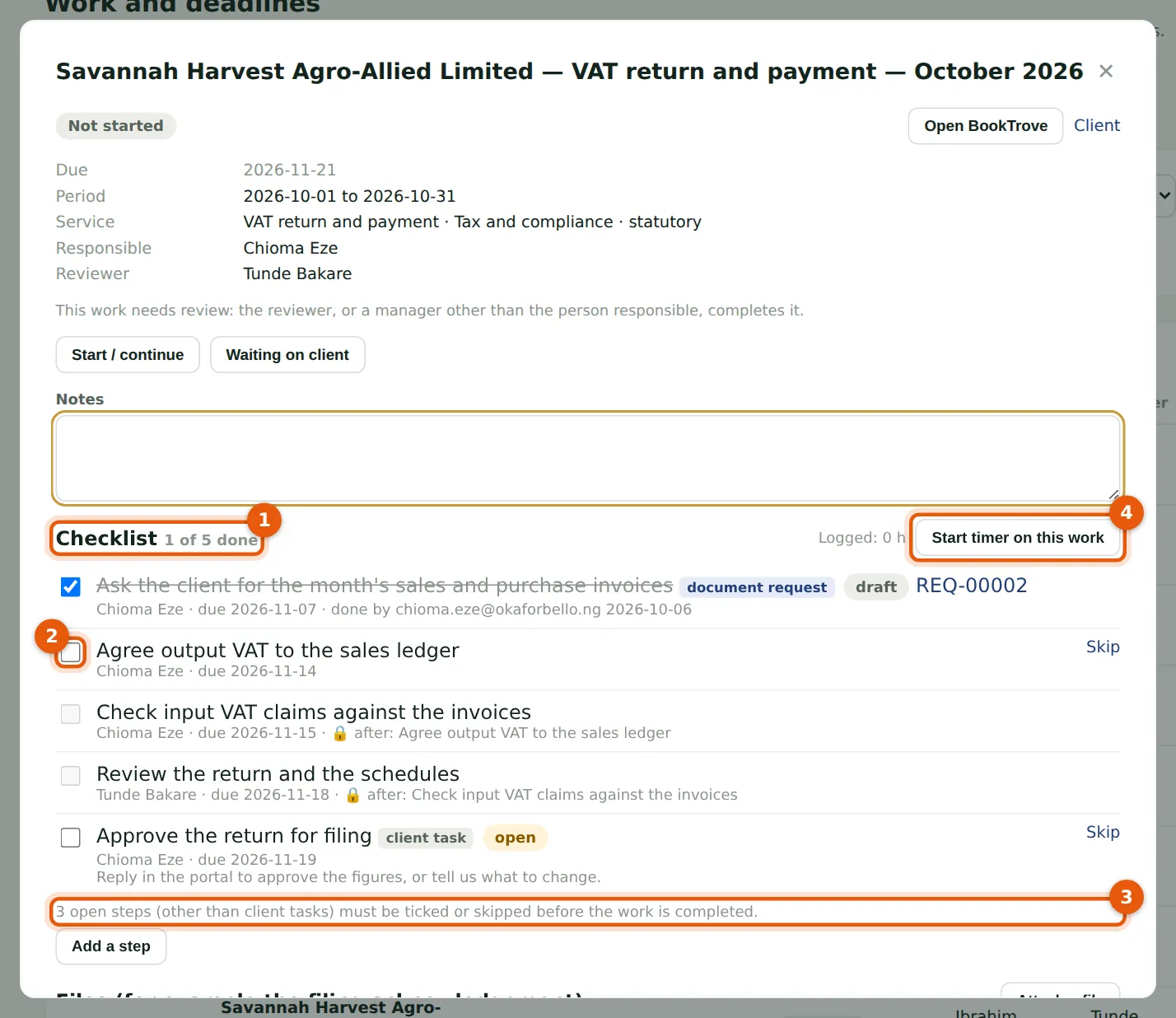
The checklist (1) shows each step with who does it and when. Tick a step (2) when it is done; a step that waits for another is locked until that one is ticked. The note (3) says how many steps still stop completion. Start timer on this work (4) starts a timer. Add a step adds one for this work only.
Who
The person responsible, the reviewer, or a manager.
What to do
- Open the work and find Checklist.
- Tick each step as it is done, or Skip one with a reason.
25.3 An automation rule
Why
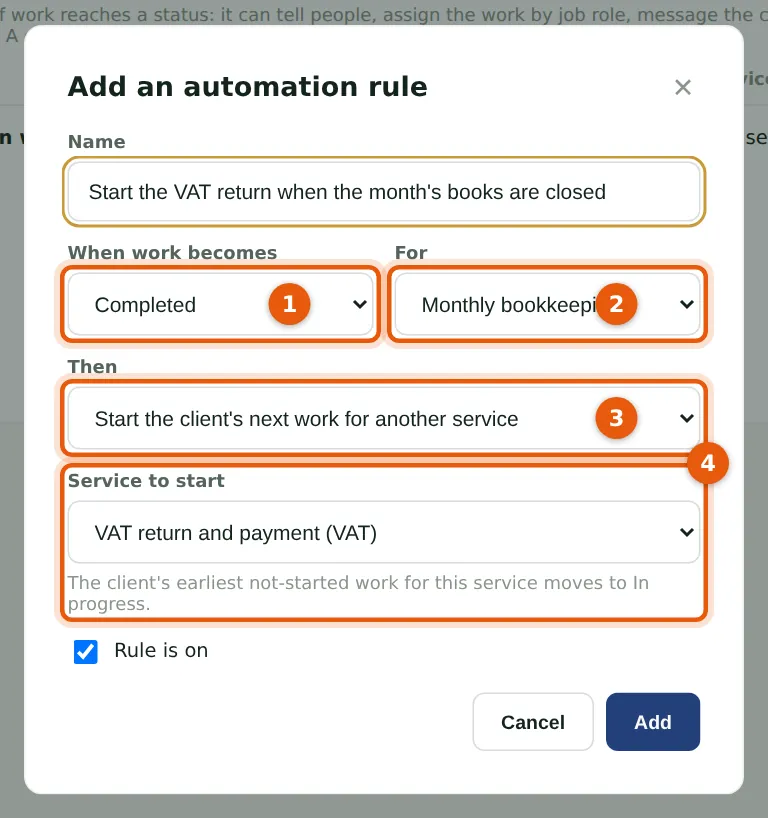
A rule acts when work becomes a status (1), for one service or any (2). Then (3) it tells people, gives the work to a job role, messages the client, sends a document request, sets a field — or, as here, starts the client's next work (4): when a month's bookkeeping is completed, the VAT return moves to In progress.
Who
Partner, practice administrator or owner.
What to do
- Choose Templates and automation, then Rules and Add a rule.
- Choose the status, the service and what happens, and choose Add. Recent runs shows what each rule did.