Steps in this chapter (7)
The seven reports: deadlines, workload by person, the client service matrix, work finished on time, statutory deadlines missed, and the engagement and client registers.
Every report runs on the current data, prints and exports to CSV. Reports need the Reports and exports permission; staff do not have it by default.
13.1 Deadlines
Why
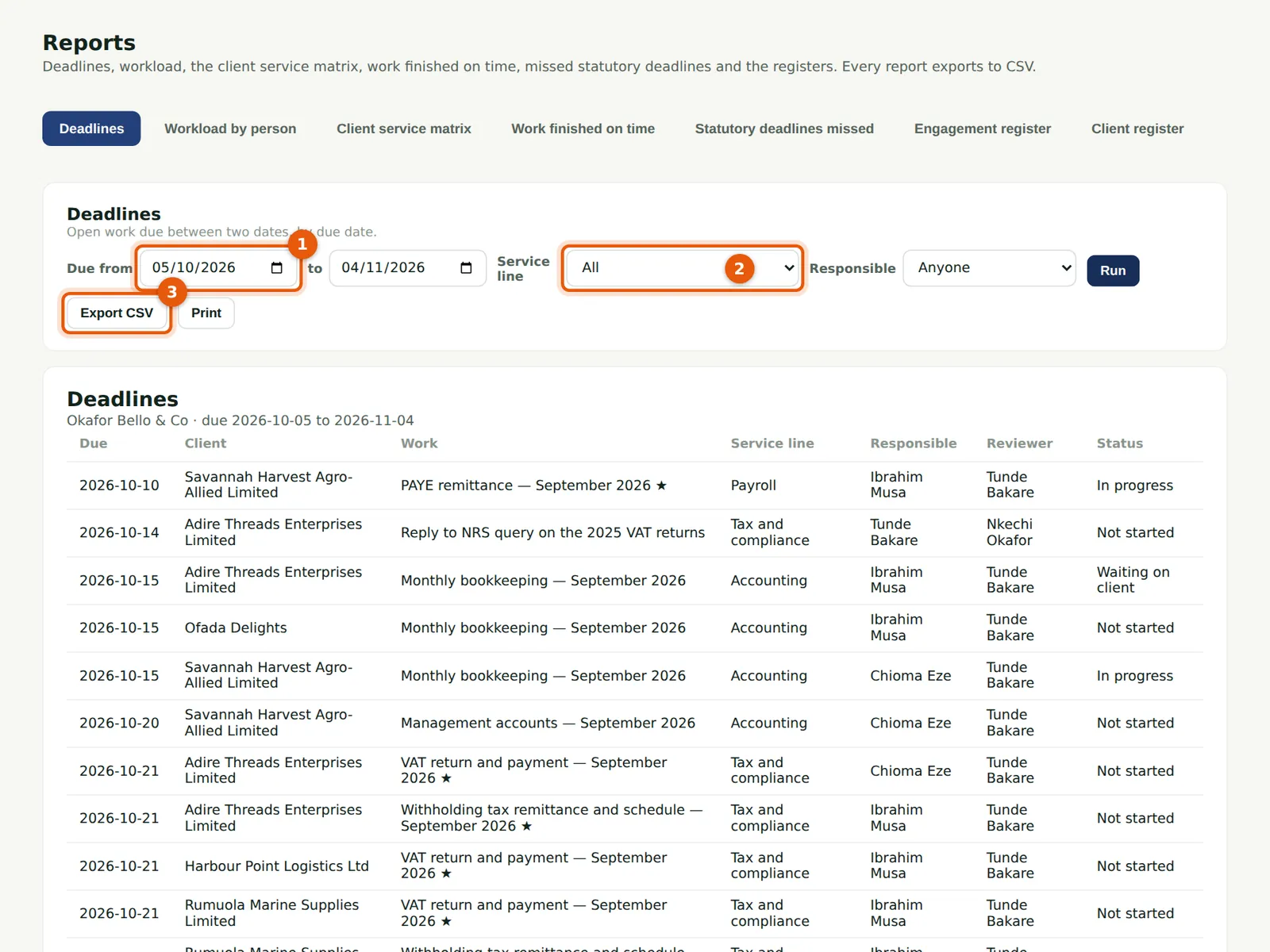
Open work due between two dates (1), by due date, for a service line (2) or a person. Statutory deadlines are marked ★ (4); overdue rows are shaded.
Who
Manager, partner, practice administrator, owner or viewer.
What to do
- Choose Reports, then Deadlines.
- Choose the dates and filters and choose Run.
- Choose Export CSV (3) or Print.
13.2 Workload by person
Why
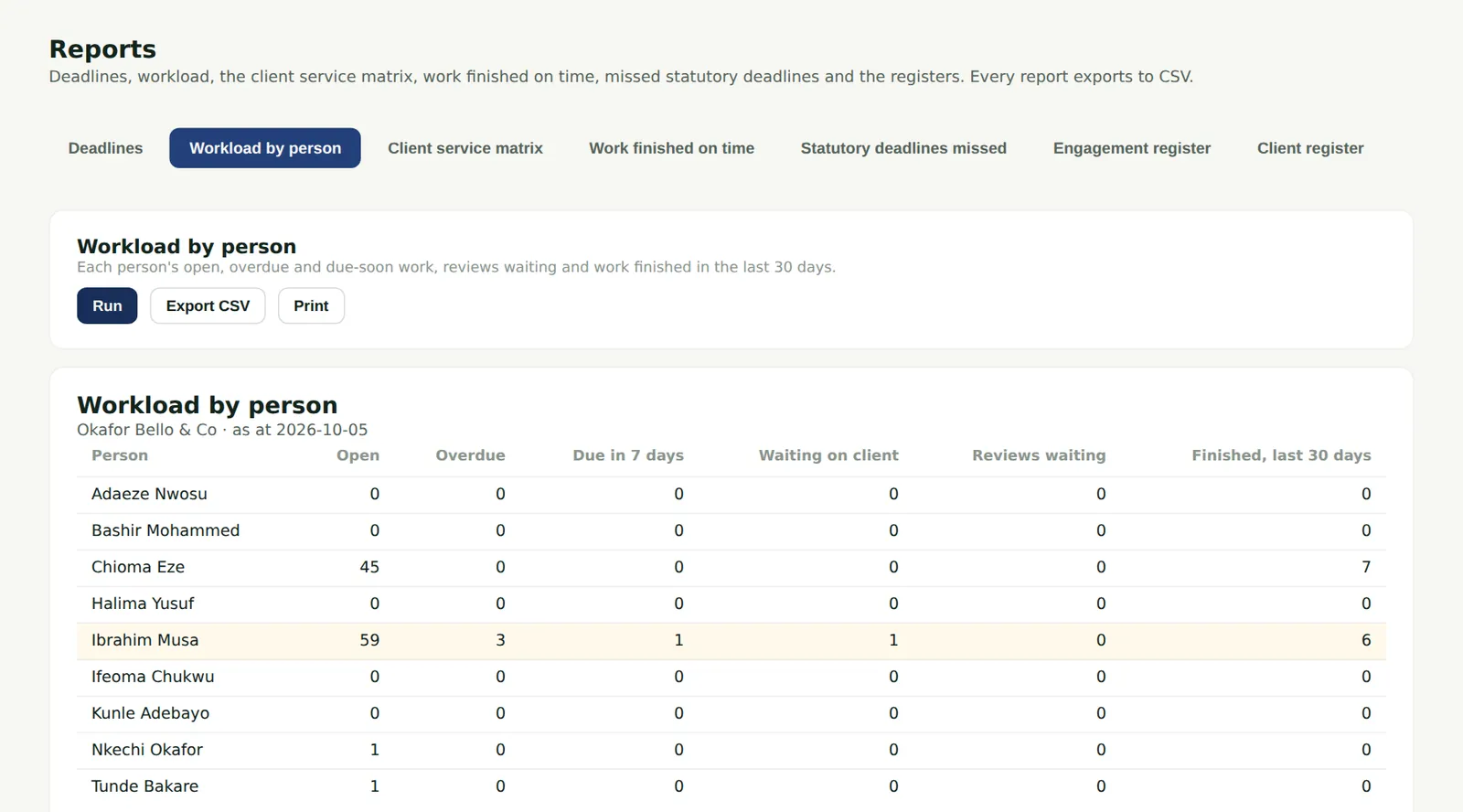
Each person's open work, overdue and due within 7 days, waiting on clients, reviews waiting for them, and what they finished in the last 30 days.
Who
Manager, partner, practice administrator, owner or viewer.
What to do
- Choose Workload by person and choose Run.
13.3 Client service matrix
Why
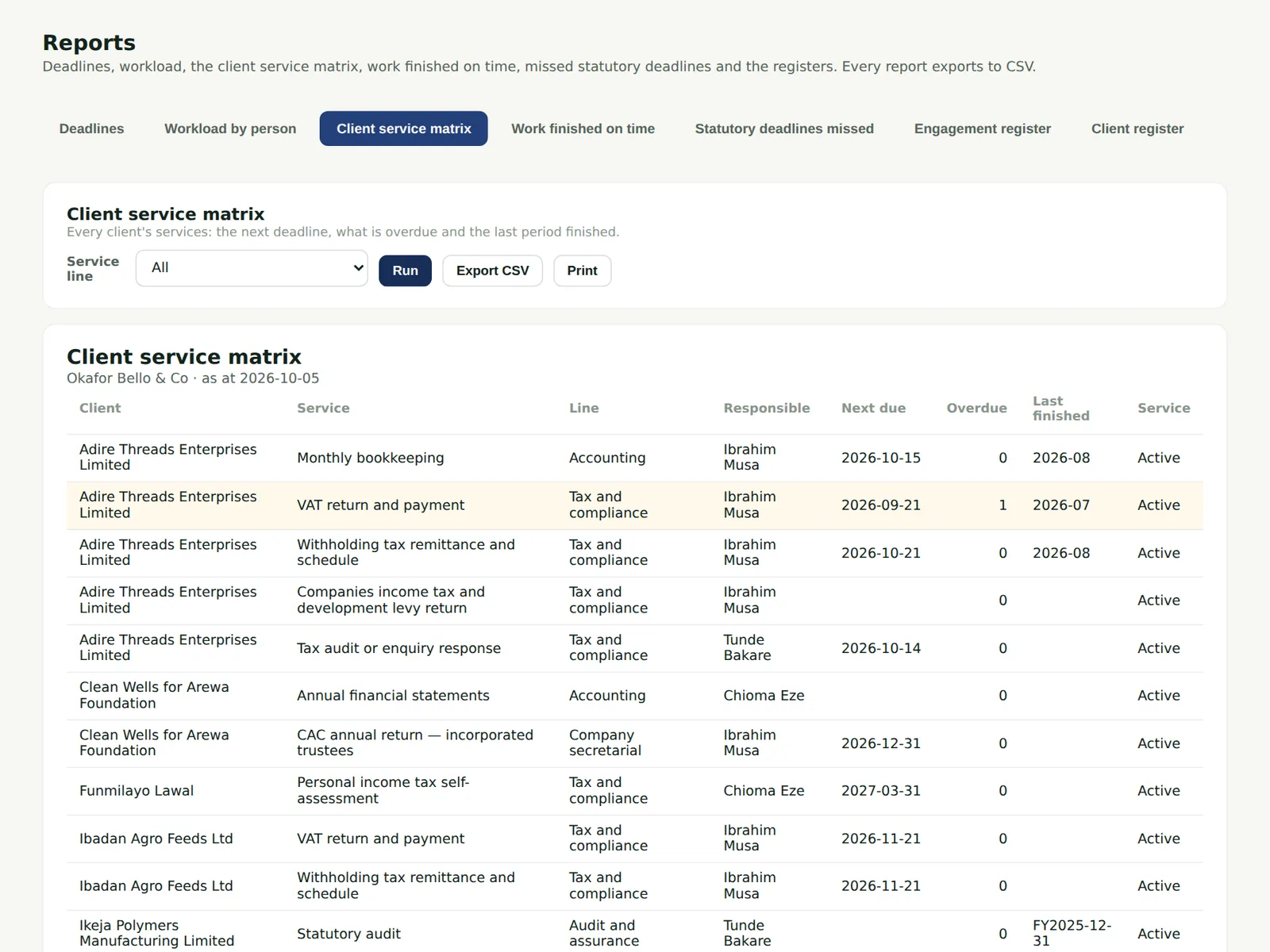
Every client's services: the person responsible, the next deadline, what is overdue and the last period finished — a quick check that nothing has been forgotten.
Who
Manager, partner, practice administrator, owner or viewer.
What to do
- Choose Client service matrix, choose a service line if you wish, and choose Run.
13.4 Work finished on time
Why
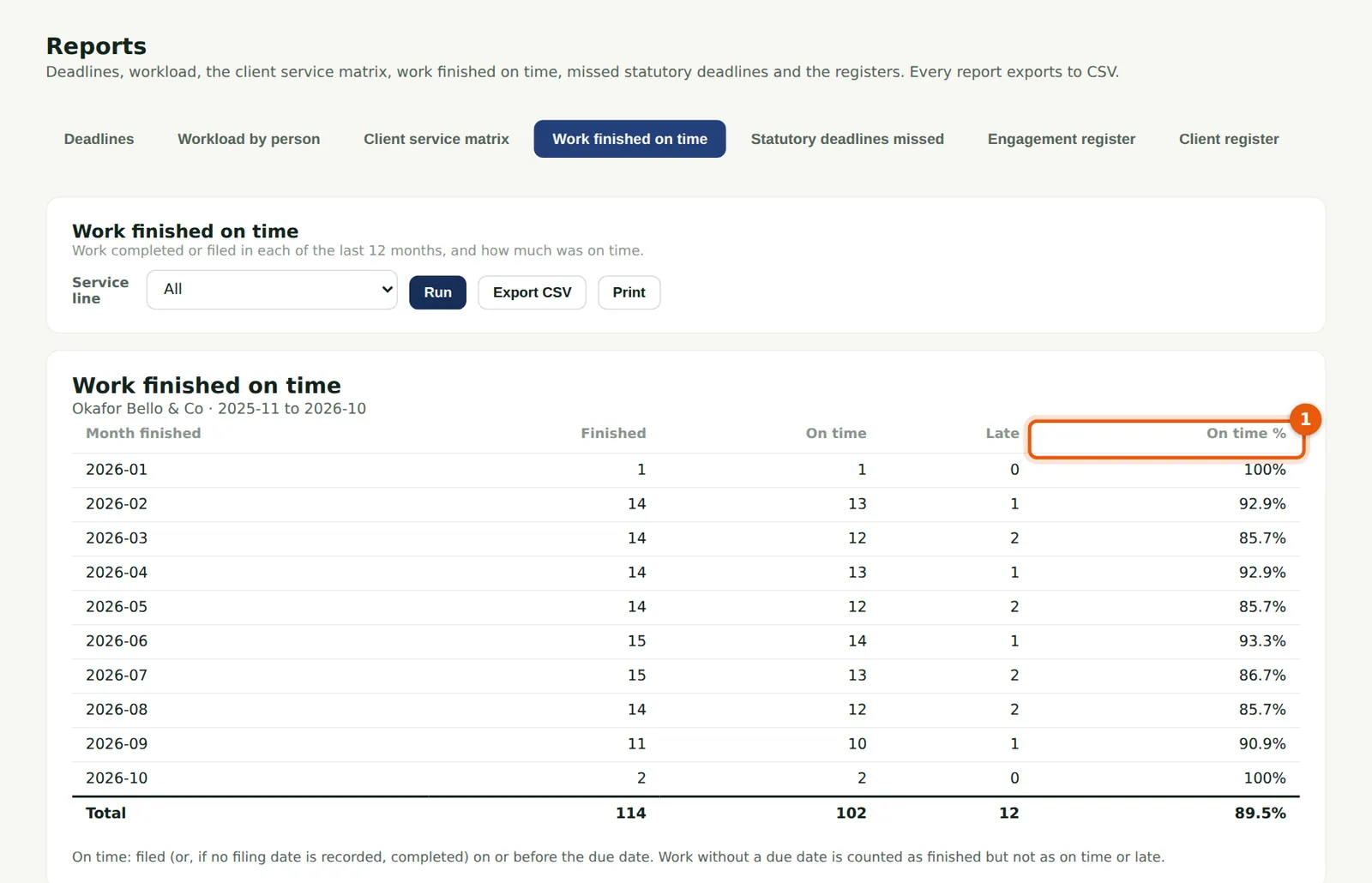
Work finished in each of the last 12 months and how much of it was on time (1): filed — or, with no filing date, completed — on or before the due date. Work without a due date counts as finished but not as on time or late.
Who
Manager, partner, practice administrator, owner or viewer.
What to do
- Choose Work finished on time and choose Run.
13.5 Statutory deadlines missed
Why
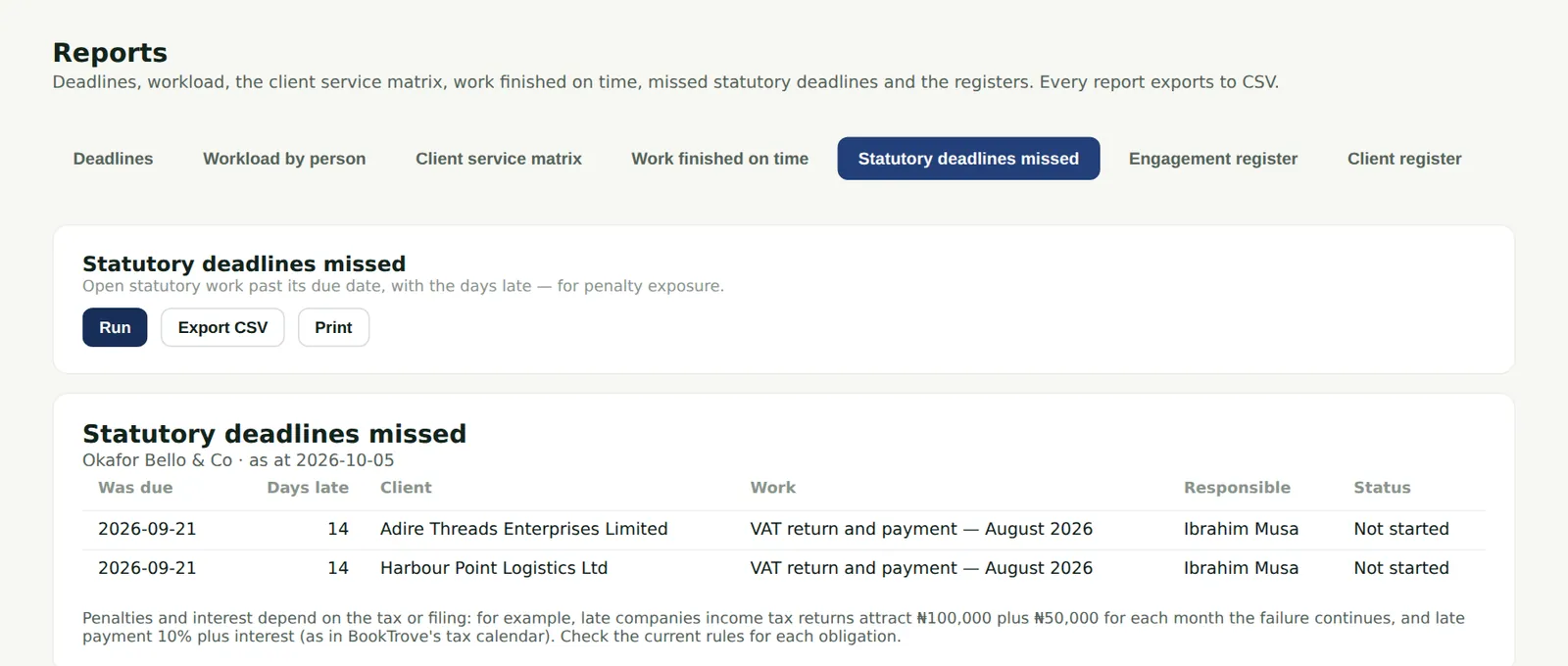
Open statutory work past its due date, with the days late, for judging penalty exposure. Penalties and interest depend on the tax or filing; check the current rules.
Who
Manager, partner, practice administrator, owner or viewer.
What to do
- Choose Statutory deadlines missed and choose Run.
13.6 Engagement register
Why
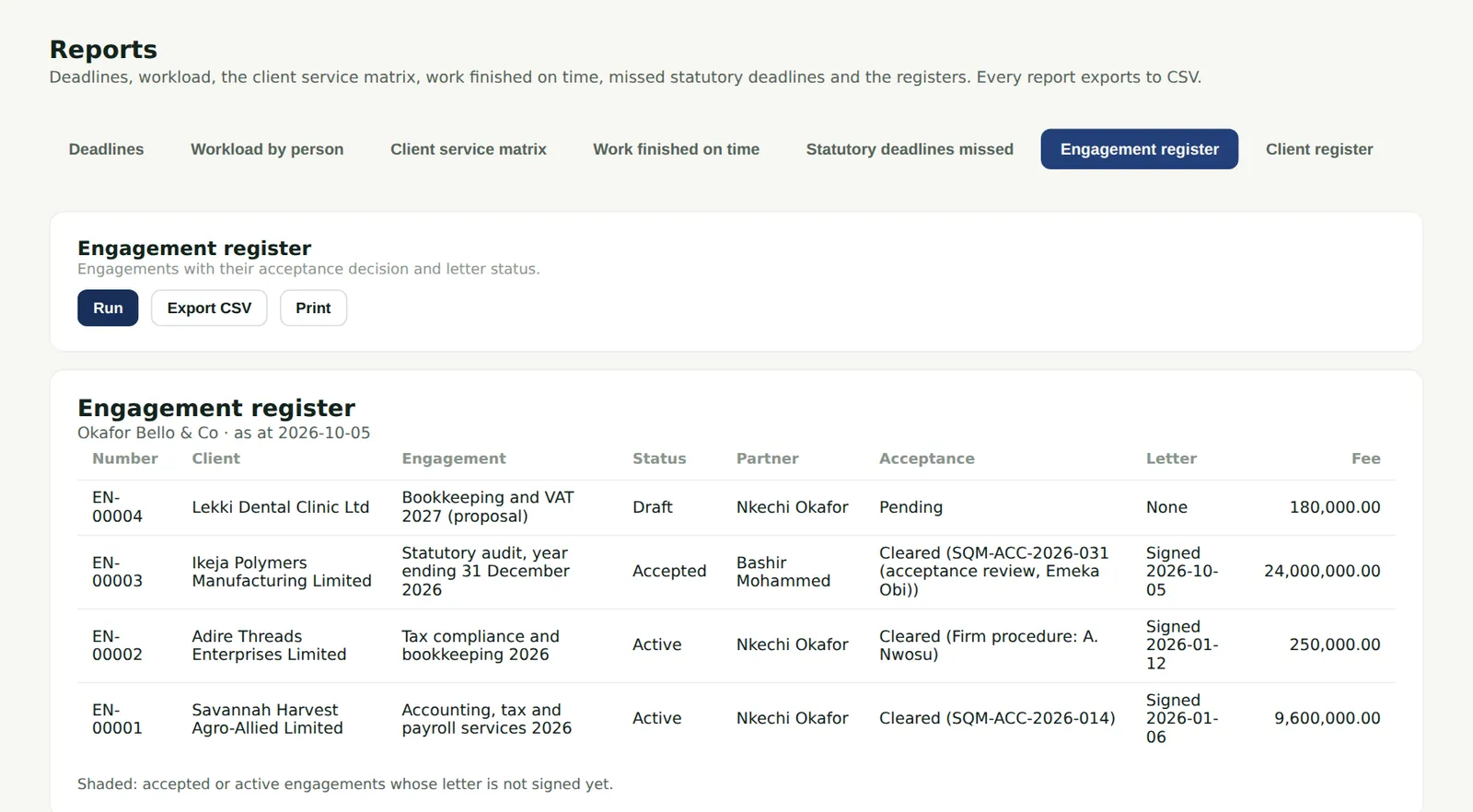
Every engagement with its status, partner, acceptance decision and reference, letter status and fee. Accepted or active engagements whose letter is not signed are shaded.
Who
Manager, partner, practice administrator, owner or viewer.
What to do
- Choose Engagement register and choose Run.
13.7 Client register
Why
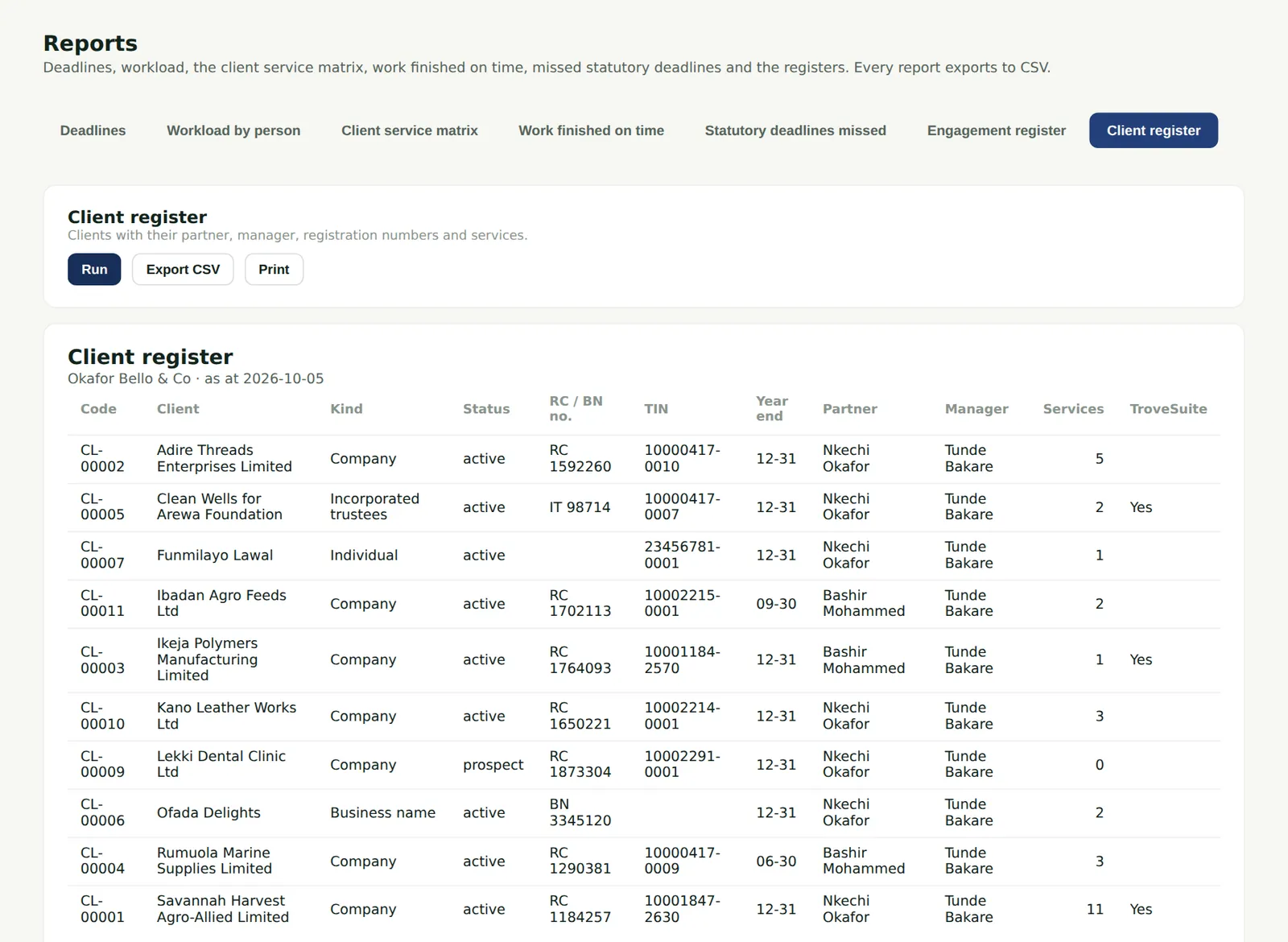
Every client with its code, kind, status, registration numbers, year end, partner, manager, number of services and whether it is on TroveSuite.
Who
Manager, partner, practice administrator, owner or viewer.
What to do
- Choose Client register and choose Run.