Steps in this chapter (4)
The tamper-evident audit trail, signed-in devices, belonging to several firms, and read-only access for a viewer.
PracticeTrove keeps every change in an audit trail that cannot be edited or deleted, signs everyone in with two-factor, and asks partners for a fresh code before decisions that bind the firm. A login can belong to several firms, each with its own clients and roles.
15.1 The audit trail
Why
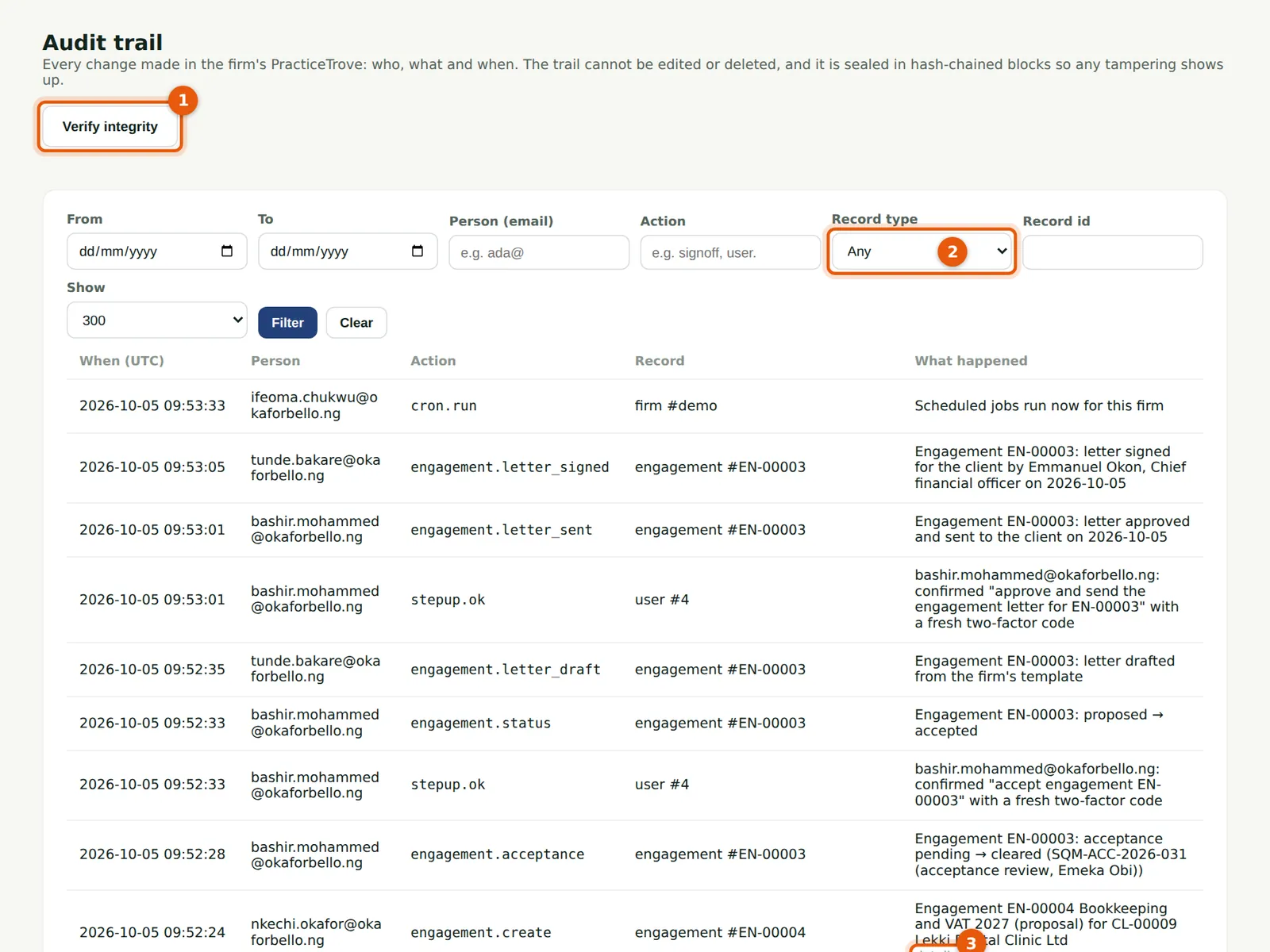
Every change: who, what and when, with the record and a description; details › shows the fields that changed (3). Filter by date, person, action or record type (2). The trail is sealed in hash-chained blocks: Verify integrity (1) checks that nothing has been altered.
Who
Owner, practice administrator, partner or viewer.
What to do
- Choose Audit trail in the menu.
- Filter, then choose details › on a line to see what changed.
- Choose Verify integrity (1) to check the chain.
15.2 Signed-in devices
Why
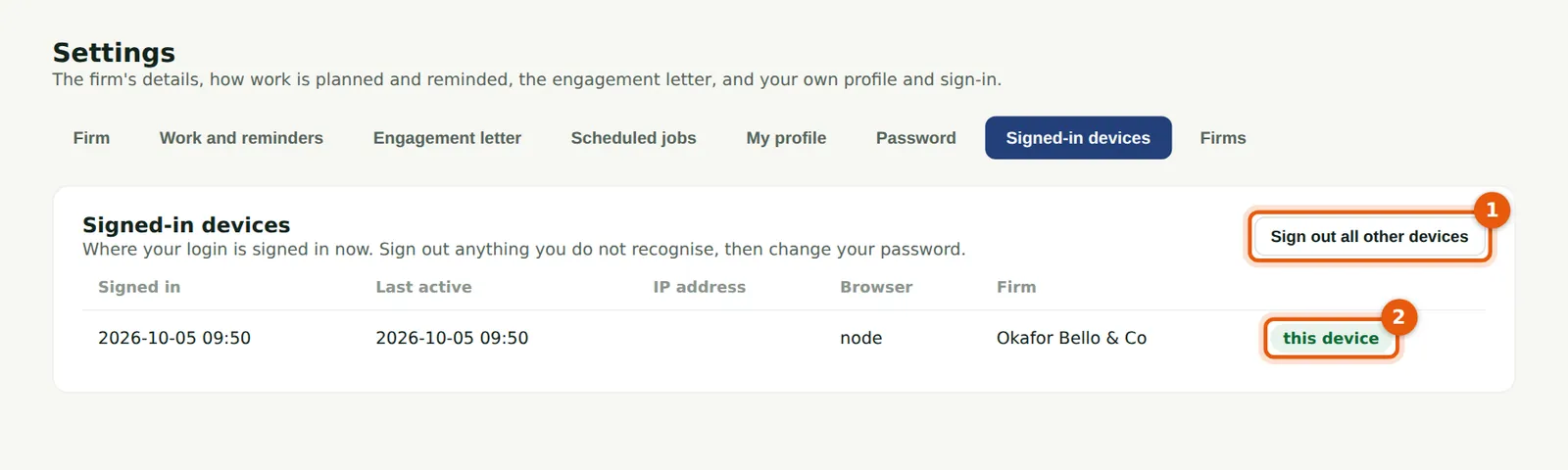
Where your login is signed in now: when, from which IP address and browser, and in which firm. Sign out anything you do not recognise (1), then change your password. This device (2) stays signed in.
Who
Everyone.
What to do
- Choose Settings, then Signed-in devices.
- Choose Sign out on a session, or Sign out all other devices (1).
15.3 Your firms
Why
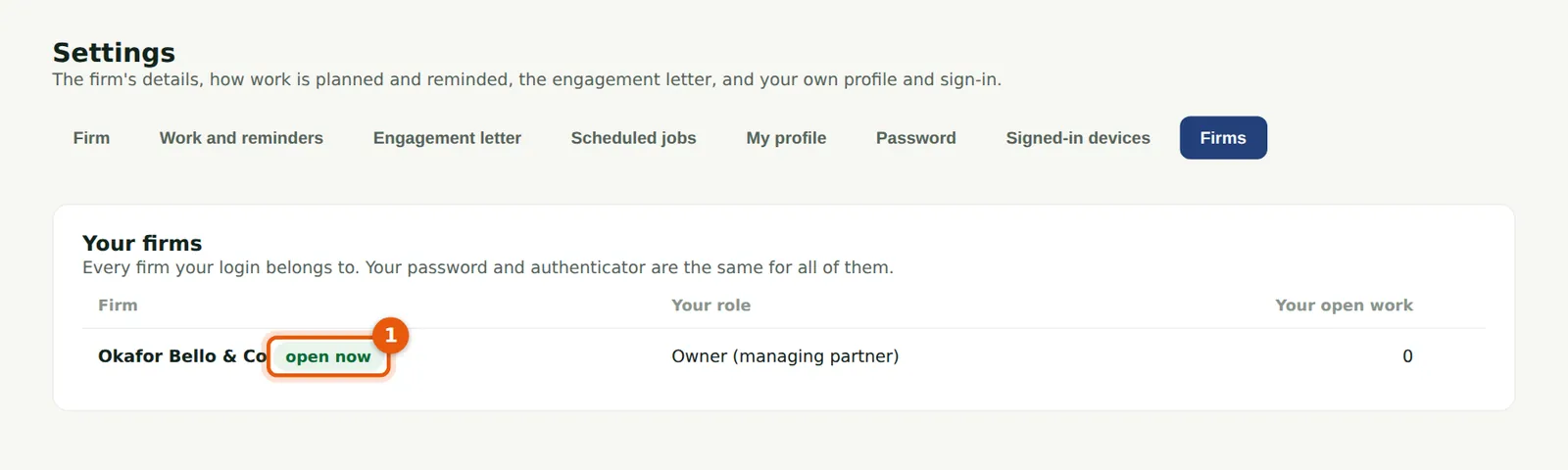
A login can belong to several firms — a consultant who helps two practices, for example. Firms lists them with your role and your open work; the one open now is marked (1). Invitations to join another firm appear here too: accept only if you expected one.
Who
Everyone.
What to do
- Choose Settings, then Firms.
- Choose Open beside another firm to switch to it.
15.4 Read-only access for a viewer
Why
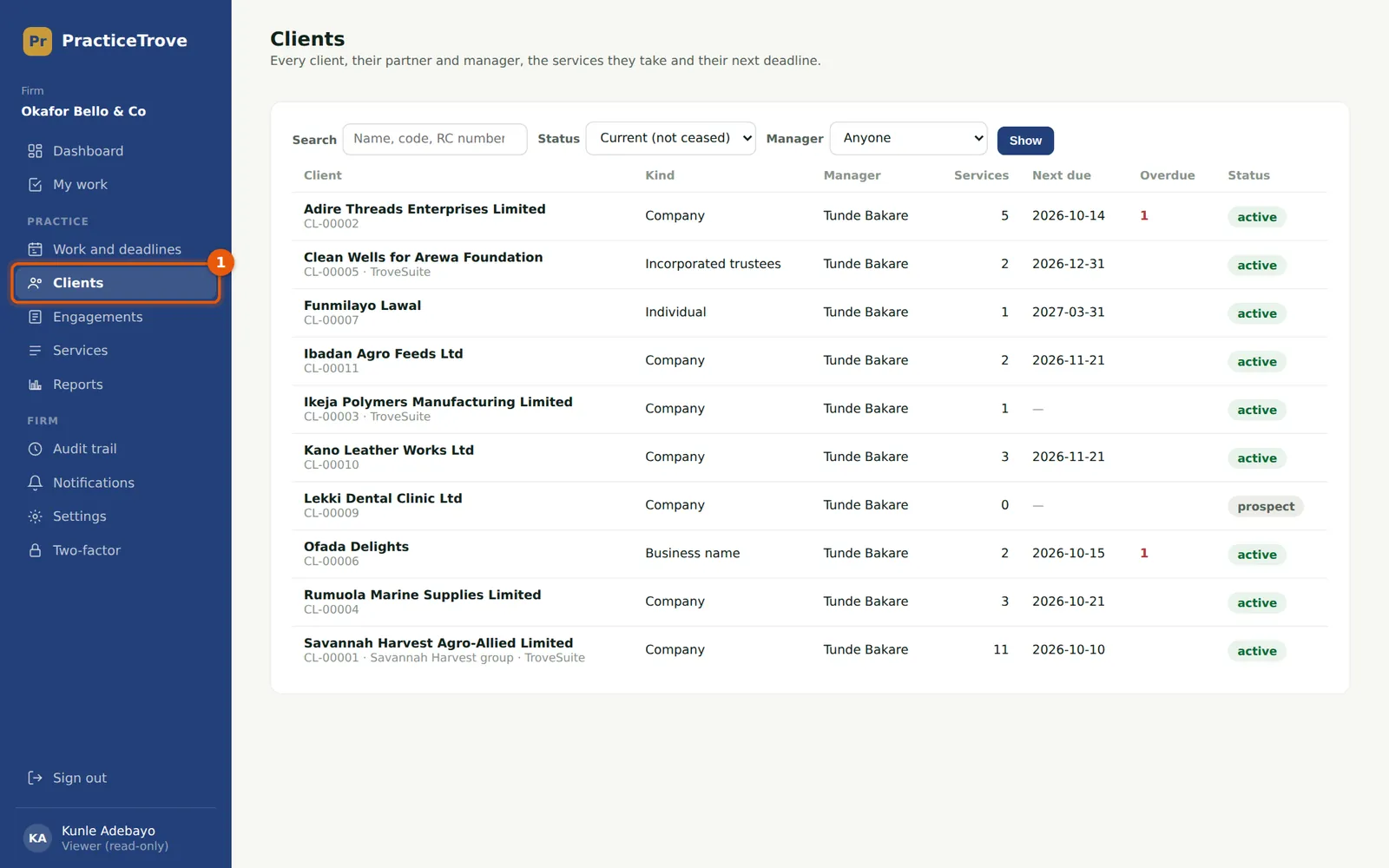
Kunle Adebayo, the firm's director of quality assurance, has the Viewer role: he sees clients (1), engagements, work and reports, and the audit trail, but cannot change anything, and his menu has no Users & roles. The role suits an inspector or a reviewer from outside the firm.
Who
Viewer.
What to do
- An owner or practice administrator adds the person with the Viewer (read-only) role (chapter 3).