Steps in this chapter (4)
Giving a client's people a portal login, asking for documents and reviewing what they upload, messages and client tasks.
The client portal is a separate site for the firm's clients, at the firm's PracticeTrove address followed by /portal.html. Clients sign in with their email address and a 6-digit code — there is no password — and can add it to a phone's home screen like an app. There they upload the documents the firm asks for, message the firm, sign documents, pay invoices and tick off their tasks. In PracticeTrove, Client portal in the menu brings together requests, messages, signatures and client tasks. Chapter 23 shows the client's side.
22.1 Invite a client's contact
Why
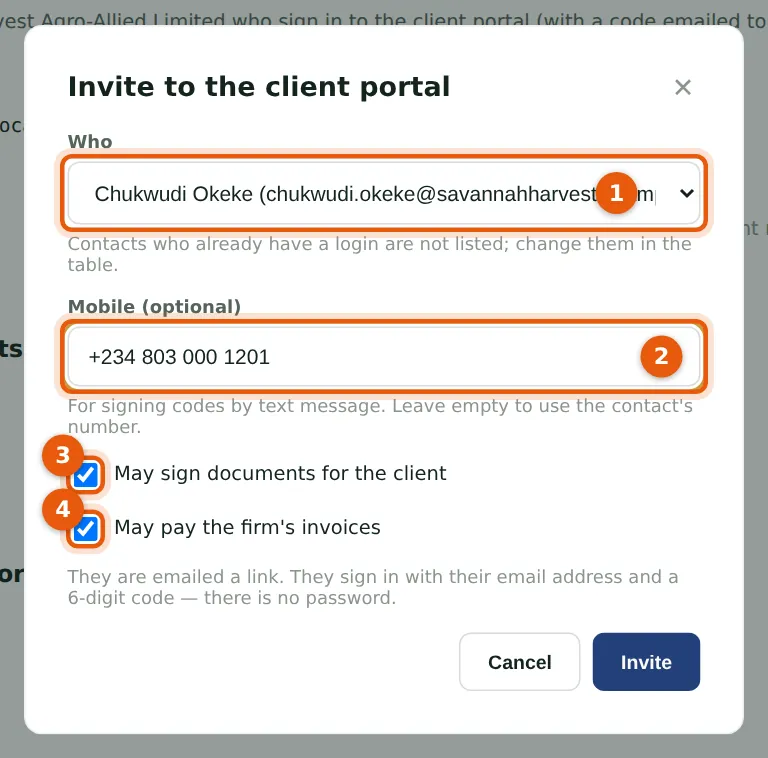
Nkechi Okafor invites Chukwudi Okeke, Savannah Harvest's finance manager. Choose the contact (1) or someone else by email, a mobile number (2) for signing codes by text, and whether they may sign documents for the client (3) and pay the firm's invoices (4). They are emailed a link. Change on a login disables it at once.
Who
Partner, practice administrator or owner.
What to do
- Open the client and choose Portal, then Invite to the client portal.
- Fill in the dialog and choose Invite.
22.2 Ask the client for documents
Why
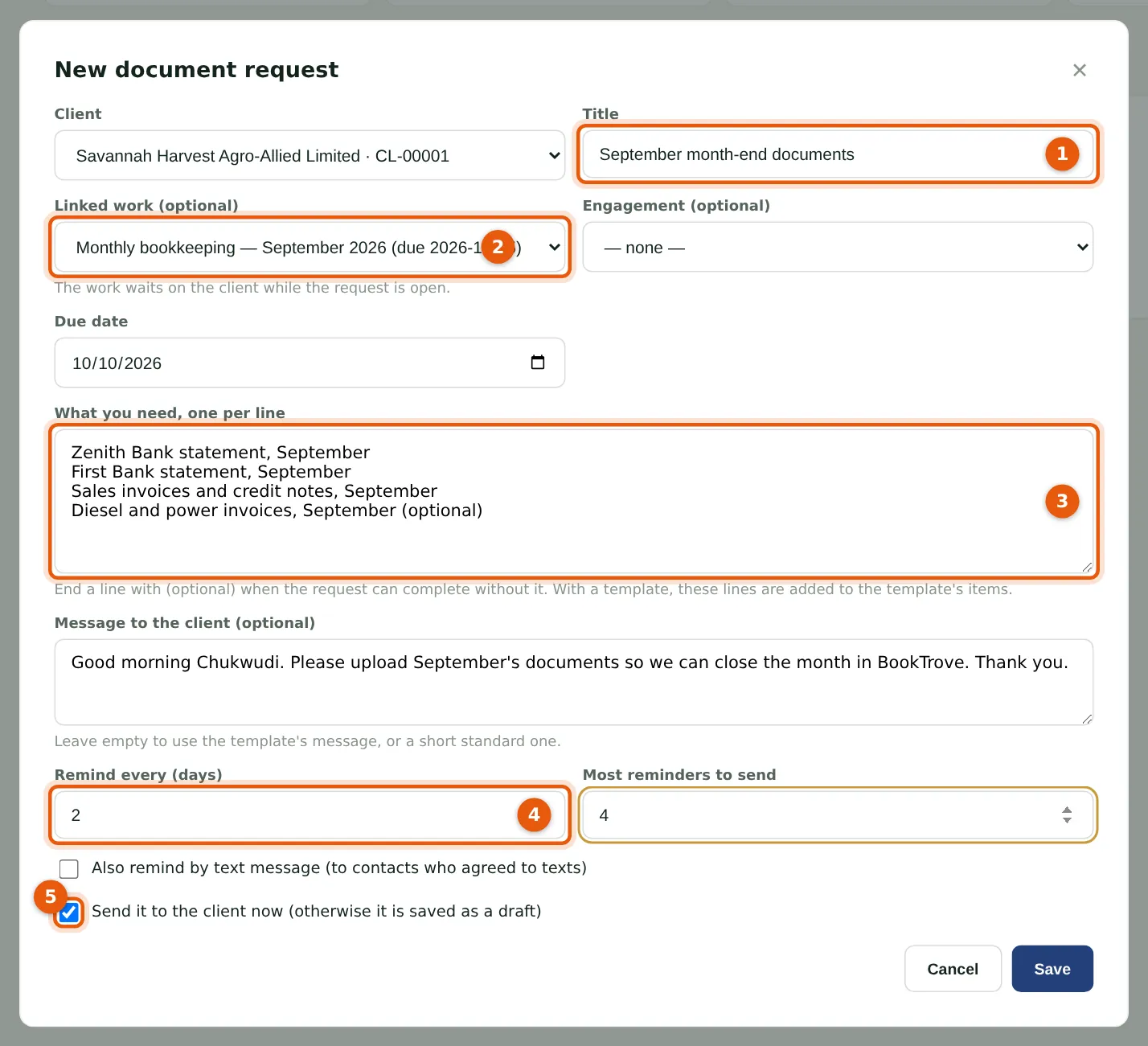
Chioma asks Savannah Harvest for September's documents. The request has a title (1) and is linked to the work (2), which then waits on the client until the request is complete. List what you need, one item per line (3); end a line with (optional) for one the client may not have. Reminders go every few days (4), up to a limit. Send it now (5), or save a draft.
Who
Staff, manager or above.
What to do
- Choose Client portal, then New request.
- Fill in the request and choose Save.
22.3 Review what the client uploads
Why
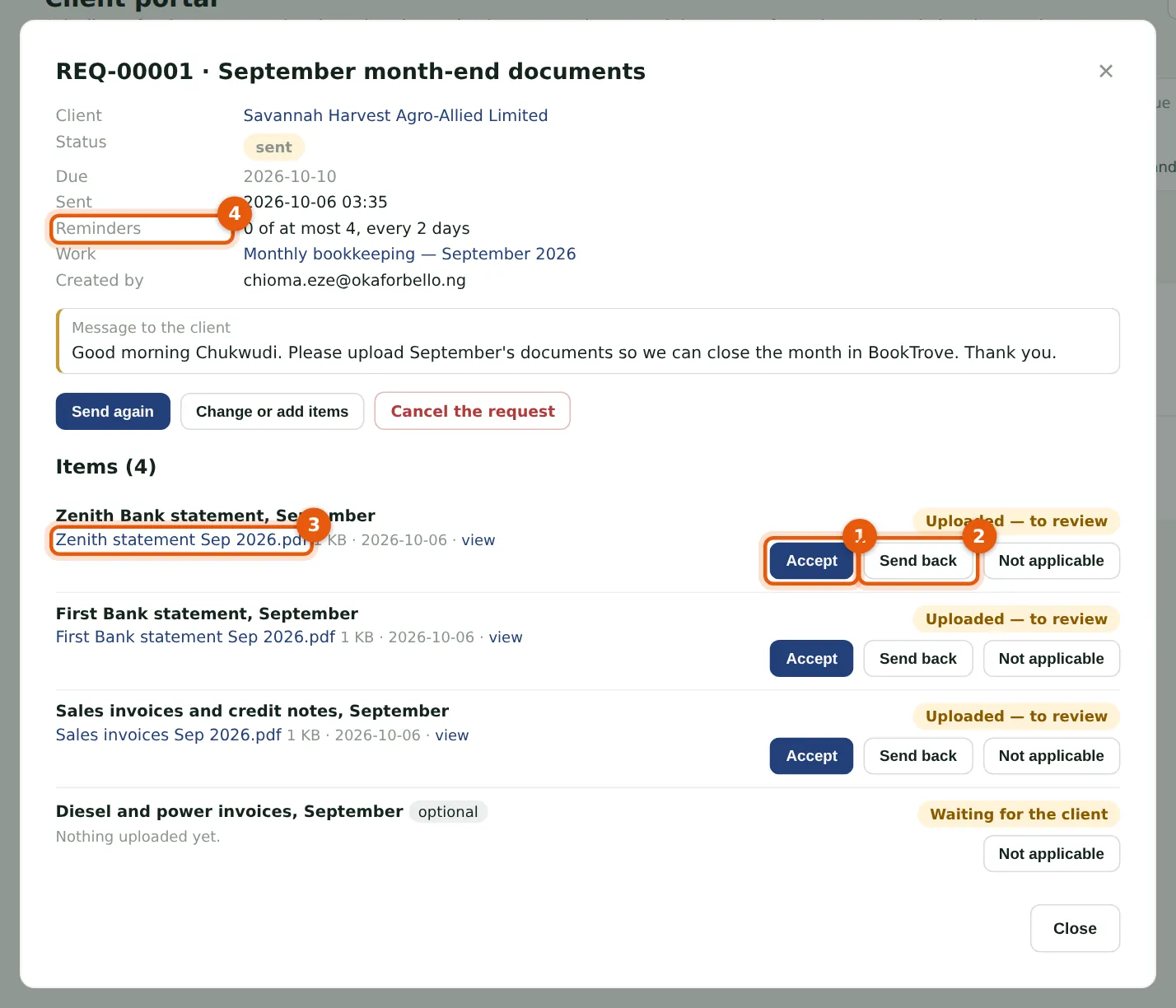
Uploads arrive as Uploaded — to review. Open the file (3), then Accept (1) or Send back (2) with a note the client sees: Chioma sends the First Bank statement back because a page is missing. Not applicable takes an item off. When every required item is accepted, the request is complete, the work goes back to in progress and the reminders (4) stop.
Who
Staff, manager or above.
What to do
- Open the request from Client portal (Needs review lists those with uploads).
- Accept each document, or send it back with a note.
22.4 Messages with the client
Why
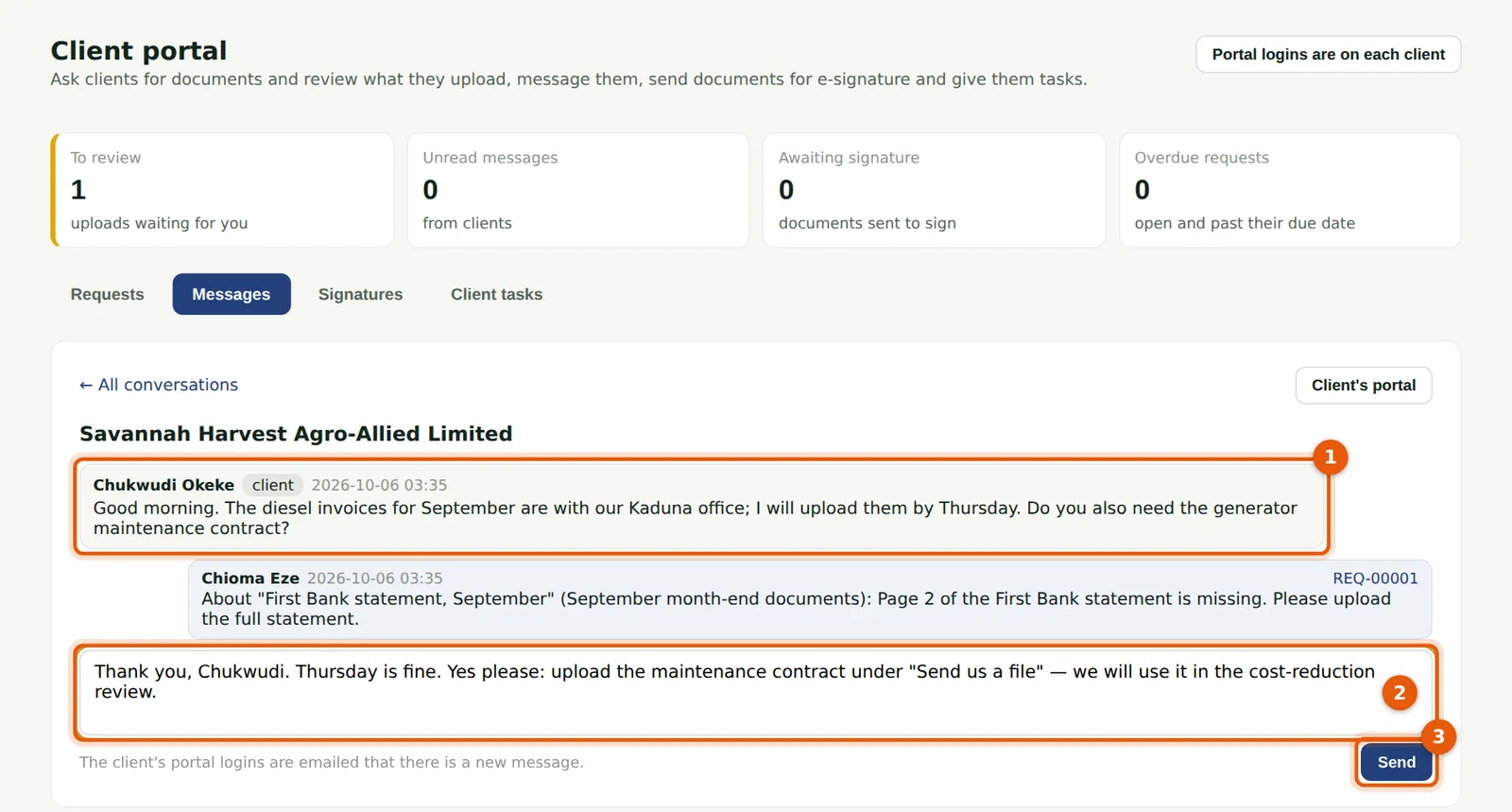
Messages from the client's portal logins (1) arrive here and on the client's timeline. Write a reply (2) and Send (3); the client is emailed that there is a new message. Notes on documents sent back appear in the conversation too. The Client tasks tab gives the client something to do, such as confirming the stock count, with a due date.
Who
Staff, manager or above.
What to do
- Choose Client portal, then Messages, and open the client's conversation.
- Write the reply and choose Send.