Steps in this chapter (5)
What the client sees: signing in with an emailed code, the home page, uploading documents, messages and paying an invoice.
This chapter follows Chukwudi Okeke, finance manager of Savannah Harvest Agro-Allied Limited, on his phone. The portal works the same on a computer.
23.1 Sign in with a code
Why
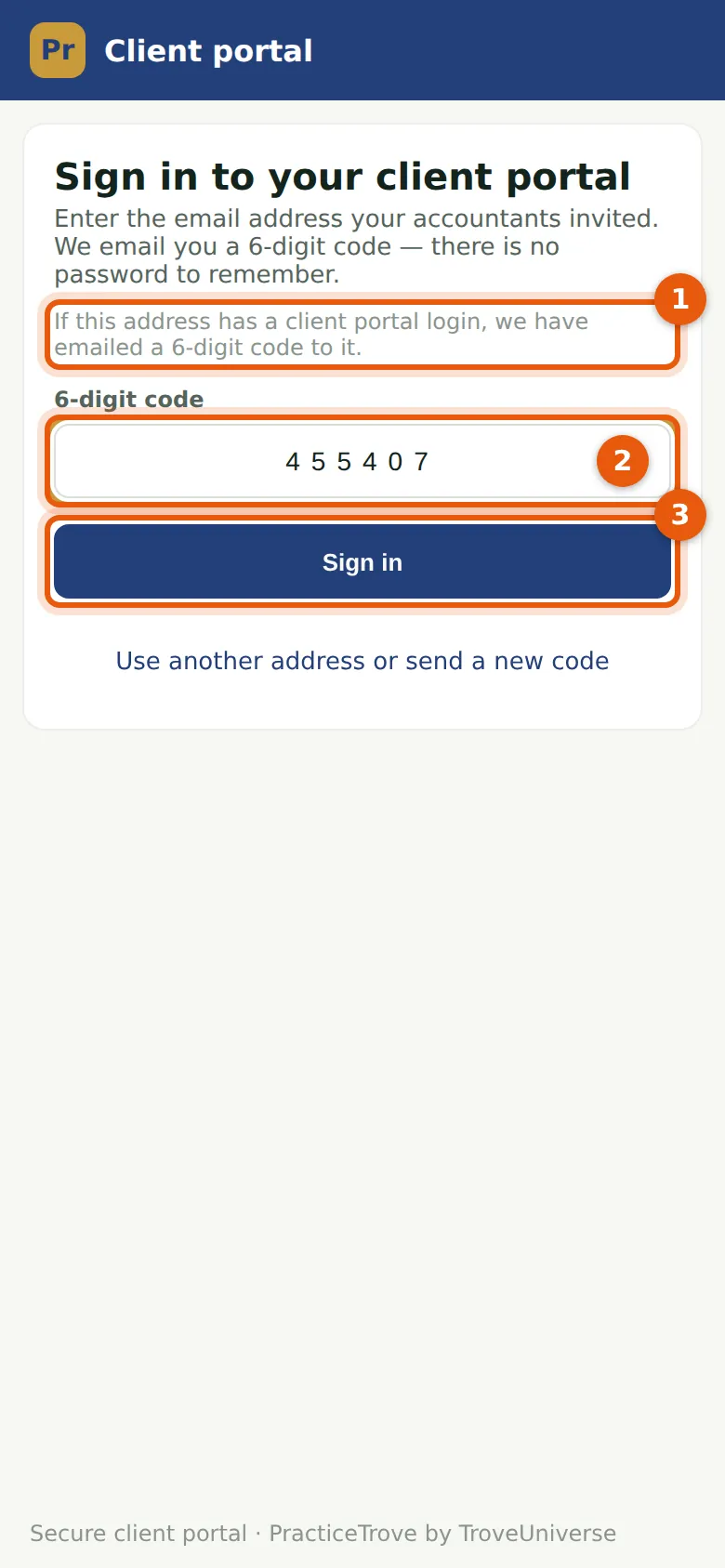
He enters his email address and chooses Email me a code; the page says a code is on its way (1), without saying whether the address has a login. He enters the 6-digit code (2) and chooses Sign in (3). A code works once, for 10 minutes. The session ends after an hour without use.
Who
The client's contact, with a client portal login.
What to do
- Open the portal address from the invitation email.
- Enter the email address, choose Email me a code, then enter the code and choose Sign in.
- On a phone, use the browser's Add to home screen (or Install) to keep the portal there.
23.2 The client's home page
Why
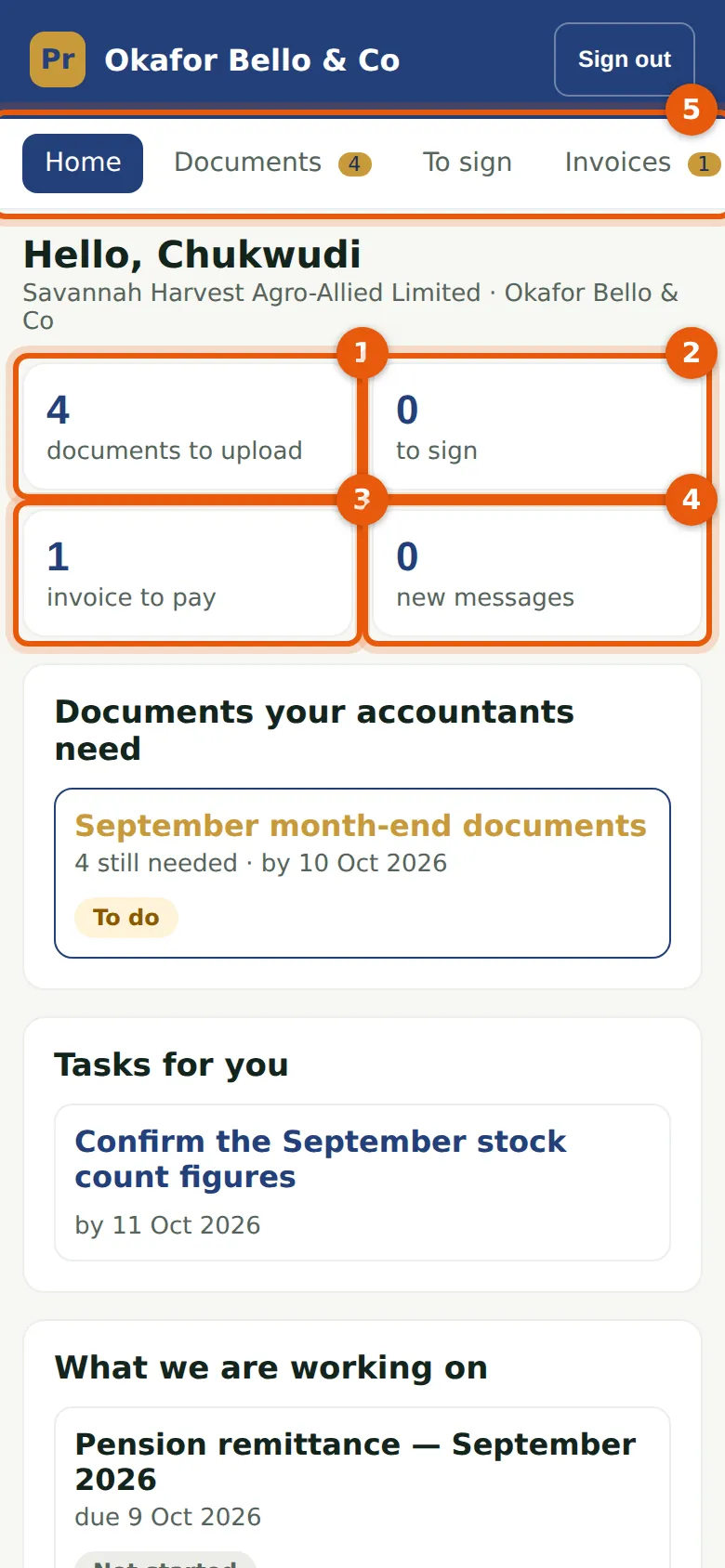
Home shows the documents to upload (1), documents to sign (2), invoices to pay (3) and new messages (4), then the requests, the client's tasks and the work the firm is doing. The menu (5) leads to each. Send us a file sends something not asked for, such as a letter from the tax office.
Who
The client's contact, with a client portal login.
What to do
- Choose a figure or a request to open it.
23.3 Upload the documents asked for
Why
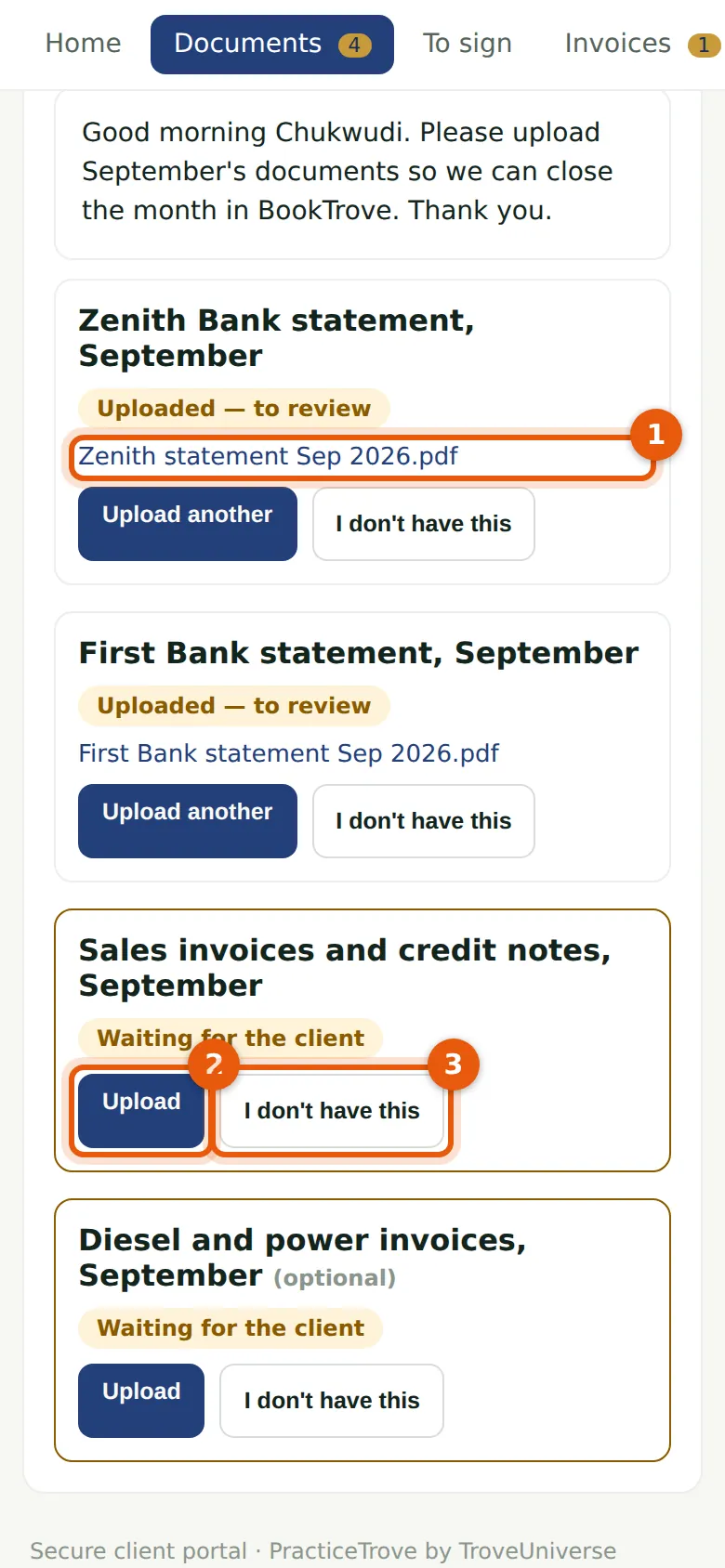
Each item says what is needed. Upload (2) takes a photo or chooses a file — PDF, image, Excel, Word or CSV, up to 10 MB. Uploaded files are listed (1) and wait for the firm's review. I don't have this (3) tells the firm why. An item sent back shows the firm's note and can be uploaded again.
Who
The client's contact, with a client portal login.
What to do
- Open the request.
- Choose Upload on each item and pick the file or take the photo.
23.4 Messages
Why
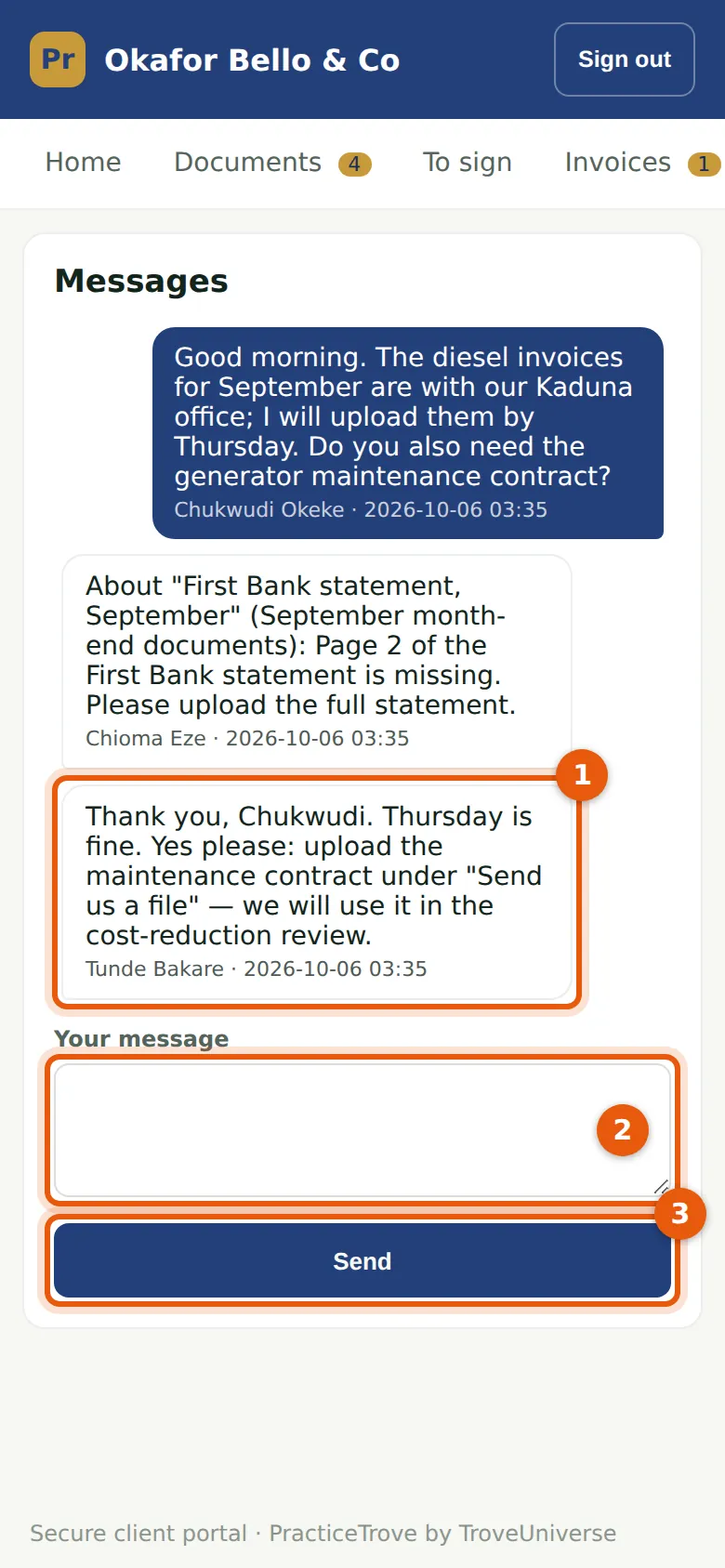
The conversation with the firm, including the firm's replies (1) and its notes on documents sent back. He writes a message (2) and chooses Send (3); the firm sees it under Client portal → Messages.
Who
The client's contact, with a client portal login.
What to do
- Choose Messages, write the message and choose Send.
23.5 Pay an invoice
Why
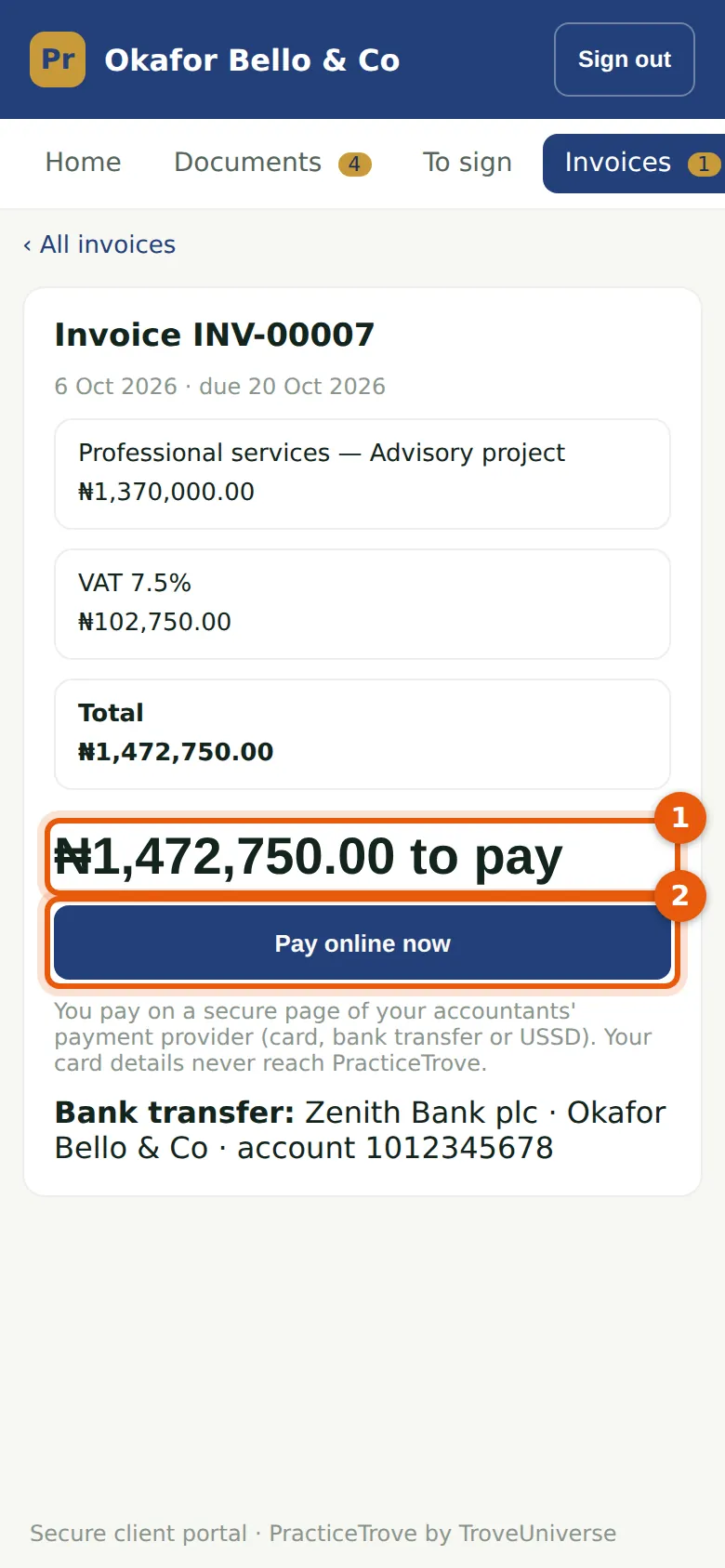
A login that may pay sees the firm's invoices with the amount to pay (1). Pay online now (2) opens the firm's payment page, as in step 20.4; the bank details are shown for a transfer. When the payment is confirmed, the invoice shows paid.
Who
The client's contact, with a client portal login that may pay.
What to do
- Choose Invoices, then the invoice.
- Choose Pay online now, or pay by transfer quoting the invoice number.