Steps in this chapter (5)
Price options for a prospect or client, sent by a partner as a private link and accepted online with a code — and what accepting creates.
A proposal sets out one to six price options, each with services and fees, optional extras, an introduction, terms and the date it is valid until. The client reads it on a private link, with no sign-in, chooses an option and accepts with a code emailed to them. Accepting creates the engagement, its letter, the services, the recurring fees and a draft invoice for one-off fees, in one step.
21.1 Draft a proposal
Why
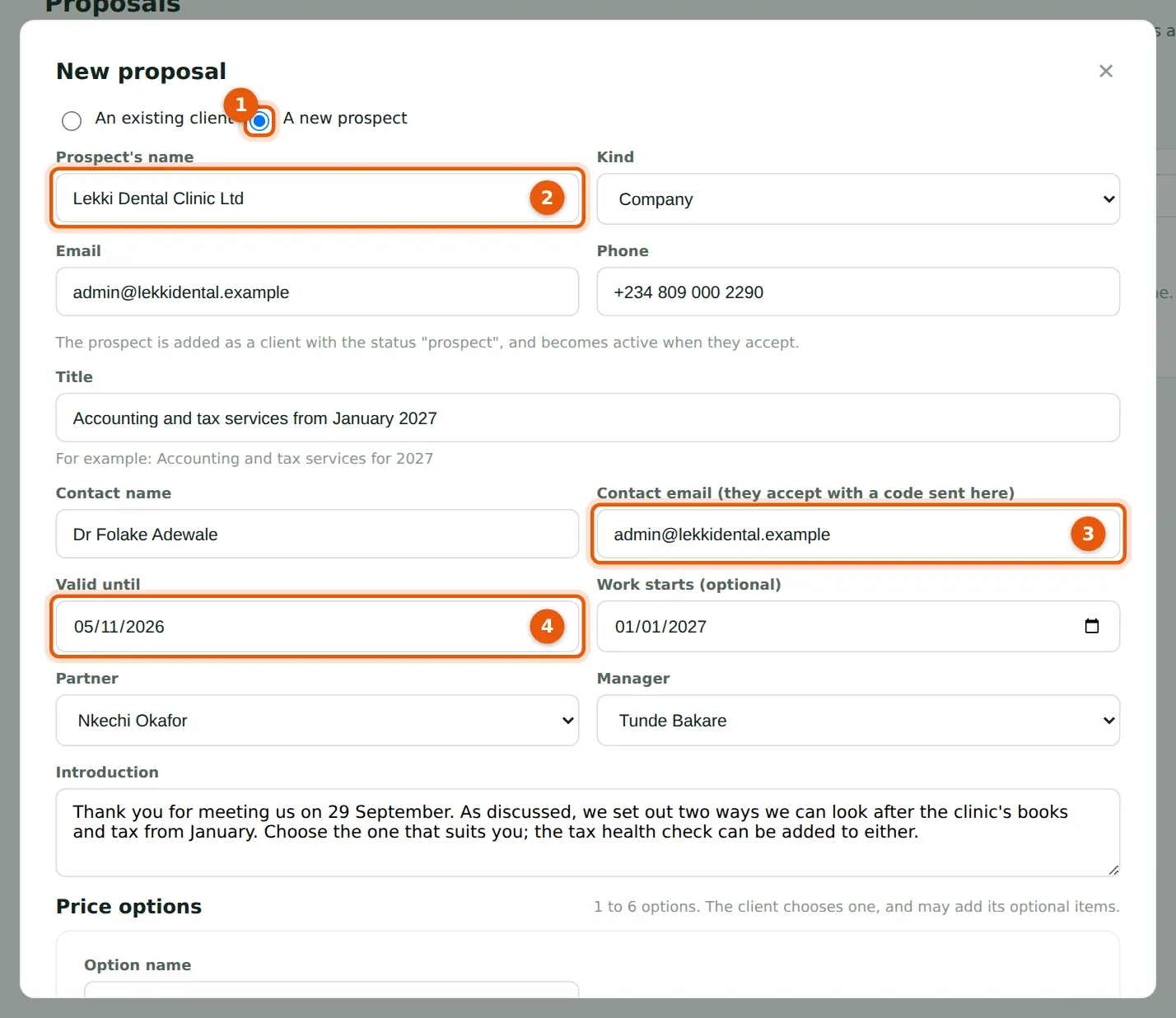
After meeting the clinic's medical director, Tunde Bakare drafts a proposal. For someone not yet a client he chooses A new prospect (1) and enters the clinic (2); it is added as a prospect. The contact email (3) is where the link and the acceptance code go. The proposal is valid until a date (4), 30 days ahead by default.
Who
Manager, partner, practice administrator or owner.
What to do
- Choose Proposals in the menu, then New proposal.
- Choose an existing client or a new prospect, and fill in the title, contact, dates, partner and manager, introduction and terms.
21.2 Price options and optional extras
Why
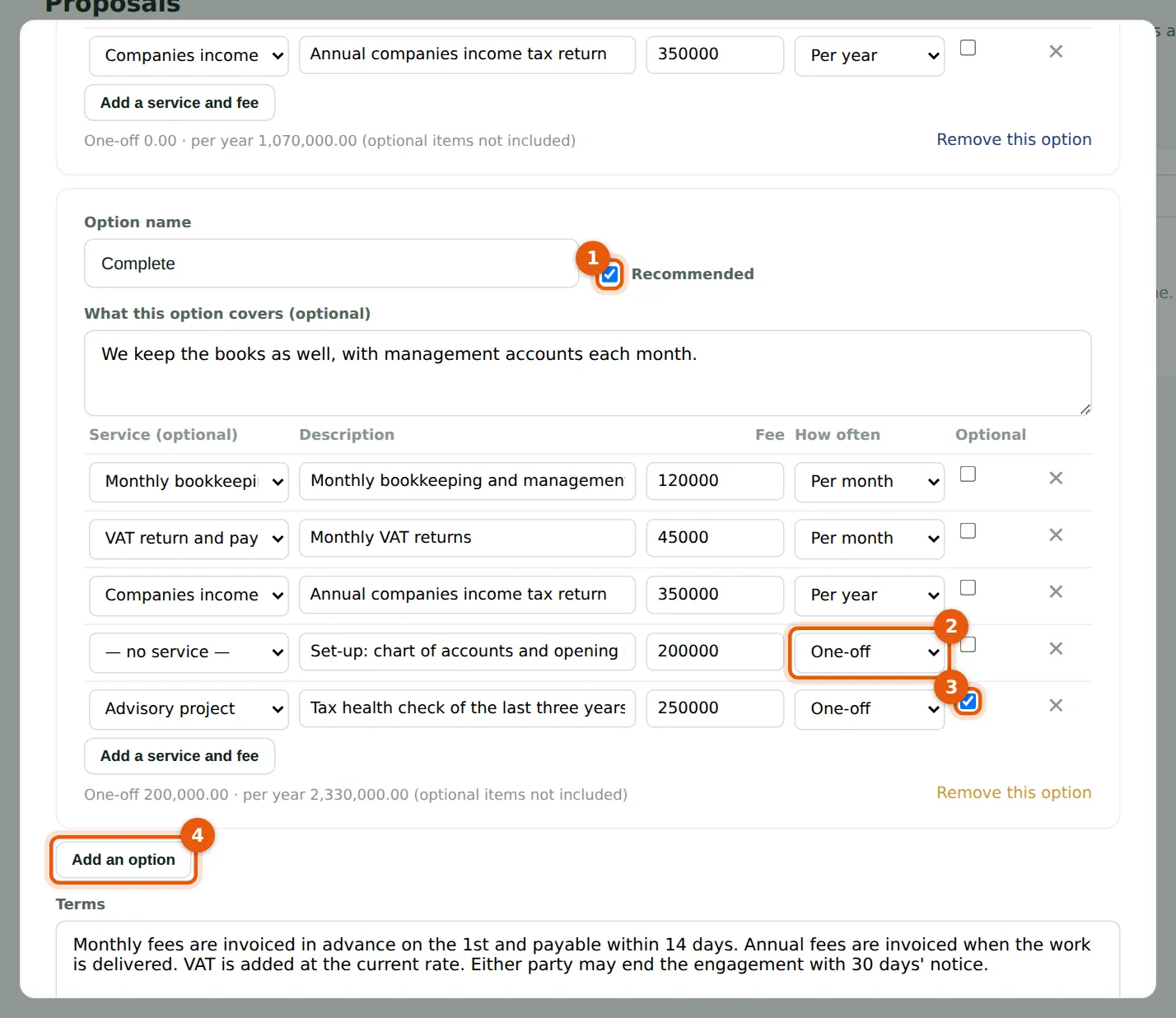
Tunde offers two options. Complete is Recommended (1). Each line is a service or a description, a fee and how often: per month, quarter or year, or one-off (2). An optional line (3), here a tax health check, is one the client may add. Add an option (4) adds another; the Packages tab keeps the firm's standard bundles to add as options.
Who
Manager, partner, practice administrator or owner.
What to do
- Fill in each option's name and lines; tick Recommended on one.
- Choose Save as draft.
21.3 Send the proposal
Why
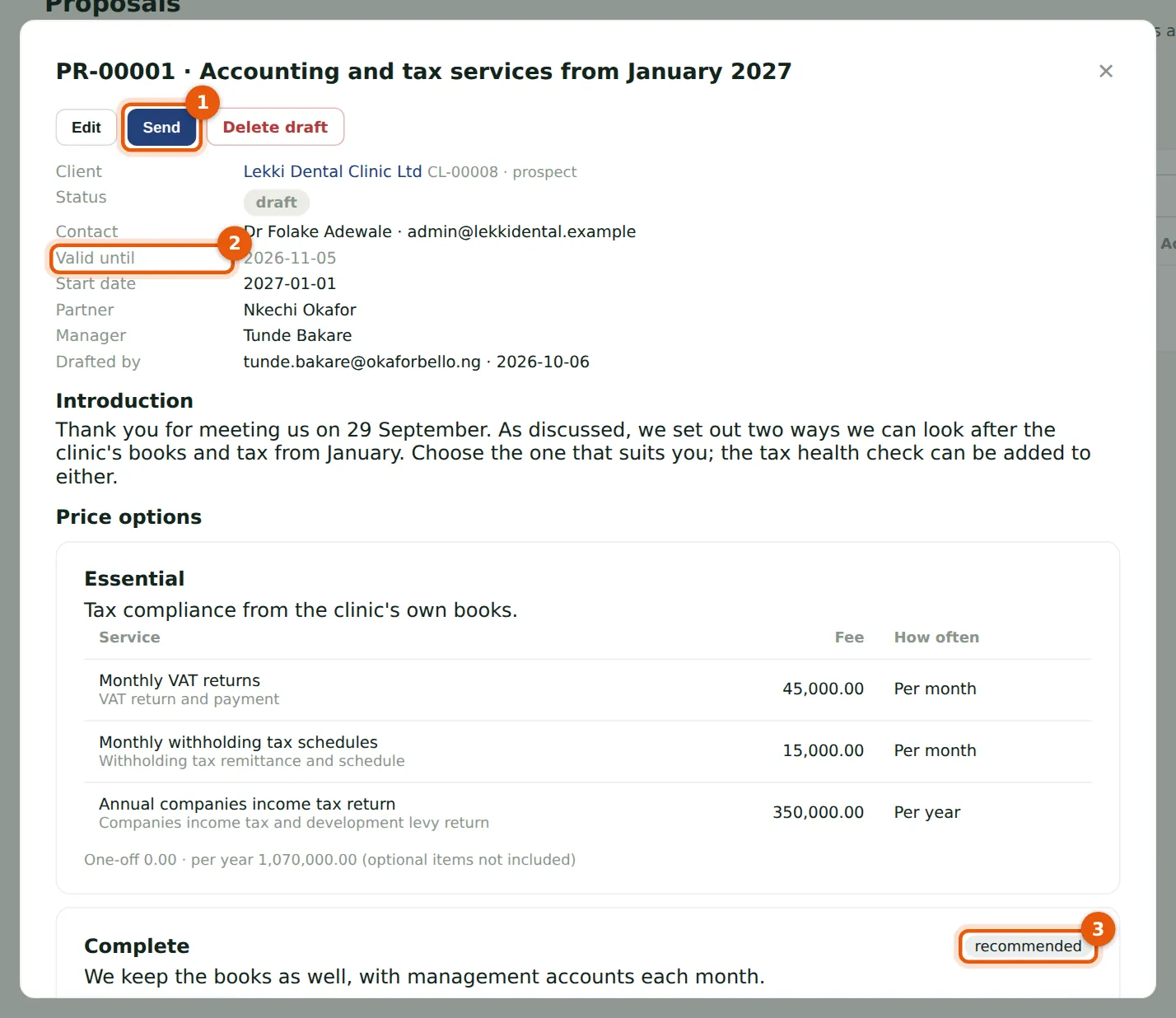
A partner sends it (1): the contact is emailed a private link that works until the valid-until date (2). The recommended option (3) is highlighted for the client. If the email cannot be sent, PracticeTrove shows the link to pass on yourself. Withdraw stops the link; Send again replaces it.
Who
Partner, practice administrator or owner.
What to do
- Open the proposal, check it and choose Send, then Send again to confirm.
21.4 The client accepts online
Why
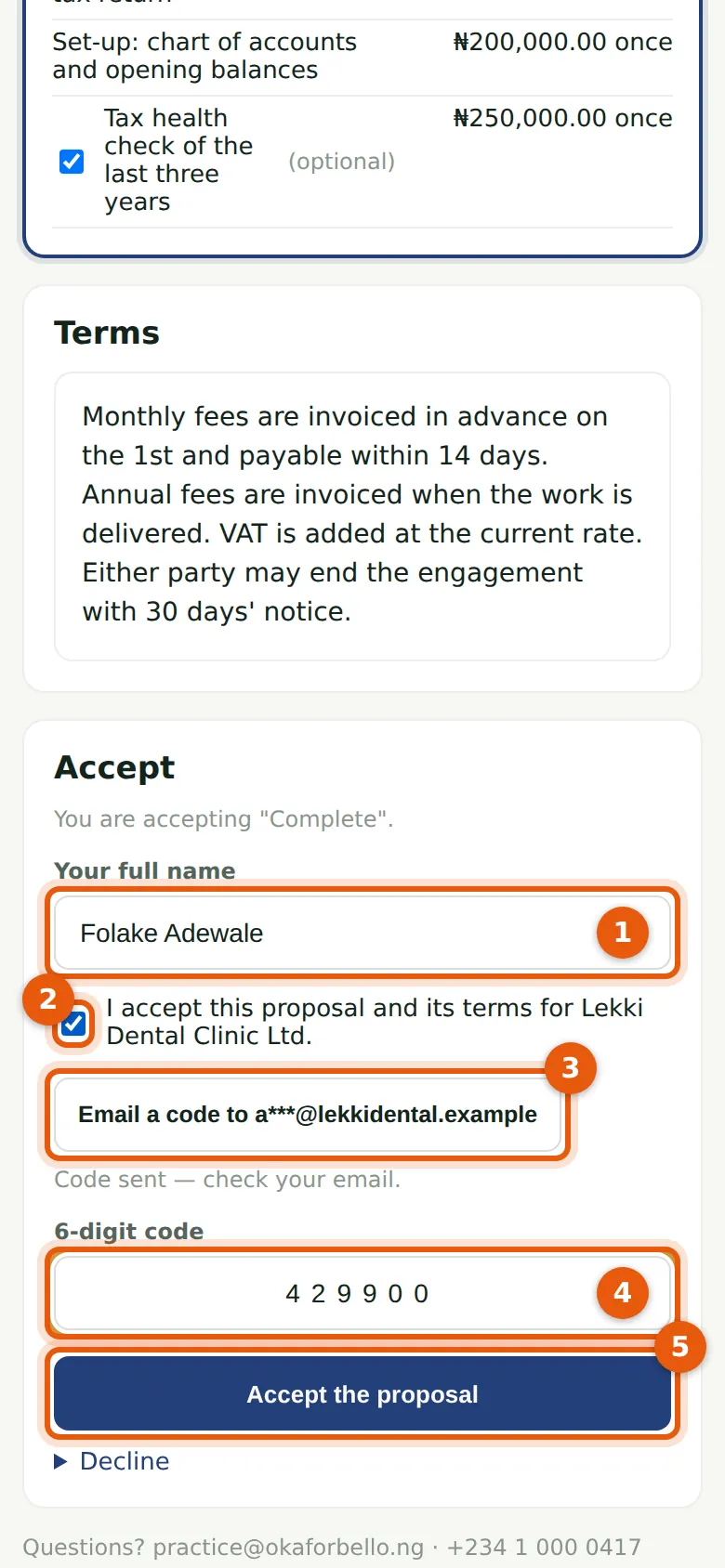
Dr Adewale chooses Complete with the tax health check. To accept she types her name (1), ticks that she accepts the proposal and its terms (2), has a 6-digit code emailed (3), enters it (4) and chooses Accept the proposal (5). She could instead decline, with a reason the firm sees.
Who
The prospect's contact (no sign-in needed).
What to do
- Open the link in the email.
- Choose an option and any extras, then fill in the Accept form.
21.5 What accepting creates
Why
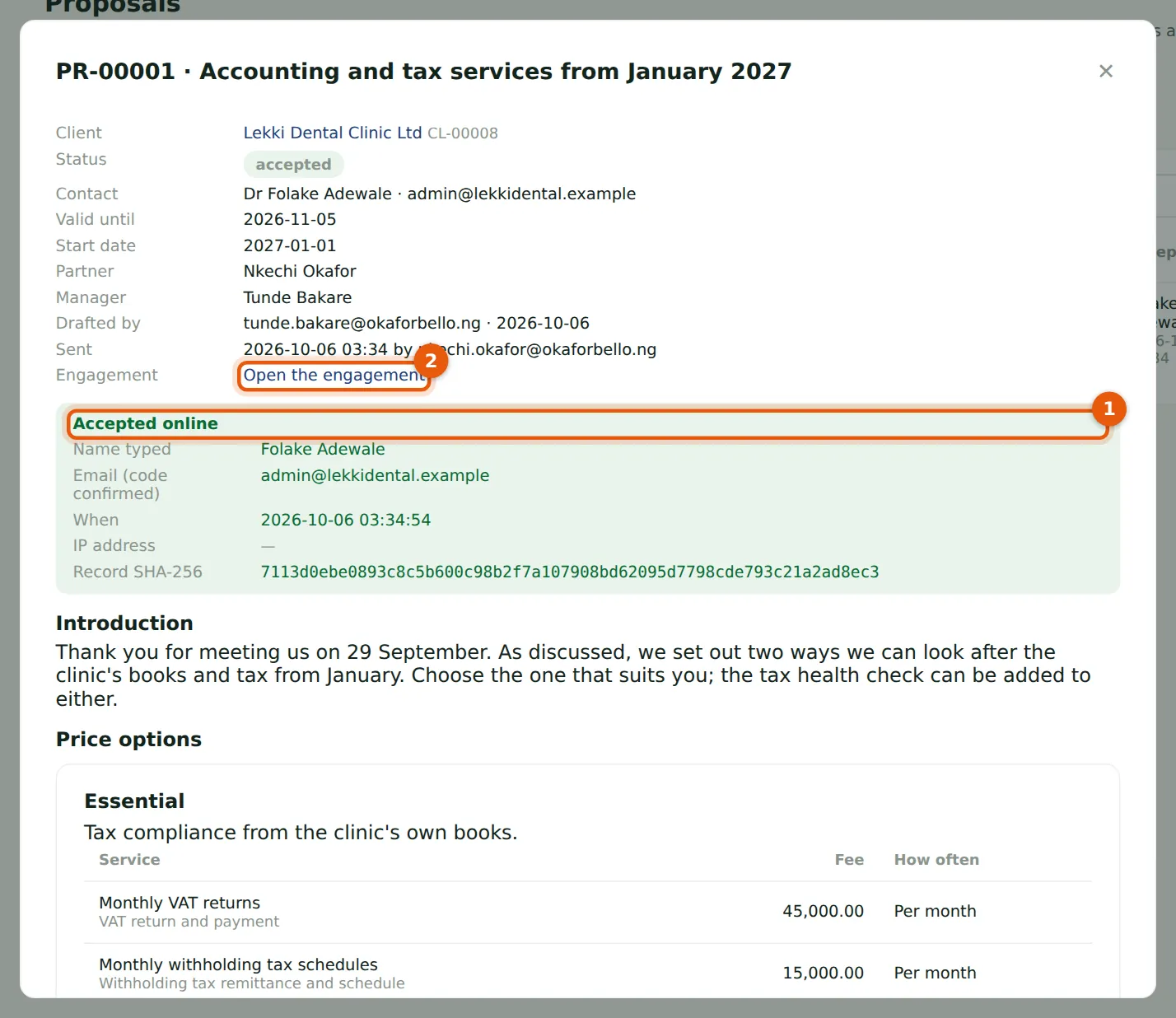
The acceptance record (1) keeps the name typed, the email confirmed by the code, the time and a SHA-256 fingerprint. In the same step the clinic became an active client with the engagement (2): proposed, acceptance pending, letter drafted. Its services, recurring fees and a draft invoice for the one-off fees were added. The chosen option is marked (3).
Who
Partner, manager, practice administrator or owner.
What to do
- Open the engagement from the proposal.
- Record the acceptance decision and approve the letter (chapters 11 and 12), then send it for e-signature (chapter 24).