Steps in this chapter (4)
Monthly, quarterly and annual fees and retainers; the billing settings for reminders, online payment and BookTrove; the pay link and the page the client pays on.
A recurring fee makes an invoice on a schedule. Payment reminders go to clients by themselves. With the firm's own Paystack or Flutterwave account connected (chapter 28), clients pay online from a private link in the invoice email or in the client portal, and the payment is recorded on the invoice once the provider confirms it.
20.1 A recurring fee or retainer
Why
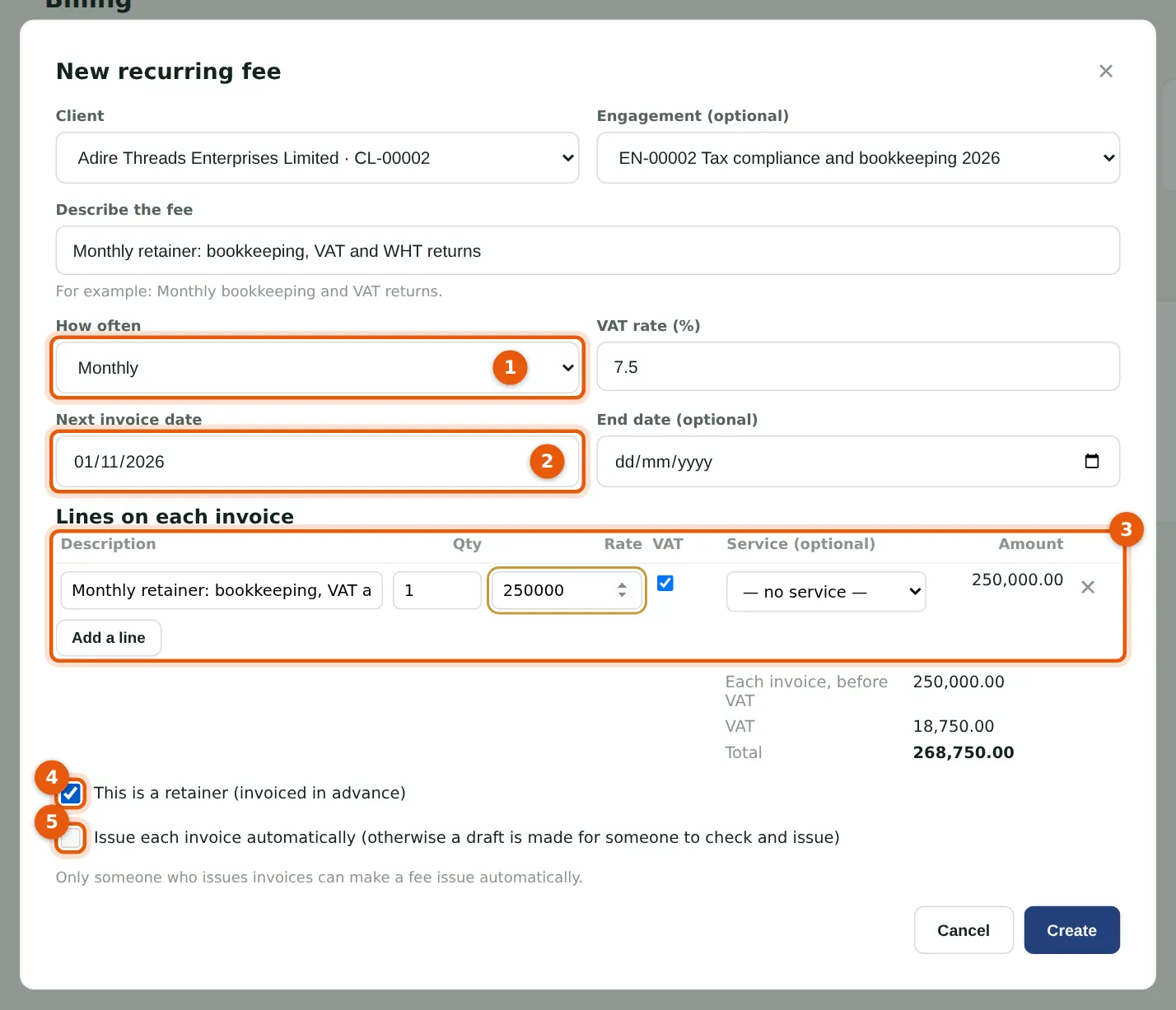
Adire Threads pays a monthly retainer. The fee comes round monthly (1; or quarterly or yearly) from the next invoice date (2; not in the past), with its lines (3). A retainer (4) is invoiced in advance and shown in the Retainers report. On each date a draft is made for someone to check and issue; Issue each invoice automatically (5) can be set only by someone who issues invoices.
Who
Manager, partner, practice administrator or owner.
What to do
- Choose Billing, then Recurring fees and New recurring fee.
- Choose the client, describe the fee, set how often, the next date and the lines, and choose Create.
- Open a fee to pause, resume or end it.
20.2 Billing settings
Why
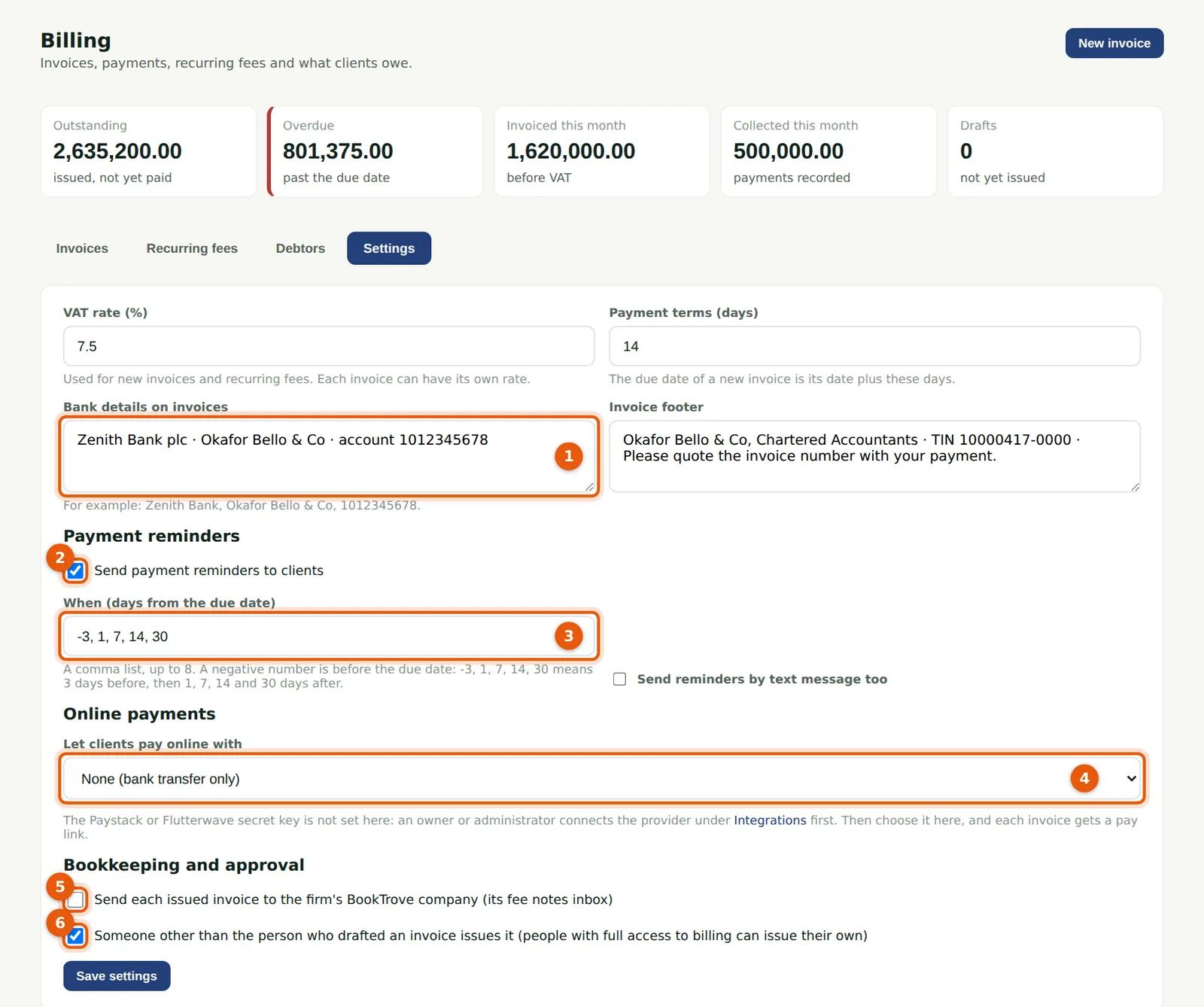
The bank details (1) and footer go on every invoice. Payment reminders (2) go on the days listed (3), counted from the due date: -3, 1, 7, 14, 30 is three days before, then 1, 7, 14 and 30 days after. Let clients pay online with (4) Paystack or Flutterwave once connected in Integrations. Send each issued invoice to BookTrove (5) copies it to the firm's own BookTrove company. The approval rule (6) keeps the drafter from issuing.
Who
Owner or practice administrator.
What to do
- Choose Billing, then Settings.
- Change what is needed and choose Save settings.
20.3 The pay link
Why
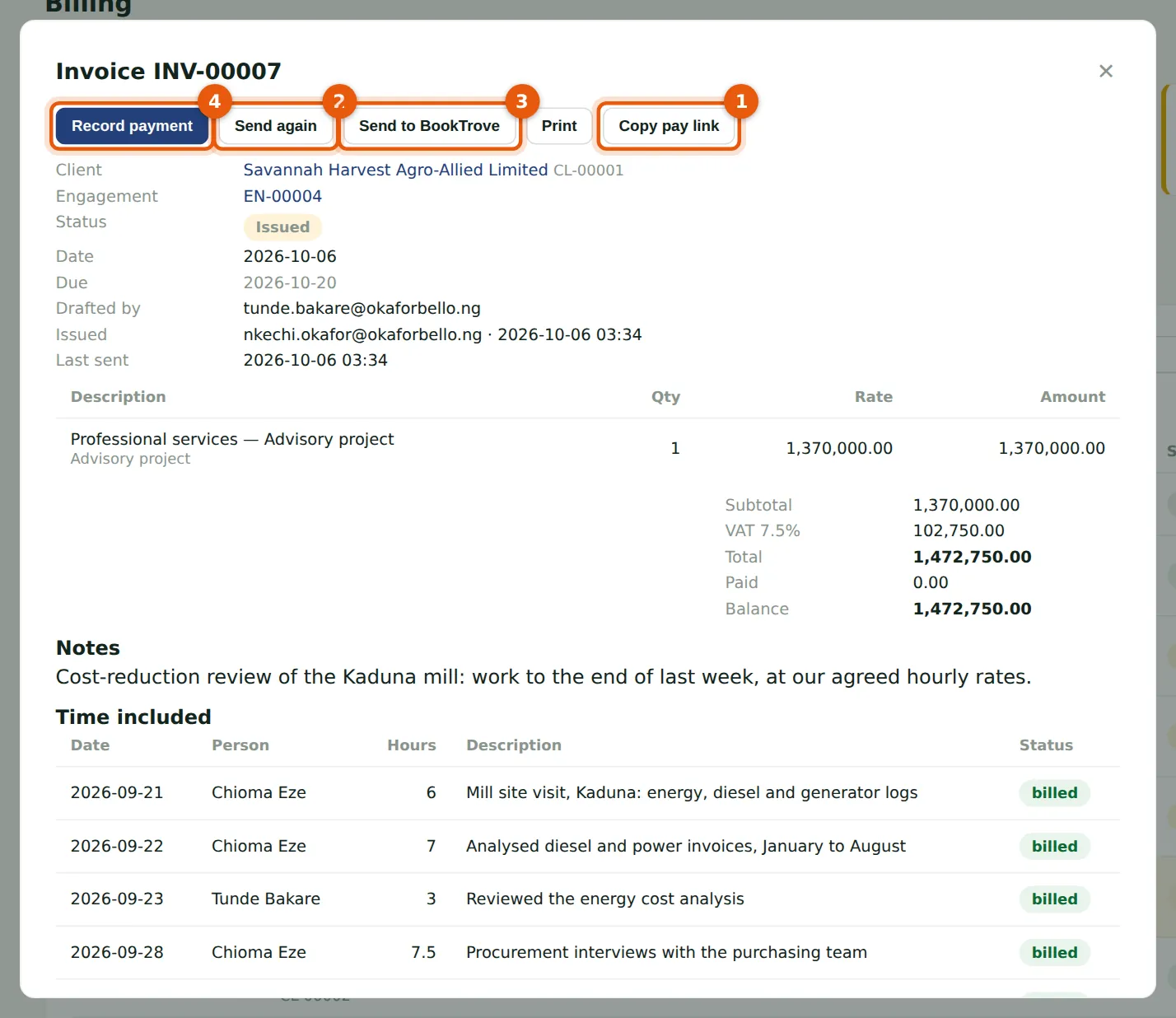
With online payment on, every issued invoice has a private pay link. The invoice email and reminders carry it; Copy pay link (1) lets you send it another way, such as WhatsApp. Send again (2) emails the invoice again. Send to BookTrove (3) sends it to the firm's BookTrove fee notes. Record payment (4) is still there for transfers and cheques.
Who
Partner, practice administrator or owner.
What to do
- Open the issued invoice.
- Choose Copy pay link, or Send again.
20.4 Paying online: what the client sees
Why
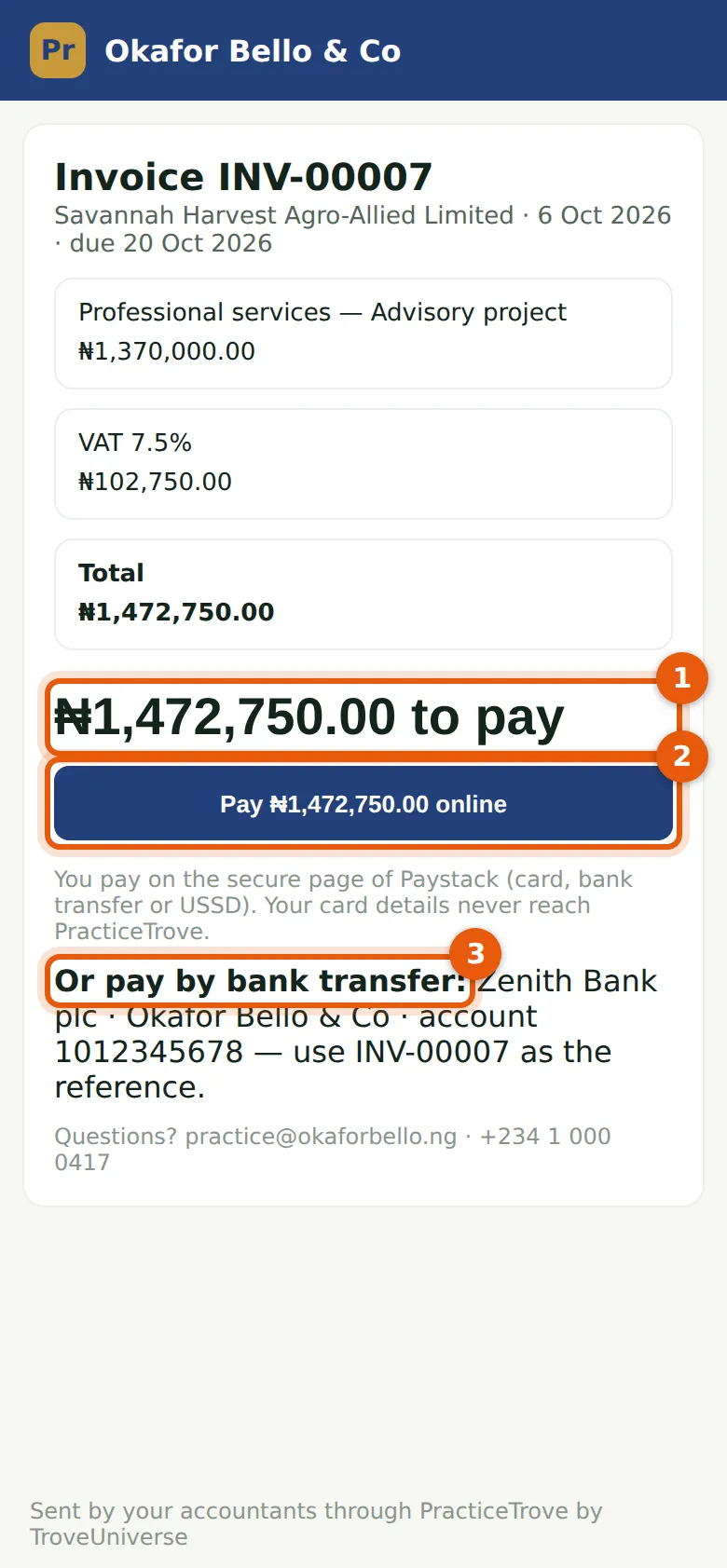
The link opens the invoice and the amount to pay (1). Pay (2) goes to the firm's Paystack (or Flutterwave) page: card, bank transfer or USSD; card details never reach PracticeTrove. Or the client pays by transfer to the bank details (3). PracticeTrove checks each confirmed payment with the provider before recording it, and flags one it cannot record to the people who issue invoices.
Who
The client's contact (no sign-in needed).
What to do
- Open the link in the invoice email.
- Choose Pay and finish on the provider's page; the pay page then shows the invoice paid.