Steps in this chapter (4)
Recording time with a timer or by hand, your week's timesheet and submitting it, and approving other people's time.
From release 48 the firm's people record their time in PracticeTrove: against a client and, if they like, an engagement and a piece of work, billable or not. Time stays a draft until the person submits their week. Someone else then approves it: nobody approves their own time unless they have full access to time. Approved billable time is work in progress (WIP), ready to invoice (chapter 19) or to write off.
Everyone except viewers records their own time. Managers, partners and above also see everyone's time, approve it, and set rates, budgets and capacity (chapter 18).
17.1 Start a timer
Why
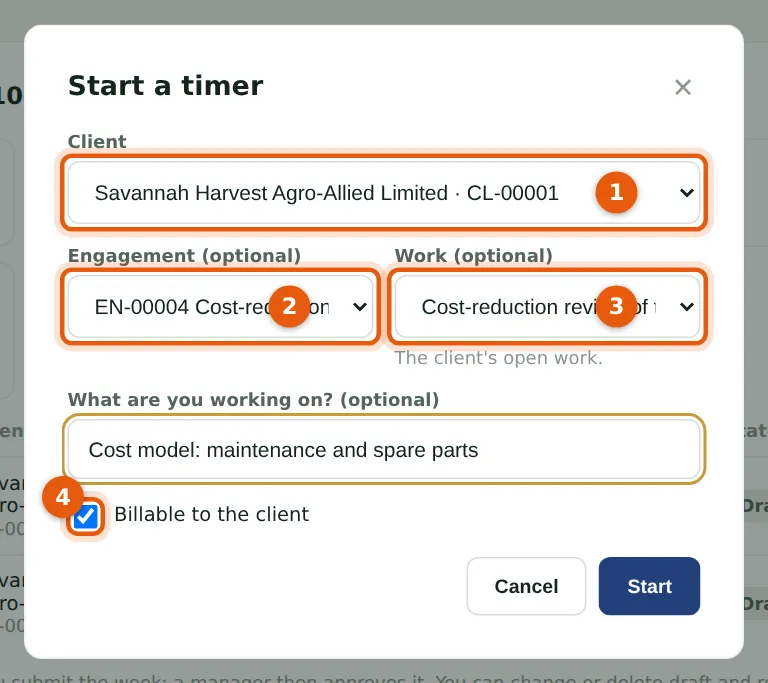
Chioma Eze starts the morning on the cost model for Savannah Harvest's mill review. The timer is linked to the client (1), the engagement (2) and the piece of work (3); billable time (4) is valued at her charge rate. Stopping it records the time, rounded up to the minute, as a draft for today. One timer runs at a time.
Who
Anyone who records time (staff and above).
What to do
- Choose Time in the menu, then Start timer (or Start timer on this work on a piece of work).
- Choose the client, and the engagement and work if you know them. Untick Billable for firm time such as training.
- Choose Start. To finish, choose Stop at the top of the Time page, say what you did and choose Stop and record. Discard records nothing.
17.2 Add time by hand
Why
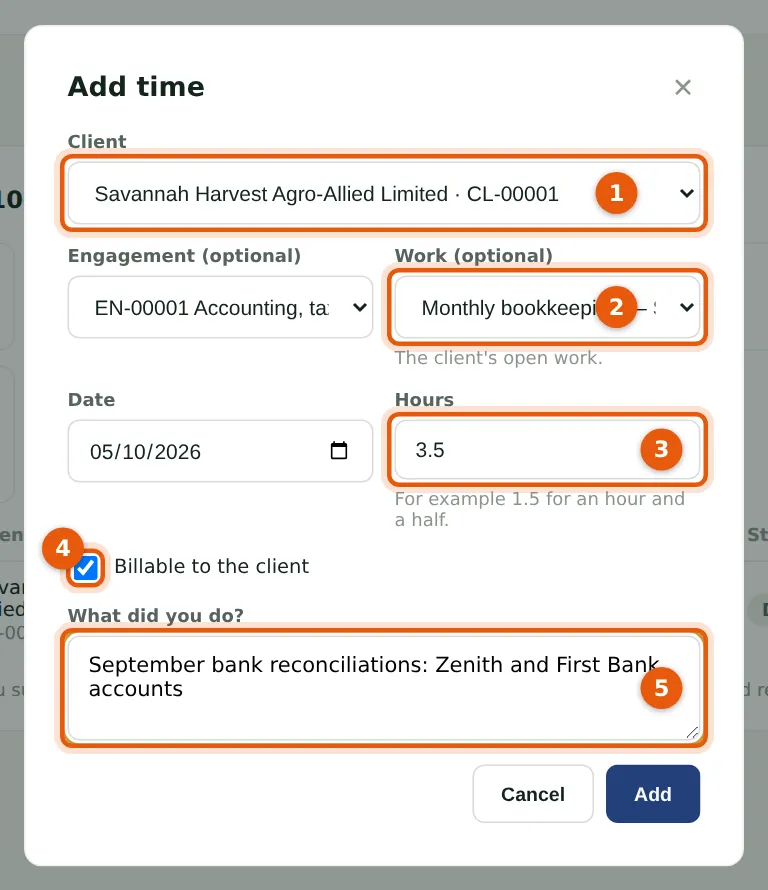
Chioma reconciled Savannah Harvest's September bank accounts yesterday without a timer, so she adds the time by hand: the client (1), the work (2) from the client's open work, the hours in decimals (3; 3.5 is three and a half hours), billable or not (4) and what she did (5). The date cannot be in the future.
Who
Anyone who records time (staff and above).
What to do
- On the Time page, choose Add time.
- Fill in the client, work, date, hours and description, and choose Add.
17.3 Your week, and submitting it
Why
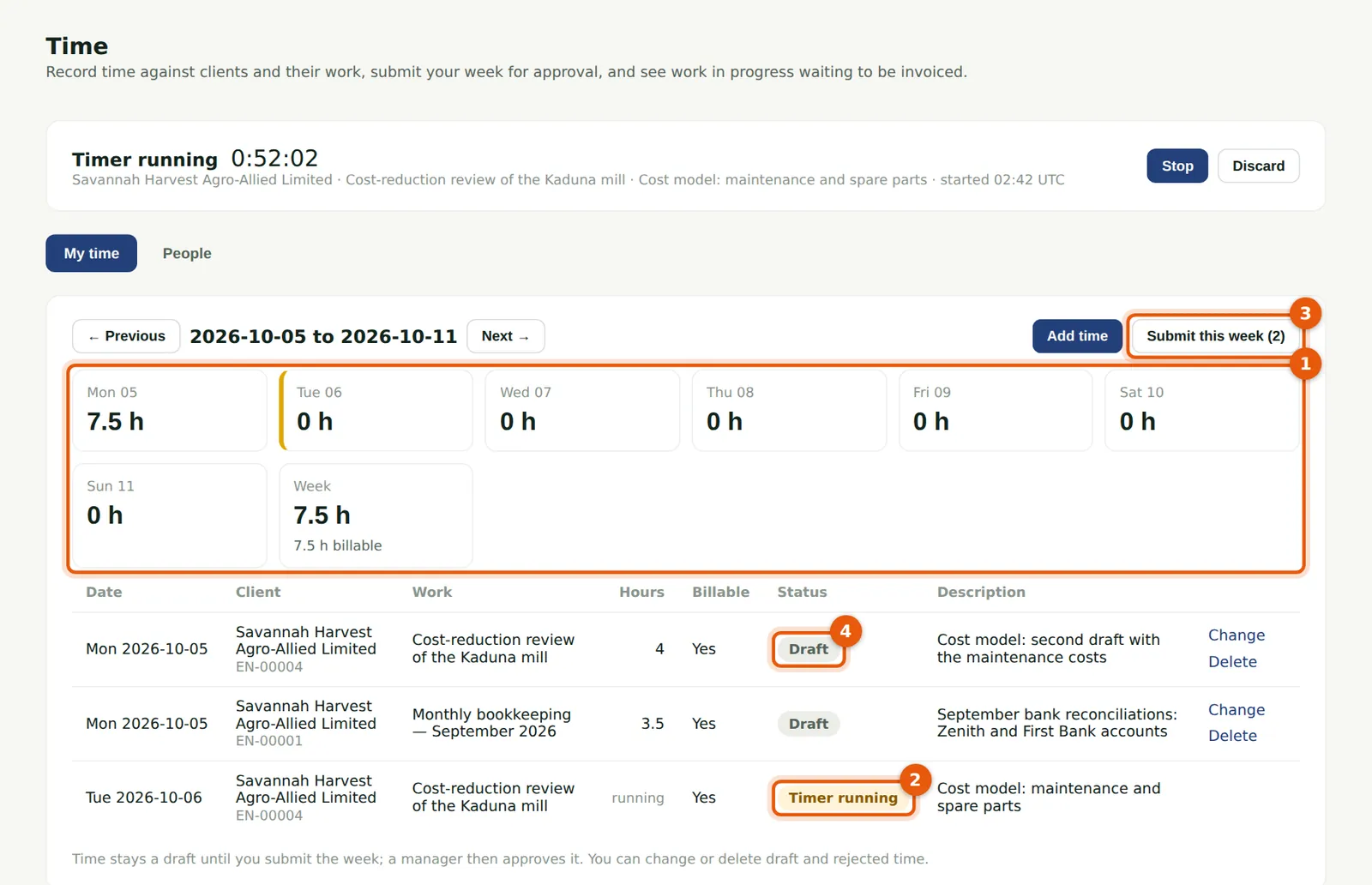
My time shows one week: the hours each day (1), the timer while it runs (2) and each entry's status — draft (4), submitted, approved, rejected with the reason, invoiced or written off. Draft and rejected time can be changed or deleted. Submit this week (3) sends the drafts for approval; after that, only a rejection brings an entry back to you.
Who
Anyone who records time (staff and above).
What to do
- Choose Time; ← Previous and Next → move between weeks.
- Check the week, choose Submit this week and confirm.
17.4 Approve or reject time
Why
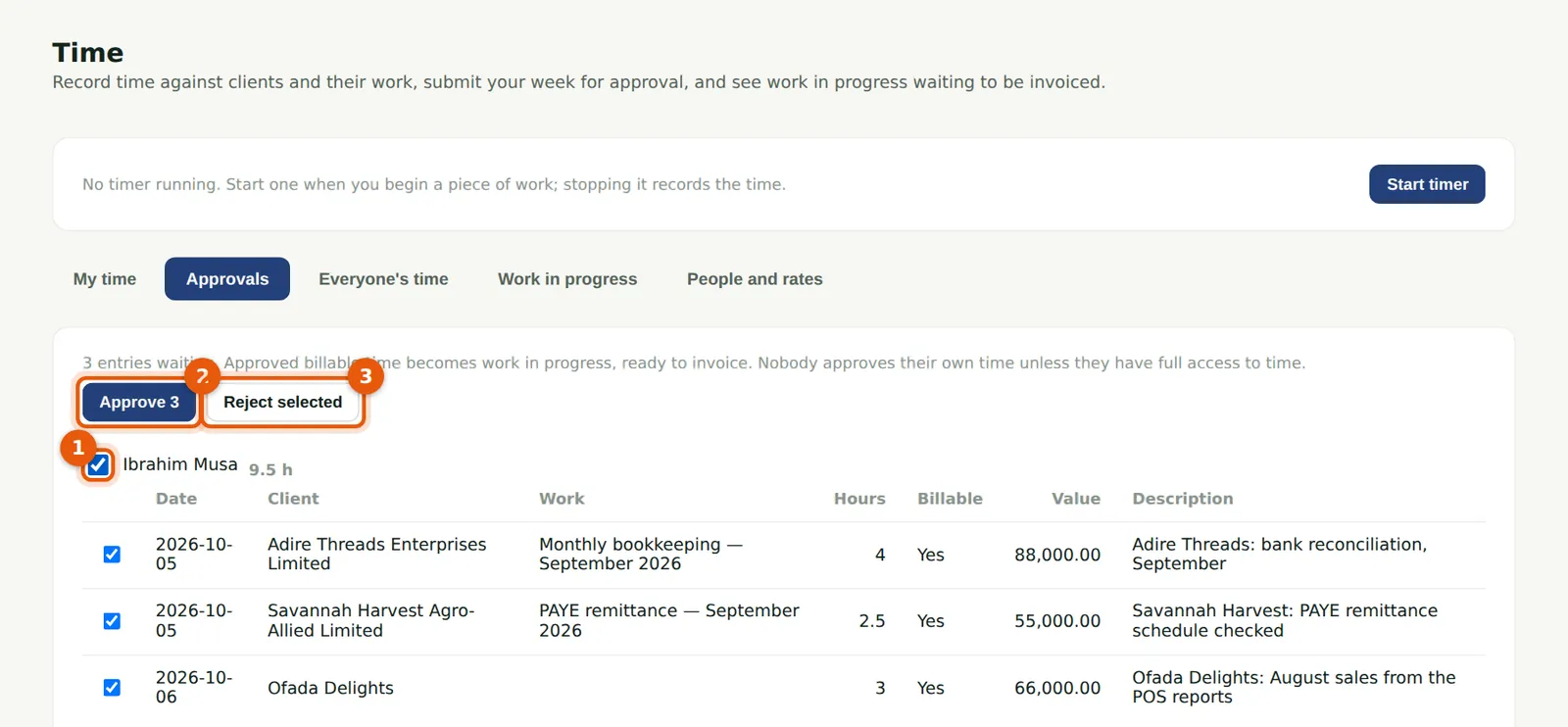
Tunde Bakare approves the staff's time each Monday. Entries are grouped by person: tick the person (1) to choose all of theirs, or tick entries one by one. Approve (2) makes billable time work in progress. Reject (3) sends entries back with a reason the person sees. Tunde's own time is approved by Nkechi Okafor.
Who
Manager, partner, practice administrator or owner.
What to do
- Choose Time, then Approvals.
- Tick the entries and choose Approve, or Reject and give the reason.