Steps in this chapter (4)
Job roles, charge and cost rates and weekly hours; the engagement budget against the time spent; work in progress; and the capacity board.
Rates turn time into money: the charge rate values it for work in progress and invoices, the cost rate for profitability. Budgets say how many hours and how much fee an engagement or a piece of work should take. The capacity board sets each person's hours for the week against the work planned for them.
18.1 Job roles, rates and weekly hours
Why
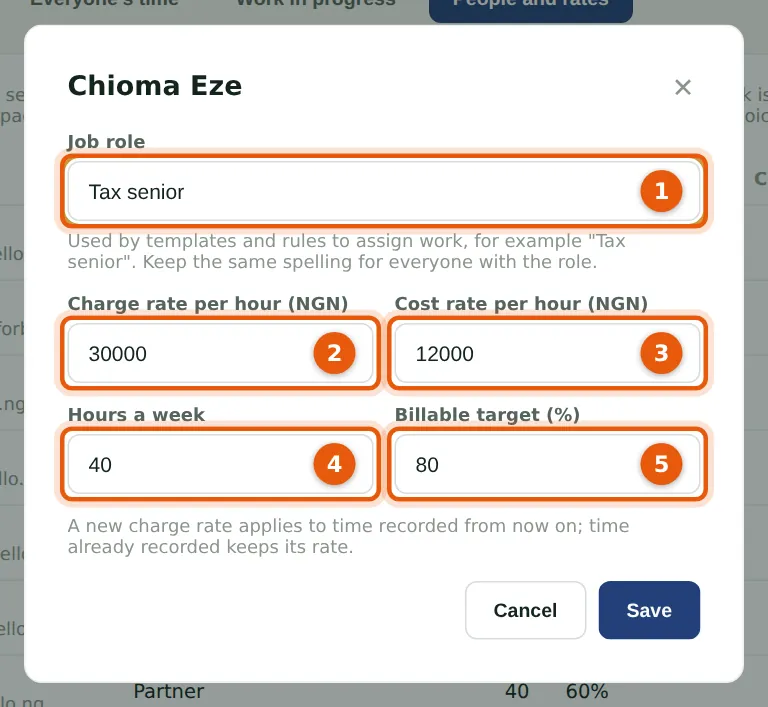
Each person has a job role (1), used by job templates and rules to give out work (chapter 25); a charge rate (2) and a cost rate (3) per hour; the hours they work a week (4), for the capacity board; and a billable target (5), for the utilisation report. A new charge rate applies to time recorded from then on. Staff see the people and job roles, but not the rates.
Who
Owner, practice administrator, partner or manager.
What to do
- Choose Time, then People and rates.
- Choose a person, change the details and choose Save.
18.2 The engagement budget against the time spent
Why
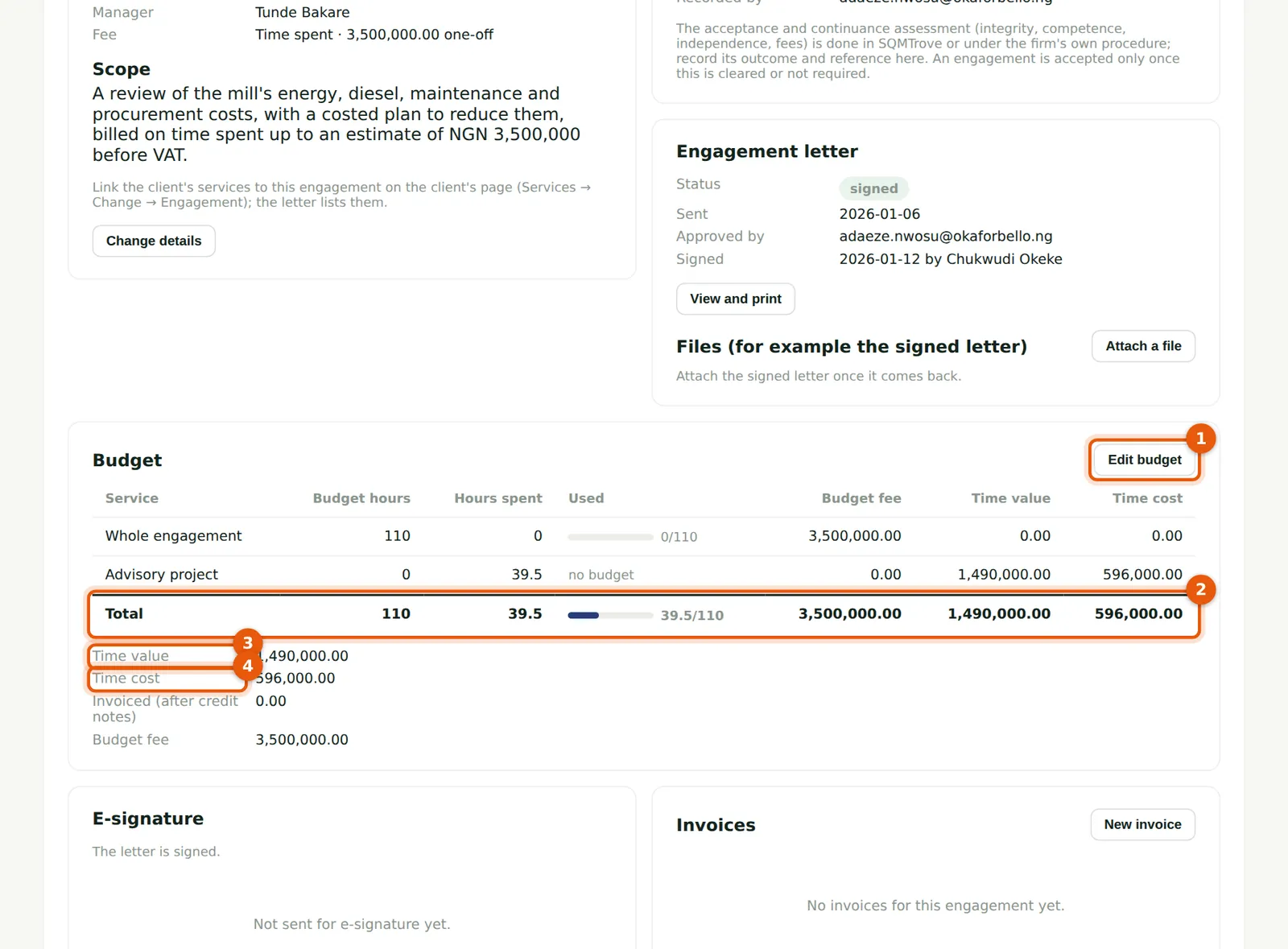
The cost-reduction review was estimated at 110 hours and ₦3,500,000. Edit budget (1) sets the hours and fee for the whole engagement and, if you like, for each service. The Total row (2) shows the hours used against the budget. Time value (3) is the time at charge rates and Time cost (4) at cost rates; Invoiced shows what has been billed, after credit notes.
Who
Manager, partner, practice administrator or owner.
What to do
- Open the engagement and find Budget.
- Choose Edit budget, enter the hours and fee, and choose Save.
18.3 Work in progress
Why
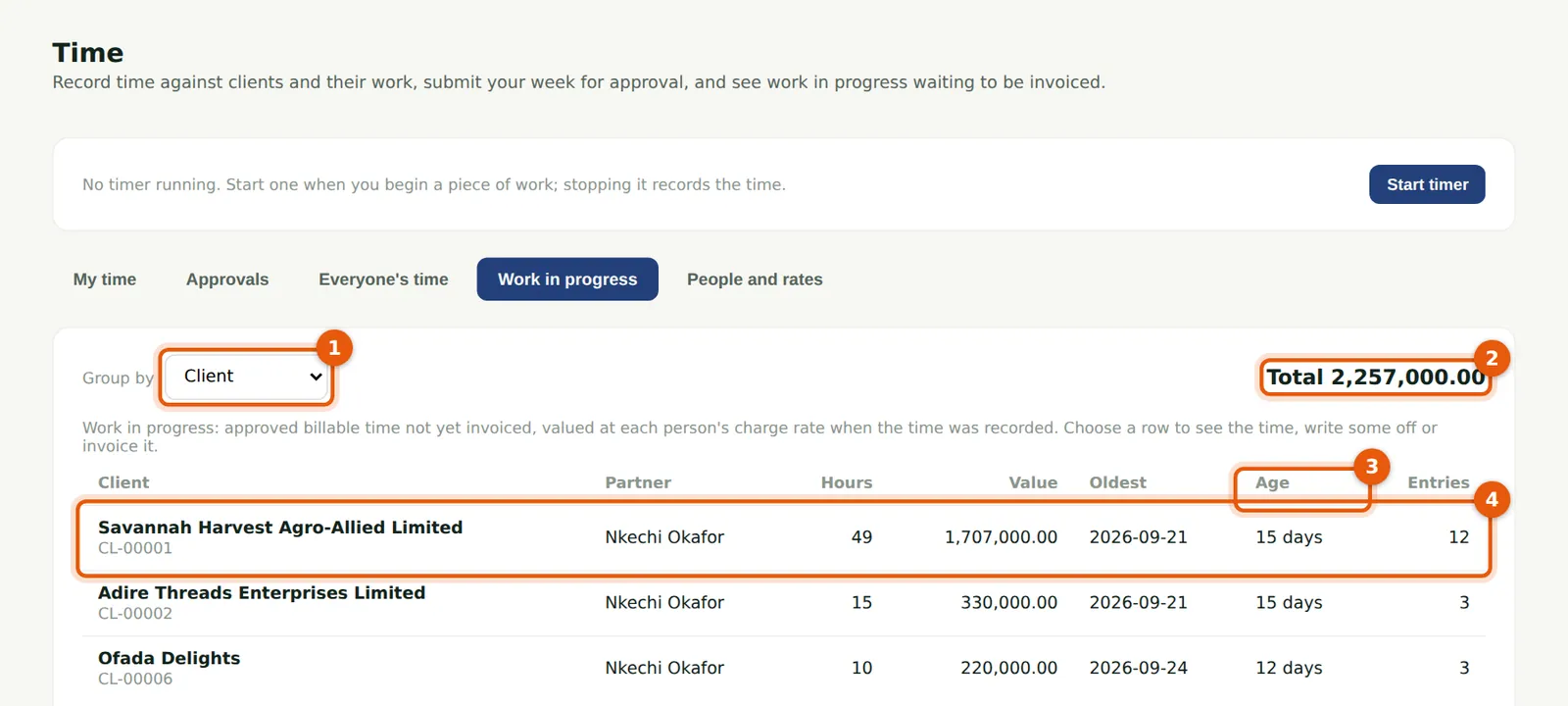
WIP is approved billable time not yet invoiced, valued at each person's charge rate when the time was recorded. Group it by client, engagement or partner (1); the total is at the top (2). Age (3) is how old the oldest time is; over 60 days shows in red. Choose a client (4) to see the entries, invoice them or write some off (full access to time).
Who
Manager, partner, practice administrator or owner.
What to do
- Choose Time, then Work in progress.
- Choose a client, then Invoice this time, or tick entries and Write off selected with a reason.
18.4 The capacity board
Why
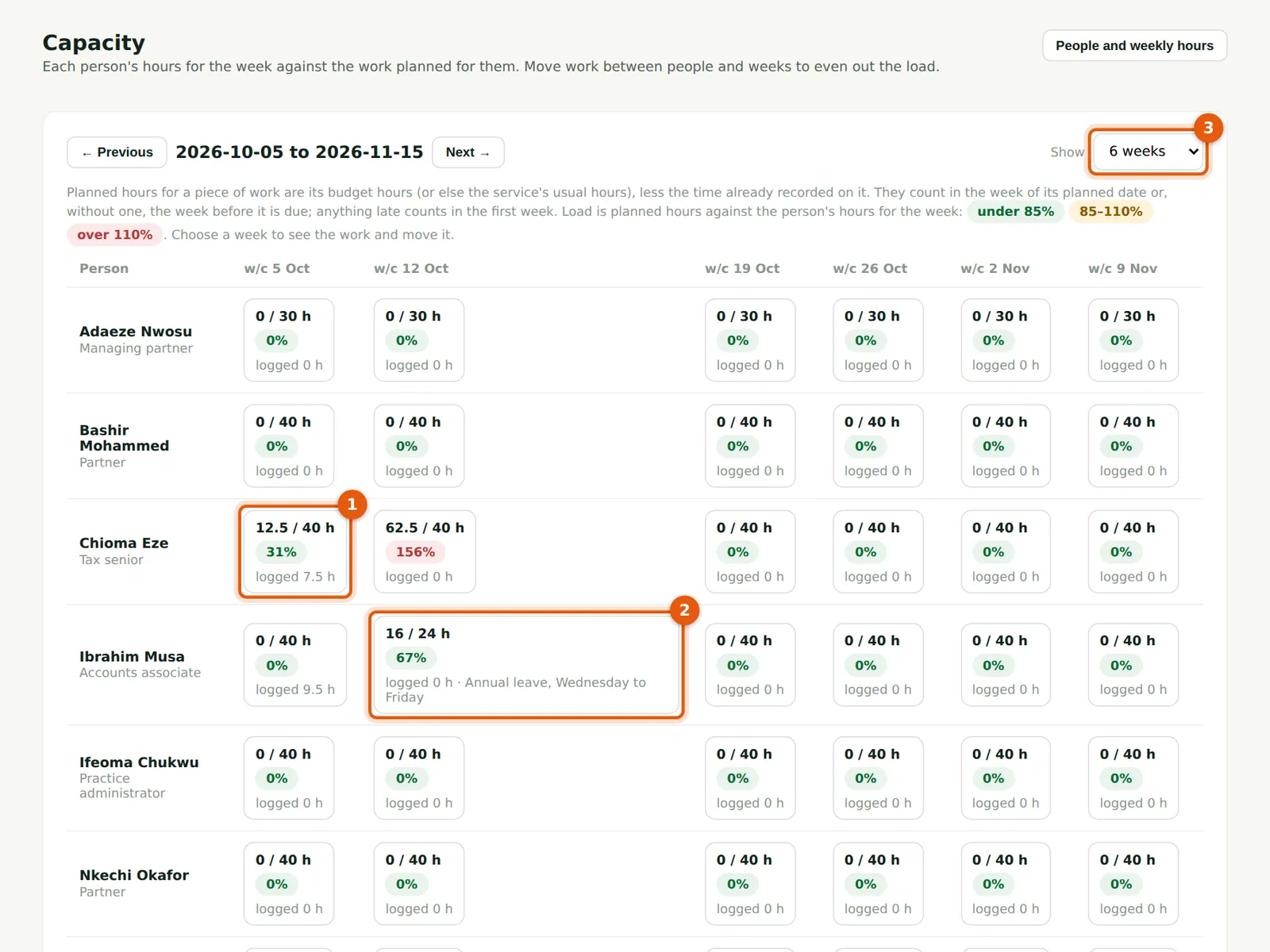
Each cell is a person's planned hours against their hours for the week. Planned hours are a piece of work's budget hours less the time already recorded on it, in the week of its planned date or the week before it is due. Chioma's week (1) has room; next week the review's remaining hours put her over. Ibrahim Musa's next week (2) is cut to 24 hours for leave. Show (3) 6 or 12 weeks.
Who
Manager, partner, practice administrator or owner.
What to do
- Choose Capacity in the menu.
- Choose a cell to change that week's hours (leave, training, a public holiday), move a piece of work to someone else or another week, or set its budget hours and planned date.