Steps in this chapter (19)
Print the reports and the binder, build the archive package, prepare the FRC filing pack, archive the file, open an amendment, roll forward, and delete an engagement created in error.
After the report is signed, the file is assembled and archived. AuditTrove produces the audit file binder and the archive package, prepares the FRC filing pack for Nigerian entities, keeps the file locked for the retention period, and lets the partner roll the engagement forward. This chapter also shows how to delete an engagement created in error — and why a reported audit file cannot be deleted.
Use cases
- Use case — A regulator asks for the whole file. Build the archive package (step 14.3): one ZIP with every record, the audit trail, the evidence and a manifest of fingerprints.
- Use case — A document arrives after assembly. Open a documented amendment window (step 14.10); every change is recorded and the fingerprint is recalculated when it closes.
- Use case — An engagement created by mistake. Delete it; it stays in the recycle bin for 30 days (steps 14.12 to 14.14).
14.1 Engagement reports
Why
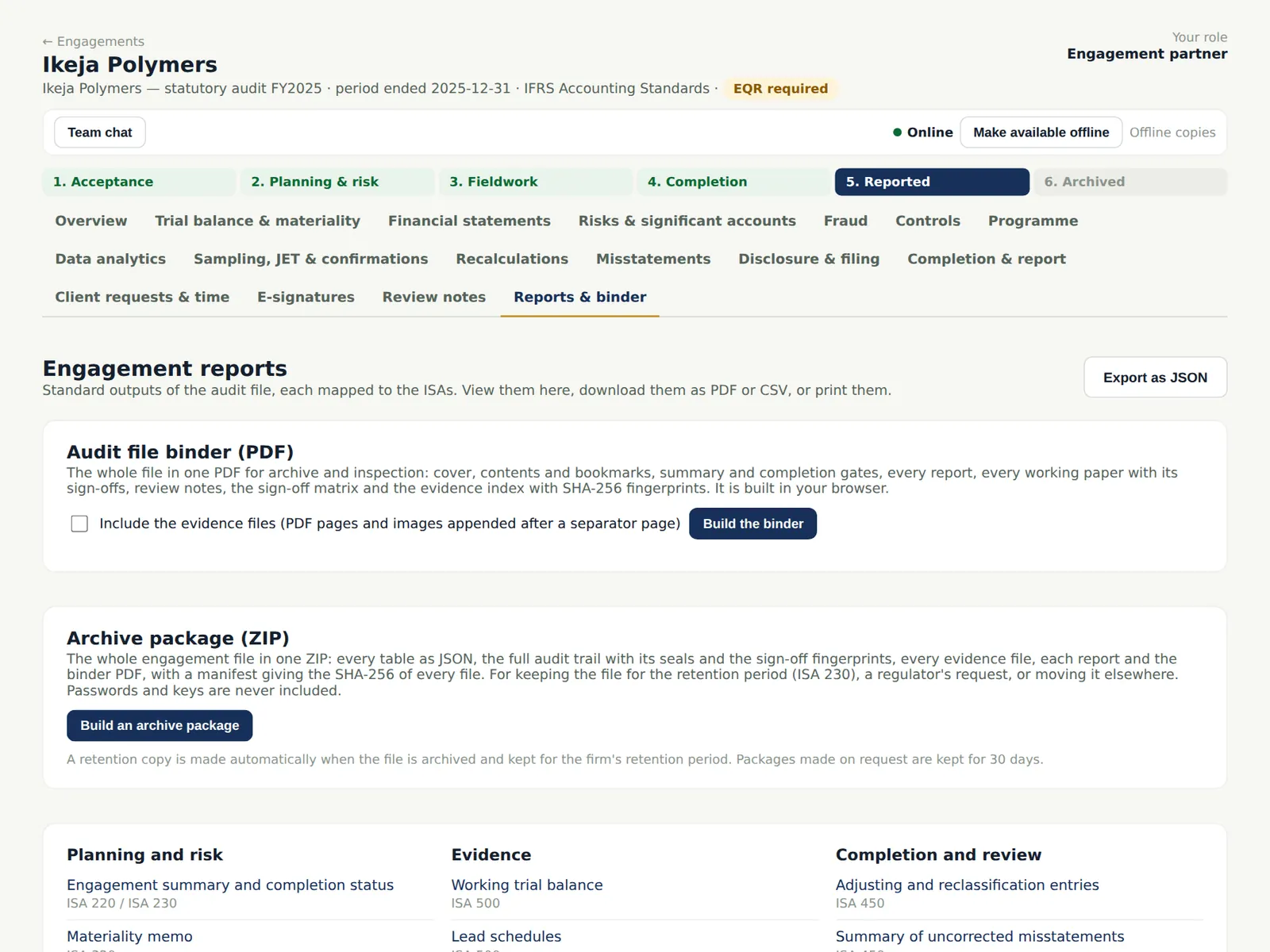
More than thirty reports cover planning, evidence, completion and review: the engagement summary, materiality memo, risk assessment, lead schedules, the summary of misstatements, sampling, journal entry testing, confirmations, recalculations, the sign-off matrix, review notes, team independence, the partner review and the audit file index.
Who
Everyone on the team; inspectors.
What to do
- Open Reports & binder and choose a report to view, print or download.
14.2 Build the audit file binder
Why
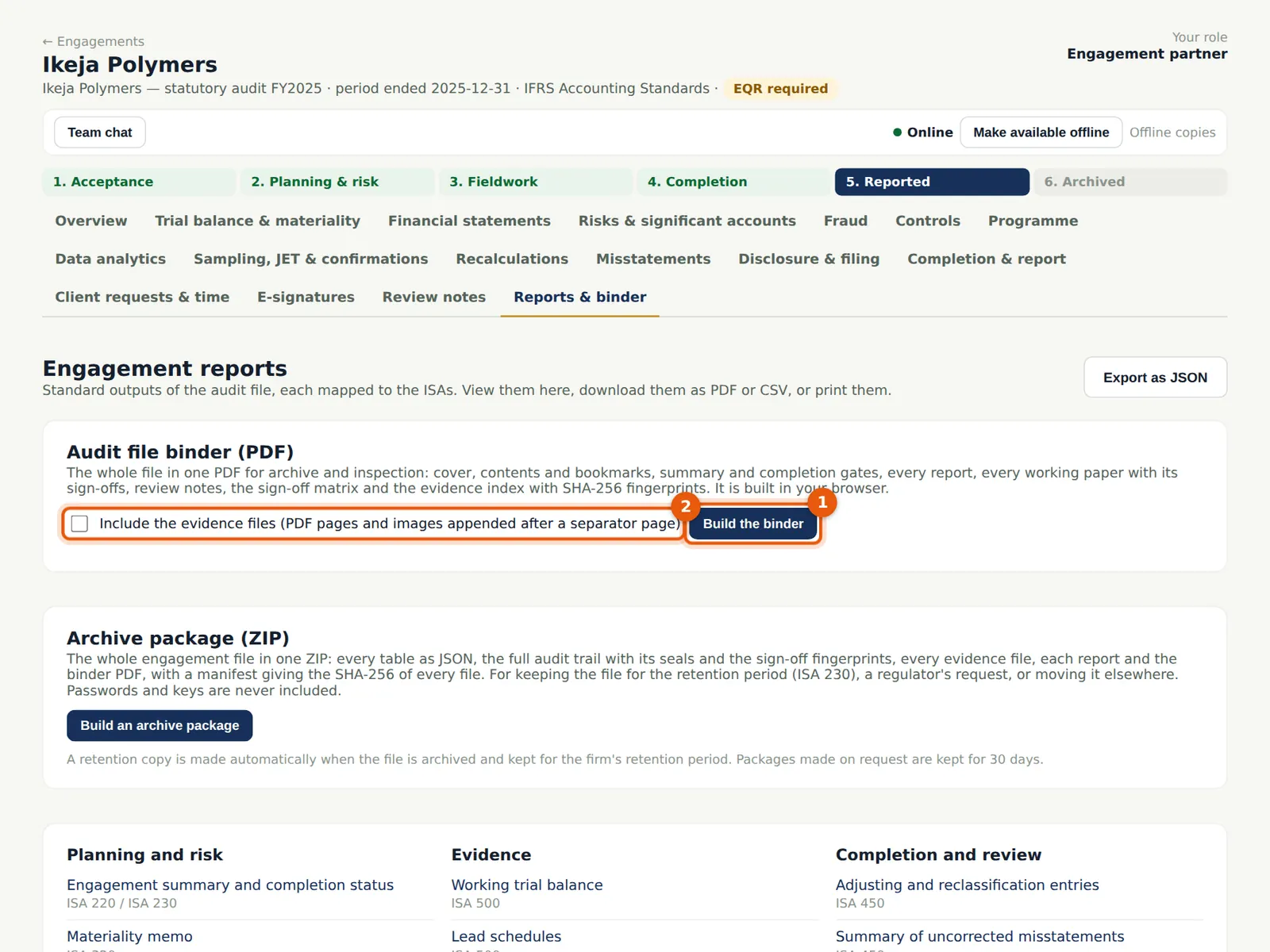
The binder is the whole file in one PDF: cover, contents and bookmarks, every report, every working paper, review notes, the sign-off matrix and the evidence index, optionally with the evidence files.
Who
Manager or partner.
What to do
- Choose Build the binder (1). Tick Include the evidence files (2) to append the PDFs and images.
14.3 The archive package
Why
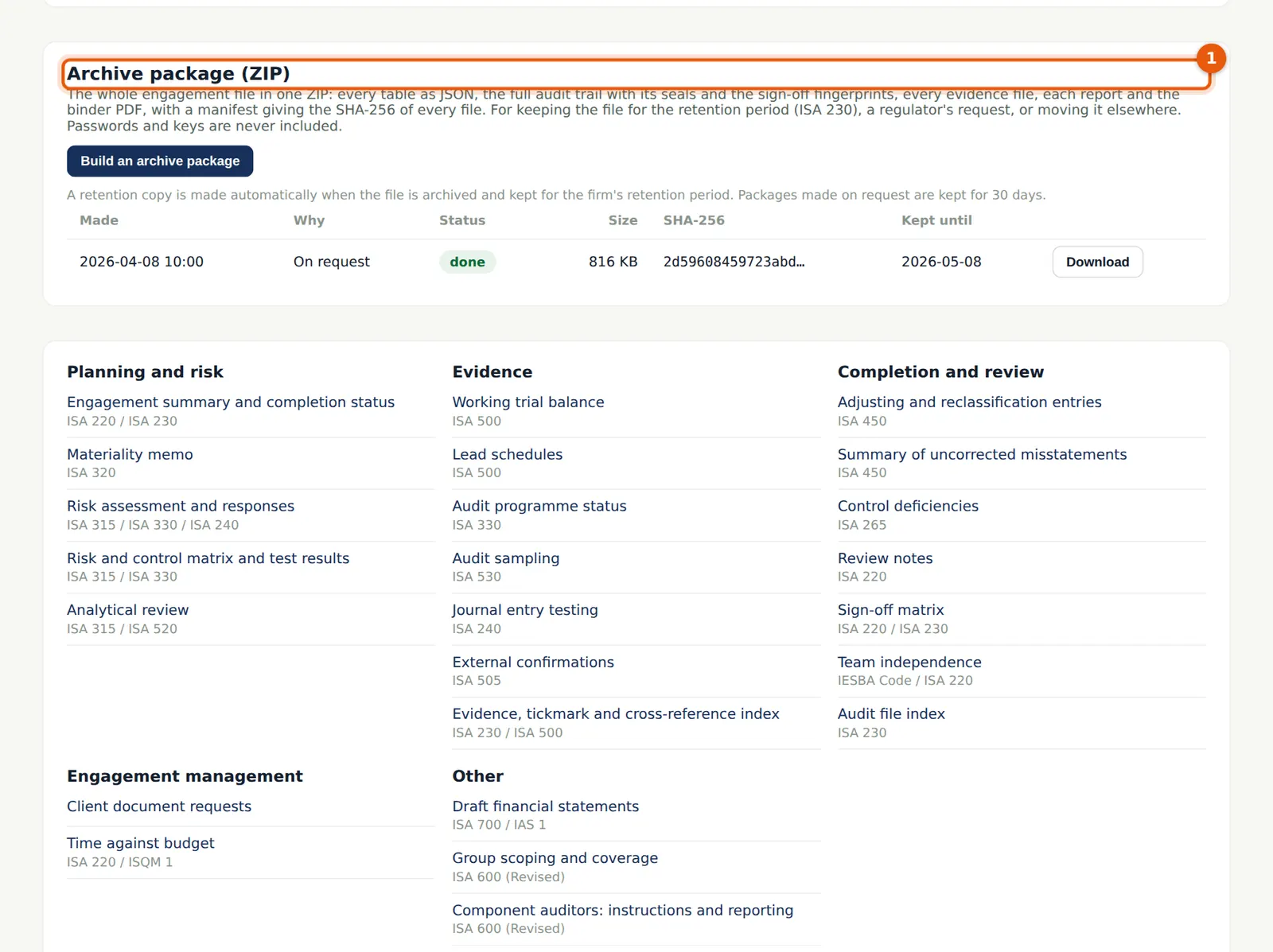
The archive package is one ZIP of the whole engagement: every table as JSON, the audit trail and its seals, sign-off fingerprints, every evidence file, each report and the binder, with a manifest of SHA-256 fingerprints. It is built in steps into the firm's file storage; a retention copy is made automatically when the file is archived and kept for the retention period.
Who
Engagement partner, manager or administrator.
What to do
- Choose Build the package, keep the page open until it is ready, then Download.
14.4 Print the auditor's report
Why
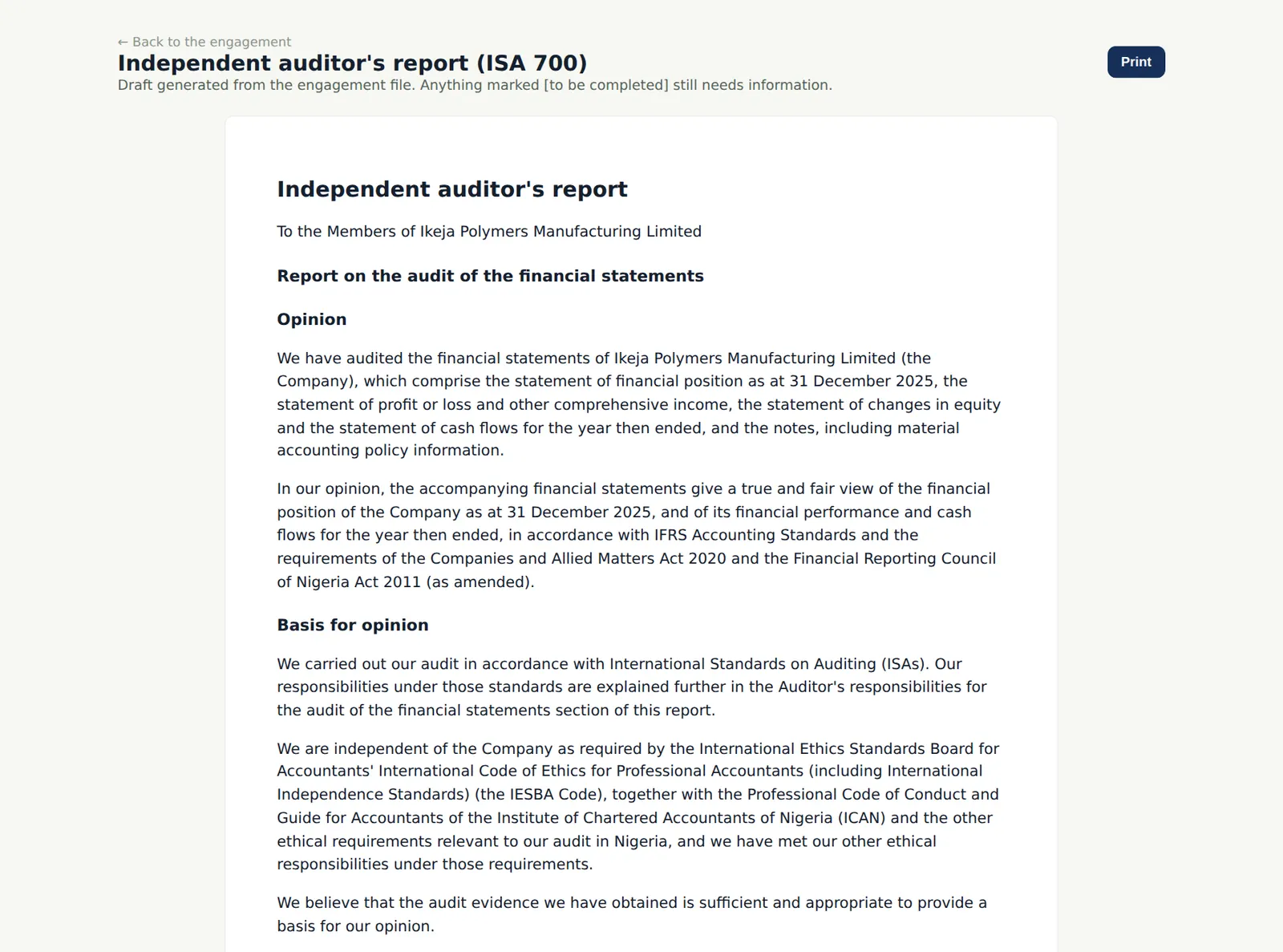
Letters and the report print with the firm's details and the partner's FRC number.
Who
Manager; partner.
What to do
- Choose Print / PDF beside the report on Letters & communications.
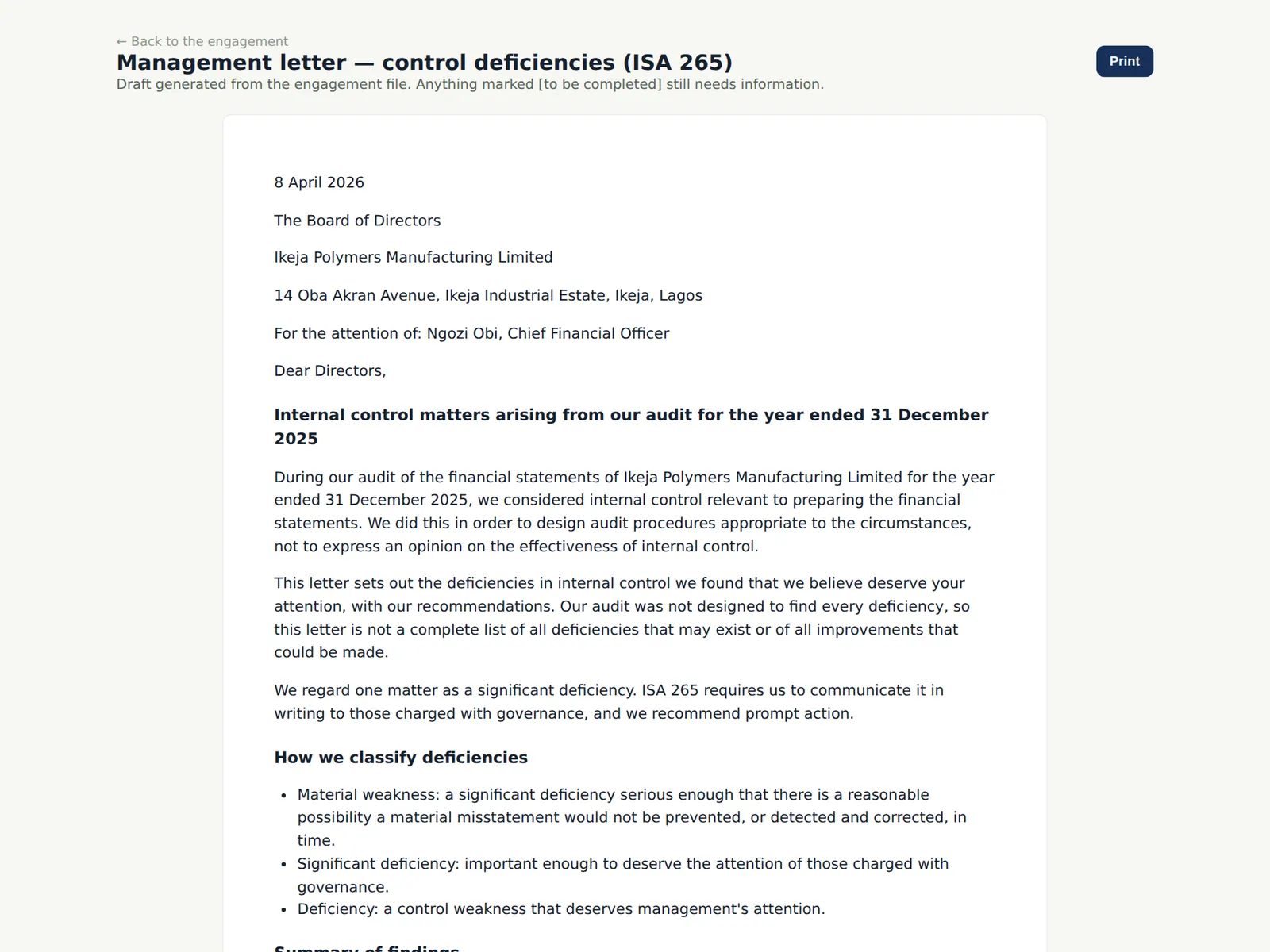
14.5 The management letter
Why
The management letter lists the deficiencies with their implications and recommendations and management's responses.
Who
Manager.
What to do
- Print it and record when it was sent.
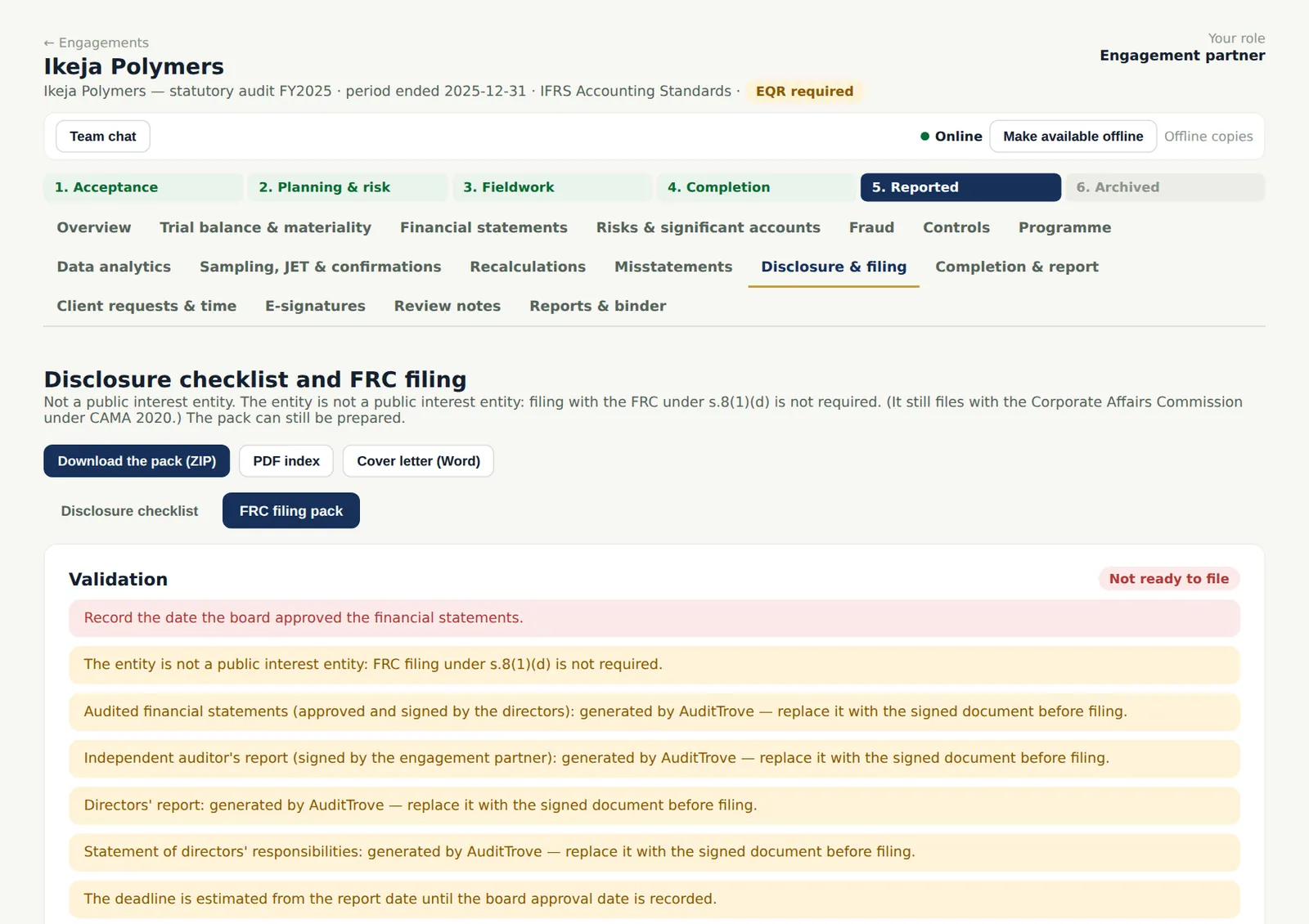
14.6 The FRC filing pack
Why
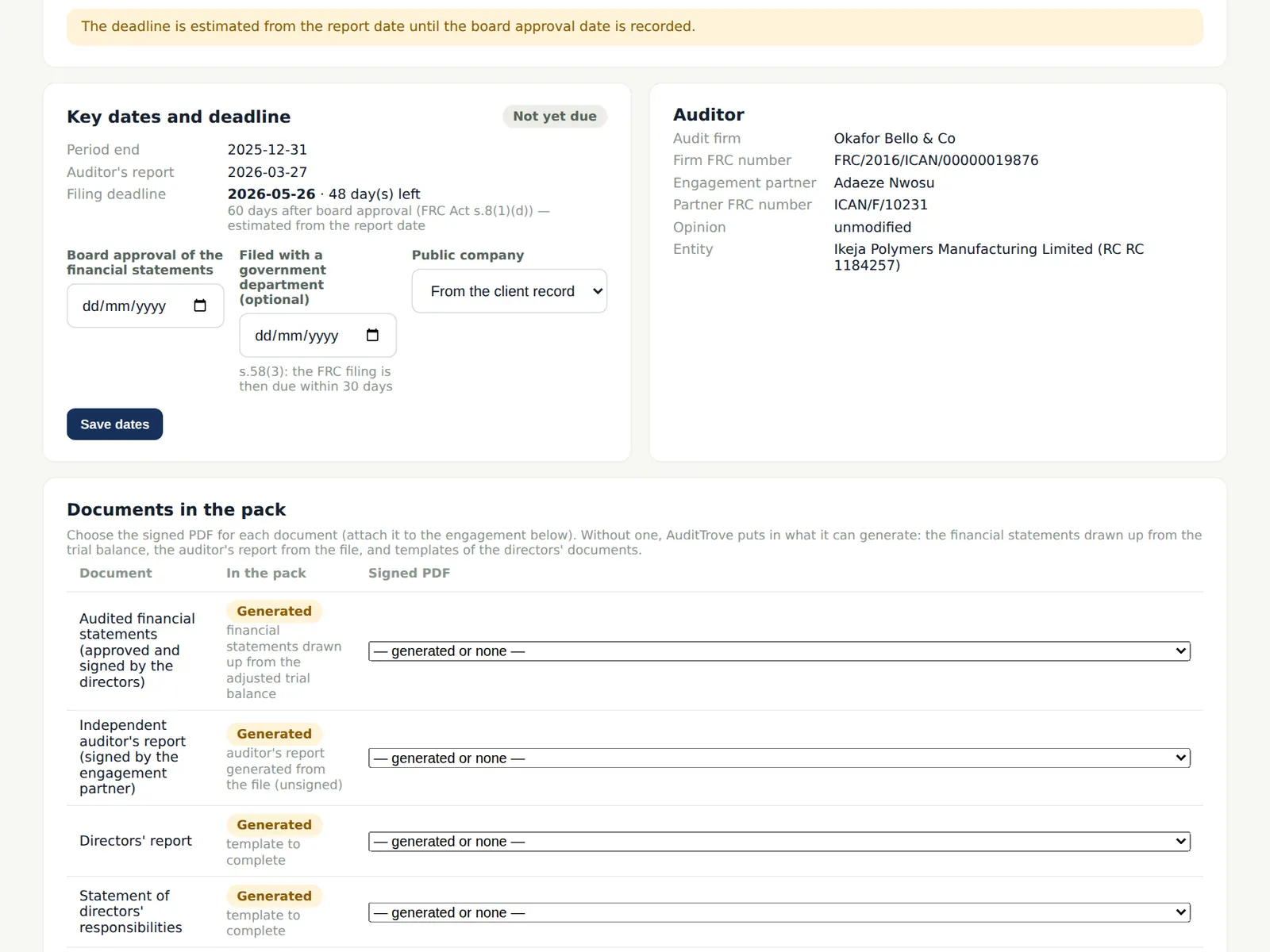
Nigerian entities that must file with the FRC do so within 60 days of board approval (FRC Act s.8(1)(d)). The pack holds the signed financial statements and report, the directors' report and statement of responsibilities, the audit committee report, the CEO/CFO certification and ICFR report where required, the auditor's FRC numbers, the entity category and the key dates, with a filing checklist by entity type, a cover letter and a validation panel.
Who
Manager; partner.
What to do
- Attach the signed documents the pack asks for, check the validation panel and download the pack (a ZIP with a PDF index and a fingerprint manifest).
14.7 Track the filing
Why
Record the filing date, the FRC reference and who filed. Reminders go out 14, 7 and 1 day before the deadline, and the engagement pages show a warning until the filing is recorded.
Who
Manager.
What to do
- When the client has filed, record the date, the reference and who filed.
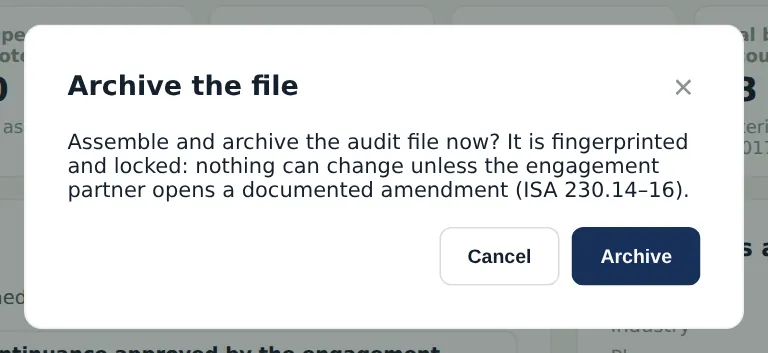
14.8 Archive the file
Why
When the file is assembled — or automatically when the assembly period ends — it is archived: fingerprinted and locked. Nothing can change unless the engagement partner opens a documented amendment (ISA 230.14–16).
Who
Engagement partner or firm administrator.
What to do
- On the Overview choose Archive the file now, then Archive.
14.9 Archived and locked
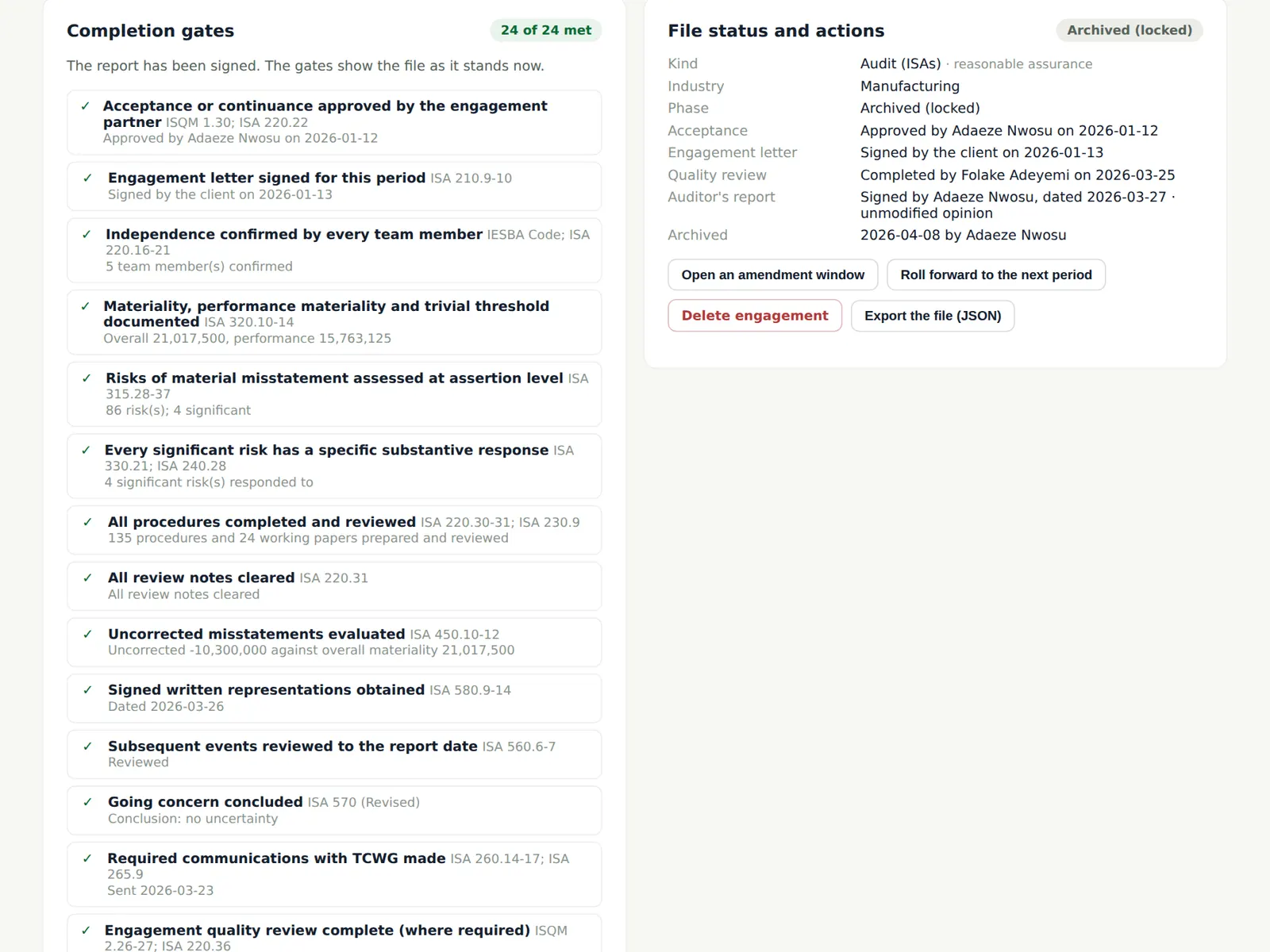
Why
The overview shows who archived the file and when. The file stays readable for the retention period.
Who
—
What to do
- Use Export the file (JSON) or the archive package for an off-line copy if the firm's policy requires one.
14.10 A documented amendment
Why
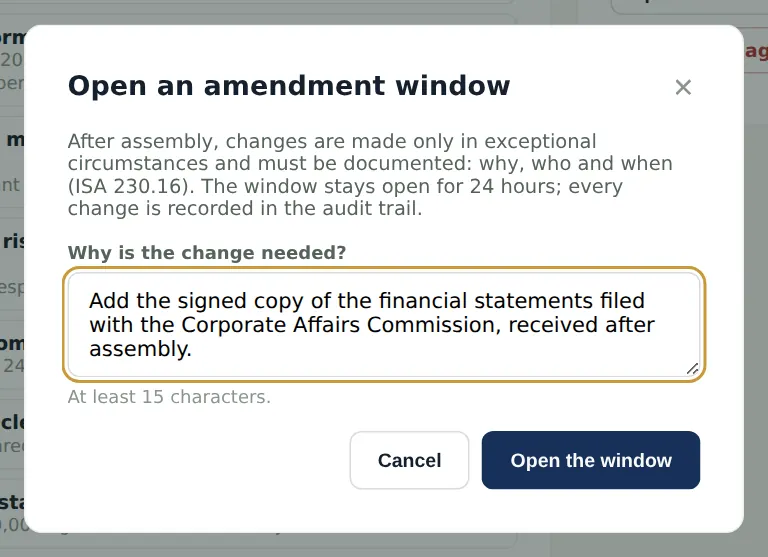
After assembly, changes are made only in exceptional circumstances and must be documented: why, who and when (ISA 230.16). The window stays open for 24 hours and every change is in the audit trail; closing it recalculates the fingerprint.
Who
Engagement partner.
What to do
- Choose Open an amendment window, explain why the change is needed and choose Open the window.
14.11 Roll forward to next year
Why
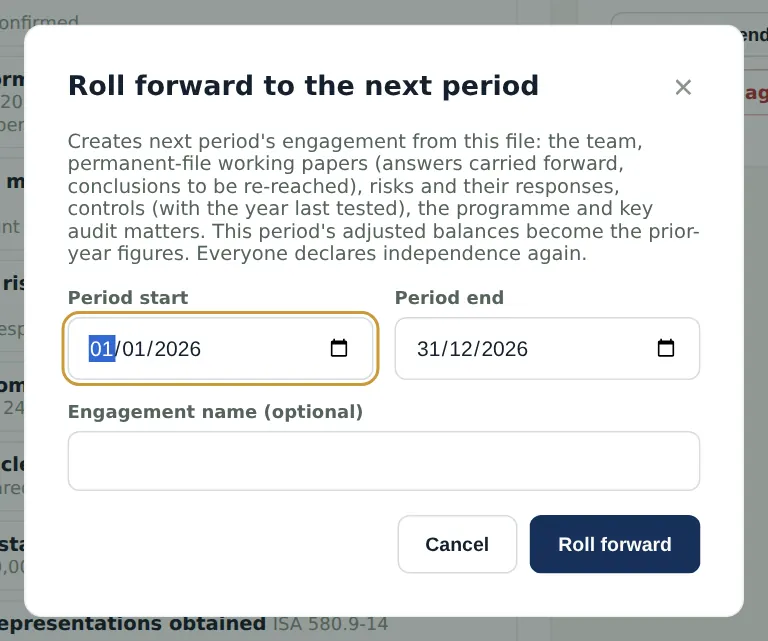
Rolling forward creates next year's engagement from this one: the team, the permanent-file answers, risks and responses, controls, the programme, recalculation papers and key audit matters. This year's adjusted balances become the prior-year figures. Everyone declares independence again and the standards in force are re-evaluated.
Who
Engagement partner or manager.
What to do
- Choose Roll forward to the next period, check the dates and choose Roll forward.
14.12 Delete an engagement created in error
Why
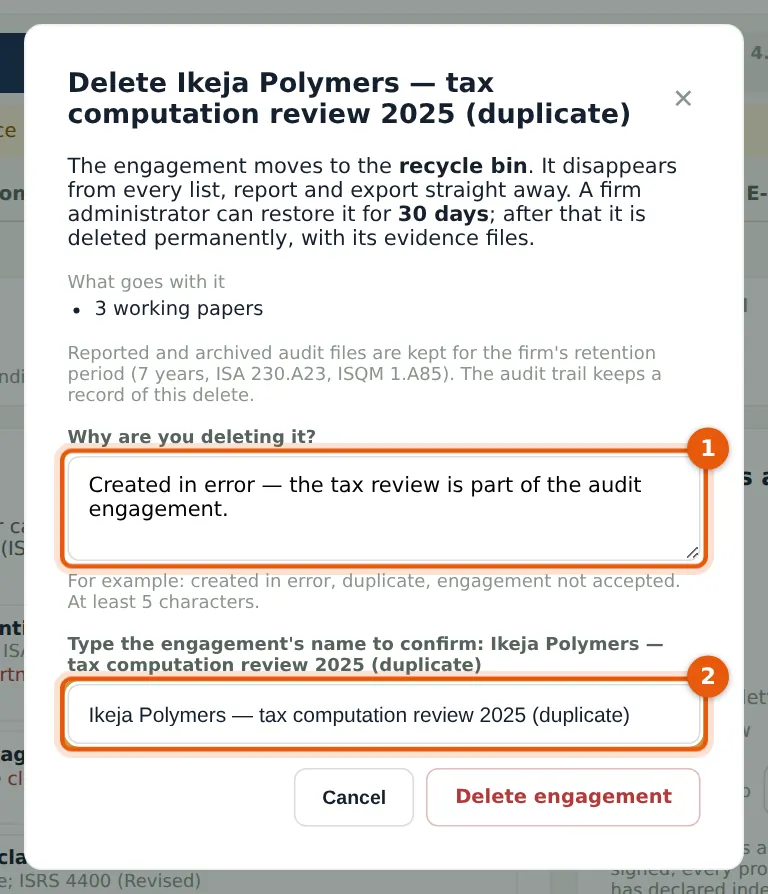
An engagement that has not been reported can be deleted by its engagement partner or a firm administrator. The dialog shows what goes with it. It goes to the recycle bin for 30 days.
Who
Engagement partner or firm administrator.
What to do
- On the engagement's Overview choose Delete engagement.
- Say why (1) and type the engagement's name exactly (2); choose Delete engagement.
14.13 The recycle bin
Why
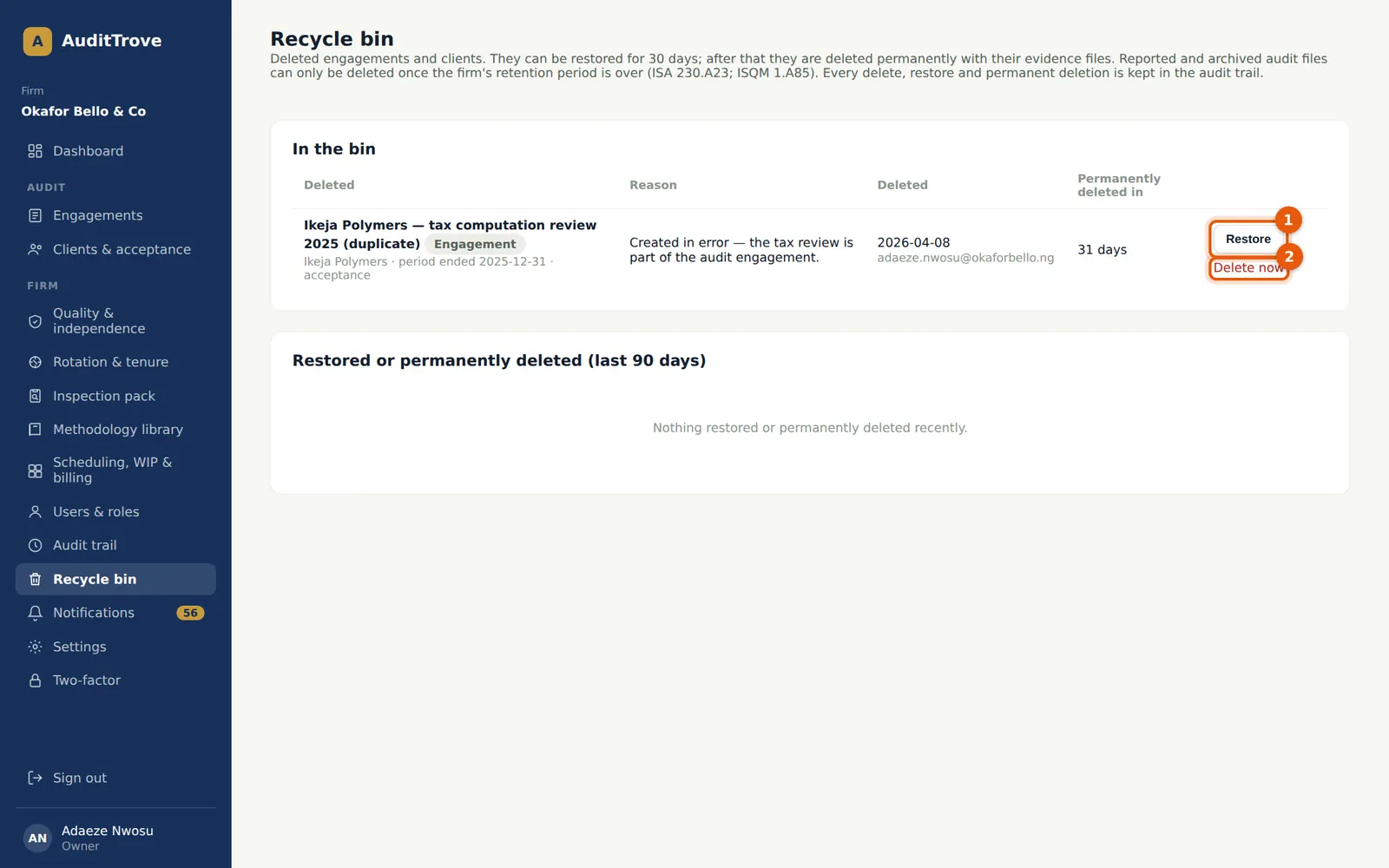
Deleted engagements and clients stay in the recycle bin for 30 days. A firm administrator — or the person who deleted it — can restore it exactly as it was. After 30 days it is deleted permanently with its evidence files; an administrator can also delete it at once. Every delete, restore and permanent deletion is in the audit trail.
Who
Firm administrator; the person who deleted it.
What to do
- Open Recycle bin from the menu.
- Choose Restore (1), or Delete now (2) and type the name to delete it permanently.
14.14 Restore
Why
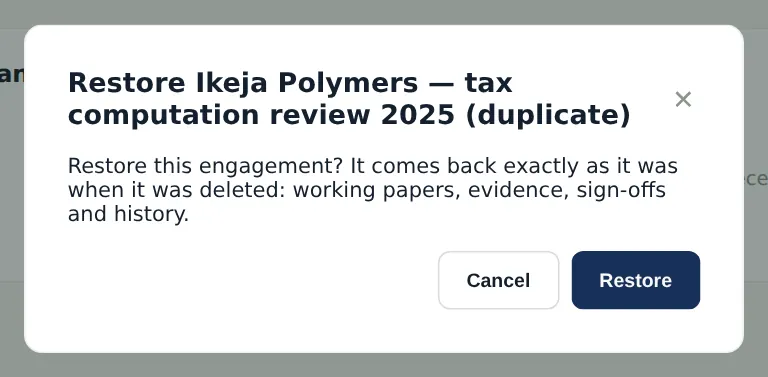
A restored engagement comes back with its working papers, evidence, sign-offs and history. An engagement whose client is also in the bin needs the client restored first.
Who
Firm administrator; the person who deleted it.
What to do
- Choose Restore.
14.15 A reported file cannot be deleted
Why
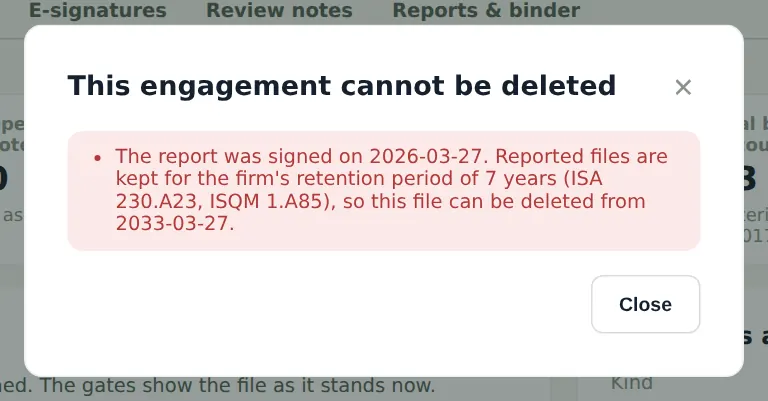
A reported or archived audit file can be deleted only by a firm administrator, and only after the retention period from the report date (ISA 230.A23; ISQM 1.A85). The Ikeja Polymers file, reported on 27 March 2026, can be deleted from 27 March 2033. An engagement with issued fee notes cannot be deleted either.
Who
—
What to do
- Nothing to do: the dialog explains why and from when.
14.16 Deleting a client
Why
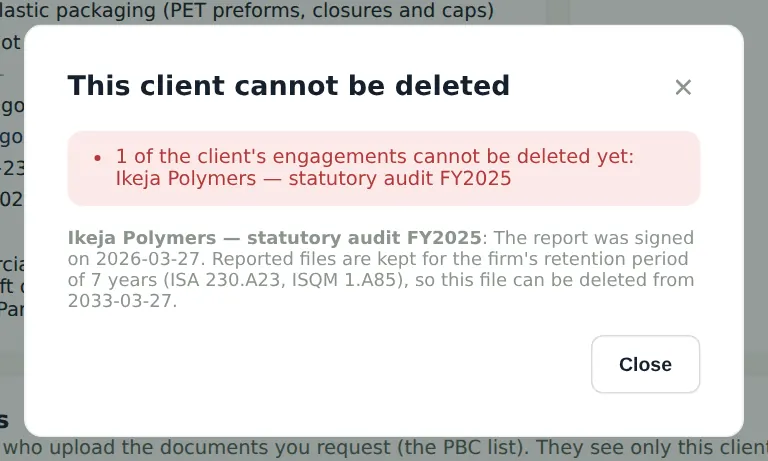
Deleting a client deletes it with all its engagements, and its portal users lose access. It is allowed only for a firm administrator and only when every one of its engagements can be deleted; a client with receipts or issued fee notes cannot be deleted — mark it as a former client instead.
Who
Firm administrator.
What to do
- On the client's page choose Delete client; if allowed, give the reason and type the name.
14.17 The audit trail
Why
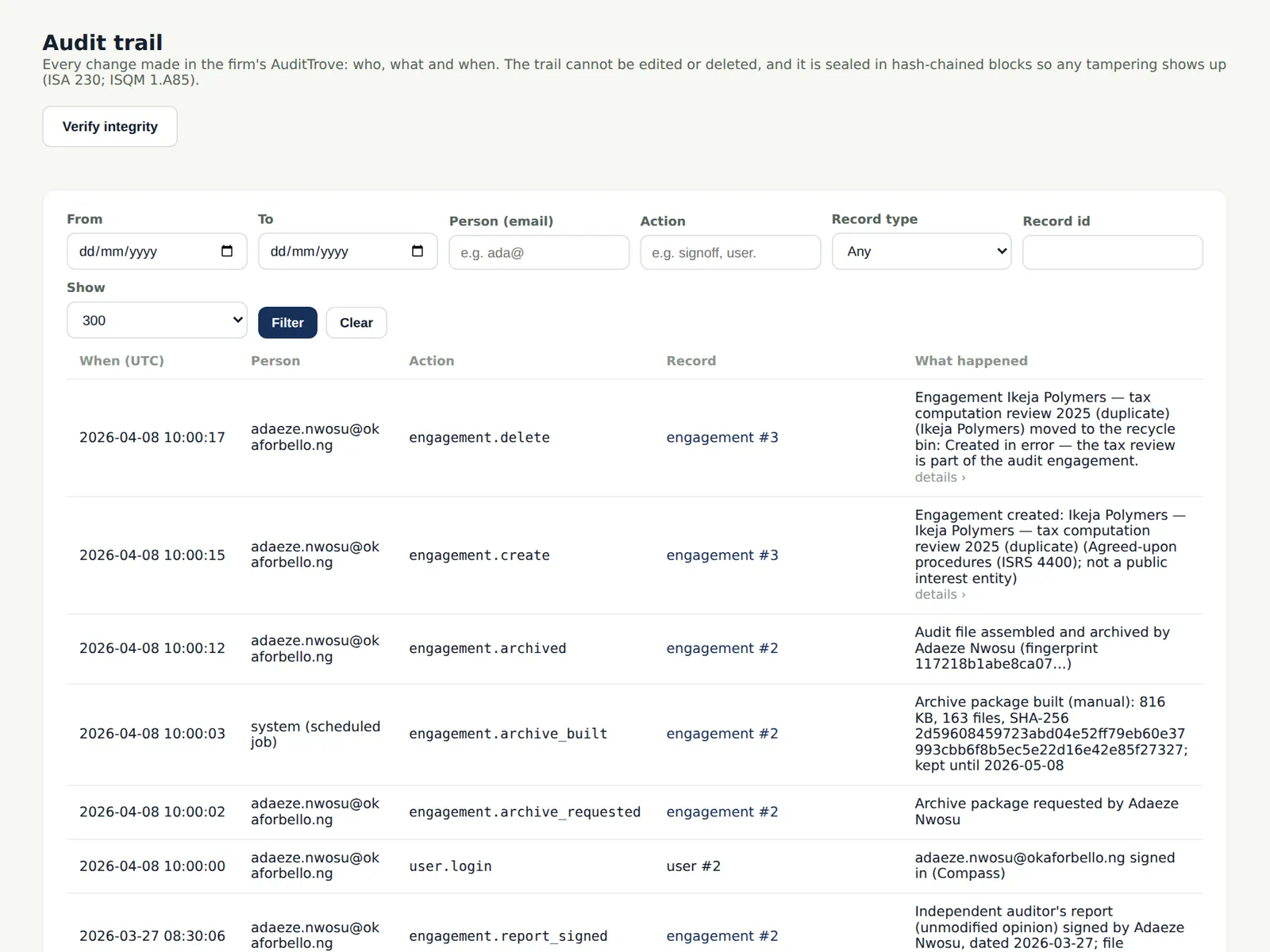
The audit trail records every change in the firm's AuditTrove. It cannot be edited or deleted and is sealed in hash-chained blocks, so any tampering shows (ISA 230; ISQM 1.A85). It can be exported for a period with its fingerprint (chapter 3).
Who
Owner, administrator, quality lead, inspector.
What to do
- Filter by date, person, action or record.
14.18 Verify the seals
Why
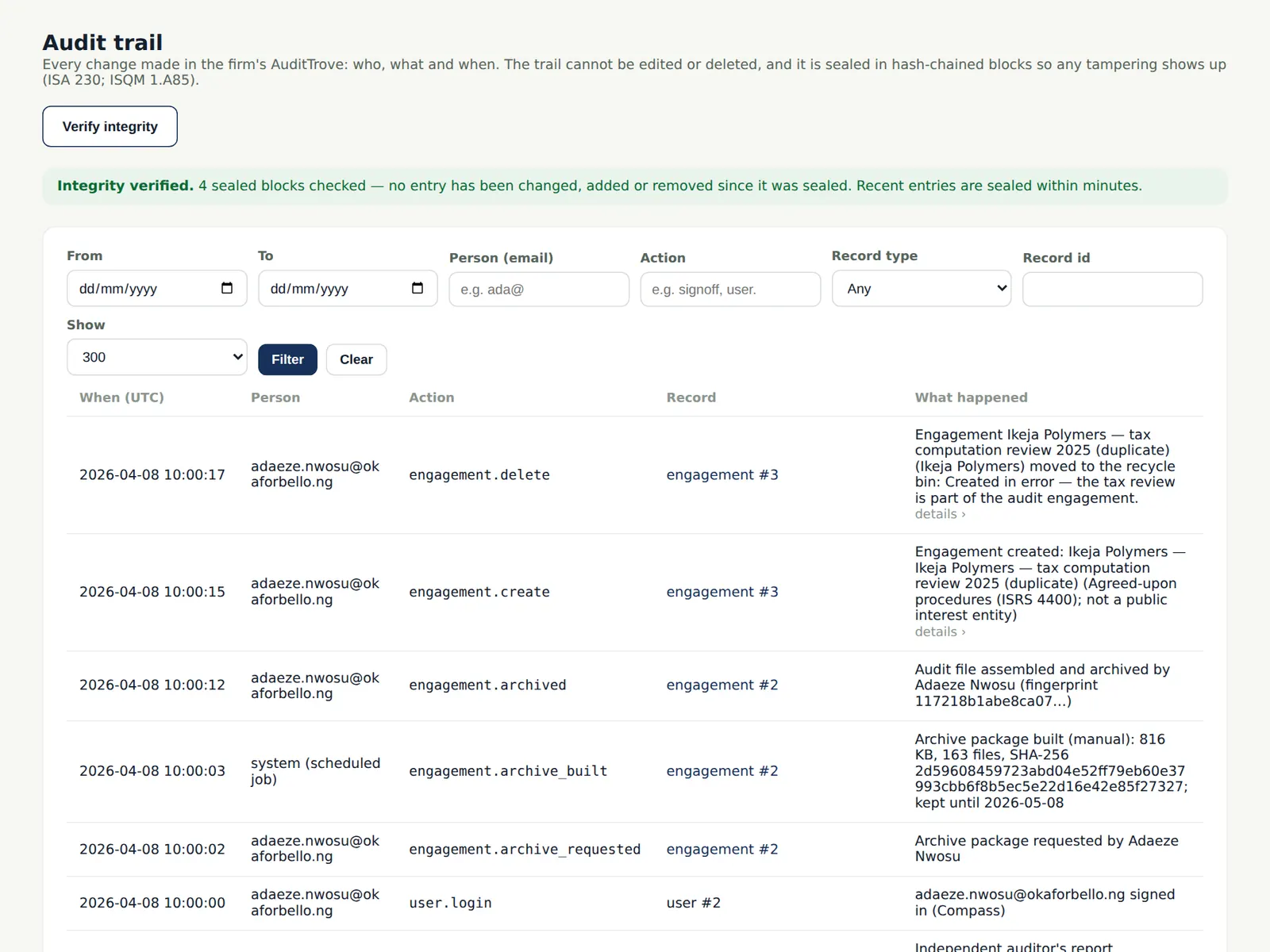
Verify integrity recomputes the chain of seals and reports whether every sealed block is intact.
Who
Owner, administrator, quality lead.
What to do
- Choose Verify integrity; investigate at once if a block does not verify.
14.19 The firm's dashboard
Why
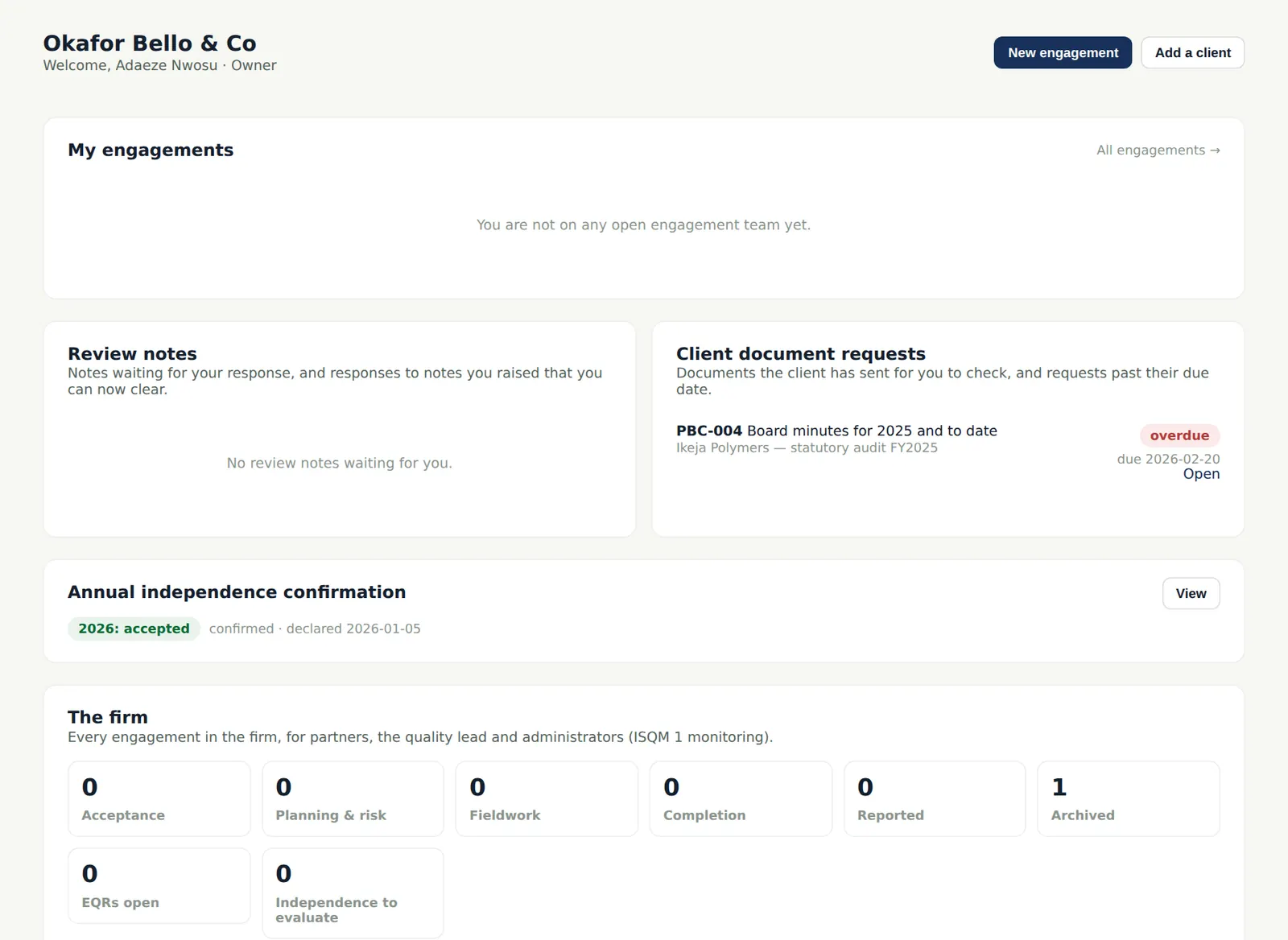
The dashboard shows open engagements, review notes and client requests for you, and the firm's view by phase for partners and administrators.
Who
Everyone.
What to do
- Start each day here.