Steps in this chapter (15)
Record each confirming party with its address and where the address came from, get the client's authorisation, email the requests from AuditTrove, receive replies on the public reply page, and deal with exceptions and non-responses.
ISA 505.7 asks the auditor to keep control over confirmation requests: to choose the confirming party, check the address, send the requests and receive the replies directly. Since release 22 AuditTrove does this itself. Each request is emailed from AuditTrove with a single-use link that expires after 30 days; the party replies on AuditTrove's public reply page, attaching a signed confirmation where the letter needs one. The reply records the respondent, their IP address and the time, and whether the reply came from the same email domain the request went to.
Addresses are checked before sending: an address supplied only by the client, a free email service, an address at the client's own domain, or missing details are flagged and must be considered, with a recorded reason, before the request can go. Banks and lawyers need the client's authorisation, which the client signs electronically. Every hour AuditTrove sends a second request after 10 days without a reply, and 10 days after that prompts the team to perform alternative procedures.
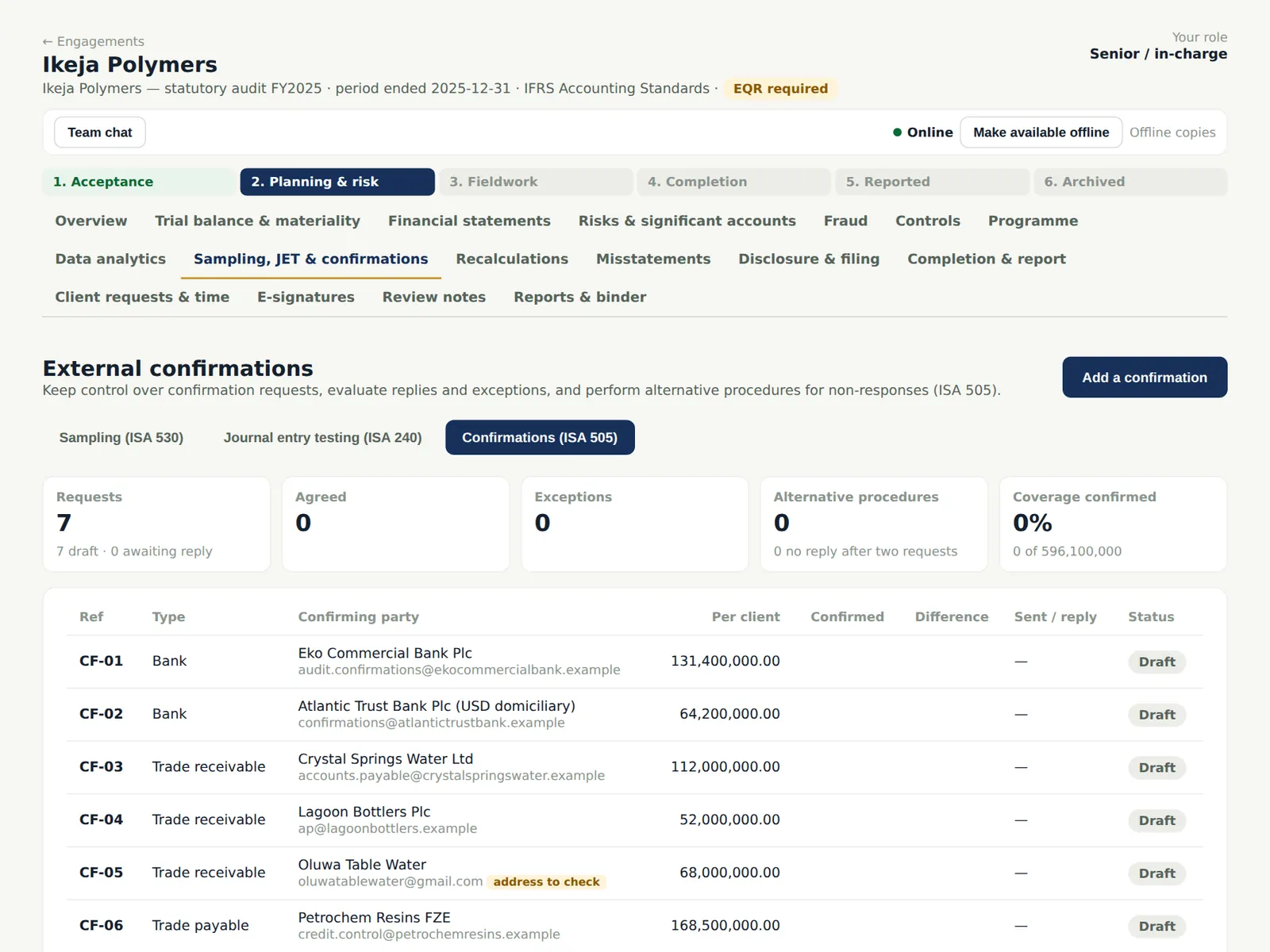
In the illustration Chioma Eze records seven confirmations on 20 January 2026: Eko Commercial Bank and Atlantic Trust Bank, three customers, a supplier (a blank request for the balance it shows) and the company's lawyers.
Use cases
- Use case — A bank that insists on the client's signed authorisation. Ask the client for it from Client authorisation (step 9.4); the CFO signs it in the portal, and the bank sees on the reply page that the company has authorised the request.
- Use case — A customer's email address supplied by the client. It is flagged (step 9.3). Verify it independently, or record why it can be relied on when you send (step 9.6).
- Use case — A reply that shows a different balance. Classify the exception and record it as a misstatement straight from the confirmation (step 9.13).
- Use case — No reply after two requests. AuditTrove prompts for alternative procedures (step 9.14); record them and set the status (ISA 505.12).
- Use case — Email is not set up on the server. Send the letters by post or courier (the letter PDF is on each confirmation) and record the dates and replies by hand.
9.1 Add a confirmation
Why
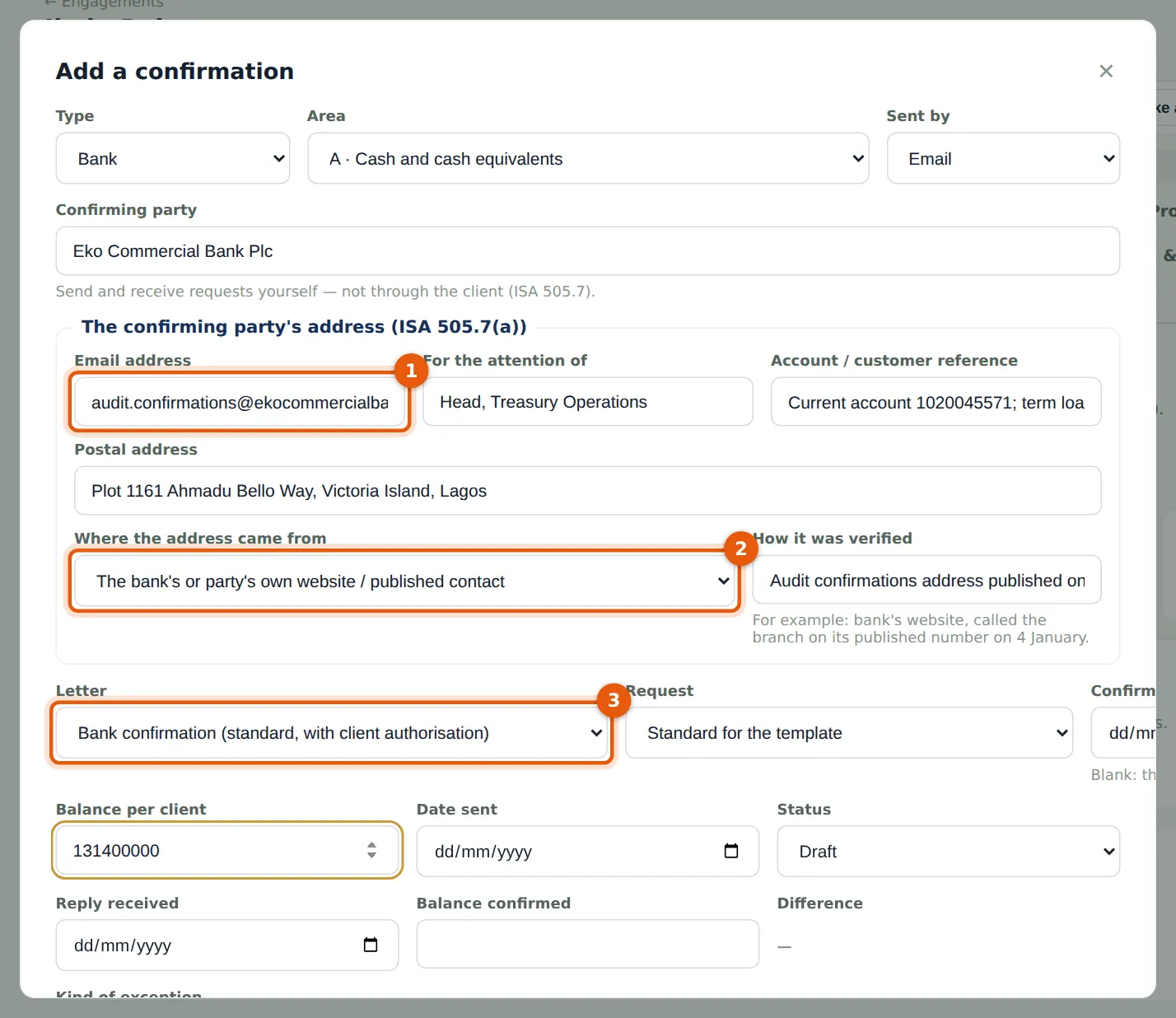
Each confirmation records the confirming party, its address and how you know it is the right one (ISA 505.7(a)), the letter template (bank, receivable, payable with a blank balance, legal, other), the request type (positive, negative or blank) and the balance per the client. Who recorded the address, and when, is kept with it.
Who
Senior or associate.
What to do
- Open Sampling, JET & confirmations → Confirmations (ISA 505) and choose Add a confirmation.
- Choose the type, area and Sent by Email; enter the party (Eko Commercial Bank Plc), its email address (1), the contact, the account reference and the postal address.
- Choose where the address came from (2) — here the bank's own website — and say how you checked it.
- Choose the letter (3) and enter the balance per the client; choose Add.
9.2 The confirmations to send
Why
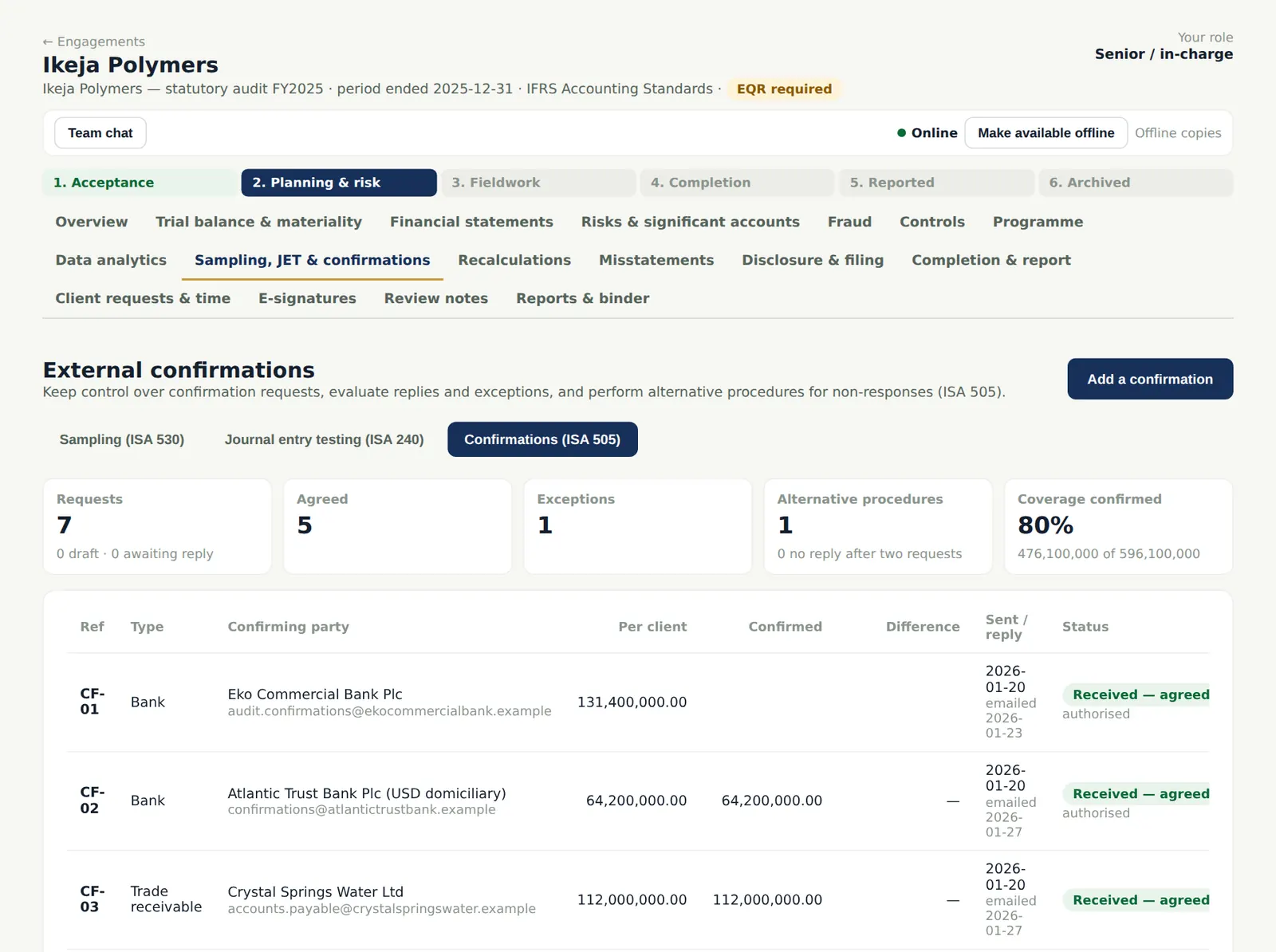
The list shows each confirmation with its party, balance per client, reply and status, and the coverage confirmed so far. Drafts can still be changed or deleted.
Who
Senior.
What to do
- Check each draft before the manager asks for the client's authorisation and sends the requests.
9.3 An address that needs thought
Why
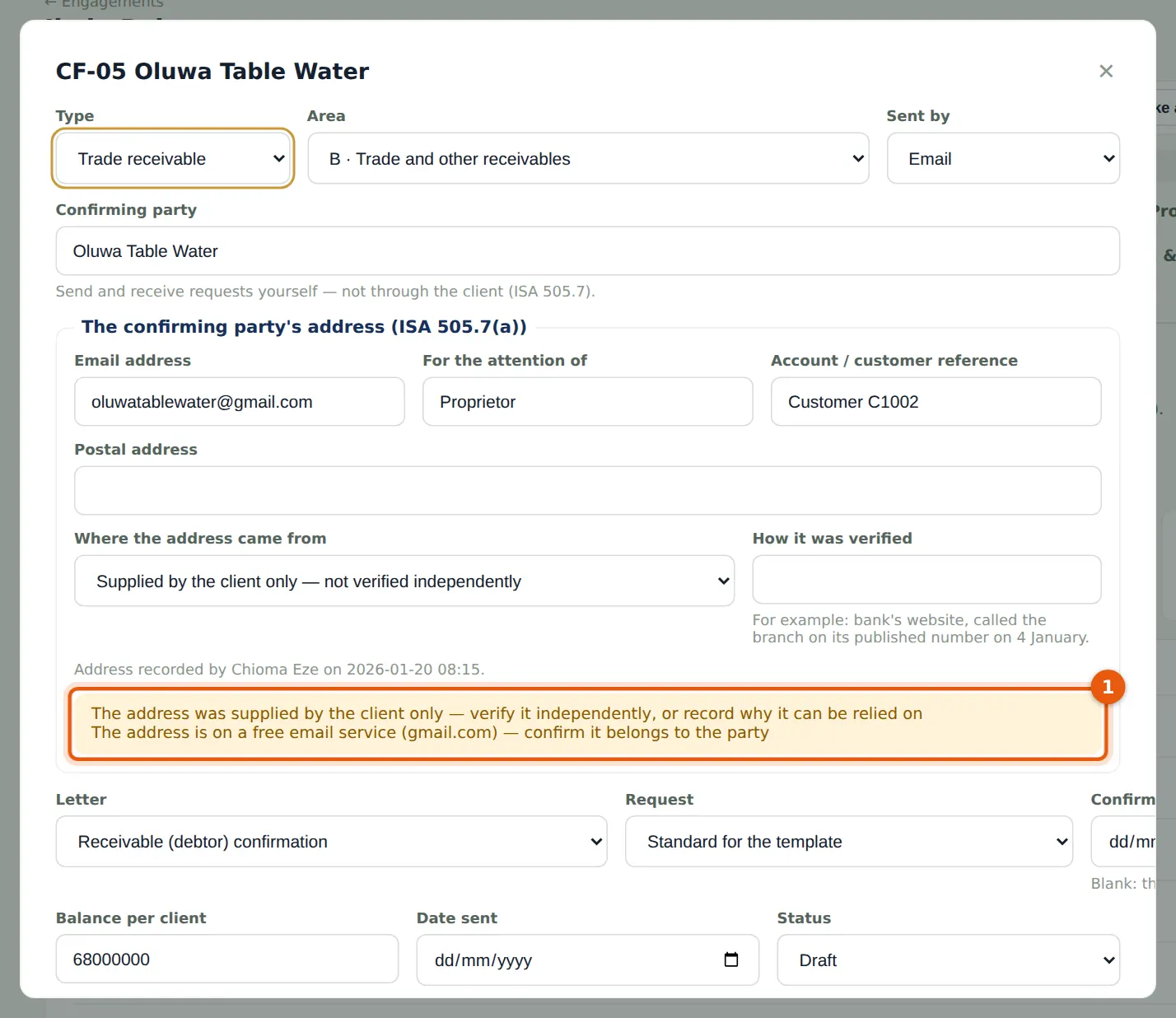
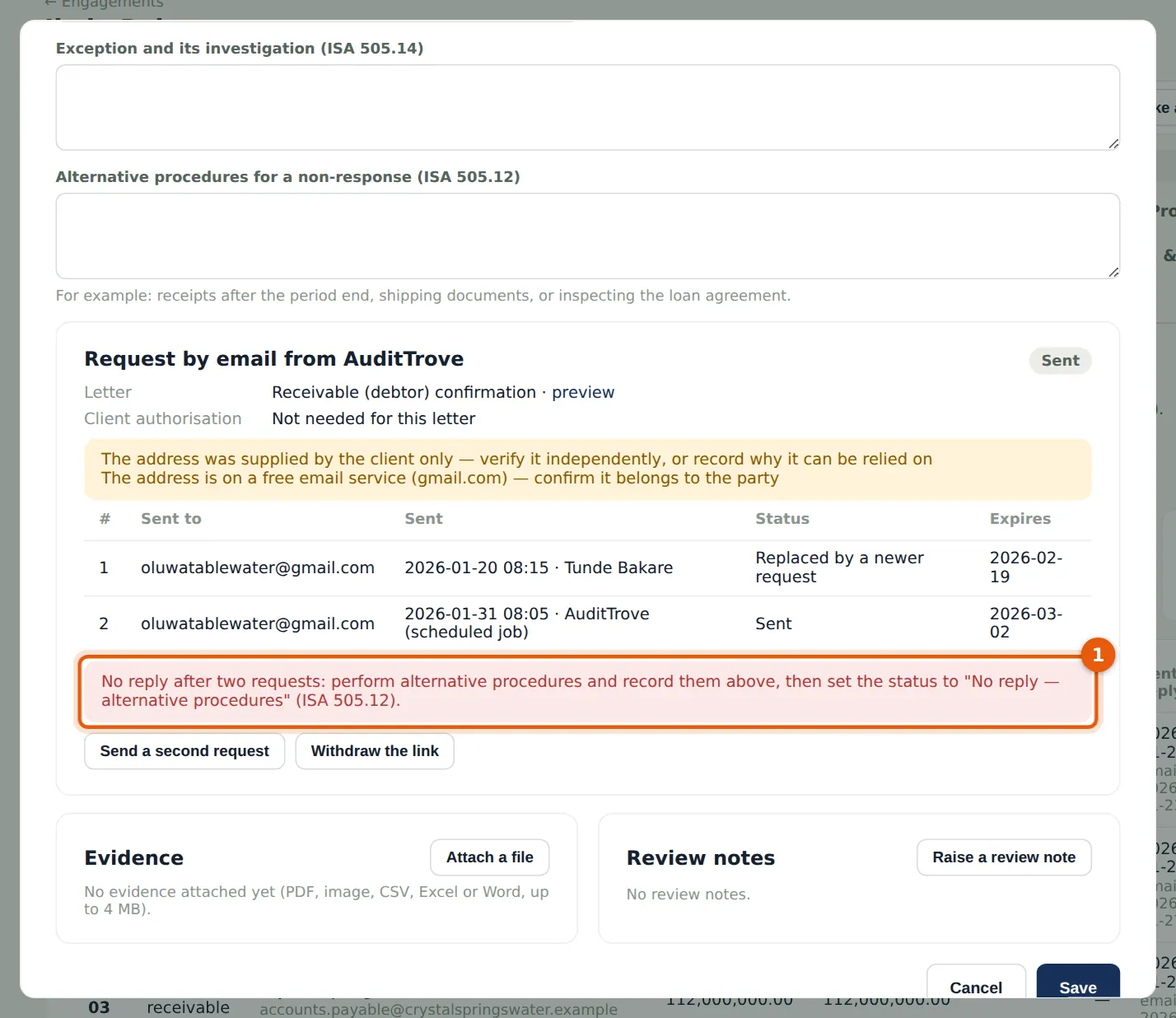
Oluwa Table Water's address came from the client and is on a free email service. AuditTrove flags it: a request sent to an address the client controls, or that cannot be traced to the party, gives weak evidence (ISA 505.A6–A7). The request can still be sent, but only with a recorded reason.
Who
Senior; manager.
What to do
- Verify the address independently (for example by telephone to a published number), change the source and save; or record why it can be relied on when you send.
9.4 The client's authorisation
Why
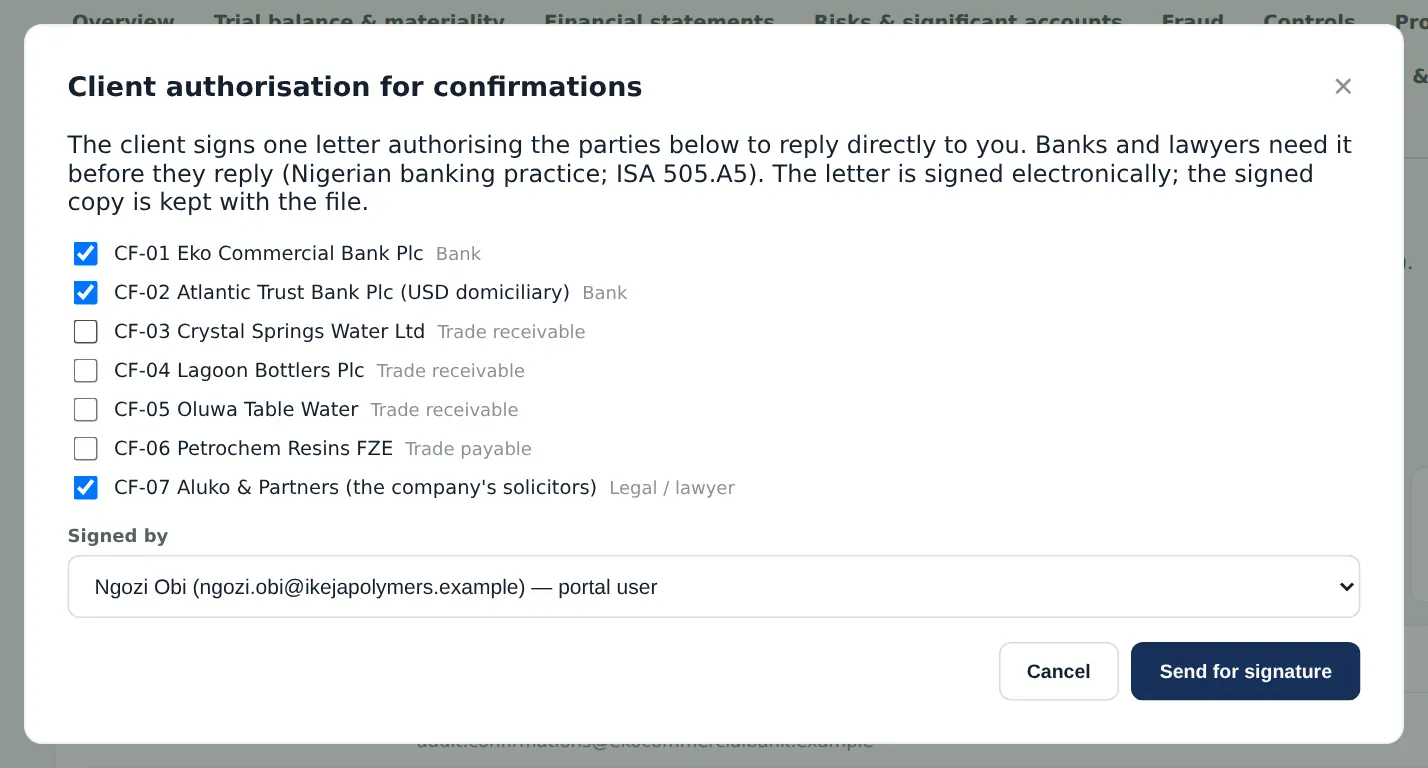
Banks and lawyers reply only with the client's authorisation (ISA 505.A5; Nigerian banking practice). One letter covers the confirmations you choose; it is sent for electronic signature to a portal user or a director by email. When it is signed, every confirmation it covers shows as authorised, and the bank sees that on the reply page. An authorisation signed on paper can be recorded instead.
Who
Engagement partner or manager.
What to do
- Choose Client authorisation, tick the confirmations it covers (banks and the lawyers are ticked for you), choose who signs and choose Send for signature.
9.5 The client signs the authorisation
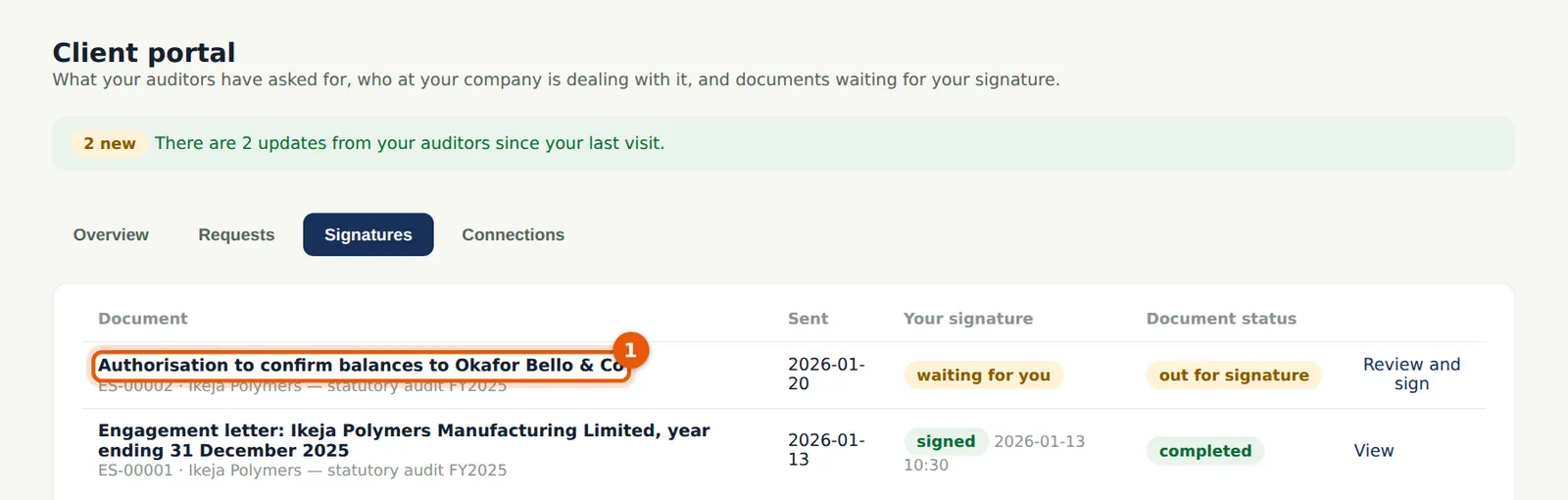
Why
The CFO sees the authorisation under Signatures in the portal and signs it as in chapter 7.
Who
Client user.
What to do
- Open Signatures, choose Review and sign, read the letter, type your name, tick the consent and choose Sign.
9.6 Send the request
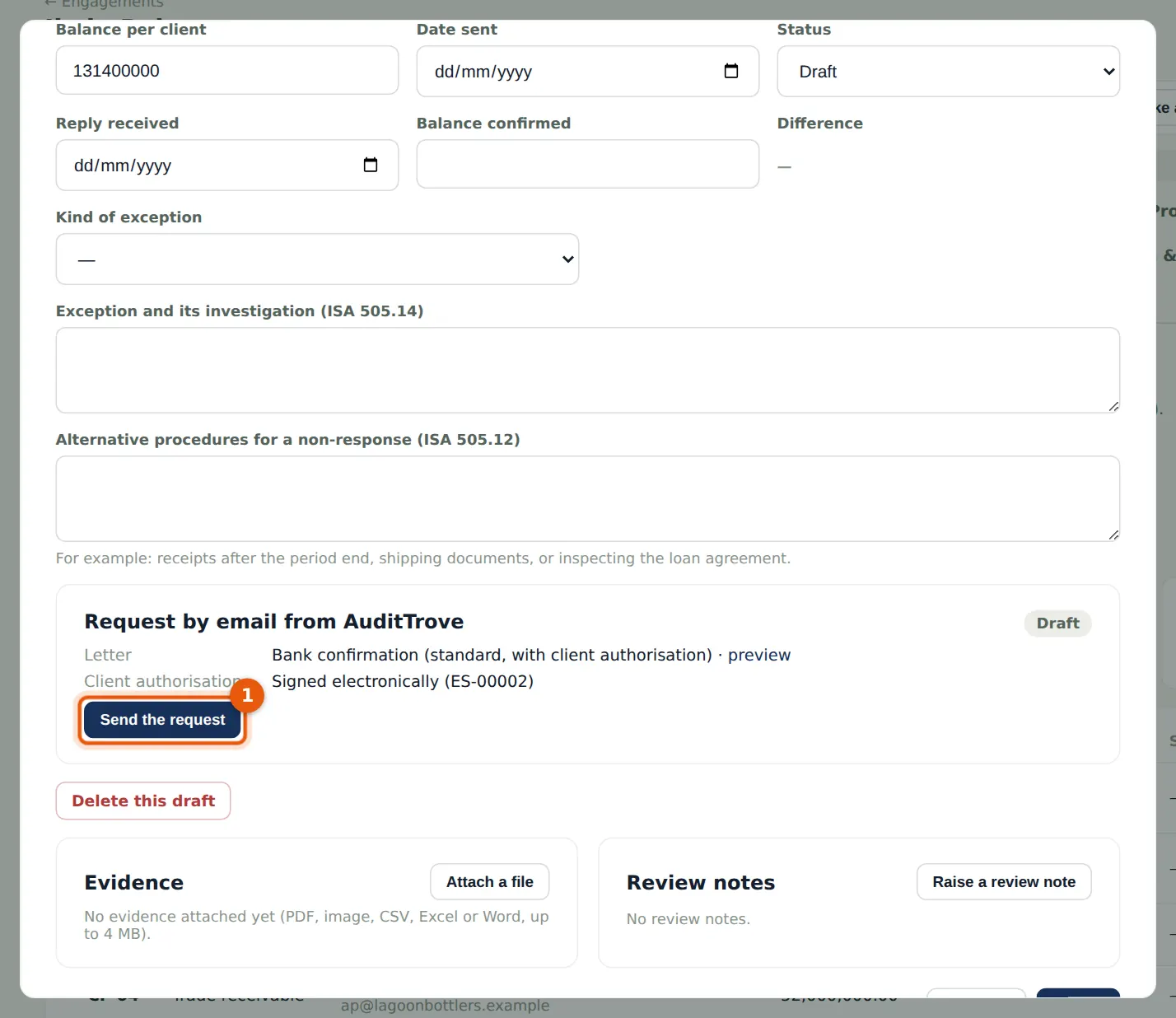
Why
Each confirmation shows its letter (preview it as a PDF), the client's authorisation and whether it is ready to send. The request goes from AuditTrove to the party — never through the client. For a flagged address you must record why it can be relied on.
Who
Engagement partner, manager or senior.
What to do
- Open the confirmation and choose Send the request (1); for a flagged address, record your reason.
9.7 Requests sent
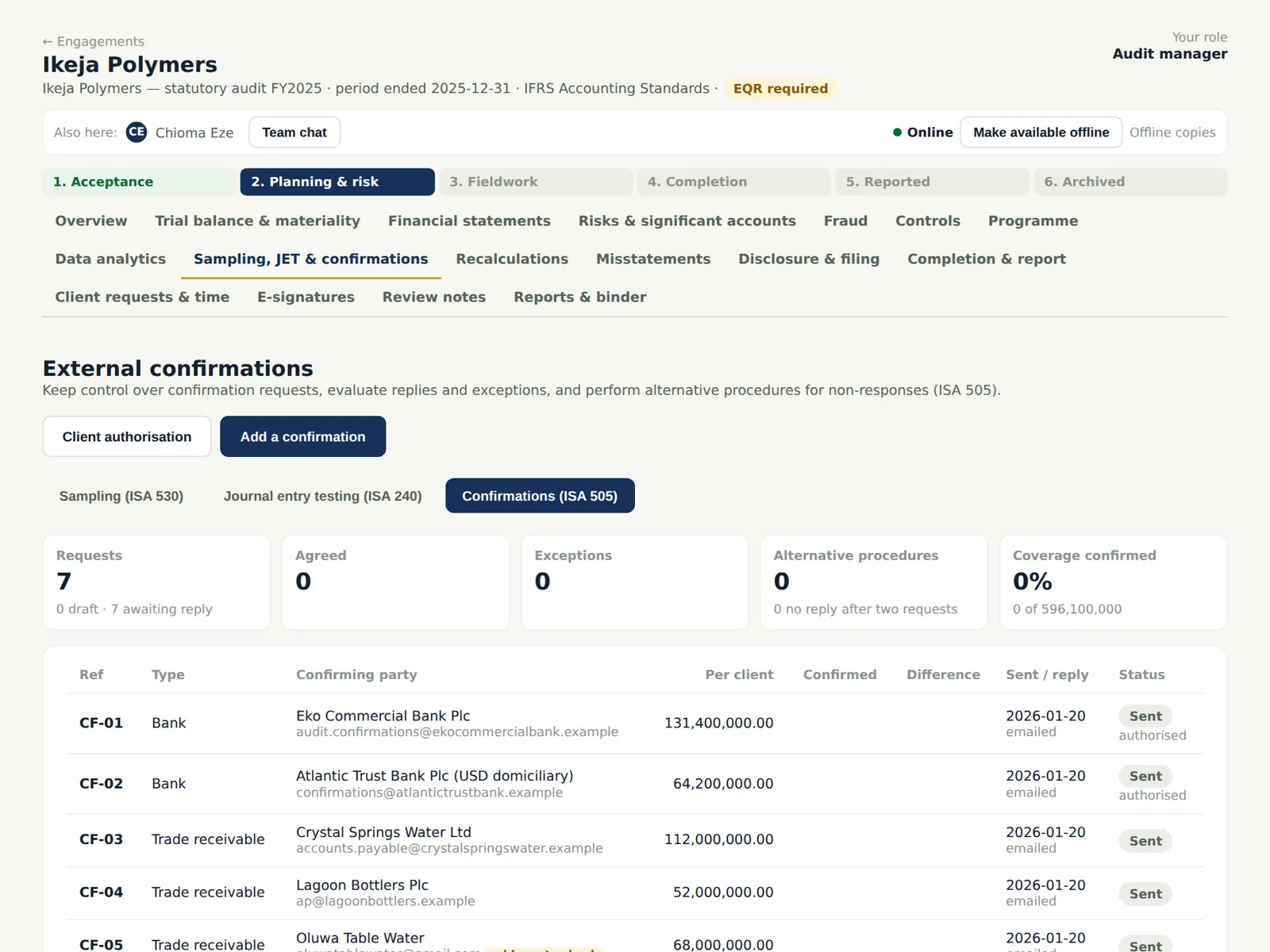
Why
The list now shows each request as sent and emailed, with the date. The request expires after 30 days; a second request stops the earlier link.
Who
—
What to do
- Watch for replies: each reply sends a notification to the partner, manager and senior.
9.8 What the bank receives
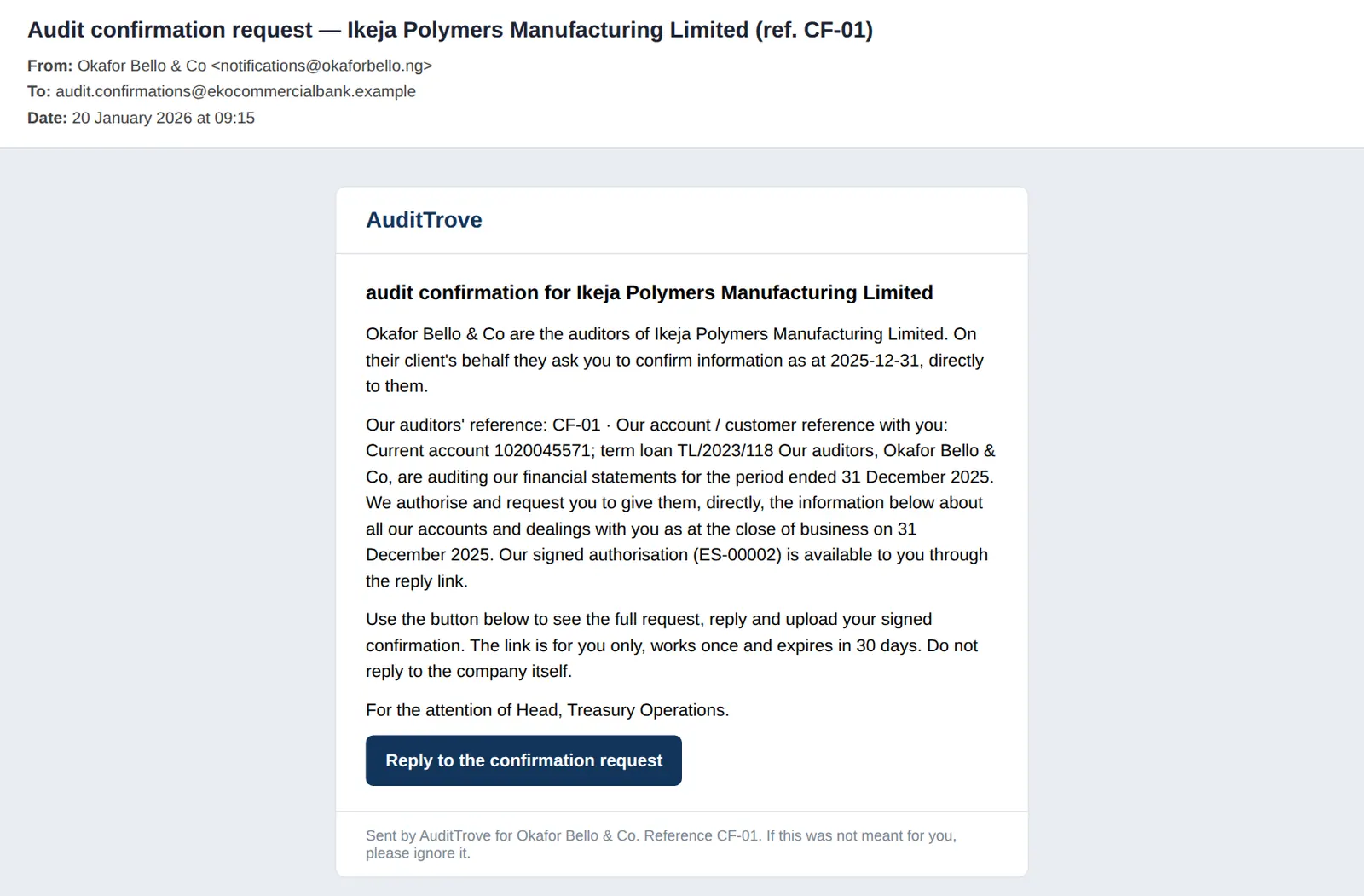
Why
The email comes from the firm's notification address and names the firm, the client and the reference. The link is for the addressee only, works once and expires in 30 days; only its fingerprint is stored.
Who
The confirming party.
What to do
- The bank chooses Reply to the confirmation request.
9.9 The public reply page
Why
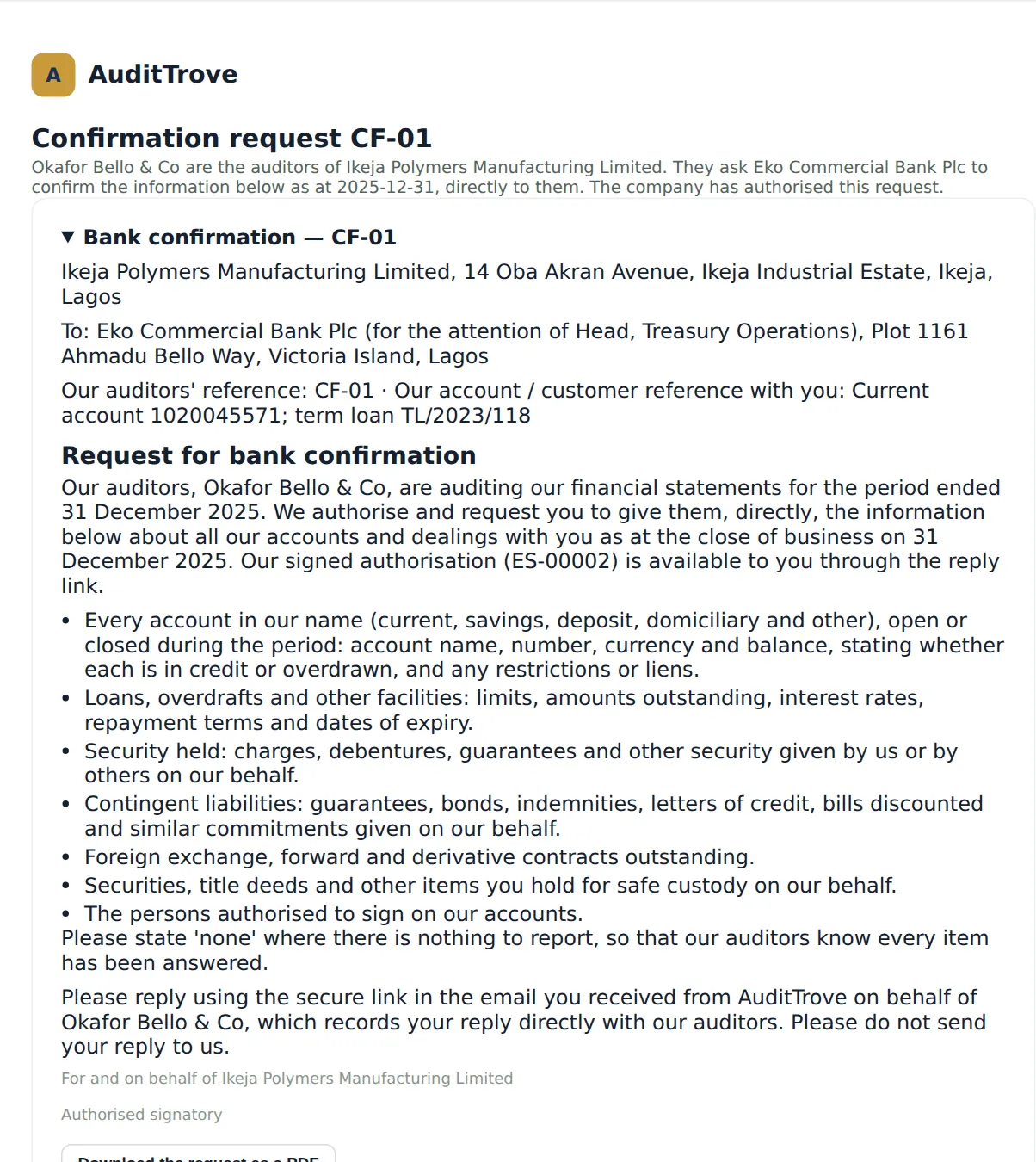
The reply page shows the full request letter (it can also be downloaded as a PDF) and says whether the company has authorised the request. It needs no login, sends no cookies and runs no AuditTrove scripts; it is protected by the single-use link, limits on the number of attempts, a hidden field that people never fill and a minimum time on the page.
Who
The confirming party.
What to do
- Read the request.
9.10 The bank replies
Why
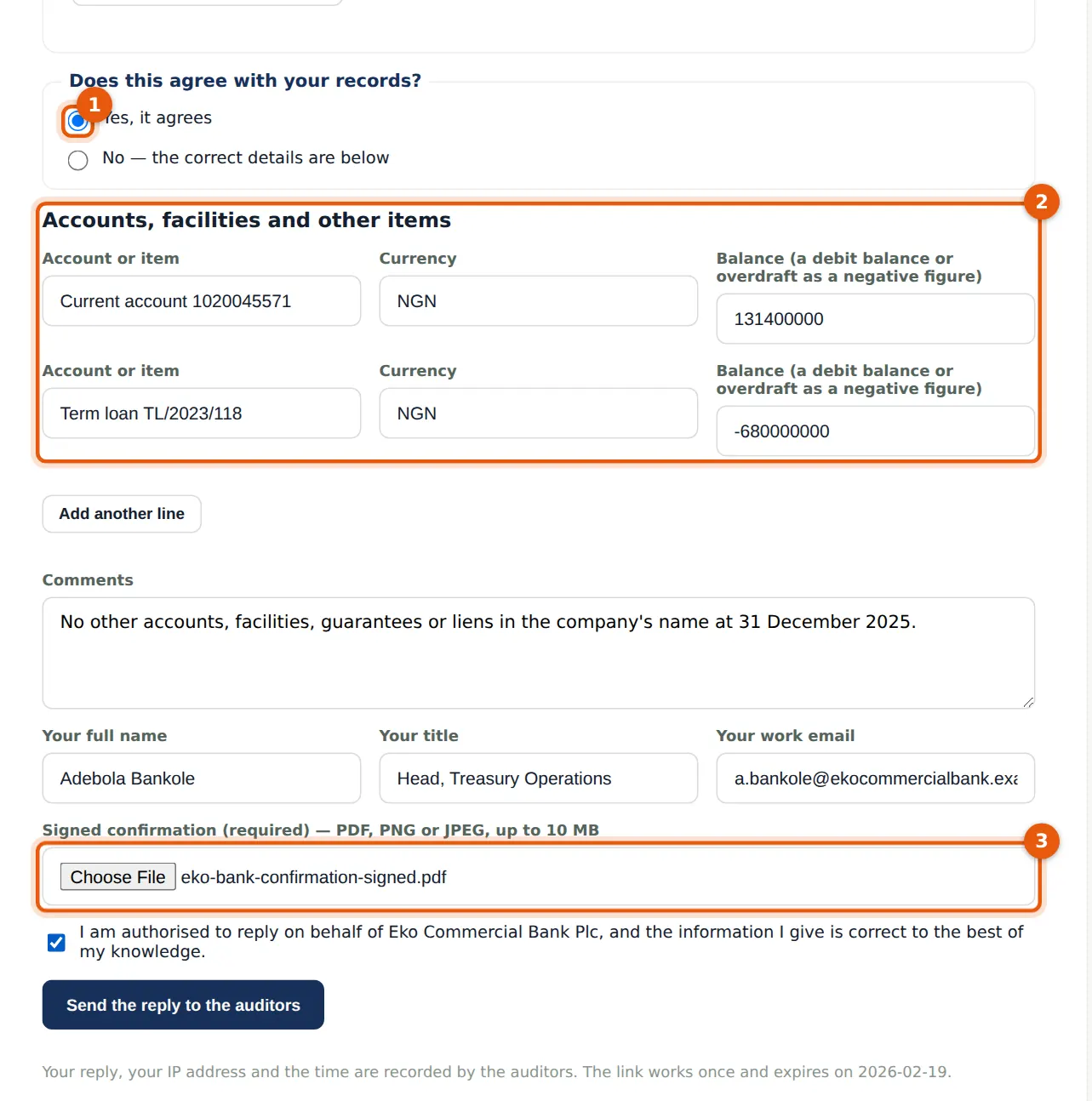
The party says whether the balance agrees and lists every account, facility and other item; banks and lawyers must attach a signed confirmation. The file is checked for malware before it is stored.
Who
The confirming party (Eko Commercial Bank's Head of Treasury Operations).
What to do
- Choose Yes, it agrees (1) or No, and give the correct details.
- List the accounts and facilities (2), add comments, and give your name, title and work email.
- Attach the signed confirmation (3), tick that you are authorised to reply, and choose Send the reply to the auditors.
9.11 Reply sent
Why
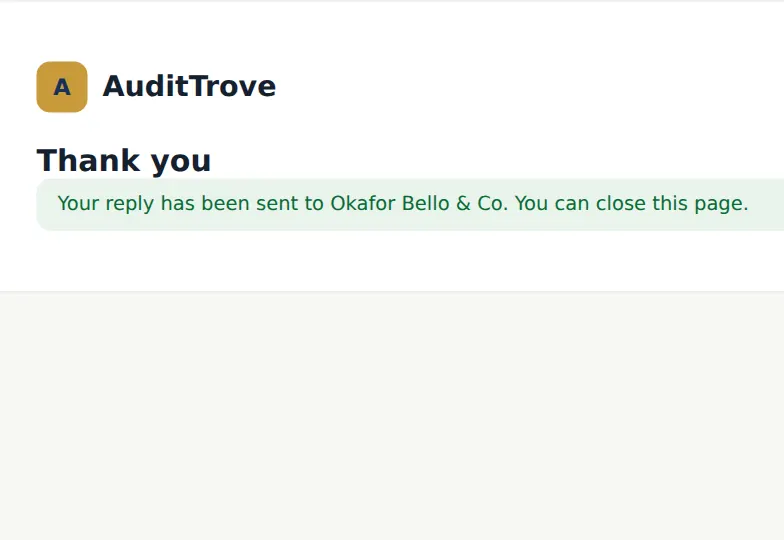
The link cannot be used again. The team is told at once.
Who
The confirming party.
What to do
- Nothing more to do.
9.12 The reply in the file
Why
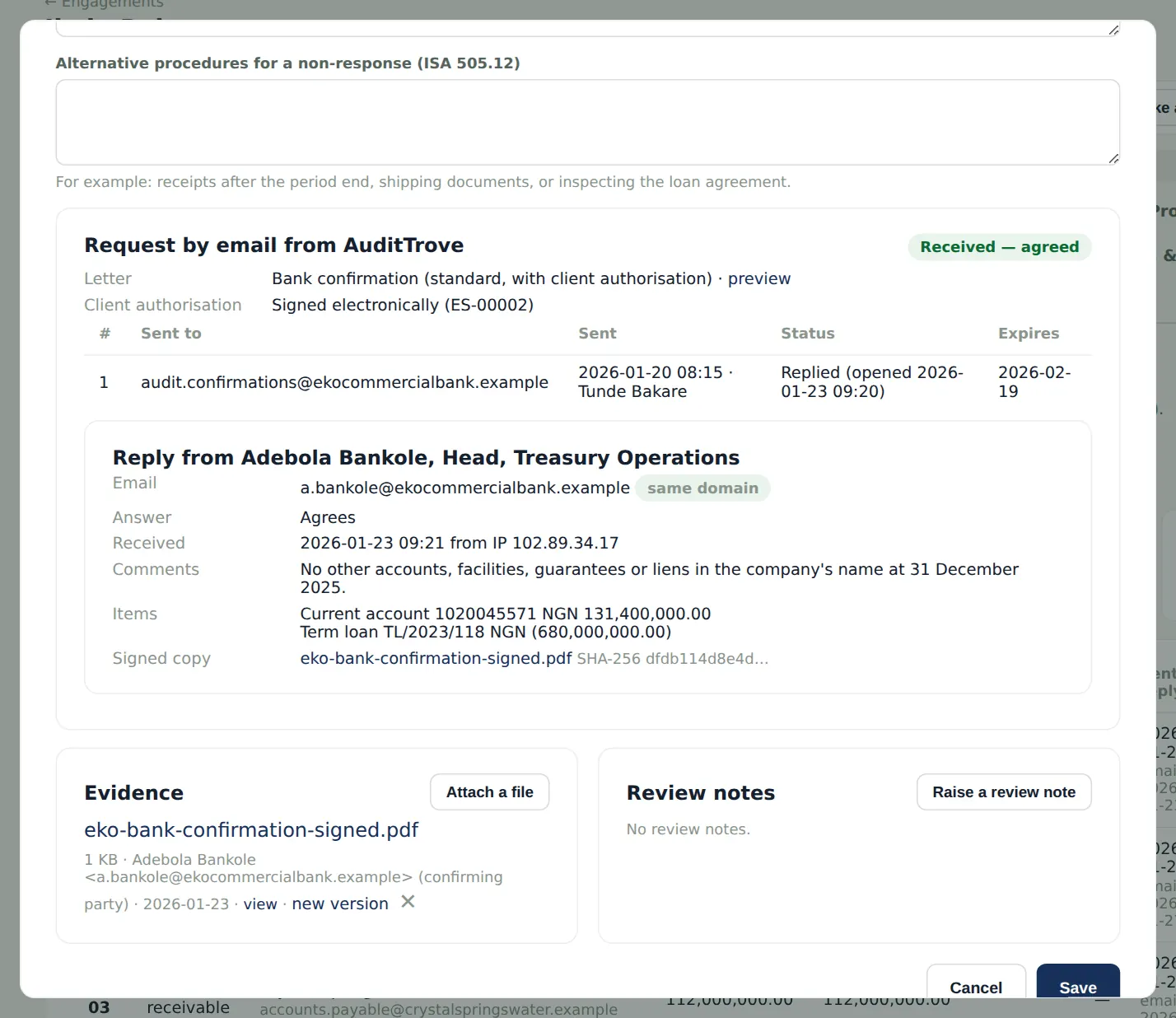
The reply shows who replied and from which address, whether the email domain matches the one the request went to (here: same domain), the time and IP address, the balances and the signed copy, which is filed as evidence. A reply from a different domain is flagged for you to consider (ISA 505.A11–A12).
Who
Senior; reviewed by the manager.
What to do
- Check the reply against the client's records; link the signed confirmation to the cash figure (chapter 10).
9.13 An exception becomes a misstatement
Why
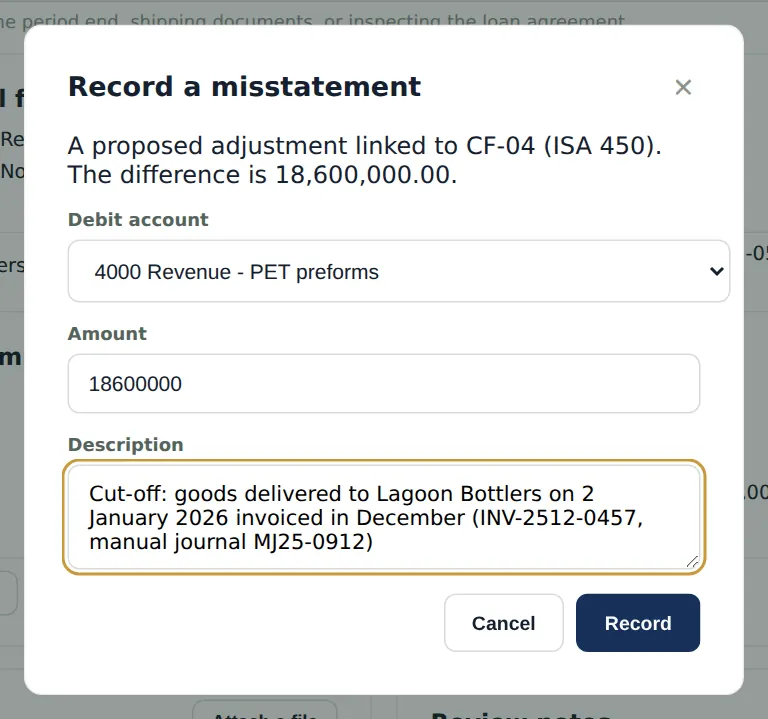
Lagoon Bottlers replied that it owes NGN 33.4m, not NGN 52m: invoice INV-2512-0457 was for goods delivered on 2 January 2026. Exceptions must be investigated (ISA 505.14). When the exception is an error, record it straight from the confirmation as a proposed adjustment (ISA 450); it is linked by the confirmation's reference.
Who
Senior.
What to do
- Open the confirmation and choose Record a misstatement.
- Choose the debit and credit accounts, check the amount and describe the misstatement; choose Record.
- Classify the exception (timing difference, error, dispute or fraud indicator) and describe the investigation.
9.14 No reply: alternative procedures
Why
Oluwa Table Water did not reply. AuditTrove sent a second request after 10 days (31 January), and 10 days later marked the confirmation for alternative procedures (ISA 505.12): for a receivable, for example, receipts after the period end and signed delivery notes.
Who
Senior; reviewed by the manager.
What to do
- Perform the alternative procedures and describe them in the confirmation.
- Set the status to No reply — alternative procedures and save.
9.15 The confirmations completed
Why
The summary shows how many were agreed, the exceptions and the alternative procedures, and the share of the balances confirmed. The Confirmations report lists every request, reply and exception for the file.
Who
Senior prepares; manager reviews.
What to do
- When every request has a reply or alternative procedures, sign the confirmations section as prepared; the manager reviews it.