Steps in this chapter (12)
Invite the client's people to the portal by email, and send the engagement letter for electronic signature by a portal user and a director who signs with an emailed code.
Client users work in the client portal: they see only their own company's document requests, comments and documents to sign — never working papers. They are invited by email and set their own password; two-factor authentication is compulsory for them too.
Any letter generated by the file — the engagement letter, the representation letter, the letters to those charged with governance — and any PDF in the file can be signed electronically. The document is frozen with a fingerprint; each signer confirms who they are (a portal user by signing in, anyone else with a six-digit code sent to their email), reviews it, types their name and consents. The signed copy carries a signature page and a certificate of completion and is kept as evidence.
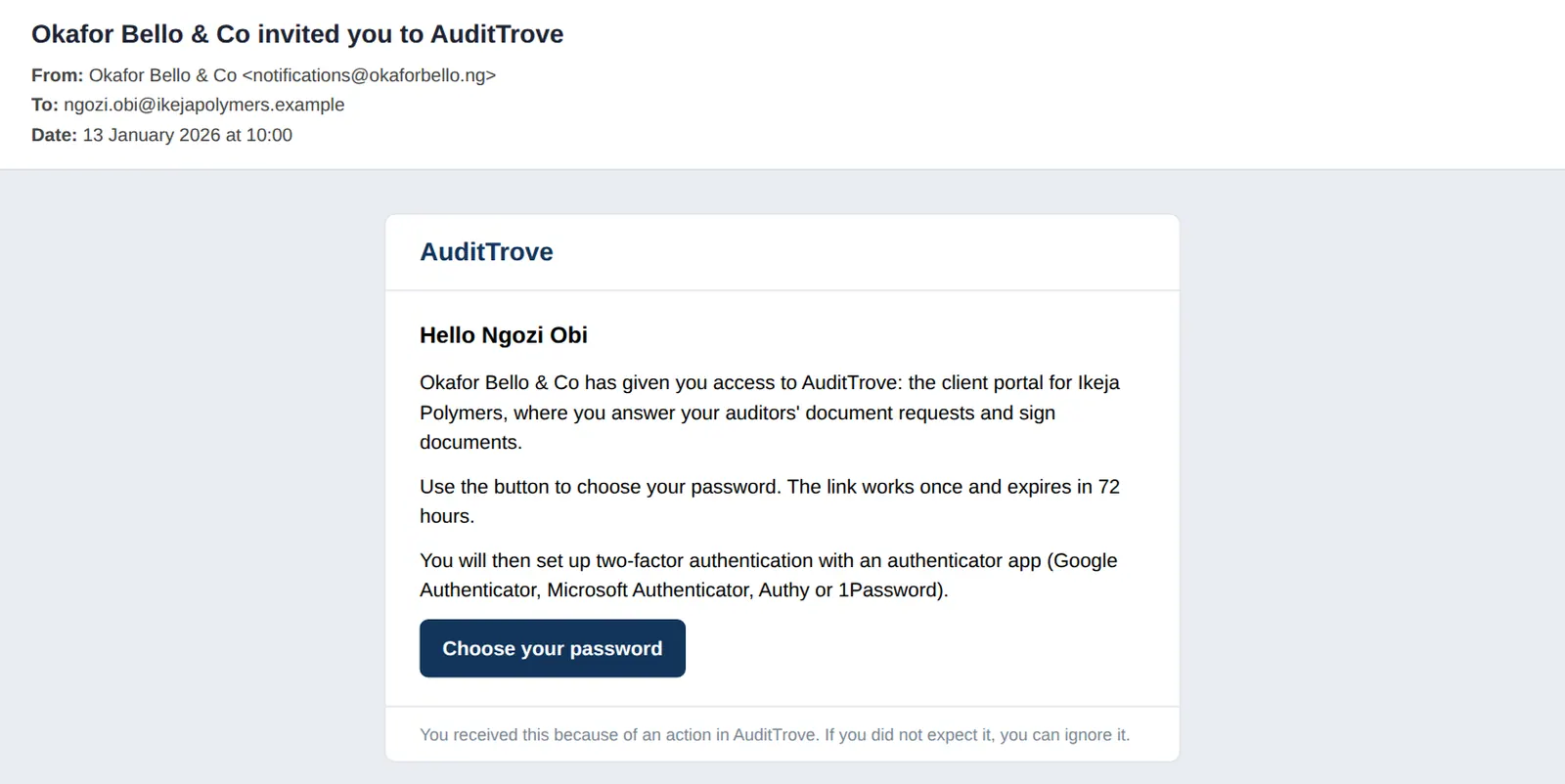
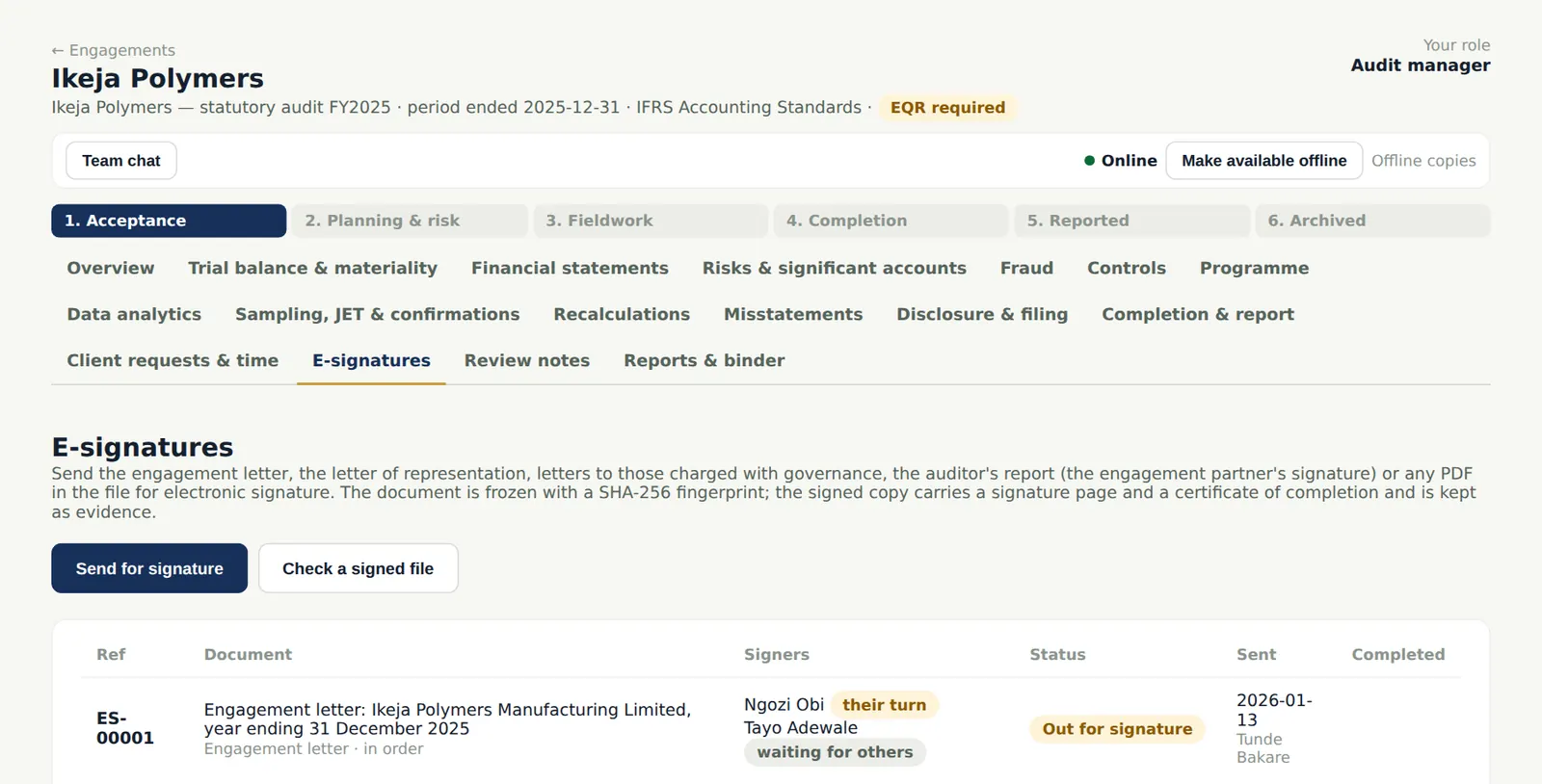
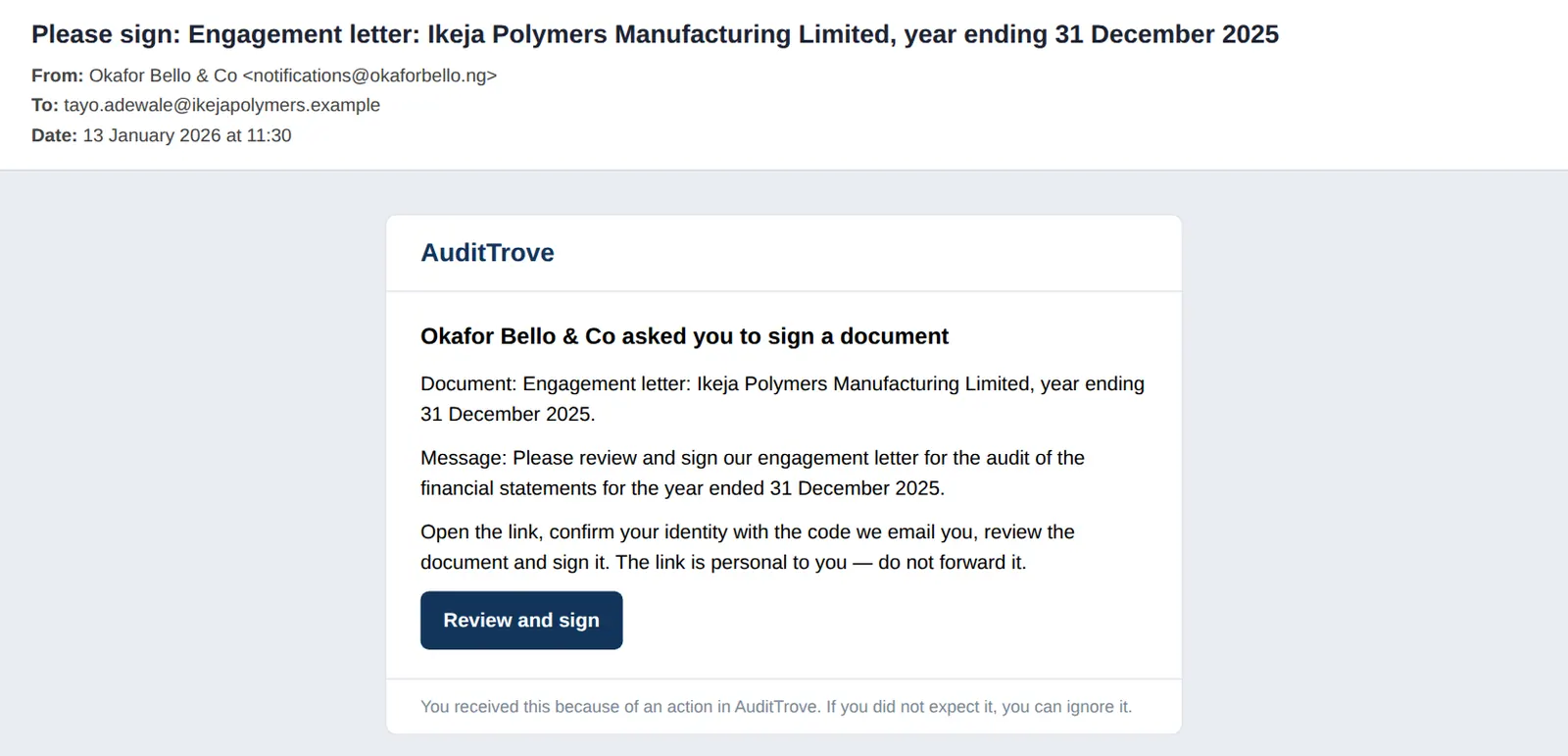
In the illustration the CFO, Ngozi Obi, is invited on 13 January 2026 and signs the engagement letter in the portal; the managing director, Tayo Adewale, signs from the emailed link.
Use cases
- Use case — A client that wants to sign on paper. Print the letter, and record when it was sent and signed with Record a communication (chapter 12).
- Use case — A director who is not a portal user. Add them as 'Someone at the client (by email)'; they sign with a code sent to their email (steps 7.6–7.9).
- Use case — A signed PDF someone sends back later. Use Check a signed file on the E-signatures tab to confirm it matches the fingerprint AuditTrove holds.
7.1 The portal invitation
Why
Staff never see or set a client user's password. The invitation link works once and expires after 72 hours; only its fingerprint is stored. The first portal user of a client becomes the client's portal administrator, who can assign requests to colleagues.
Who
Partner or manager sends it from the client's page (Give portal access); the client user receives it.
What to do
- On the client's page choose Give portal access, enter the person's name and email and choose Invite.
- The person opens the email and chooses Choose your password.
7.2 The client chooses a password
Why
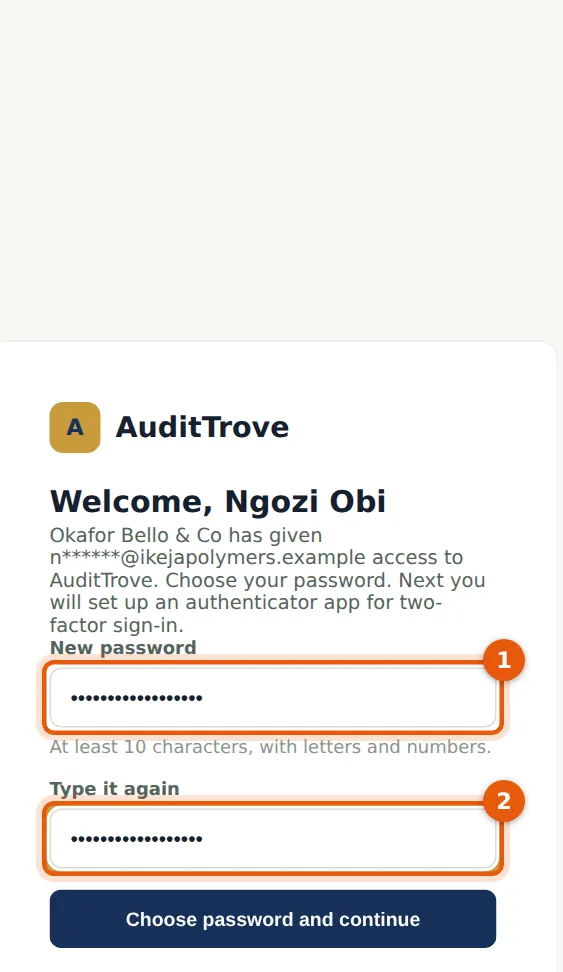
The page is opened from the email link only. The token is removed from the address bar at once, so it does not stay in the browser history.
Who
The client user.
What to do
- Type a password of at least 10 characters with letters and numbers (1), type it again (2) and choose Choose password and continue.
- Set up two-factor authentication as in steps 1.2 and 1.3.
7.3 The client portal
Why
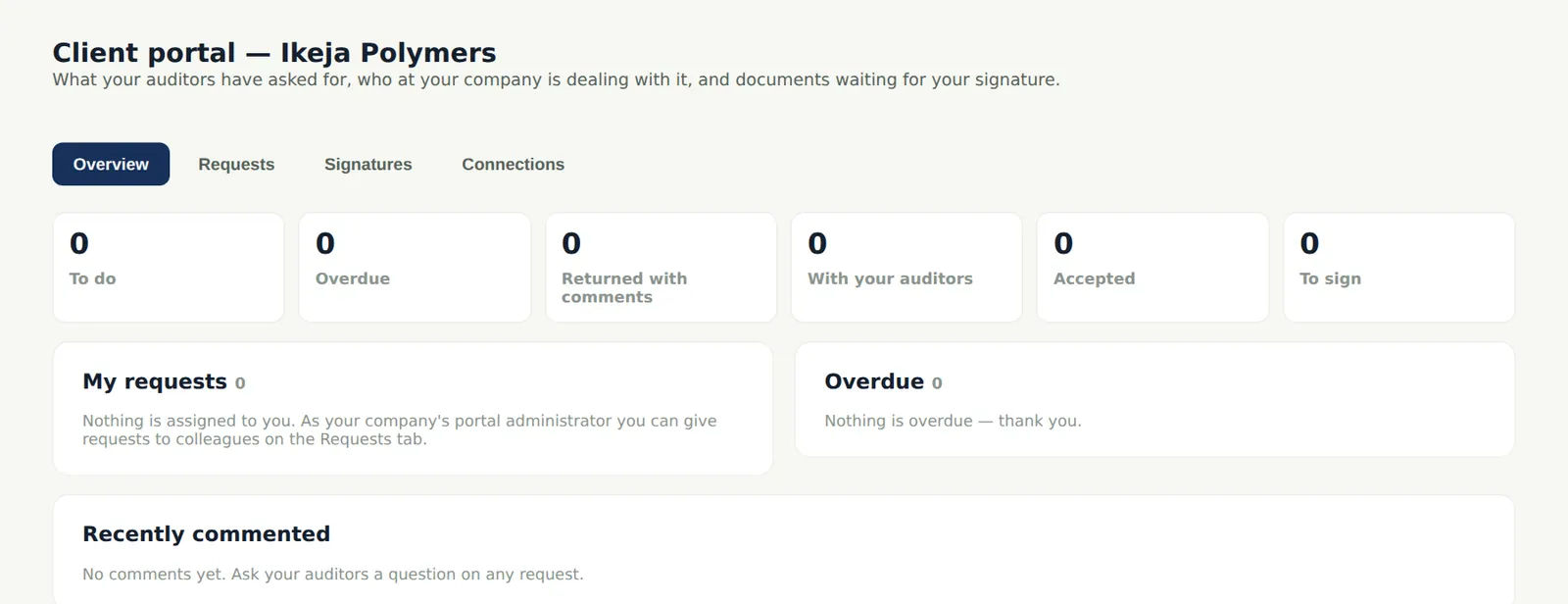
The overview shows the client what is waiting for them: document requests to do and overdue, requests returned with comments, documents to sign, and the latest comments. The tabs are Overview, Requests, Signatures and Connections (for the accounting system).
Who
Client users.
What to do
- Open Requests to answer document requests (chapter 11), Signatures to sign documents (step 7.9 onwards).
7.4 Send the engagement letter for signature
Why
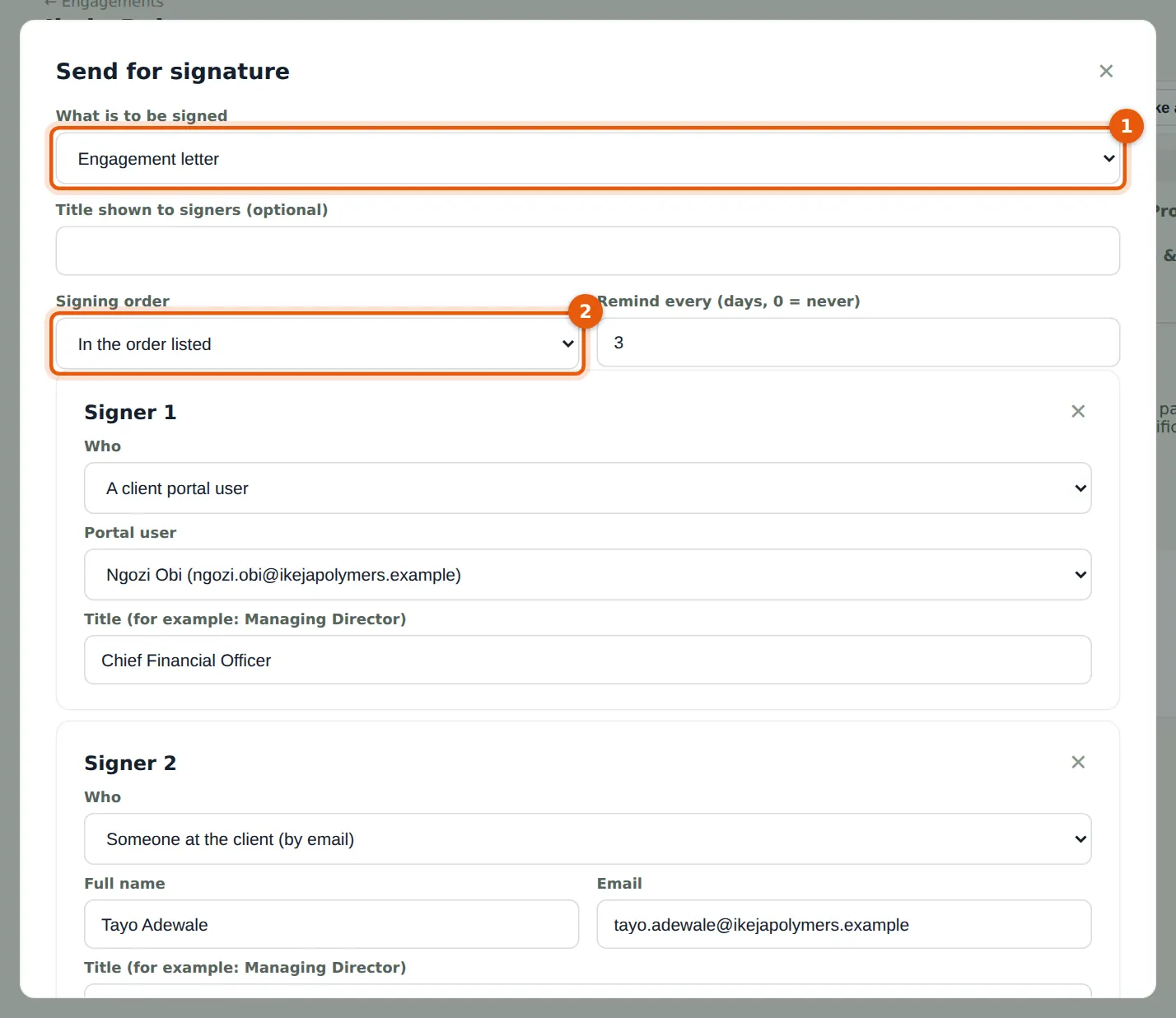
Choosing Engagement letter freezes the letter generated from the file. Signers can be portal users, people at the client who sign by email, or team members. With In the order listed, each signer is asked only when the one before has signed. Reminders go out every few days until everyone has signed.
Who
Engagement partner or manager.
What to do
- Open the E-signatures tab and choose Send for signature.
- Choose Engagement letter (1) and the signing order (2).
- Signer 1: A client portal user — Ngozi Obi, Chief Financial Officer. Choose Add a signer; Signer 2: Someone at the client (by email) — Tayo Adewale, Managing Director.
- Add a message and choose Freeze and send.
7.5 Out for signature
Why
The list shows every document sent for signature, its signers and their status. A request can be reminded or cancelled (voided) while it is open.
Who
Engagement partner or manager.
What to do
- Open a request to see its events (sent, opened, code confirmed, signed) or to send a reminder.
7.6 The signing email
Why
People who are not portal users receive a personal link. It is theirs only: the email says not to forward it, and a code sent to the same address confirms who is signing.
Who
The signer.
What to do
- Open the email and choose Review and sign.
7.7 Ask for a code
Why
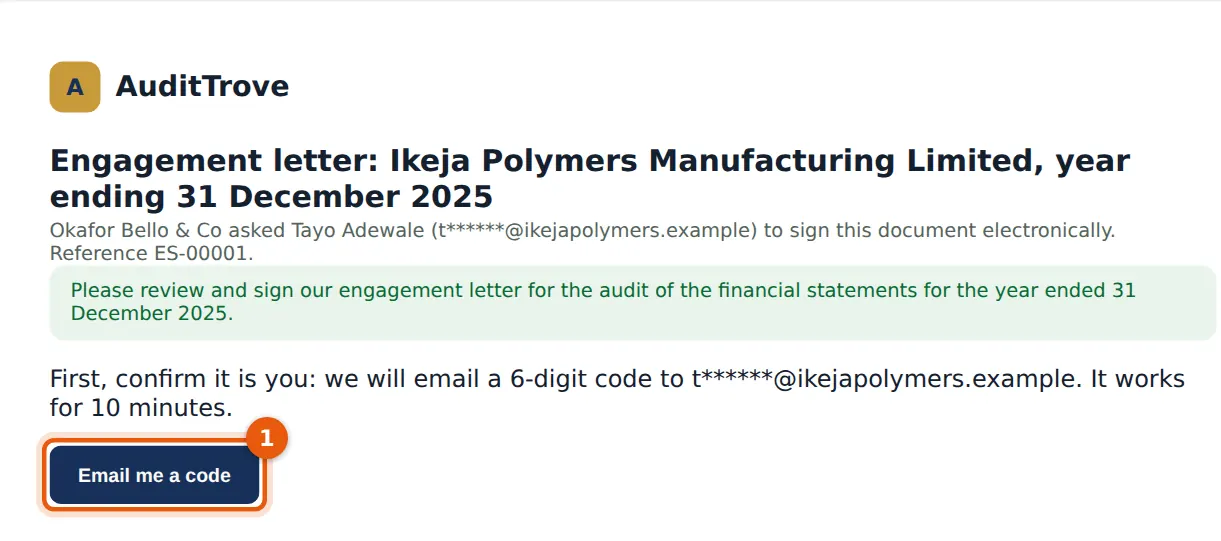
The signing page confirms the signer's identity with a six-digit code sent to the same email address.
Who
The signer.
What to do
- Choose Email me a code (1).
7.8 Enter the code
Why
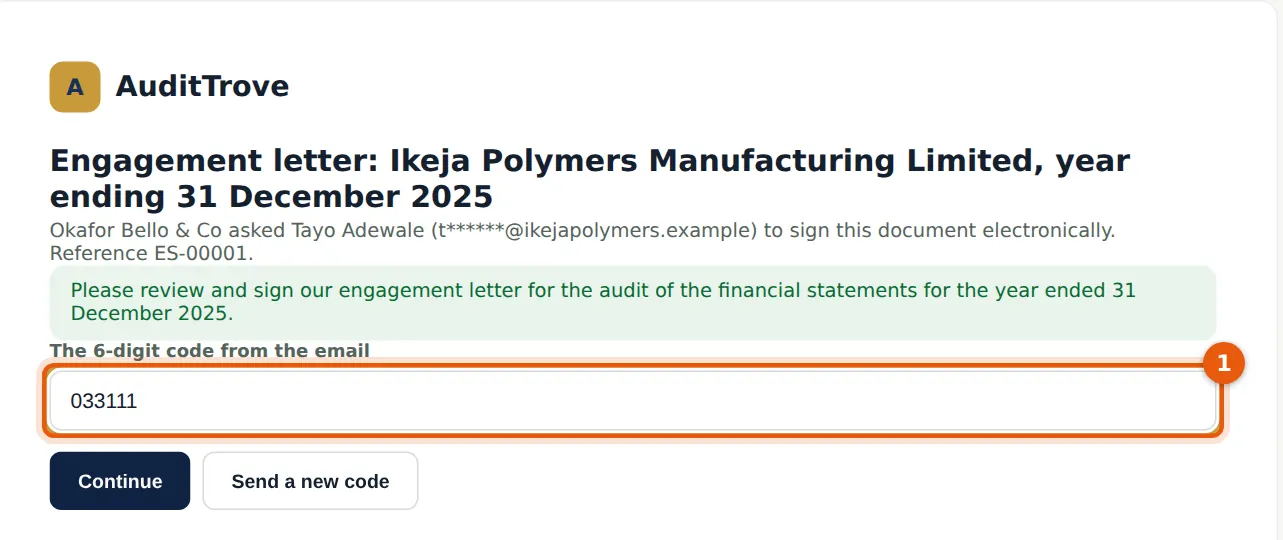
The code works for a short time and only for this signer.
Who
The signer.
What to do
- Type the code (1) and choose Continue.
7.9 Review and sign
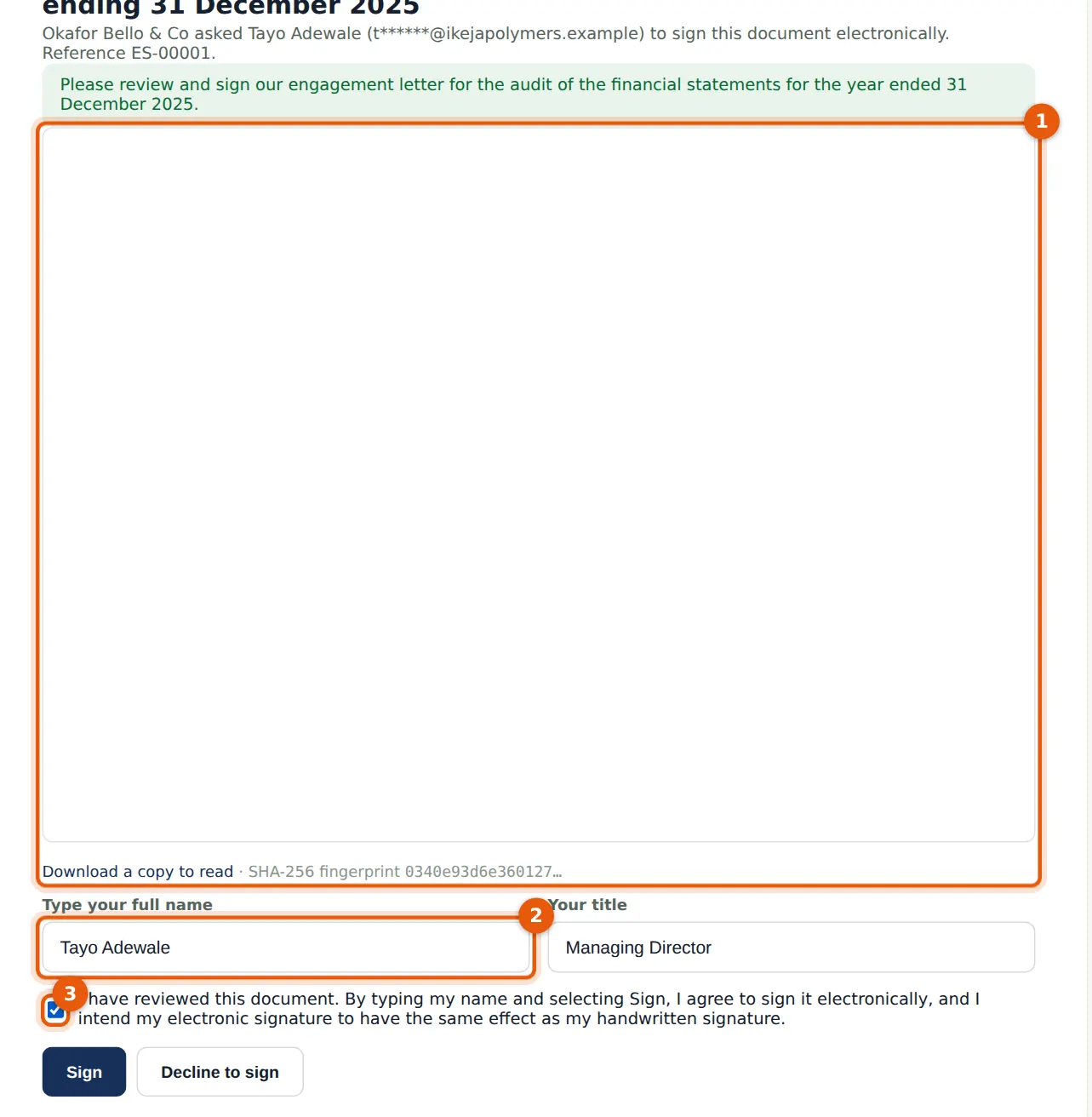
Why
The signer reads the frozen document (its fingerprint is shown), types their full name and title and ticks the consent to sign electronically. They can also decline, with a reason.
Who
The signer.
What to do
- Read the document (1); download a copy if you wish.
- Check your name and title (2), tick the consent (3) and choose Sign.
7.10 Signed
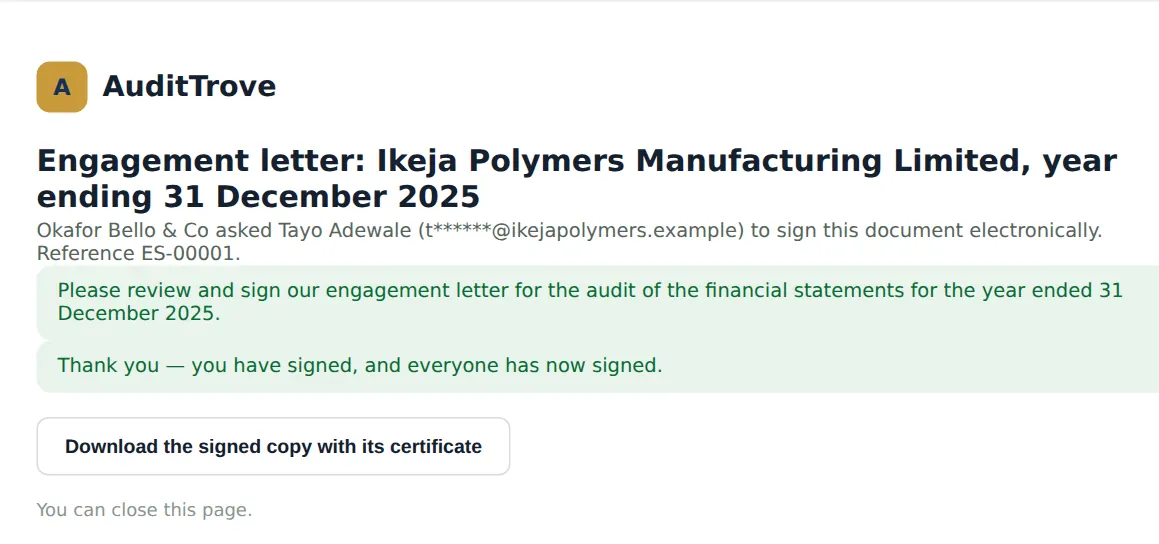
Why
When the last signer signs, the signed copy is made: the original document, a signature page and a certificate of completion listing each signer, how they were identified, their IP address and the times.
Who
The signer.
What to do
- Download the signed copy if you want one, and close the page.
7.11 The engagement letter gate is met
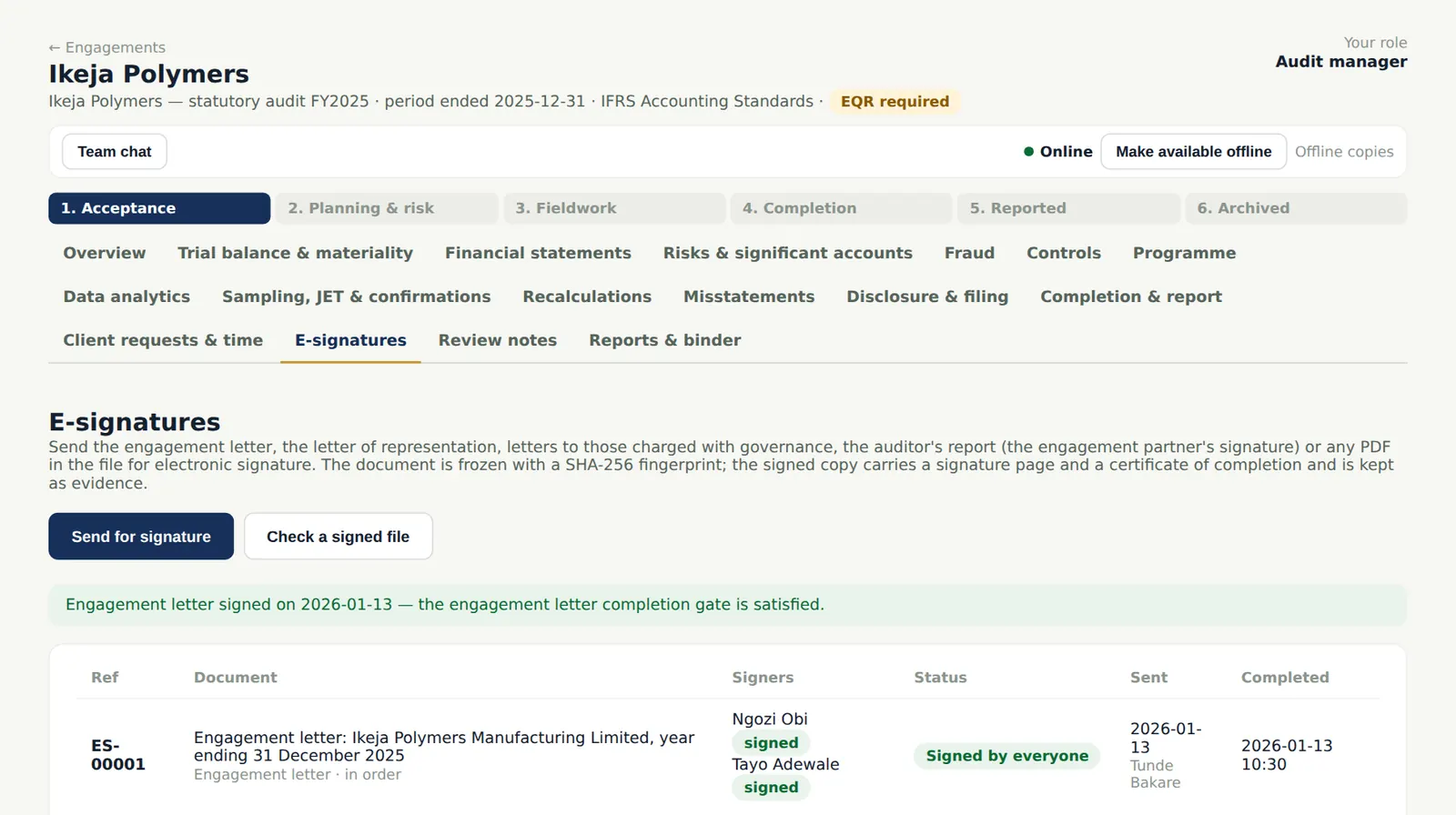
Why
A completed engagement letter signature satisfies the engagement letter gate, so the file can move to planning. The signed copy is kept as evidence in the file.
Who
Engagement partner or manager.
What to do
- Open the request to see the certificate and download the signed copy.
7.12 The signature record
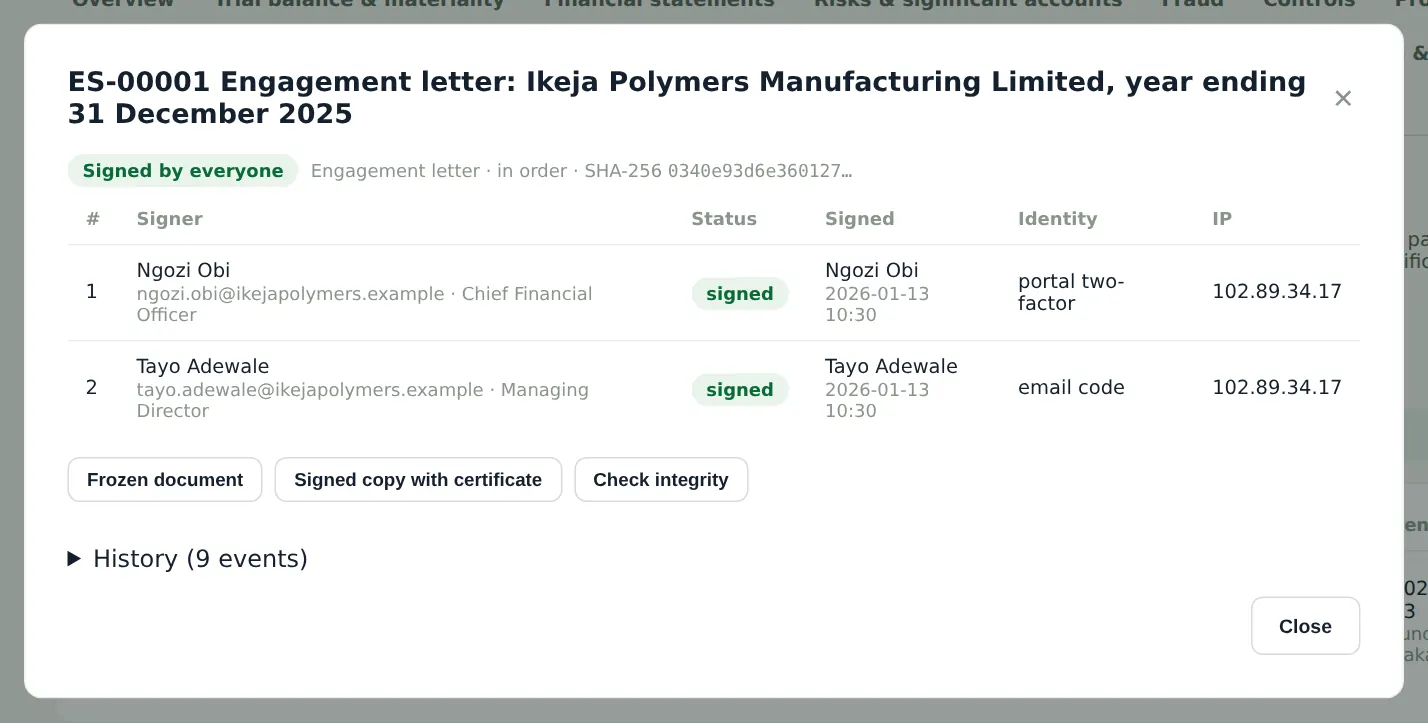
Why
The record lists each signer, the method used (portal sign-in with two-factor, or an emailed code), the time and IP address of each event and the fingerprints of the original and signed documents.
Who
Anyone on the team.
What to do
- Use Check a signed file on the E-signatures tab to confirm that a PDF someone sends you is the signed copy.