Steps in this chapter (23)
Buying runs from the request to the payment: a requisition, the purchase order, the goods received at the buying centre, the supplier's bill and the payment with withholding tax. Each step is recorded by the person who does it, and BookTrove checks the bill against the order and the delivery.
In the illustration, Musa Lawal buys 40 tonnes of sesame from the Lafia Sesame Farmers Union in January 2026 at ₦1,500,000 a tonne; Chukwudi Okeke approves; Funmilayo Adeyemi enters the bill and the payment.
5.1 Raise a purchase requisition
Why
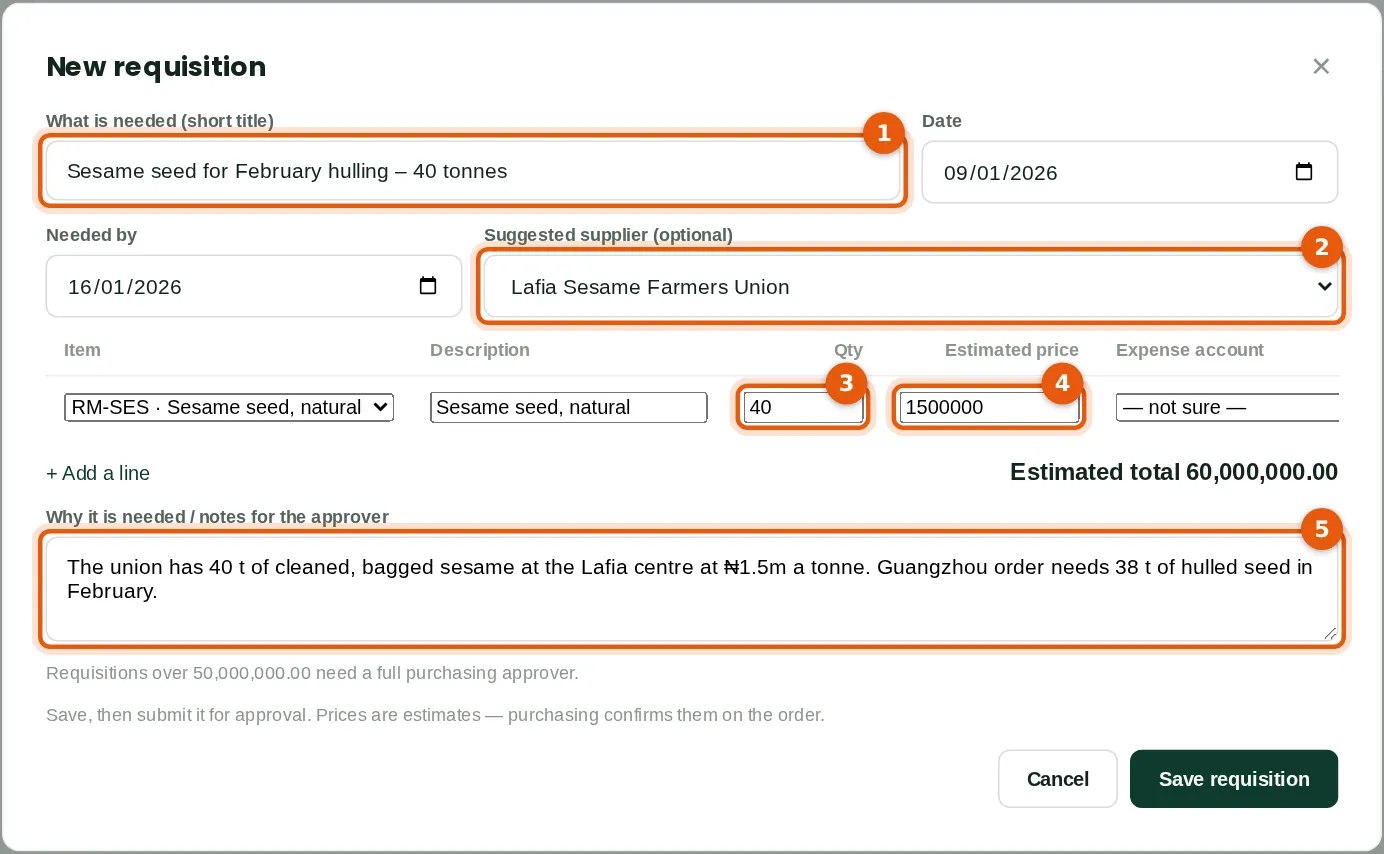
A requisition asks for approval before anything is ordered. It records what is needed, when, the suggested supplier and an estimate. Quotes can be attached.
Who
Anyone who needs something bought — here the buying officer at Lafia.
What to do
- Open Requisitions and click New requisition. Give it a short title (1) and the date needed.
- Choose the suggested supplier (2). Add a line per item with the quantity (3) and estimated price (4) — here 40 t at ₦1,500,000.
- Explain why it is needed (5), click Save requisition, then Submit for approval.
5.2 Requisitions waiting for a decision
Why
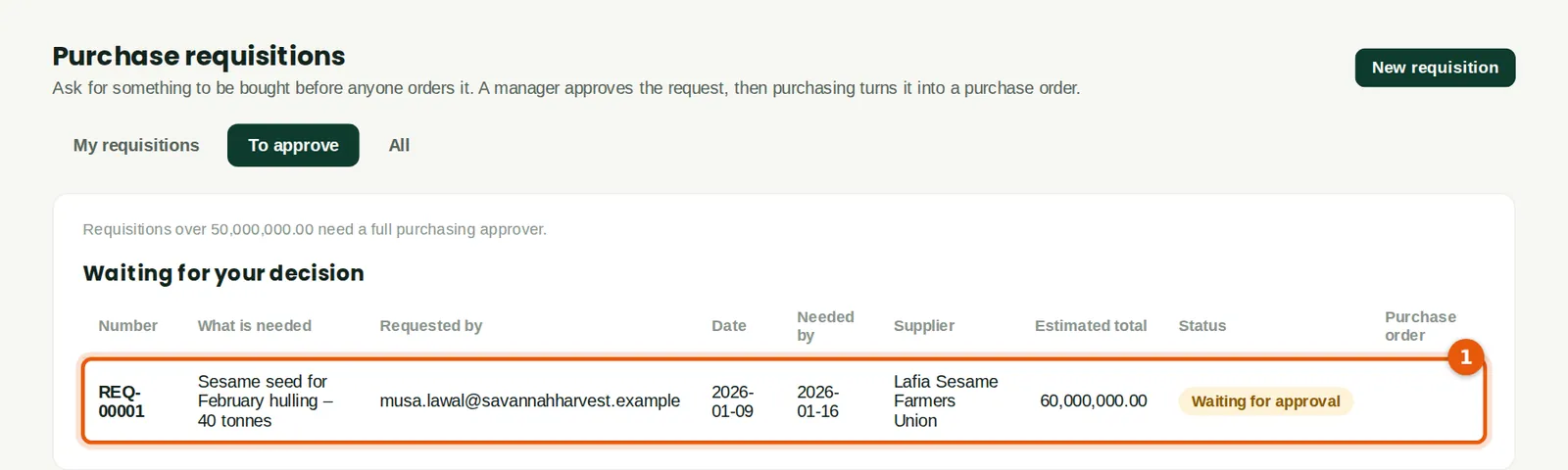
Submitted requisitions wait here (1). Requisitions above the approval limit (₦50m at Savannah Harvest) need a full purchasing approver, such as the administrator.
Who
A purchasing approver.
What to do
- Click a requisition to open it.
5.3 Approve or send back
Why
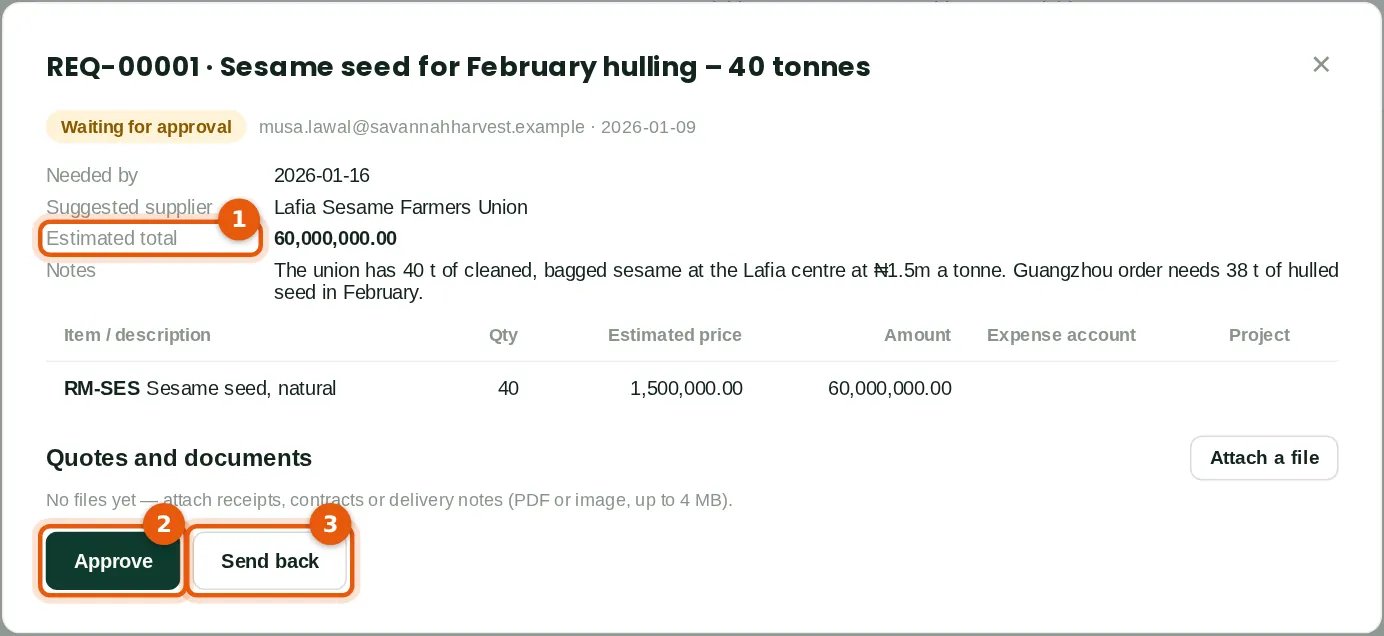
Check the need, the supplier and the estimated total (1). Sending it back with a reason returns it to the requester to change.
Who
A purchasing approver other than the requester.
What to do
- Click Approve (2), or Send back (3) with a reason.
5.4 Turn the requisition into a purchase order
Why
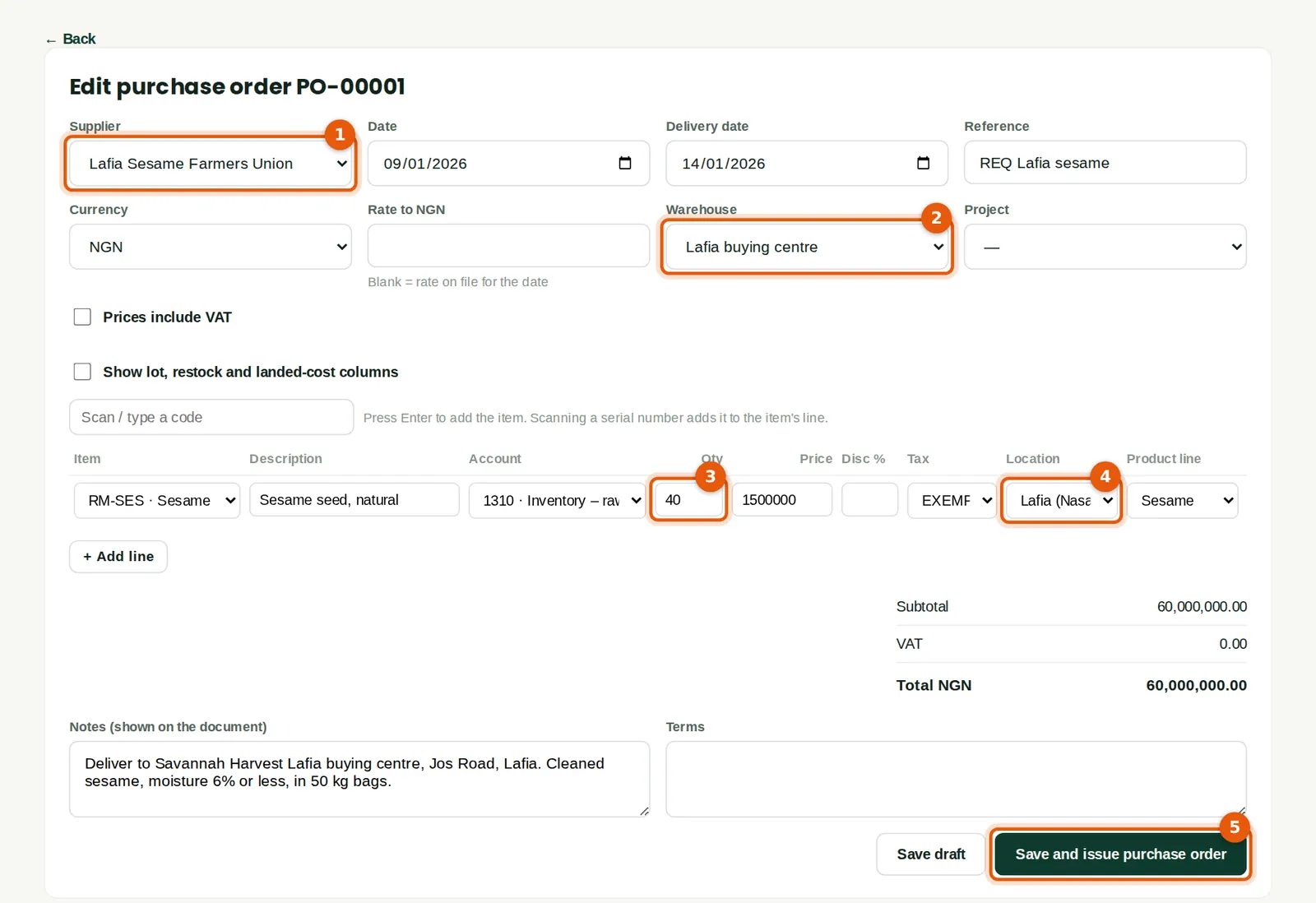
Create purchase order on the approved requisition makes a draft order with its lines. Choose where the goods will be delivered (2): the Lafia buying centre. Tag each line with its location and product line (4) for the reports.
Who
Purchasing — here the buying officer.
What to do
- Open the approved requisition and click Create purchase order; choose the supplier (1).
- Check the delivery date, the warehouse (2), the quantity (3) and price, and the tracking (4). Add delivery notes for the supplier.
- Click Save and issue purchase order (5). Because purchase orders need approval, it is sent to an approver.
5.5 Waiting for approval
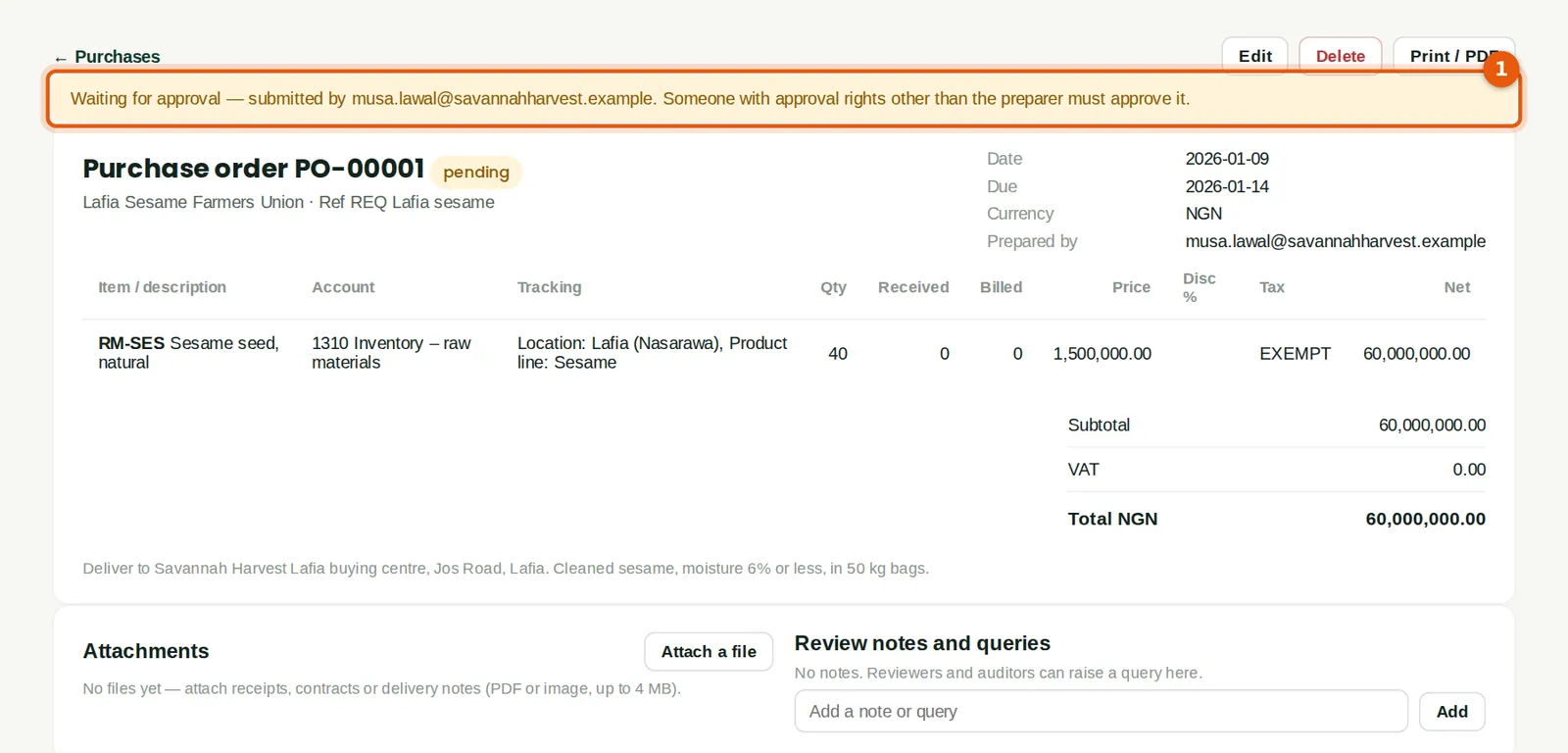
Why
Until it is approved the order shows a banner (1) and is not sent to the supplier. The preparer can still edit it; editing sends it back to draft.
5.6 Approve the purchase order
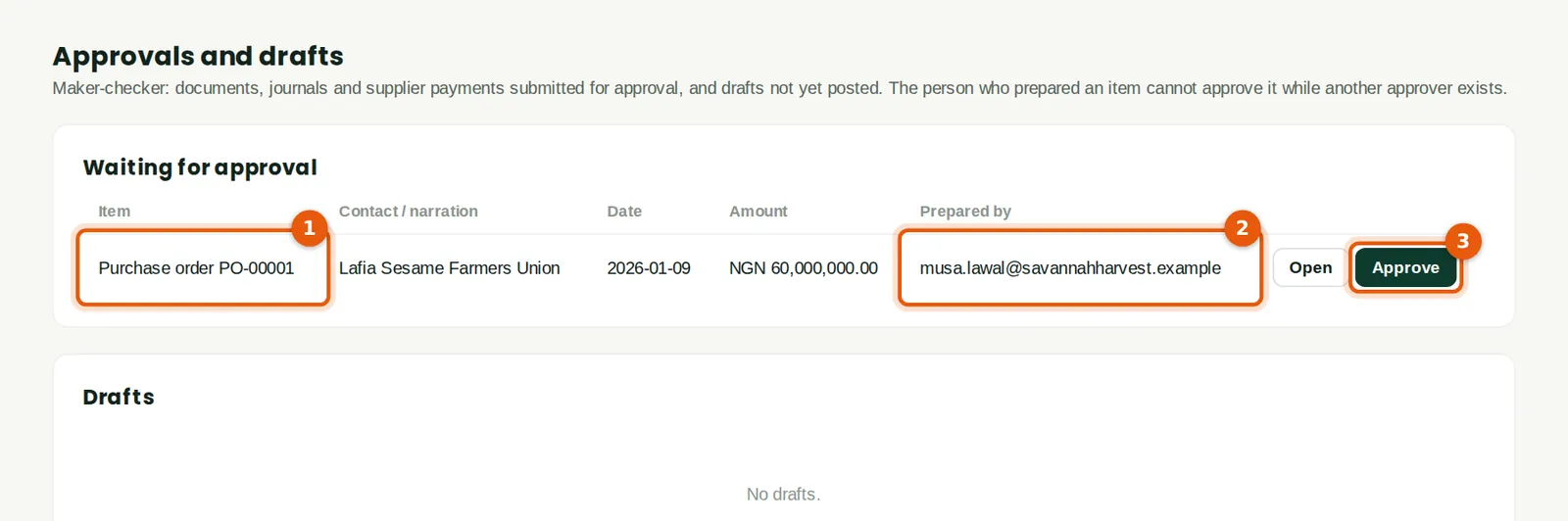
Why
The approvals inbox shows the item (1) and who prepared it (2).
Who
An approver other than the preparer — here Chukwudi Okeke.
What to do
- Click Open to review the order, or Approve (3) to issue it.
5.7 The issued purchase order
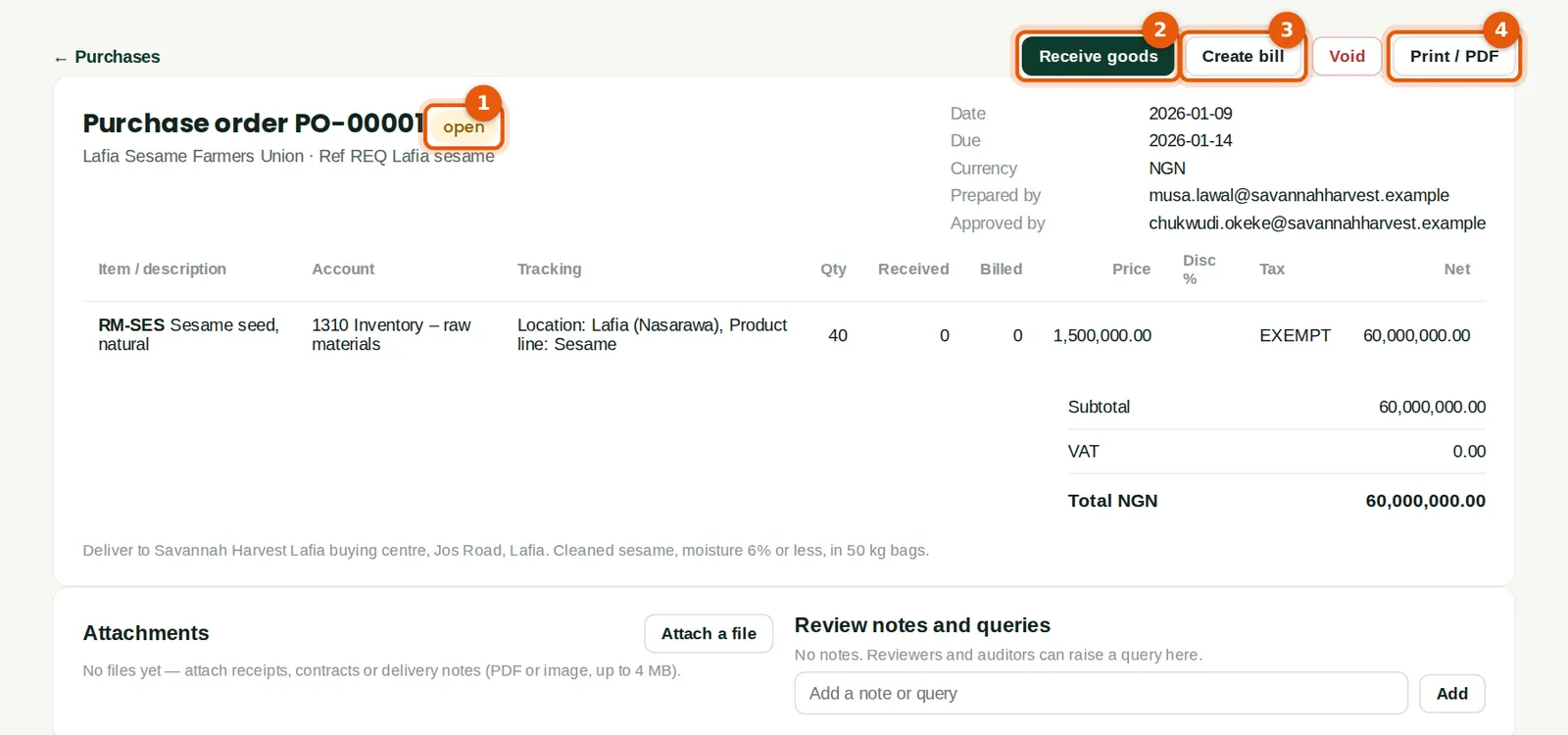
Why
The order is now open (1). Print it or save it as PDF to send to the supplier (4). When the goods arrive, record them with Receive goods (2); Create bill (3) is used when the supplier's invoice arrives first.
Who
Purchasing.
What to do
- Click Print / PDF (4) and send the order to the supplier.
5.8 Receive the produce at the buying centre
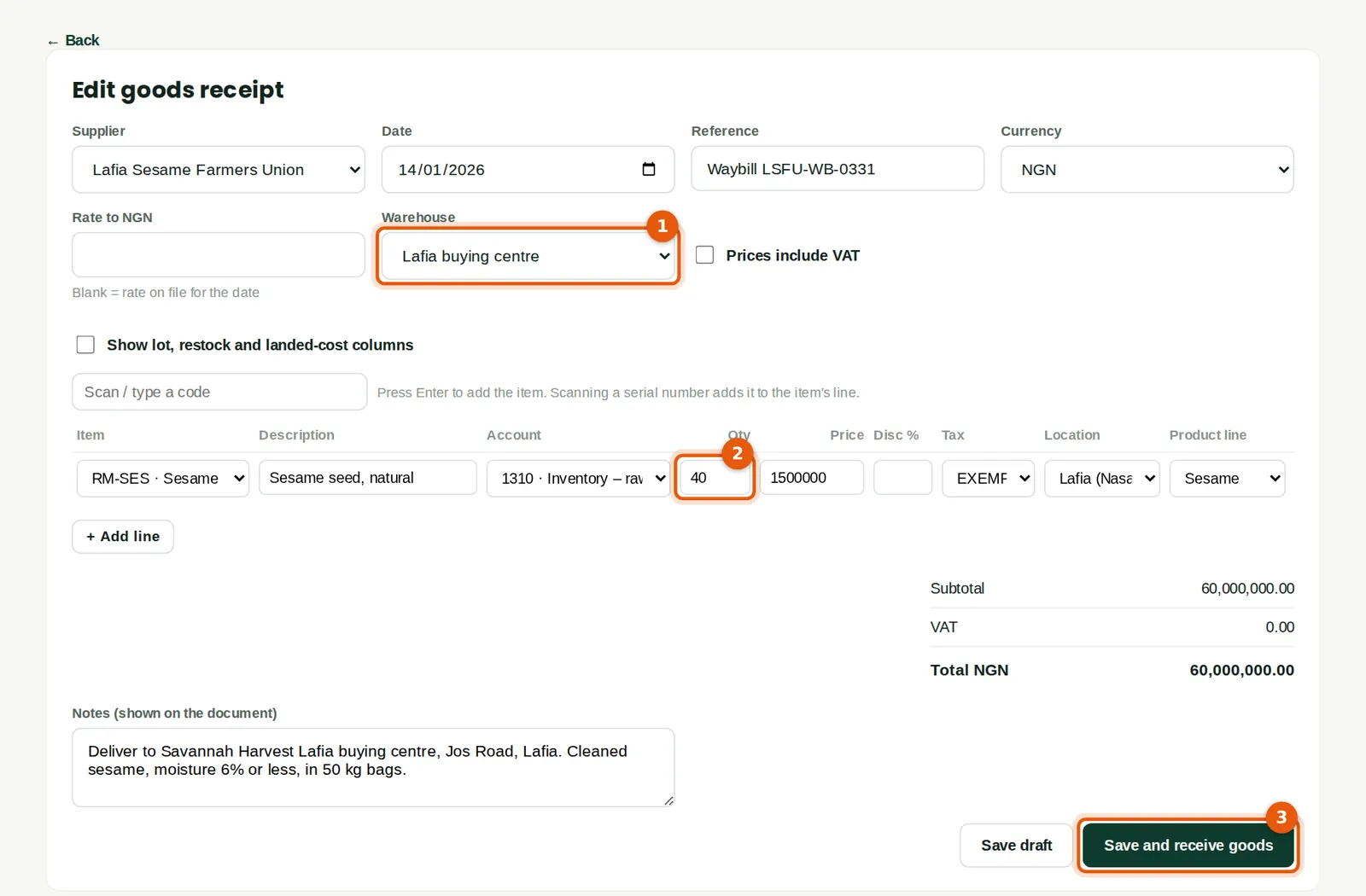
Why
The goods receipt brings the produce into stock at the warehouse where it arrived (1), at the order price. Until the supplier's bill is entered, the value sits in Goods received not invoiced. Receive only what was actually weighed in (2); a short delivery leaves the balance open on the order.
Who
The buying officer (inventory Approve level).
What to do
- On the order click Receive goods. Check the date, the warehouse (1) and the quantities received (2); add the waybill number as the reference.
- Click Save and receive goods (3).
5.9 The goods receipt
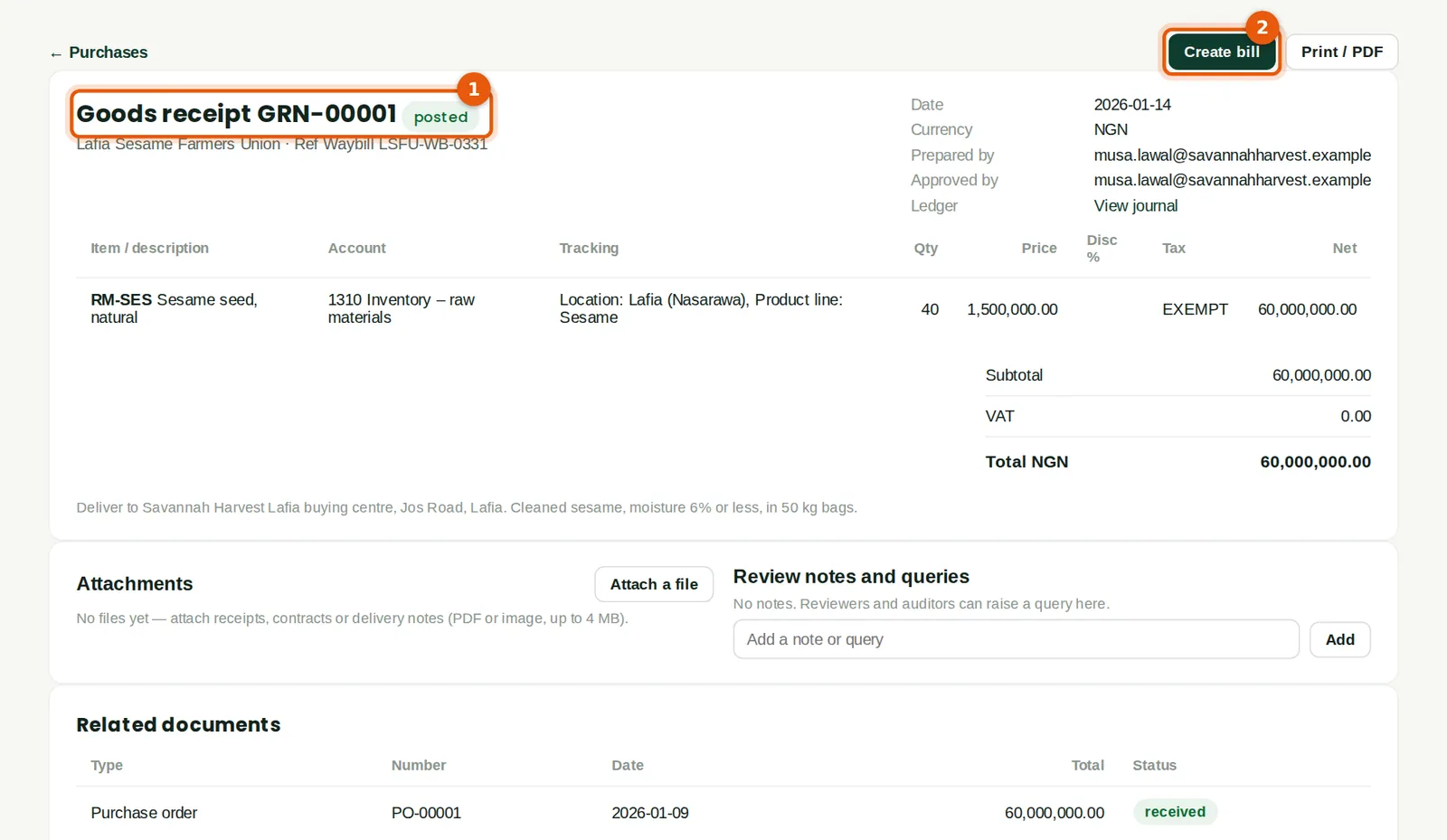
Why
The goods receipt is posted (1). The accounts team creates the bill from it (2) when the supplier's invoice arrives.
Who
Buying officer.
5.10 Enter the supplier's bill
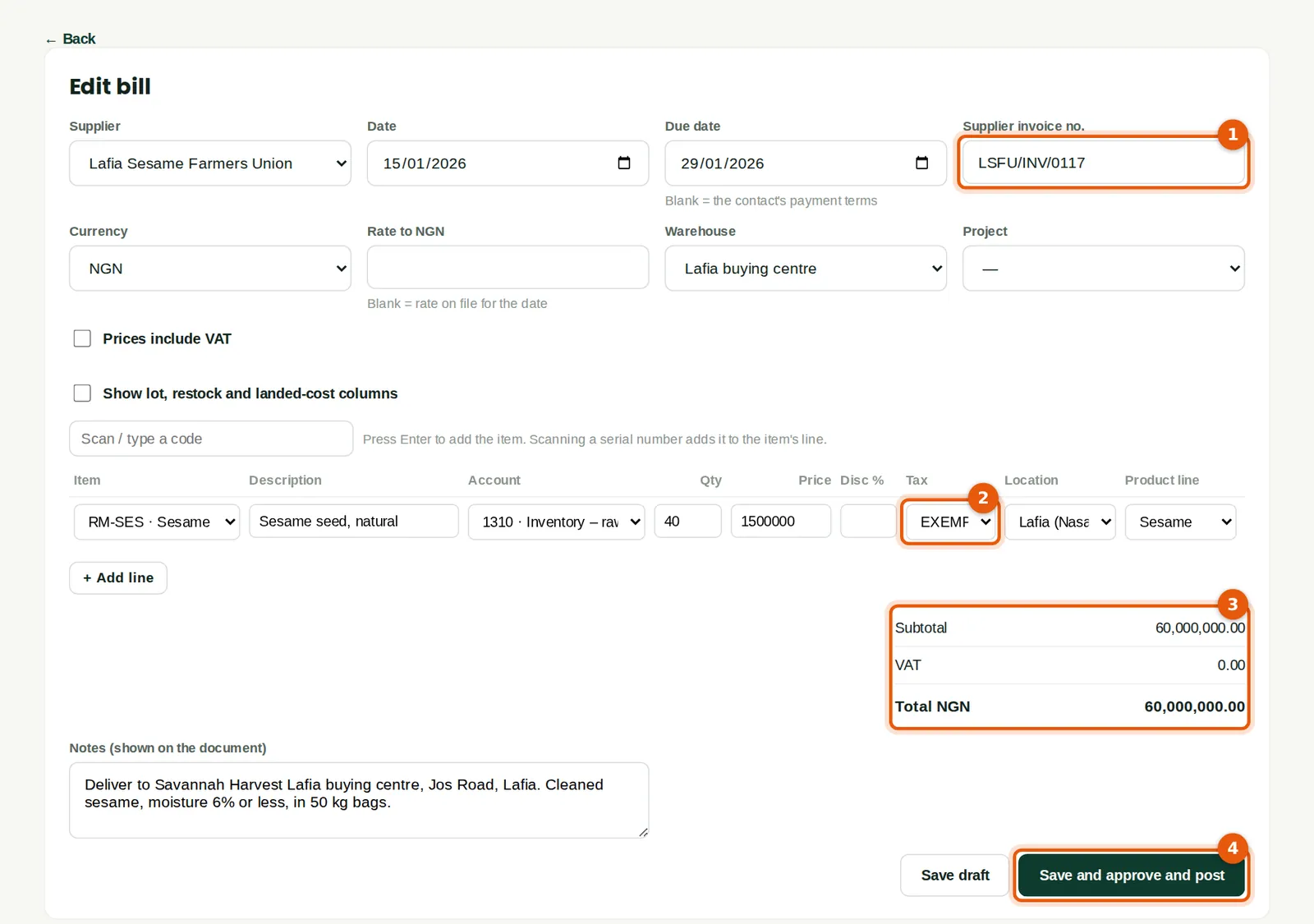
Why
Creating the bill from the goods receipt copies the lines, so the three-way match can compare order, delivery and invoice. Raw produce is VAT exempt (2), so the total is ₦60,000,000 (3).
Who
Accountant or bookkeeper.
What to do
- Open the goods receipt and click Create bill.
- Type the supplier's invoice number (1) and check the due date, the quantities, prices and VAT code (2) against the invoice.
- Click Save and approve and post (4).
5.11 The posted bill
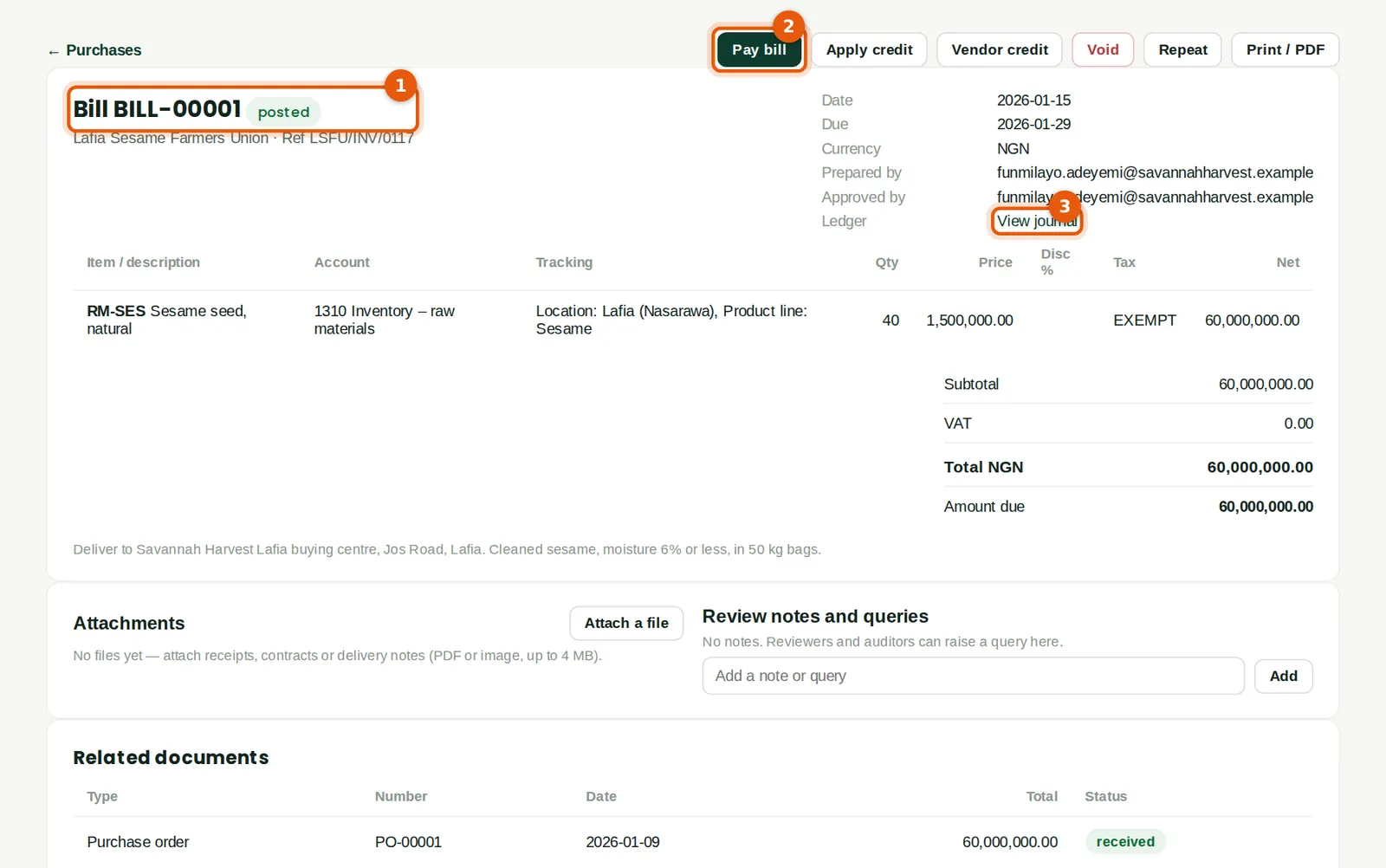
Why
The bill is posted (1): the supplier's balance and the stock account are updated. View journal (3) shows the ledger entries. Pay bill (2) starts the payment.
Who
Accountant.
5.12 When a bill does not match: held
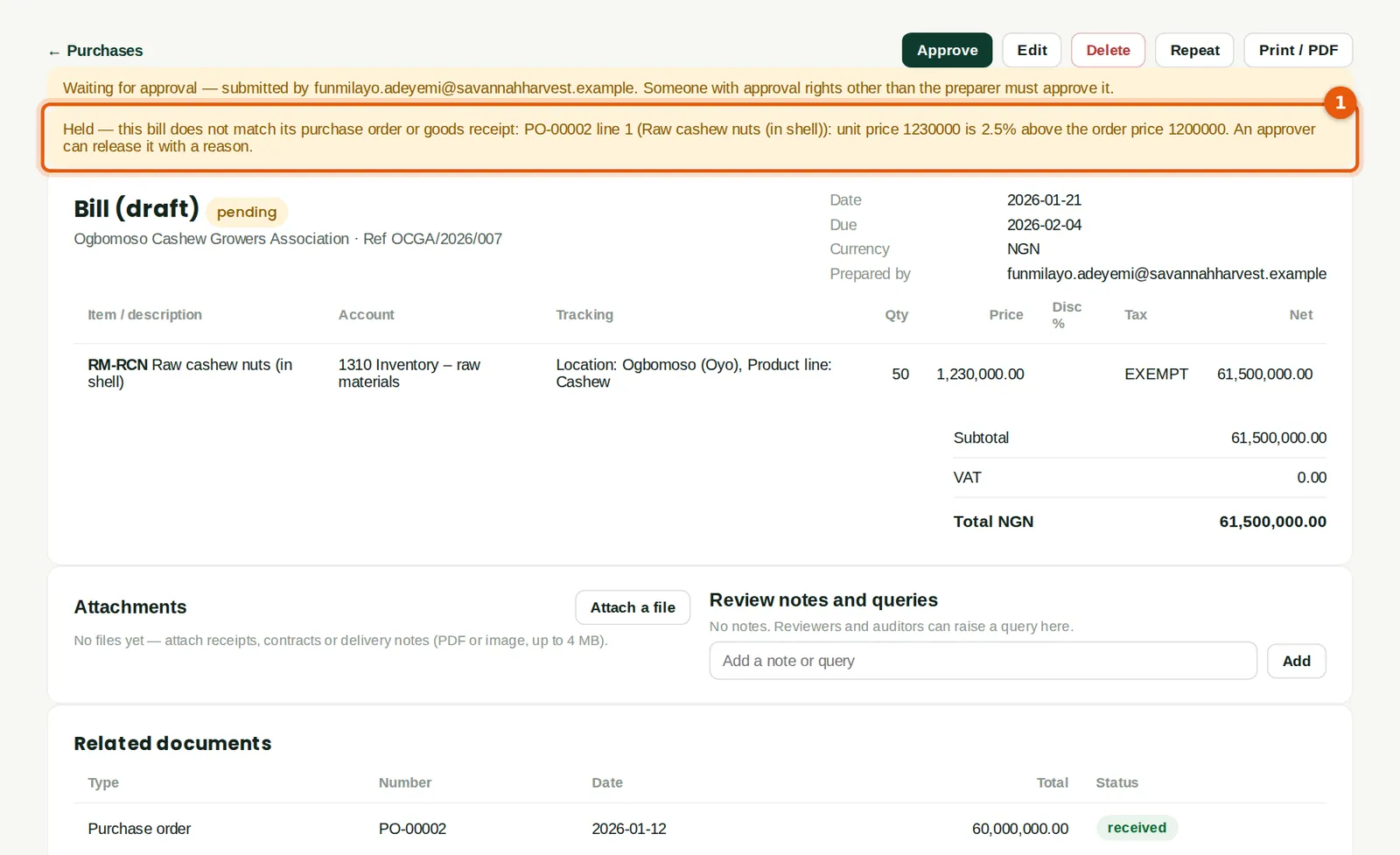
Why
The Ogbomoso Cashew Growers Association invoiced raw cashew at ₦1,230,000 a tonne against an order at ₦1,200,000 — 2.5% more than the order and above the 2% tolerance. With the match set to Hold, the bill waits for an approver (1).
Who
Accountant; an approver releases it.
What to do
- Check the difference with the supplier before anyone approves it.
5.13 Release a held bill with a reason
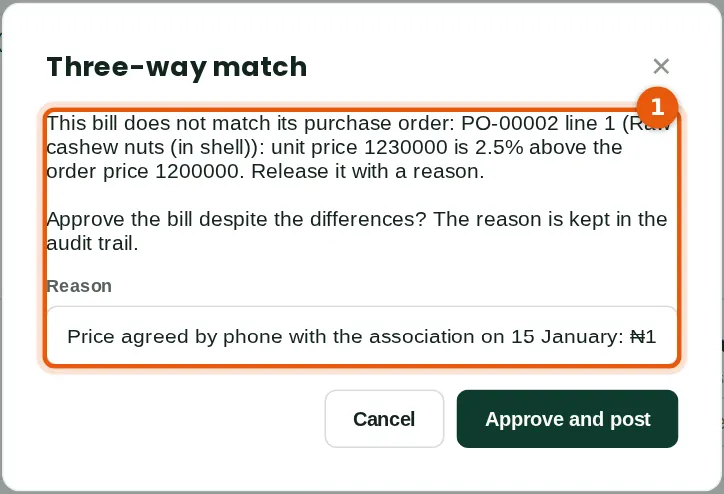
Why
If the difference is agreed, the approver posts the bill and records why (1). The reason is kept in the audit trail and the Three-way match status report.
Who
An approver other than the preparer.
What to do
- Open the bill, click Approve, type the reason and click Approve and post.
5.14 Pay the supplier, deducting WHT
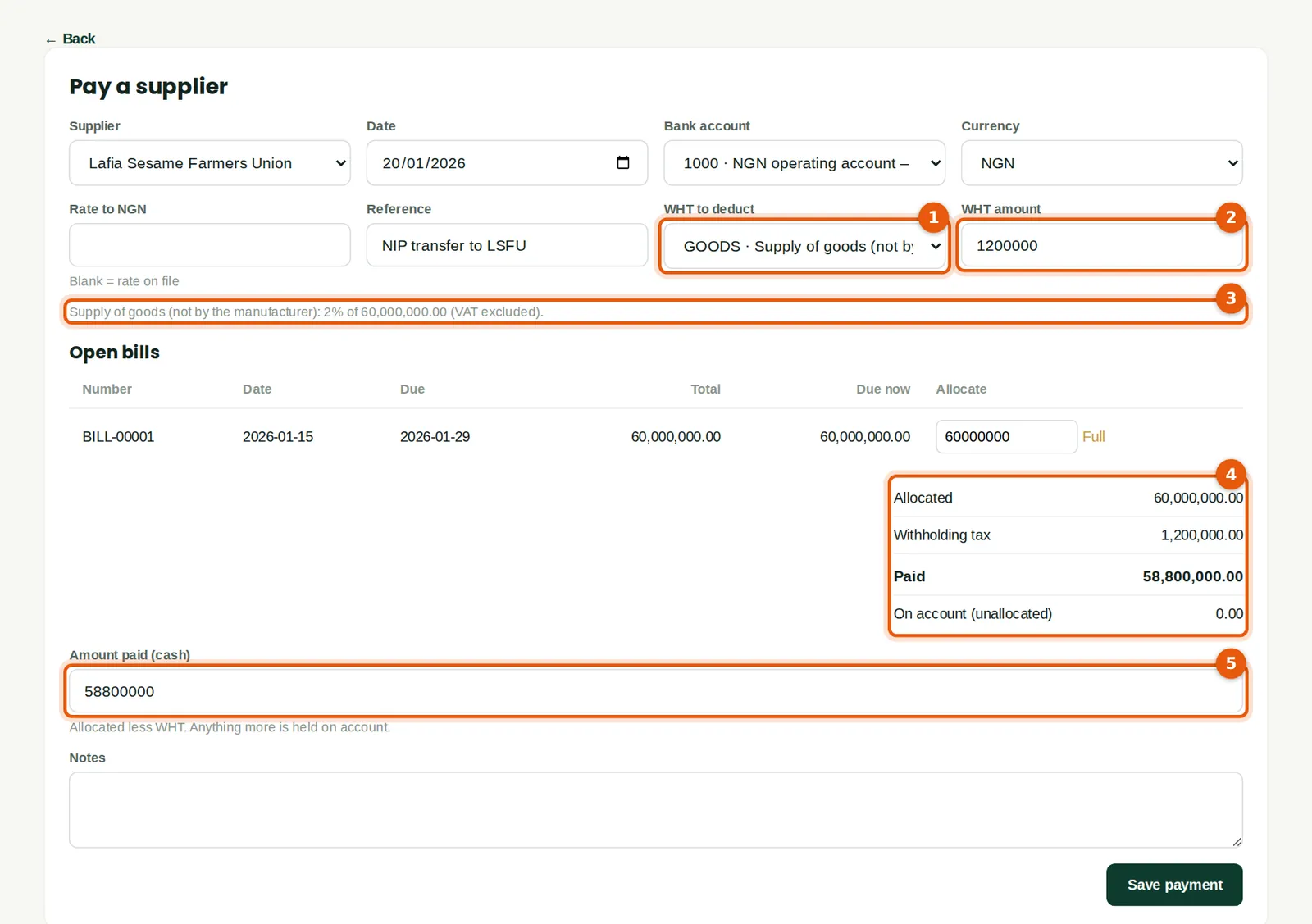
Why
BookTrove proposes the supplier's WHT class (1) and works out the tax on the amount before VAT: 2% of ₦60,000,000 is ₦1,200,000 (2) (3). The union receives ₦58,800,000 (4) (5); the WHT is owed to the tax authority and appears on the monthly WHT schedule (chapter 11).
Who
Accountant or bookkeeper (prepares); an approver posts.
What to do
- On the bill click Pay bill (or Purchases → Pay supplier). Check the date and the bank account.
- Click Full next to the bill. Check the WHT class (1) and amount (2).
- Check the amount paid (5), add the transfer reference and click Save payment.
5.15 Approve the payment
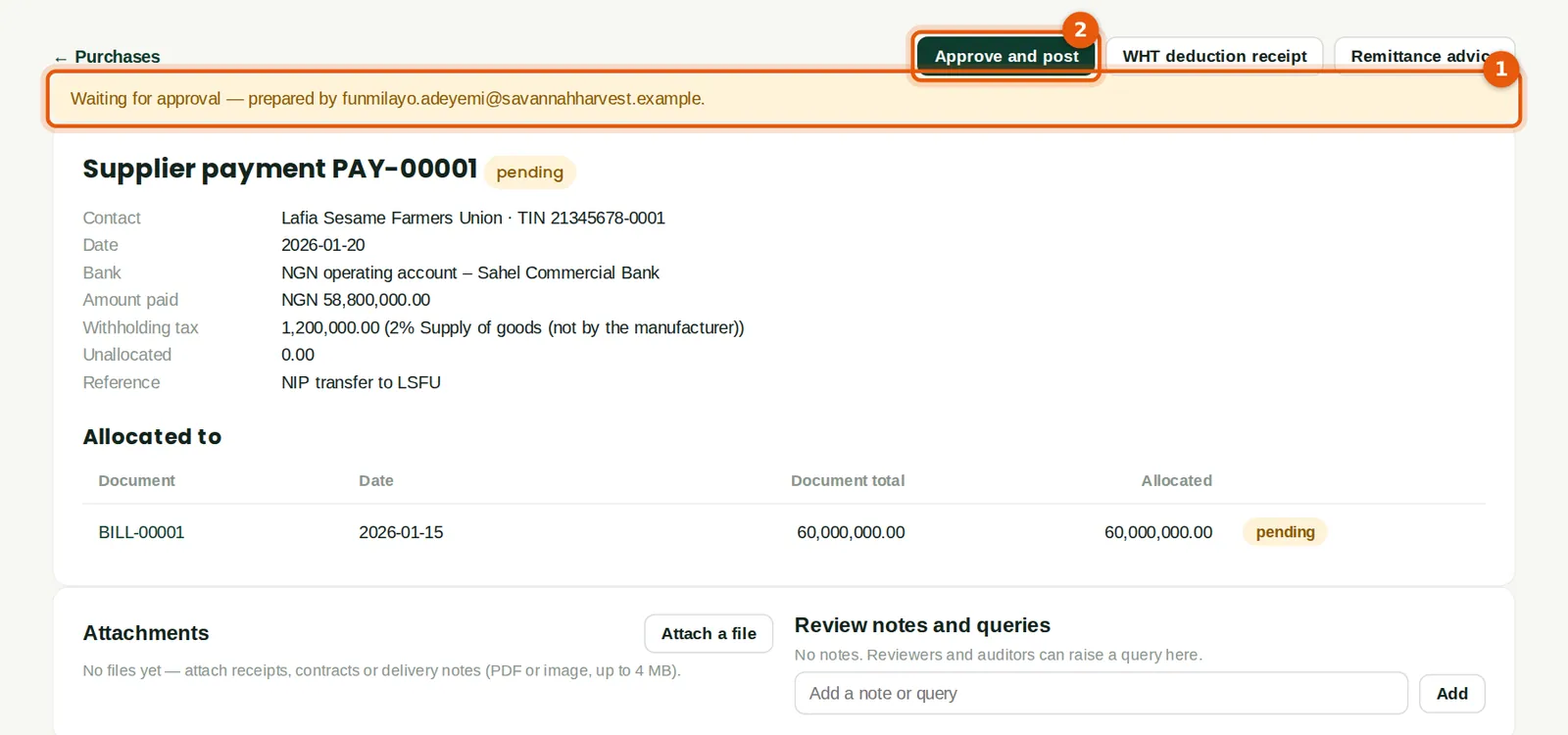
Why
Supplier payments need approval at Savannah Harvest (1). Approve only after checking the bill, the bank details and that the money has not been paid already.
Who
An approver other than the preparer.
What to do
- Click Approve and post (2), then make the transfer in internet banking.
5.16 The posted payment
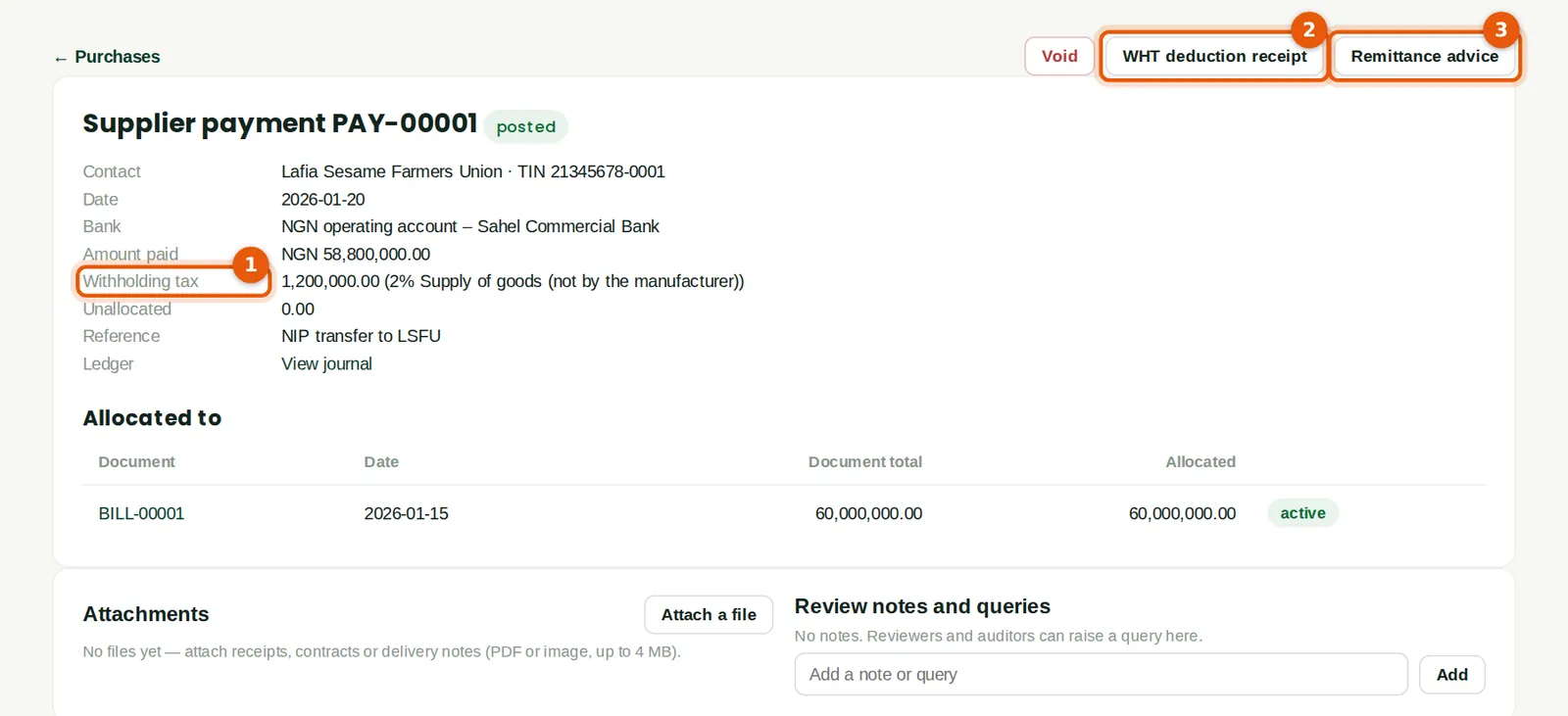
Why
The payment shows the WHT deducted (1). Print the WHT deduction receipt (2) for the supplier and the remittance advice (3).
Who
Accountant.
What to do
- Click WHT deduction receipt and send it to the supplier with the remittance advice.
5.17 The WHT deduction notice
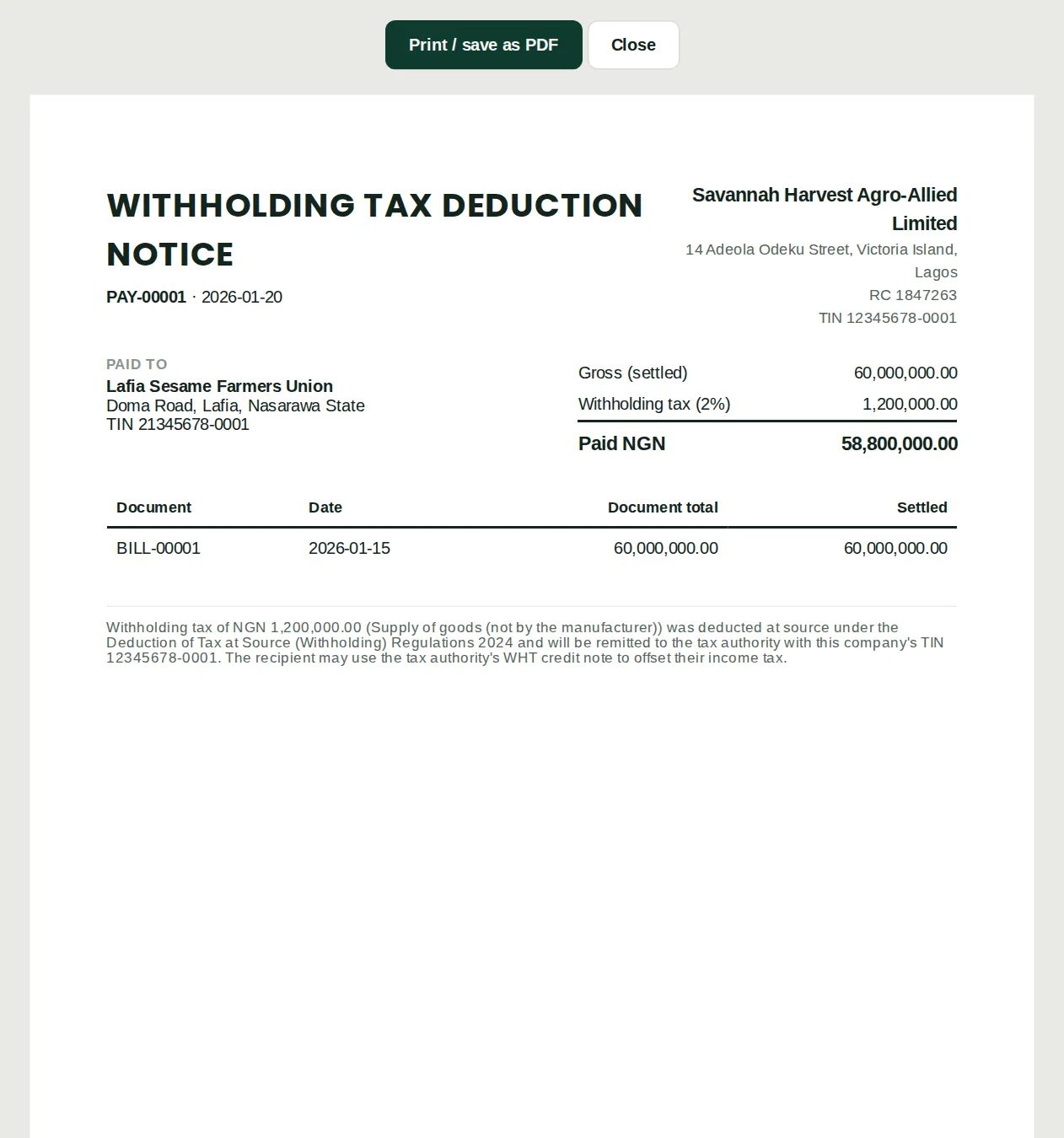
Why
The notice shows the gross amount settled, the WHT deducted and the amount paid, with both TINs. The supplier uses the tax authority's credit note to offset its own income tax.
Who
Accountant.
What to do
- Click Print / save as PDF.
5.18 WHT doubled: no TIN
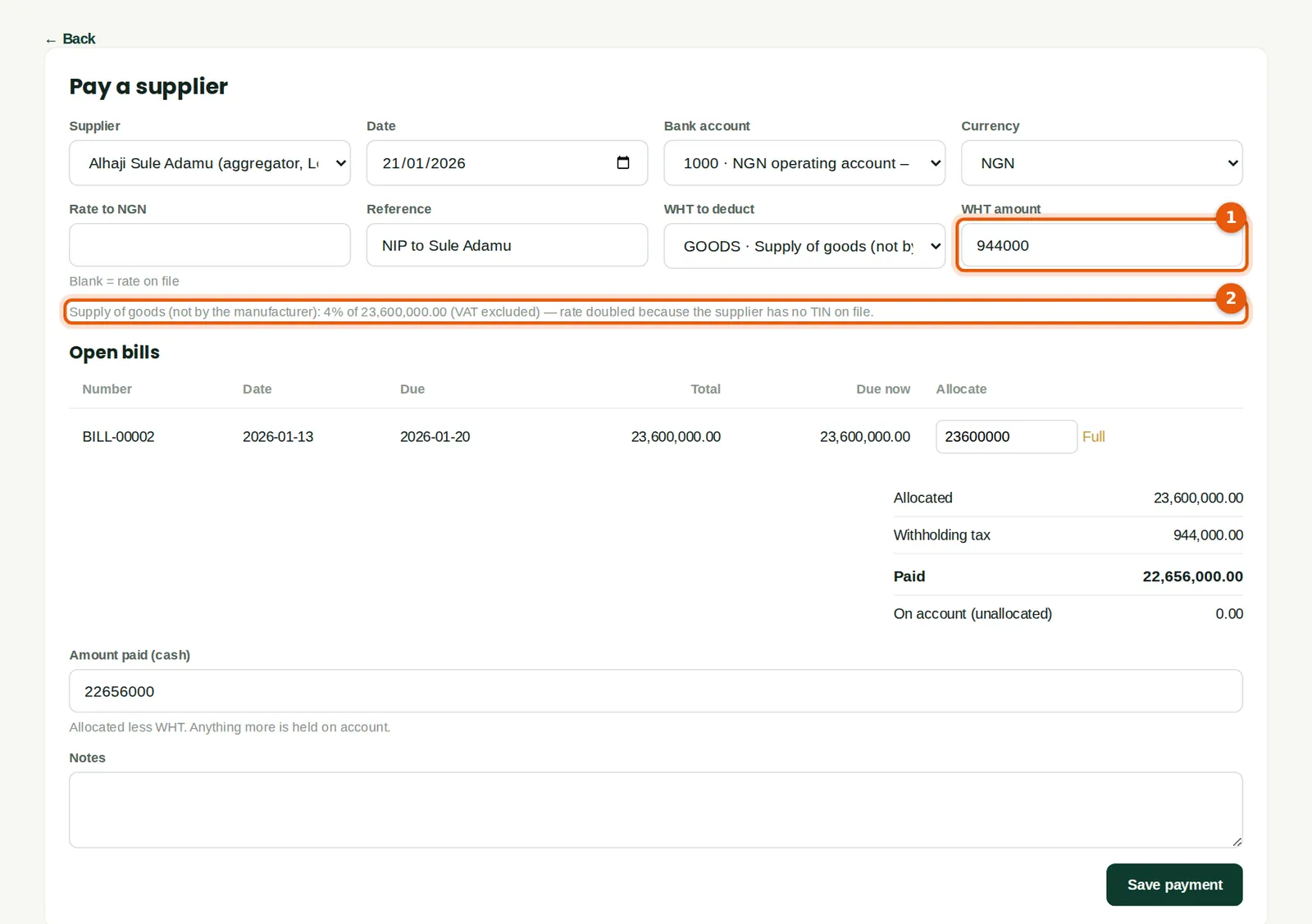
Why
Alhaji Sule Adamu, an aggregator, sold 20 tonnes of raw cashew for ₦23,600,000 but has no TIN on file. BookTrove doubles the 2% rate to 4%: ₦944,000 (1), and says why (2).
Who
Accountant.
What to do
- Ask the supplier for a TIN; once it is on the contact, later payments use the normal rate.
5.19 Haulage added to the cost of the produce
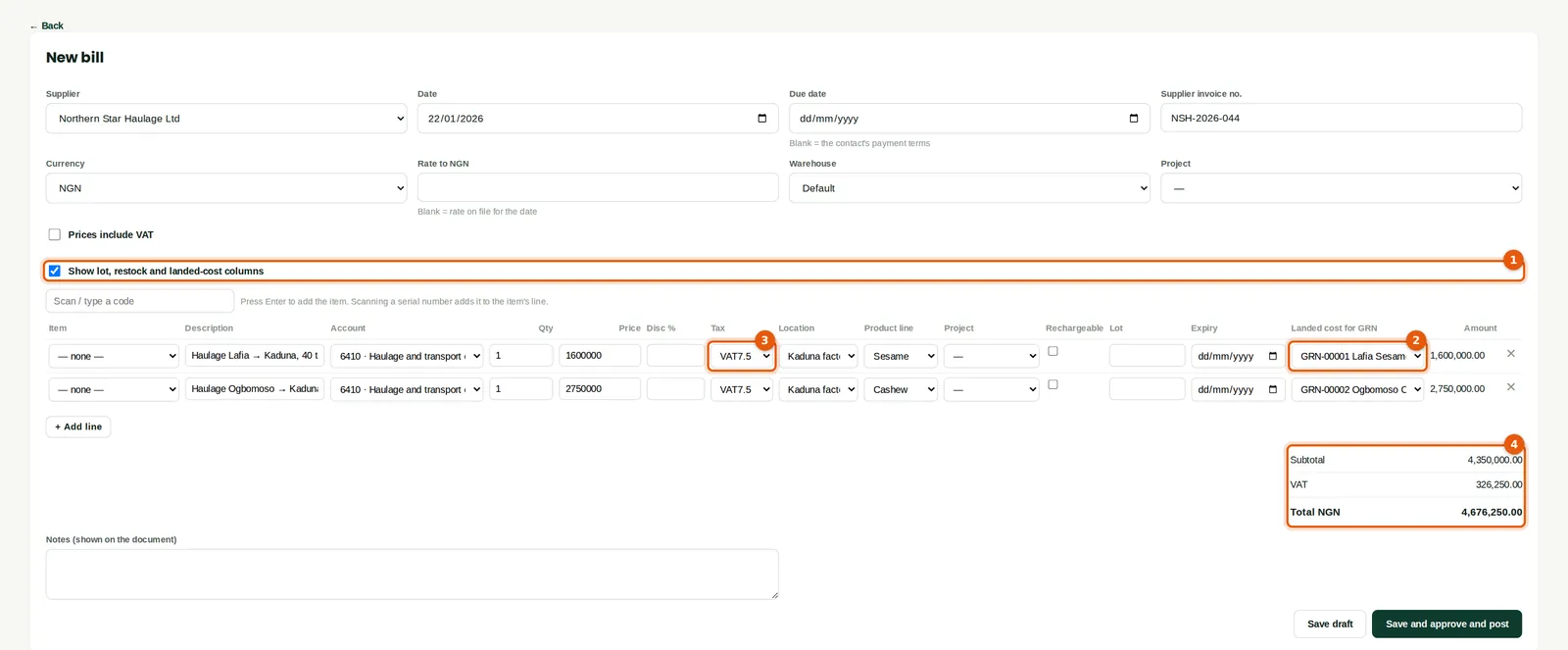
Why
Under IAS 2, the cost of bringing stock to where it is used — such as trucking produce to the factory — is part of its cost. Tick Show lot, restock and landed-cost columns (1) and choose the goods receipt each charge belongs to (2): the charge is then added to the value of that stock, not expensed. Haulage is standard-rated for VAT (3): ₦4,350,000 plus ₦326,250 VAT (4).
Who
Accountant.
What to do
- Enter the haulier's bill. Tick the advanced columns (1).
- On each line choose the goods receipt in Landed cost for GRN (2).
- Save and post.
5.20 An expense claim from a buying officer
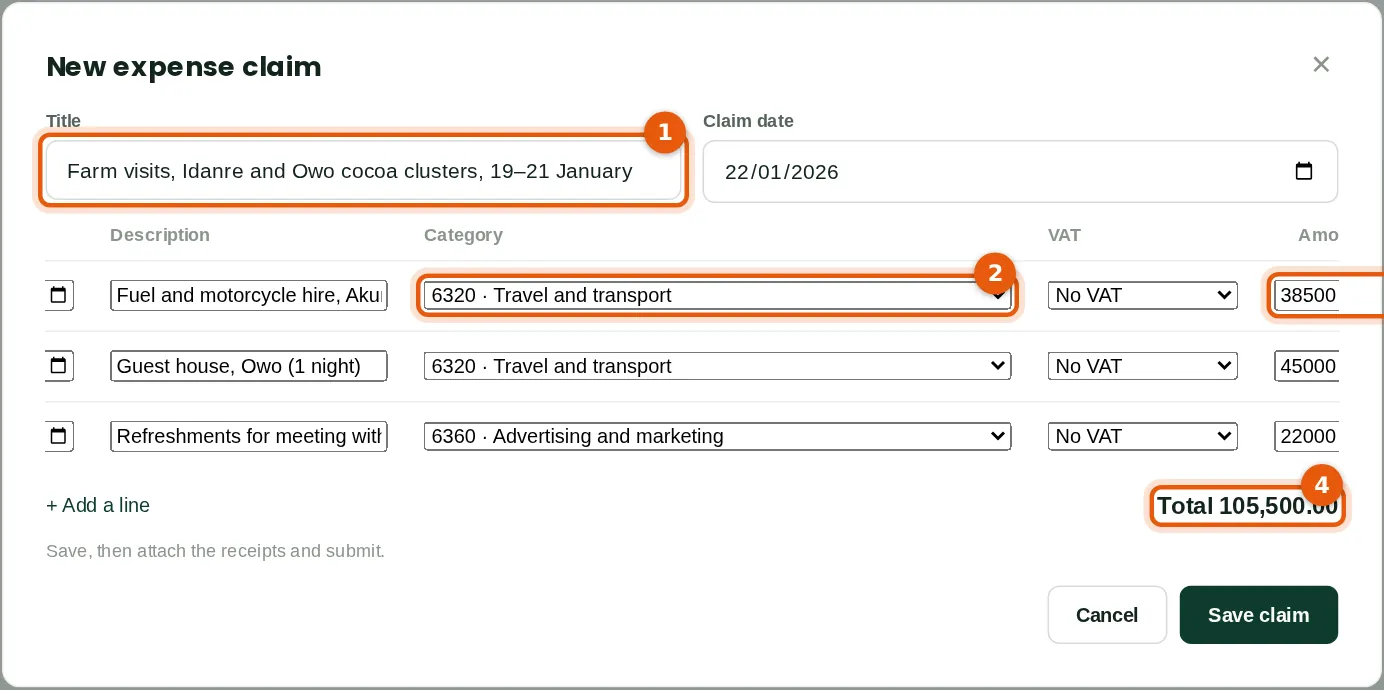
Why
Staff who pay company costs from their own pocket claim them back. Each line has a category (2) and the amount including VAT (3). The claim becomes a bill payable to the employee once approved.
Who
Any employee with expense-claim access — here Grace Ojo at Akure.
What to do
- Click New claim, give it a title (1) and add a line per receipt with the date, description, category and amount.
- Check the total (4) and click Save claim.
5.21 Attach the receipts and submit
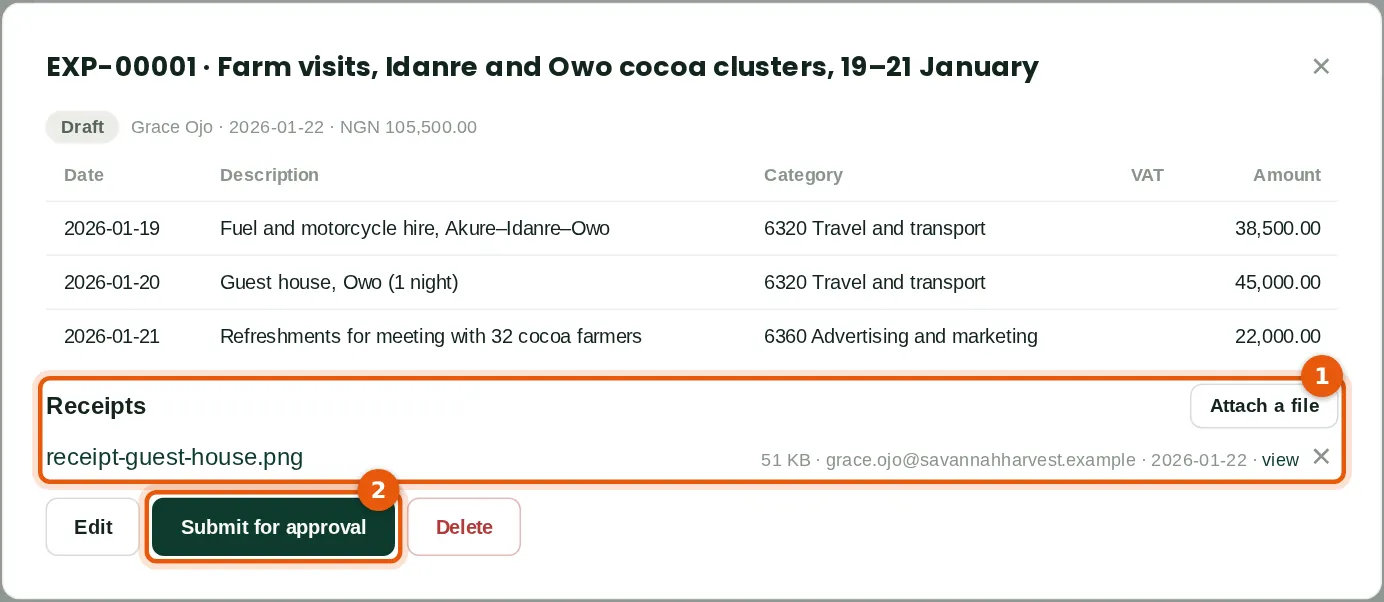
Why
Receipts are private to the claimant and the approvers (1). Book health flags claims above the receipt threshold without an attachment.
Who
The claimant.
What to do
- Click Attach a file for each receipt (a photo or PDF).
- Click Submit for approval (2).
5.22 Approve the claim
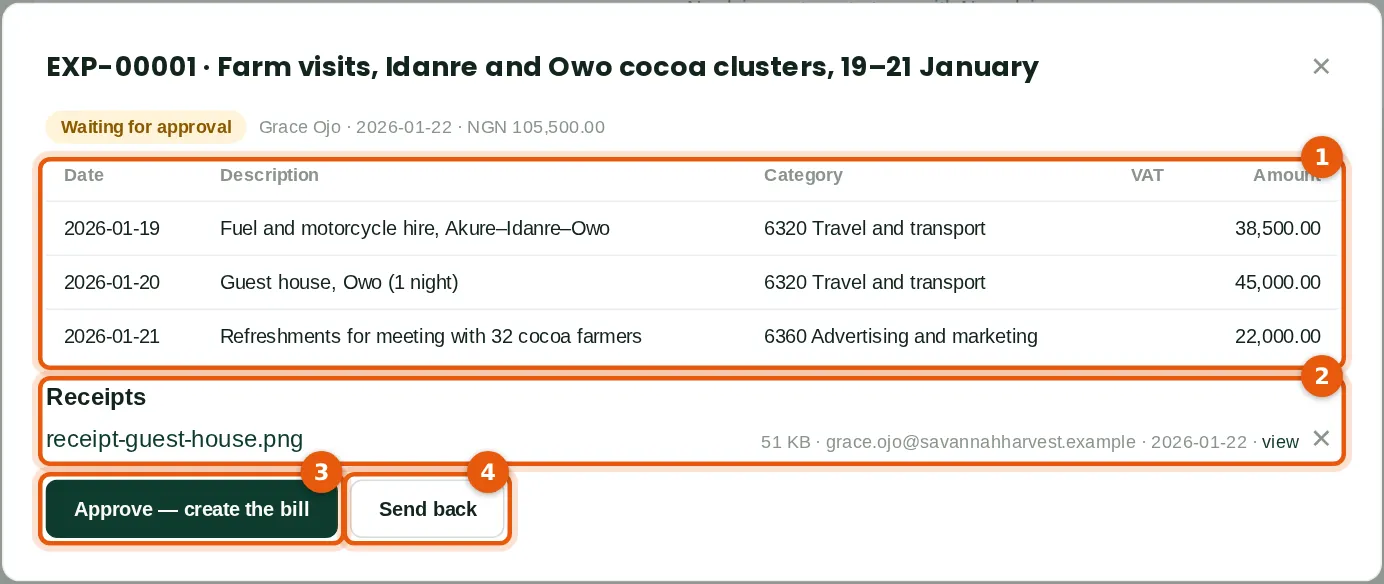
Why
Check each line (1) against its receipt (2). Approving creates and posts a bill payable to the employee, which is paid like any other bill.
Who
An expense approver — here Blessing Etim, payroll and HR officer.
What to do
- Click Approve — create the bill (3), or Send back (4) with what to fix.
5.23 Spend money: paying without a bill
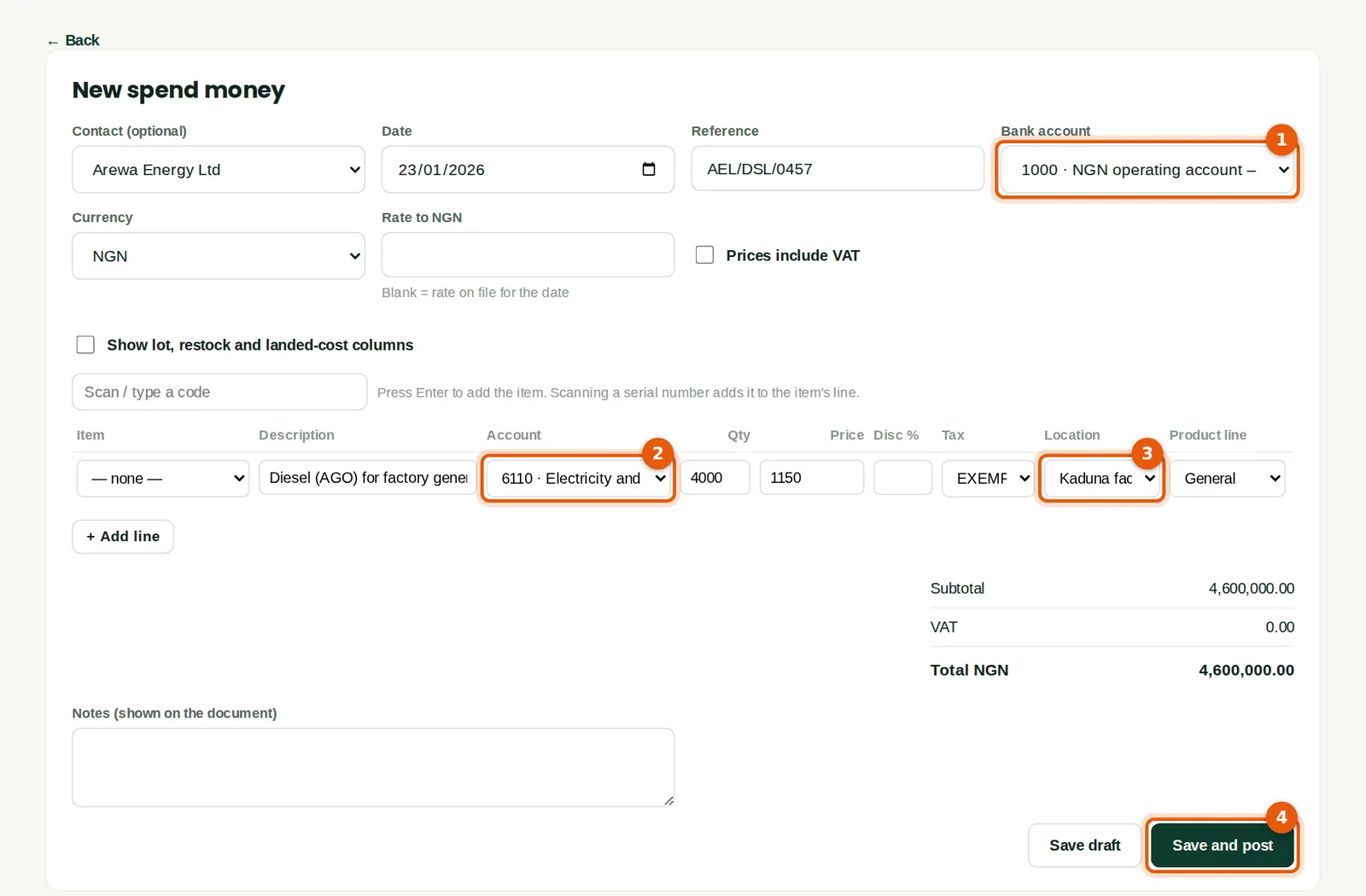
Why
For a cash purchase with no supplier bill — here 4,000 litres of diesel for the factory's generators — use Spend money. It takes the money from the bank account (1) and codes it to the expense (2) and tracking (3) in one step.
Who
Accountant or bookkeeper; an approver posts.
What to do
- Open Banking and click Spend money. Choose the contact, the bank account (1) and the date.
- Add the line with the account (2), VAT code and tracking (3). Attach the invoice or receipt.
- Click Save and post (4). At Savannah Harvest it then waits for approval like a payment.