Steps in this chapter (9)
BookTrove can email invoices and credit notes — as a PDF attachment or as a secure link — statements of account and payment reminders, and can send reminders automatically on a schedule. Replies go to the company's own email address, and every message is logged.
In the illustration Chukwudi sets up email on 6 March. On 30 March Tobi emails the Abuja Fresh Mart invoice, a reminder to Dubai Commodities and a statement to Zaria GreenFuel.
22.1 Before email is set up
Why
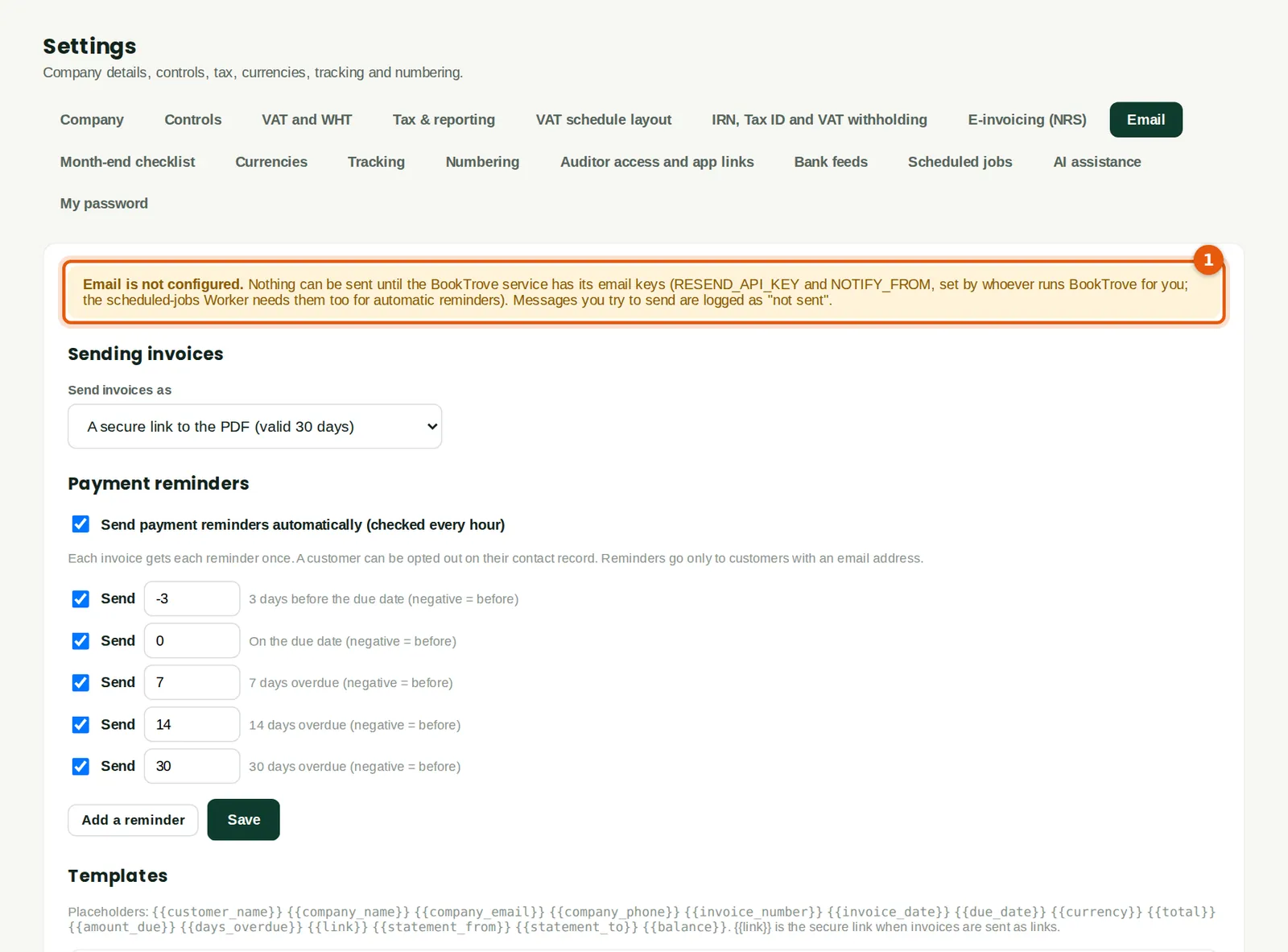
Email goes through the Resend email service with two secret settings, RESEND_API_KEY and NOTIFY_FROM. Until they are set, the tab says Email is not configured (1), nothing is sent, and each message tried is logged as not sent. The invoice page shows the same notice.
Who
An owner or administrator, and whoever runs BookTrove for the company.
What to do
- Create a Resend account, add and verify the sending domain (DNS records at the domain registrar) and create an API key.
- Add RESEND_API_KEY and NOTIFY_FROM (for example BookTrove <no-reply@yourdomain>) to the BookTrove Pages project and to the booktrove-cron Worker, and set APP_URL on the Worker so that scheduled reminders can carry secure links.
- In each company, set the reply-to address (Settings → Company → Email), then the choices in Settings → Email.
22.2 Email settings
Why
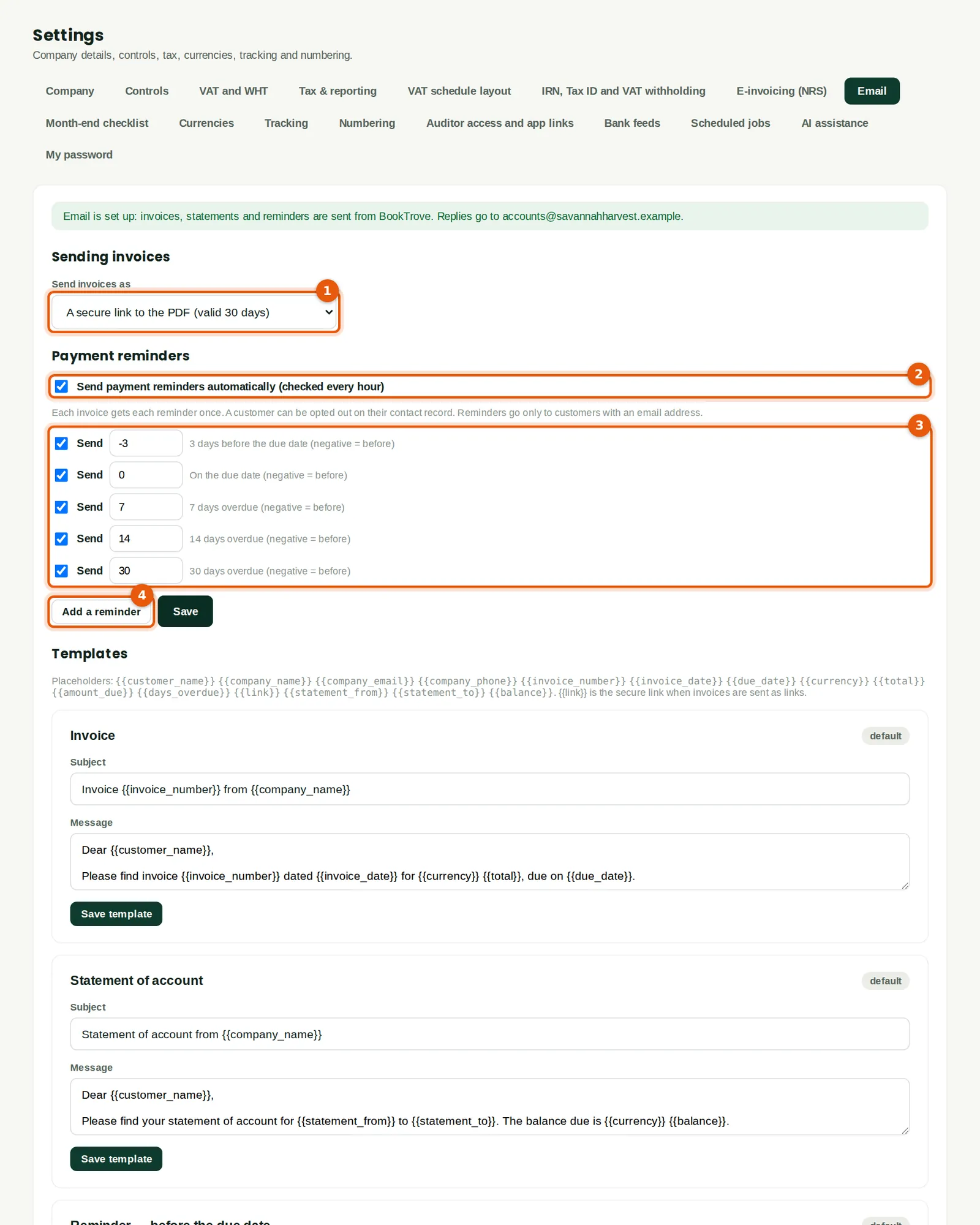
With email set up, the banner confirms where replies go: the company's address in Settings → Company. Send invoices as (1) a PDF attached, or a secure link to the PDF valid for 30 days. Tick Send payment reminders automatically (2): the hourly scheduled job sends each reminder once per invoice. The default rules (3) are 3 days before the due date, on the due date, and 7, 14 and 30 days overdue; Add a reminder (4) allows up to eight, from 30 days before to 120 days after. A reminder missed by up to three days is still sent, never later. Customers are opted out one by one on their contact record.
Who
An owner or administrator.
What to do
- Choose (1), tick (2), adjust the days (3) and click Save.
22.3 Email templates
Why
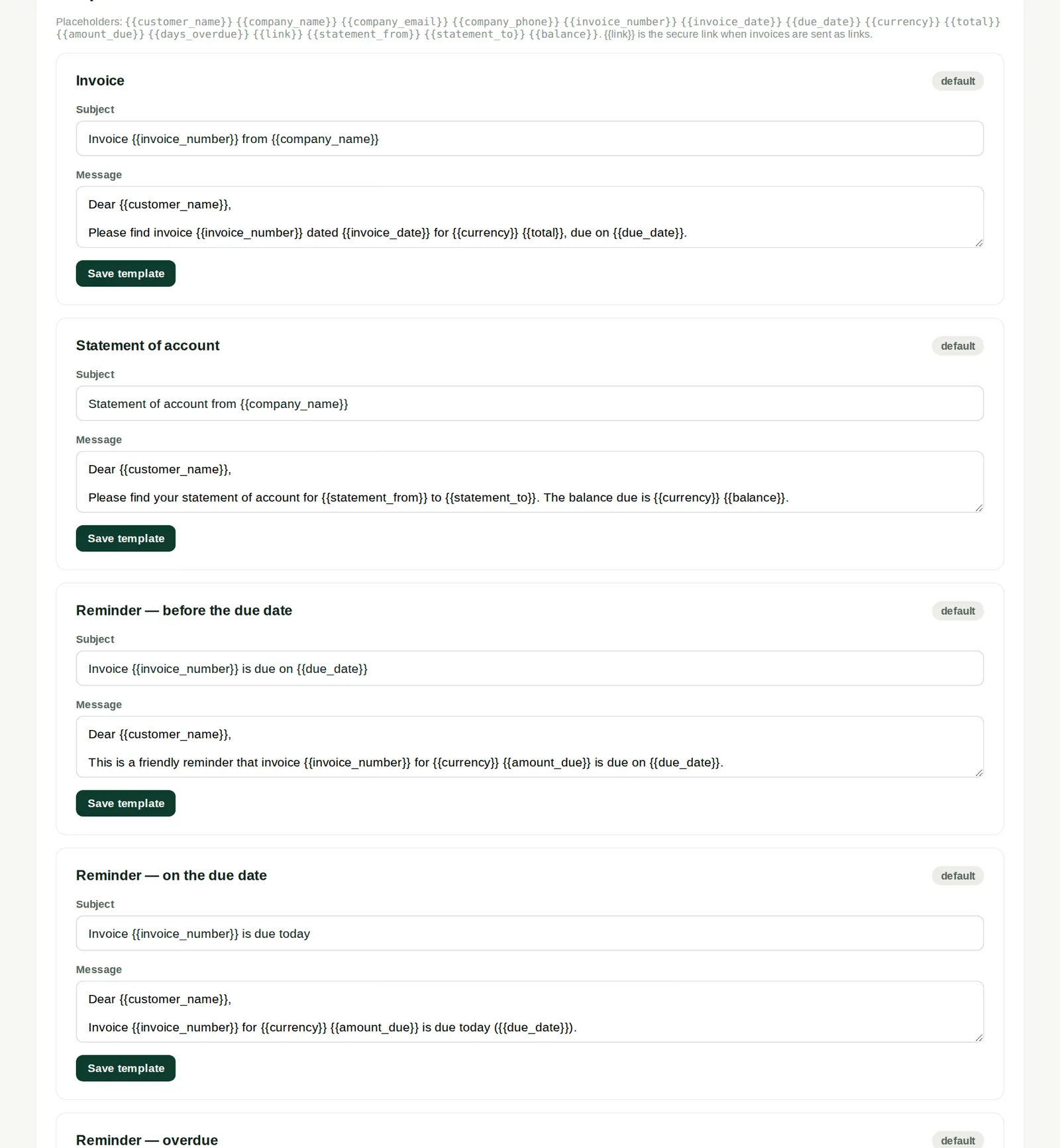
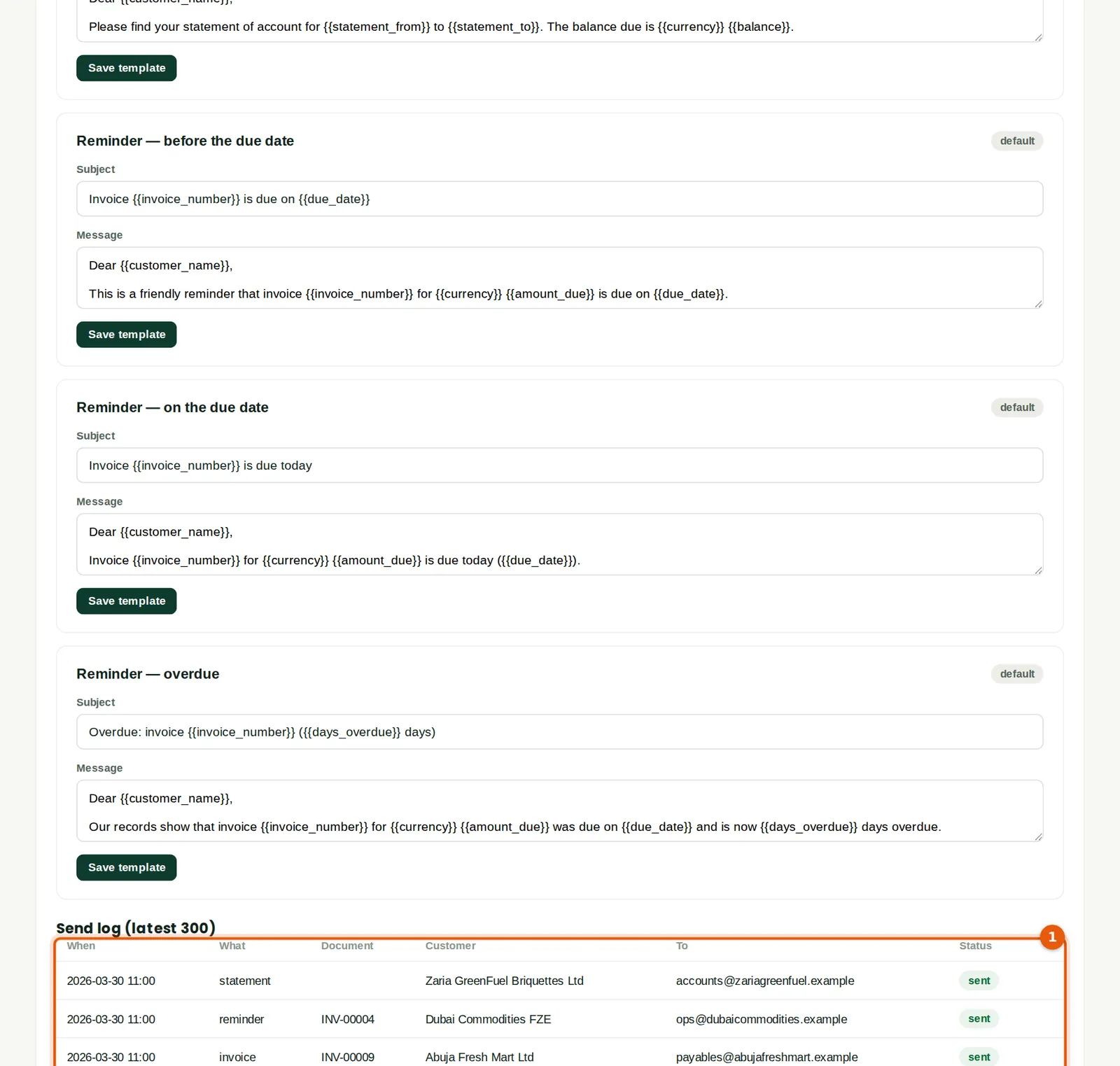
The invoice, statement and three reminder messages (before the due date, on it, and overdue) can be reworded for the company. Placeholders in double braces — customer name, invoice number, dates, amounts, days overdue, the secure link and others listed above the templates — are filled in when the message is sent; an unknown placeholder is refused. Back to the default restores BookTrove's wording.
Who
An owner or administrator.
What to do
- Edit the subject and message and click Save template.
22.4 Email an invoice
Why
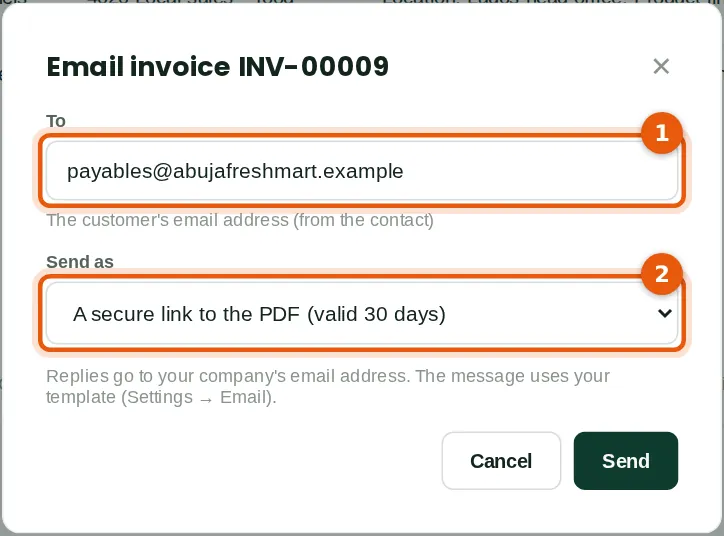
The Email card on a posted invoice or credit note sends it. The address (1) comes from the contact. Send as (2) can override the company default for this message. With a secure link, the customer opens the PDF from a link that works for 30 days; BookTrove keeps only a fingerprint of the link, counts the views and can revoke it.
Who
Sales.
What to do
- Click Email invoice, check the address (1), choose how to send (2) and click Send.
22.5 The email the customer receives
Why
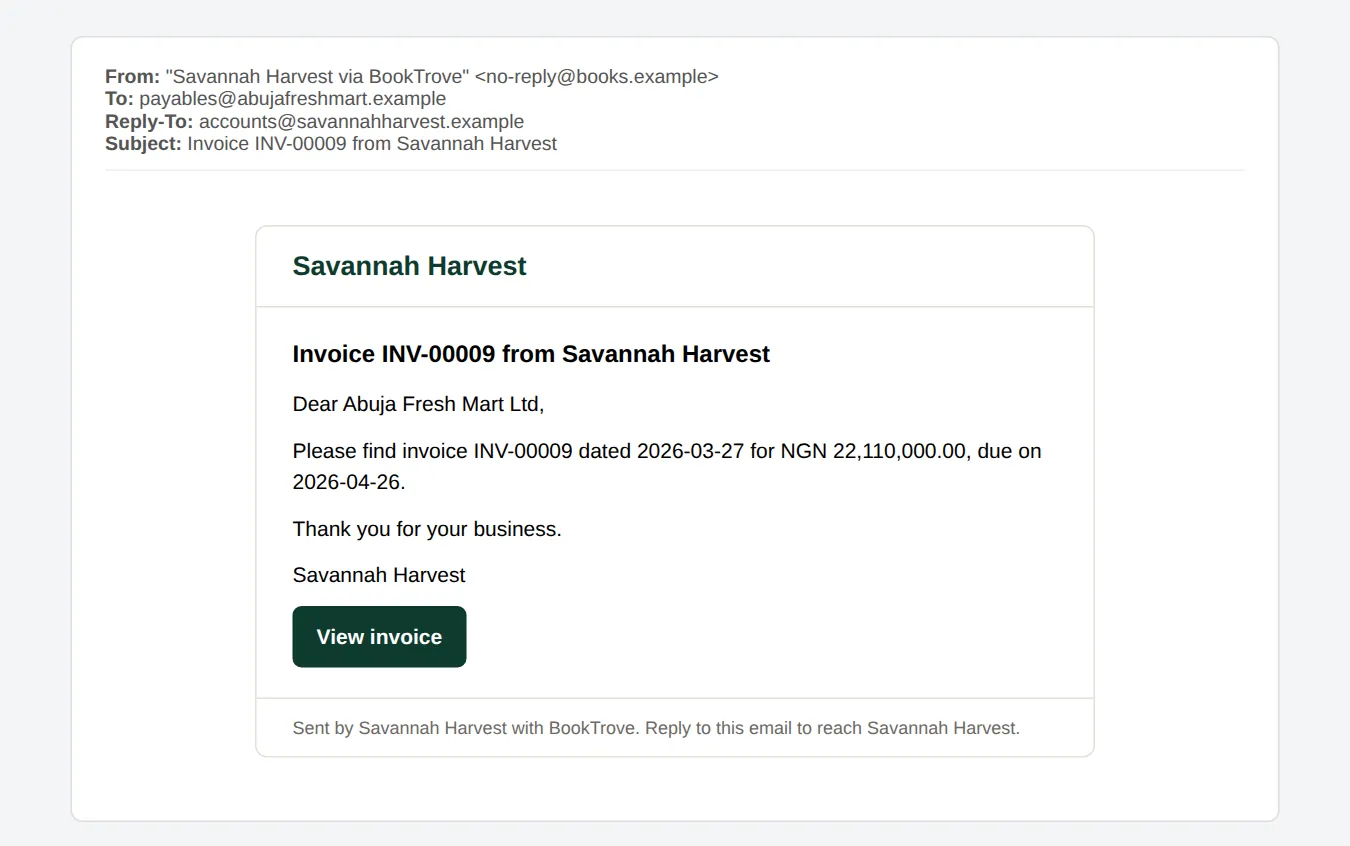
The sender is shown as the company via BookTrove, and Reply-To is the company's own address, so answers reach the accounts team. The message follows the invoice template, with the secure link.
22.6 The send log on the invoice
Why
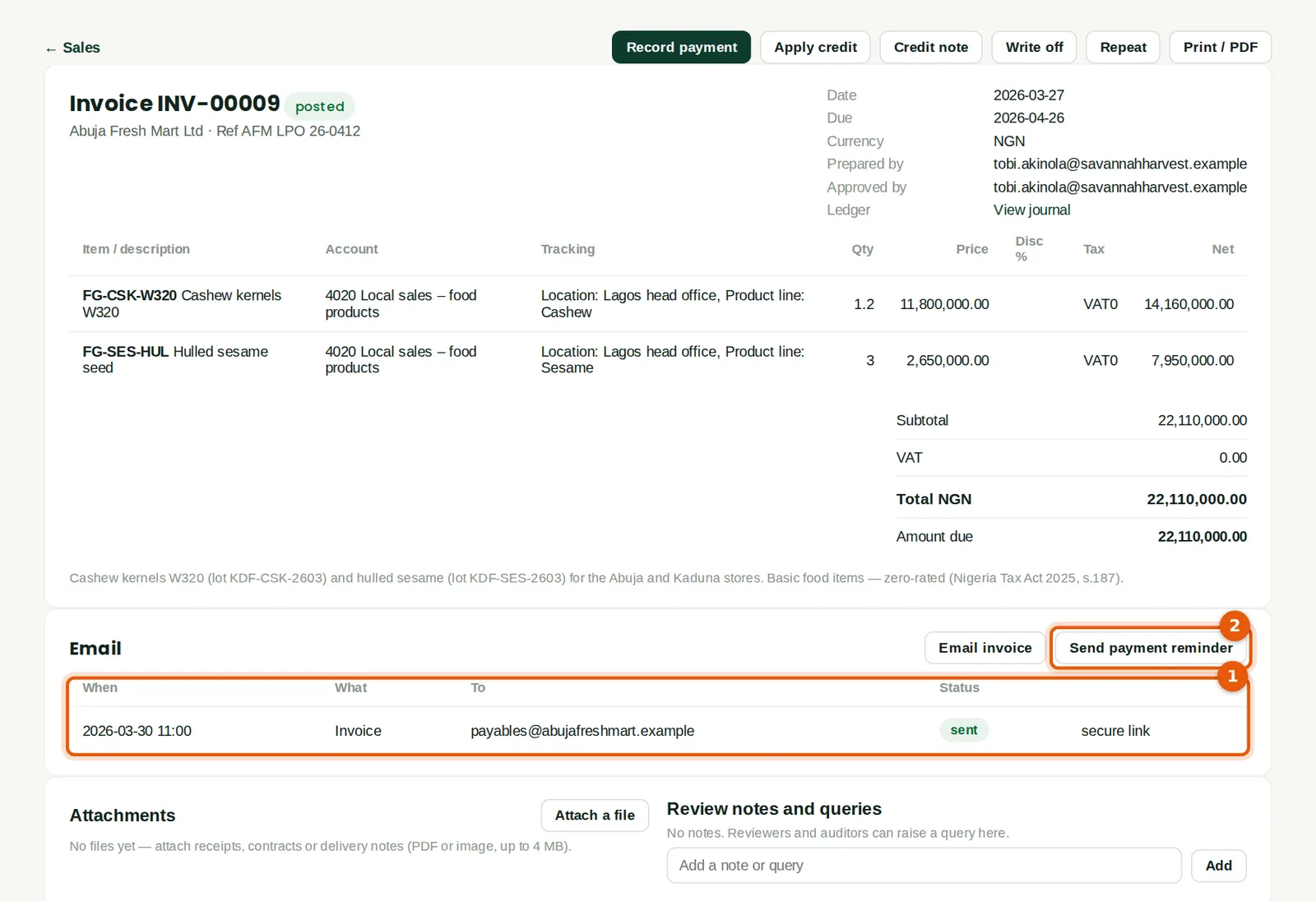
Each message is logged (1) with when, what, to whom, its status — sent, failed, not sent or queued — and whether it was a link or an attachment. Send payment reminder (2) sends a reminder for this invoice now, using the reminder template.
Who
Sales, accountant.
22.7 Send a payment reminder
Why
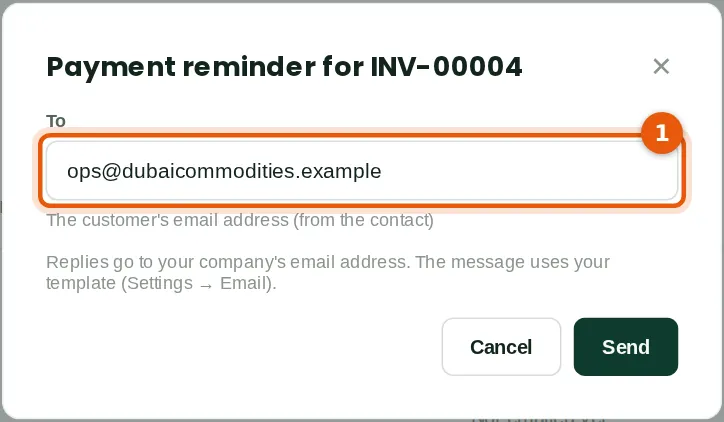
A courtesy reminder before the invoice falls due on 5 April. A reminder drafted by AI assistance on a statement (chapter 17) can also be sent with Send from BookTrove, after you have checked it.
Who
Sales.
What to do
- Click Send payment reminder, check the address (1) and click Send.
22.8 Email a statement
Why
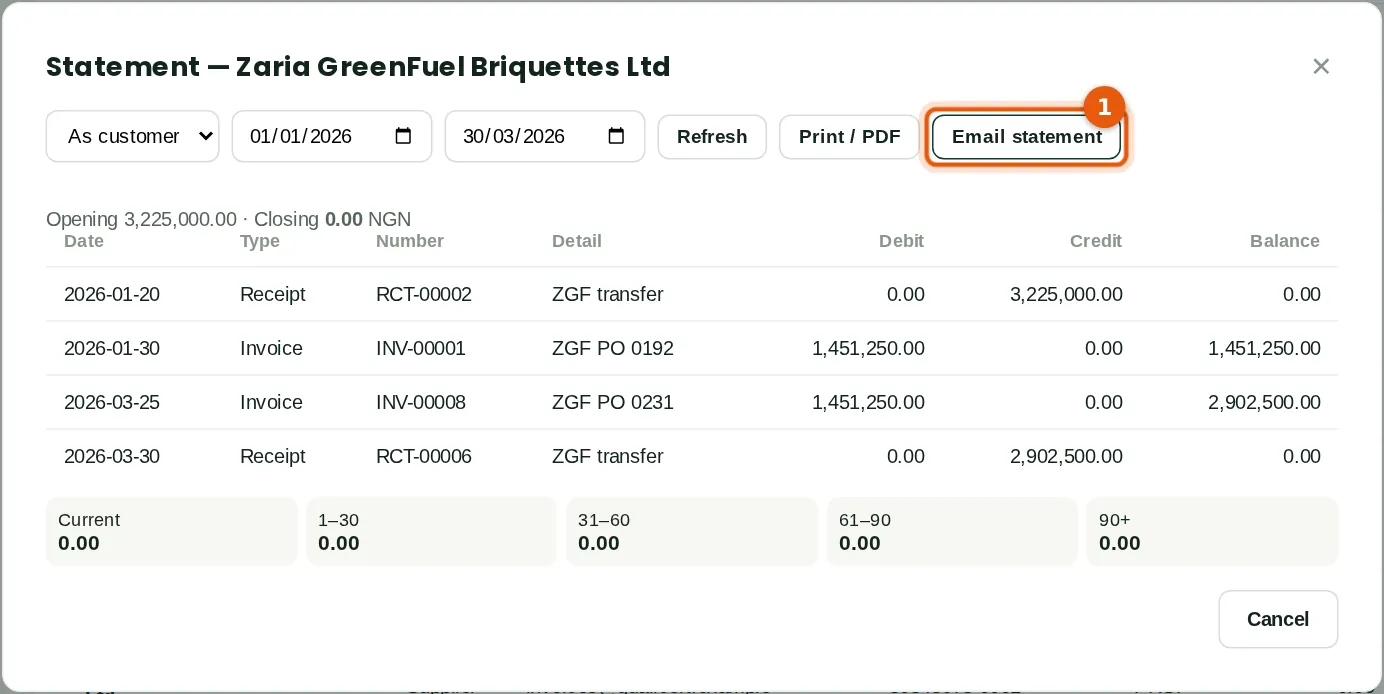
Email statement (1) sends the statement of account for the dates shown as a PDF. Statements are sent by hand; they are not scheduled.
Who
Sales.
22.9 The company's send log
Why
The latest 300 messages for the company (1), with the document, customer, address and status.
Who
Owners, administrators.