Steps in this chapter (11)
BookTrove connects with the other Trove apps through access tokens. Each token says what it may do: read the books; propose journal adjustments and send document requests (for auditors using AuditTrove); or send payroll journals (for PayTrove). Nothing an app sends changes the books until someone in the company accepts it — unless the company chooses to post payroll journals automatically.
In the illustration Chukwudi creates a token for Okafor Bello & Co, the company's auditors, and one for PayTrove on 6 March (the auditors' token is shown in chapter 14). On 31 March the March payroll journal arrives from PayTrove, and after their interim visit the auditors propose two adjustments and send their list of documents needed.
23.1 A token for PayTrove
Why
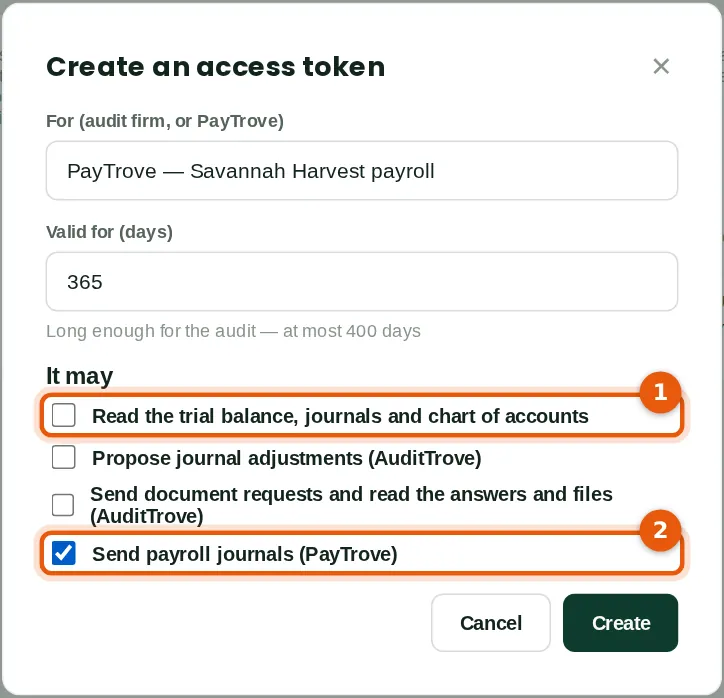
Each token lists what it may do. PayTrove's needs only Send payroll journals (2); Read (1) is left unticked — PayTrove can still read the chart of accounts to map its pay elements. The auditors' token may read, propose adjustments and send document requests (step 14.5). A call outside a token's scopes is refused with a message that says which box to tick: “This access token does not allow this (adjust). Ask the company to tick "Propose journal adjustments (AuditTrove)" for the token in BookTrove (Settings → Auditor access).”
Who
An owner or administrator.
What to do
- Click Create an access token, name it, choose how long it is valid, tick only what the app needs and click Create.
- Copy the token — it is shown once — and paste it into PayTrove under Settings → BookTrove. Give an auditor's token to the audit firm privately.
23.2 Tokens and what they may do
Why
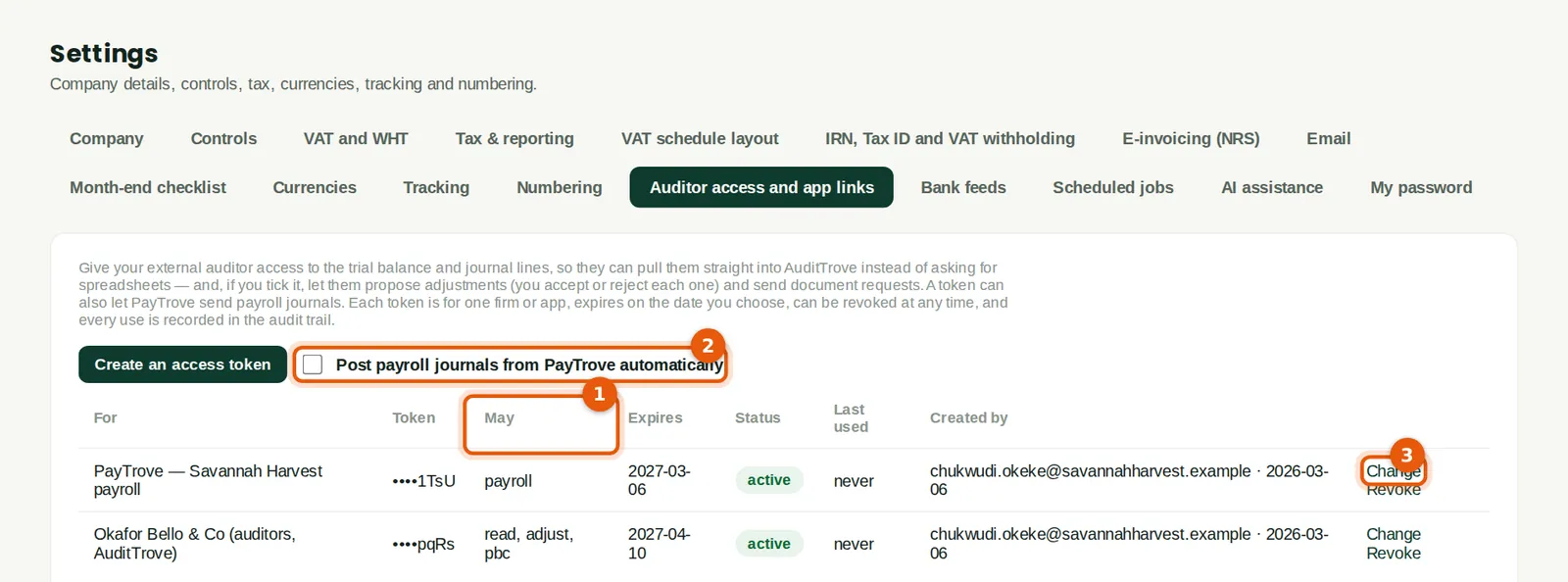
The May column (1) shows each token's scopes; Change (3) edits them without issuing a new token, and Revoke stops a token at once. Post payroll journals from PayTrove automatically (2) is off, so payroll journals wait in the Payroll inbox for someone to post them. When it is on, they post as they arrive, under the lock dates, and one that cannot post waits in the inbox with the reason. Calls through a token also obey the TroveUniverse subscription: nothing can be sent while it is suspended.
Who
An owner or administrator.
23.3 The payroll inbox
Why
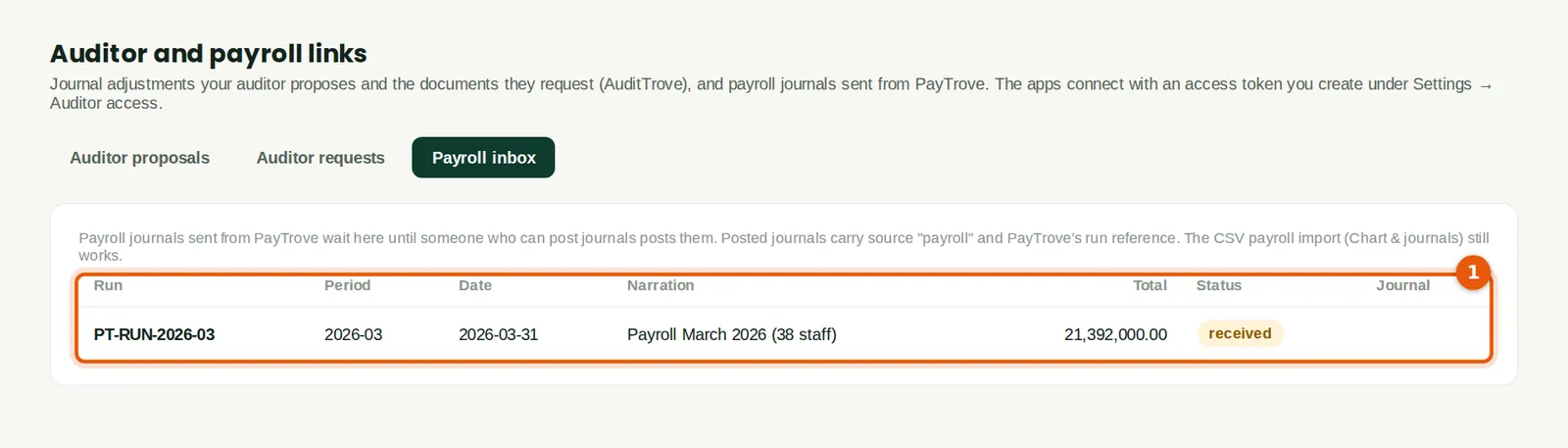
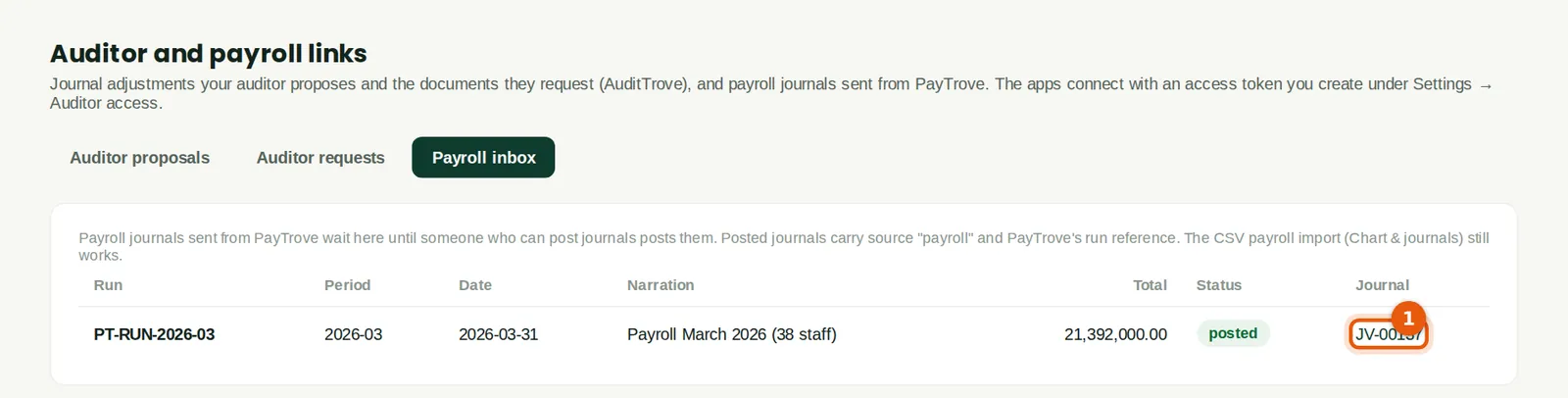
PayTrove sent the March payroll journal, run PT-RUN-2026-03, on 31 March (1), and the accountants were notified. Auditor & payroll links (2) is a new menu item under Accounting.
Who
Accountant.
What to do
- Click the run to check it.
23.4 Check and post the payroll journal
Why
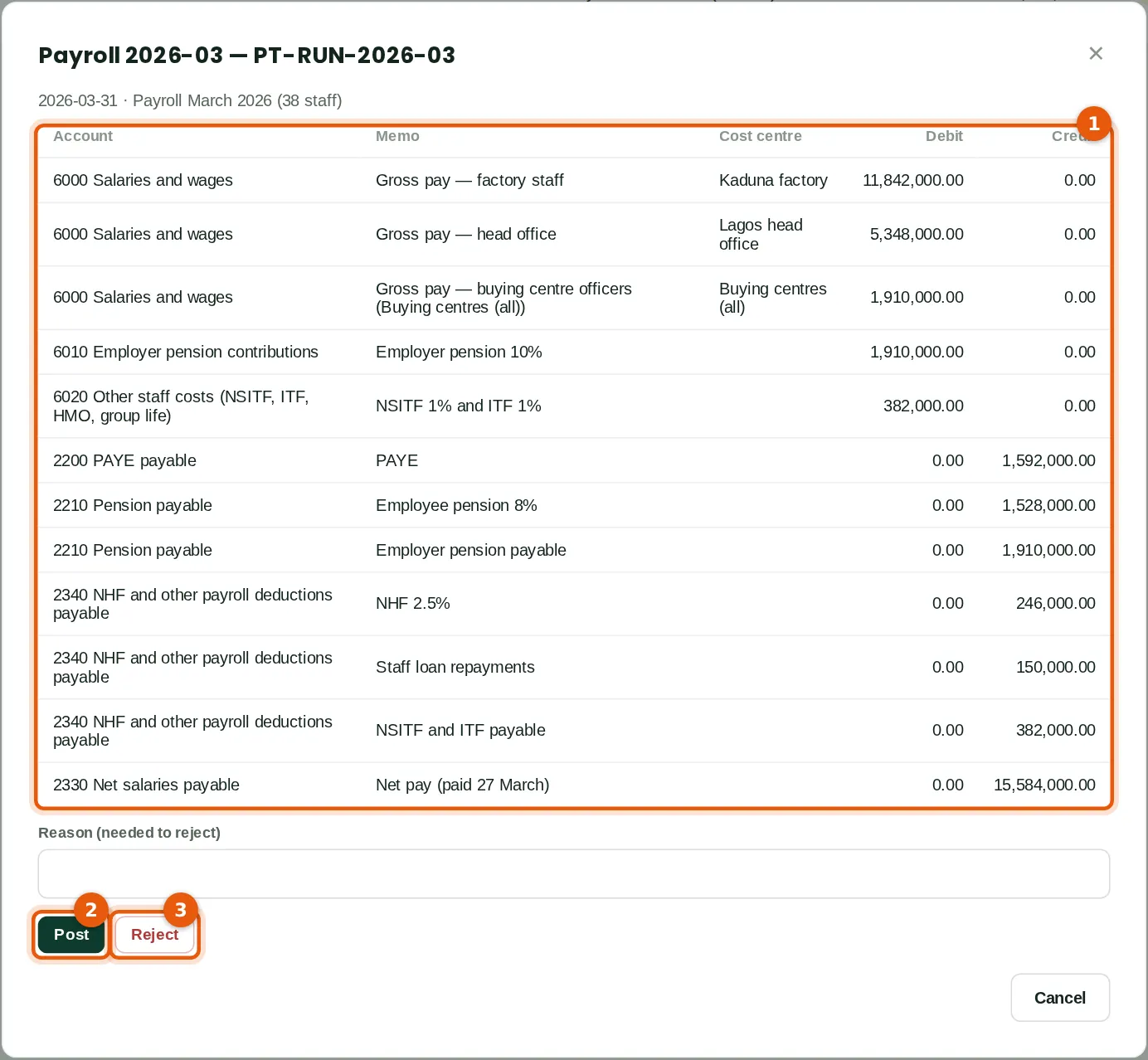
The lines (1) show each account, memo, cost centre and amount. PayTrove's cost centres are matched by name to BookTrove's tracking options: Kaduna factory and Lagos head office matched; Buying centres (all) is not an option in BookTrove, so the name is kept in the line's memo. Post (2) posts one journal with source payroll and PayTrove's run reference, under the lock dates. Reject (3) needs a reason; PayTrove can then send a corrected run under the same reference.
Who
Accountant (journal Approve level).
What to do
- Check the lines against PayTrove's payroll summary and click Post (2).
23.5 The posted payroll journal
Why
The journal number (1) opens the journal. PayTrove can ask BookTrove for the status and journal number of each run, so its users see that the journal has posted. The CSV payroll import (chapters 10 and 18) still works for other payroll systems.
Who
Accountant.
23.6 Adjustments proposed by the auditors
Why
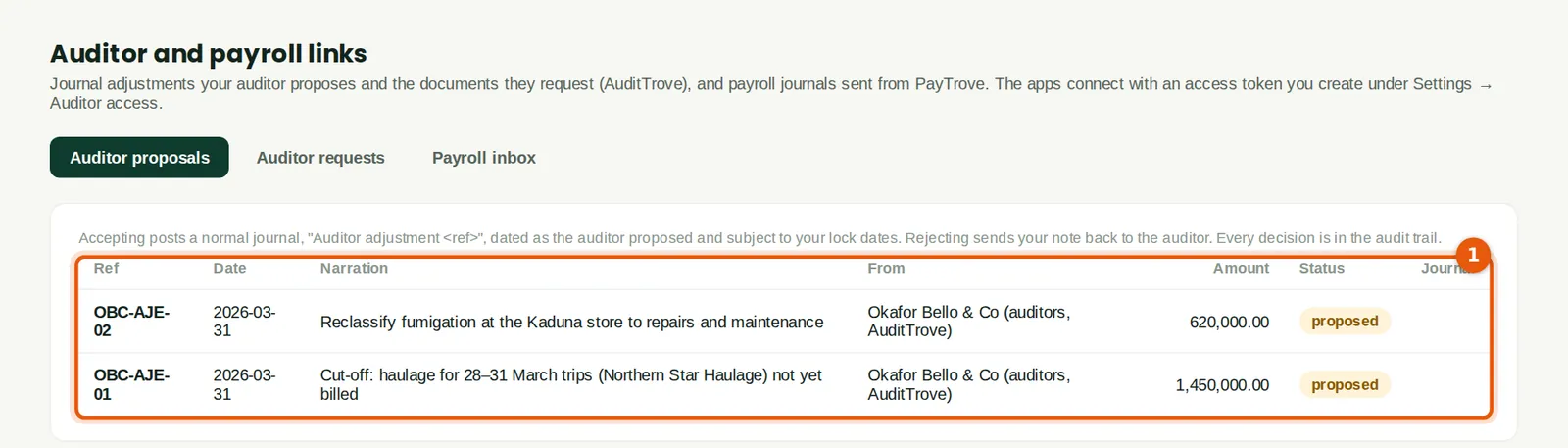
After their interim visit on 31 March, Okafor Bello & Co proposed two adjustments from AuditTrove (1). A proposal must balance and use active accounts, and it cannot use the receivables or payables control accounts, which are kept by documents. Nothing posts until someone with journal-posting permission accepts it.
Who
Accountant.
What to do
- Click a proposal to see its lines.
23.7 Accept a proposal
Why
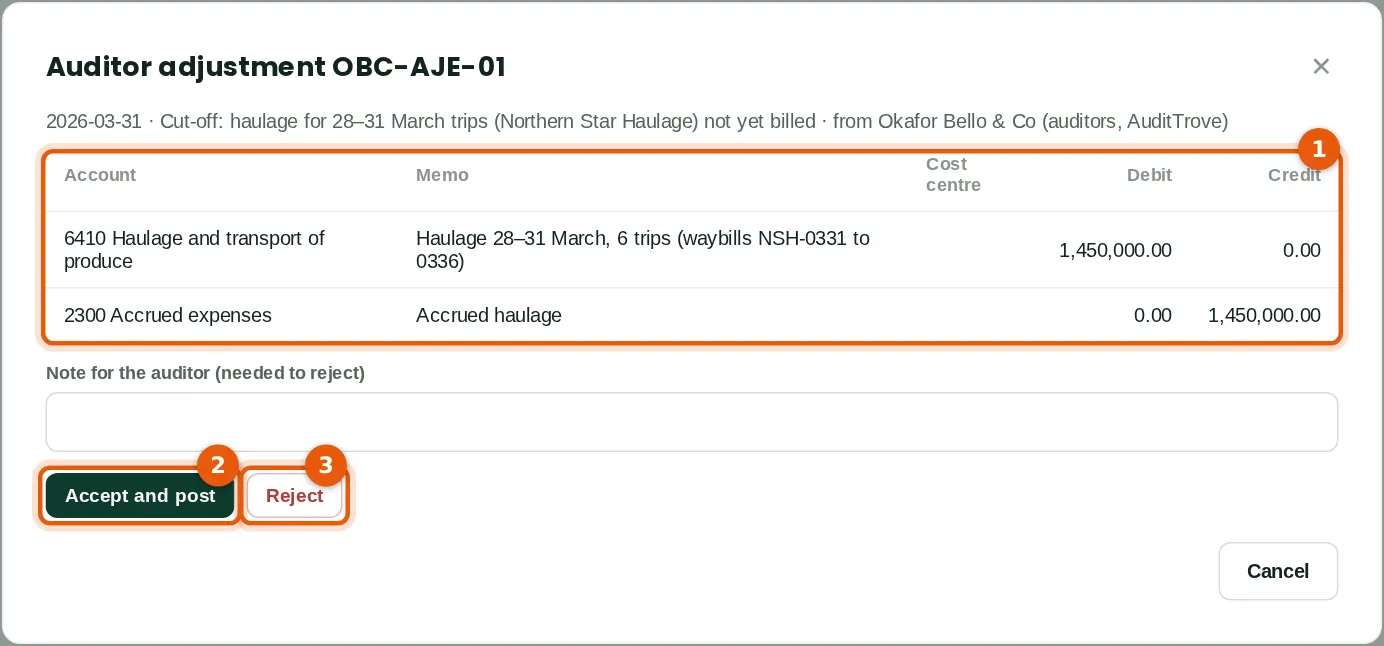
OBC-AJE-01 accrues ₦1,450,000 of haulage for trips on 28 to 31 March not yet billed (1). Accept and post (2) posts a normal journal, Auditor adjustment OBC-AJE-01, dated as proposed and subject to the lock dates. Reject (3) needs a note, which the auditors see in AuditTrove.
Who
Accountant (journal Approve level).
What to do
- Check the lines and click Accept and post (2), or type a note and click Reject (3).
23.8 The decisions
Why
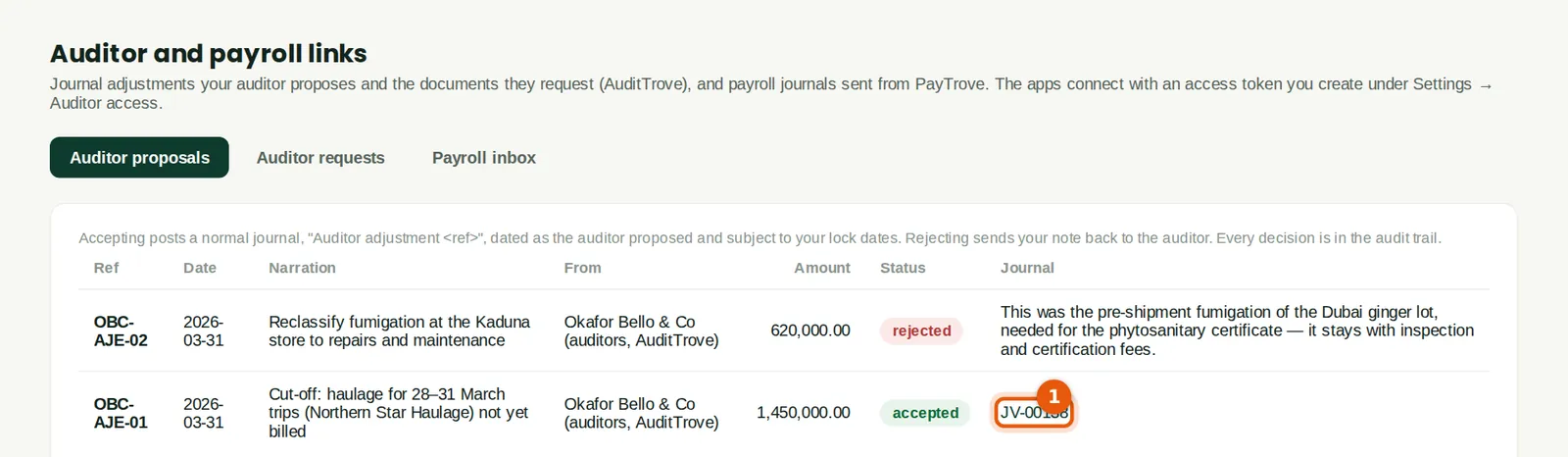
OBC-AJE-01 is accepted and shows its journal (1). OBC-AJE-02, which would have moved ₦620,000 of fumigation from inspection fees to repairs, was rejected: it was the pre-shipment fumigation of the Dubai ginger lot, which belongs with inspection and certification fees. Every decision is in the audit trail, and AuditTrove shows the auditors each status and journal number.
Who
Accountant, auditors.
23.9 Document requests (the PBC list)
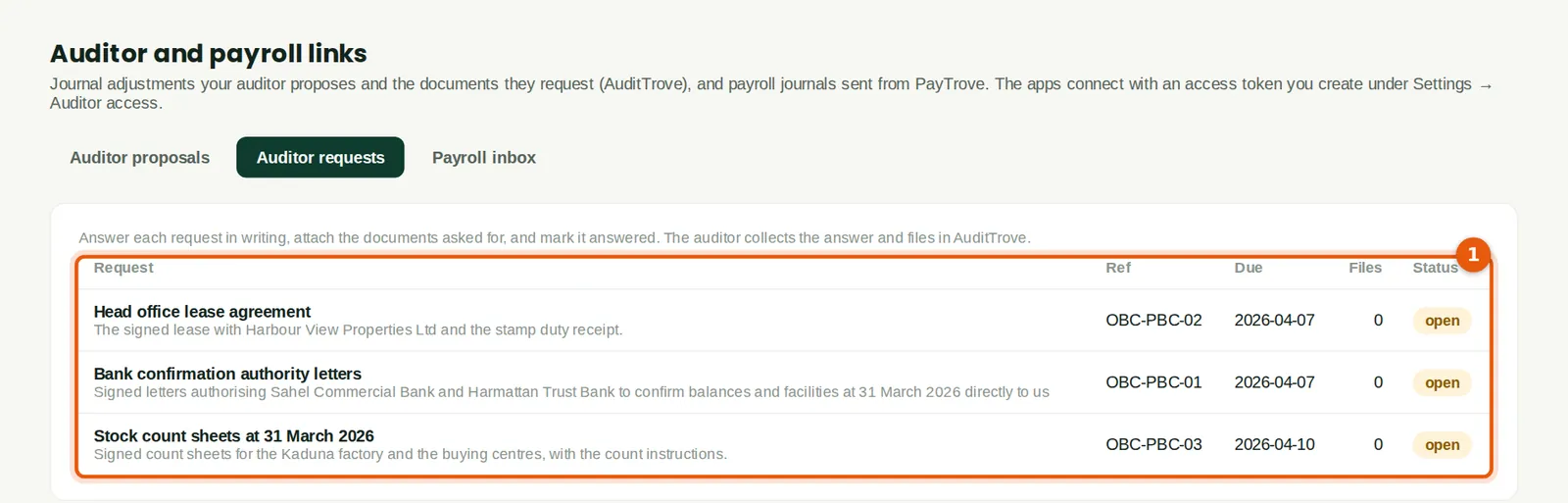
Why
The documents the auditors asked the company to provide (1): bank confirmation authorities, the head office lease and the stock count sheets at 31 March, each with a due date. An overdue request is flagged.
Who
Accountant.
What to do
- Click a request to answer it.
23.10 Answer a request
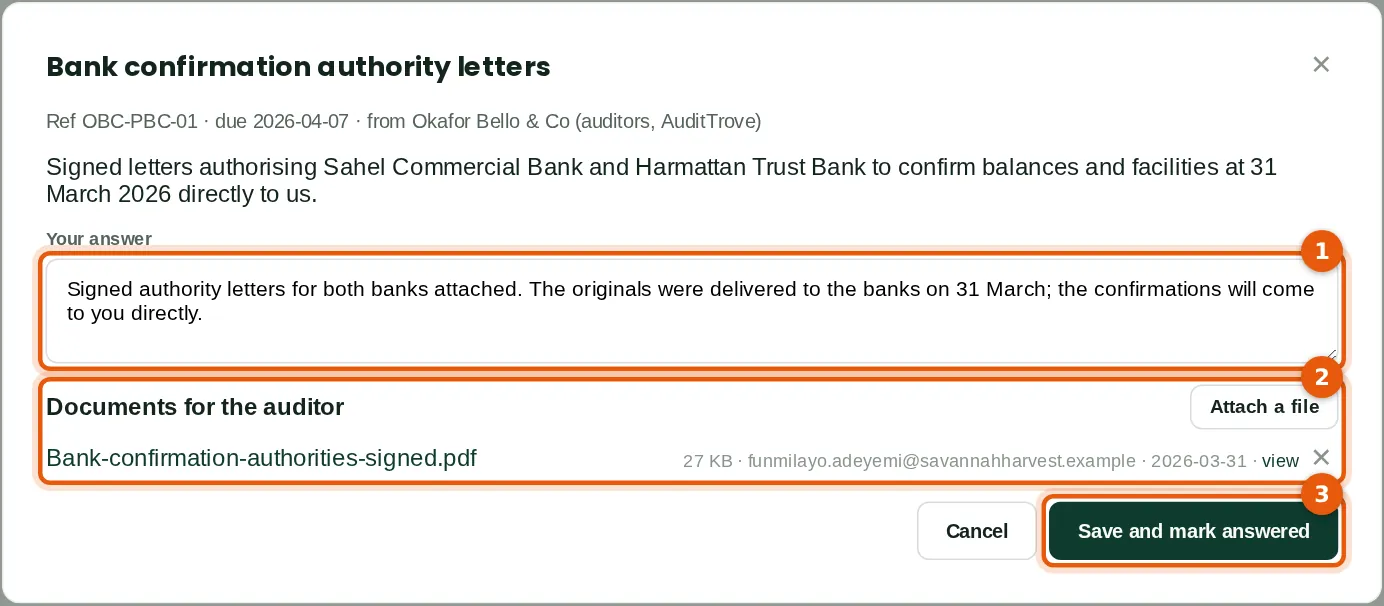
Why
Type the answer (1) and attach the documents (2) — PDF, image or office files, up to 4 MB each (10 MB where the company's file storage is set up). Save and mark answered (3). The auditors collect the answer and the files in AuditTrove; they can download only the files attached to their own requests.
Who
Accountant.
What to do
- Type the answer, click Attach a file for each document, then click Save and mark answered (3).
23.11 Notifications for the accountants
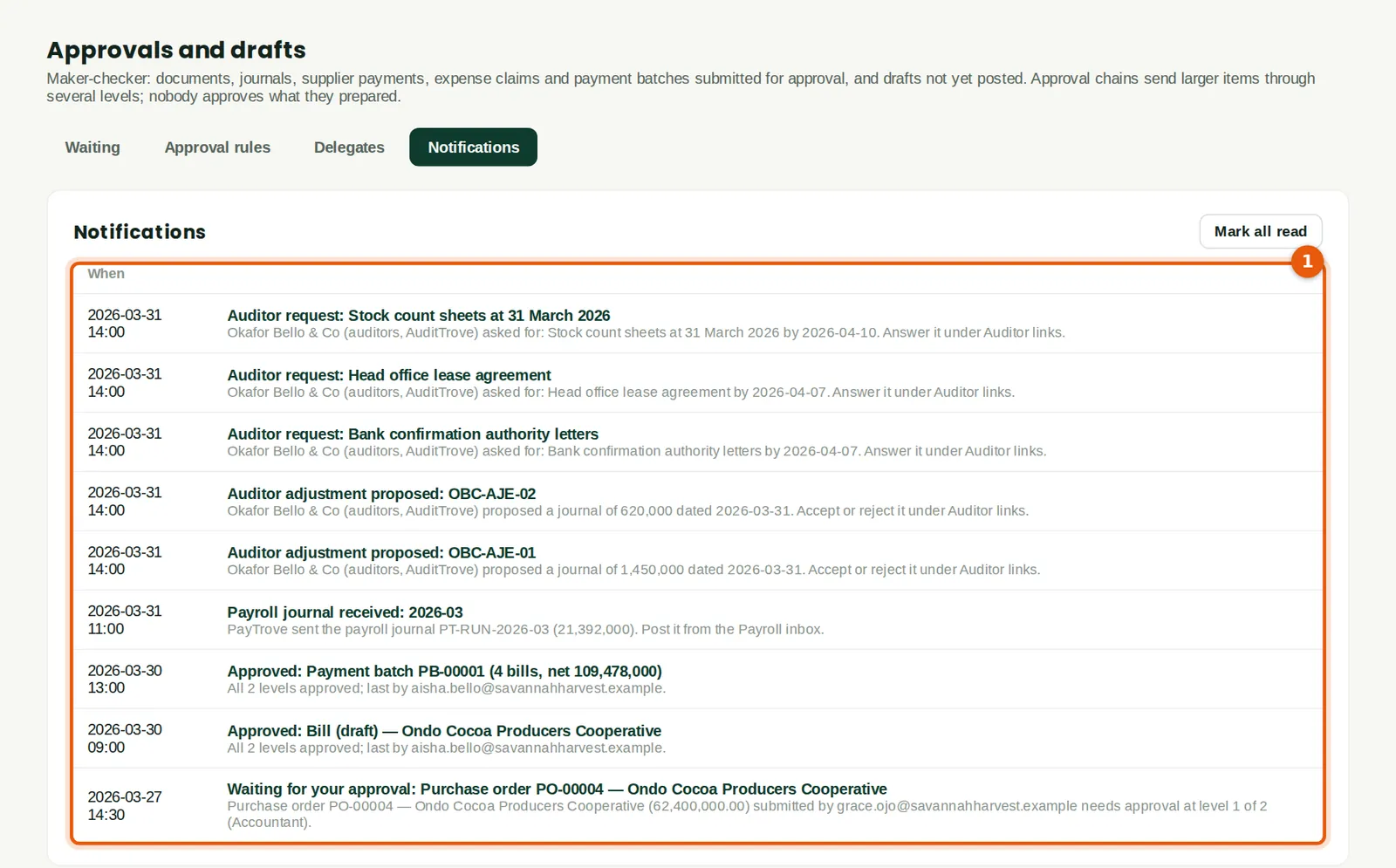
Why
Each new proposal, request and payroll journal is notified (1); the link in each notification opens the right tab. The same list holds approval notifications (chapter 20).
Who
Owners, administrators, accountants.