Steps in this chapter (9)
An approval chain sends larger items through several people in turn. A full administrator sets a rule for a document type — bill, purchase order, manual journal, expense claim or payment batch — and an amount band in naira. Each rule has up to five levels, each with named approvers or roles, and one approval per level is enough. Nobody can approve what they prepared, nobody can approve two levels of the same item, and a person who is away can name a delegate. Where no rule applies, the single approval switch in Settings → Controls works as before (chapter 3).
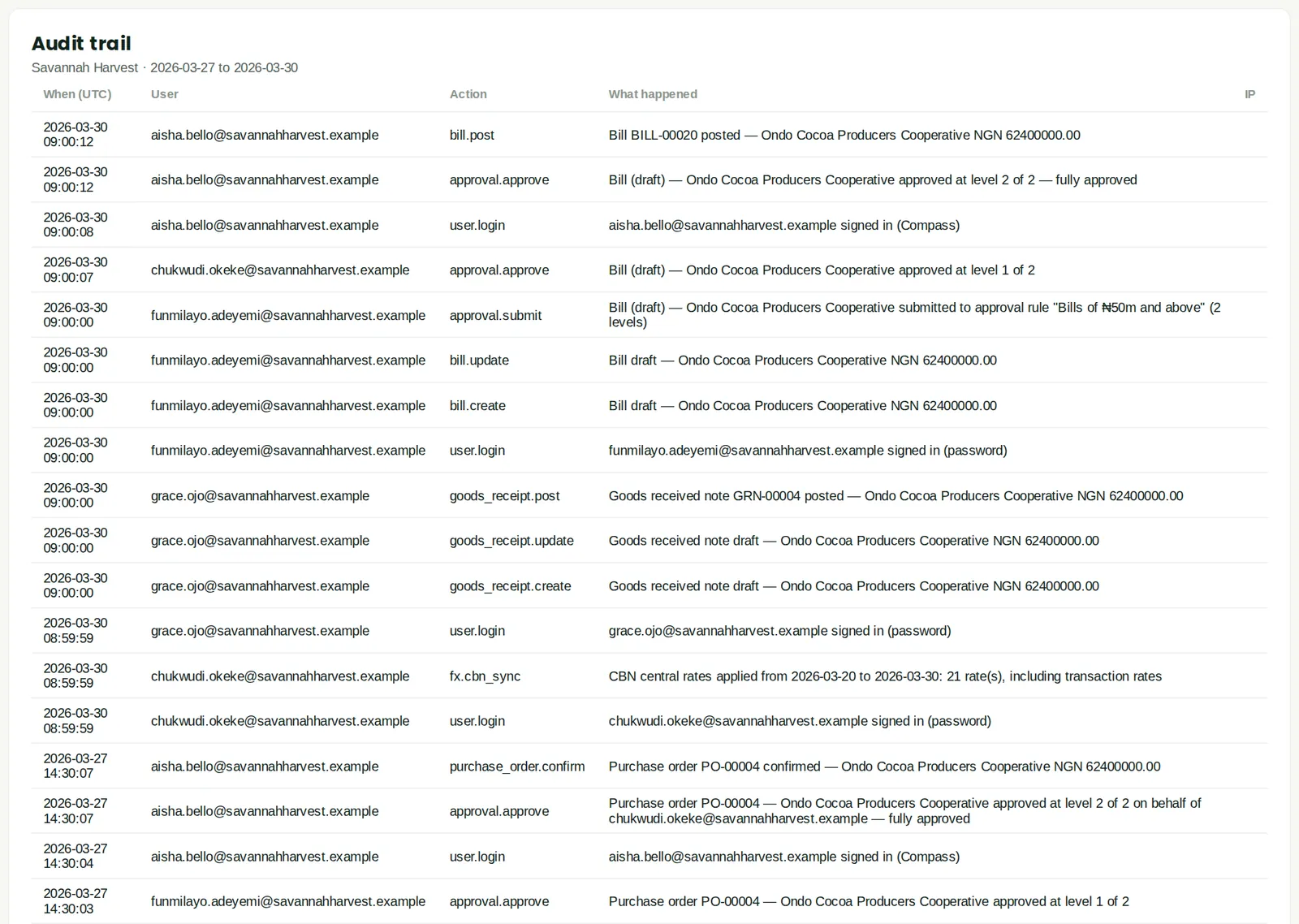
In the illustration Chukwudi sets three rules on 6 March. On 27 March a ₦62.4 million cocoa order goes through two levels while Chukwudi is in Rotterdam, with Aisha approving as his delegate; the bill for it follows on 30 March.
20.1 Create an approval rule
Why
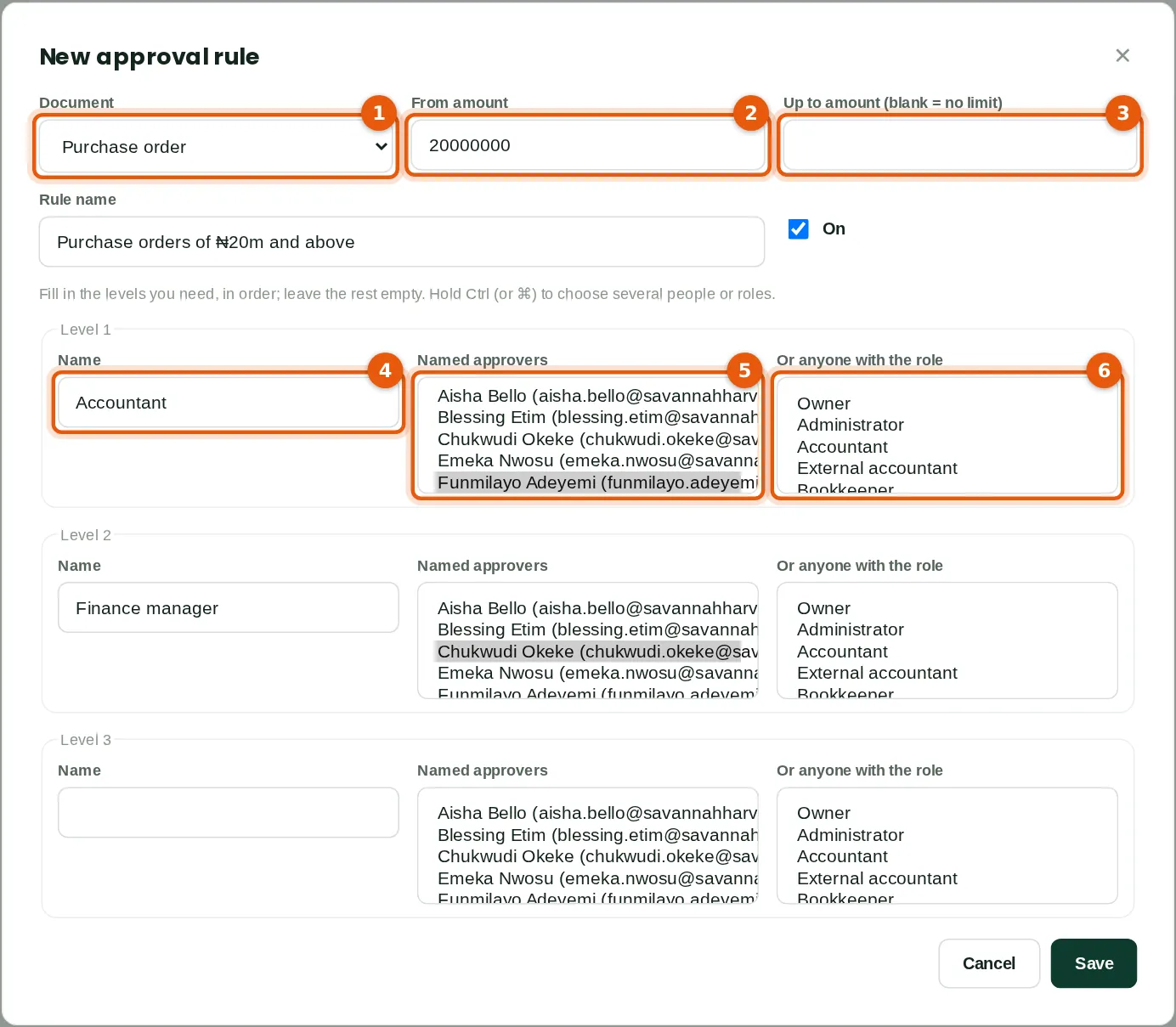
The rule covers purchase orders (1) of ₦20,000,000 (2) and above, with no upper limit (3). Level 1, named Accountant (4), is approved by Funmilayo (5); level 2, Finance manager, by Chukwudi. Instead of people, a level can name roles (6): anyone holding the role may approve. Where rules overlap, the one with the highest From amount wins.
Who
A full administrator (Chukwudi Okeke).
What to do
- Click New rule and choose the document (1), the From amount (2) and, if needed, the Up to amount (3).
- Name each level (4) and choose the people (5) or roles (6); hold Ctrl (⌘ on a Mac) to choose several. Leave unused levels empty.
- Click Save.
20.2 The approval rules
Why
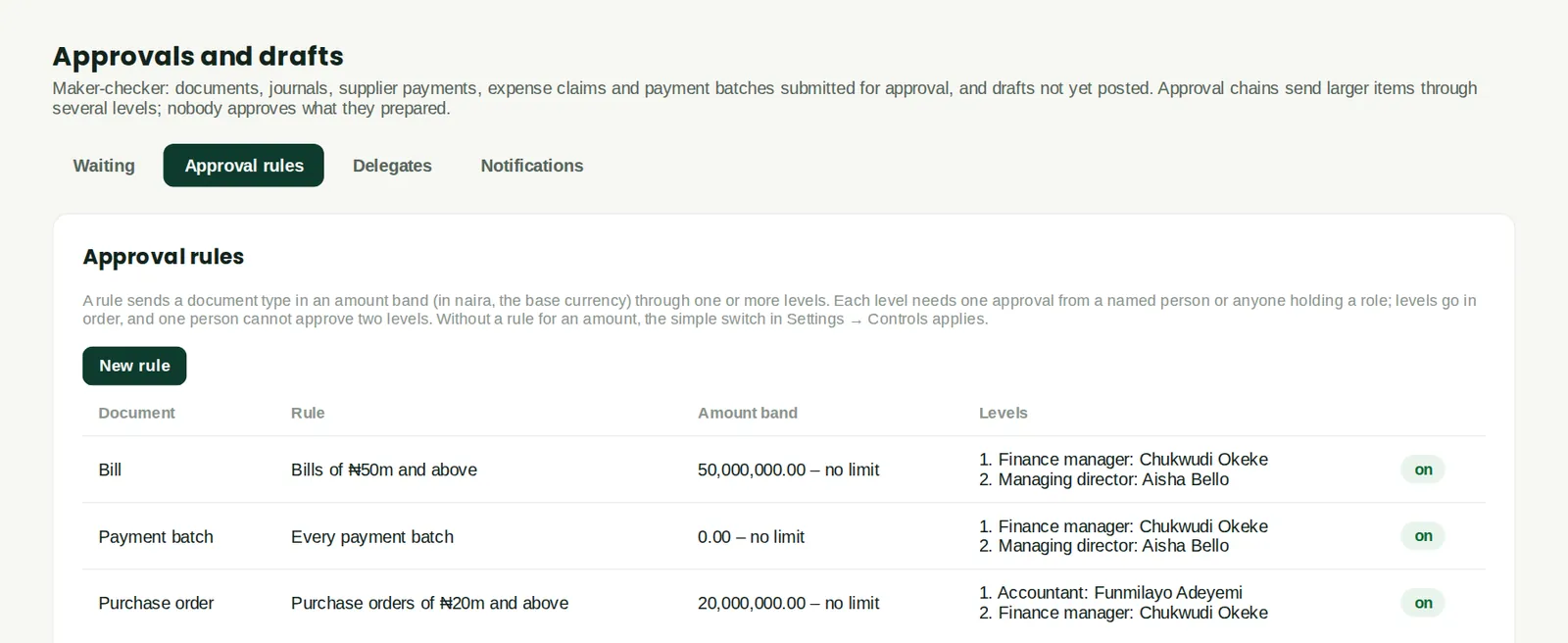
Savannah Harvest's three rules: purchase orders of ₦20m and above (accountant, then finance manager); bills of ₦50m and above (finance manager, then managing director); and every payment batch (finance manager, then managing director). Click a rule to change it or switch it off; items already in a chain carry on. Approval chains are part of the plan's approval workflows.
Who
Administrators; approvers can view.
20.3 Name a delegate
Why
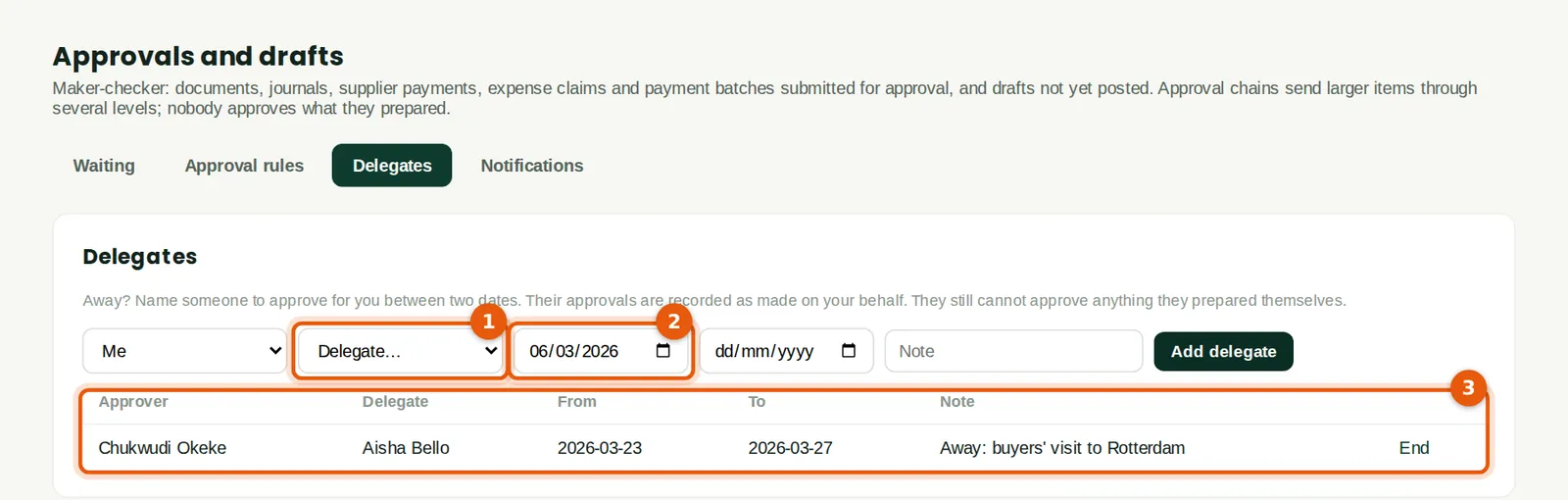
Chukwudi will visit buyers in Rotterdam from 23 to 27 March. He names Aisha (1) as his delegate for those dates (2). The list (3) shows the delegates in force. A delegate's approvals are recorded as made on behalf of the approver. A delegate still cannot approve anything they prepared, act for the person who submitted the item, or approve two levels of the same item.
Who
Any approver, for themselves; an administrator, for anyone.
What to do
- Choose the delegate (1), the dates (2) and a note, then click Add delegate. Click End to stop it early.
20.4 Items waiting in a chain
Why
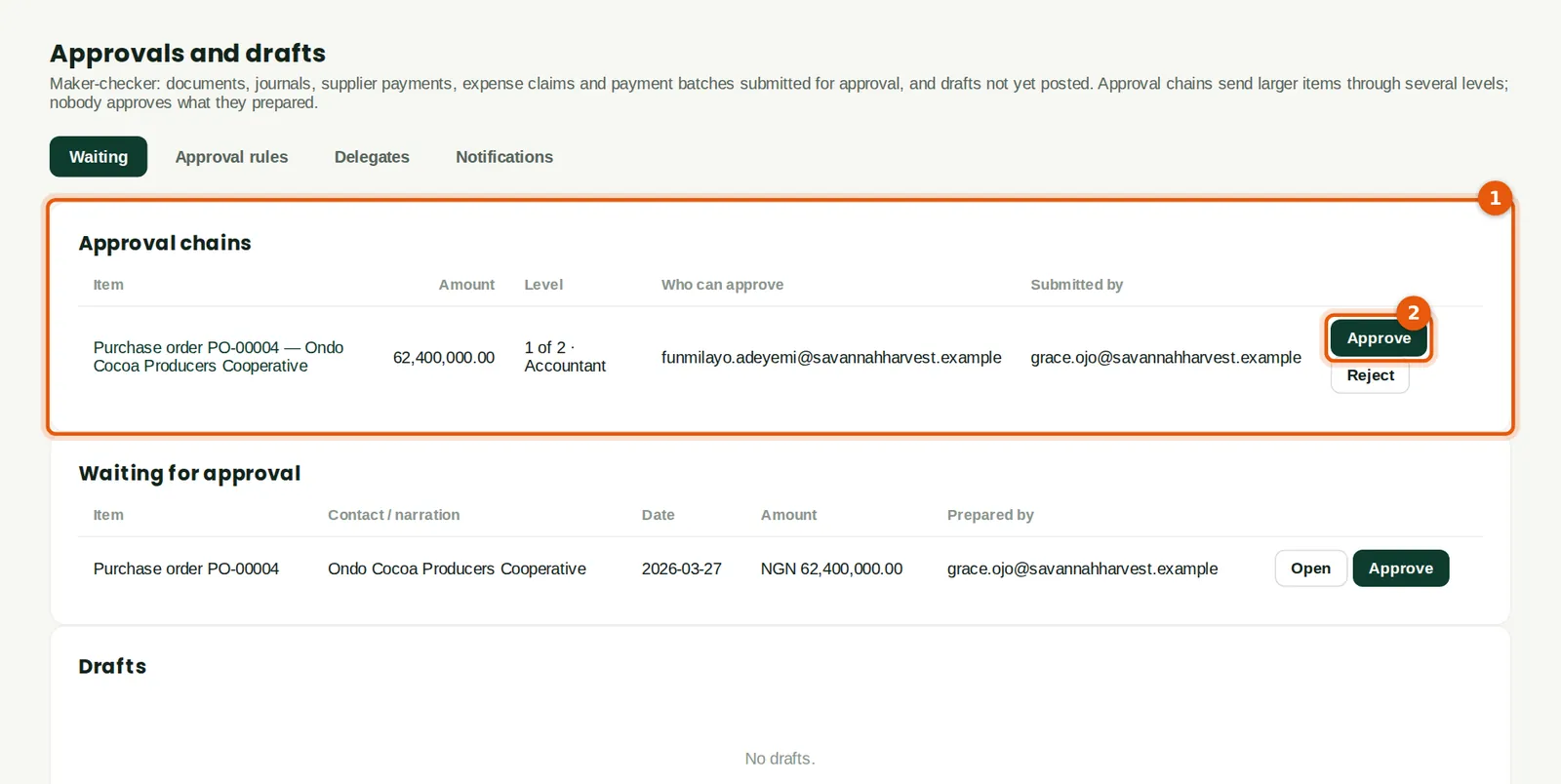
Grace Ojo raised a purchase order for 8 tonnes of cocoa from the Ondo cooperative: ₦62,400,000. The rule sends it into its chain. The Approval chains list (1) shows each item, its amount, its level, who can approve it and who submitted it. Funmilayo is on level 1, so she has Approve and Reject buttons (2). The count on the Approvals menu (3) shows her unread notifications.
Who
Approvers.
What to do
- Open the item to check it, then click Approve (2) — or Reject, with a reason.
20.5 Approving as a delegate
Why
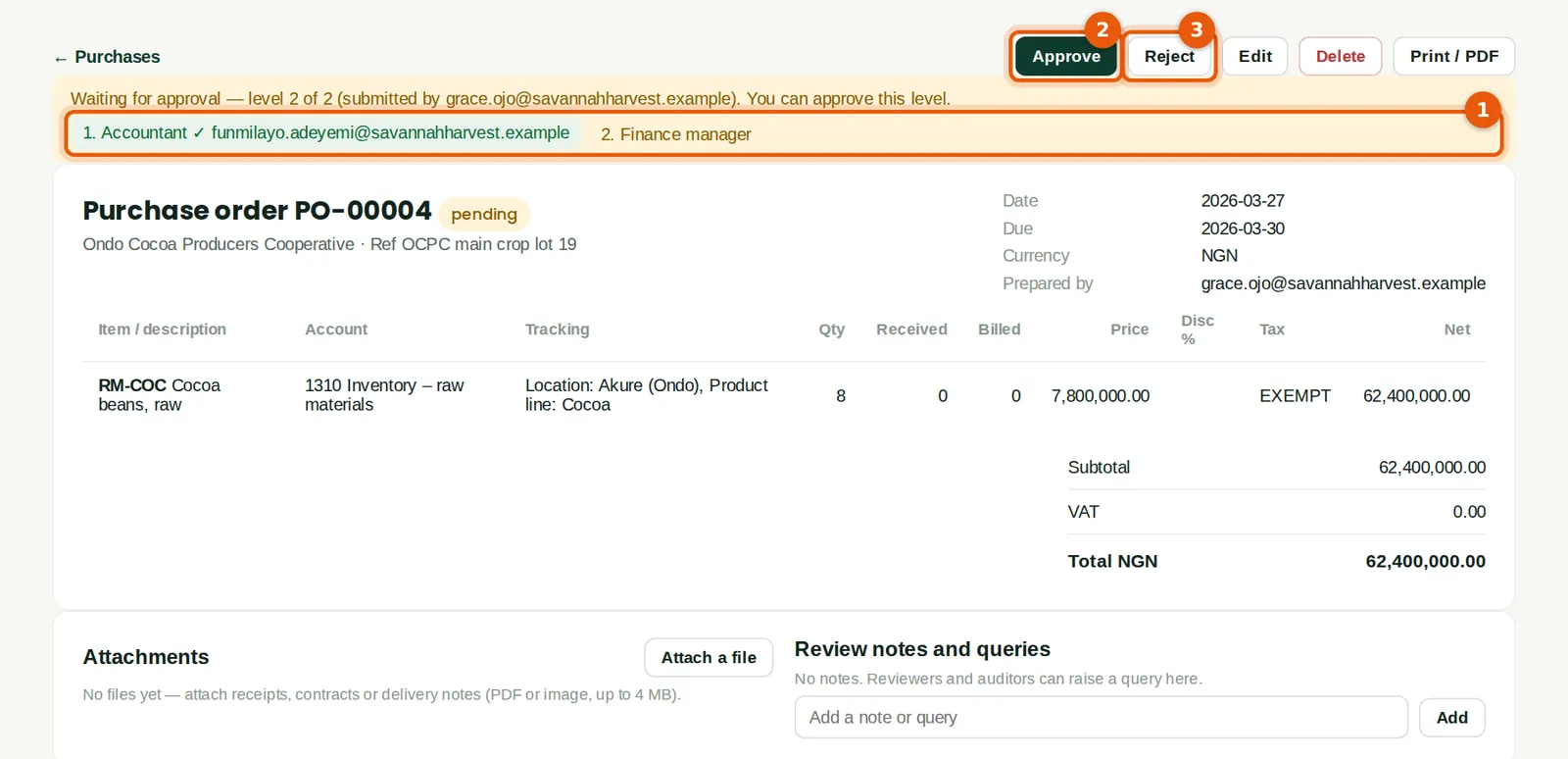
The banner shows the levels (1): level 1 approved by Funmilayo, level 2 waiting. Chukwudi is away and Aisha is his delegate, so she can approve (2); her approval is recorded as on behalf of Chukwudi. Reject (3) sends the item back to the person who prepared it.
Who
Aisha Bello, for Chukwudi.
What to do
- Click Approve (2). When the last level approves, a purchase order is approved; a bill or journal posts.
20.6 A bill in its chain
Why
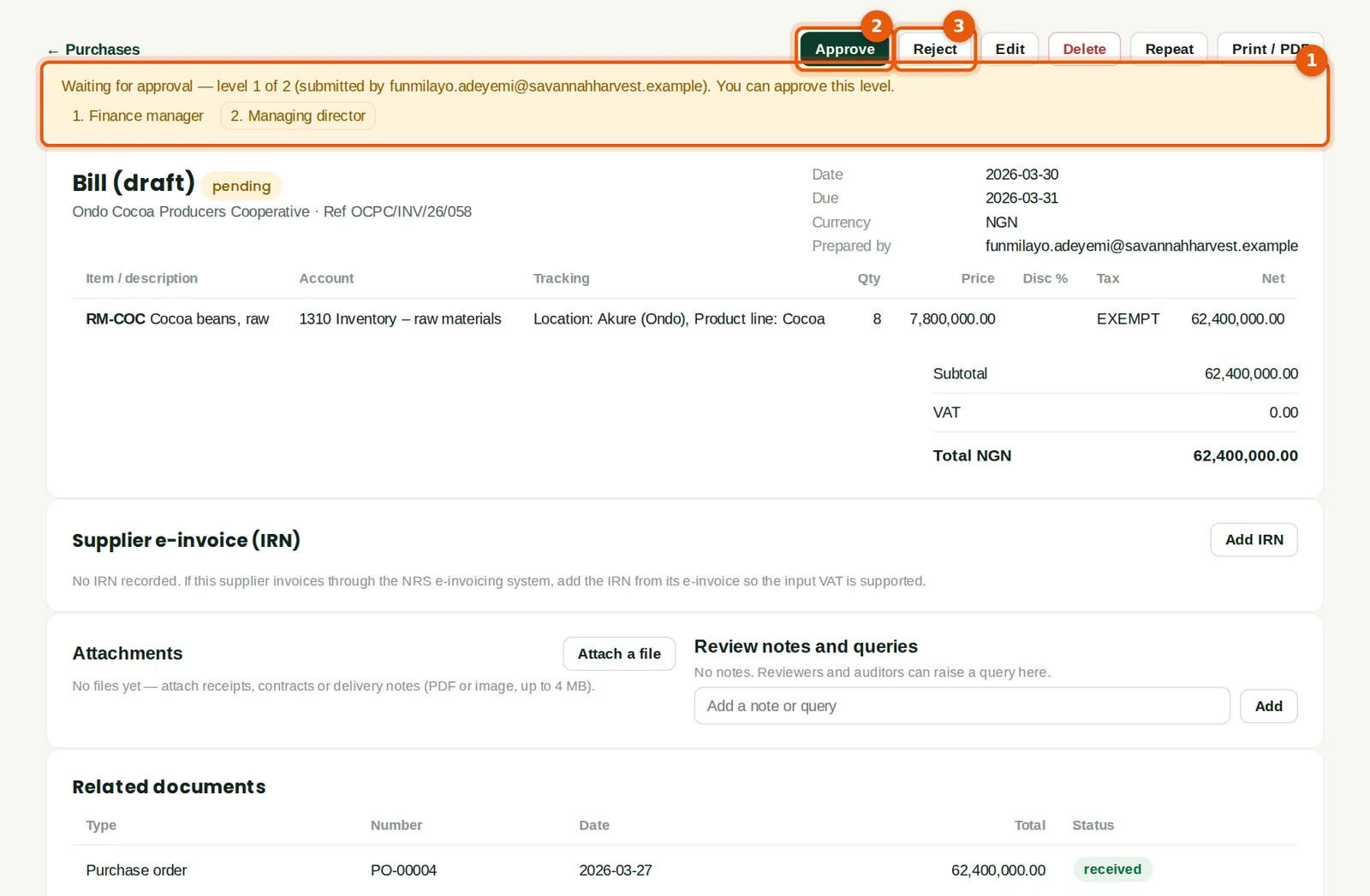
The cocoa arrived on 30 March and Funmilayo posted the bill; at ₦62,400,000 it falls under the bills rule. The banner (1) shows level 1 of 2, waiting for the finance manager. Chukwudi, back from Rotterdam, can approve (2) or reject (3). Editing, deleting or re-saving an item cancels its chain; it starts again when the item is submitted again. A bill posted from an approved expense claim does not start a second chain.
Who
Approvers.
What to do
- Click Approve (2). Level 2 then goes to Aisha.
20.7 Reject with a reason
Why
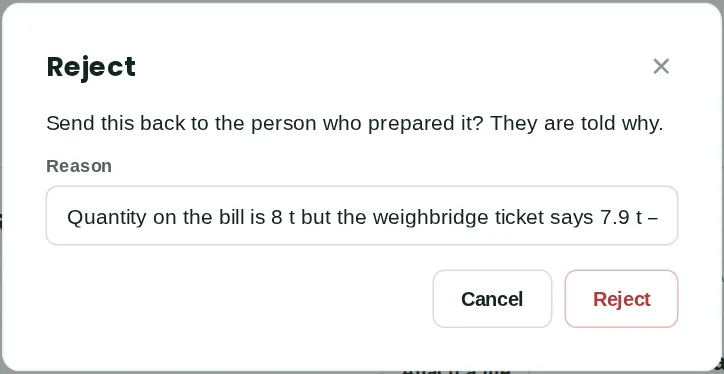
A rejection needs a reason. The item goes back to draft (an expense claim is sent back to the claimant) and the preparer is told why. The example shows the form only: Chukwudi then approved the bill.
Who
Approvers.
What to do
- Type the reason and click Reject.
20.8 Notifications
Why
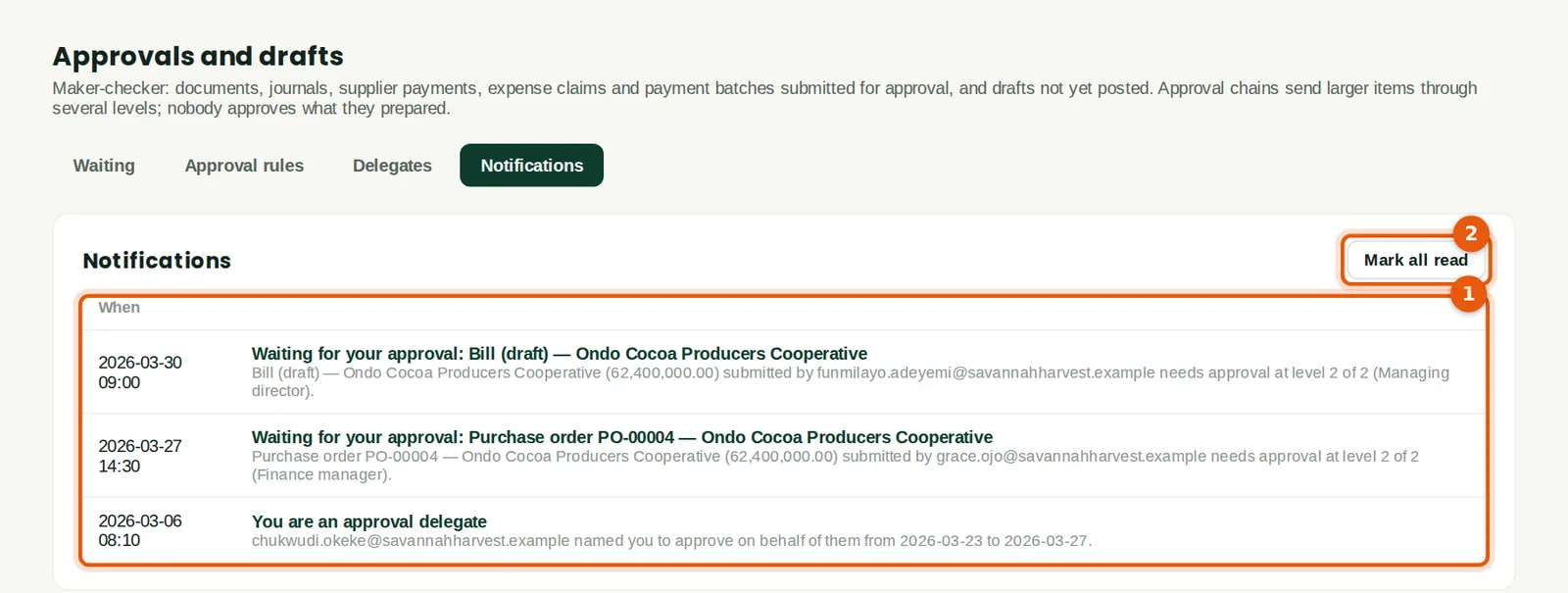
Items waiting for you, decisions and rejections are notified in BookTrove (1) — and by email once email is set up (chapter 22). Unread notifications are counted on the Approvals menu; Mark all read (2) clears the count.
Who
Everyone.
20.9 The approvals in the audit trail
Why
Every submission, approval and rejection is recorded with its level and, for a delegate, on whose behalf. Changes to rules and delegates are recorded too.
Who
Owners, administrators, auditors.