Steps in this chapter (11)
Each person has their own login and a role in each company. The role decides what they see and what they may do, area by area. Approvals add a second pair of eyes to purchase orders and payments.
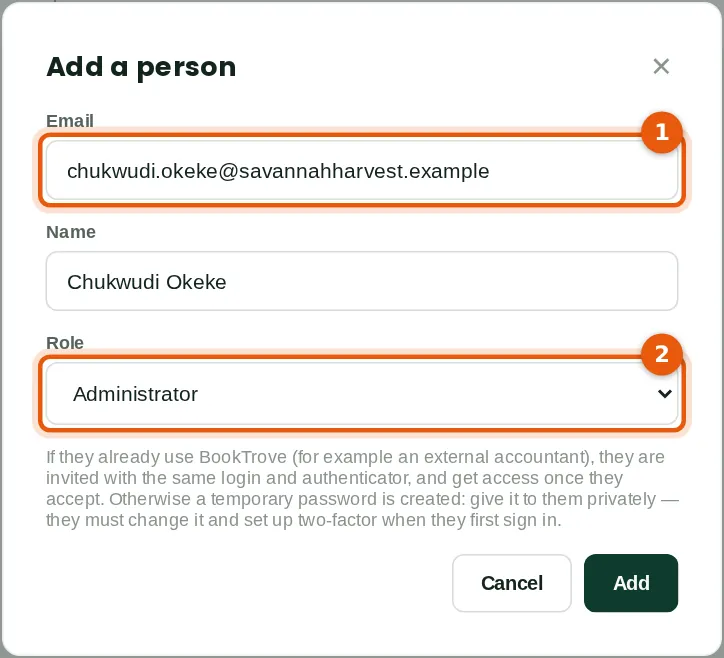
In the illustration, Aisha Bello adds Chukwudi Okeke as administrator; Chukwudi then adds the team at head office, the factory and the buying centres, and invites the company's external accountant, Nkechi Okafor of Okafor Bello & Co.
3.1 Add a person
Why
People are added by an owner or administrator; there is no self-registration. The role can be changed later. Each active or invited person who is not an external accountant takes one user seat of the subscription (chapter 15).
Who
Owner or administrator.
What to do
- Open Users & roles and click Add a person. Type the email address (1) and the name.
- Choose the role (2) — see the next steps and Appendix A — and click Add.
3.2 Give the temporary password privately
Why
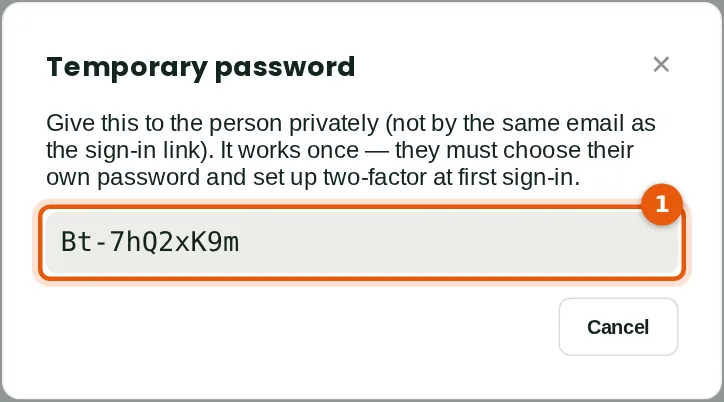
A new person gets a temporary password (1). Give it to them in person, by phone or in a separate message — never in the same email as the sign-in address. At first sign-in they set up two-factor and choose their own password.
Who
The owner or administrator who added the person.
What to do
- Note the temporary password and pass it on privately. Close the window.
3.3 The new person's first sign-in
Why
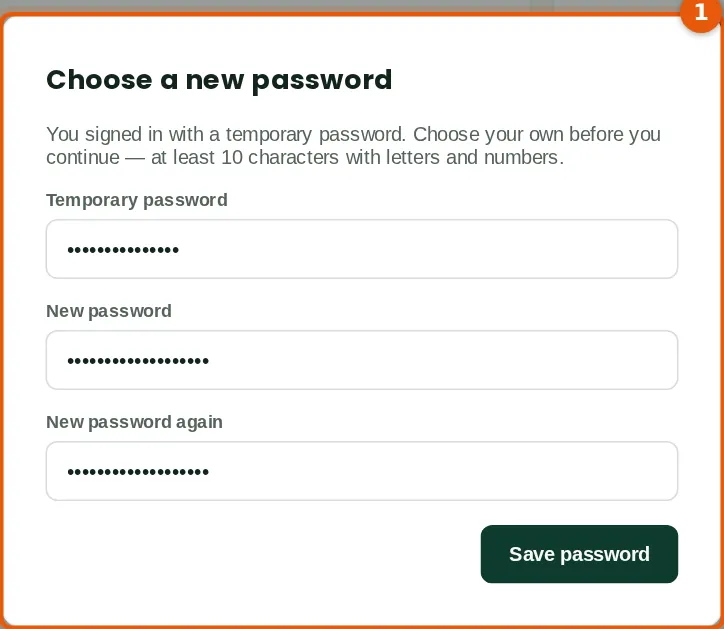
The first sign-in goes through the two-factor set-up (chapter 1) and then asks for a new password (1). The temporary password stops working.
Who
The new person.
What to do
- Type the temporary password, then the new password twice, and click Save password.
3.4 Roles and permissions
Why
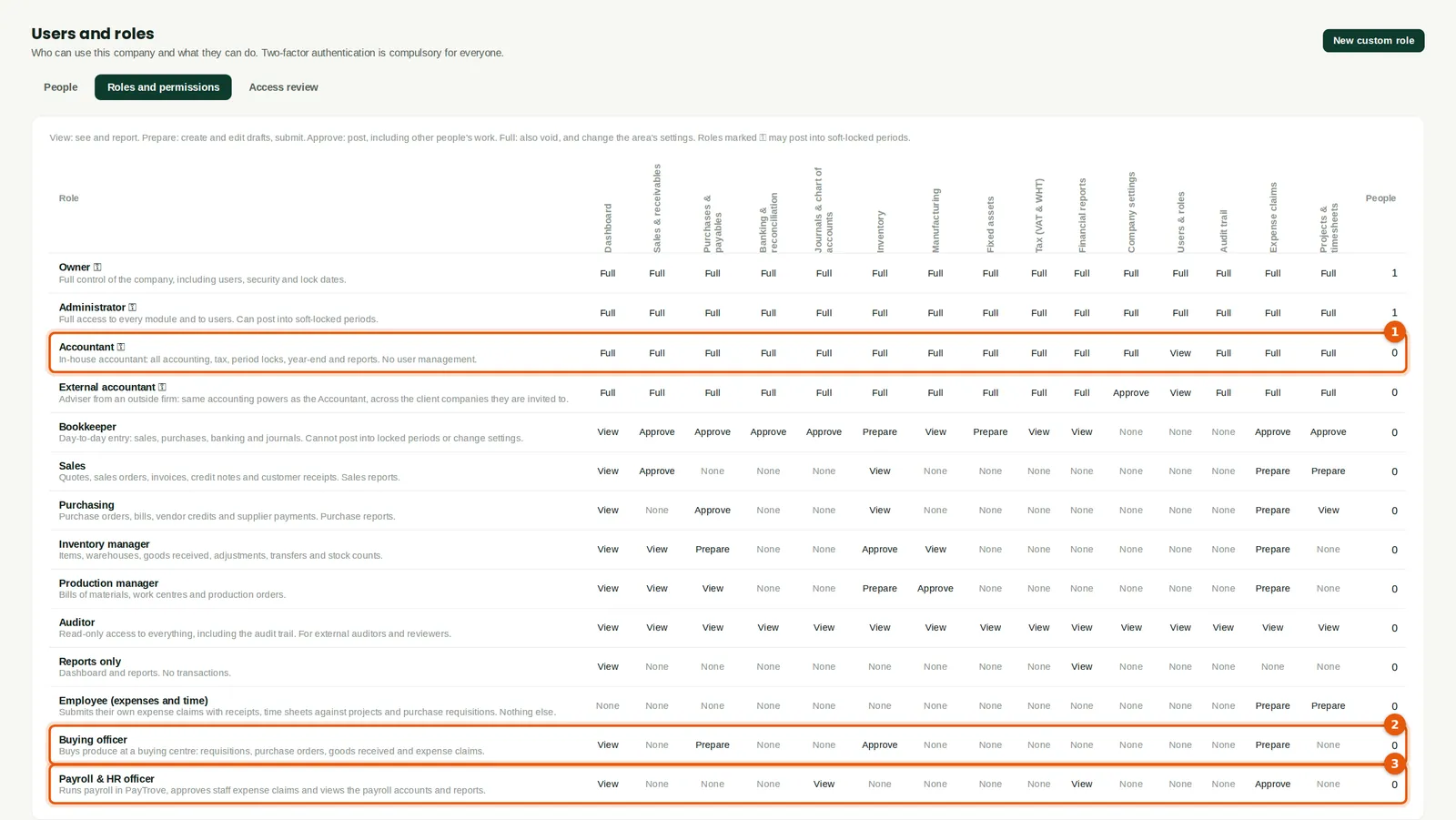
BookTrove has ready-made roles — Owner, Administrator, Accountant (1), External accountant, Bookkeeper, Sales, Purchasing, Inventory manager, Production manager, Auditor, Reports only and Employee — and custom roles (2) (3). Each role has one of five levels in each of fifteen areas: None, View, Prepare (create drafts and submit), Approve (post, including other people's work) and Full (also void and change the area's settings). Roles marked ⚿ may post into soft-locked periods.
Who
Owner or administrator.
What to do
- Read across a row to see what a role allows. Appendix A lists every ready-made role.
- Click New custom role to make your own, or click a custom role to change it.
3.5 A custom role for buying officers
Why
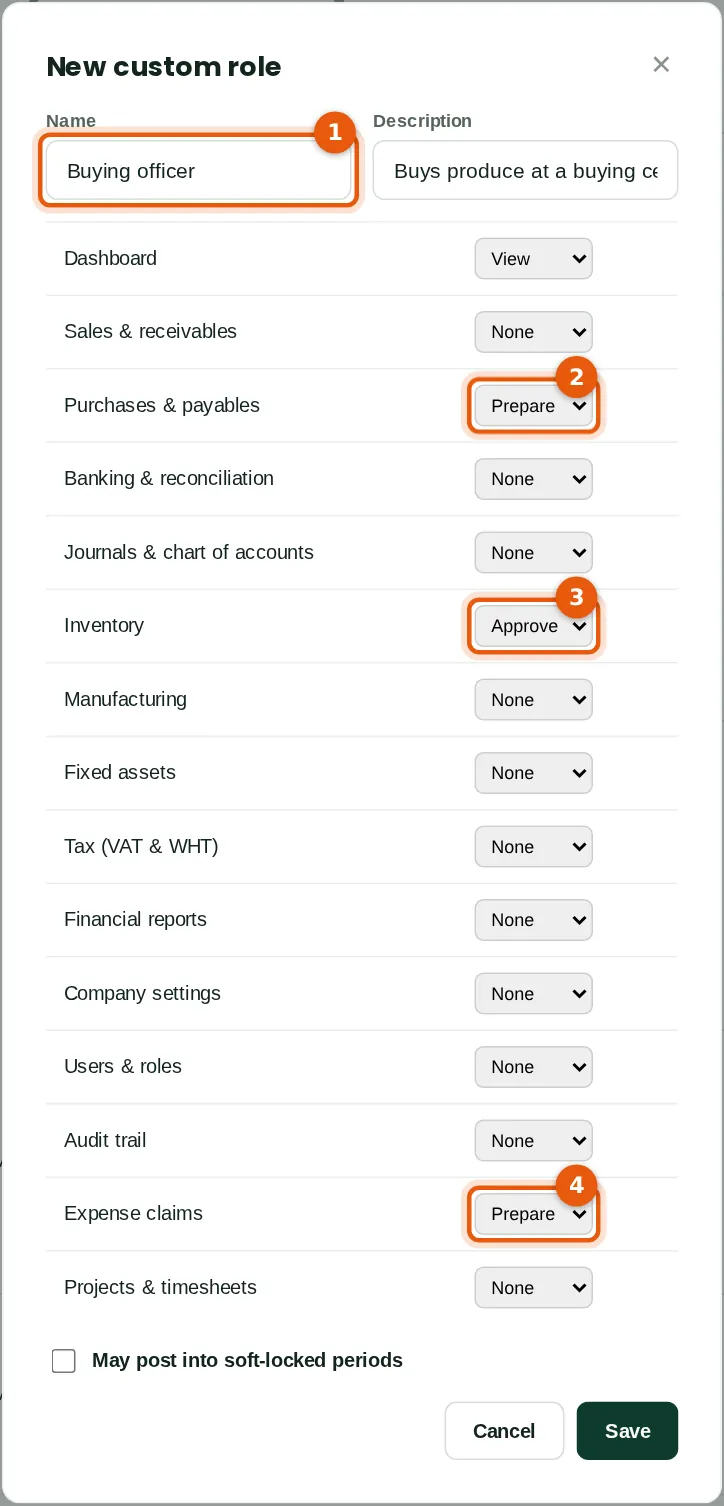
Savannah Harvest's buying officers raise requisitions and purchase orders, receive produce into their centre's store and claim expenses, but do not pay suppliers or see the accounts. None of the ready-made roles fits, so Chukwudi made one. A second custom role, Payroll & HR officer, lets Blessing Etim approve staff expense claims and view the payroll accounts.
Who
Owner or administrator.
What to do
- Name the role (1) and describe it.
- Choose the level for each area: Prepare for purchases (2), Approve for inventory so that goods received can be posted (3), Prepare for expense claims (4), and None elsewhere.
- Click Save. You cannot give a role more access than your own.
3.6 What a buying officer sees
Why
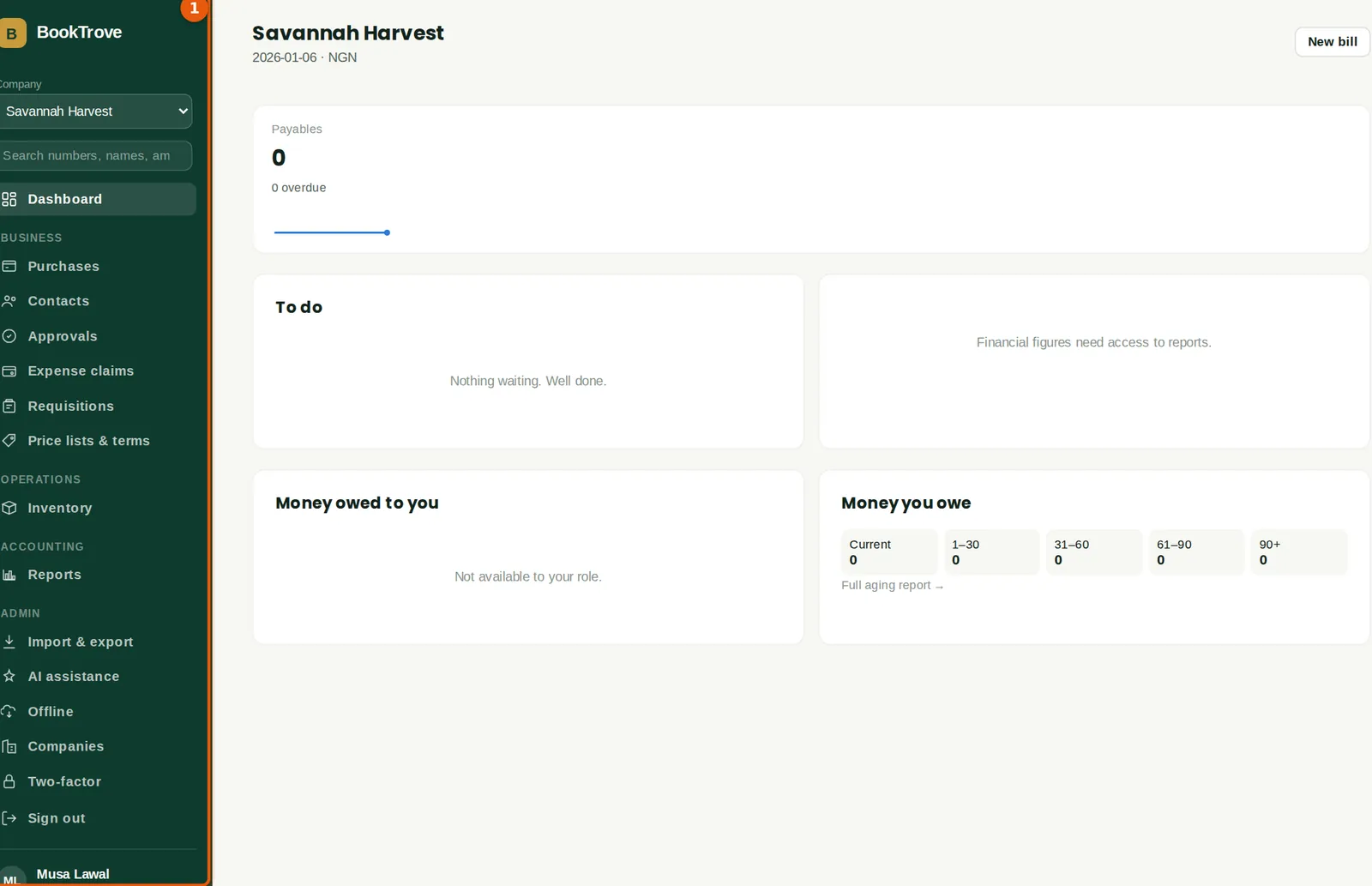
The menu (1) shows only the areas Musa's role allows: purchases, contacts, approvals, expense claims, requisitions, price lists and inventory. The dashboard shows only what he owes suppliers.
Who
Musa Lawal, buying officer at Lafia.
What to do
- Check with each new person that they see what they need, and nothing more.
3.7 Invite the external accountant
Why
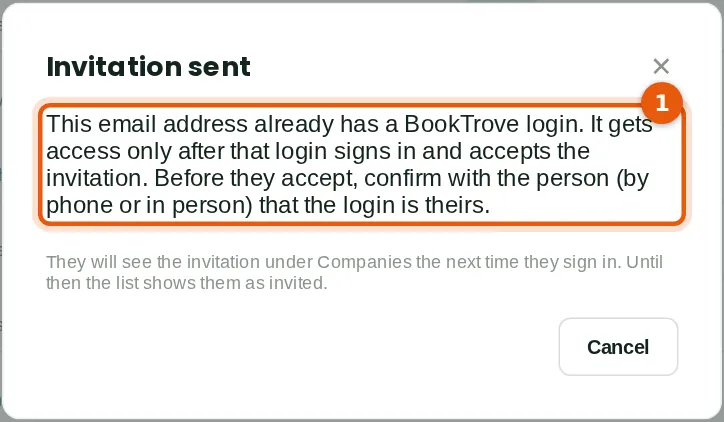
Nkechi Okafor already uses BookTrove for her own firm. Adding her email address therefore sends an invitation to her existing login (1); she gets access only when she accepts, with her own password and authenticator. The External accountant role has the same accounting powers as the Accountant role and does not take a user seat.
Who
Owner or administrator.
What to do
- Add the person with the role External accountant.
- Before they accept, confirm with them by phone that the login is theirs.
3.8 Accept an invitation
Why
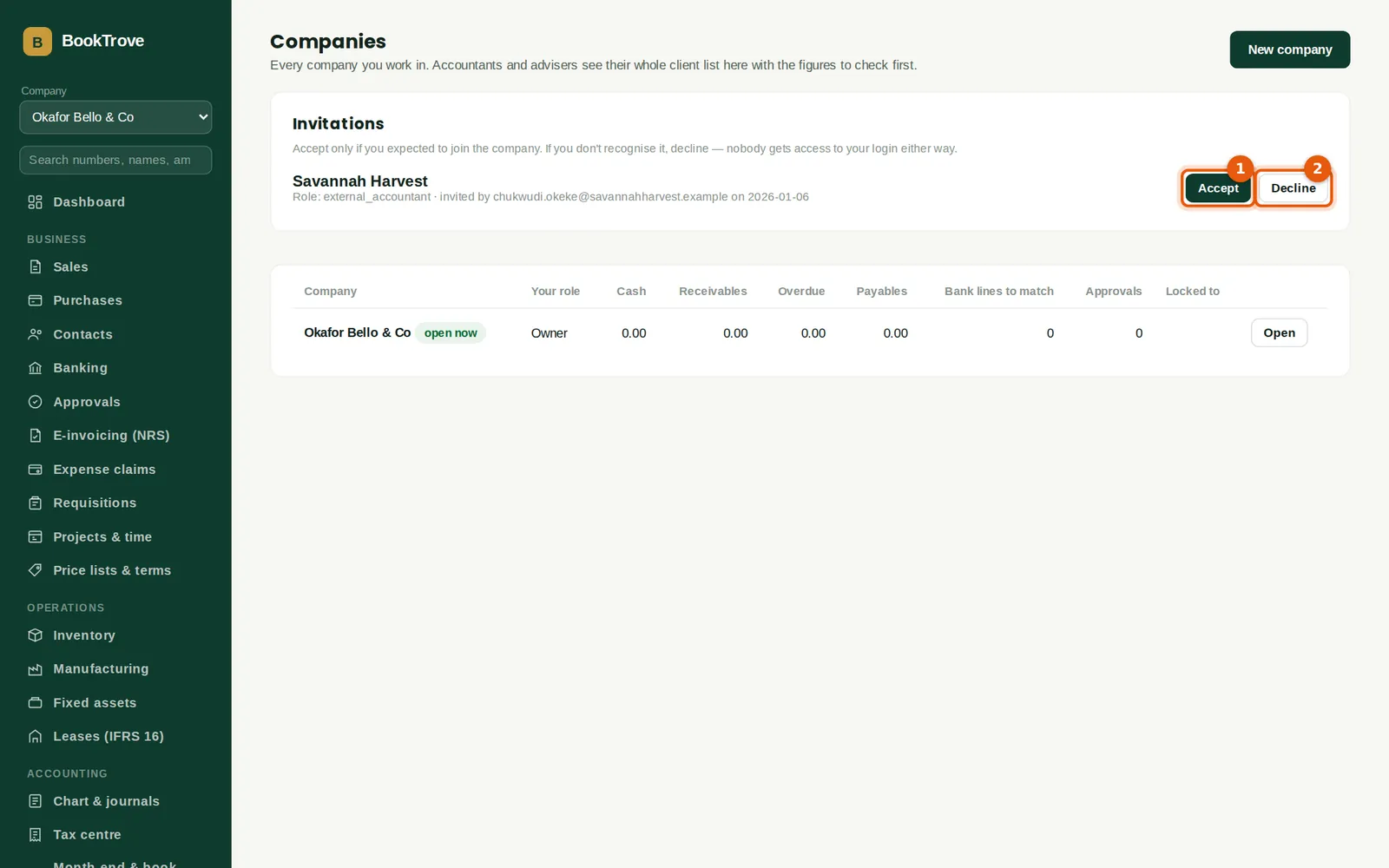
Invitations appear under Companies (and as a notice on the dashboard). Accept only invitations you expected.
Who
The person invited.
What to do
- Click Accept (1) to join the company, or Decline (2).
- Switch to the company with the Company box.
3.9 The people list
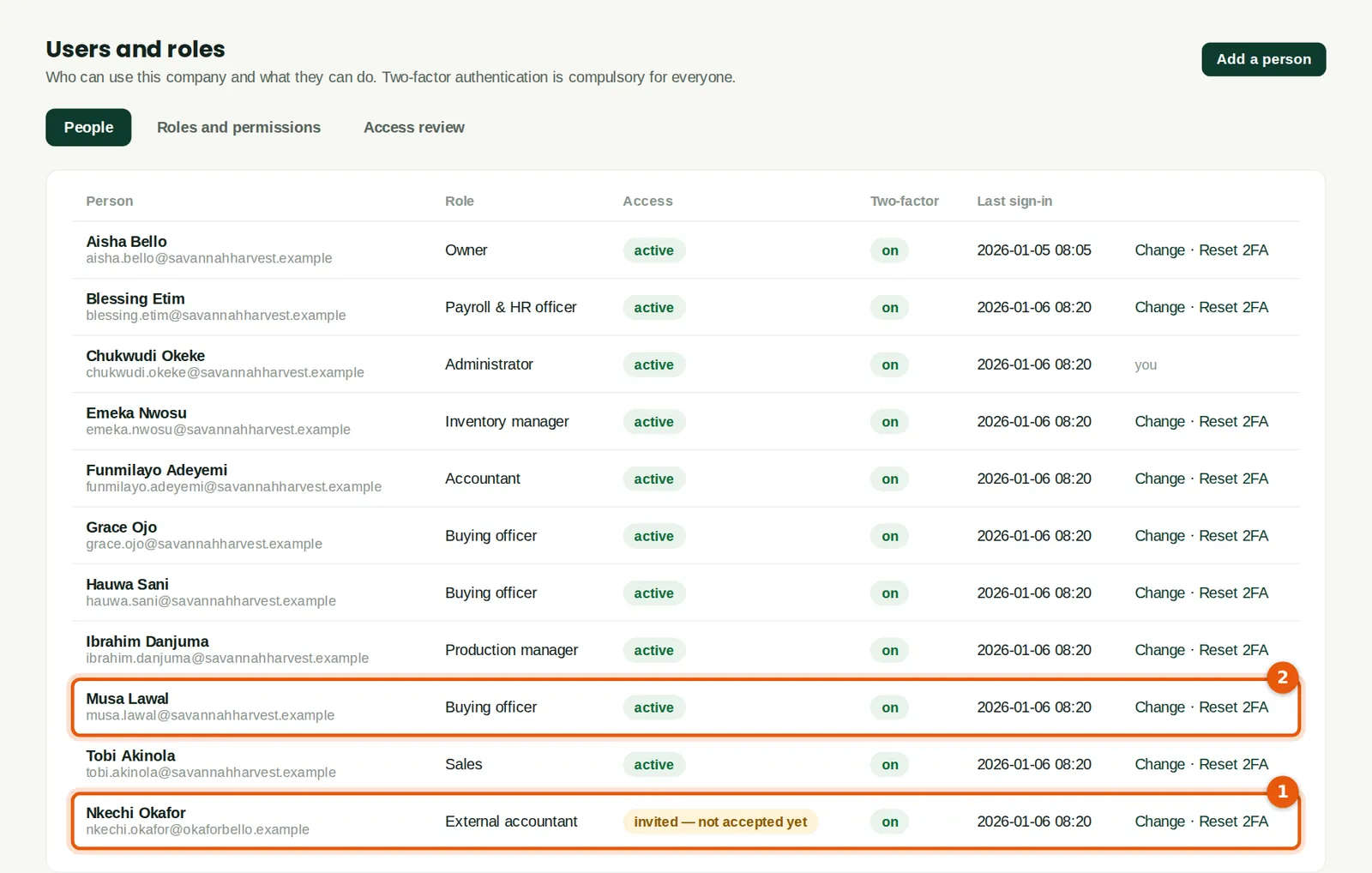
Why
The list shows each person's role, whether their access is active, invited (1) or switched off, whether two-factor is set up, and their last sign-in (2).
Who
Owner or administrator.
What to do
- Click Change to give someone another role or switch their access off. A new role takes effect at once.
- Click Reset 2FA only when someone has lost both their phone and their recovery codes, after checking their identity in person or by video call. You will need your own current code.
3.10 Access review
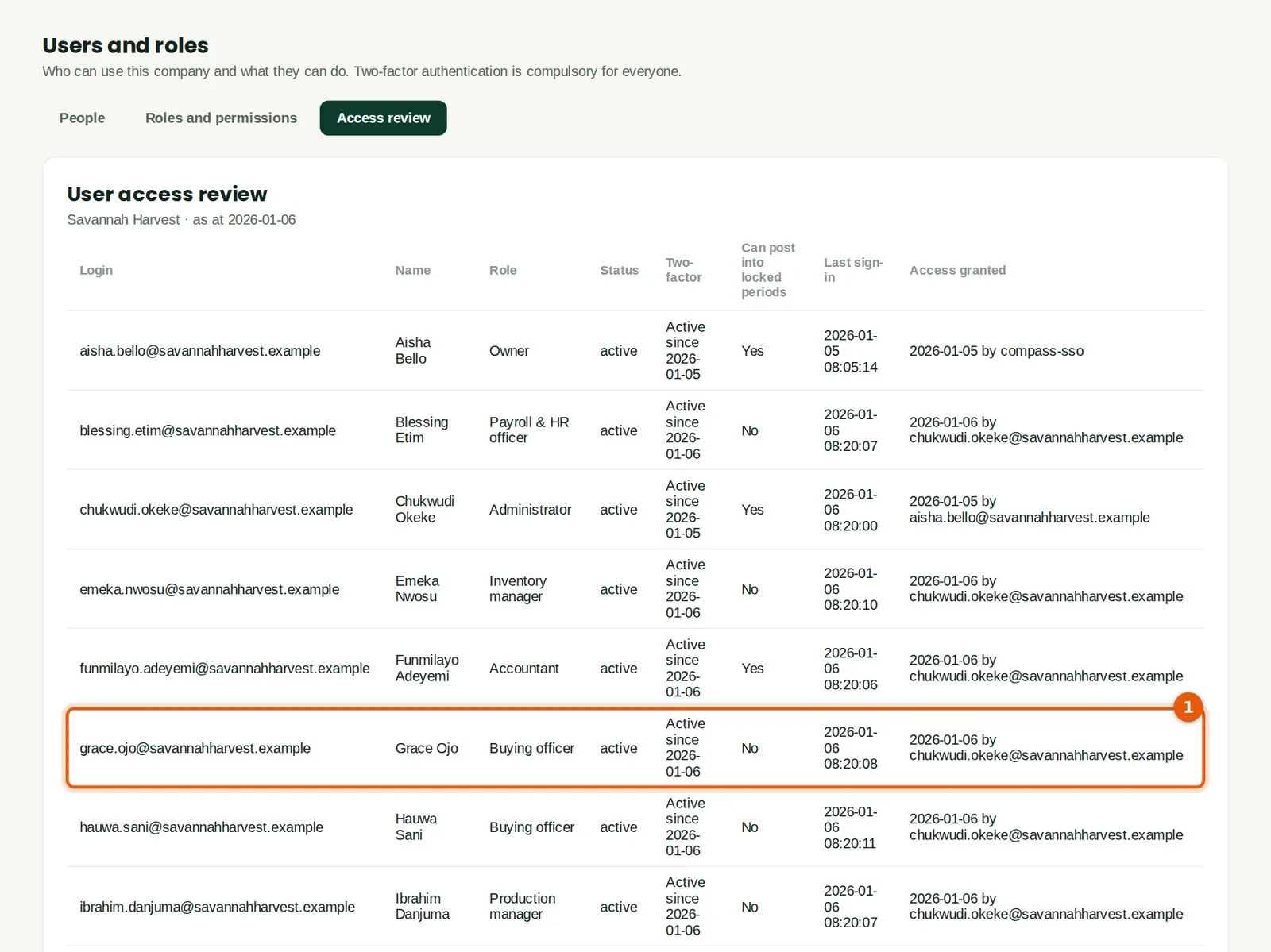
Why
A list of every person with their role, permissions and two-factor status (1), for a periodic review of who can do what — and for the auditors.
Who
Owner, administrator or auditor.
What to do
- Review it at least every quarter and remove access that is no longer needed. Export it from Reports → User access review.
3.11 The approvals inbox
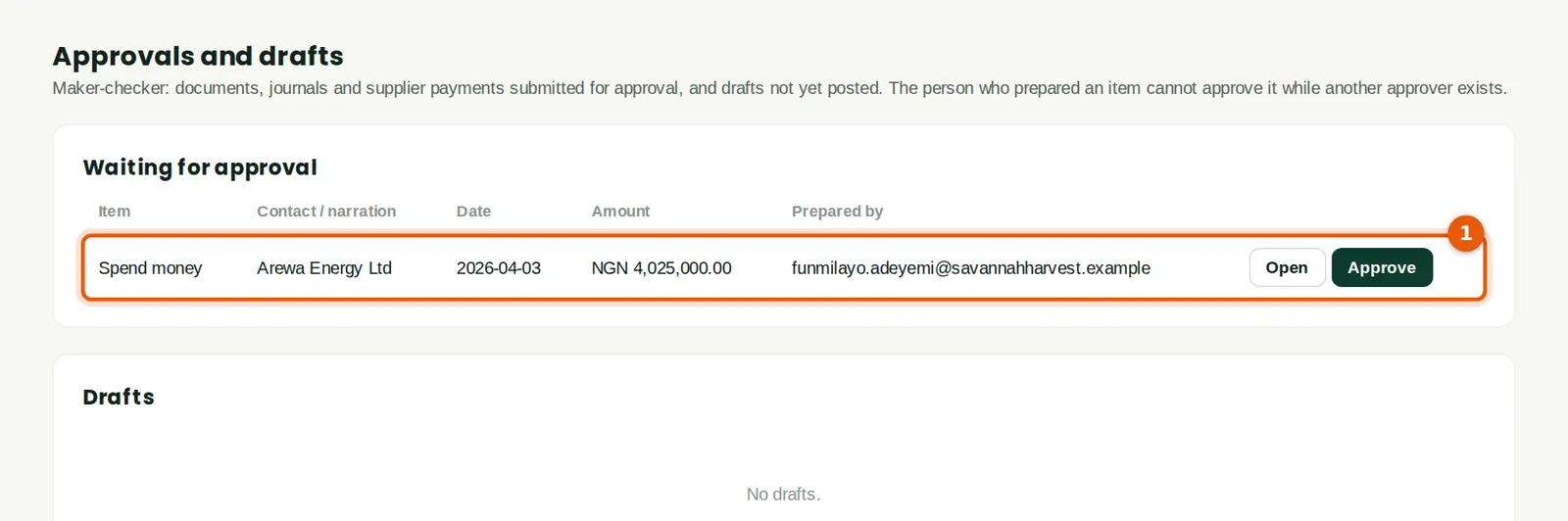
Why
With approvals switched on (chapter 2), a purchase order or payment prepared by one person waits here until someone else with approval rights posts it (1). The preparer cannot approve their own item while another approver exists. Drafts not yet submitted are listed below.
Who
Anyone with Approve level in the area.
What to do
- Click Open to review the item, then Approve. Or approve straight from the list.