Steps in this chapter (14)
This chapter shows how to reach BookTrove, set up the second sign-in step that protects every login, recover a forgotten password and find your way around the screen.
In the illustration, Aisha Bello, the managing director of Savannah Harvest, opens BookTrove for the first time on 5 January 2026 from the company's TroveUniverse account.
1.1 Two ways to sign in
Why
BookTrove is sold by TroveUniverse (troveuniverse.com). The person who buys the subscription opens BookTrove from the TroveUniverse portal: they click Launch on BookTrove and are signed in to their company without typing a BookTrove password. This is single sign-on. People added later by the company can also use the portal if they have a portal login; everyone else signs in on the BookTrove sign-in page with an email address and a password.
Who
Everyone.
What to do
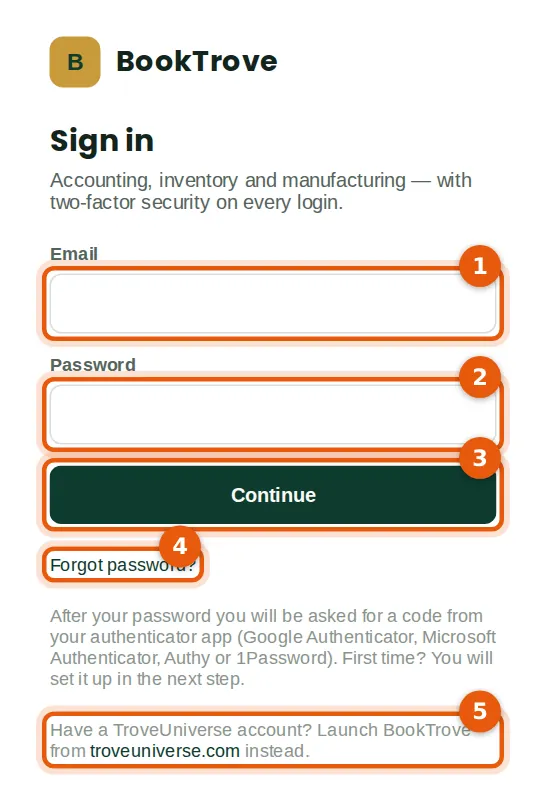
- From troveuniverse.com: sign in to the portal and click Launch on BookTrove. The link works once and only for a short time, so always start from the portal. The sign-in page reminds you of this (5): Have a TroveUniverse account? Launch BookTrove from troveuniverse.com instead.
- On the sign-in page: type your email address (1) and password (2), then click Continue (3).
- If you have forgotten your password, click Forgot password? (4) — see step 1.6.
1.2 Set up two-factor authentication
Why
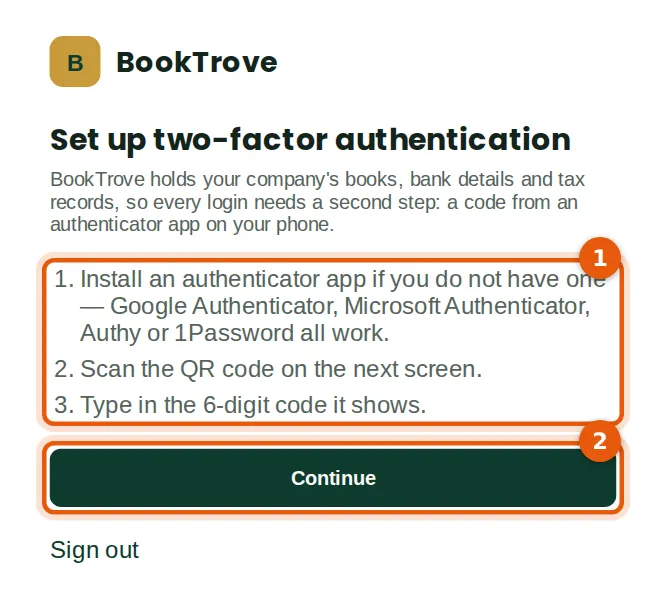
BookTrove holds the company's books, bank details and tax records, so every login needs a second step as well as the password: a six-digit code from an authenticator app on your phone. It cannot be switched off. Google Authenticator, Microsoft Authenticator, Authy and 1Password all work.
Who
Every person, the first time they sign in.
What to do
- Install an authenticator app on your phone if you do not have one (1).
- Click Continue (2).
1.3 Scan the QR code
Why
Scanning the code links the app to your BookTrove login. From then on the app shows a new code every 30 seconds.
Who
Every person, the first time they sign in.
What to do
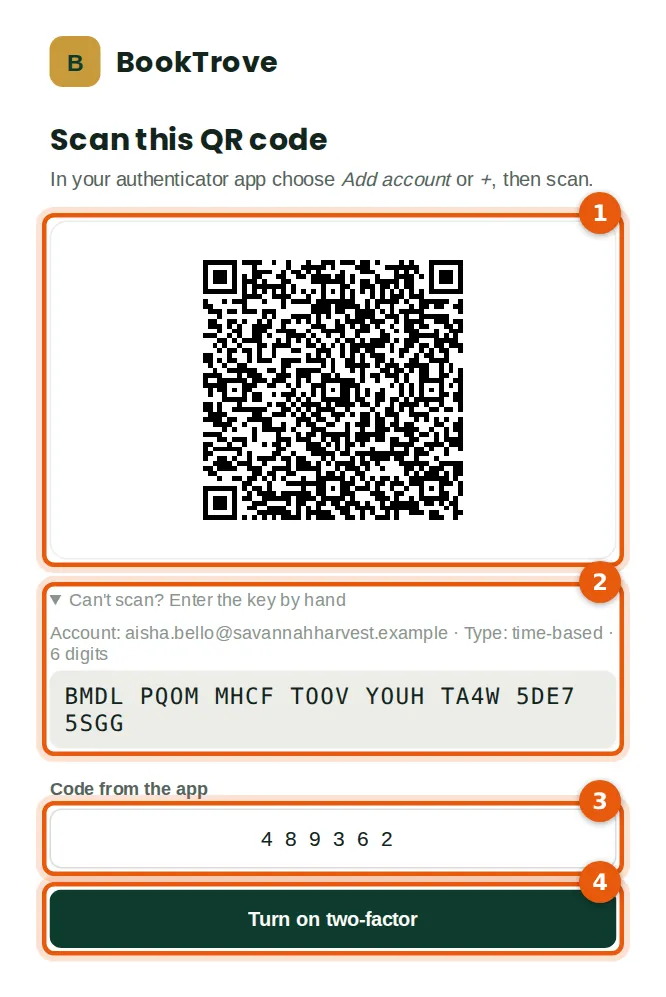
- In the app choose Add account (or +) and scan the QR code (1).
- If the phone cannot scan, open Can't scan? and type the key shown into the app (2).
- Type the six-digit code from the app (3) and click Turn on two-factor (4).
1.4 Save your recovery codes
Why
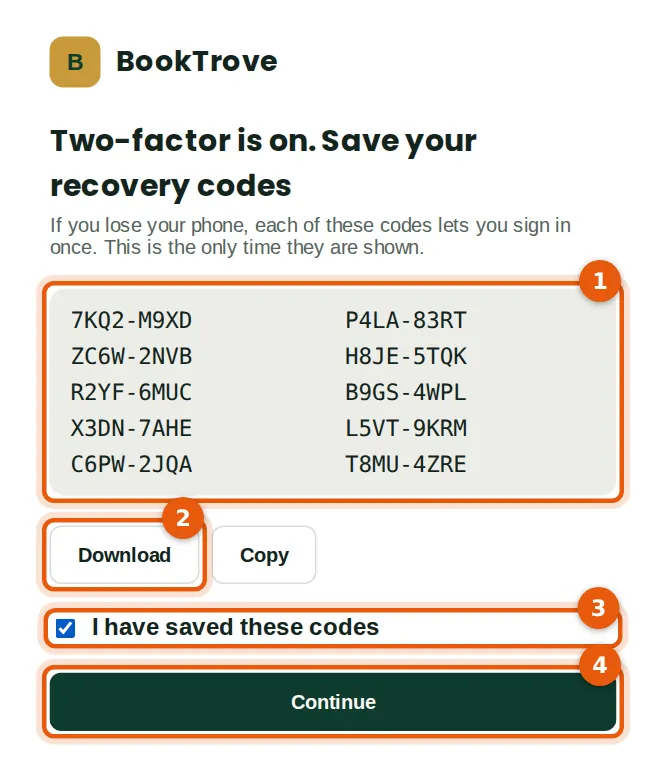
If you lose your phone, each recovery code lets you sign in once. Keep them somewhere private and away from the phone — for example printed and locked away, or in a password manager.
Who
Every person, once.
What to do
- Keep the codes (1): click Download to save them as a text file (2), or copy them.
- Tick I have saved these codes (3) and click Continue (4).
1.5 Signing in on later days
Why
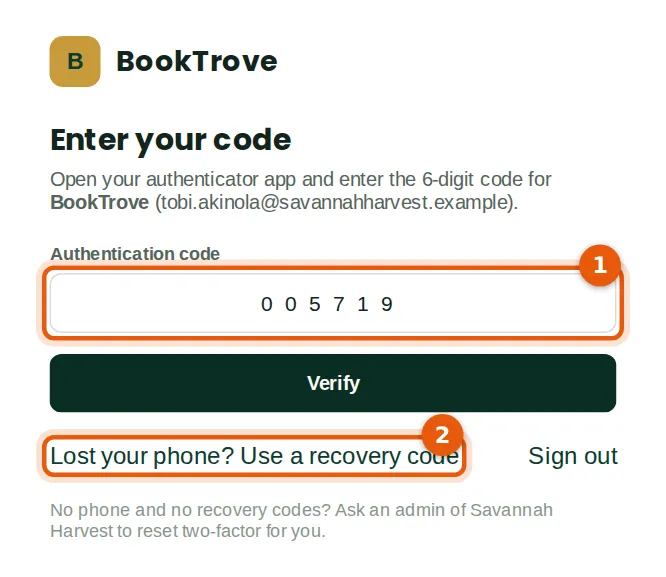
Each time you sign in, BookTrove asks for the current code from your app. A code works once; if it is refused, wait for the next one. Sessions end after an hour without activity, and after twelve hours in any case.
Who
Everyone, at each sign-in.
What to do
- Type the six-digit code from your app (1). BookTrove signs you in as soon as six digits are typed.
- Lost your phone? Click Lost your phone? Use a recovery code (2) and type one of your saved codes.
1.6 Forgotten password
Why
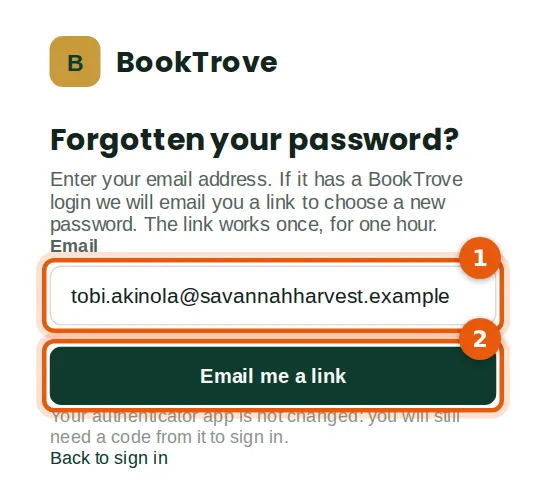
BookTrove emails a one-time link that works for 60 minutes. For your security the page gives the same answer whether or not the address has a login. People who always sign in through troveuniverse.com reset their password on the portal instead.
Who
Anyone who signs in with a BookTrove password.
What to do
- On the sign-in page click Forgot password?, type your email address (1) and click Email me a link (2).
1.7 Check your email
Why
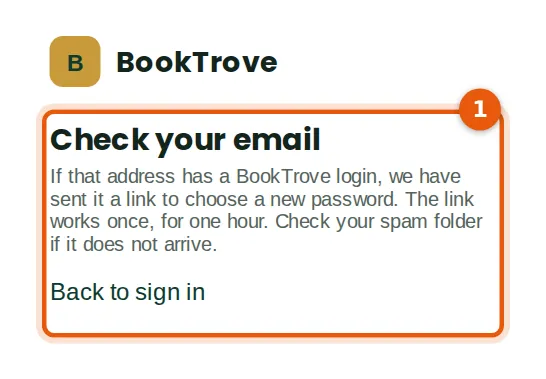
The link goes only to the email address of the login. It stops working once used, after 60 minutes, or when a newer link is requested.
Who
The person resetting the password.
What to do
- Open your email (1). If nothing arrives within a few minutes, check the spam folder, then ask for a new link.
1.8 The reset email
Why
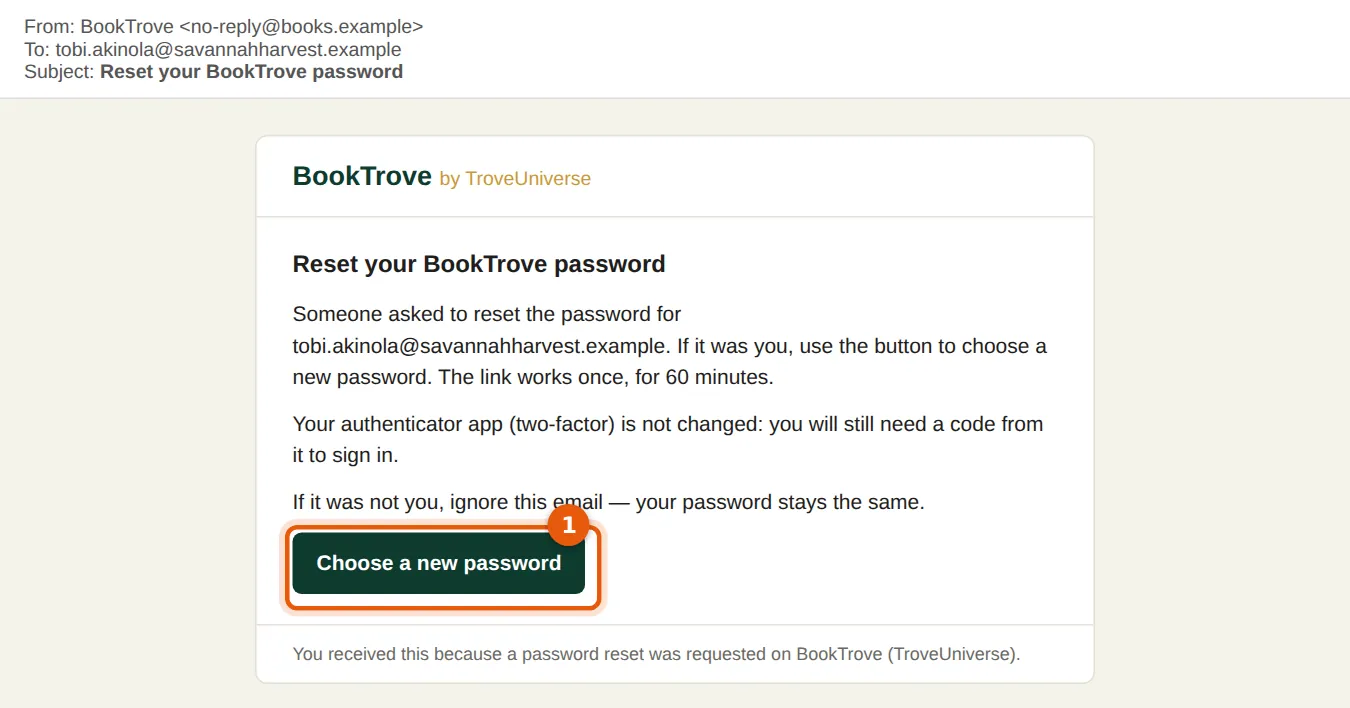
The email comes from BookTrove and contains a single button. BookTrove never asks for your password or your authenticator code by email.
Who
The person resetting the password.
What to do
- Click the button in the email (1). It opens the BookTrove reset page.
1.9 Choose a new password
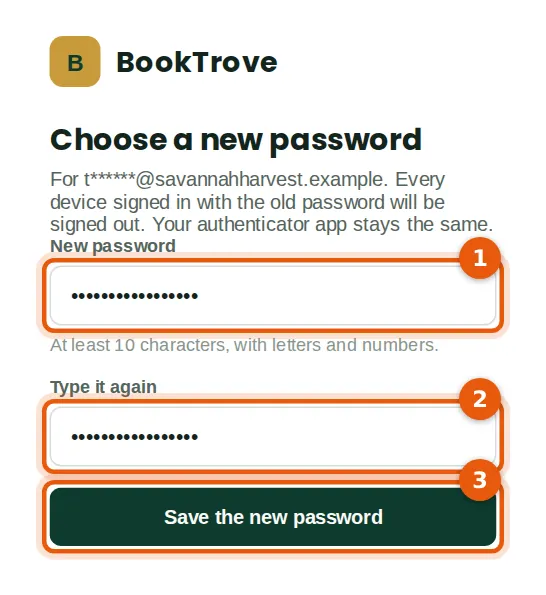
Why
Saving the new password signs you out on every device. Two-factor stays as it is: at the next sign-in BookTrove still asks for the code from your app.
Who
The person resetting the password.
What to do
- Type the new password (1) and type it again (2).
- Click Save the new password (3), then sign in with it.
1.10 Find your way around: the dashboard
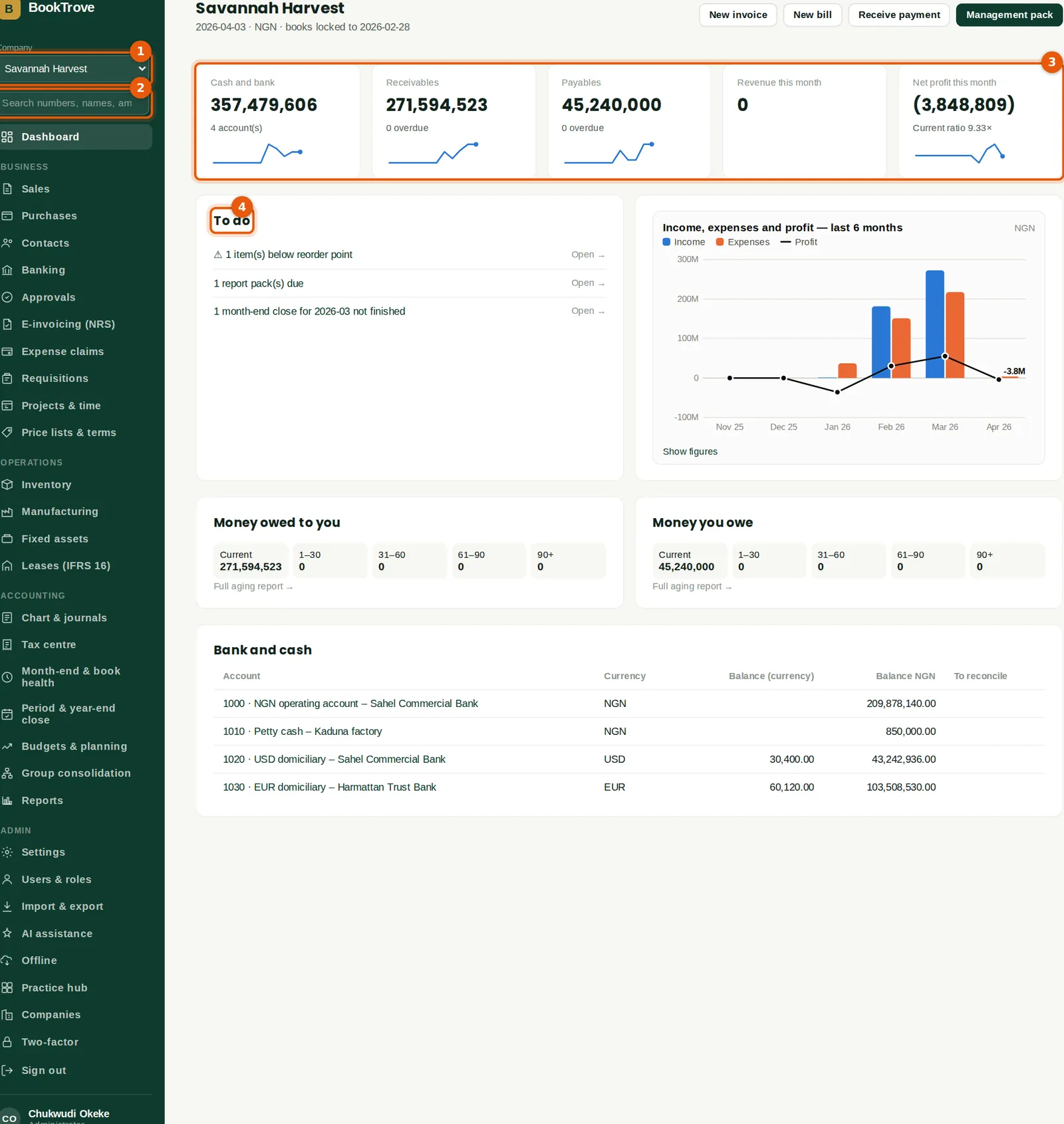
Why
The dashboard shows the money position at a glance: cash and bank, what customers owe and what the company owes, this month's revenue and profit, the tasks waiting for you, and a six-month chart. The menu on the left lists only the areas your role and the company's plan allow.
Who
Everyone. What each person sees depends on their role.
What to do
- The Company box (1) shows the company you are working in. People who work in several companies switch here.
- The search box (2) finds documents by number, reference, contact, TIN, item code or exact amount — see the next step.
- The cards (3) show cash, receivables, payables, revenue and profit, each with a 12-month trend line. Click a figure to open the report behind it.
- To do (4) lists what needs attention: approvals, bank lines to match, month-end tasks and overdue items.
1.11 Search
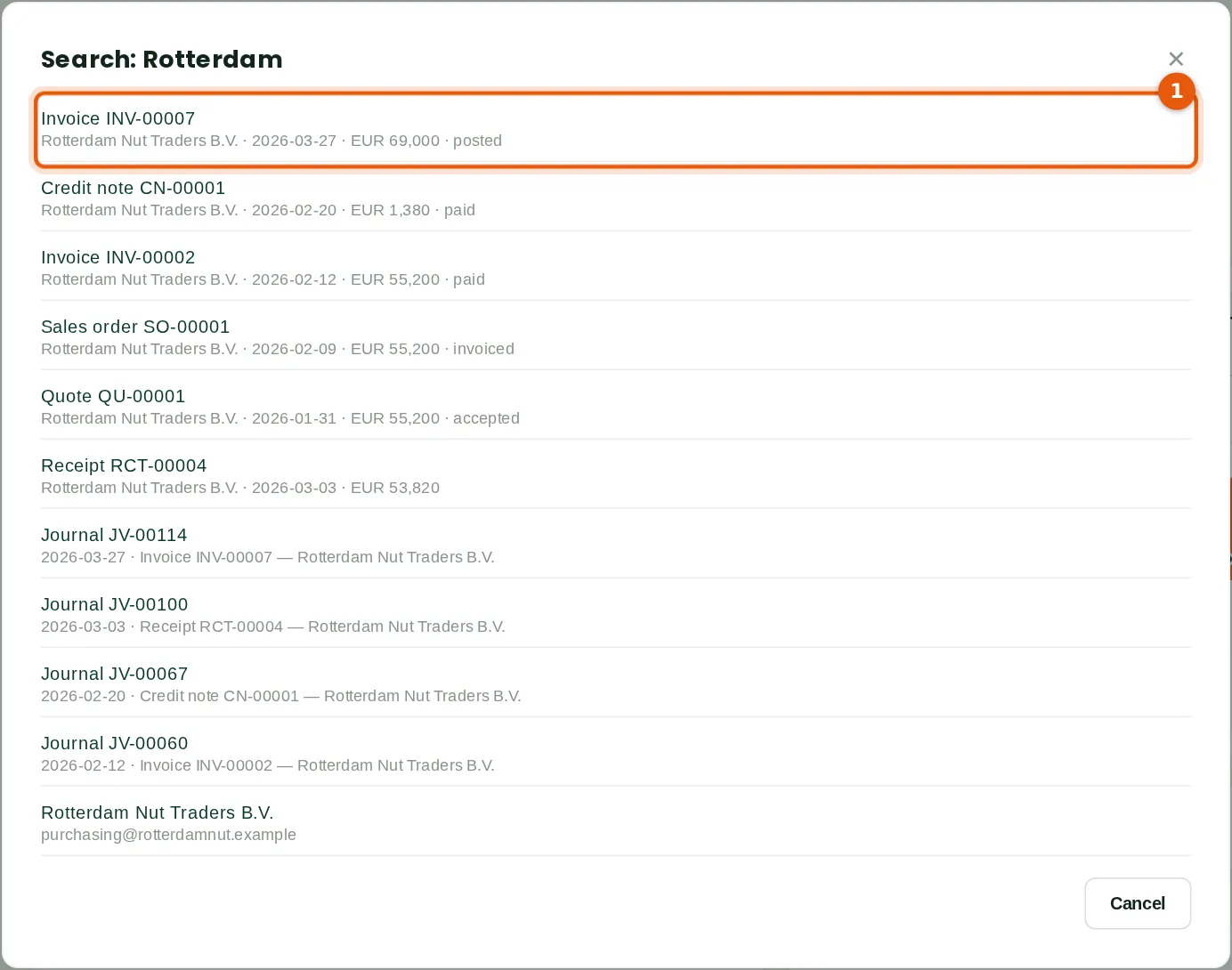
Why
Search looks through document numbers, references, contact names, TINs, item codes, journal narrations and exact amounts, and shows only what your role may see.
Who
Everyone.
What to do
- Type in the search box and press Enter. Click a result (1) to open it.
1.12 Companies
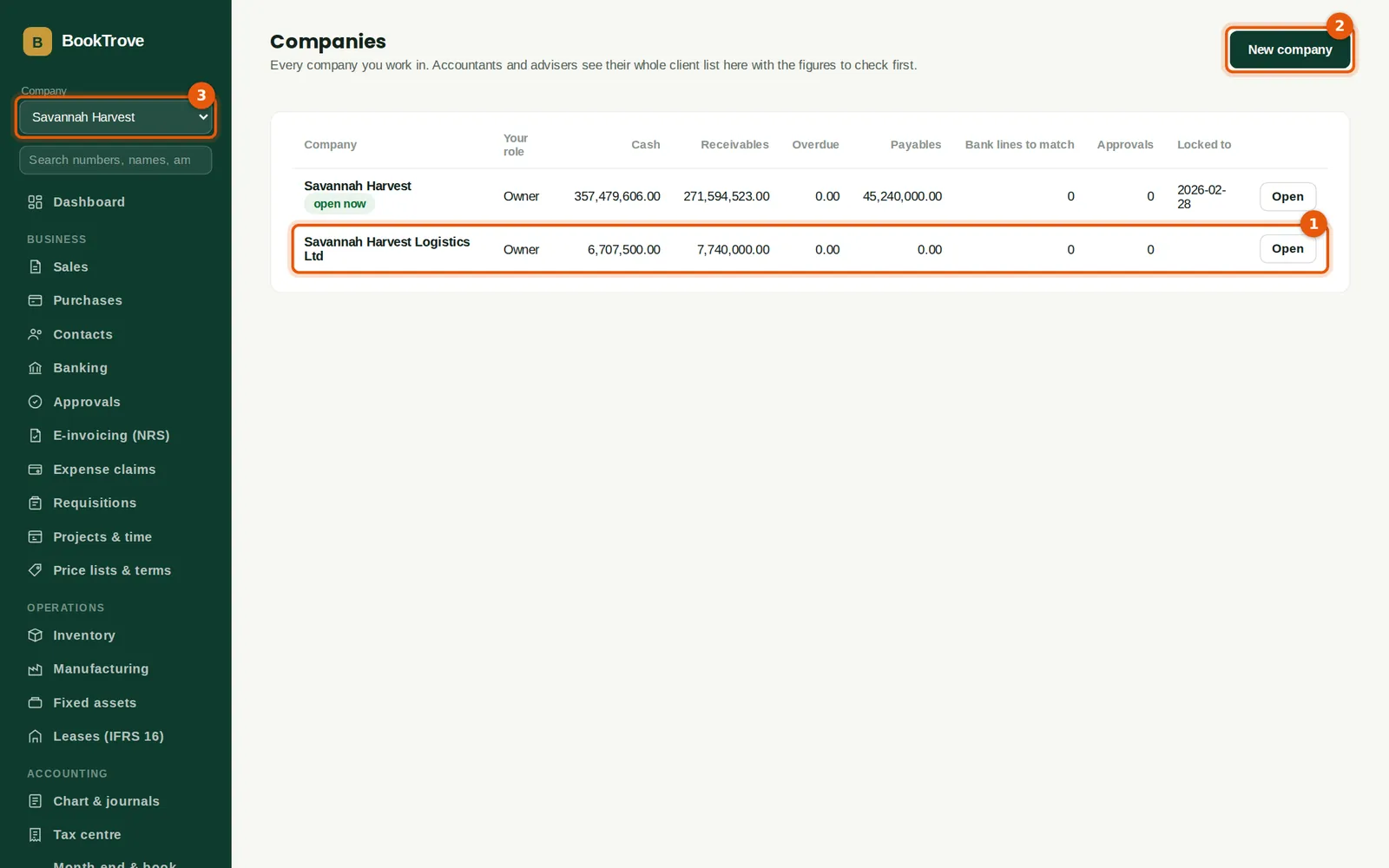
Why
One login can belong to many companies — for example a group's subsidiaries, or an accountant's clients. The Companies page lists them with cash, receivables, overdue amounts and waiting approvals. In the illustration, Savannah Harvest created its haulage subsidiary in February (chapter 13).
Who
Everyone; owners create new companies.
What to do
- Click Open on a company to work in it, or use the Company box (3).
- Owners create another company with New company (2). It counts towards the companies included in the plan (chapter 15).
- Invitations to join another company also appear here (chapter 3).
1.13 Your two-factor settings
Why
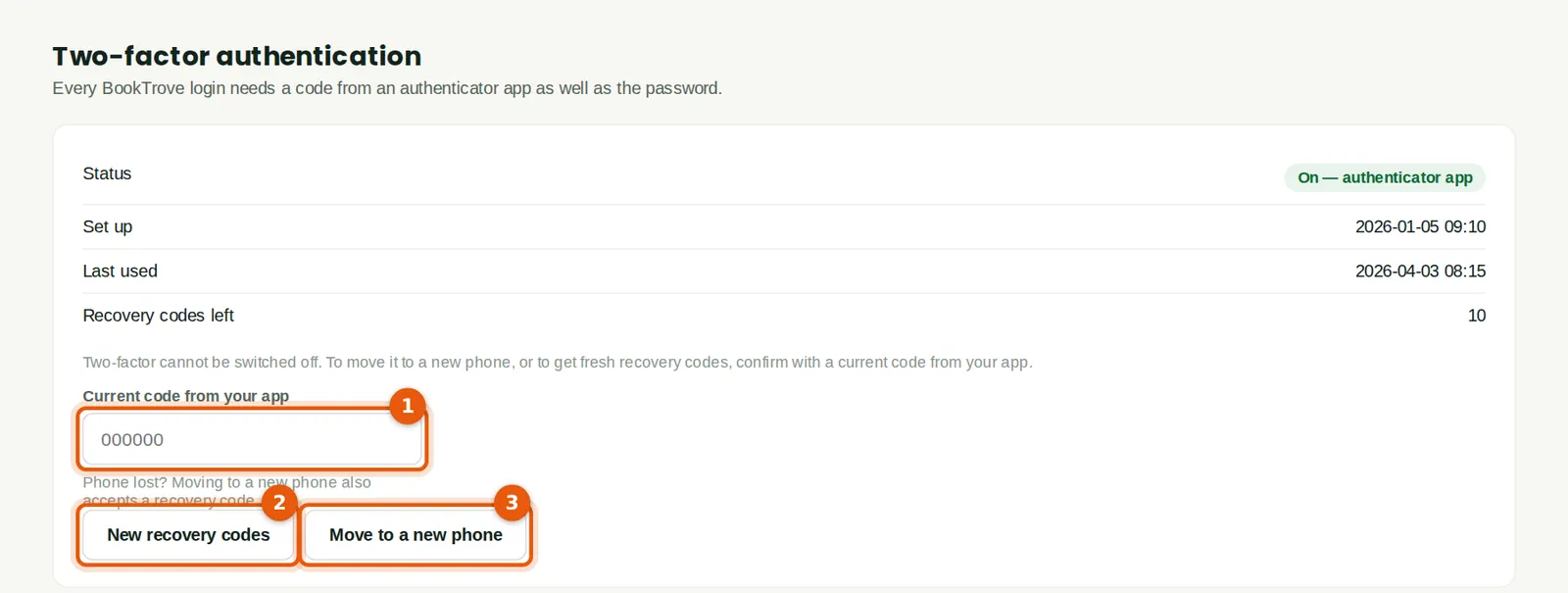
Use this page when you change phones or have used several recovery codes. Both actions need a current code from your app, so nobody else can move your two-factor to their phone.
Who
Everyone, for their own login.
What to do
- Type a current code from your app (1).
- Click New recovery codes (2) to replace the old ones, or Move to a new phone (3) to scan a new QR code.
- If you have lost the phone and the codes, ask an owner or administrator to reset your two-factor (chapter 3).
1.14 Change your password and sign out other devices
Why
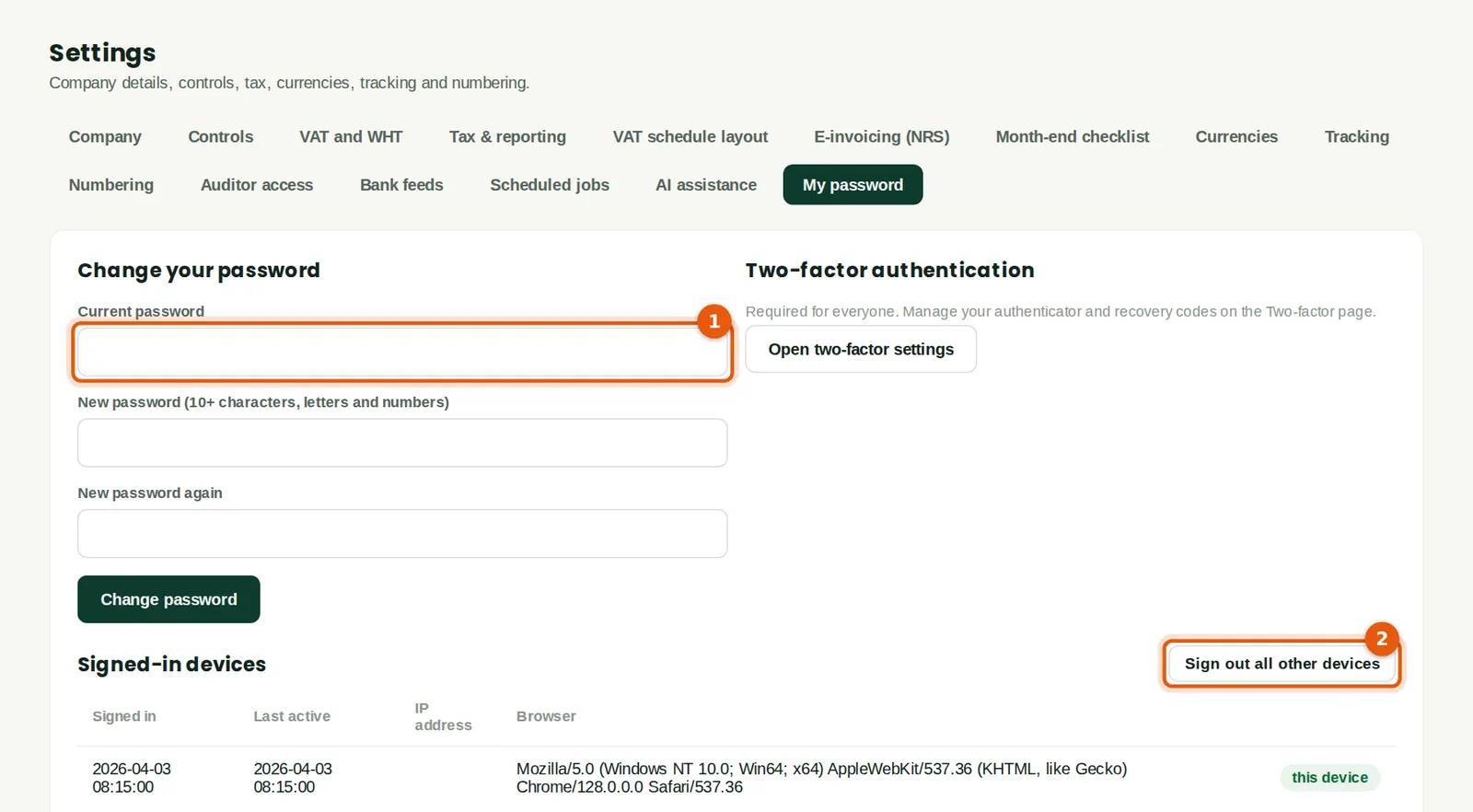
Change the password whenever you think someone else may know it. The same page lists the devices signed in to your login, so you can sign them out.
Who
Everyone, for their own login.
What to do
- Open Settings → My password. Type the current password and the new one twice, then save.
- Under signed-in devices, sign out any device you do not recognise.