Steps in this chapter (11)
This chapter covers the features that support the day-to-day work: AI assistance, the audit trail and control reports, access for the statutory auditors, scheduled jobs, the company export, offline working, and the practice hub for external accountants.
Where else to look
Other chapters cover these areas in more detail:
| Area | What it does |
|---|---|
| Projects & time | Projects, time sheets, approval and billing of time and rechargeable costs (chapter 16). |
| Import & export → Import data | CSV import of contacts, items, the chart of accounts, opening balances, open invoices and bills, fixed assets and budgets, with a template for each and a check before anything is saved (used in chapters 2 and 4; the templates are in chapter 18). Data can also be brought across from QuickBooks, Sage and Zoho exports. |
| Import & export → Payroll journal | Posts a payroll journal from a payroll system's export, such as PayTrove (chapters 10 and 18). |
| Bank feeds | Connects a bank account so that statement lines arrive automatically (chapter 8). It needs the company's own agreement and keys with a bank-feed provider (chapter 18). |
14.1 AI assistance: set it up
Why
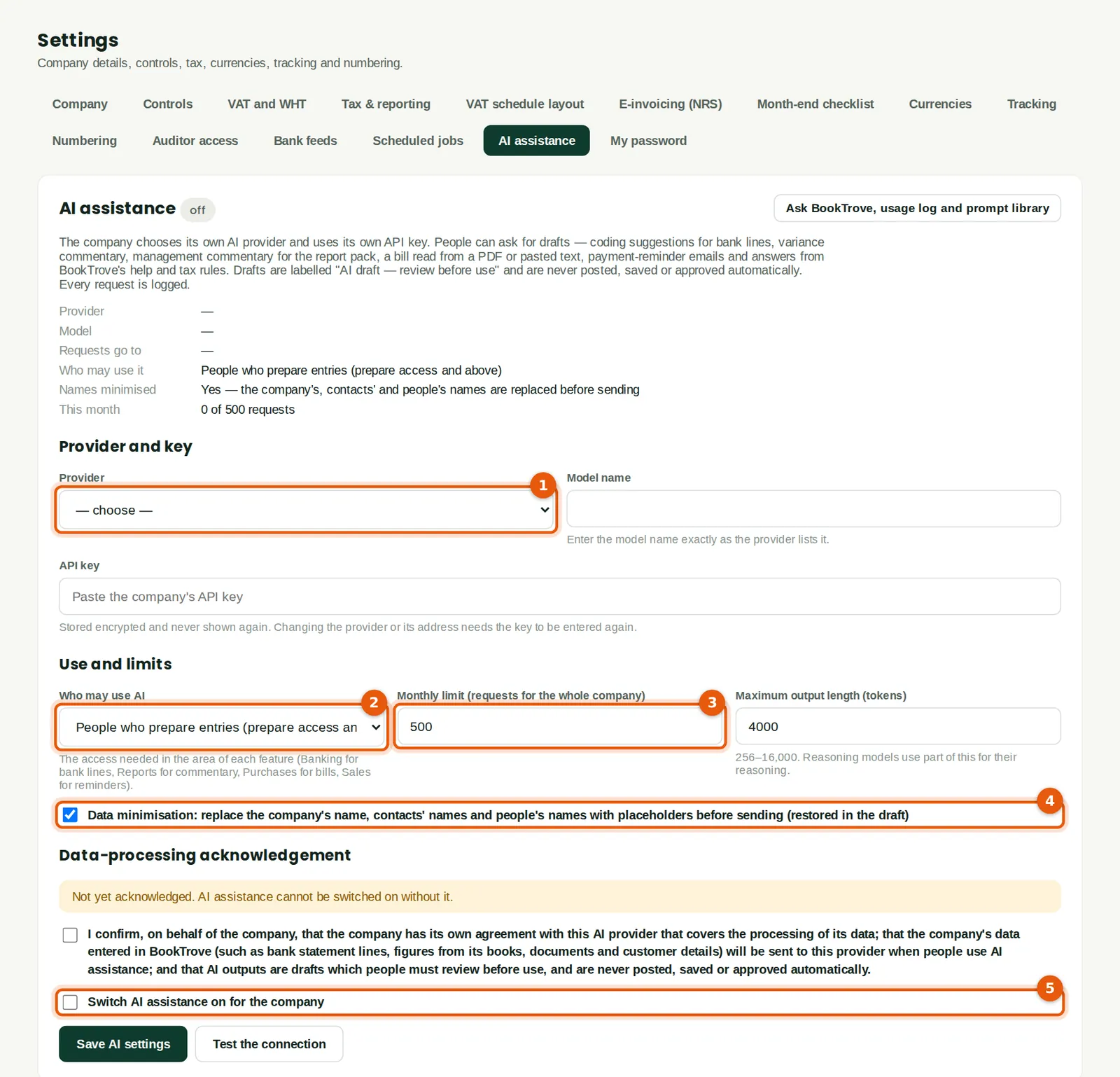
AI assistance is off until the company switches it on with its own AI provider and API key; BookTrove does not supply one. When on, it can suggest coding for bank lines, draft variance and management commentary, read a supplier bill from a PDF, draft payment reminders and answer questions from BookTrove's help and tax rules. Its output is always a draft for a person to review; nothing is posted or approved automatically, and every request is logged. Savannah Harvest has not set it up, so the screens here show it switched off.
Who
An owner or administrator.
What to do
- Choose the provider (1), type the model name and paste the company's API key. The key is stored encrypted and never shown again.
- Choose who may use it (2) and set a monthly limit on requests (3).
- Keep Data minimisation (4) ticked: names of the company, contacts and people are replaced with placeholders before anything is sent, and restored in the draft.
- Read the data-processing acknowledgement and tick it: the company confirms it has an agreement with the provider that covers its data. Then tick Switch AI assistance on (5) and click Save AI settings. Test the connection to check the key.
14.2 AI assistance: ask BookTrove
Why
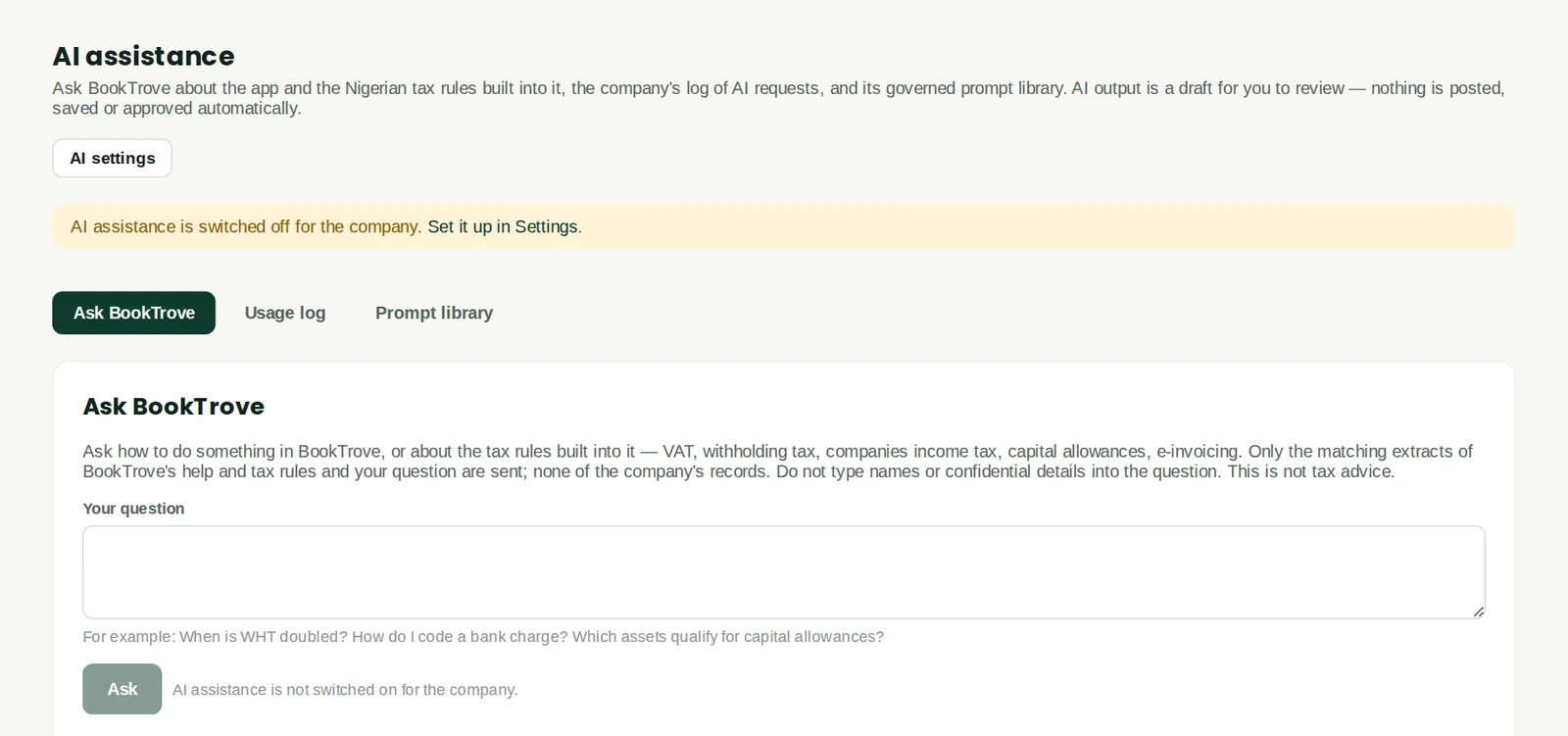
Ask BookTrove answers questions about the app and the Nigerian tax rules built into it, using only BookTrove's help and tax rules — none of the company's records are sent. The Usage log lists every request, and the Prompt library holds the company's approved prompts. While AI assistance is off, the page says so and the Ask button is disabled, as here.
Who
The people allowed in the settings.
What to do
- Type a question — for example "When is WHT doubled?" — and click Ask. Treat the answer as a draft and check it.
14.3 The audit trail
Why
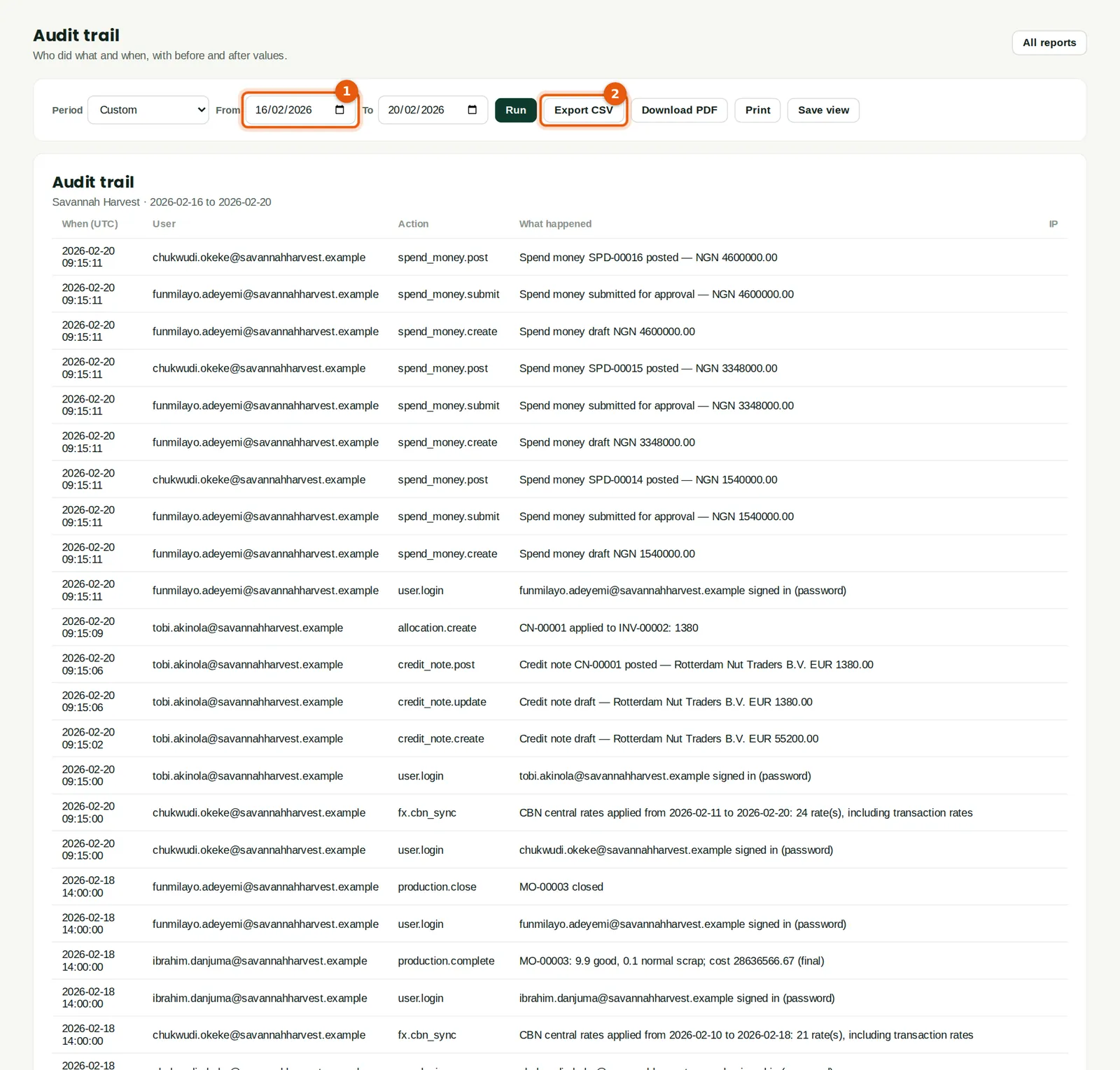
Every change is recorded with who did it, when and what changed: documents created, submitted, approved and posted, sign-ins, settings changes, exchange-rate updates and more. The trail cannot be edited or deleted.
Who
Owners, administrators, auditors.
What to do
- Choose the dates (1) and click Run. Export CSV (2) to give it to the auditors.
14.4 Control exceptions
Why
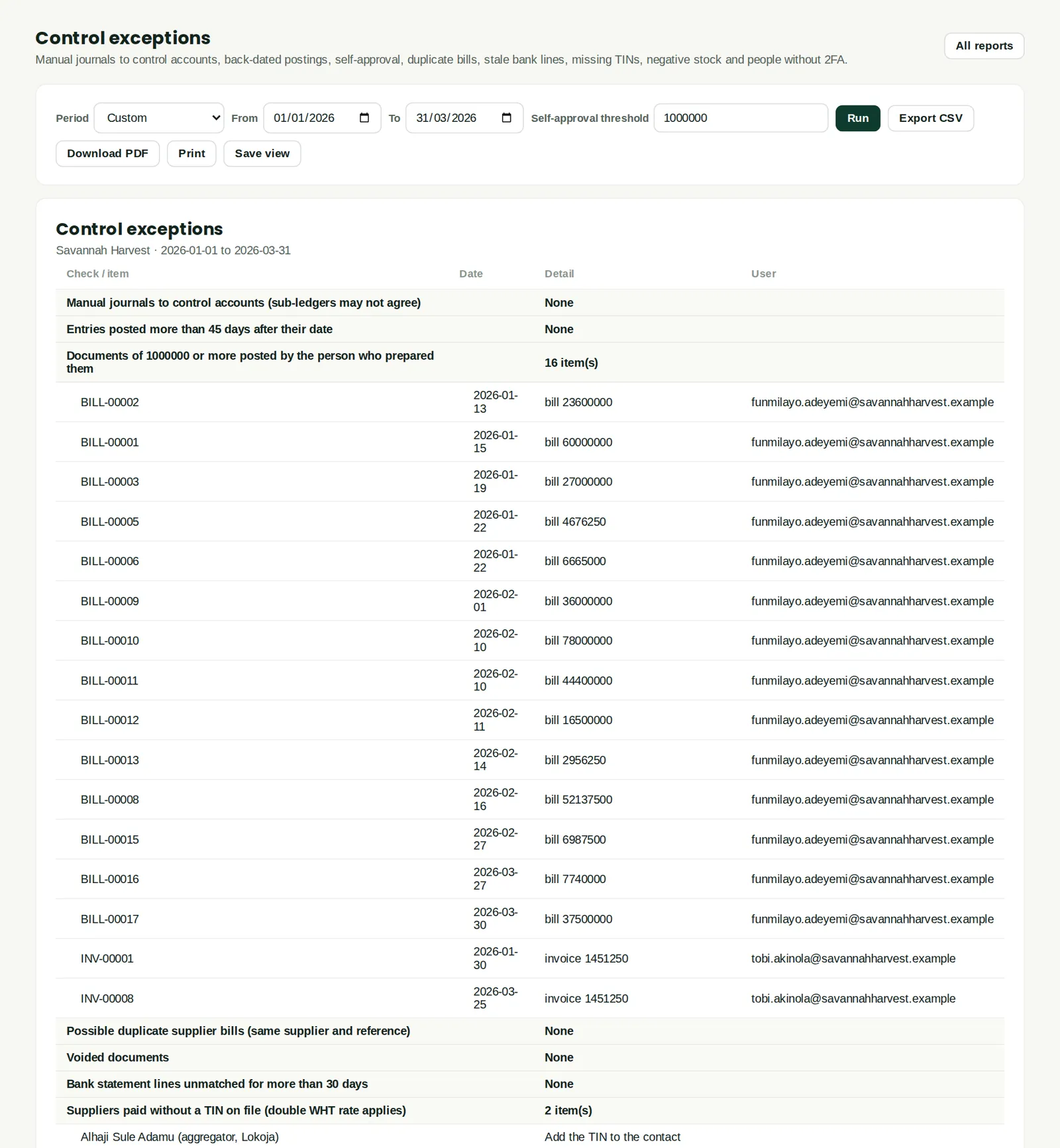
A list of the things auditors look for: manual journals to control accounts, back-dated postings, documents above a threshold posted by the person who prepared them, possible duplicate bills, voided documents, stale unmatched bank lines, suppliers paid without a TIN (double WHT applies), negative stock and people without two-factor. Here many bills above ₦1,000,000 were prepared and posted by the same person, because approvals were switched on only for purchase orders and payments (chapter 3) — a point for the owners to consider.
Who
Owners, finance manager, internal and external auditors.
What to do
- Choose the period and the self-approval threshold, and click Run. Follow up each item.
14.5 Give the statutory auditors access
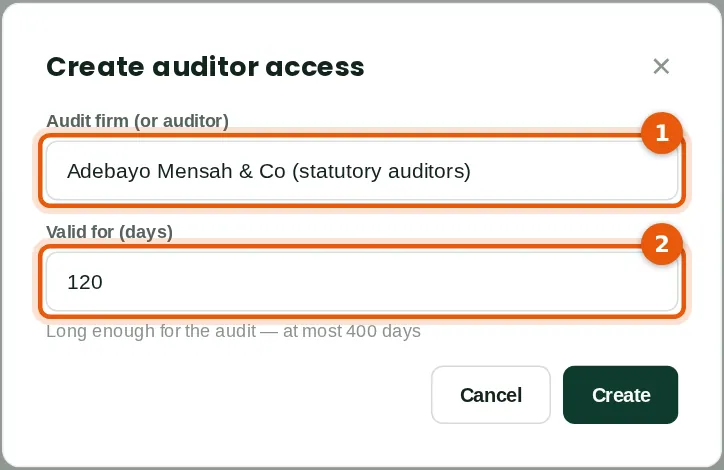
Why
Auditors using AuditTrove can link their audit file to the company's books with a read-only token, and import the trial balance, ledgers and documents directly. The token is valid for a fixed number of days and can be revoked at any time. Savannah Harvest's auditors in the illustration are the fictional Adebayo Mensah & Co.
Who
An owner or administrator.
What to do
- Click Create auditor access. Type the audit firm (1) and how many days it is valid (2) — long enough for the audit. Click Create.
14.6 Copy the token
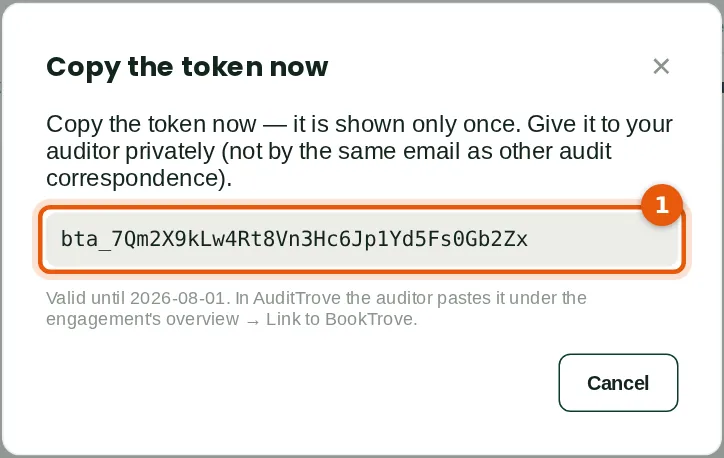
Why
The token (1) is shown only once. Give it to the auditor privately, not by the same email as other audit correspondence. The auditor pastes it into AuditTrove. Its use is recorded, and the list shows when it was last used.
Who
An owner or administrator.
What to do
- Copy the token and send it to the auditor securely. Revoke it from the list when the audit is finished.
14.7 Scheduled jobs
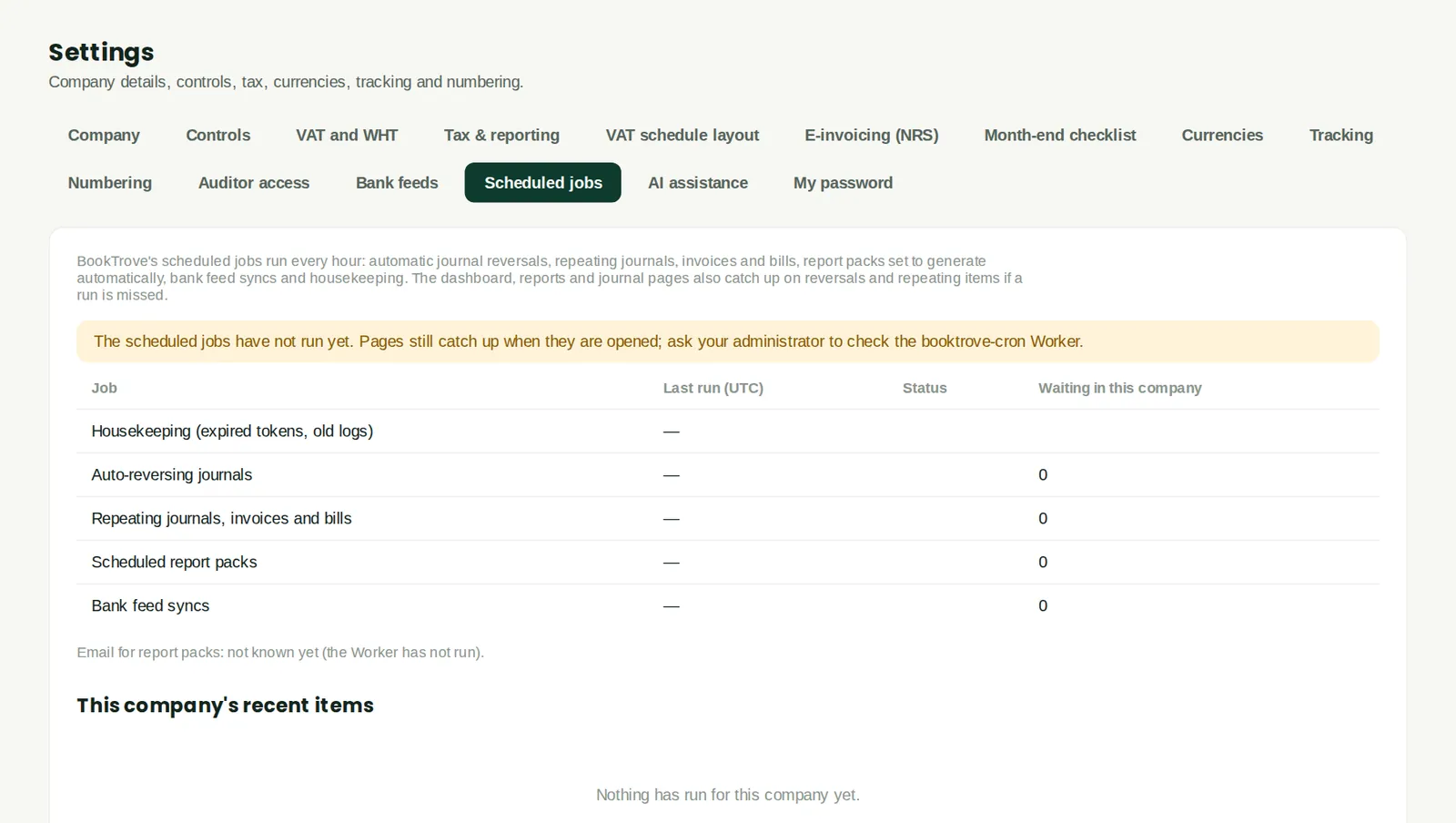
Why
BookTrove runs some work every hour in the background: auto-reversing journals, repeating invoices, bills and journals, scheduled report packs, bank feed syncs and housekeeping. This page shows when each last ran and what is waiting. The screenshot comes from a local copy of BookTrove where the background worker does not run, so it shows the warning that jobs have not run; pages still catch up when they are opened. If you see this warning in normal use, contact TroveUniverse support.
Who
Administrators.
14.8 Export the whole company
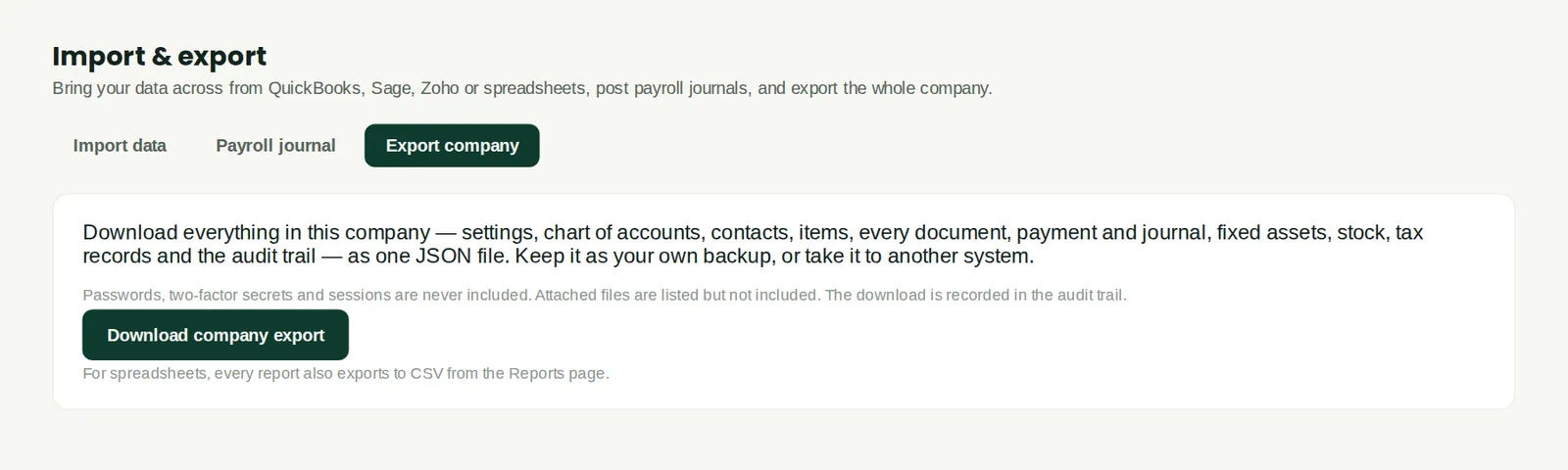
Why
Download everything in the company — settings, chart of accounts, contacts, items, every document, payment and journal, fixed assets, stock, tax records and the audit trail — as one JSON file. Keep it as your own backup or to move to another system. Passwords, two-factor secrets and sessions are never included, and the download is recorded in the audit trail.
Who
Owners and administrators.
What to do
- Click Download company export and store the file safely.
14.9 Make the company available offline
Why
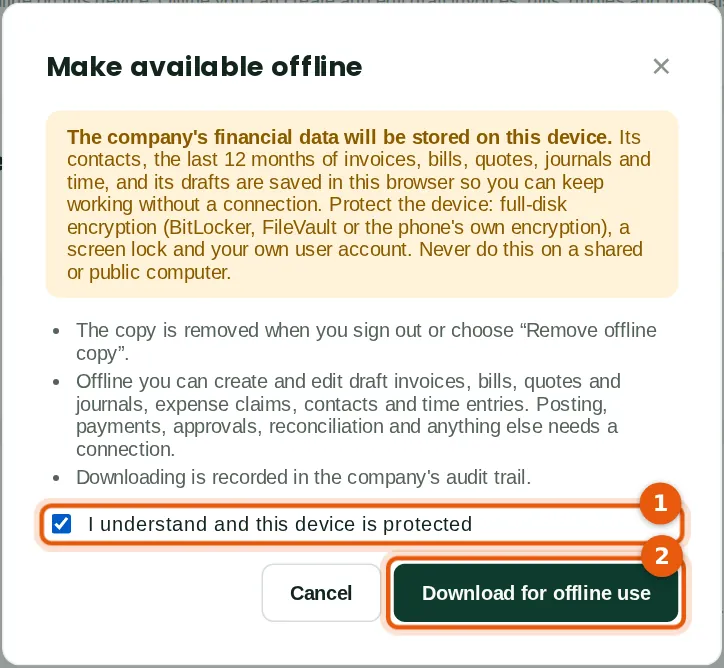
Buying centres such as Lafia and Dutse often have no data signal. Offline working keeps a copy of the company's recent data in the browser so that drafts — invoices, bills, quotes, journals, expense claims, contacts and time entries — can be created without a connection and sent when the device is back online. Posting, payments, approvals and reconciliation need a connection. Because the data is stored on the device, protect the device with full-disk encryption and a screen lock.
Who
Anyone, on a device they will use without a connection, if the company's policy allows it.
What to do
- Open Offline and click Make available offline.
- Read the warning, tick I understand and this device is protected (1) and click Download for offline use (2).
14.10 Offline copy and changes
Why
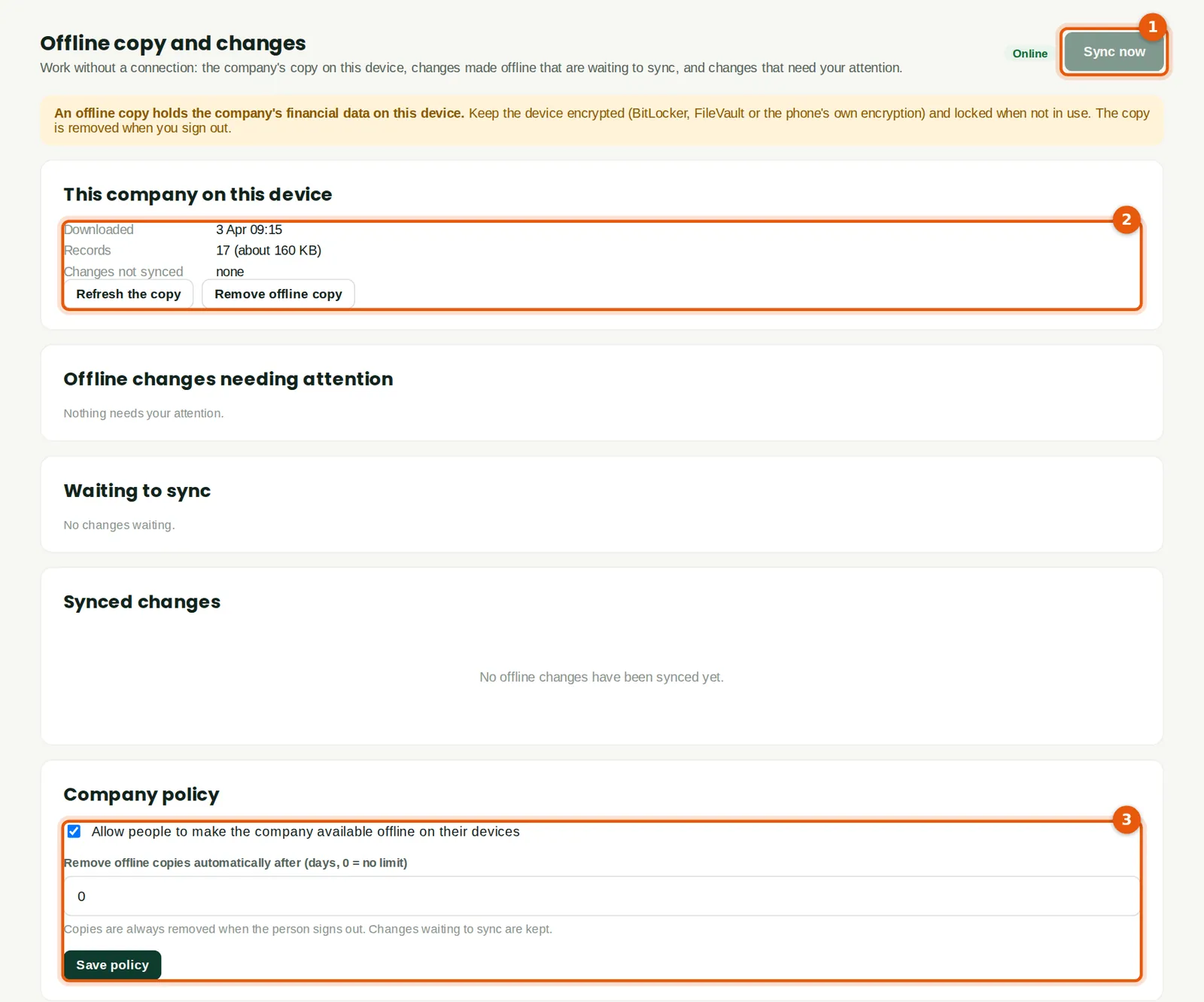
The page shows whether the device is online, the copy held on this device, changes made offline that need attention, changes waiting to sync and changes already synced. Changes are checked when they arrive, exactly as if they had been typed online. The Company policy (3) decides whether offline copies are allowed and after how many days they are removed automatically.
Who
Anyone; administrators set the policy.
What to do
- Click Sync now (1) when back online. Remove offline copy (2) deletes the copy from this device.
- Administrators set the Company policy (3) and save it.
14.11 The practice hub
Why
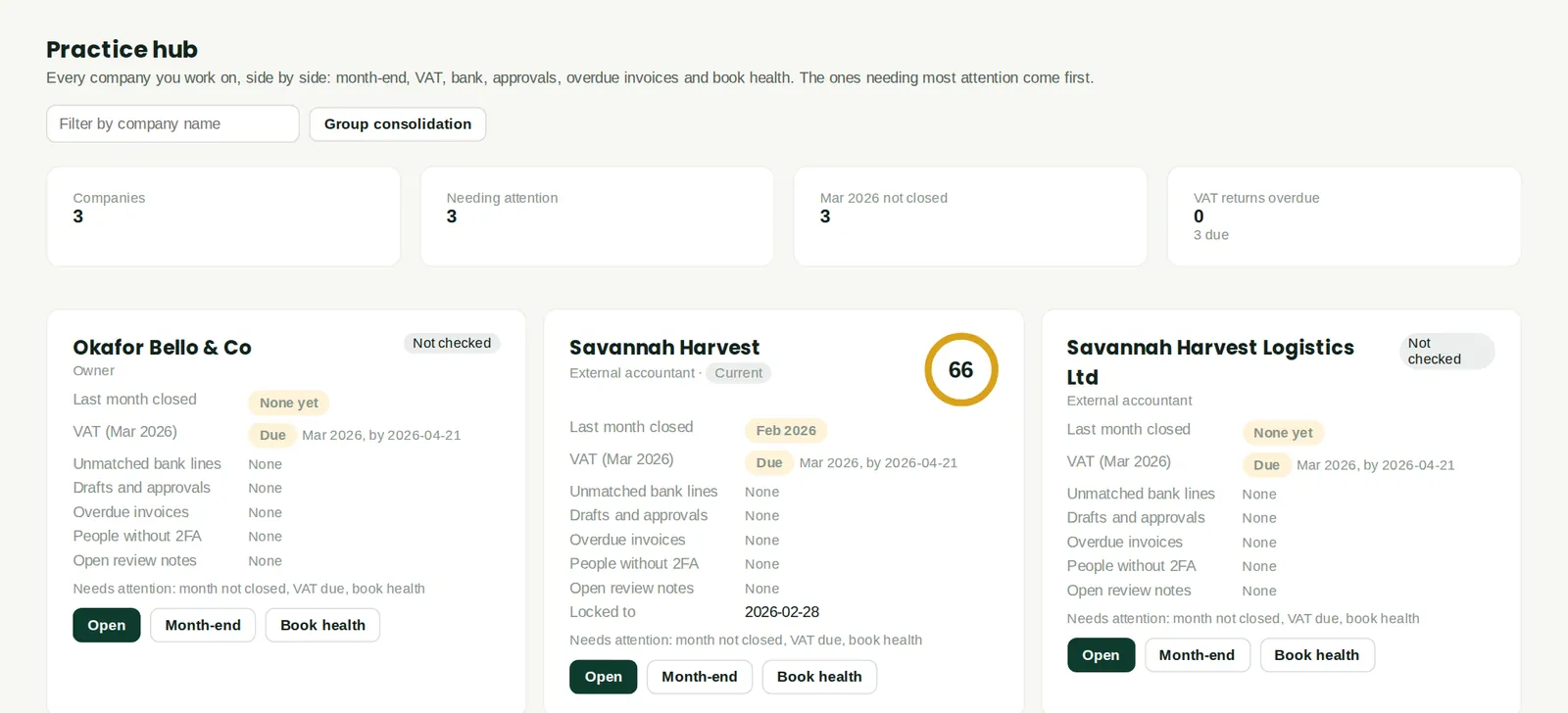
Every company the person works in, side by side: whether last month is closed, the VAT return due, unmatched bank lines, drafts and approvals waiting, overdue invoices, people without two-factor and the book-health score. The companies needing most attention come first. Nkechi, the company's external accountant, sees her own firm's books and both Savannah Harvest companies.
Who
External accountants and anyone who works in several companies.
What to do
- Filter by company name or group. Click Open, Month-end or Book health on a company to go straight there.