Steps in this chapter (27)
This chapter covers tasks that did not come up in the first quarter: returning goods to a supplier, repeating bills, serial-numbered stock, stock write-offs, statements, review notes, selling a fixed asset and withholding tax credit notes. The illustration continues into April 2026.
17.1 The sales lists
Why
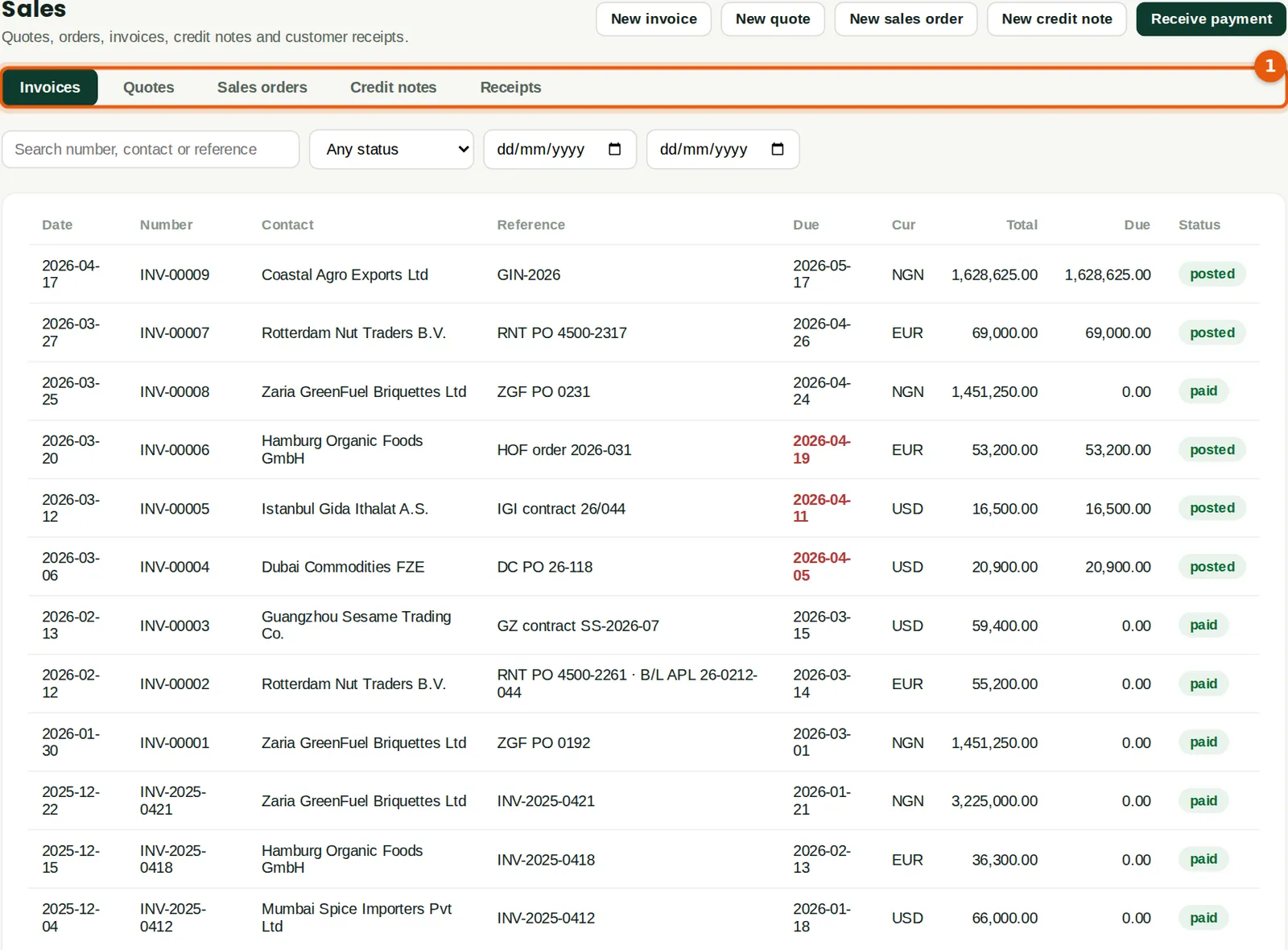
The Sales page lists every sales document by type (1), with search by number, contact or reference, a status filter and a date range. Overdue due dates show in red. The buttons at the top start a new document.
Who
Sales, accountant.
What to do
- Choose a tab (1), filter the list and click a document to open it.
17.2 The purchase lists
Why
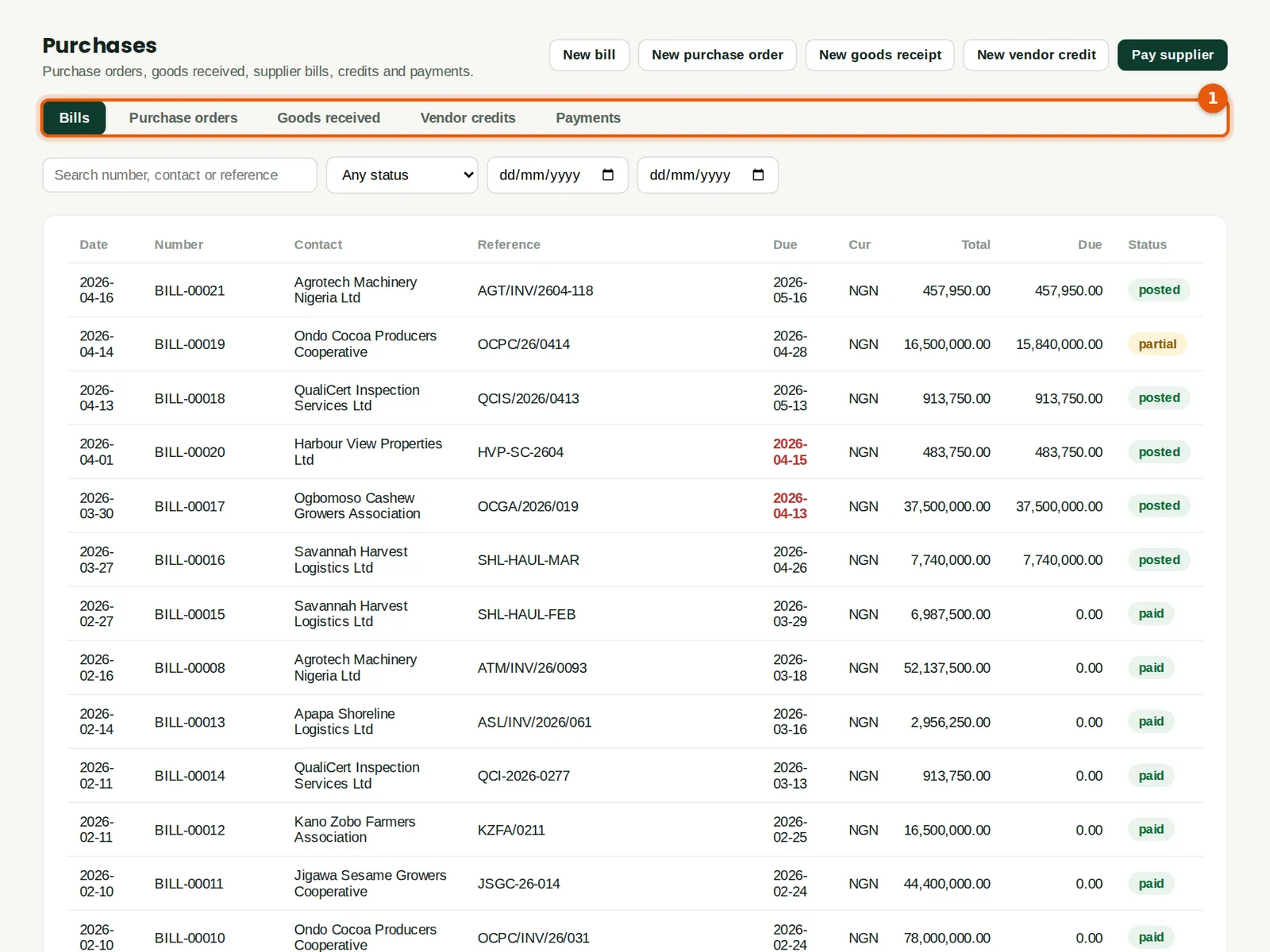
The Purchases page works the same way (1). Pay supplier starts a payment for one or more bills.
Who
Purchasing, accountant.
What to do
- Choose a tab (1), filter the list and click a document to open it.
17.3 Return goods to a supplier: a vendor credit
Why
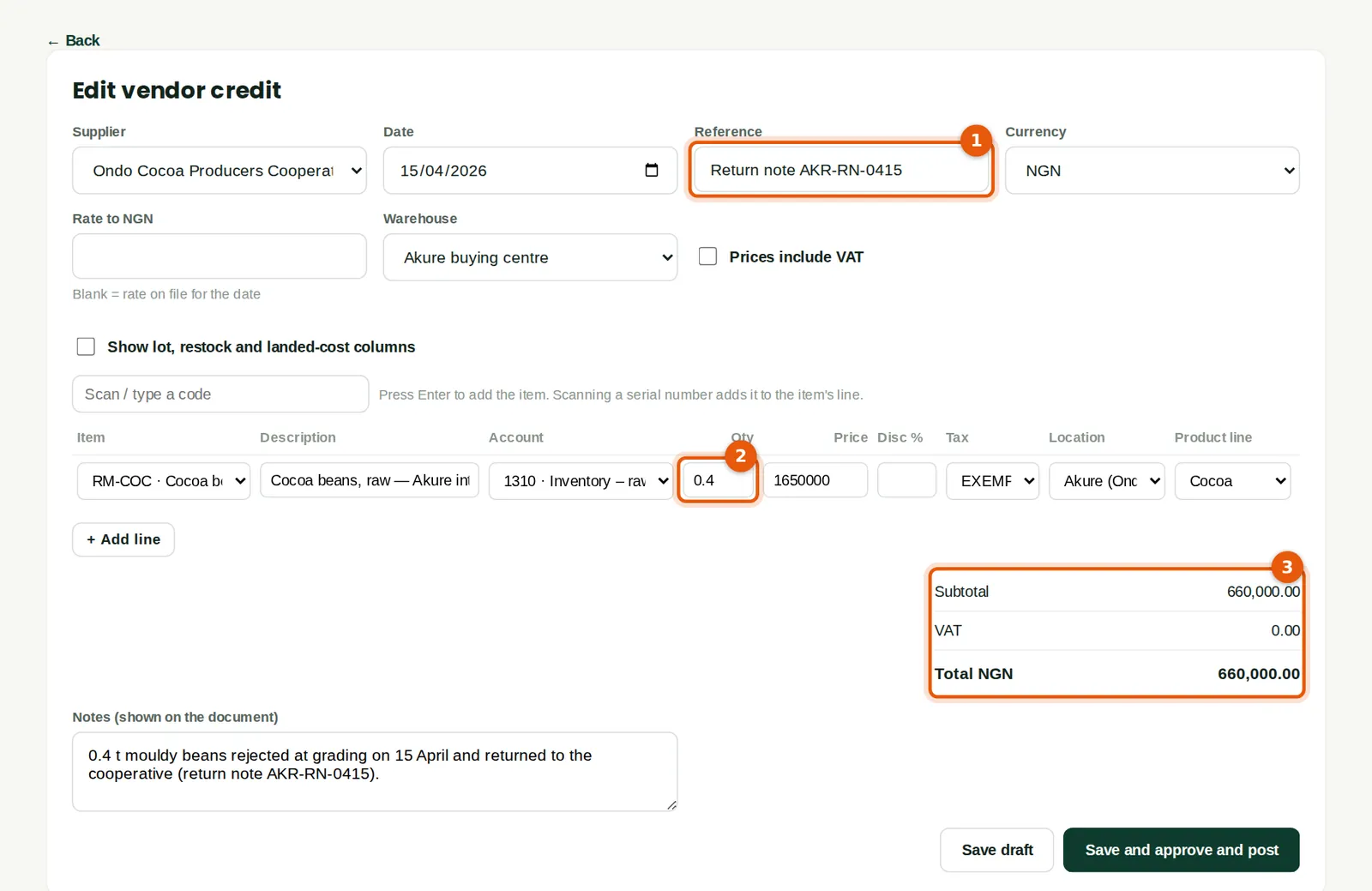
A vendor credit reduces what you owe a supplier: for goods returned, an overcharge or a discount given later. For stock items, the quantity leaves stock at its cost. When the cocoa from Ondo was graded on 15 April, 0.4 tonnes were mouldy and went back to the cooperative; the credit was applied to the bill on 20 April.
Who
Accountant or purchasing.
What to do
- Open the bill and click Vendor credit. The lines are copied from the bill.
- Type the supplier's credit or return note number (1) and change the quantity (2) to what was returned. Check the total (3): ₦660,000.
- Click Save and approve and post.
17.4 Apply the credit to the bill
Why
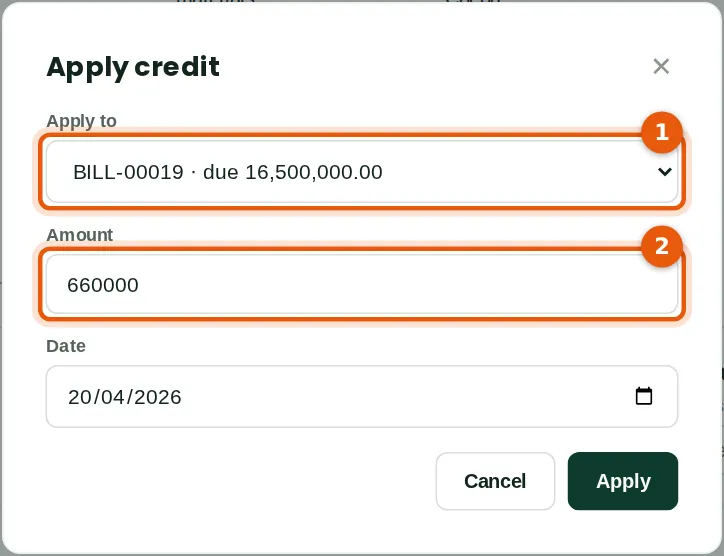
Applying the credit reduces the bill that is still open, so the next payment is for the right amount. A credit can also be kept and applied later, or refunded by the supplier (record it as a receipt).
Who
Accountant (Purchases: Approve).
What to do
- Click Apply to a bill, choose the bill (1), check the amount (2) and click Apply.
17.5 The applied credit
Why
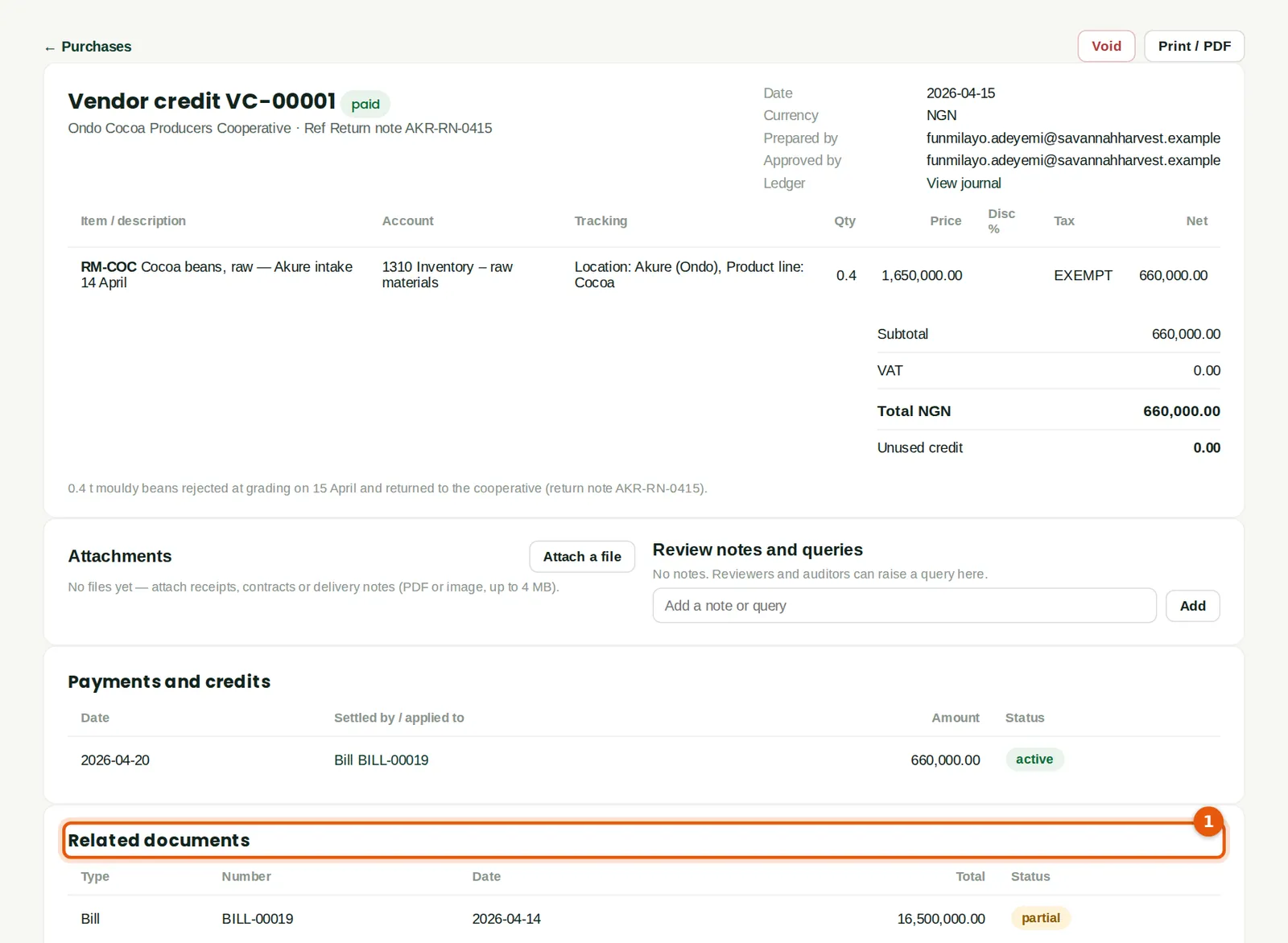
The credit shows where it was applied, and Related documents (1) links it to the bill, which now shows as partly paid with ₦15,840,000 left to pay.
17.6 Repeat a bill every month
Why
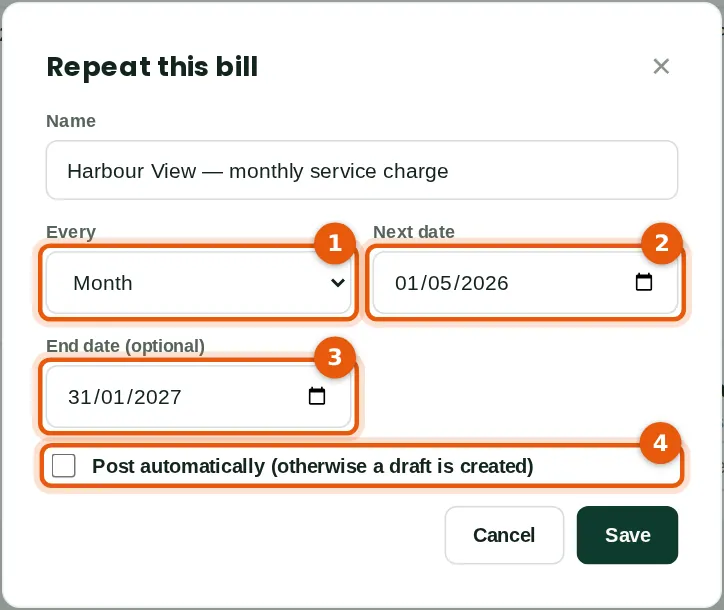
Invoices and bills that recur — rent, service charges, subscriptions — can be repeated automatically. Harbour View bills a service charge of ₦450,000 plus VAT every month.
Who
Accountant.
What to do
- Open the bill and click Repeat. Name the schedule.
- Choose how often (1) and the next date (2); an end date (3) is optional.
- Tick Post automatically (4) only if the amount never changes. Otherwise a draft is created each time to be checked and posted. Click Save.
17.7 Repeating schedules
Why
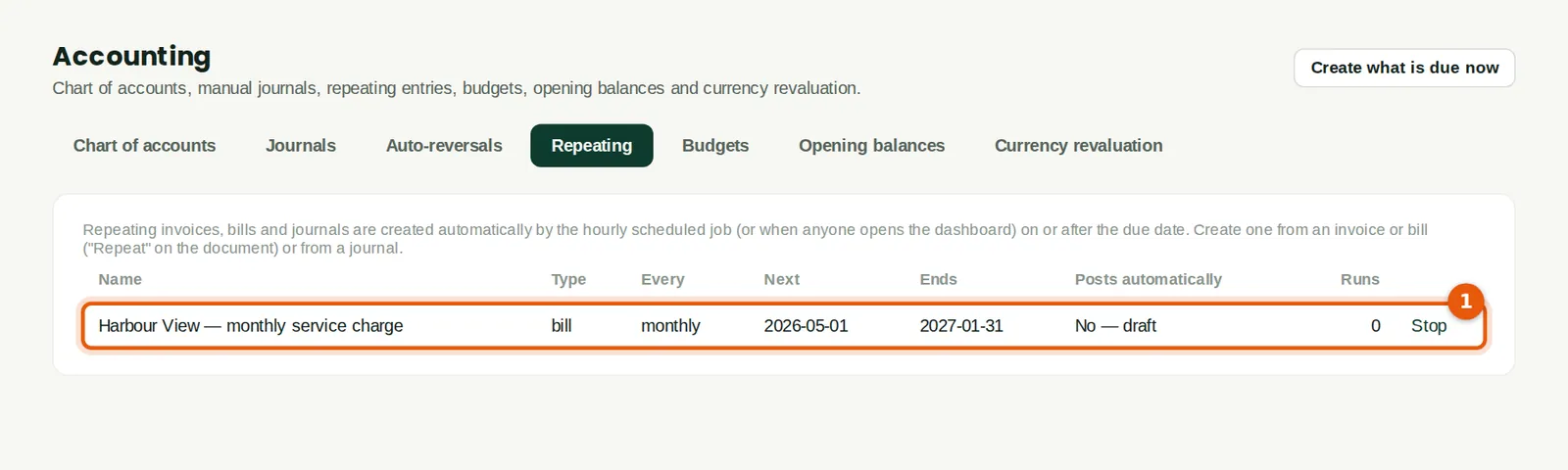
The list shows every repeating invoice, bill and journal with its next date, end date, whether it posts automatically and how many times it has run (1). The hourly scheduled job creates what is due; Create what is due now does it at once. Stop ends a schedule. Journals are repeated by ticking Also save as a repeating monthly journal on a journal (chapter 10).
Who
Accountant.
What to do
- Check the list each month. Click Stop to end a schedule.
17.8 Auto-reversing journals
Why
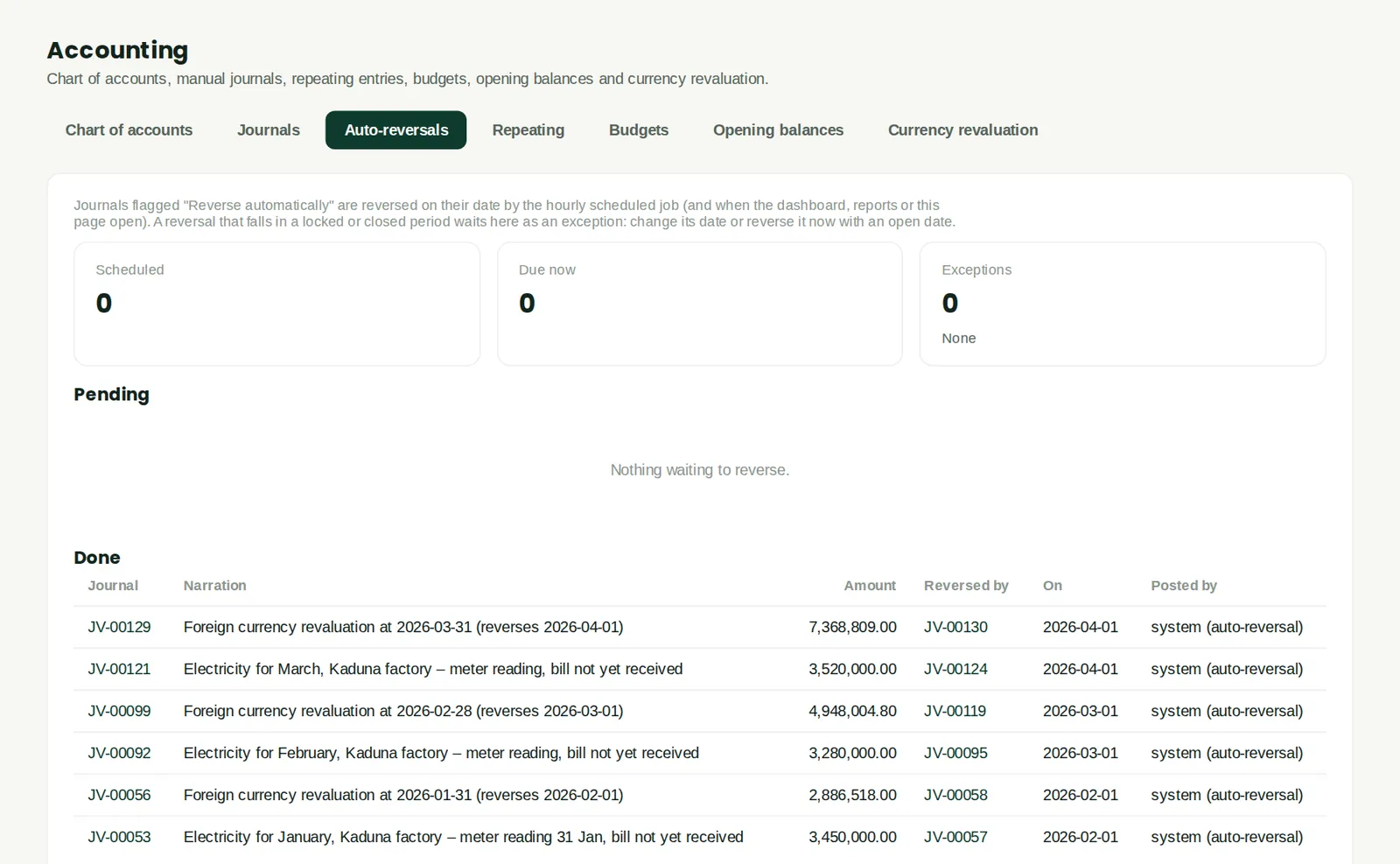
Journals flagged Reverse automatically — accruals and the month-end currency revaluation — are reversed on their reversal date. The page shows what is scheduled, what is due, any exceptions (for example a reversal date in a locked period) and the reversals already done: here the electricity accruals and revaluations for January to March.
Who
Accountant.
What to do
- Deal with any exception by changing the reversal date or reversing it now.
17.9 A serial-numbered item
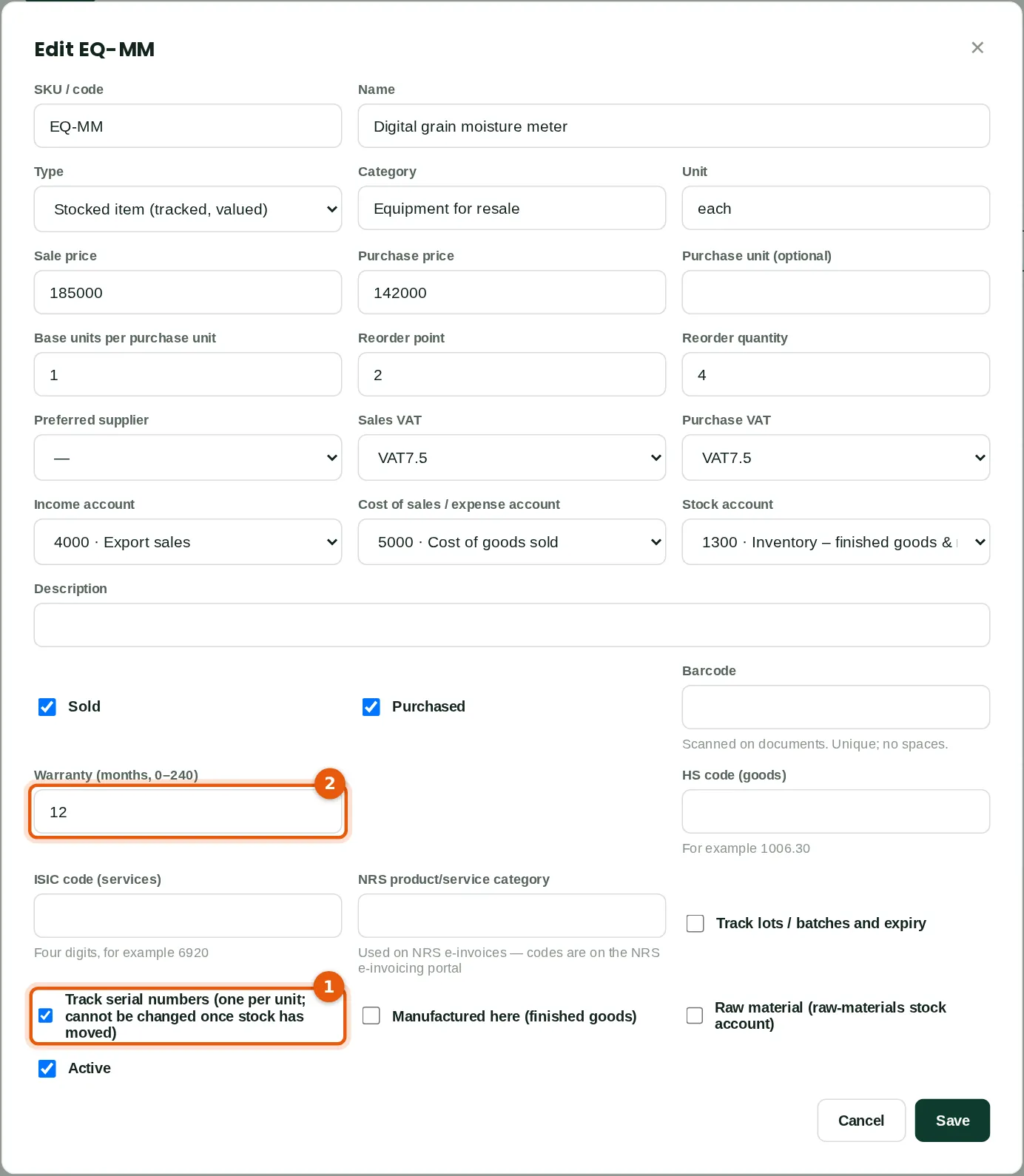
Why
Items with a serial number on each unit — equipment, machines — can be tracked one by one, with a warranty period. Savannah Harvest bought digital moisture meters for the buying centres. Serial tracking cannot be switched on or off once stock has moved.
Who
Inventory manager.
What to do
- When creating the item, tick Track serial numbers (1) and type the warranty in months (2).
17.10 Record the serial numbers on receipt
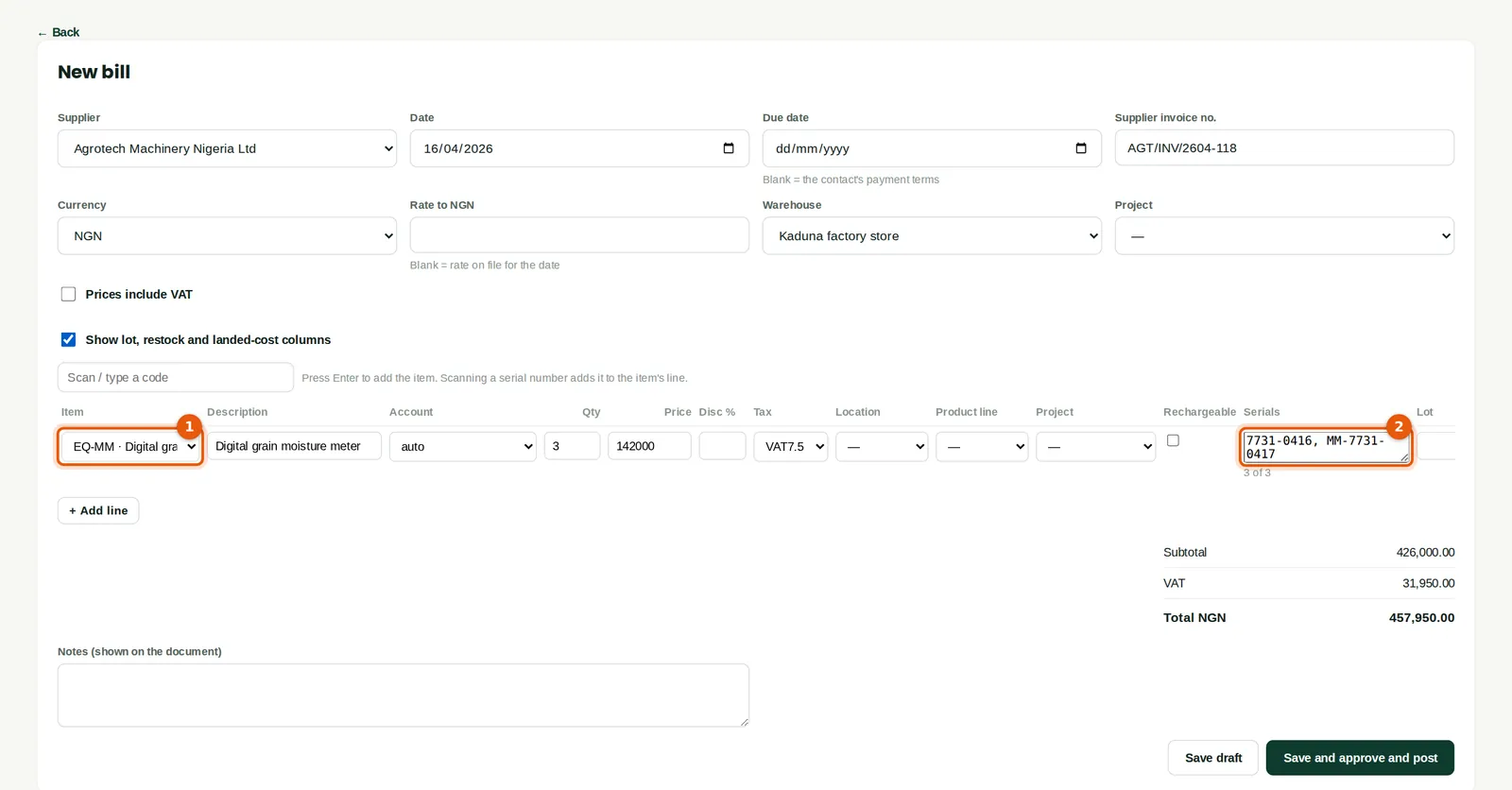
Why
Each unit's serial number is recorded when it comes into stock, and again when it is transferred, sold or counted. BookTrove checks the number of serials matches the quantity. A scanner can be used: scanning a serial number in Scan / type a code adds the item.
Who
Accountant or inventory manager.
What to do
- Choose the item (1), then type or scan one serial number per unit in Serials (2), separated by commas or new lines.
17.11 Serial numbers
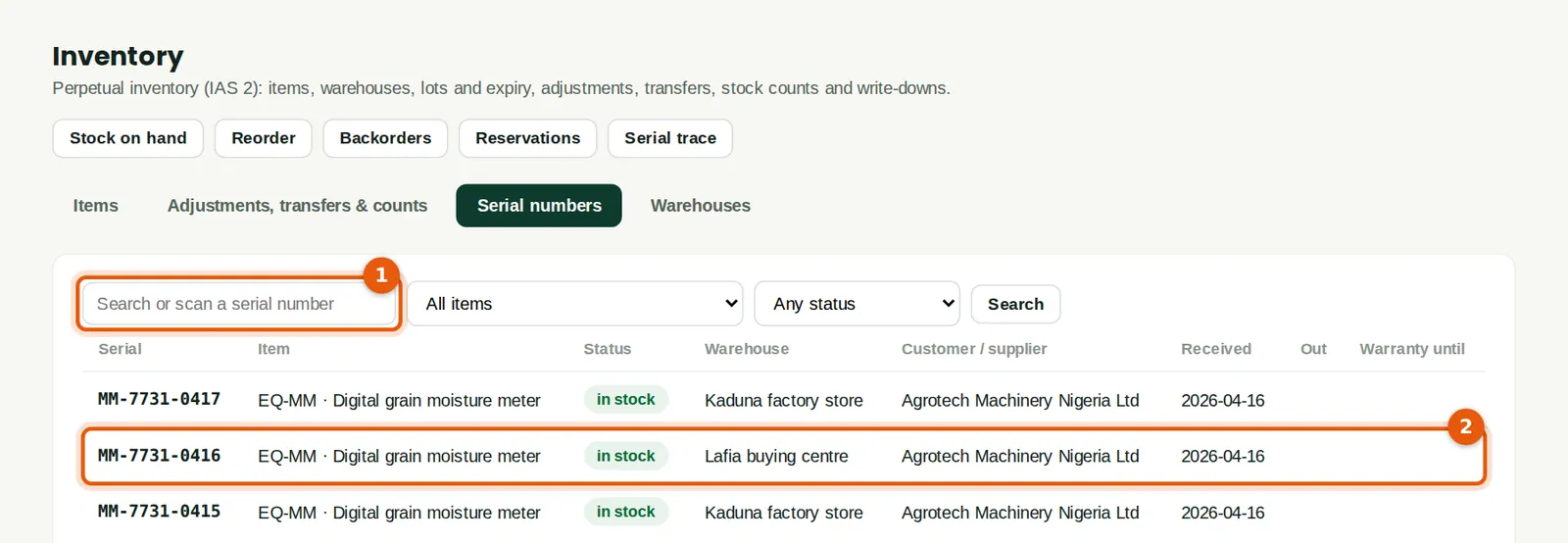
Why
Every serial number with its status, warehouse, supplier or customer, dates and warranty. Meter MM-7731-0416 (2) was transferred to the Lafia buying centre.
Who
Inventory manager.
What to do
- Search or scan a serial number (1), or filter by item and status. Click a serial to see its history.
17.12 Serial number trace
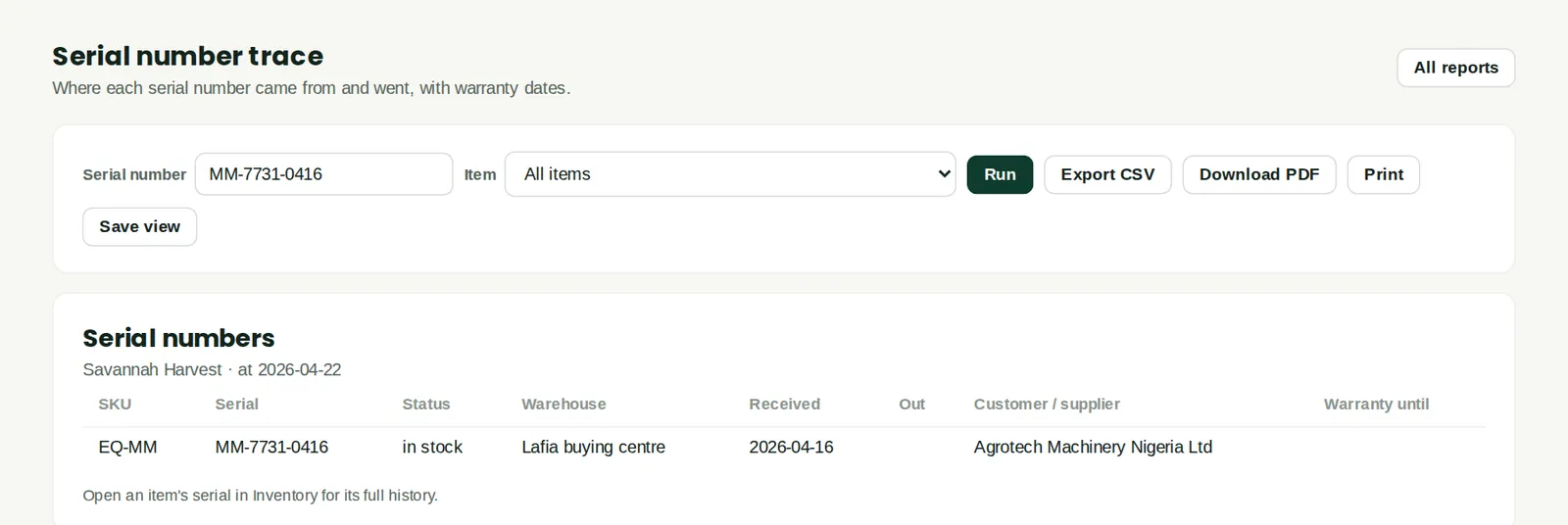
Why
Where a serial number came from and went, with warranty dates — useful for warranty claims and asset checks.
Who
Inventory manager, auditors.
What to do
- Type the serial number and click Run.
17.13 Write off damaged stock
Why
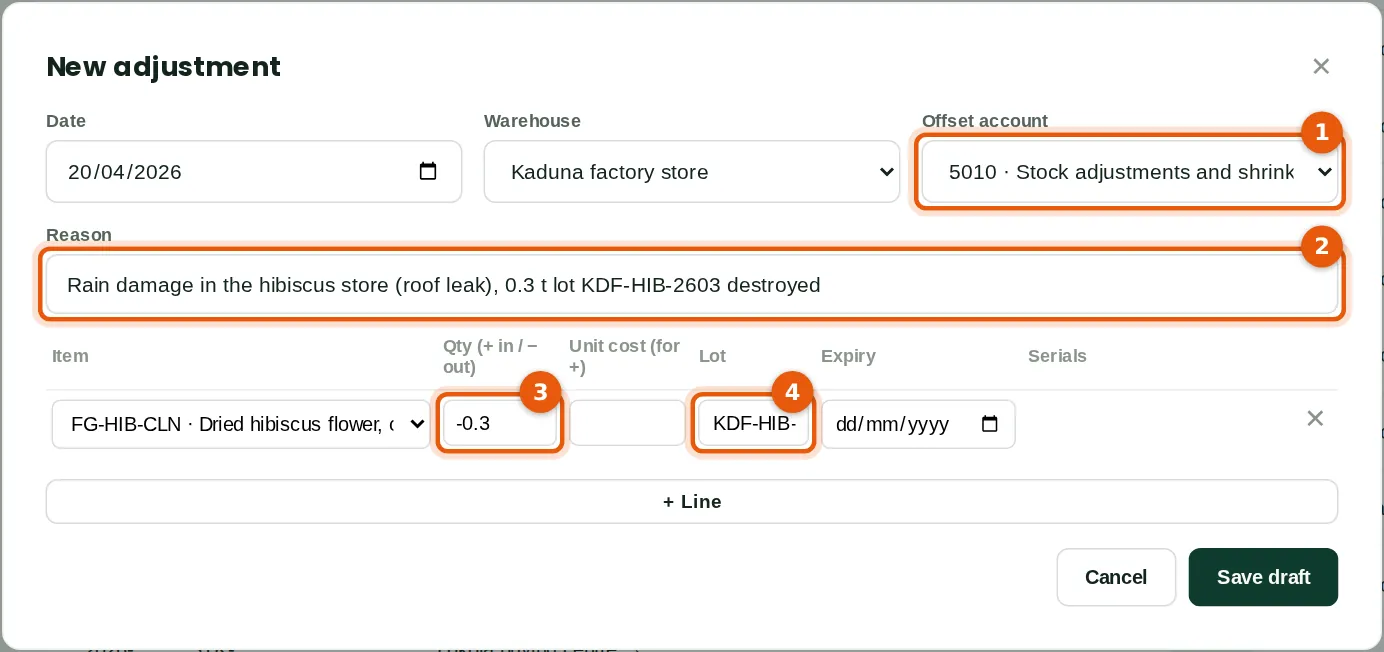
An adjustment adds or removes stock with a reason, posting the value to an offset account. A roof leak in April destroyed 0.3 tonnes of cleaned hibiscus. Other kinds of stock document are transfers, stock counts, NRV write-downs (a value change only, IAS 2) and opening stock.
Who
Inventory manager (Inventory: Approve to post).
What to do
- Open Inventory → Adjustments, transfers & counts and click Adjustment. Choose the date and warehouse.
- Choose the offset account (1) — 5010 Stock adjustments and shrinkage — and type the reason (2).
- Add the item and a negative quantity (3) to remove stock (positive to add), with the lot (4). Click Save draft, then Save and post.
17.14 Adjustments, transfers and counts
Why
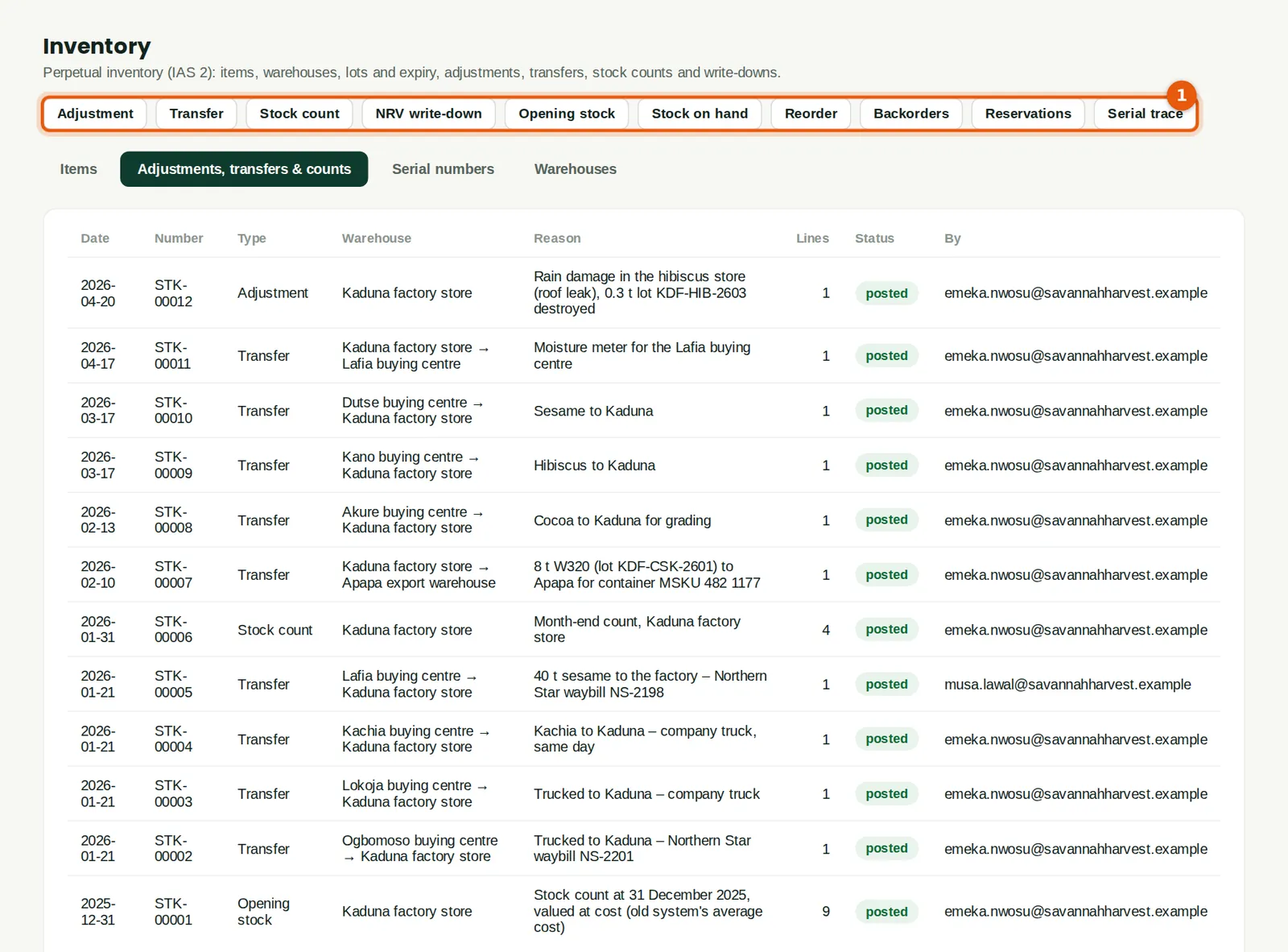
Every stock document with its type, warehouses, reason, status and who posted it. The buttons (1) start a new adjustment, transfer, stock count, NRV write-down or opening stock, and open the stock reports. A posted document can be reversed; a draft can be deleted.
Who
Inventory manager.
What to do
- Click a document to open it.
17.15 Customer statements
Why
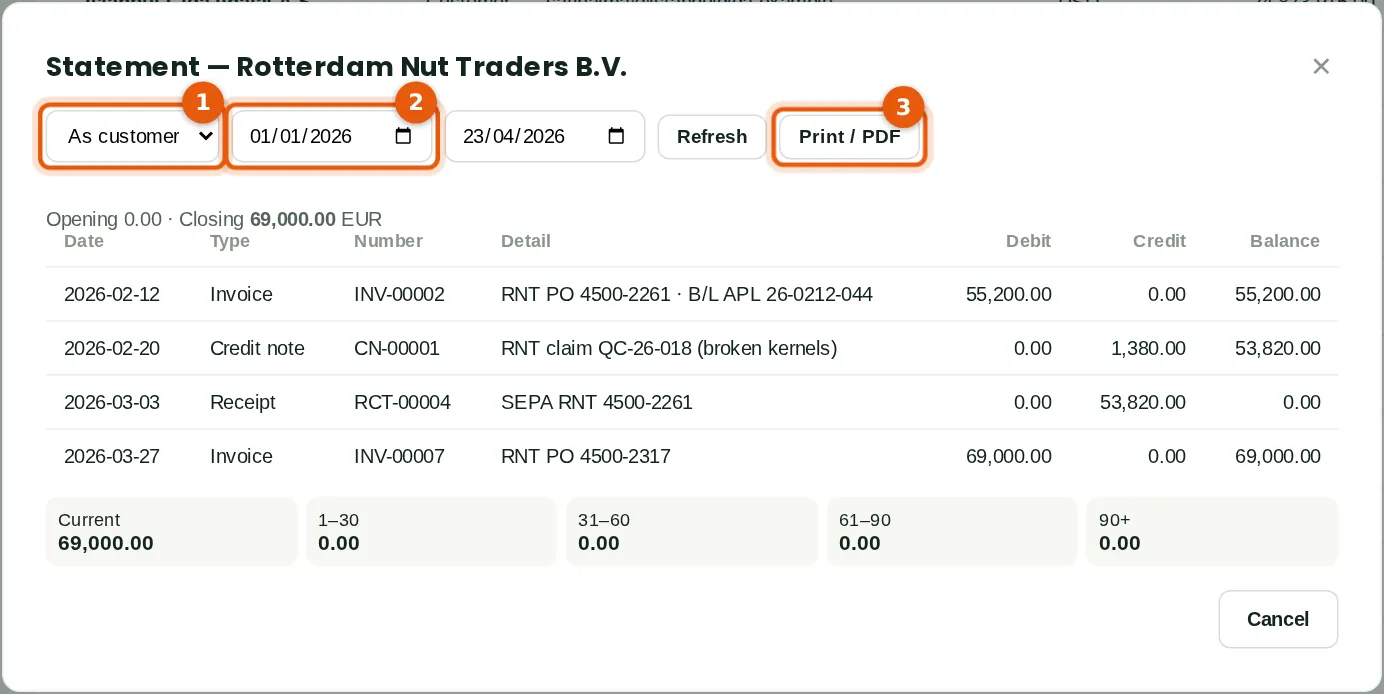
A statement lists a customer's invoices, credit notes and receipts for a period, with the running balance in the customer's currency and an aging of what is open. Rotterdam's statement to 23 April shows EUR 69,000 owed, all current. The same works for suppliers (As supplier), to agree their statements.
Who
Credit controller, sales.
What to do
- In Contacts, click Statement next to the contact. Choose customer or supplier (1) and the dates (2), then Refresh.
- Click Print / PDF (3) to send it. When AI assistance is switched on (chapter 18), the statement also has Draft a payment reminder (AI), with a choice of a friendly, firm or final tone: it drafts a reminder email from the open invoices for you to check and send yourself. BookTrove does not send it. The Overdue invoices — collections report lists who to chase.
17.16 Payment terms
Why
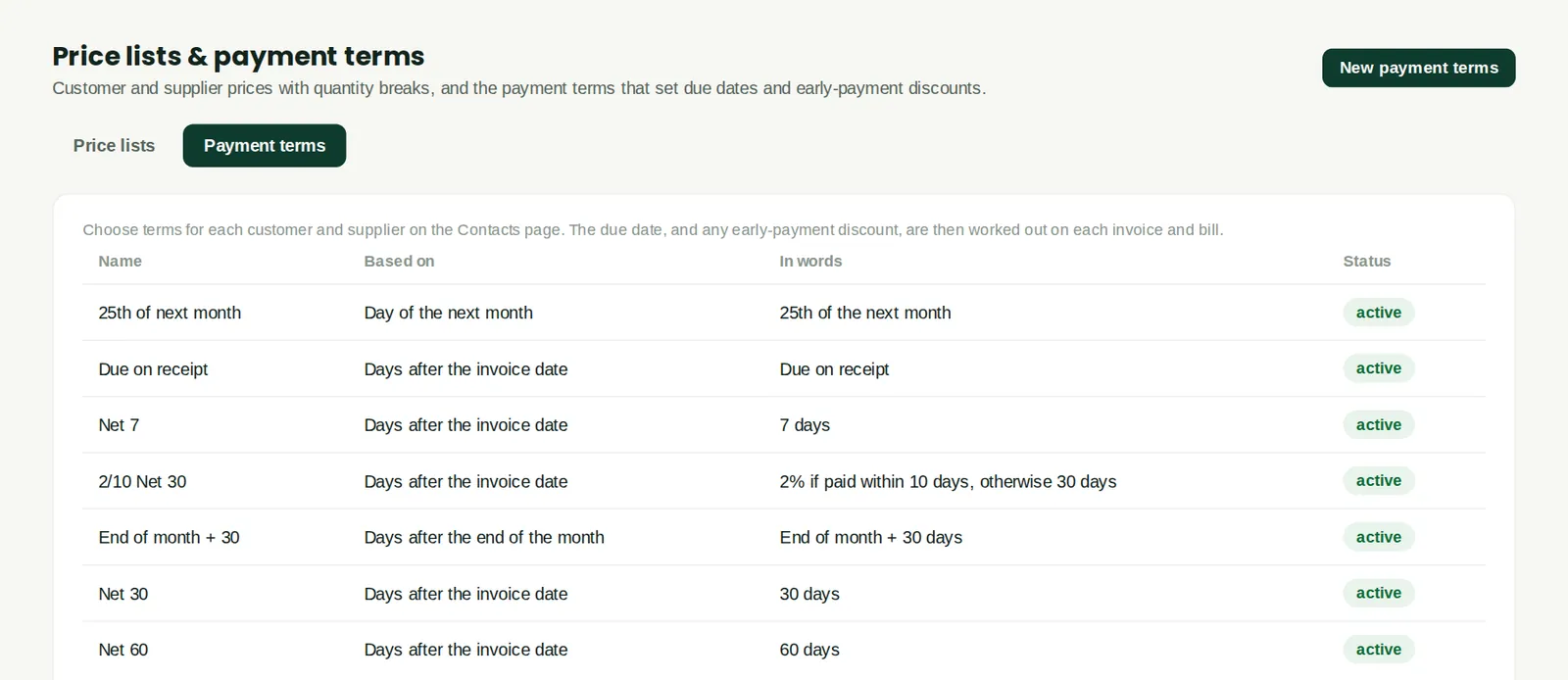
Payment terms set the due date on invoices and bills: days after the invoice date, days after the end of the month, or a day of the next month. A term can include an early-payment discount (for example 2/10 Net 30), which is offered on the invoice and granted or taken when the payment is recorded. Each contact has a default term.
Who
Accountant.
What to do
- Click New payment terms, choose how the due date is worked out and any discount, and save. Set the term on each contact in Contacts.
17.17 All expense claims
Why
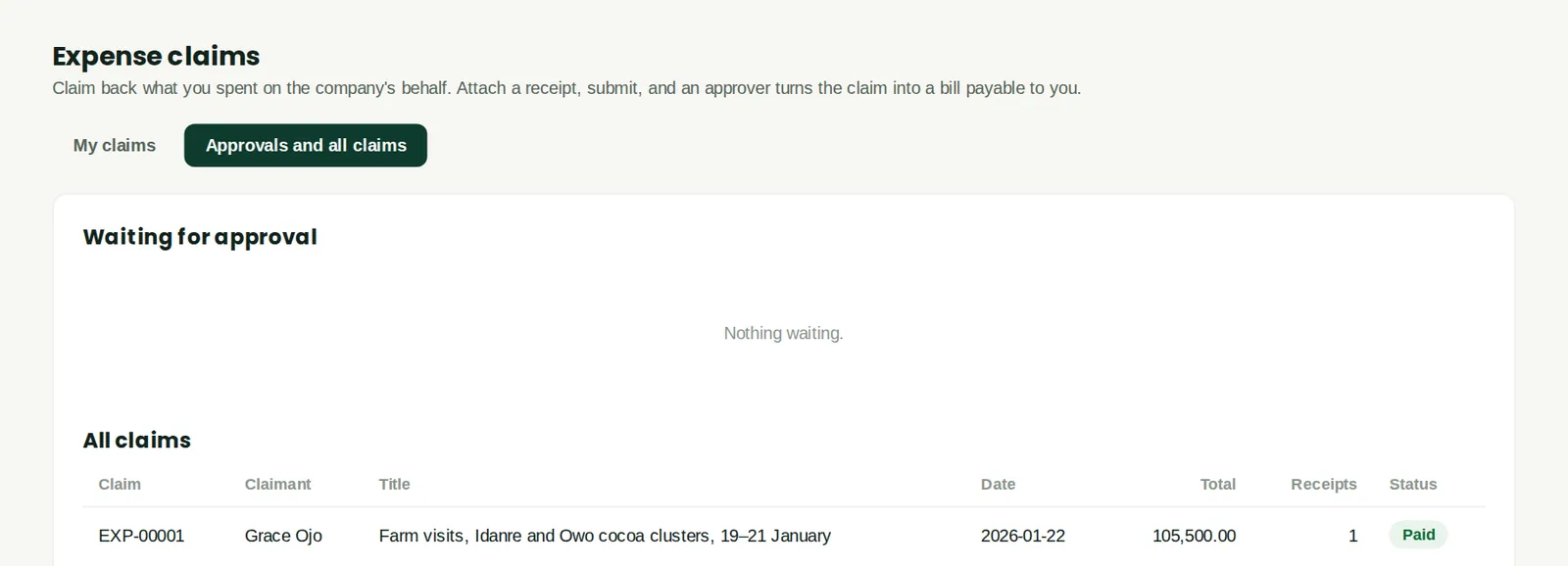
Approvers see the claims waiting for them and every claim, with its status. Grace Ojo's January claim (chapter 5) has been paid. Staff see only their own claims on My claims.
Who
Approvers of expense claims.
What to do
- Open a claim to approve it or send it back.
17.18 Raise a query on a document
Why
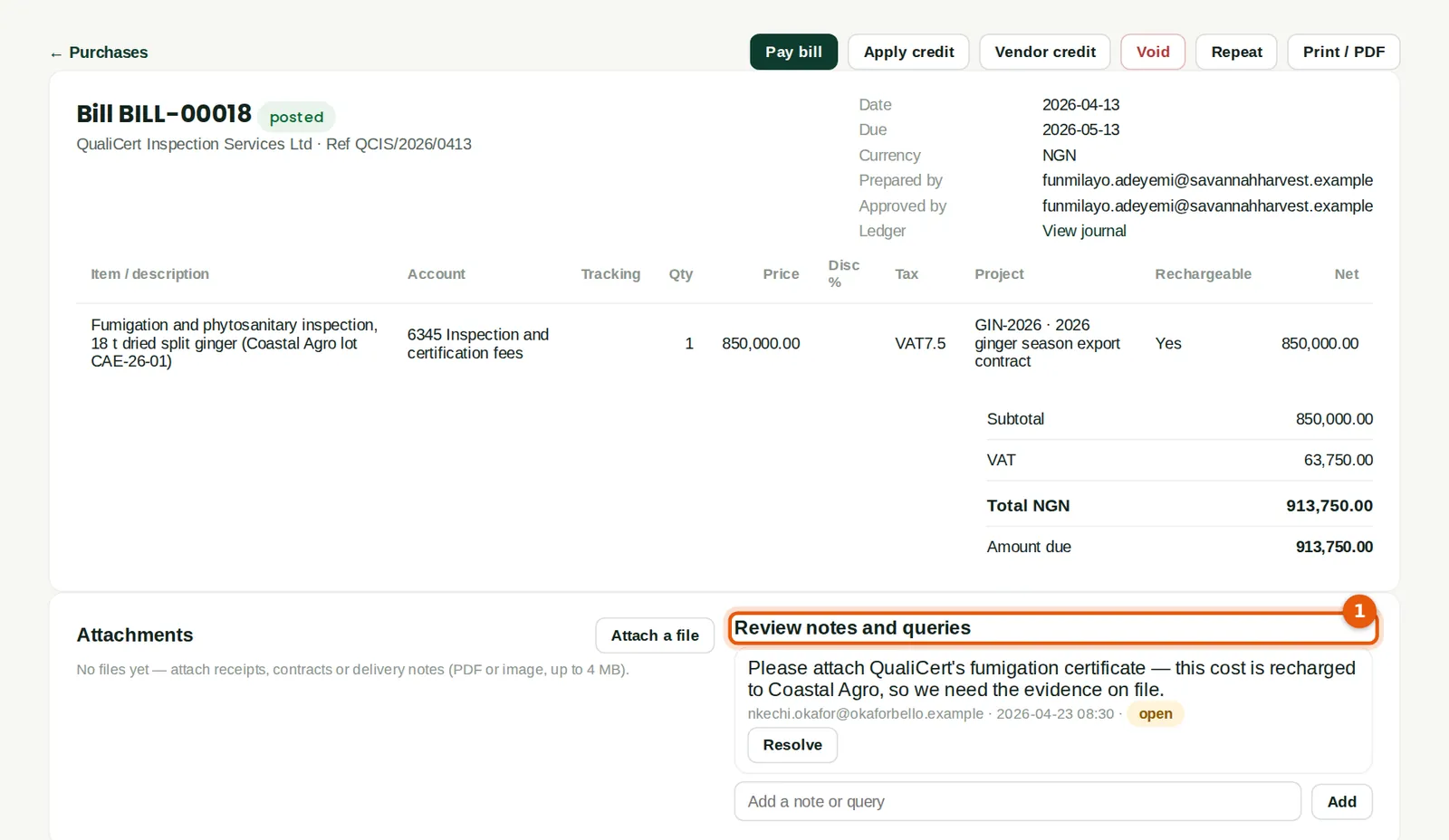
Every document, asset and journal has Review notes and queries (1). A note stays open until someone resolves it; the practice hub counts each company's open notes. Nkechi Okafor, the external accountant, asked for the fumigation certificate behind the recharged cost.
Who
Reviewers, external accountants and auditors; anyone with access to the document.
What to do
- Type the note in Add a note or query and click Add.
17.19 Resolve the query
Why
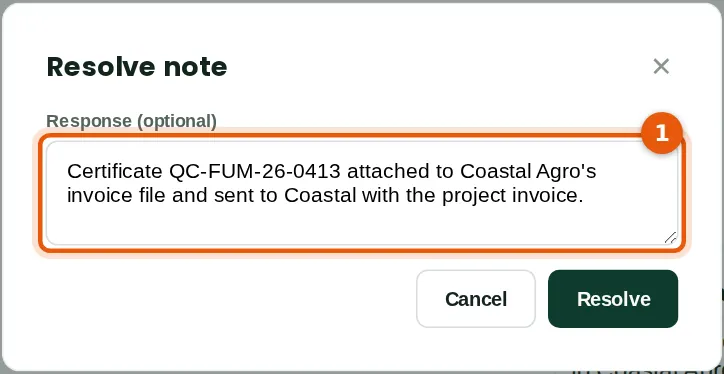
The answer is kept with the note, so the reviewer can see how it was dealt with. Attach the evidence under Attachments on the same document.
Who
The person who can answer the query.
What to do
- Click Resolve on the note, type the response (1) and click Resolve.
17.20 An asset's record
Why
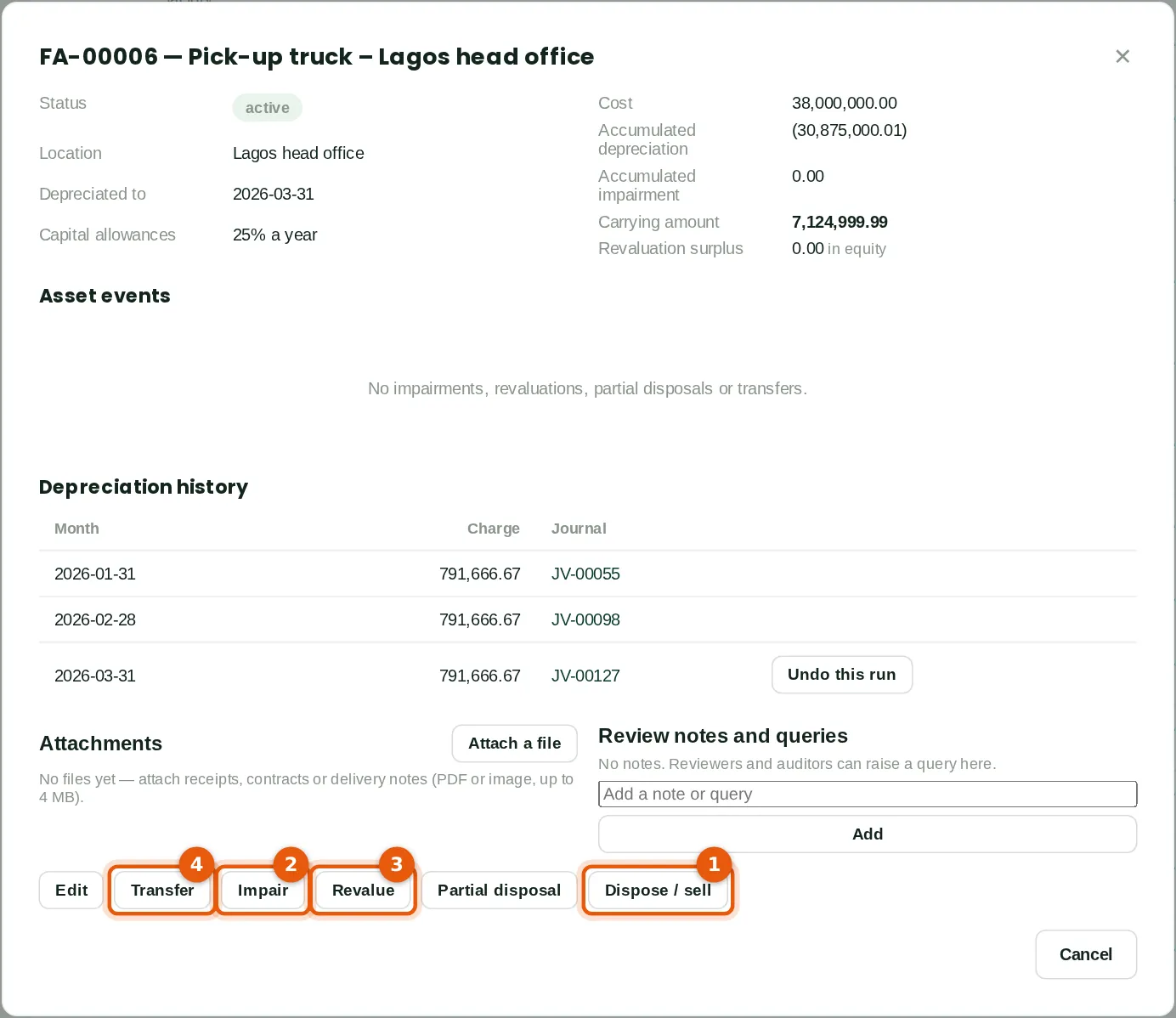
Each asset shows its cost, depreciation, impairment, carrying amount and revaluation surplus, its events and its depreciation history. The buttons record what can happen to an asset: Dispose / sell (1), Impair (2) and Reverse impairment (IAS 36), Revalue (3) (IAS 16 revaluation model), Transfer (4) to another location or custodian, and Partial disposal.
Who
Accountant.
What to do
- Open the asset from the register and choose the action.
17.21 Sell a fixed asset
Why
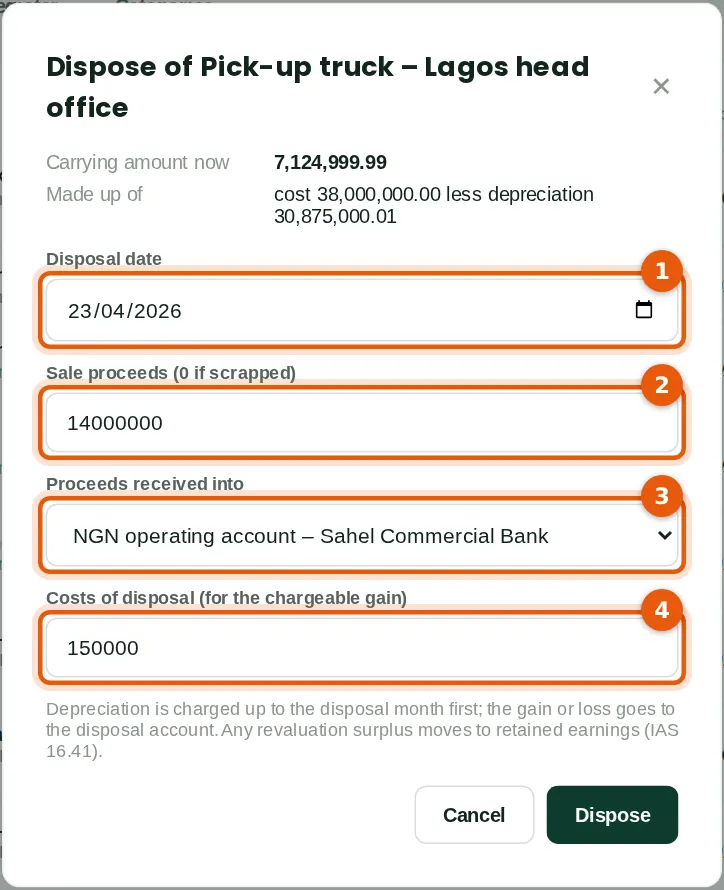
The truck was sold on 23 April. BookTrove charges depreciation up to the disposal month first, removes the cost and accumulated depreciation, records the proceeds in the bank account and posts the gain or loss. The costs of disposal are recorded for the chargeable gains computation.
Who
Accountant.
What to do
- Click Dispose / sell. Type the disposal date (1) and the sale proceeds (2) — 0 if the asset is scrapped.
- Choose the bank account the proceeds went into (3) and type any costs of disposal (4). Click Dispose.
17.22 Asset categories
Why
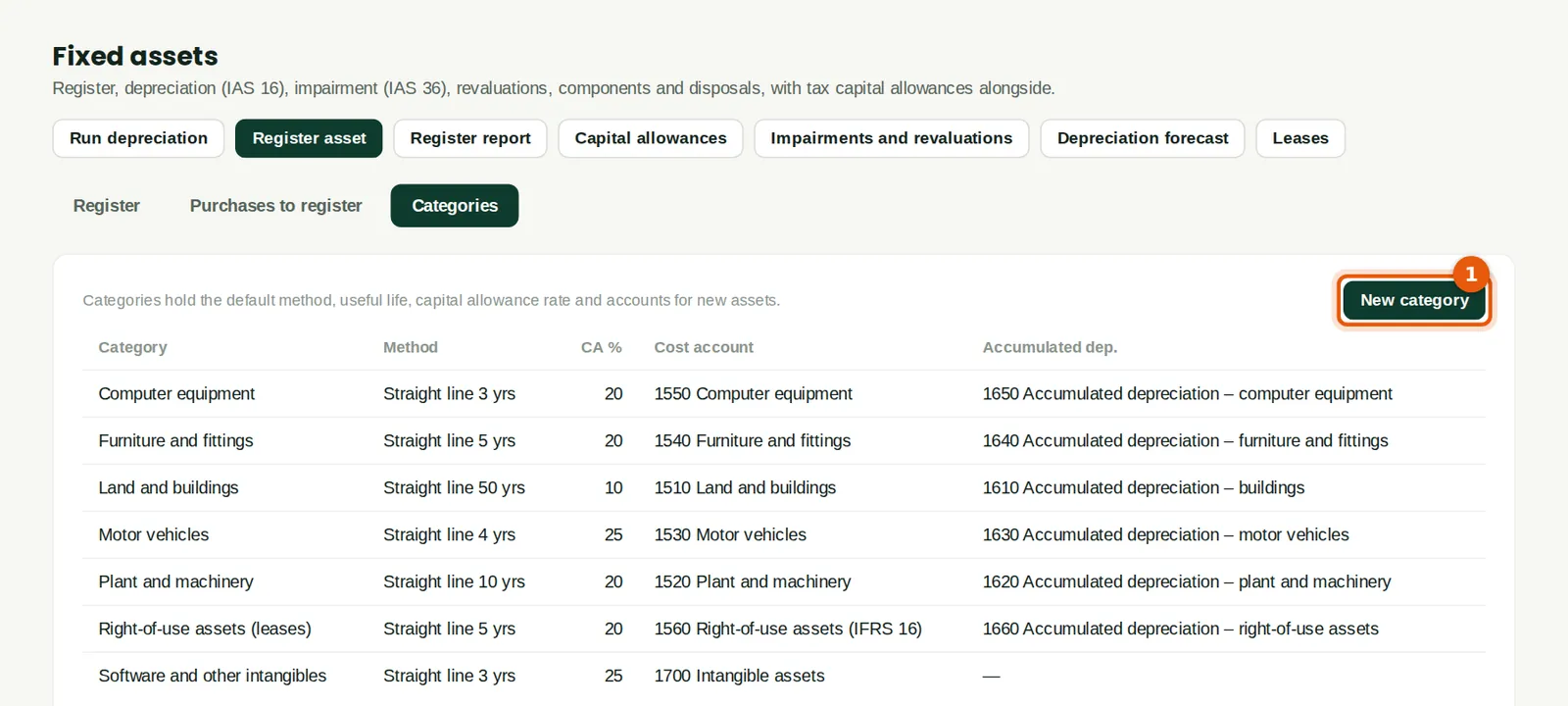
A category holds the defaults for its assets: depreciation method and useful life, the capital allowance rate and the cost and accumulated depreciation accounts. New assets take the defaults, which can be changed on each asset.
Who
Accountant.
What to do
- Click New category (1), or click a category to change its defaults.
17.23 Chargeable gains
Why
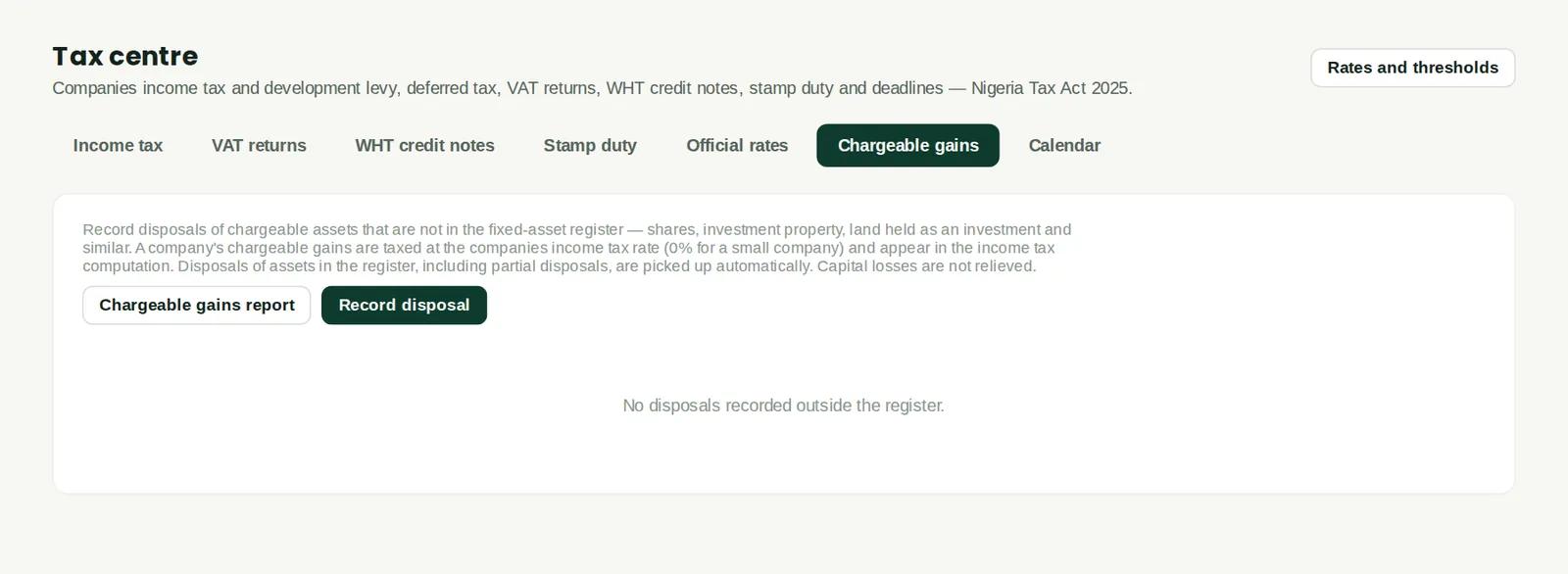
Disposals of fixed assets in the register are picked up automatically for the tax on chargeable gains. Record here disposals of assets that are not in the register, such as shares or land held as an investment, with the proceeds, allowable cost and costs of disposal. The Chargeable gains report lists them all; the tax is included in the income tax computation.
Who
Accountant or tax adviser.
What to do
- Click Record disposal, fill in the details and save.
17.24 Deferred tax
Why
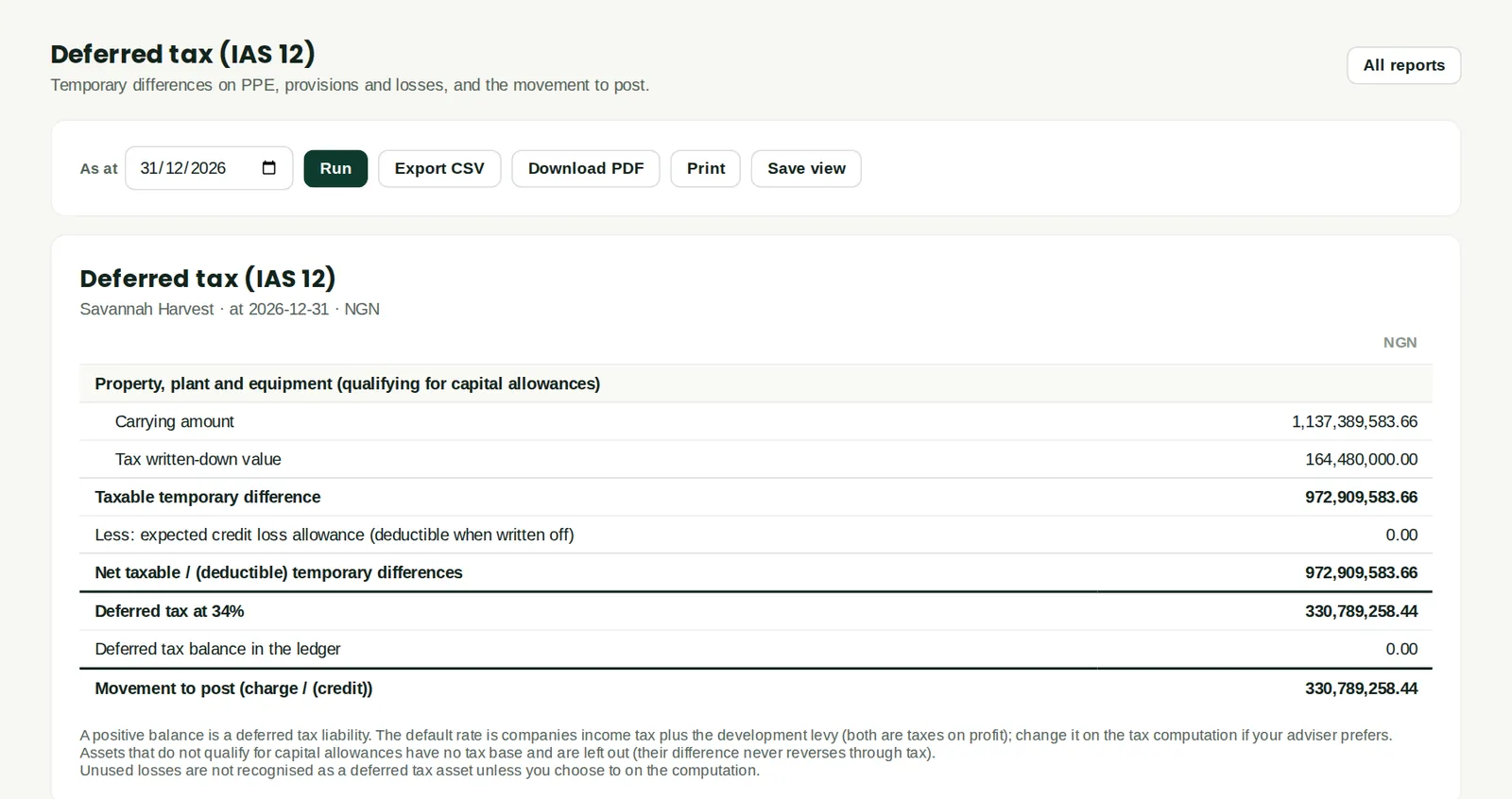
The temporary differences between the carrying amounts of assets and liabilities and their tax values — mainly property, plant and equipment against the tax written-down value, and the expected credit loss allowance — and the deferred tax on them at the rate set in the tax computation. The report shows the movement to post when the tax computation is finalised. It is only as good as the tax values behind it: in the illustration the capital allowances claimed before 2026 were not brought into BookTrove, so the difference shown is far too large. Check these figures with your tax adviser before posting.
Who
Accountant or tax adviser.
What to do
- In Tax centre → Income tax, click Deferred tax, or open the report from Reports.
17.25 WHT suffered: credit notes to collect
Why
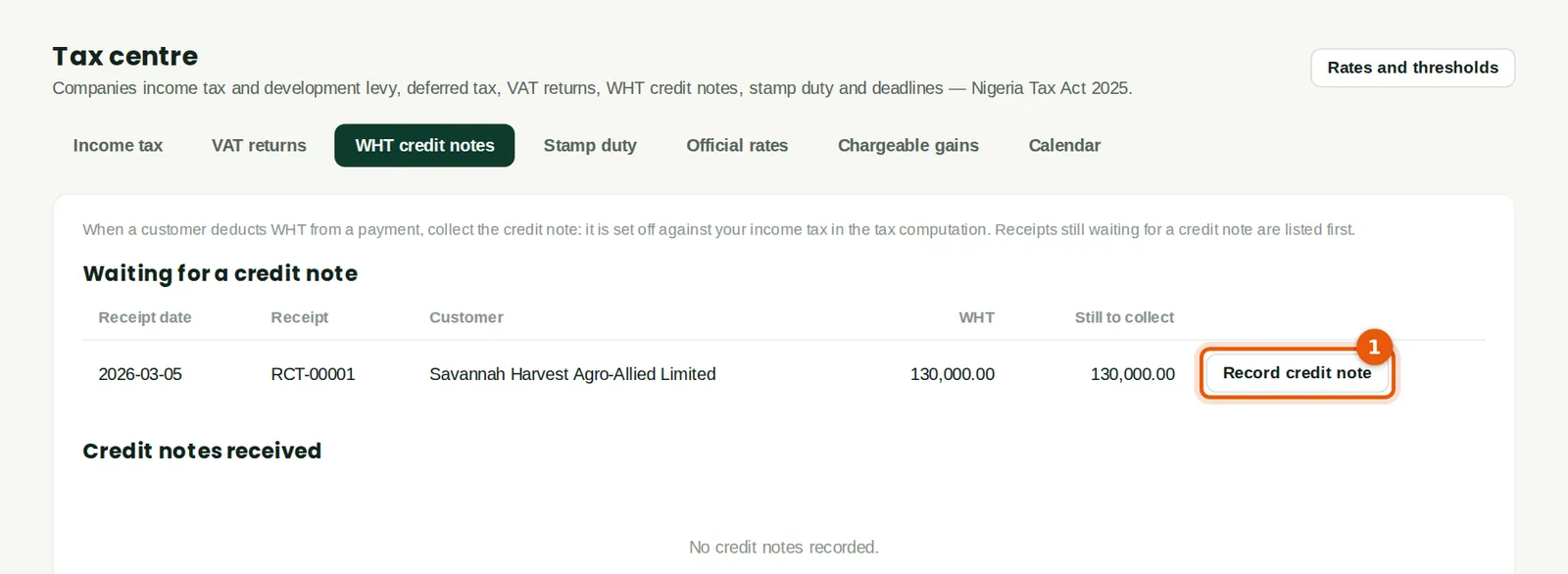
When a customer deducts withholding tax from a payment, the company must collect the customer's WHT credit note to set it against its own income tax. Savannah Harvest deducted ₦130,000 from its March payment to the haulage subsidiary, so the subsidiary is waiting for a credit note.
Who
Accountant.
What to do
- Click Record credit note (1) when the credit note arrives.
17.26 Record the credit note
Why
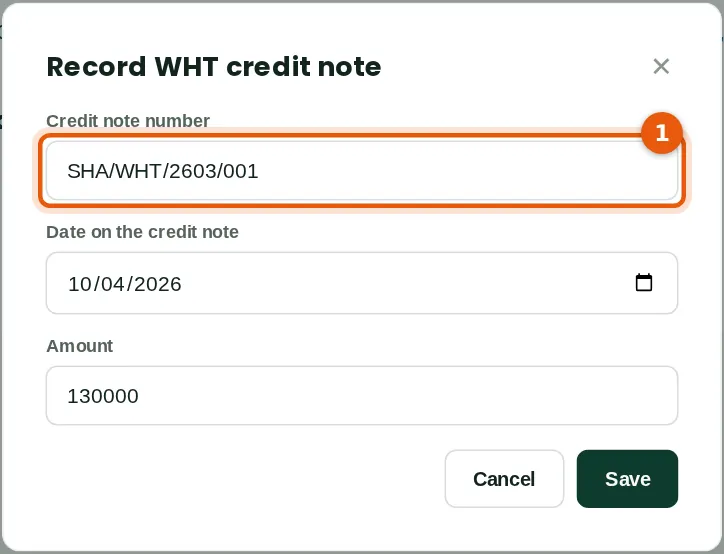
Type the credit note number (1), its date and the amount. Credit notes received are set off in the income tax computation.
Who
Accountant.
What to do
- Fill in the details and click Save.
17.27 Credit notes received
Why
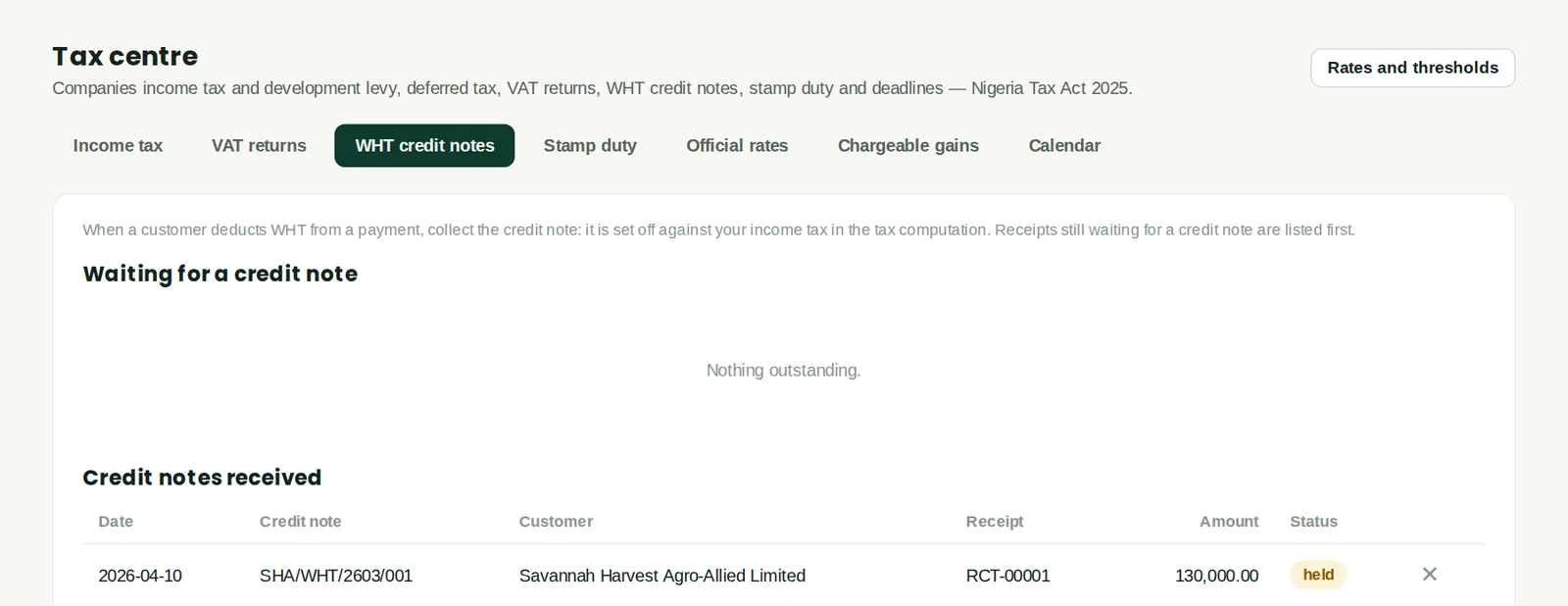
The credit note is listed as received and nothing is left to collect.