Steps in this chapter (16)
A till can be a restaurant or a bar as well as a shop. Waiters open orders on tables, tabs and takeaways from any phone, tablet or laptop, add dishes with their choices (pepper, extras), and send them to the kitchen and the bar, which see them on the kitchen display. The bill can be paid whole, split evenly or by items, with a service charge and a levy such as a state consumption tax on the receipt. Dishes take their ingredients out of stock by recipe when they are paid for, and each session still posts as one journal at the close.
Restaurant and bar is part of the Point of sale add-on (chapter 29): a company with the add-on can make any till a restaurant or bar till. The selling, refunds, cash in and out and the close work as in chapter 29; this chapter covers what is different.
In the illustration Savannah Harvest opens Harvest Kitchen, a restaurant and bar for visitors beside its Kaduna factory shop, on Wednesday 7 October 2026. Chukwudi Okeke (administrator) sets up the till, its tables, the menu's choices and recipes the day before. Esther Bitrus, a waiter with the Cashier role, takes the orders and the payments; Yakubu Danladi, the head cook, works from the kitchen display; Rakiya Shehu, the restaurant supervisor (Shop supervisor role), takes a dish off an order and closes the day.
How the restaurant and bar works
| Topic | What happens |
|---|---|
| Where | Business → Point of sale: a restaurant till's card on the Sell tab has Tables and tabs (the floor) and Counter sales on this device (the ordinary register, for a quick sale paid on the spot). The Menu tab holds the choices and the recipes. Business → Kitchen display shows the stations' tickets. Reports → Receivables & sales → Restaurant voids. |
| Add-on | Part of the Point of sale add-on: no separate add-on is needed. Without the add-on the floor, the kitchen display and the menu are hidden. |
| Who | A new area, Kitchen display, in each role. Cashier (waiters): opens orders, adds and changes lines not yet sent, sends them, prints the bill, takes payment, moves an order to another table or a tab, and sees the kitchen display. Shop supervisor: also takes off or reduces what has been sent, changes prices, gives any discount, changes or waives the service charge, moves an order to a takeaway, cancels an order with something sent, and marks tickets done. Kitchen and bar staff, a new ready-made role: the kitchen display only, marking tickets done. Owners and administrators (Point of sale at Full) set up tills, tables, choices and recipes. |
| Orders | An order is on a table (one open order per table), on a tab (named after the guest) or a takeaway. Orders are numbered per till, HK-O0001, HK-O0002…, stay open across sessions until paid or cancelled, and can be opened from any device signed in to the company. Lines are Not sent until the waiter sends them, then Sent. Once part of a line is paid, its price cannot change. |
| Stations and tickets | Each station (Kitchen, Bar…) prepares the item categories named on the till. Send makes one ticket per station with what is new; a line taken off after it was sent makes a red STOP ticket. Items in no station's categories (bottled drinks from the counter) are simply marked sent. |
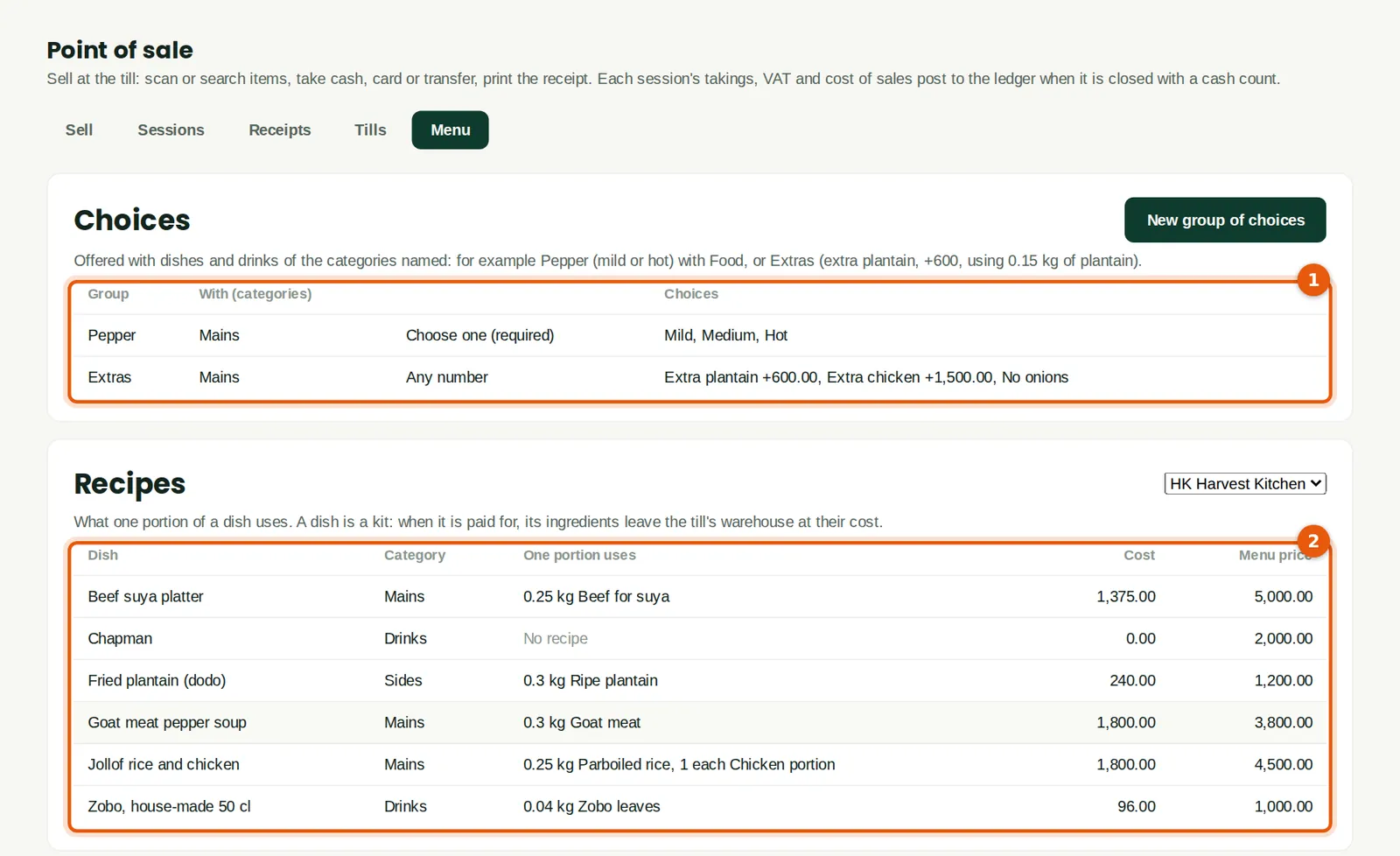
| Choices | Groups of choices offered with the item categories named: one required choice (Pepper: mild, medium, hot), or any number (Extras), each with an extra price and the stock it uses. |
| Recipes | What one portion of a dish uses. A dish is a kit (chapter 5): when it is paid for, its ingredients, and the stock of its choices, leave the till's warehouse at their cost; drinks that are stocked items leave as themselves. |
| Service charge | A percentage of the dishes and drinks excluding VAT, on tables and tabs (not takeaways), with VAT at the standard rate if the company is VAT registered. It is income on its own account (created as Service charge income, 4090). A supervisor can change or waive it on an order, with the reason. |
| Levy | Optional, on any till: a percentage of the sale and the service charge excluding VAT, such as a state consumption tax on restaurant meals, shown on every receipt and owed on its own liability account (created as <name> payable, 2180). No VAT is charged on it. Check the rate and whether it applies with the state's revenue service. |
| Payment | The whole bill, split evenly between a number of guests, or by items; cash, card, transfer or a mix. Only what has been sent can be paid. Each payment is a receipt in the session, numbered HK-0001-R0001… (the R series is kept apart from the register's own receipts). The order closes when everything is paid; voiding a payment opens it again. |
| The close | As in chapter 29. Open orders do not stop the close: they stay open and are paid in the next session; the Z report lists them. The journal credits the service charge income and the levy payable, with the VAT on the service charge in output VAT. |
| Not covered | Orders need a connection (the counter register still works offline). Hotel rooms and charges to a room come in a later release. Kitchen printers are not connected: tickets and bills print on the device's printer. |
30.2 Make a till a restaurant or bar
Why
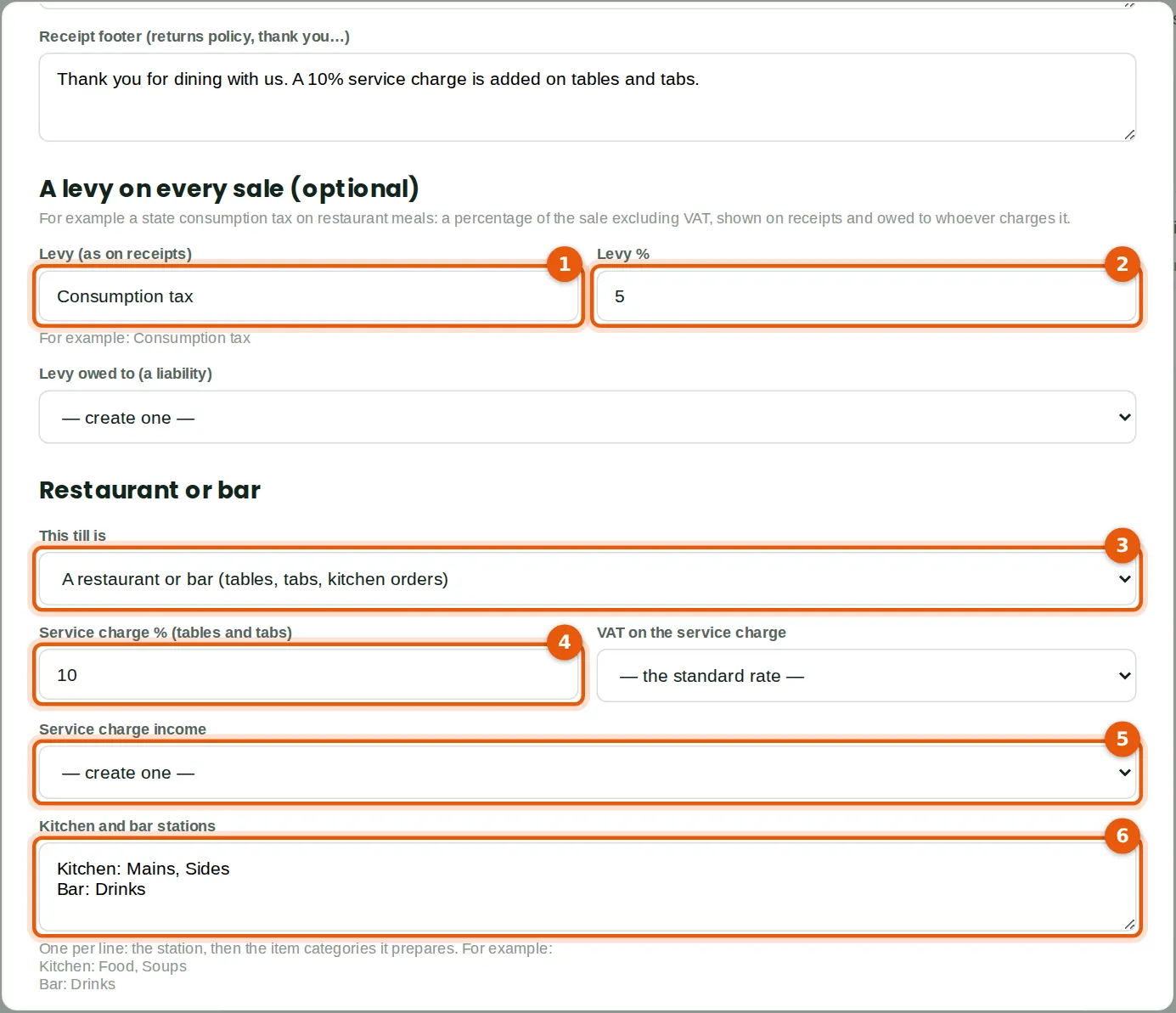
Chukwudi creates the till HK, Harvest Kitchen, selling from a new Harvest Kitchen store warehouse, with its own drawer cash account (created as 1012), the same card settlements, over-and-short and petty cash accounts as the factory shop's till (step 29.2), and the item categories Mains, Sides and Drinks. A state consumption tax on meals is set as a levy (1) of 5% (2) for the illustration (check the rate that applies with the state's revenue service); leaving its account on — create one — makes Consumption tax payable (2180, a tax liability). The till is a restaurant or bar (3), with a 10% service charge on tables and tabs (4), VAT on it at the standard rate, and income on a new Service charge income account (5, 4090). The stations (6) say who prepares what: the kitchen the Mains and Sides, the bar the Drinks.
Who
Owner or administrator (Point of sale at Full level). Chukwudi Okeke.
What to do
- Open Point of sale → Tills and click New till (or click an existing till). Fill in the till as in step 29.2.
- For a levy, type its name as it should appear on receipts (1) and the percentage (2), and choose or create its account.
- Choose A restaurant or bar (3), type the service charge (4) and choose its VAT code and income account (5).
- Type the stations, one per line: the station's name, a colon, then the item categories it prepares (6). Click Create till.
30.3 The tables
Why
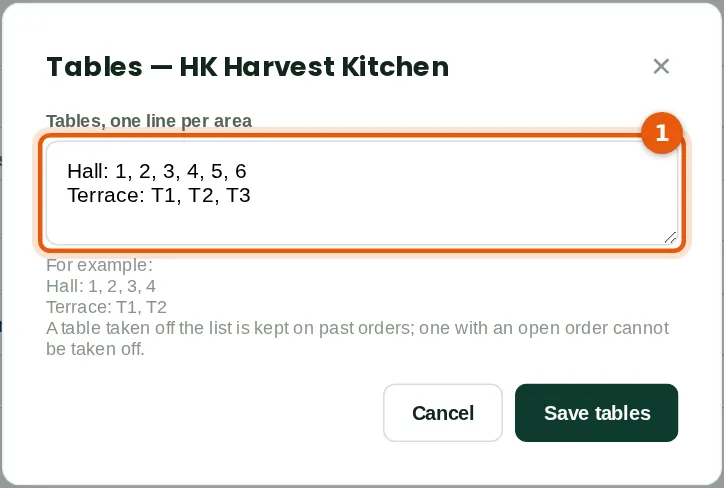
Chukwudi opens the till again and clicks Tables. He types one line per area (1): the hall's six tables and three on the terrace. The floor shows the areas in this order. Tables can be renamed or added at any time; a table taken off the list stays on past orders, and one with an open order cannot be taken off. A bar without tables needs none: tabs and takeaways work without them.
Who
Owner or administrator.
What to do
- Open the till and click Tables…
- Type each area, a colon and its tables separated by commas (1). Click Save tables.
30.4 Choices offered with dishes
Why
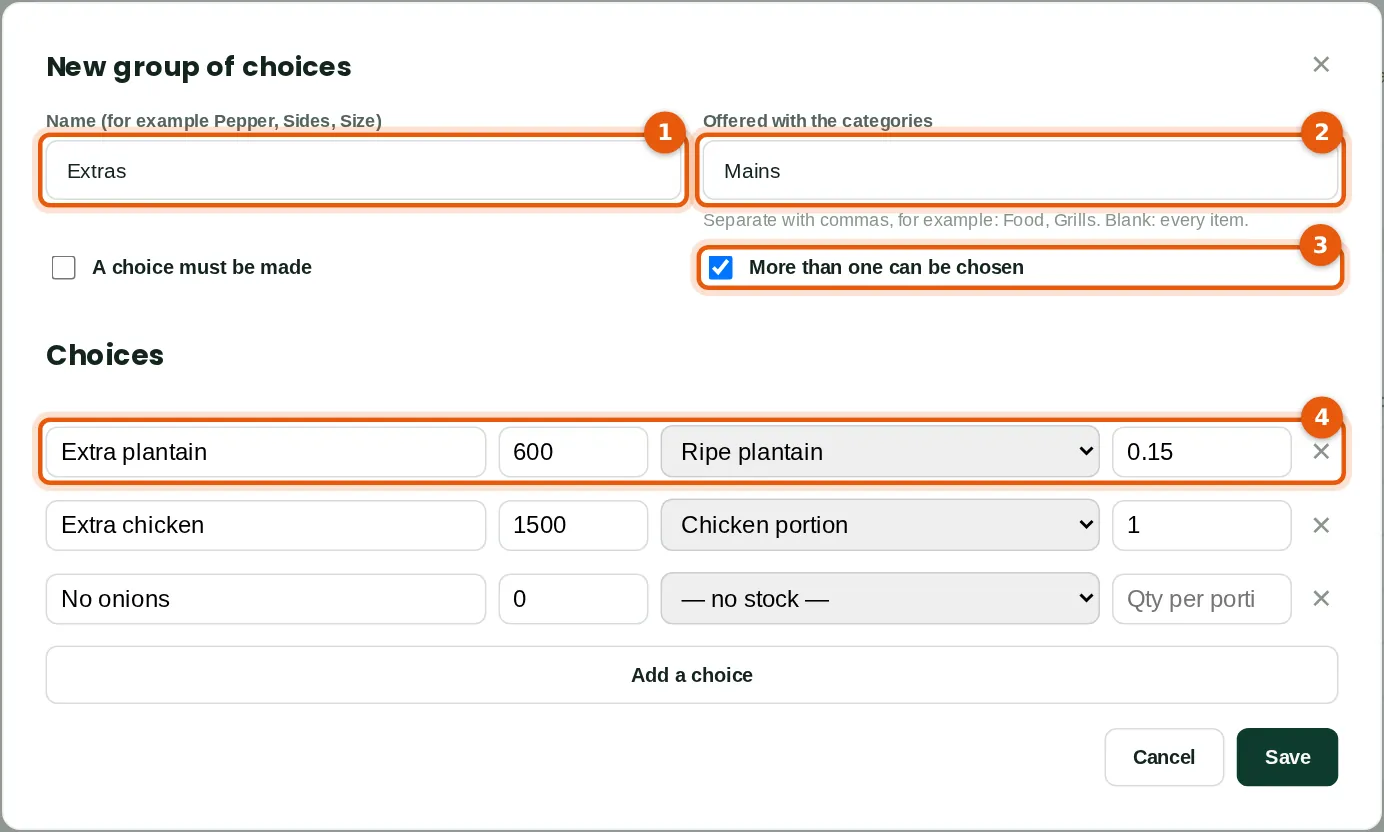
The Pepper group (Mild, Medium or Hot; a choice must be made) is already set up for the Mains. Chukwudi adds Extras (1) for the Mains (2), where any number can be chosen (3). Each choice (4) has an extra price, and the stock it uses per portion: Extra plantain is ₦600 more and uses 0.15 kg of ripe plantain; Extra chicken ₦1,500 and one chicken portion; No onions costs nothing and uses nothing. A group offered with no categories applies to every item at the restaurant tills.
Who
Owner or administrator.
What to do
- Open Point of sale → Menu and click New group of choices.
- Name it (1), type the categories it goes with (2) and tick whether a choice must be made or more than one can be chosen (3).
- Type each choice with its extra price, and choose the stock it uses and how much per portion (4). Click Save.
30.5 A dish's recipe
Why
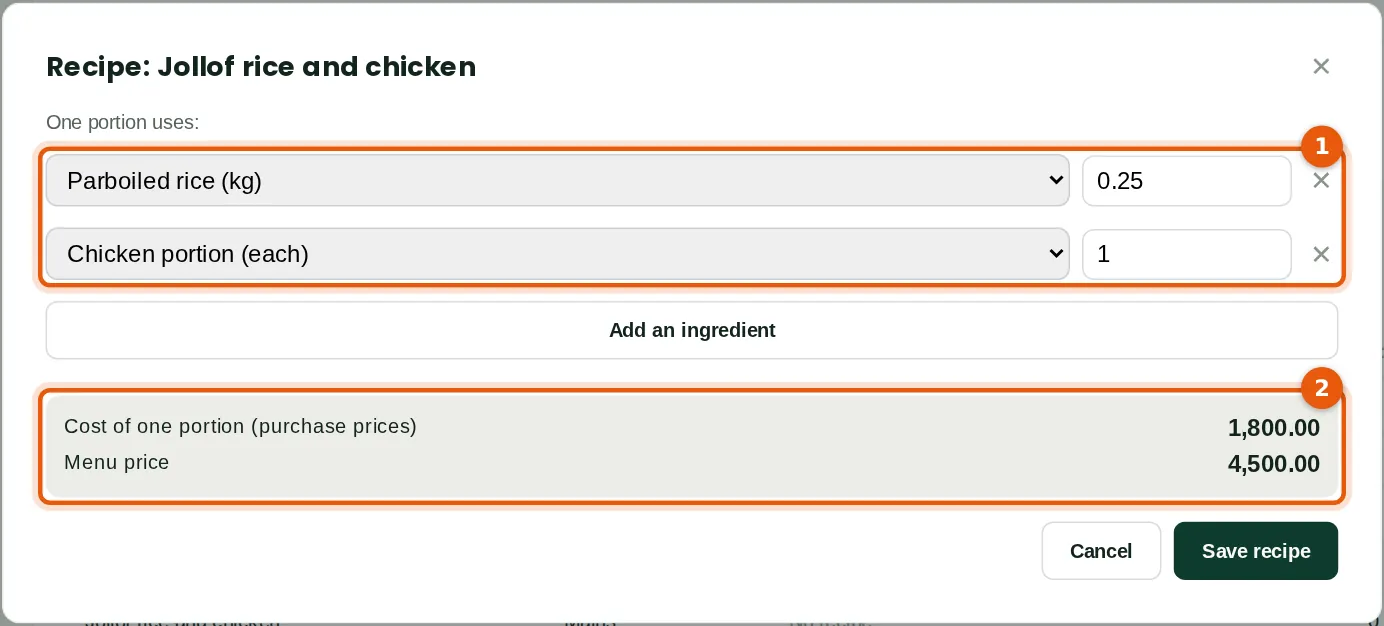
Jollof rice and chicken (₦4,500 on the menu, VAT included) uses 0.25 kg of parboiled rice and one chicken portion per plate (1). The cost of one portion at the ingredients' purchase prices (2) is ₦1,800. Saving a recipe for a dish that is not yet a kit makes it one (chapter 5). The ingredients are inventory items in the Kitchen stores category, bought into the Harvest Kitchen store on a bill like any stock.
Who
Owner or administrator, or Inventory at Approve level.
What to do
- On the Menu tab, click a dish under Recipes.
- Choose each ingredient and the quantity one portion uses (1). Check the cost (2) and click Save recipe.
30.6 The menu
Why
The choices (1) and the recipes of the restaurant till's dishes and drinks (2), with each one's cost and menu price. Chapman, mixed at the bar, has no recipe here, so it takes nothing from stock; bottled malt and water are stocked items and leave stock as themselves. Item prices, VAT codes and categories are changed on the items (chapter 5).
Who
Owner or administrator, or Inventory at Approve level.
What to do
- Open Point of sale → Menu. Click a group to change it, or a dish to change its recipe.
30.7 Start an order and add a dish
Why
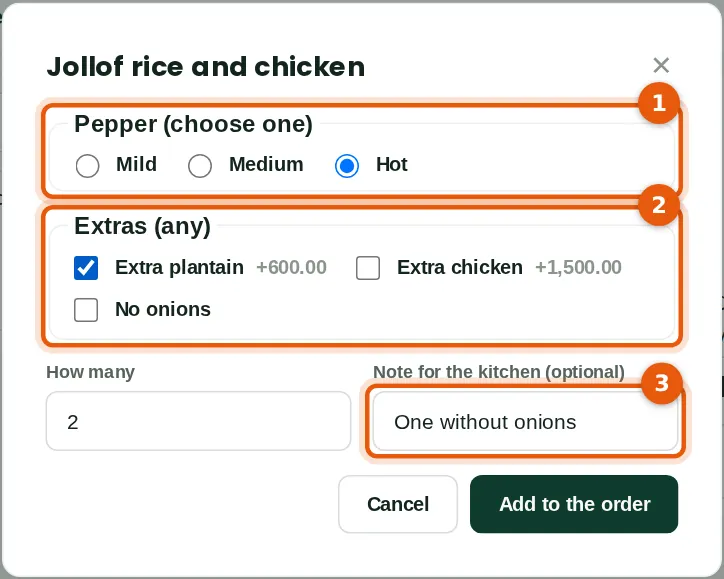
Esther opened session HK-0001 at 11:40 with a ₦15,000 float from petty cash, as in step 29.5, then opened Tables and tabs from the till's card. Two guests sit at table 3: she taps the table and types 2 guests. The first guest orders jollof rice hot (1) with extra plantain (2), and so does the second, so she sets How many to 2; one of them wants no onions, which goes to the kitchen as a note (3). A dish with choices always opens this dialog; one without is added at once.
Who
Waiter (Cashier role). Esther Bitrus.
What to do
- On the Sell tab, click Tables and tabs on the restaurant till. Tap a free table (or New tab, or Takeaway) and type the number of guests.
- Type or tap a dish. Choose the choices (1, 2), the number and any note (3), and click Add to the order.
30.8 The order
Why
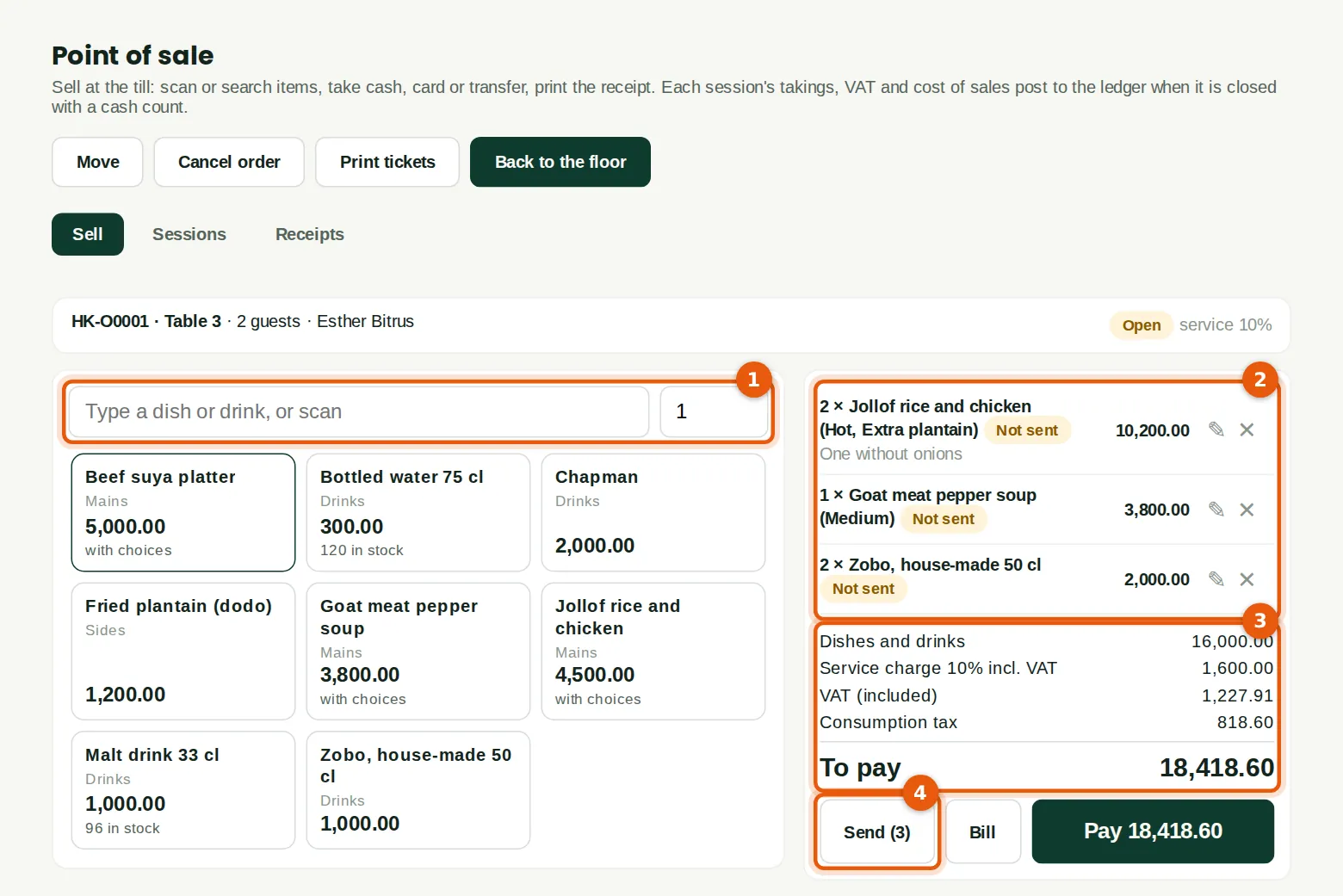
Esther adds a goat meat pepper soup (Medium) and two house zobos from the menu (1). The lines (2) are Not sent: she can still change them (✎: quantity, note, discount within the till's limit) or take them off (✕). The bill so far (3) shows the dishes and drinks, the 10% service charge with its VAT, the VAT included and the consumption tax. Send (4) sends the three new lines: the jollof and the soup to the kitchen, the zobo to the bar.
Who
Waiter.
What to do
- Add each dish and drink (1). Check the lines (2) and click Send (4). Back to the floor returns to the tables.
30.9 The floor
Why
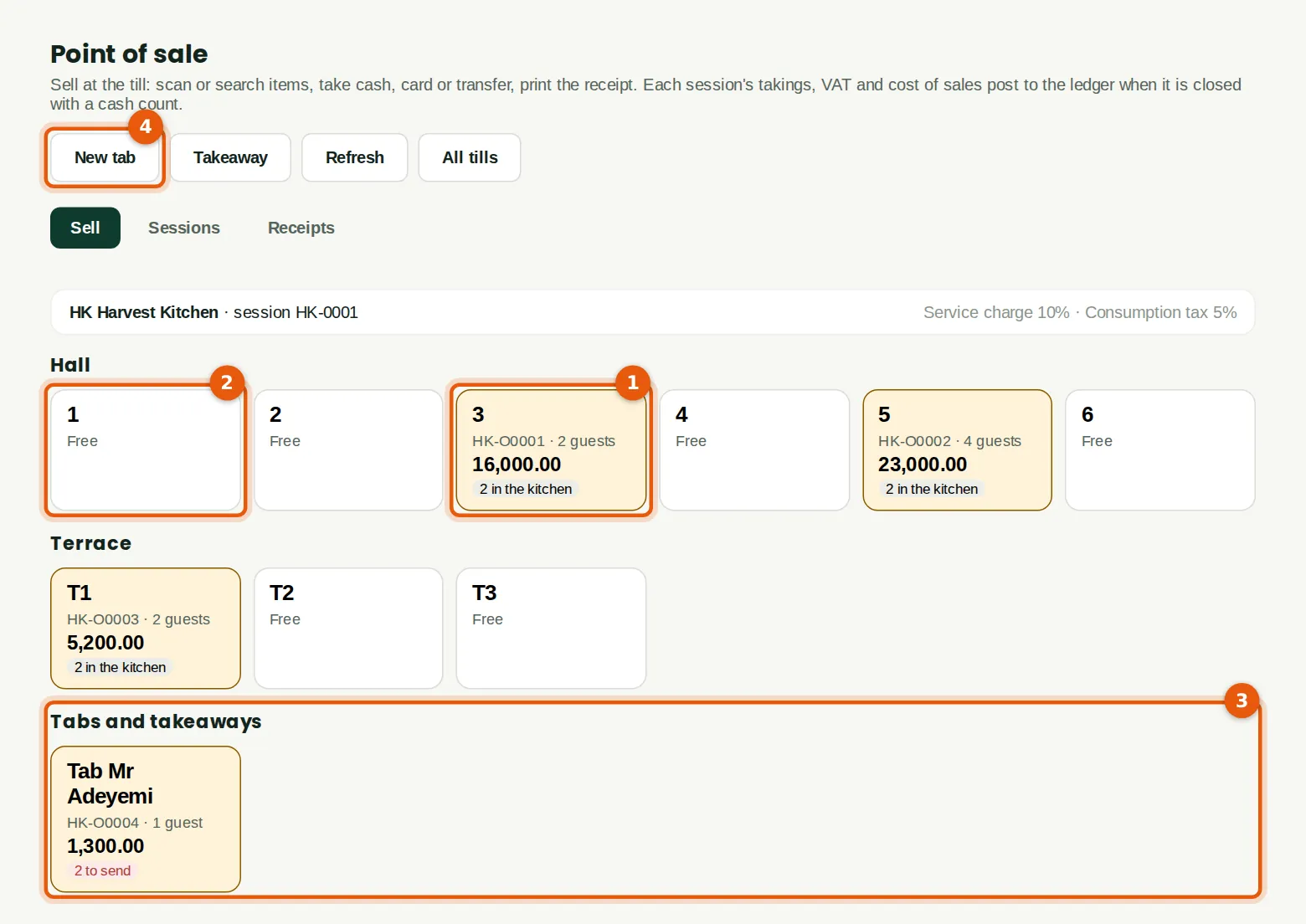
The floor shows each area's tables: a busy table (1) gives its order number, guests, what is still to pay and badges for what is in the kitchen, still to send or part paid; a free one (2) starts a new order. Tabs and takeaways (3) are below. Mr Adeyemi has a tab at the bar (4, New tab) with two drinks not yet sent. The floor refreshes itself every 15 seconds, so waiters on different devices see the same tables.
Who
Waiters and supervisors.
What to do
- Tap a busy table to open its order, a free one to start one, or New tab or Takeaway (4).
30.10 Take off a dish already sent
Why
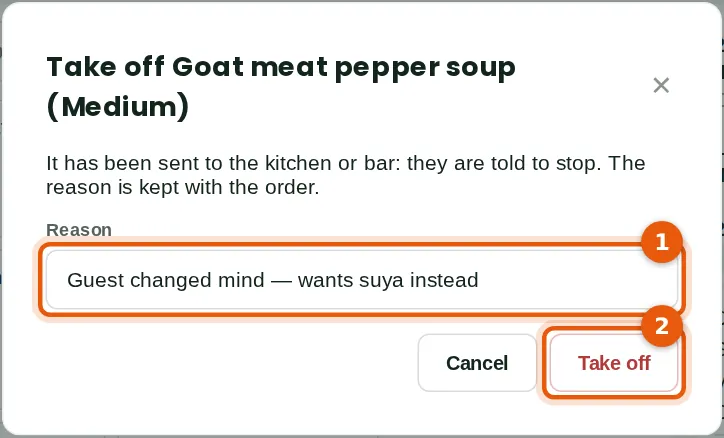
The soup has been sent, so only a supervisor can take it off: the guest has changed their mind and wants a beef suya platter instead. Rakiya gives the reason (1) and clicks Take off (2). The kitchen gets a red STOP ticket for the soup, the reason is kept with the order and in the audit trail, and the soup is not charged. Rakiya then adds the suya (Medium) and sends it. Making a sent line fewer works the same way (✎, with the reason): the part taken off is kept as a voided line of its own.
Who
Shop supervisor. Rakiya Shehu.
What to do
- Open the order, click ✕ on the line, type the reason (1) and click Take off (2).
30.11 The kitchen display
Why
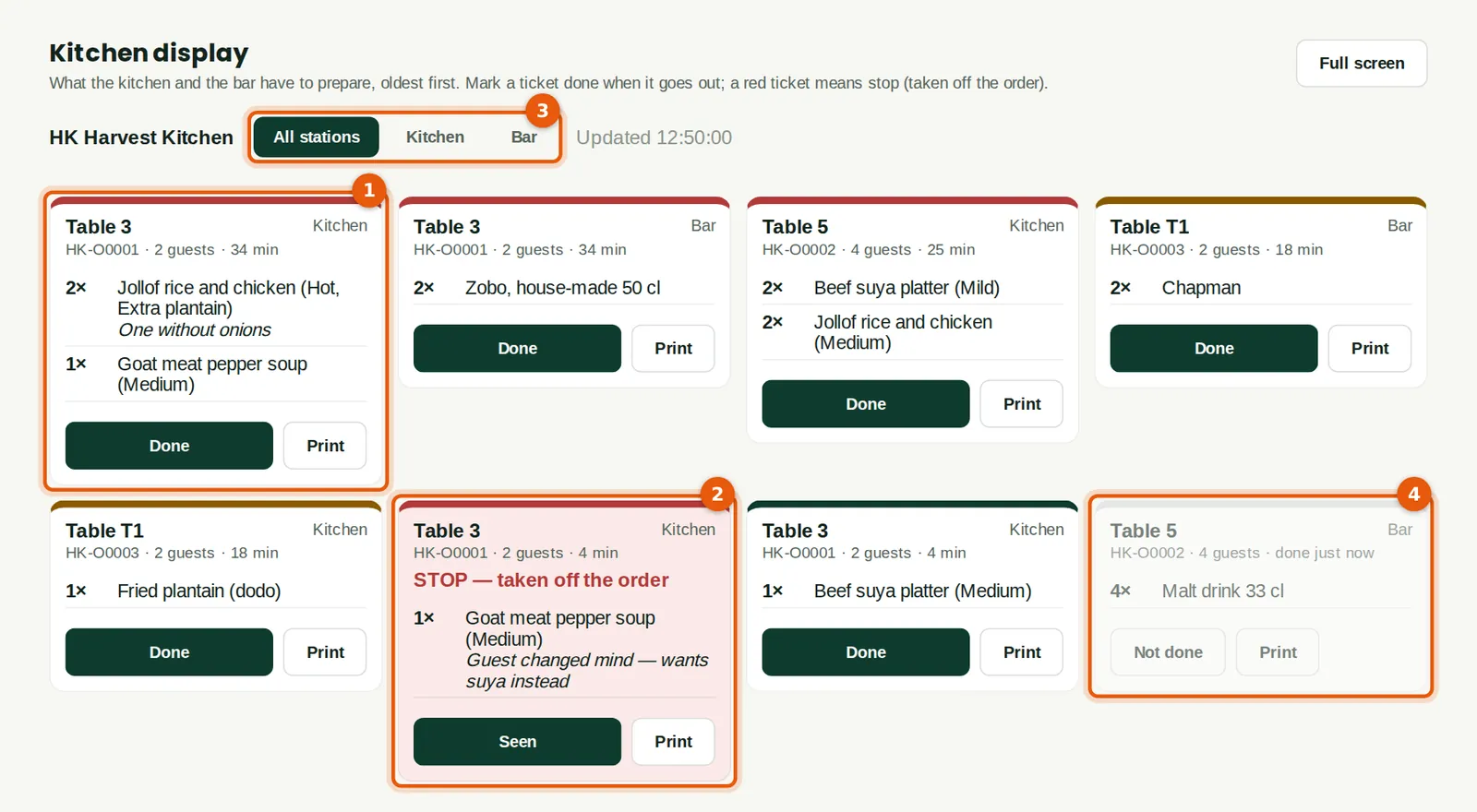
Each ticket shows the table, the order, the guests and how long it has waited, oldest first; a ticket turns amber after 10 minutes and red after 20. Table 3's kitchen ticket (1) carries the note One without onions. The STOP ticket (2) tells Yakubu that the pepper soup is off; he clicks Seen. The station tabs (3) show one station's tickets, for a screen in the bar. A done ticket (4) stays greyed for half an hour so it can be marked not done. A new ticket gives a short sound. Print prints a ticket on the device's printer.
Who
Kitchen and bar staff; waiters see it without marking tickets done.
What to do
- Open Kitchen display (on a tablet or screen in the station). Choose the station (3), click Done as each ticket goes out, or Seen on a STOP ticket.
30.12 Print the bill
Why
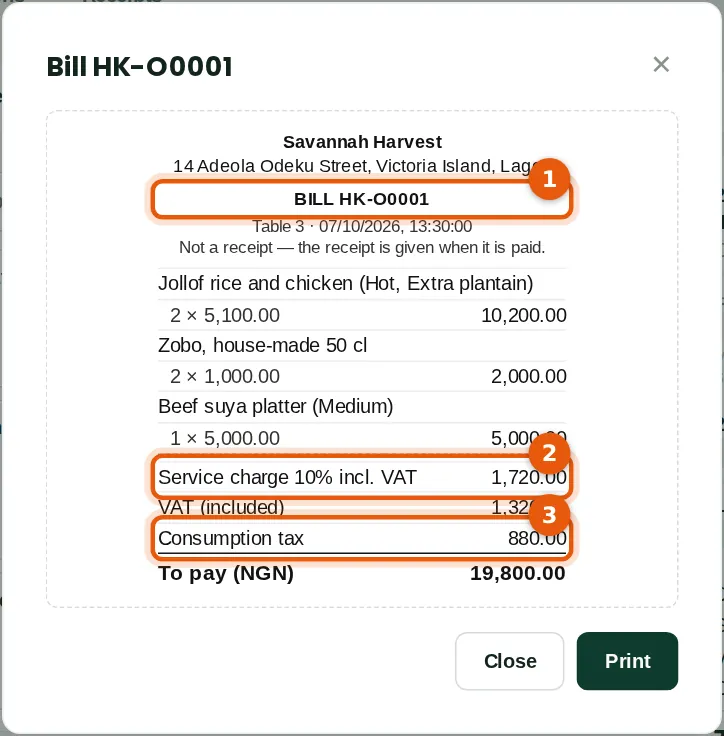
The guests ask for the bill. It (1) lists what was ordered, less the soup taken off: two jollof rice with extra plantain at ₦5,100, two zobo and the beef suya platter, ₦17,200 including VAT. The service charge (2) is 10% of ₦16,000 excluding VAT, ₦1,600, plus ₦120 VAT: ₦1,720. The consumption tax (3) is 5% of ₦17,600 (the dishes and drinks and the service charge excluding VAT): ₦880. To pay: ₦19,800. The bill says it is not a receipt.
Who
Waiter.
What to do
- Open the order and click Bill, then Print.
30.13 Split the bill
Why
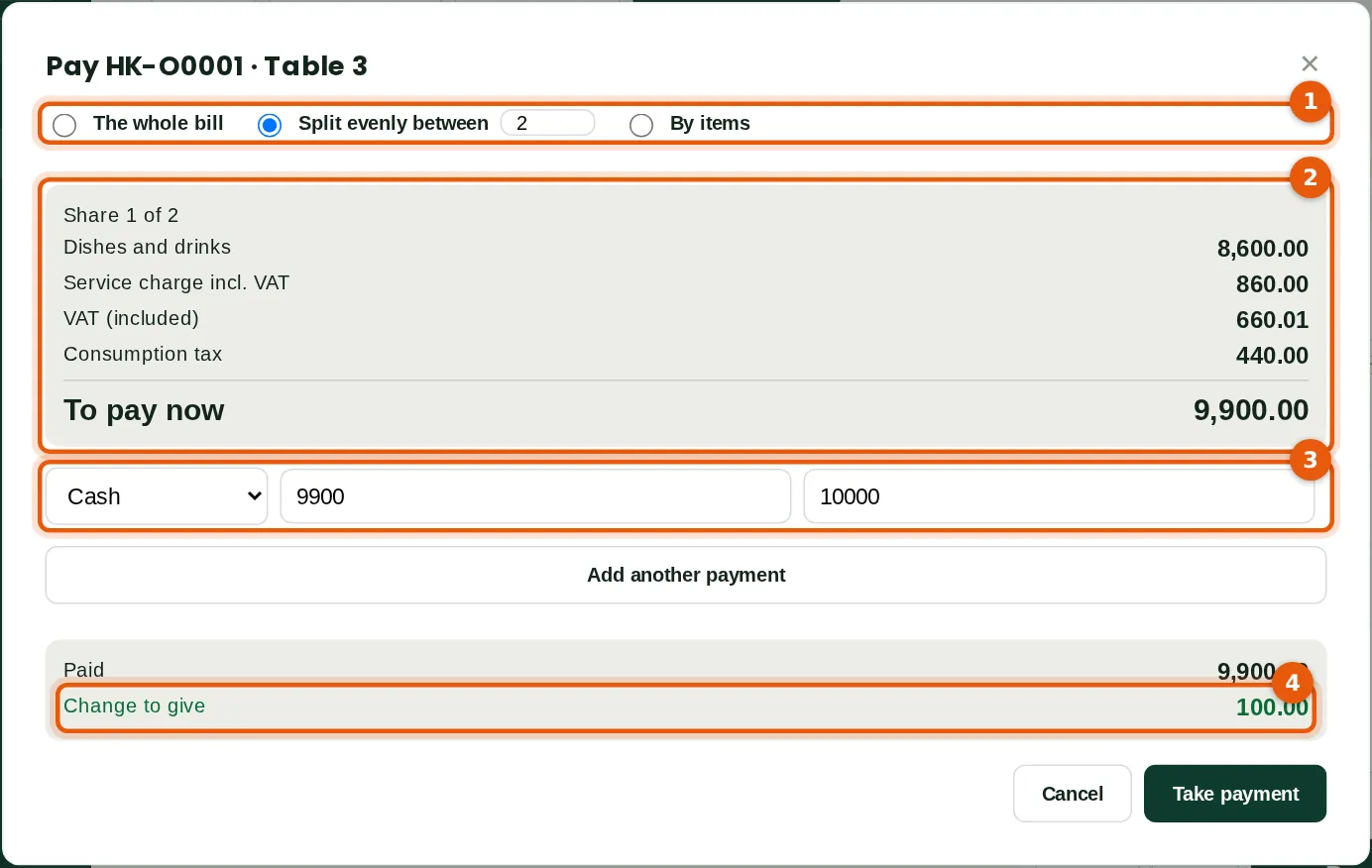
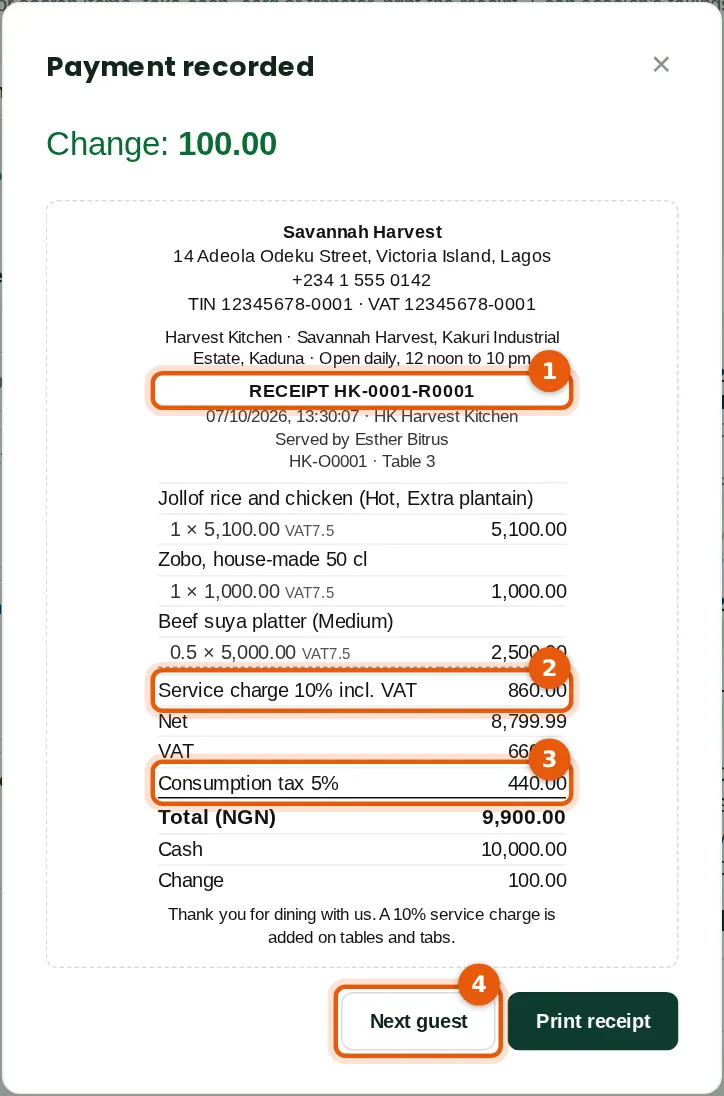
The two guests pay half each. Esther chooses Split evenly between 2 (1): the first share (2) is half of every line, with its service charge, VAT and consumption tax, ₦9,900. The first guest pays cash with a ₦10,000 note (3), so the change is ₦100 (4). By items pays chosen lines (or part of a line) instead; The whole bill pays everything left. The last share always takes exactly what is left, so the shares add up to the bill.
Who
Waiter.
What to do
- Click Pay. Choose how the bill is paid (1) and check the amount (2).
- Choose how the guest pays and type what was handed over (3). Click Take payment.
30.14 The receipt
Why
Receipt HK-0001-R0001 (1) gives the half of each line paid, the service charge with its VAT (2), the VAT and the consumption tax (3), with the order and table, and the till's header and footer. Next guest (4) opens the second share; the second guest pays ₦9,900 by card as receipt HK-0001-R0002, and table 3 is free again. Stock leaves the store at each payment: half the rice, chicken, plantain and beef with this receipt.
Who
Waiter.
What to do
- Click Print receipt if the guest wants one, then Next guest (4), or Back to the floor when the order is paid.
30.15 On a phone
Why
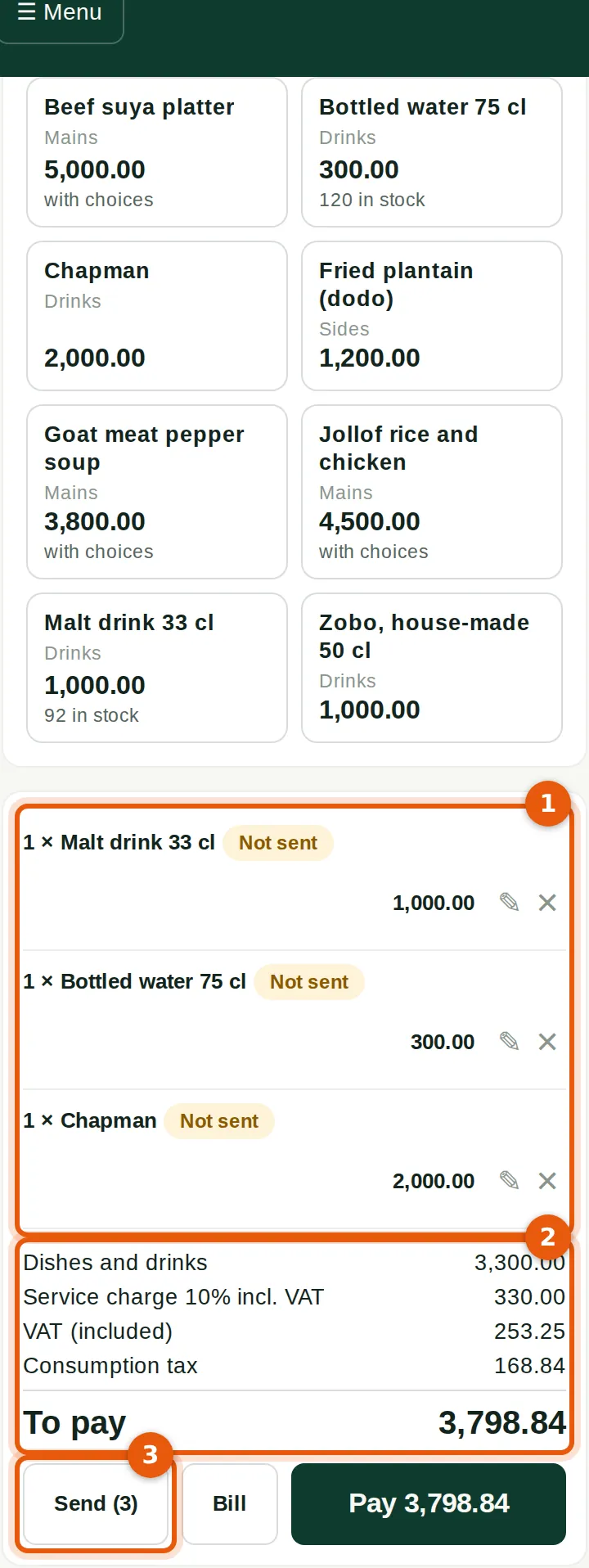
Esther adds a Chapman to Mr Adeyemi's tab from her phone at the bar. The same screens work on a phone: the menu above, the lines (1) and the bill (2) below, and Send (3) sends the three drinks to the bar. Mr Adeyemi pays ₦3,798.84 by card when he leaves at 18:40.
Who
Waiter.
What to do
- Open Point of sale on the phone, tap Tables and tabs, tap the order and add as on a tablet.
30.16 The close and the Z report
Why
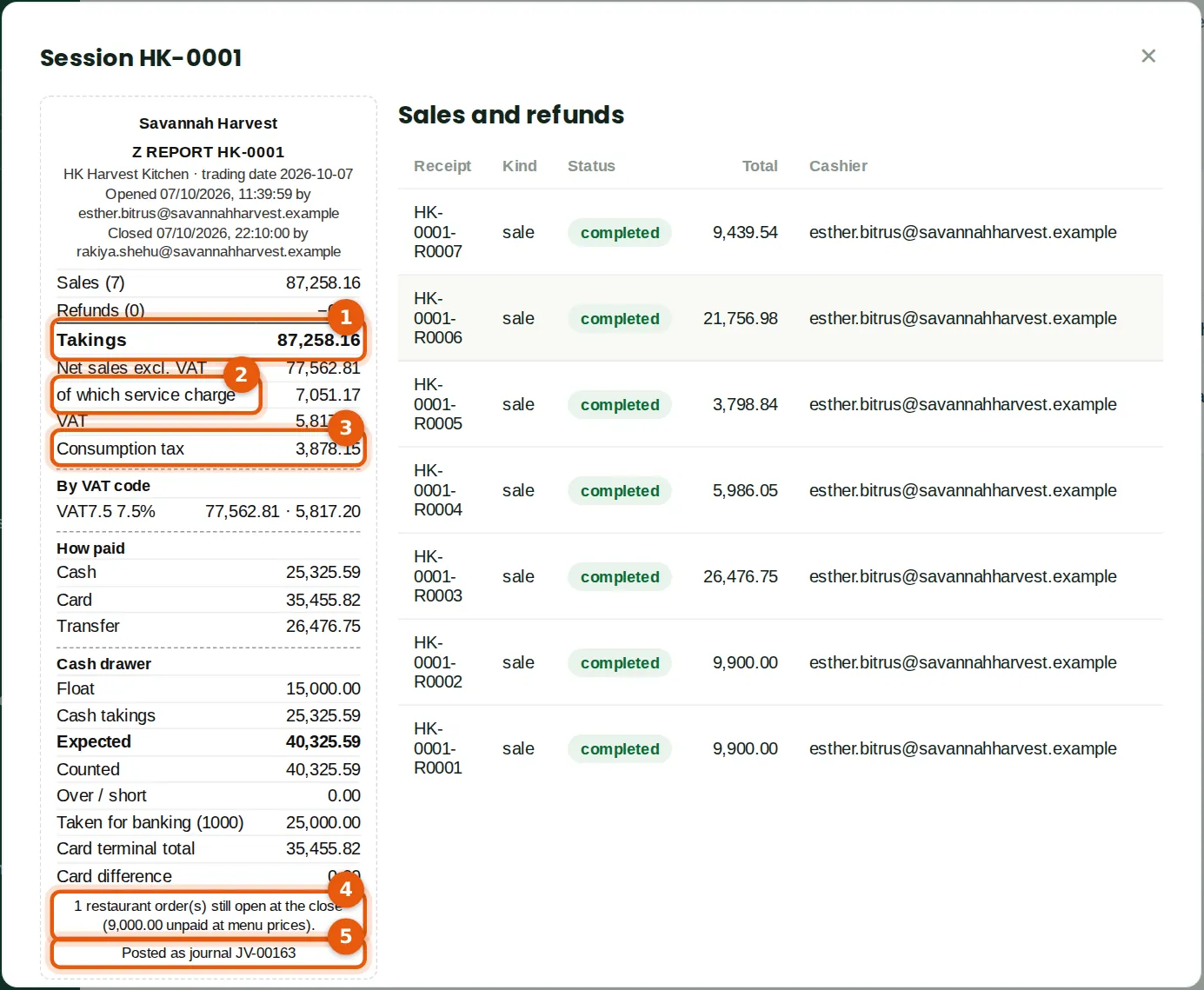
Rakiya closes the session as in step 29.12, while table 2 is still eating: the order stays open for the next session. The Z report shows takings of ₦87,258.16 from seven payments (1); net sales excluding VAT of ₦77,562.81, of which service charge ₦7,051.17 (2); VAT ₦5,817.20 and consumption tax ₦3,878.15 (3); and the order still open at the close, ₦9,000 at menu prices (4). The session is posted as journal JV-00163 (5): Dr till cash ₦25,325.59, card settlements ₦35,455.82 and the bank ₦26,476.75; Cr sales ₦70,511.64, Service charge income (4090) ₦7,051.17, output VAT ₦5,817.20 and Consumption tax payable (2180) ₦3,878.15; Dr cost of sales and Cr inventory ₦25,215; and ₦25,000 taken for banking. The consumption tax is paid to the state from 2180 like any tax payable (chapter 8).
Who
Cashier who opened the session, or a shop supervisor.
What to do
- Close the session as in chapter 29. On the Sessions tab, click the session for its Z report.
30.17 The restaurant voids report
Why
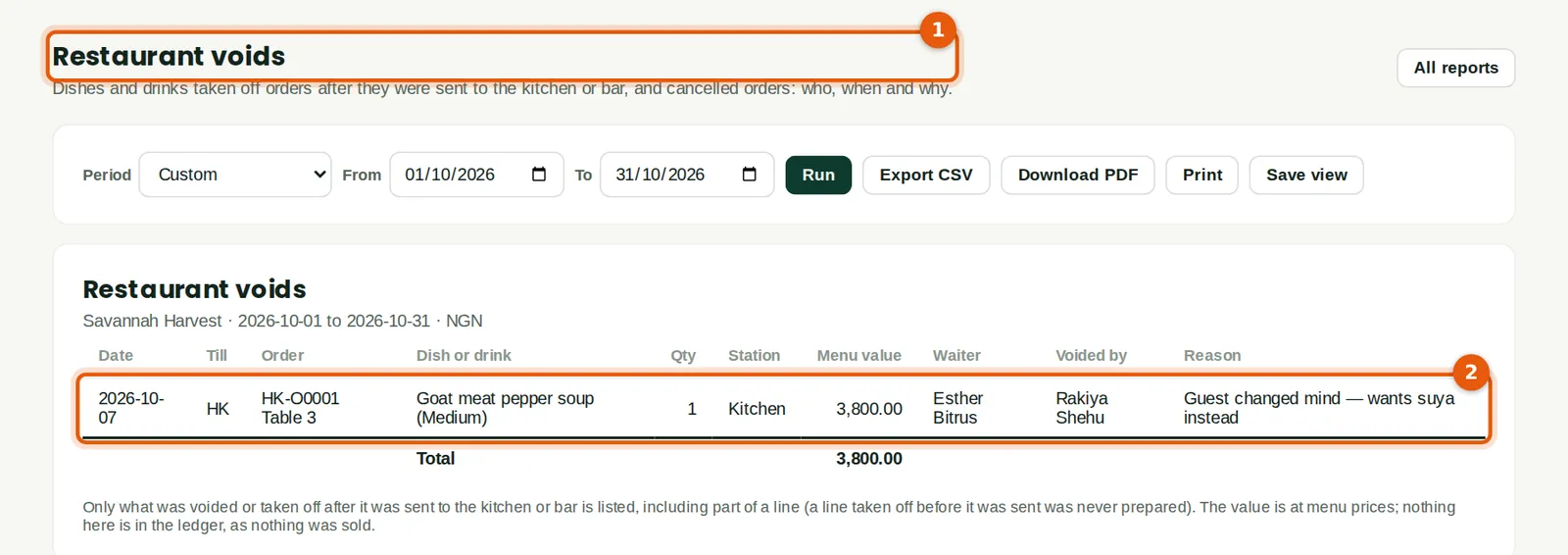
Restaurant voids (1) lists every dish or drink taken off after it was sent to the kitchen or bar, and cancelled orders: the date, till, order and table, the quantity, the station, the value at menu prices, the waiter, who took it off and why (2). Chukwudi checks it each morning. Nothing on it is in the ledger, since nothing was sold; what was prepared and thrown away is found by counting the store (chapter 5). Book health warns of an order open for more than a day.
Who
Shop supervisor, accountant, reports users.
What to do
- Open Reports → Receivables & sales → Restaurant voids, choose the period and click Run.