Steps in this chapter (14)
Point of sale turns a browser on a laptop, tablet or phone into a shop till. The cashier scans or picks items, takes cash, card or transfer (or a mix), and prints a receipt. Stock leaves the shop's warehouse at once. At the end of the day the cashier counts the drawer and closes the session; BookTrove then posts one journal for the day's takings, VAT, cost of sales, cash paid in and out, cash over or short, and the cash taken for banking.
Point of sale is an add-on: it is not part of any plan and can be added to any plan by the subscription owner on troveuniverse.com/account.html, under the BookTrove subscription's Add-ons, for a monthly price plus VAT. Once added, Business → Point of sale appears for the people whose role allows it.
In the illustration Savannah Harvest opens a factory shop at its Kaduna site on 5 October 2026, selling its own ginger, tea, zobo, sesame, cashews and shea butter in retail packs. Chukwudi Okeke (administrator) sets up the till; Halima Yusuf, the shop's cashier, opens the session, sells through the day, keeps selling while the internet is down, refunds a crushed box of tea, pays out ₦1,500 for sachet water, and closes the day with a cash count.
How point of sale works
| Topic | What happens |
|---|---|
| Where | Business → Point of sale: the Sell, Sessions and Receipts tabs, and Tills for people who set them up. Reports → Receivables & sales: Point of sale takings and Point of sale — sales by item. |
| Add-on | Not in any plan. The subscription owner clicks Add next to Point of sale under Add-ons on troveuniverse.com/account.html; it starts when the invoice for the rest of the billing period is paid (at once during a free trial), and is then billed with the plan. Without it the menu item is hidden and its pages say the add-on is needed. |
| Who | A new area, Point of sale, in each role. Cashier (Prepare): opens a session, sells, gives discounts up to the till's limit, refunds if the till allows it, pays cash to or from the till's petty cash account, and closes the session. Shop supervisor (Approve): also changes prices, gives any discount, refunds, voids a sale in an open session, moves cash to any allowed account, records a float difference and closes any session. Owners and administrators (Full) set up tills. View level sees sessions and receipts. The ready-made Bookkeeper and Inventory manager roles include Point of sale at View level and Sales at Prepare level; give a custom role whatever level suits. |
| A till | One cash drawer: a code (it starts every receipt number), the warehouse it sells from, the cash account for its drawer, the accounts for card settlements, bank transfers and cash over or short, an optional petty cash account for cashiers' cash in and out, whether shelf prices include VAT, the cashier's discount limit, whether cashiers may refund, the item categories it sells, and the receipt's header and footer. |
| A session | One trading day on one till, from opening (counting the float) to closing (counting the drawer). A till has one open session at a time. Sessions are numbered SHOP-0001, SHOP-0002…; receipts SHOP-0001-0001, SHOP-0001-0002… |
| Prices and VAT | Each item's sale price and sales tax code (chapter 5). With shelf prices including VAT, the VAT is worked out from the price. Items in a category the till does not sell, serial-numbered items and items with a purchase-only tax code are not sold at the till. |
| Stock | Each sale takes stock out of the till's warehouse at its cost at that moment (a kit by its components). Refunds put items back at the cost they left at, or leave them out of stock when they cannot be resold. |
| Offline | The till keeps working without a connection. Sales are kept in the browser on that device and sent, in order, when it is back; each is recorded once only. Prices and discounts a cashier could not give online are accepted but flagged for the supervisor. |
| The ledger | Nothing reaches the ledger until the session is closed. The opening float is moved into the drawer's cash account by its own journal when the session opens. The closing journal (source: point of sale session) debits the drawer, card clearing and bank for what was received; credits revenue and output VAT by tax code; posts cost of sales against inventory; records cash paid in and out, the cash over or short and the cash taken for banking. |
| Not covered | Sales to customers on account, layaways and gift cards: use invoices (chapter 7). Point of sale receipts are not sent to NRS as e-invoices; they are retail sales to unregistered customers. Card terminals are not connected: the cashier keys the card amount. A restaurant or bar (tables, tabs, kitchen orders) is a separate add-on. |
29.2 Set up a till
Why
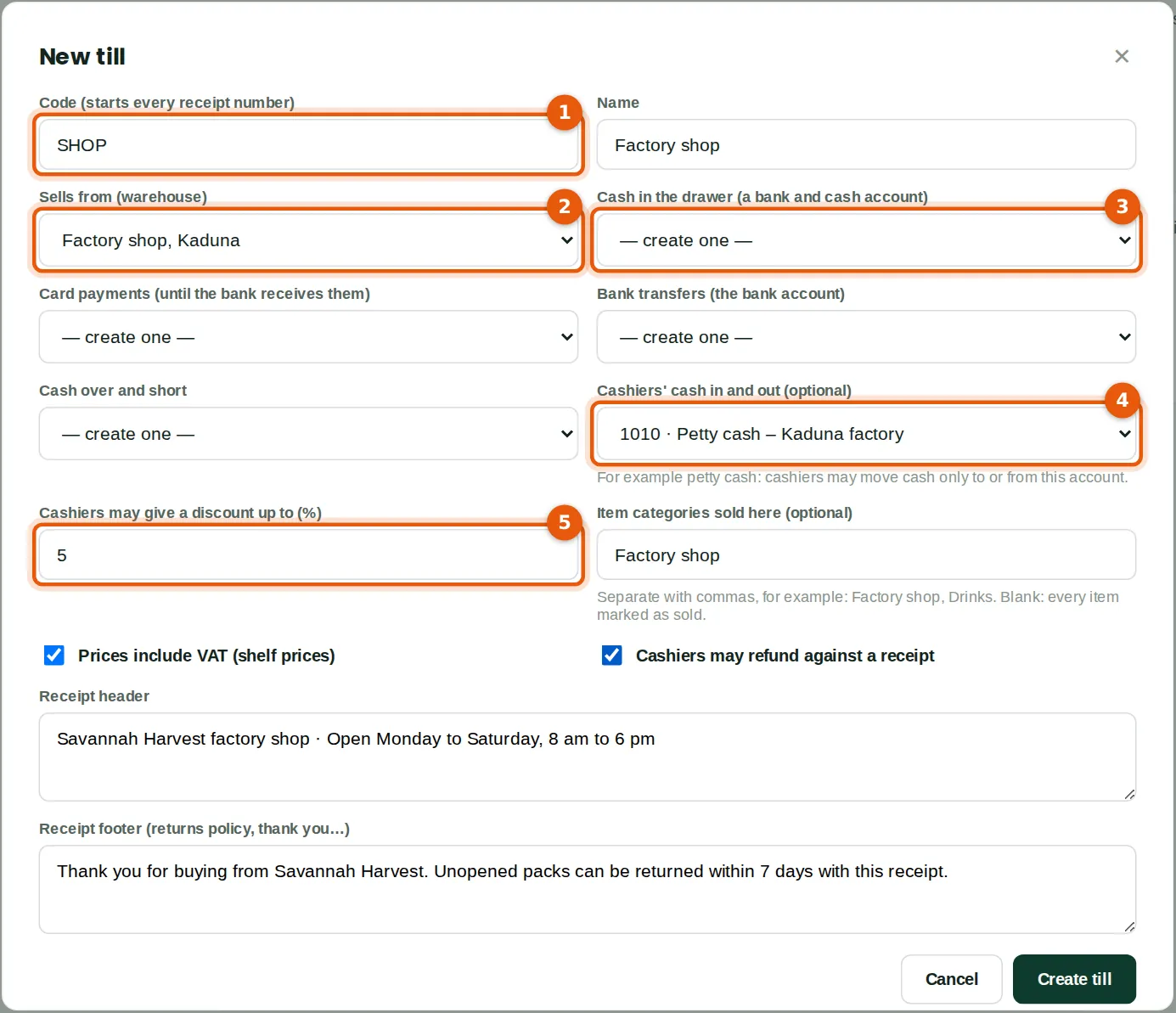
Chukwudi creates the factory shop's till with the code SHOP (1). It sells from the Factory shop, Kaduna warehouse (2), where the retail packs are received. Leaving the drawer's cash account (3), card payments, bank transfers and cash over and short on — create one — makes BookTrove create them: Till cash — Factory shop (1011, bank and cash), Card settlements (1031), and Cash over and short (6990, an expense); transfers go to the main bank account. Cashiers may move cash only to or from petty cash (4). Halima may give up to 5% discount (5); more needs a supervisor. Item categories sold here limits the till's screen to the Factory shop category, so the export products are not offered. Prices include VAT, and cashiers may refund against a receipt.
Who
Owner or administrator (Point of sale at Full level). Chukwudi Okeke.
What to do
- Open Point of sale → Tills and click New till.
- Type a short code (letters and numbers) and a name, and choose the warehouse (1, 2).
- Leave the accounts on — create one — for a new till, or choose existing ones (3). A drawer's cash account cannot be shared with another till.
- Optionally choose the petty cash account for cashiers' cash in and out (4), the discount limit (5), the item categories, and the receipt's header and footer. Click Create till.
29.3 The tills
Why
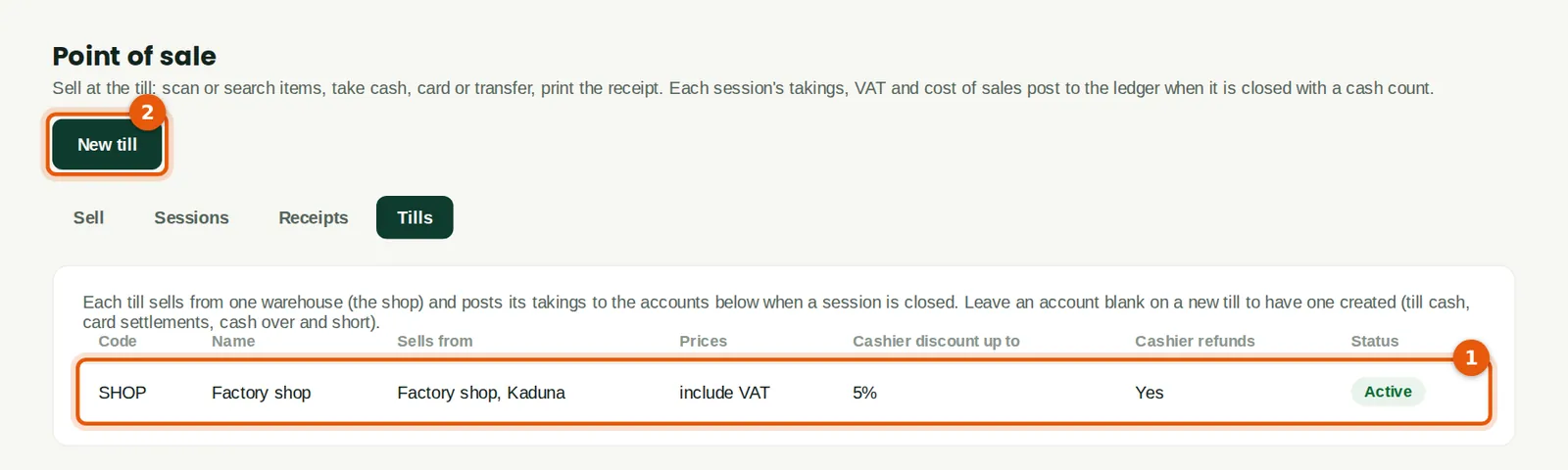
The list (1) shows each till's warehouse, prices, discount limit and refund setting. Click a till to change it; its warehouse, cash account and VAT setting cannot change while a session is open. New till (2) adds another drawer: each till has its own cash account and shares the card and over-and-short accounts. A till that is no longer used is made inactive.
Who
Owner or administrator.
What to do
- Click a till to change it, or New till (2) to add one.
29.4 Choose the till
Why
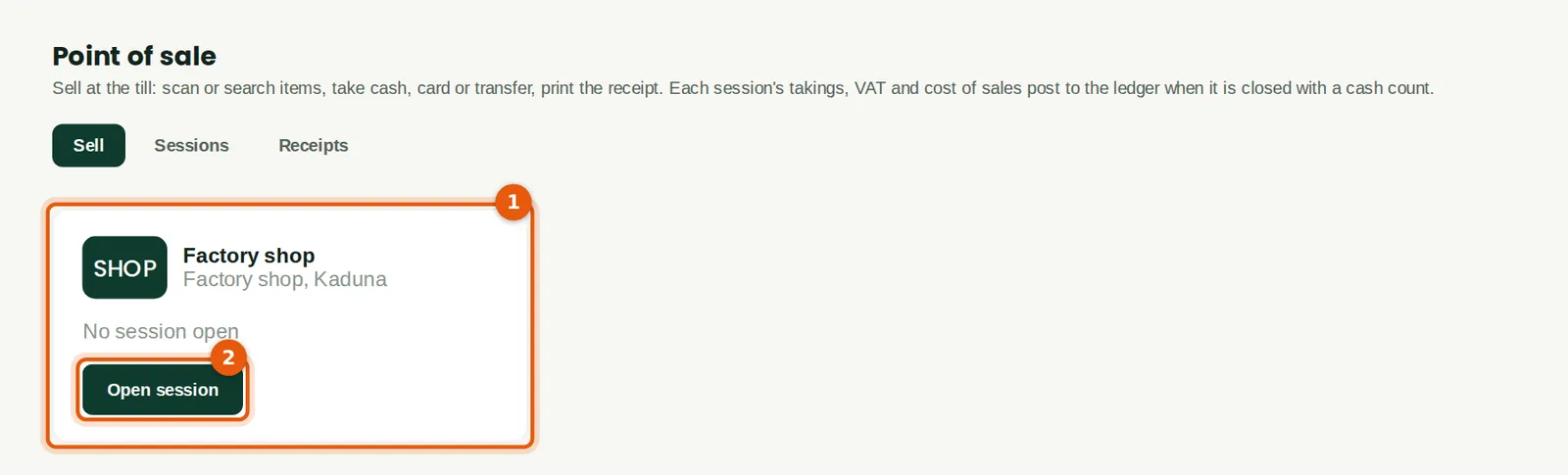
The Sell tab lists the tills (1). A till with no open session shows Open session (2). A till already open on another device shows Continue on this device: the cashier who opened it, or a supervisor, can move the session to a new device, for example when a tablet breaks.
Who
Cashier (Halima Yusuf).
What to do
- Open Business → Point of sale. On the Sell tab, click Open session on the till (2).
29.5 Open the session with a float
Why
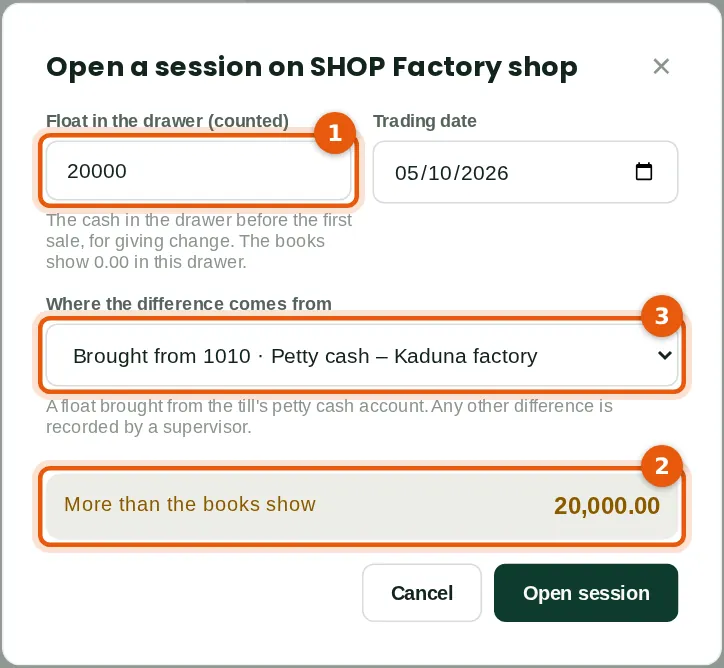
Halima counts ₦20,000 of change into the drawer (1). The books show nothing in this new drawer, so BookTrove shows the difference (2) and asks where it comes from (3): the float was brought from petty cash, so it is moved from 1010 to the till's cash account when the session opens. A cashier can bring a float only from the till's petty cash account; any other difference (a float that does not match what was left in the drawer) is recorded by a supervisor as cash over or short, with a note. The trading date is today.
Who
Cashier.
What to do
- Count the float and type it (1).
- If it differs from what the books show (2), choose where the difference comes from (3).
- Click Open session.
29.6 Ring up a sale
Why
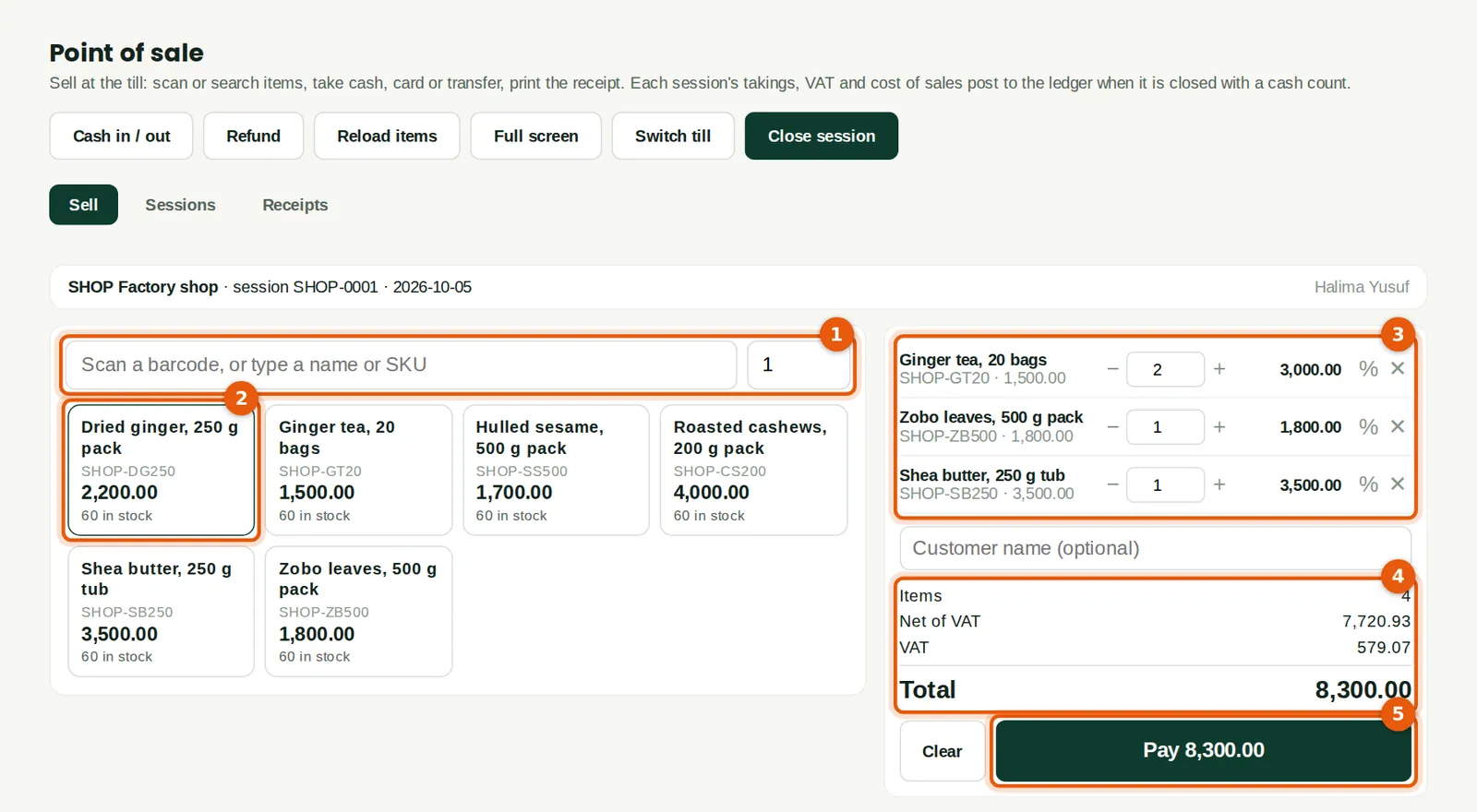
At 09:12 a customer buys two boxes of ginger tea, a pack of zobo leaves and a tub of shea butter. Halima scans the tea's barcode twice into the box (1) — or types part of a name or SKU and presses Enter, or taps an item (2). The lines (3) can be changed with − and +, the % button gives a discount (up to 5% for Halima; a supervisor can also change the price), and × removes a line. The totals (4) show the VAT included in the shelf prices. Pay (5) takes the payment.
Who
Cashier.
What to do
- Scan or type each item (1), or tap it (2). Set the quantity box first to sell several at once.
- Check the lines (3); optionally type the customer's name.
- Click Pay (5).
29.7 Take the payment
Why
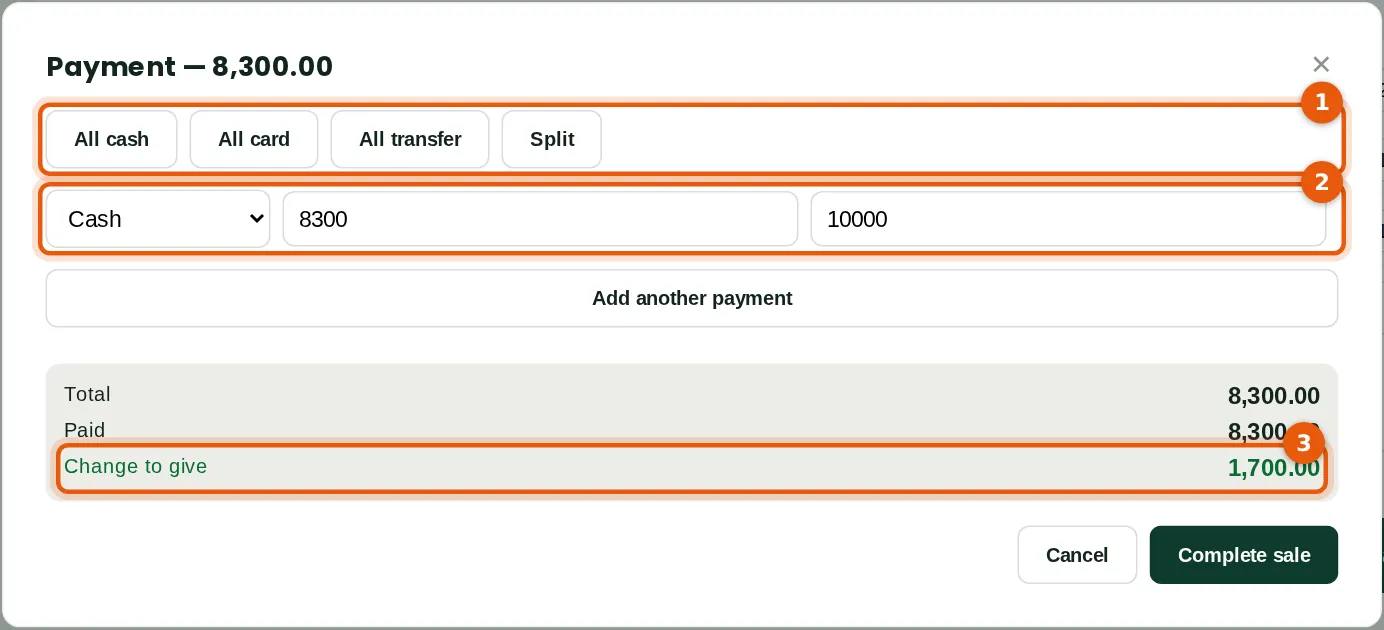
The quick buttons (1) set the whole amount to cash, card or transfer; Split adds a line for each. The customer pays cash (2) with a ₦10,000 note, so Halima types it as tendered and BookTrove shows the change to give (3), ₦1,700. Only cash can be overpaid. For a card payment, type the terminal's reference if wanted.
Who
Cashier.
What to do
- Choose how the customer pays (1), type what was handed over (2), and click Complete sale.
29.8 The receipt
Why
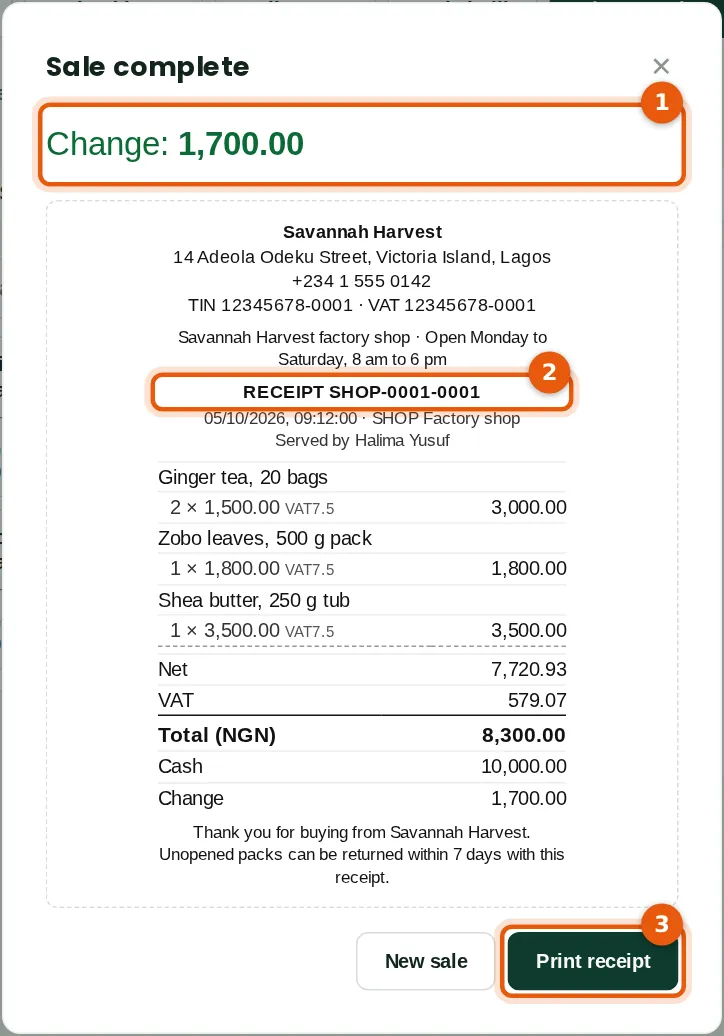
The change (1) is shown large. The receipt carries the company's name, address, TIN and VAT number, the till's header, the receipt number (2) SHOP-0001-0001, the lines with their VAT code, the VAT, how it was paid and the footer. Print receipt (3) prints it on the shop's receipt printer (a 58 or 80 mm printer set up in the browser) or any printer; New sale clears the register.
Who
Cashier.
What to do
- Give the change, click Print receipt (3) if the customer wants one, then New sale.
29.9 Selling without a connection
Why
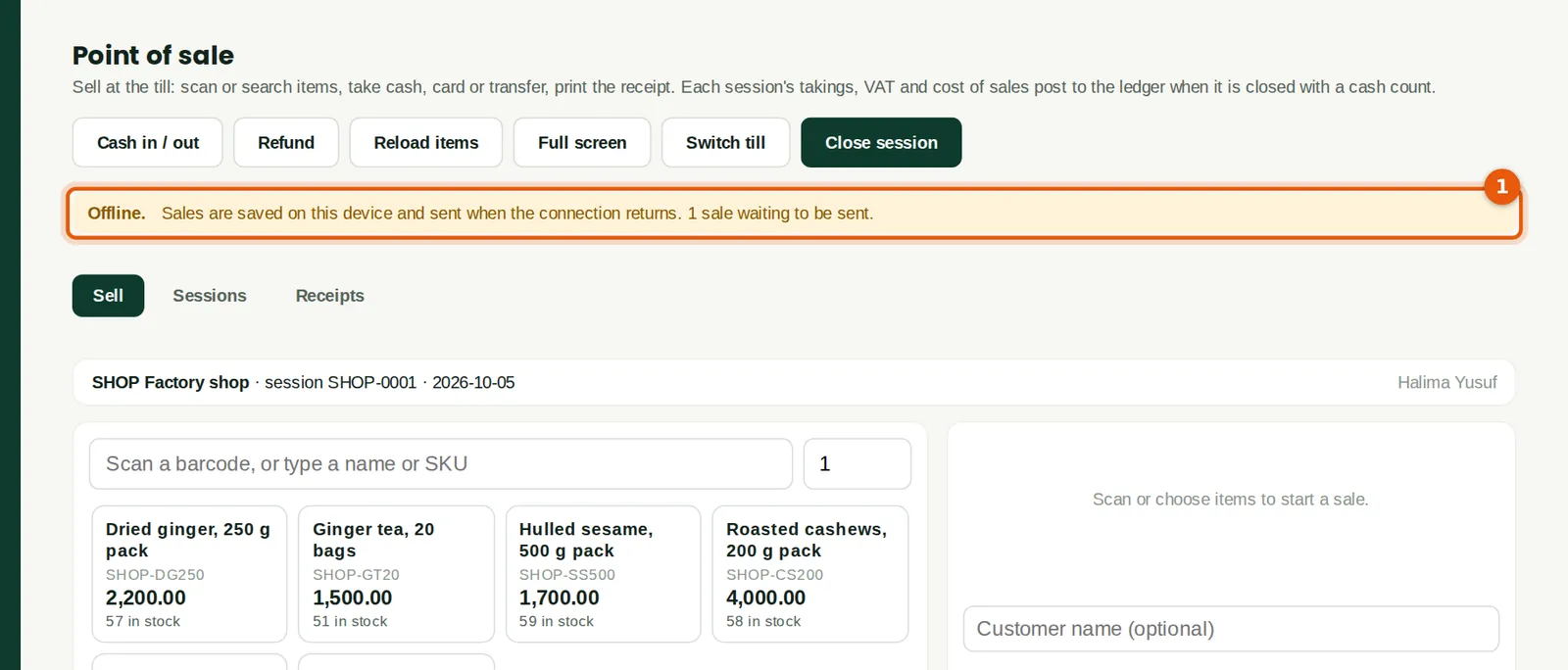
Just after 1 pm the shop's internet drops. The banner (1) says the till is offline and how many sales are waiting. Halima keeps selling: each sale is saved on the device with its receipt number and sent when the connection returns, in order and once only. Items, prices and stock on the screen are as last loaded (Reload items refreshes them when online). Do not clear the browser's data or sign out while sales are waiting: BookTrove warns before signing out.
Who
Cashier.
What to do
- Keep selling. When the banner goes, the waiting sales have been sent; Receipts shows them.
29.10 Refund against a receipt
Why
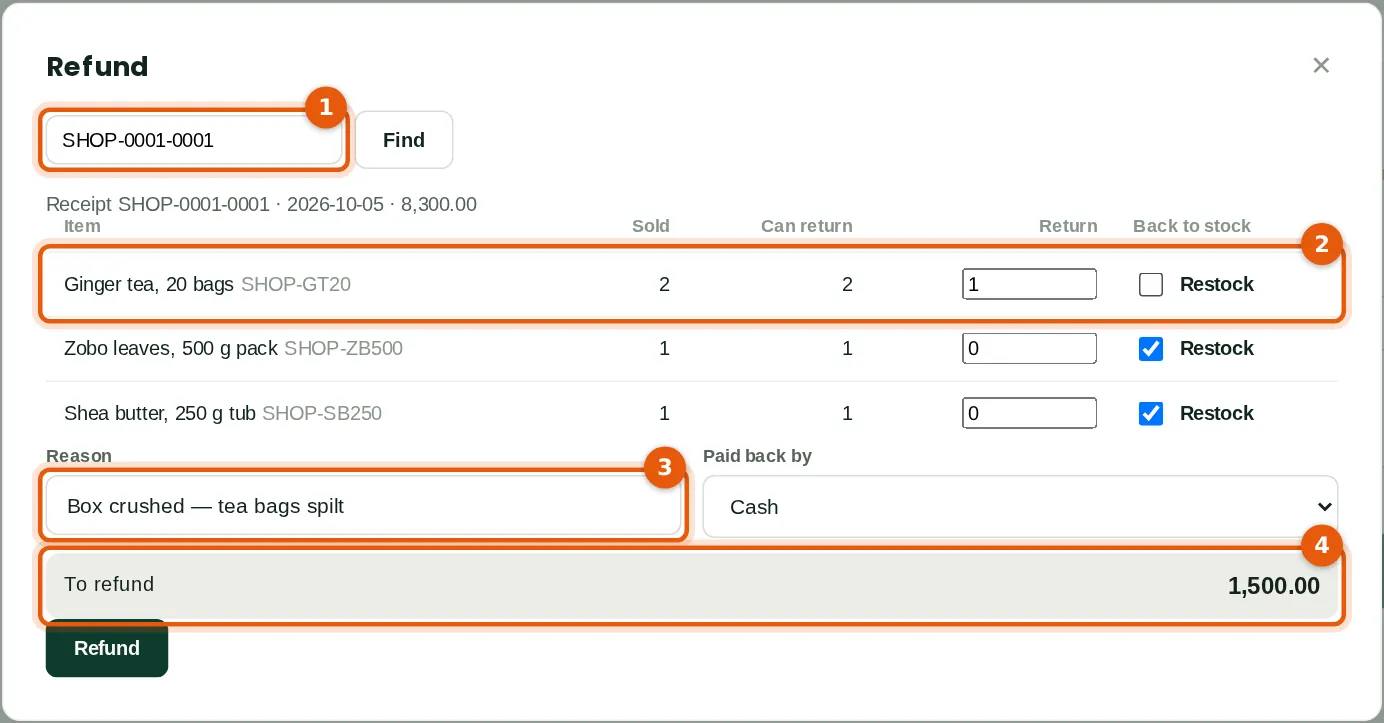
At 13:50 the morning's first customer brings back a box of ginger tea that was crushed. Halima finds the receipt (1) — the number is on the printed receipt, or search Receipts. She returns one box (2) and leaves Restock unticked because it cannot be resold, so its cost goes to cost of sales; ticked items go back into the shop's stock. The reason (3) is required. The refund (4) is the line's share of what was paid, including VAT, ₦1,500, paid back in cash. A receipt can be refunded in parts, up to what was sold.
Who
Cashier where the till allows refunds; otherwise a shop supervisor.
What to do
- Click Refund. Type or scan the receipt number and click Find (1).
- Type the quantity to return on each line and tick Restock for items that go back on the shelf (2).
- Type the reason (3), choose how the money is paid back, check the amount (4) and click Refund. Print the refund receipt.
29.11 Cash in and out of the drawer
Why
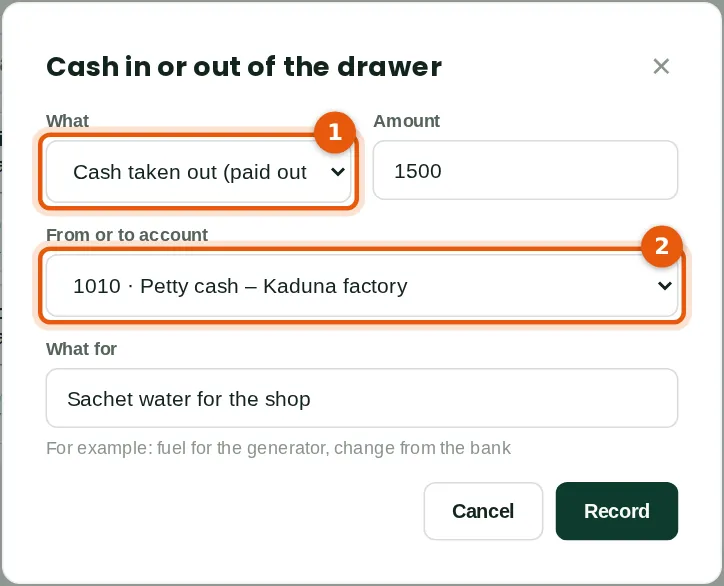
Halima takes ₦1,500 out of the drawer (1) to buy sachet water for the shop. On this till cashiers may move cash only to or from petty cash (2), so the cash goes to petty cash, where the receipt for the water is entered as a petty cash payment in the usual way (chapter 8). A supervisor could post it straight to an expense account. Cash in works the same way, for example change brought from the bank. Every movement is counted in the cash expected at the close.
Who
Cashier (to or from the till's petty cash account); shop supervisor (also bank, expense and other income accounts).
What to do
- Click Cash in / out. Choose in or out (1), type the amount, choose the account (2), say what it is for and click Record.
29.12 Count the drawer and close
Why
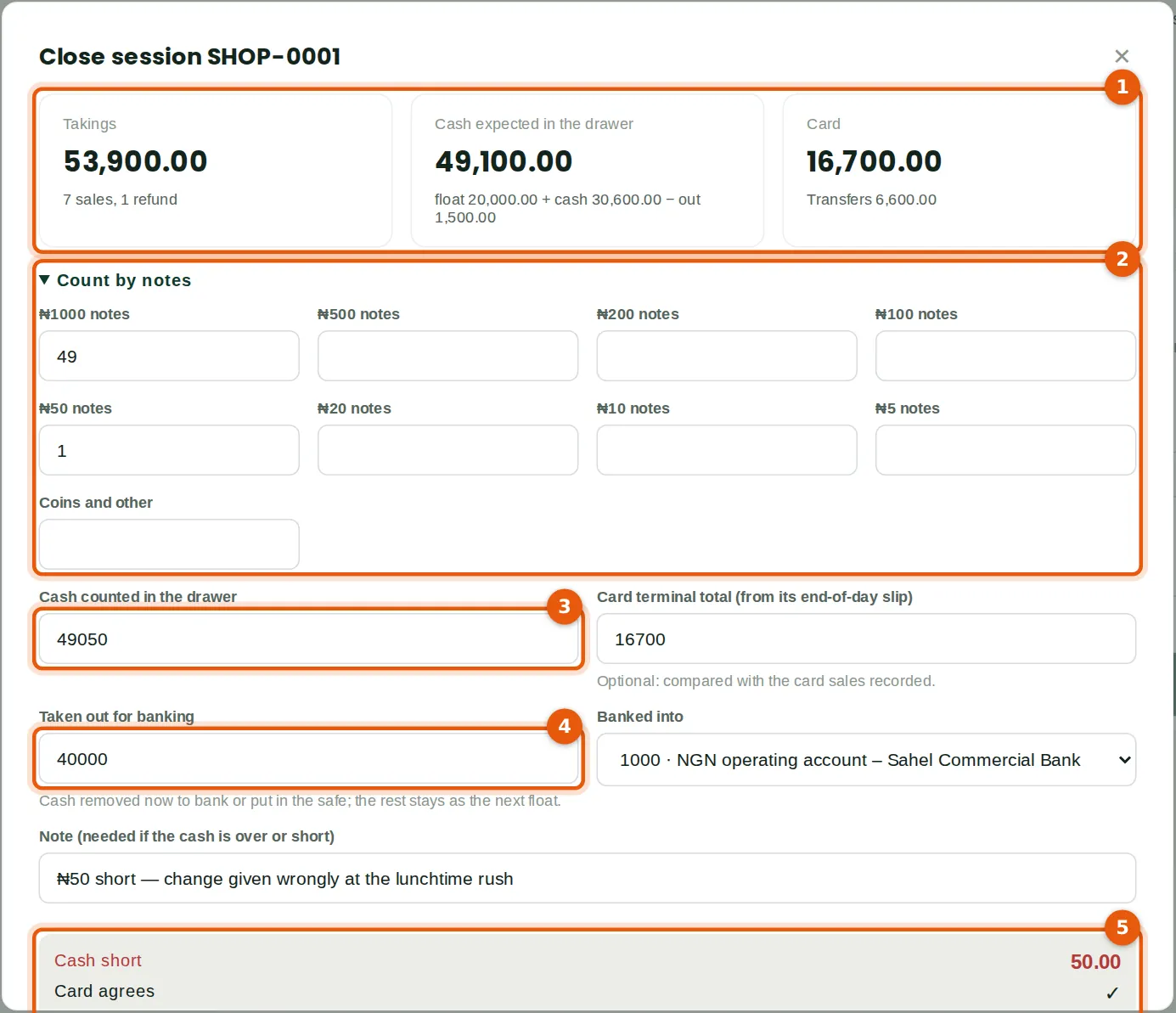
The day's figures (1): takings of ₦53,900 from seven sales and one refund; cash expected in the drawer of ₦49,100 (the ₦20,000 float plus ₦30,600 cash taken less the ₦1,500 paid out); card ₦16,700 and transfers ₦6,600. Halima counts by note (2), which adds up the cash counted (3): ₦49,050. She takes ₦40,000 for banking (4) into the NGN operating account; the rest, ₦9,050, stays as tomorrow's float. The result (5) shows the cash ₦50 short, so a note is needed. The card terminal's end-of-day total agrees. If sales made offline have not yet arrived, BookTrove says so: wait for the device to reconnect, or a supervisor can close without them, and they are recorded in the till's next session when they arrive.
Who
Cashier who opened the session, or a shop supervisor.
What to do
- Click Close session. Count the cash by note (2) or type the total (3).
- Type the card terminal's total from its end-of-day slip, the amount taken for banking (4) and where it goes.
- If the cash is over or short (5), explain it in the note. Click Close session.
29.13 The Z report and the journal
Why
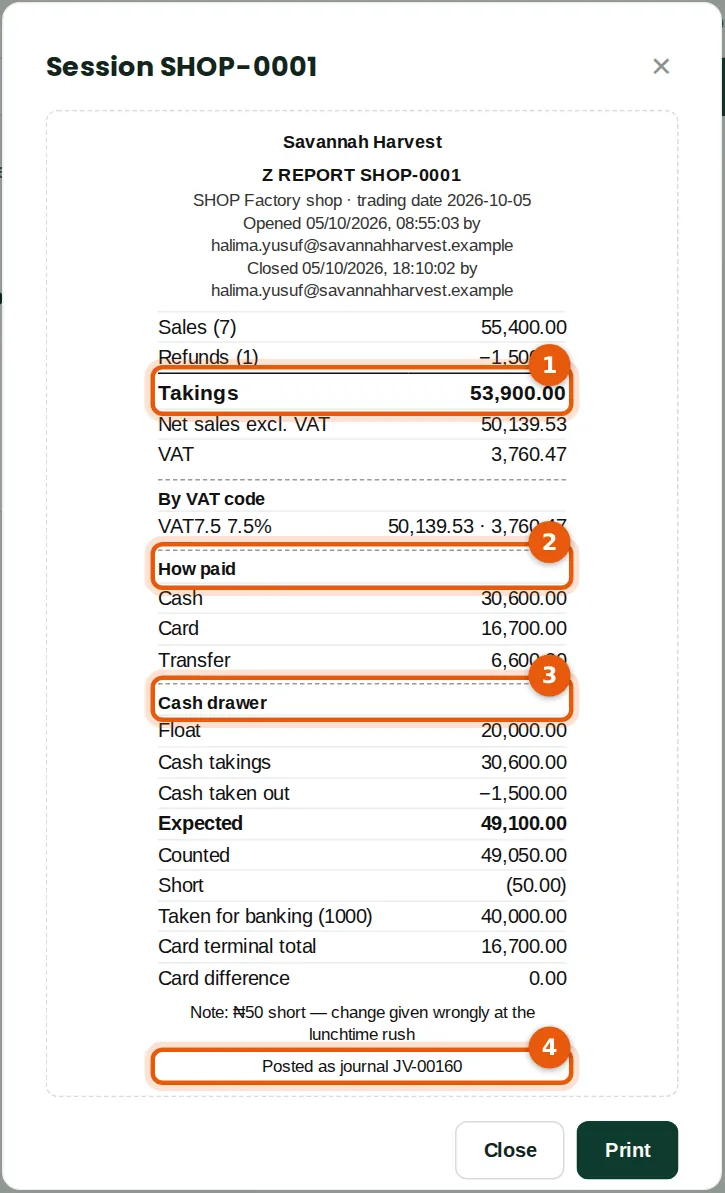
The Z report is the day's summary: takings (1), VAT by code, how it was paid (2), and the cash drawer from float to banking (3), with the note. The session is posted as journal JV-00160 (4): Dr till cash ₦30,600, card settlements ₦16,700 and the bank ₦6,600 for transfers; Cr sales ₦50,139.53 and output VAT ₦3,760.47; Dr cost of sales and Cr inventory ₦27,350; Dr petty cash and Cr till cash ₦1,500; Dr cash over and short ₦50; and Dr bank, Cr till cash ₦40,000 banked. The ₦40,000 is then matched to the bank statement like any deposit (chapter 8), and card settlements are cleared when the card company pays.
Who
Cashier, shop supervisor, accountant.
What to do
- Click Print to print the Z report for the shop's file. An open session's X report (from Sessions) shows the same figures so far.
29.14 Sessions and receipts
Why
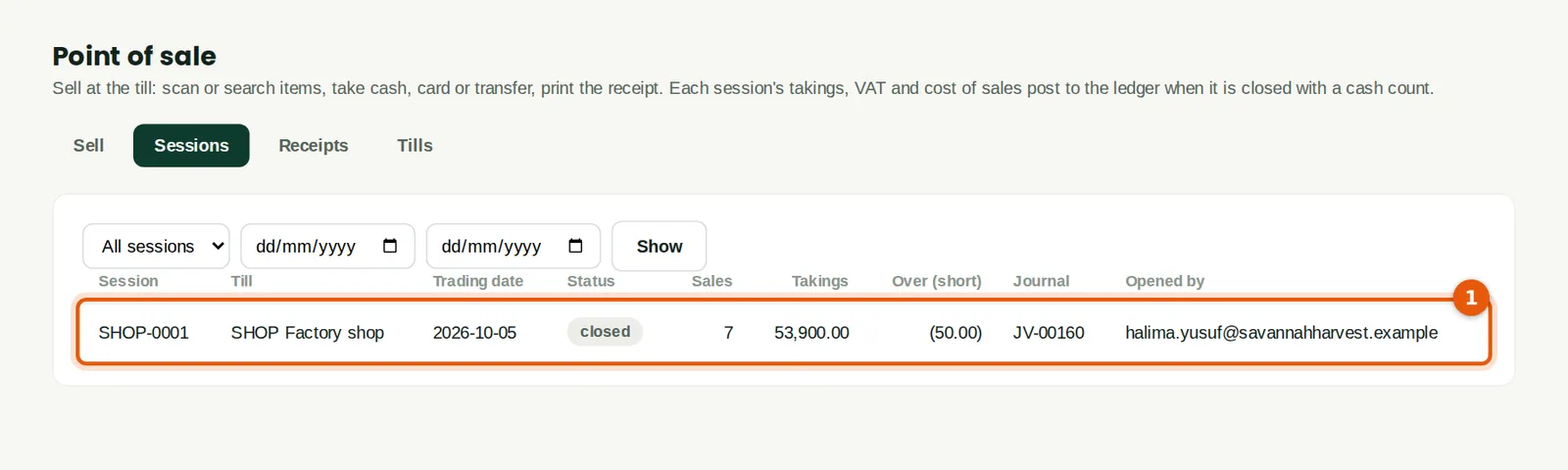
Sessions lists each trading day per till, with its takings, cash over or short and journal (1). Click one for its Z report (or X report while open). Receipts finds any sale or refund by number, date or till; a shop supervisor can void a sale in a session that is still open — it is reversed in full, stock included, and stays on the list marked voided. After the close, correct with a refund. Book health warns of a session left open for more than a day.
Who
Point of sale at View level and above; accountants.
What to do
- Open the Sessions tab and click a session, or the Receipts tab to find a sale.
29.15 Point of sale reports
Why
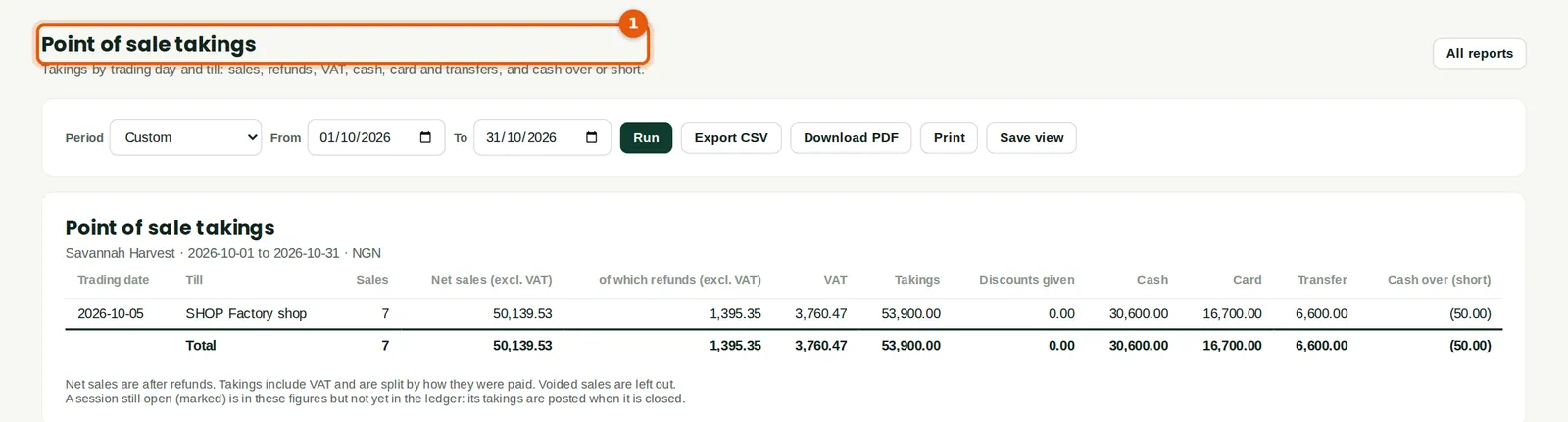
Point of sale takings (1) gives each trading day and till: sales, refunds, VAT, takings, discounts, cash, card and transfers, and cash over or short. Point of sale — sales by item gives quantities sold and returned, revenue, cost and margin per item. Point of sale sales also appear in Sales by item — profitability once their session is closed. At the month end the checklist checks that every session in the month is closed.
Who
Shop supervisor, accountant, reports users (cashiers see takings only).
What to do
- Open Reports → Receivables & sales → Point of sale takings, choose the period and click Run.